By Jason Vaught
Manufacturer: AORUS Pte. Ltd.
Product Name: Thunder K7
Model Number: GK-THUNDER K7
UPC: 818313020826 EAN: 4719331548346
Price As Tested: $149.99 (Amazon | NewEgg)
Full Disclosure: The product sample used in this article has been provided by AORUS.
Ever heard of the brand AORUS? I hadn’t until this review, but I bet you’ve heard of the parent company, Gigabyte. That’s right, AORUS is Gigabyte’s gaming brand. The company currently makes a gaming keyboard, gaming mouse, some gaming laptops, and accessories such as the B7 gaming backpack. But don’t let the relatively new company name “AORUS” fool you, these products carry the Gigabyte quality we’ve all come to know and appreciate. In this article, Benchmark Reviews tests the Gigabyte AORUS Thunder K7 cherry mechanical keyboard with detachable macro pad.
What is the main reason in spending money on a “gaming” keyboard? With membrane based gaming keyboards, your purchase depends mainly on features that you can only utilize during gameplay. But with a gaming mechanical keyboard, your priorities in performance to value are more broad. You’re looking for a long life keyswitch that offers tactile feel and a comfortable typing experience as well. This is the main goal of the AORUS Thunder K7 Mechanical Gaming Keyboard, to give you a very comfortable typing & gaming experience at a decent price. Does AORUS live up to their own goals and expectations? Let’s find out.

The best and, in my opinion, only way to test a keyboard is to simply use it! I’ve been utilizing this wonderful peripheral for over 60 hours now. I’m currently using it to type this review, as well as for all my gaming (including Diablo 3: Reaper of Souls, Battlefield 4, Battlefield 3, and World of Tanks to name a few).
Specifications from AORUS’s Website:

The AORUS Thunder K7 Mechanical Gaming Keyboard is marketed as a multi-configuration keyboard. Utilizing magnets and gold plated contacts, the keyboard can be set up in a configuration that best suits your needs. This is a unique and rarely seen feature in the keyboard arena. AORUS breaks this down into 4 configurations, 1) Standard: Keypad on the right, 2) Gaming: Keypad on the left, 3) 80% Stand-alone: no keypad use at all (often referred to as “tenkeyless”), and 4) 20% Macro Gaming: Using the keypad only.

The AORUS Thunder K7 is packaged in a very, very large box. The individual pieces are separately encapsulated into a poly-foam mold with a clear plastic cover. Included in the box is the keyboard, keypad, detachable wrist rest, detachable keypad cable and the user manual. No software is included, but can be downloaded from AORUS’s website here at the bottom of the page.

Once you’ve unwrapped the keyboard, you have a number of configuration options. Above I’ve set it up in the standard 80/20 option with the wrist rest attached. The keypad and wrist rest are secured with magnets from both sides. The magnets themselves are not very strong, which is not a problem for the wrist rest but can have issues for the keypad if you don’t have it on a level surface.

Another setup option is to attach the keypad cable to the keypad itself and not to the keyboard, this is known as the 20% configuration. AORUS cautions that you do not use the cable and attach it to the other side of the keyboard as this will cause “system failures”. The detachable keypad cable is also held with magnets. Given the size of the available surface area of the cable, this proves to be a semi non-secure fit. The cable’s magnetic connector is too weak to maintain a strong connection but if you can avoid bumping the plug, it will work just fine.

The above setup is the “Gaming Mode”, with the macro keypad on the left of the keyboard. This mode proves to be quite effective when utilizing macro keys or if you need a lot of surrounding keys such as in MMOs. This setup works perfectly fine so long as you have it on a level surface. Uneven surface conditions could result in the keypad becoming disconnected from the main keyboard and render it nonfunctional.

As you can see above, there is a small groove and four gold contact points for the keypad to make contact with the main keyboard. This connection is secured solely by magnets. If the magnets were a bit stronger this would be a very secure and convenient method of attaching the keypad. Unfortunately the keypad can become disconnected quite easily when on an uneven surface.

The AORUS Thunder K7 utilizes Cherry MX Red switches. Cherry MX Red switches are essentially the same as a Cherry MX Black switch, in that they are completely linear and have no tactile “bump”. This is a preferred feature for first person shooter games. The only difference between a Cherry MX Red and a Cherry MX Black is the amount of force it takes to press the switch. The Cherry MX Reds typically takes 45g of pressure whereas the Cherry MX Blacks typically take 60-80g of force to press the key. The lower pressure of the Reds can sometimes result in easier typos based on the lower resistance of the switch and the non-tactile characteristics of these switches. If you’re used to Cherry MX Blue switches, like I am, then the switch to Reds is quite dramatic. However, my online gaming friends do appreciate not being able to hear me type anymore as the Reds are quite a bit quieter as well.
The AORUS Thunder K7 is the world’s first mechanical keyboard featuring a mechanical keypad. It also has, in my opinion, the best detachable wrist rest I’ve ever used. Most detachable wrist rests use plastic guides or connectors, whereas the Thunder K7 uses magnets! The large surface area of the wrist rest makes great use of the small magnets within them. This keyboard has magnets on the main keyboard, the keypad, and on the wrist rest itself, making for a solid connection.
The backlighting on the AORUS Thunder K7 is quite even and has adjustable brightness settings including an on/off option as well. To use the on/off function, you simply press the wheel itself as a button.

The AORUS Thunder K7 Keypad also has it’s own illumination that can be brightness controlled with an on/off function as well. To use the on/off function, you simply press the wheel itself as a button.

The AORUS Thunder K7 features alternate function F-keys. While pressing the FN key and one of these keys, it will bring up the corresponding program/function, providing you quick access to your default browser’s homepage, Google, Facebook, Twitter, your default mail client, task manager, calculator, and your music folder. The F9-F12 keys control your music player.
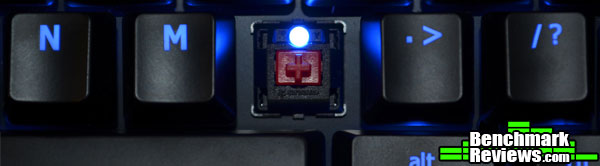
As I mentioned in the overview, the AORUS Thunder K7 utilizes Cherry MX Red switches with a blue LED located above each switch. The Cherry MX Red switches are purely linear and lack a tactile “bump” found in the Browns and Blues. The Cherry MX Red switches are a close cousin to the Cherry MX Black switches, except they require less force to depress.
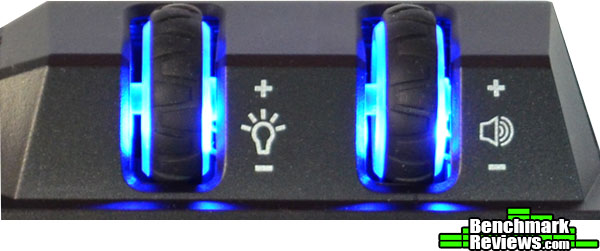
Above the left side of the main keyboard, are two wheels, once controls brightness (and the on/off function by press the wheel as a button) and one controls speaker volume (and a mute function by pressing the wheel as a button). These wheels are also illuminated for easier reference while in a dark room. I know what you’re thinking, since when do we game in the dark?!
The software that is downloaded from AORUS’s website for the Thunder K7 is specifically for the detachable keypad/macro-pad. The software allows you to set up profiles for different games with different key bindings and 100 custom macros. It gives you a visual representation of what profile you’re on by changing the color of the word “AORUS” written up at the top as you can see below.
Each color represents a specific profile and a specific set of key bindings for your keypad/macro-pad. The default profile lighting is blue and has a “breathing effect” to it.

In the settings menu of the software, you can control the enabling and disabling of profiles, the LED breathing effect and the on/off functionality of the “AORUS” selectable profiles indicator light on the keypad.

Here is an example macro execution, with this software you have options to have the keys execute once, loop mode (it will continue to loop the macro until the key is pressed again) or fire mode and have the macro key continually perform the macro until the key is released. You also have the ability to record time delays, mouse cursor placement at the time of execution, press and hold keys, when to release keys. Add in the ability to make 100 different macros and this software becomes truly spectacular.
The key-mapping part of the software is simple and straight forward, allowing you to set up your customized keys for any of the 6 selectable profiles.

This screen is the default that you see when the software opens, it gives you a visual representation of your current configurations for each key under each profile.
As I previously stated, the best way to test a keyboard is to simply use it, but there is another feature that we can test for accuracy, NKRO (N-Key Rollover). During normal typing on a membrane or “squishy” keyboard, only one key can be pressed at a time, with the exception of modifier keys (Shift or Control). With N-Key Rollover each keypress is correctly detected regardless of how many other keys are being pressed or held down at the same time. This is especially useful when gaming on keyboard heavy games. We’ll be utilizing Aqua’S KeyTest software to test this.
-
Motherboard: ASUS Sabertooth Z87
-
System Memory: Corsair XMS3 4GB x 4
-
Processor: Intel i7-4770K Haswell @ 3.5 Ghz
-
Audio: On-board
-
Video: XFX Double Dissipation R9-290X (4GB)
-
PSU: Corsair HX Series 1000HX
-
Monitor: Dell UltraSharp U2412M IPS 24″ x 3 @ 5760×1200
-
Operating System: Windows 7 Ultimate (64-bit)

As you can see, there was no problem with multiple presses on the keyboard. The remarkable part about this test is that it achieves this with absolutely no software on the PC and through USB, whereas most other keyboards need a PS/2 connection to achieve this.
Although there are one or two other companies out there who offer a modular keyboard, the AORUS Thunder K7 stands out from the crowd with it’s lighting and the use of magnets as the primary restraint system. That being said, the magnets need to be much stronger for this to be a truly epic keyboard. The lack of resistance when detaching the keypad makes it very easy to accidentally bump and disconnect the keypad. Uneven surfaces can do so quite easily when your typing or hacking away at the keyboard.
 ,,,,,,,,,,,,,,,,,,,,,,
Overall the AORUS Thunder K7 is quite impressive, the finish on the keys themselves is quite nice and would last through heavy usage. The Cherry MX Reds, while they’re not my favorite, are very smooth and quiet.
The AORUS Thunder K7 is a well performing keyboard, featuring anit-ghosting full N-Key rollover across every zone of the keyboard. When using it as a tenkeyless board, it’s a solid performer. The keypad itself, features a plethora of macro keys and it’s own backlighting with multi-profile support. The Cherry MX Red keys were pleasantly quiet and it did not take long for me to get used to them over the Cherry MX Blues that I’m familiar with.
The Thunder K7’s appearance is that of most mainstream mechanical keyboards, featuring UV coated keycaps and a matte black on the plastics. The backlighting is nice and evenly distributed, although it would be nice if your could change the colors of all the lighting, but that’s just me nitpicking.
The construction of the K7 is a little bit lighter than it’s competitors, but it doesn’t feel less sturdy. Other mechanicals have quite a bit of heft to them, usually from a steel plate running on the bottom of the keyboard. Regardless of the weight difference, the K7 feels very sturdy.
Functionality is where I have to drop some points for my review, as the keypad would easily loose connection if it was seated just exactly right. Slightly uneven surfaces cause the biggest problem for the connection, but beefier magnets would help tremendously. In tenkeyless mode it performs without problems, but without a detachable cord, this may make it unappealing to some LAN gamers.
Value is very subjective, while I may understand why mechanical keyboard such as the AORUS Thunder K7 have a heftier price tag, others may not. It really depends on what features you consider important and worth your money. To me the pricing of the AORUS Thunder K7 falls right into the “mainstream” category with it’s mechanical counterparts for $149.99 (Amazon | NewEgg). Throw in the fact that this is the first mechanical keyboard to feature a detachable mechanical keypad/macro-pad, and the AORUS Thunder K7 becomes an excellent value.
I would recommend this keyboard to any gamer who can truly utilize the keypad/macro-pad being on the left side of the board or in a detached mode. LAN gamers love the tenkeyless boards and this one would fit that bill nicely as well. Although the Cherry MX Reds can be considered a turn off, they actually proved to be better than expected. If you’re a fan of Cherry MX Blacks, then making the switch between the two would have little difference to you. If you’re used to Cherry MX Blues, then the switch is a little more dramatic in terms of losing your tactile “bump” that you’ve grown accustomed to. All in all the AORUS Thunder K7 Gaming Mechanical Keyboard is quite innovative and houses an abundance of features. It has so many configurations that it can easily evolve and adapt as your needs arise.
+ Cherry MX Reds
+ Backlighting
+ Media Controls
+ Quick Access Functions
+ UV Coated keycaps
+ Detachable Wrist rest
+ World’s first detachable mechanical keypad/macro-pad
+ On-board memory for profile storage
+ 100 Programmable Macros
+ 6 Custom Profiles
– Magnets are a little weak
– Cherry MX Reds not for typing enthusiasts
– No additional USB ports as seen in other mainstream mechanicals
– Only one color option for backlighting
– Non-detachable cord for the main keyboard
– Lack of additional switch offerings
-
Performance: 9.50
-
Appearance: 9.50
-
Construction: 9.00
-
Functionality: 9.00
-
Value: 9.00



One thought on “AORUS Thunder K7 Gaming Keyboard Review”
Hey,
Do you guys customize keyboard on request.
eg: Couple of button need to add for specific function, Controlling mic volume, mic control on/off , mute etc… speaker volume.. LED On or special condition etc.
Thanks in Advance.
Regards,
Anand
Comments are closed.