By David Ramsey
Manufacturer: Corsair Components, Inc.
Product Name: Obsidian 250D
Model Number: CC-9011047-WW
UPC: 843591046398 EAN: 0843591046398
Price As Tested: $89.99 (Newegg | Amazon)
Full Disclosure: Corsair provided the product sample used in this article.
Corsair introduced their new Obsidian line of cases with the full-tower 800D; they’ve since expanded into the super-tower market with the 900D, added the 750D to the full-tower lineup, addressed the mid-tower market with the 550D and 650D, and the micro-ATX market with the 350D. Their latest case, the Corsair Obsidian 250D, brings the design and versatility of the Obsidian line to the mini-ITX field.

The 250D shares the basic design of the Obsidian line, with a brushed aluminum faceplate, plastic front bezel, and black steel case body. It’s much larger than most mini-ITX cases, and there’s a reason for that: it’s designed to support a 240mm liquid cooling system.
Features & Specifications
| Warranty | 2 years |
| Dimensions | 13.8 x 10.9 x 11.4 inches (depth x width x height) |
| MB Support | Mini-ITX |
| Slots | 2 |
| Material | Black steel and anodized black aluminum front fascia |
| Drive Bays | (2) 3.5”/2.5” drive bays (2) 2.5” drive bays (1) 5.25” optical drive bay |
| Cooling | Front: 200mm, 140mm (140mm included) Side: Dual 120mm (single 120mm included) Rear: Dual 80mm (optional) |
| Front I/O | (2) USB 3.0 (1) Headphone (1) Microphone |
| Power Supply | ATX |
Let’s see what this case is all about…
While the Corsair Obsidian 250D mini-ITX computer case is indeed a mini-ITX case, it’s a rather large and chunky mini-ITX case. Check out how it appears next to one of my favorite mITX cases, the Cooler Master Elite 120:

Both cases have a full-sized 5.25″ bay and accept standard ATX power supplies. Why is the Obsidian 250D so much larger?

The front view shows us a brushed aluminum faceplate, the USB 3.0 and audio ports, and the very subtle power and reset switches to the left of the 5.25″ bay.

Both sides of the case have these large filtered vents. For this side, it means a good supply of cool outside air to your graphics card.

At the rear of the case, we can start to see some interesting things. The ATX power supply mounts below the motherboard, and there are mounts for two 80mm fans above the motherboard. Note that the space above the motherboard is limited compared to a full tower case; “big air” coolers aren’t going to fit. Corsair doesn’t specify the clearance for a cooler, but I measured it at about 140mm.
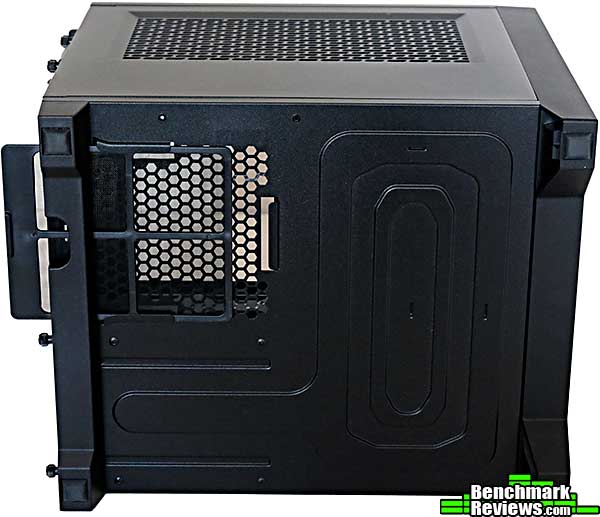
At the bottom of the case, there’s a pull-put, fine mesh filter for the power supply air intake.
Let’s continue our look at this case in the next section.
Both side panels of the Corsair 250D feature fine-mesh filters that attach magnetically. Remove the panel, pop out the filter, blow it out, drop it back into place.

Although it’s not obvious when the computer is off, the power and drive activity LEDs are incorporated into the power button at the upper left of the case.

As with other cases in the Obsidian line, the aluminum-faced front panel releases with a push of the spring latch in each upper corner. Once the front panel is off, the fine-mesh filter pops out for cleaning, revealing the 140mm intake fan behind it. There are mounting points for 120mm and 200mm front fans as well if you want to replace the included fan.

A minimal but complete accessories package includes a multi-lingual manual, four zip ties, and several unlabeled bags of screws.

What’s it like on the inside? Let’s find out…
The top panel and both side panels are all separate; each is secured with two thumbscrews. Looking down into the case with the panels removed, we see the motherboard tray (with a large hole you’d expect in a tower case for access to a CPU cooler backplate, but it seems odd here since the motherboard tray can’t be removed and there’s no access to the back of it), as well as the removable tray for a 5.25″ device.
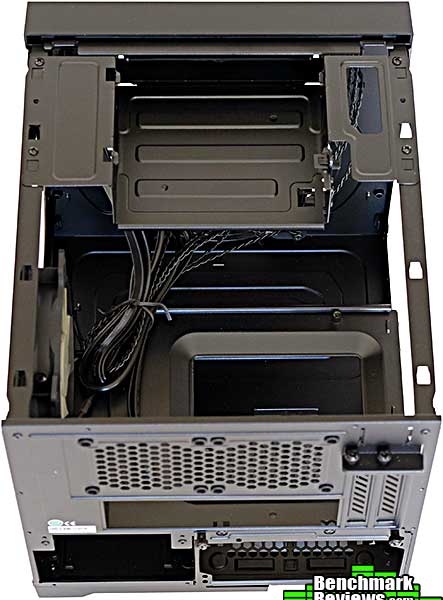
The left side of the case is completely open except for part of the power supply housing.
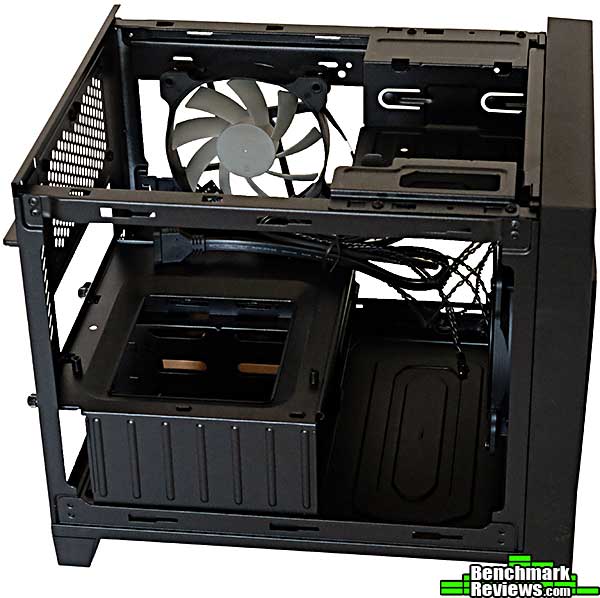
The right side of the case is the interesting part: although Corsair includes a single 120mm exhaust fan here, with space for another, you’re not going to use fans here. What this is really designed for is a mount for a 240mm radiator.

If you were wondering about that odd little area to the left of the power supply at the rear of the case, the mystery is revealed: it’s where you insert your disk drives. Corsair includes two 3.5″ drive sleds and two 2.5″ drive sleds. Drives will snap into place without screws except if you use 2.5″ drives in the 3.5″ sleds, in which case you will need to use screws to attach the drive.

OK, it’s time to get down to business. Join me in the next section as I transplant my Hackintosh from its existing case into the Corsair Obsidian 250D
First, I installed the power supply. Although the case with easily accommodate a full-sized ATX power supply, I used Silverstone’s modular ST45SF-G. As with the NZXT H440 case I recently reviewed, the non-removable power supply enclosure makes reaching in to attach modular cables difficult, so plug in the cables you expect to need before installing the power supply. An ATX power supply might actually be easier to deal with since the cable connectors would be easier to reach.
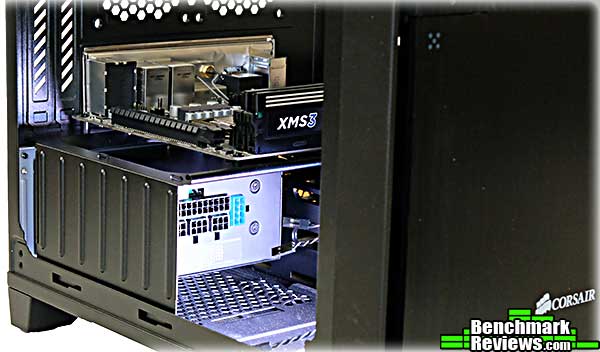
With all four motherboard standoffs pre-installed, it takes just a minute to mount the motherboard.
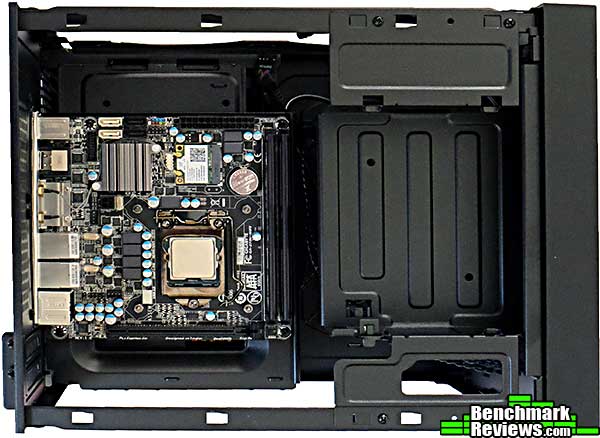
There are four slide-in tool less drive caddies: two for 2.5″ devices and two for 3.5″ devices (you can use 2.5″ drives in the larger caddies, but you must attach them with screws). Here I’m using two 2.5″ devices and one 3.5″ backup drive. The caddies place the drives very close together, and you probably won’t be able to use a standard multi-connector SATA power cable since the “bend” required to attach connectors to adjacent drives is too severe. I used a Molex-SATA adapter with two “straight” connectors.

As with some other cases, the design of the Obsidian 250D requires you to slide in 5.25″ devices from the front. You can’t remove the tray, install the device, and then put the tray back in the case, since the front bezel of your device won’t fit through the case opening from the rear.

And that’s a pity, because instead of the more secure locking mechanism Corsair uses on most of their other cases, the min-ITX 250D uses this single, rather flimsy latch that engages only one of the four possible mounting points of your device. You can’t use screws to secure the device to the tray since that would require removing the tray, which in turn would require re-installing the tray with the device in it, which won’t work as I noted above. The end result is a 5.25″ device that’s loose and moves noticeably when you touch it.

The inside of the case has lots of tie-down points. You’re going to want to use them, since the design of the case leads to a lot of cable clutter in the front. This images also shows how much clearance you’ll have in front of an NVIDIA GTX780 video card. Which is to say: lots.
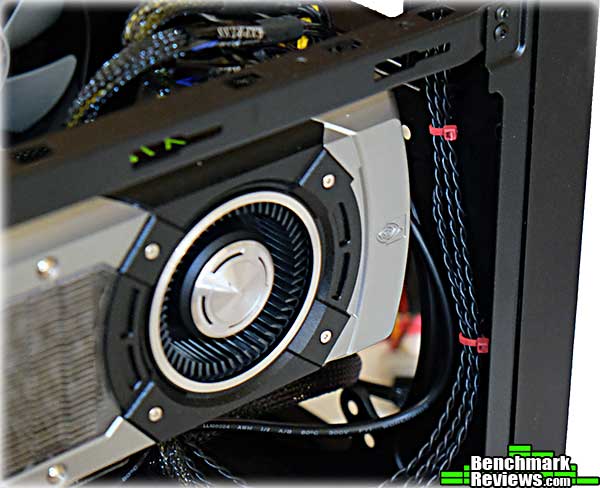
I have a nice new Corsair H100i 240mm water cooling system to install next.
When I first installed the H100i, I ran into an unpleasant surprise: severe interference of the motherboard with one of the coolant hoses. As you can see, the lower hose is pressed quite hard against a motherboard I/O port housing.

While the system would work, I didn’t think it would be a good idea to leave a vibrating rubber hose pressed so hard against the sharp metal edge of the I/O port. Flipping the radiator so that the hoses were at the front precluded the use of both the front fan and 5.25″ drive tray. Corsair’s own publicity photos show this cooling system installed, so I was obviously doing something wrong. What was it?
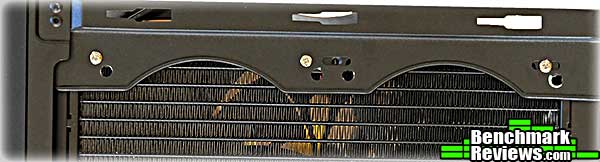
Aha! The trick is don’t use the same mounting holes you’d use for the fans. Instead, use the mounting holes slightly above and to the left of those as shown here. This moves the radiator and its hoses just far enough so that the hoses aren’t touching the I/O port. Corsair should point this out in the manual.

The Gigabyte GA-Z77N motherboard really isn’t the right choice for this case, because most of its connectors are on the side of the board, right up against the radiator and fans. These include the four SATA ports, the main ATX power connector, the front panel header, and the USB 2.0 header. With some judicious cable routing and liberal use of zip ties, I’ve managed to keep the wires out of the fans (I tried adding fan grilles, but there’s no clearance available between the edge of the motherboard and the edge of the fans– they wouldn’t fit.) and keep things just neat enough so that I’m not too embarrassed of the view through the windowed top of the case. I was able to route all four SATA cables out through the bottom of the motherboard tray under the radiator, and along the side of the case to the drives. This did require a long cable to reach the optical drive.
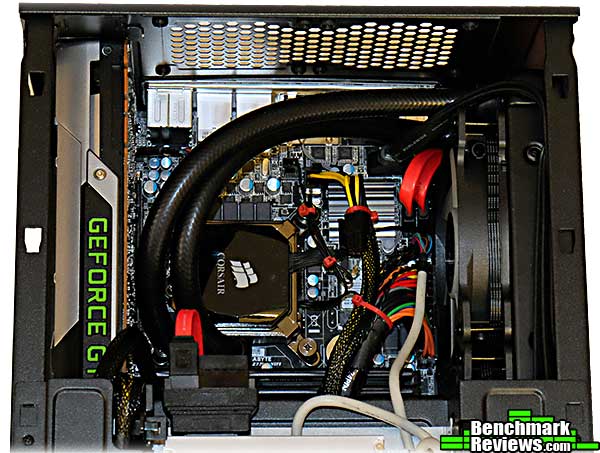
OK, everything’s installed and ready to go. Overall this was a reasonably easy build, with the only real problem (aside from the radiator mounting) being dealing with the tangle of cables at the front of the case, below the 5.25″ tray. Here’s a hint: remove the front fan during the build and you’ll have a nice large access hole at the front of the case that will make things a lot easier. Re-install the fan at the very end of the build.
 If I were building a system from scratch, I’d choose a motherboard that positioned its connectors at the front edge, like the ASUS Z87I-Deluxe. This would make it a lot easier to have a neat build that would look good through the case window.
I’ll present my final thoughts and conclusions in the next section.
On the box for the 250D, Corsair says “If you want to build a Mini ITX system without compromising expansion, flexibility, or performance, the Obsidian Series 250D is your answer.” And this is in fact true: you will not compromise expansion, flexibility, or performance. But you will compromise size. Mini ITX is all about “small systems”, and the 250D is easily the largest mITX case I’ve seen. It’s large enough to be clumsy to carry under one arm, so if you’re a LAN party type, this might not be the best case for you.
However, it is the only mITX case I’ve seen that can accommodate a full-size GPU, full-height 5.25″ device, four drives, and a 240mm radiator all at once. There have been other cases that can handle a subset of this– the Bitfenix Prodigy comes to mind– but you generally have to make choices about which features are the most important to you. In the case of the Prodigy, for example, you can have a top-mounted 240mm radiator or a 5.25″ device, but not both.

So this case can hold more than its competitors, but an unavoidable consequence of this is size: if you want all this hardware, then you have to have a place to put it. And some of the space, like the space under the 5.25″ drive tray, serves to make building easier and provide a place for cable clutter.
It’s apparent that case vendors see high performance, overclocked mITX systems as a wave of the future in the enthusiast community, since others are following suit with their own “jumbo” mITX products.
That said, in my opinion, there’s one reason to buy this case: you want to build an mITX system with a water cooler sporting a 240mm radiator. If this isn’t at least your eventual goal, there are smaller and less expensive cases out there.
The Obsidian 250D mini-ITX case completes Corsair’s Obsidian line, which now offers cases for mini-ITX, micro-ATX, ATX, and larger ATX variants with 8 different cases to choose from. The 250D is the only min-ITX case I know of on the market that can accommodate a full-height 5.25″ device, a large GPU, a 240mm radiator, and up to four drives, all at once.
This is one of the highest performing mini-ITX cases available– if you build with a 240mm radiator. That, combined with the front fan and filtered intake for the GPU, ensures that your CPU, GPU, and drives will all be kept cool.
The appearance of the 250D is a little unusual, if only for its width. The minimalist black aesthetic of the Obsidian line is on full display, but the top case window offers a nice display of the interior.
The construction quality of the case is up to Corsair’s usual standards, with the single exception of the flimsy 5.25″ latch mechanism.
This is the most functional mini-ITX case I’ve ever used. Yes, it’s a large case, but it uses the space well, with the ability to house a 240mm radiator, 5.25″ optical drive, and four other drives all at once, rather than requiring you to pick and choose as some other mITX cases do. The four fine-mesh air filter help keep the inside of your system clean, too.
You can buy the Corsair Obsidian 250D mini-ITX computer case for $89.99 (Newegg | Amazon). While this is a high price for a mini-ITX case, it’s in line with other “enthusiast” mini-ITX cases like the Bitfenix Prodigy. Considering it offers more functionality, you’re getting a good deal for your money.
If you want to build a high performance water cooled mini-ITX system, and have yet to let go of the need for optical media, this is your case.
+ All air intakes filtered
+ Most functional mini ITX case yet
+ Accommodates four drives, ATX power supply, and 5.25″ drive without requiring you to pick and choose which you want
+ Easy to build in
– Flimsy latch mechanism for 5.25″ bay drive
– No documentation on radiator mounting
– Very large for a mini ITX case
-
Performance: 9.75
-
Appearance: 9.00
-
Construction: 8.75
-
Functionality: 9.75
-
Value: 9.00


6 thoughts on “Corsair Obsidian 250D Mini-ITX Computer Case Review”
In this review, you mention that all the intake areas have filters. My question is, does the rear area that have openings for two 80 mm fans also have a magnetic filter?? If not, should that have been considered a negative?
There are no filters for the two 80mm fan positions. This isn’t a negative since you normally mount exhaust fans in that position.
I have yet to see “ONE” review where anyone mounted the 80 mm fans, most like you used the Corsair H100i for cooling.
Corsair should have realized that most people would not mount the 80 mm fans and supplied a filter. Without a filter here, the other filters are almost useless, as you have a wide area for dust to enter.
I wouldn’t say the other filters are “almost useless”, since the front fan will move a significant amount of air through its filter, as will the intake fan(s) for a GPU card. In fact there’s noticeable dust on both of these filters in my Hackintosh, which has been running in that case a couple of weeks now.
Still, you have a valid point about air entering through the 80mm fan mounts. That said, I’m not sure how much of a problem it will be in my particular build, since I think any air coming through that part of the case will be sucked right into the radiator and sent back out. Right now the motherboard and radiator are not noticeably dusty, so perhaps it won’t be an issue.
The fan mounts are easy enough to cover with duct tape if it really bothers you.
FWIW, I can’t find any (i.e. “not in the first two pages of Google results”) other reviews using the H100i. AnandTech, Overclock3D, Guru3D, Bit-tech.net, Hexus, Legit Reviews, Overclocker’s Club, and tech report.com all used air coolers. In fact that only other review that I can find that used liquid cooling was HardOCP, and they used a 120mm radiator. So while some other site may have used an H100i, I’m pretty sure it’s not “most” of them.
Point taken on the H100i, I should have said most reviews included, a liquid cooler and some used air as well. I stand corrected.
Ok, I know it’s been two years since this review, but owning this case, I will be glad to know which components were used in the 5.25″ case slot ?
It seems to be a 5.25 rack with a slot for slim optical drive and 2.5″ rack ? Brand ? Model ? Thank you !
Comments are closed.