By David Ramsey
Manufacturer: PAPAGO, Inc.
Product Name: P3 Dashcam
Model Number: P3-US
UPC: 840494116302
Price As Tested: $159.99 (B&H | Amazon)
Full Disclosure: PAPAGO! Inc. provided the product sample used in this article.
Do you need a dash camera? They’re quite common outside of the United States (especially in Russia). These small digital video cameras attach to your windshield or dashboard and continually record video as you drive. Their main purpose is to provide evidence in case of an accident,
The PAPAGO! P3 Dashcam is the company’s top-of-the-line dashboard camera unit, with many extra features beyond just recording what it sees out the windshield. Its Advanced Driver Assistance System (ADAS) includes Stop and Go, LDWS (Lane Departure Warning System) and FCWS (Front Collision Warning System), as well as a number of other capabilities.

Unlike many other Dashcams, the P3 comes equipped with a screen, which can display either the real-time video as it’s being recorded, as well as the time, date, a simple GPS map, and the menu system for viewing and setting the camera’s various options.
- Advanced driver assistance system (ADAS) including Stop and Go, LDWS (Lane Departure Warning System) and FCWS (Front Collision Warning System)
- Supports Driver Fatigue Alarm which drivers can set up the alarm for resting for long hour drive.
- Device alerts you when headlights are necessary for driving conditions
- Built-in map shows current location
- Embedded GPS. Record coordinates, speed, direction and dates while driving.
- Built-in G-sensor supports video file backup when an accident happens
- Supports digital WDR (Wide Dynamic Range) and full HD 1080p high resolution video recording
- Supports screen capture
- Auto turn on once engine starts
- HDMI output supports HDTV playback
- Supports low and high temperature protection
| LCD Display | 2.4″, 320 x 240 pixels |
| Image Sensor | Aptina 3.5 mega pixels 1/3″ CMOS sensor |
| Lens | 130 degree wide angle |
| Lens Structure | 6 glass elements + IR filter |
| GPS Receiver | U-blox 6 latest GPS module Ceramic antenna 25 x 25 x 4 mm |
| G-Sensor | Yaw / Pitch / Roll G sensor |
| Video Format | 1080p30 / .TS (AVC/H.264) |
| Storage Memory | SDHD card, 32MB maximum |
| HDMI | HDMI 1.3 |
| USB | USB 2.0 |
| LED Indicators | Red and green indicators |
| Power Supply | 12-24V DC input, 5V/1 amp output |
| Power Consumption | 4.75-5.25V, 1 amp |
| Operating Temperature | 32° – 158° F |
| Storage Temperature | -4° – 176° F |
| Dimensions | 3.75″ x 2.5″ x 2.4″ |
| Weight | 0.3 lbs |
Let’s take a look at this interesting camera on the next page.
The PAPAGO! P3 Dashcam comes with a suction-cup windshield mount, a power adapter that plugs into your 12V accessory outlet, and a 16GB SDHD memory card. The cord on the adapter is long enough to connect to an adapter in the rear seat of your car.

The P3 Dashcam is rather chunky; it looks rather like an old CRT-based computer monitor.

On the camera’s left side is the SDHD card slot and the power switch. When the power switch is on, it partially covers the SD card slot so the card can’t accidentally be removed.

The right side of the unit has a USB Mini-B plug (for power) and an HDMI connector if you want to play the recorded video on a TV or monitor.

This rather large lens provides a 130° field of view and full HD (1920×1080) recording.

Under the 2.4″, 320×240 pixel screen are four buttons. The leftmost button nominally turns recording on and off, but all of the buttons are also used to make selections from on-screen menus.

The documentation comprises a product registration card and a multi-lingual Quick Start Guide.

Let’s see how this camera works in the next section.
Most Dashcams simply record video. PAPAGO! wants the P3 Dashcam to do more, and they’ve stuffed it full of features which you can configure through an easy-to-use menu system.

There’s a lot of information on this shot. At the top of the screen are annunciators: a red recording light, a recording timer, an “emergency indicator” (unexplained in the documentation), a “3” indicating that the still camera is set for three shots, a crossed-out microphone to show that sound is not being recorded, and a traffic light indicator to show that the “Stop and go alarm” is enabled, and the time, taken from GPS satellites. The large question mark occupies an area that shows status information when the camera is running and has a GPS lock.
The four buttons at the bottom of the screen default to Backup, Camera, Menu, and Mode. The Backup button would presumably switch the view to a separate backup camera, but it’s not mentioned in the documentation; pressing it doesn’t seem to do anything. The Camera button stops video recording and turns the P3 Dashcam into a still camera than will take one or several photos with a press of the button. The Menu button brings up some menu options, and the Mode button cycles the display between live video, a small GPS map, the time, or your real-time speed.

Pressing the Menu button invokes the Setting screen shown above. The Driving Safety section is the most interesting:

The first thing you’ll want to do is calibrate the system. The P3 Dashcam takes you through a simple process where you adjust the horizontal pitch of the camera to center a yellow horizontal line on the road horizon, and then center a red box in the display so that it’s in the middle of your lane (of course, this should only be done when your car is parked, and on a traffic-free street!) Proper calibration is essential to the operation of the driver safety features.
Next, you can enable the Lane Departure Warning System (LDWS) and the Forward Collision Warning System (FCWS), and the Speed Camera Alert. But there’s more on the next screen…
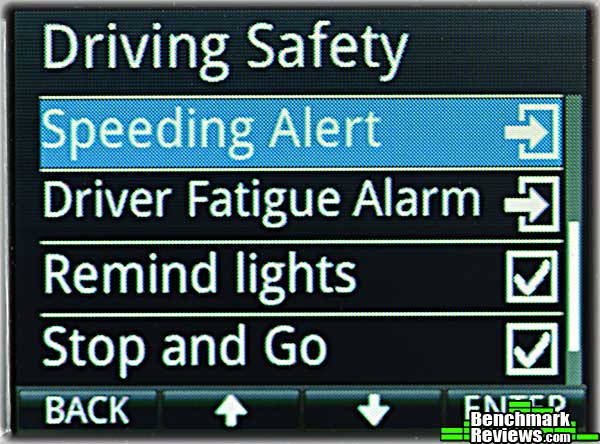
The Speeding Alert will sound a tone if you exceed a pre-set speed; the Driver Fatigue Alarm is simply a timed alarm that sounds every N minutes. Remind Lights and Stop and Go are somewhat mysterious (along with many other things, they’re not mentioned at all in the manual), but based on my testing, Remind Lights seems to sound a tone when you’re at a green light, but not moving. I’m not sure what Stop and Go does.

You can designate which information is overlaid on top of your video; in most cases, you’ll probably want to leave all these items turned on.
Since it’s plugged into your accessory power outlet, the camera normally comes on when you start the car. There is no internal battery, but a capacitor keeps power going for a few seconds after you turn your car off, allowing the P3 to close the current video file and shut down cleanly.
Let’s see how this camera operates in the real world in the next section.
I used the PAPAGO! P3 Dashcam for several days in three different cars. The first problem I ran into was mounting: this is very large for a dash camera, and would not fit behind the rear view mirror on any of these cars, where you’d normally mount a Dashcam. But one of the main features of the P3 is its screen, so you’ll want to be able to see that. Without the option dashboard mounting system, your best bet is probably to mount it near the center of the windshield, below the rear view mirror. Of course this blocks part of your view, but you do want to be able to see the unit’s screen. And keep in mind that the lower you mount the camera, the harder it is to adjust it to see the road, rather than filling the video with your car’s hood.

Once you start your car, the P3 takes about 22 seconds to boot and start recording video; you’ll know it’s ready when the status light on the front turns red. By default the P3’s screen will display the live video the camera’s recording, but by pressing the Mode button, you can switch between displaying live video, the time and date, your speed, or a GPS map. Here’s how the map looks:

The map data included with the P3 was spotty. In my area, a major highway (Route 395) that has been here for 20 years is not on the map (the display showed a blank gray screen, and there was no road information above “Nevada, United States”, but a roundabout built in the last two years is. You’ll generally see the name of the road you’re on (although in some cases I saw the road name blink out for a period of time, then come back on, all while driving on the same road). Keep in mind that the GPS satellites only provide co-ordinate data, and the P3 records this correctly; the problem is mapping this data to a particular road.
The P3 offers a number of safety features that set it apart from other Dashcams. Some of these features like the LDWS and FCWS obviously depend on image processing performed on the camera’s input. If you’ve gone through the calibration procedure, the camera will overlay a horizontal yellow line on top of the video display where it thinks the road horizon is, and diagonal yellow lines will overlay the lane markings on either side of your car.
If you’ve set the P3 to display live video, you won’t get any warning messages on the screen, only warning tones (these tones are not described in the manual, but the LDWS emits a single tone, while the FCWS makes two “car honk” noises). If you’ve set the P3 to display Time and Date, Speed, or the GPS map, then when a warning occurs, the entire screen will display a warning for a few seconds right after the tone sounds.
It’s impressive that PAPAGO! is trying to perform real-time video image analysis with its tiny mobile CPU, but the results are not particularly good. As you drive, you can see the yellow indicator lines flickering on the display as the camera struggles to identify the horizon and lane markings. Even on a clear sunny day, on a road with clear lane markings, the PAPAGO! P3 would only warn me if I drifted out of my lane about half the time. And it would sometimes barrage me with “COLLISION!” warnings even when there was no car within a quarter mile of me.
There were a few times when I was at a stop light when a different tone sounded, but it happened so infrequently that I couldn’t determine what condition set the tone off.
If the unit is not calibrated perfectly, the results are much worse. All in all, these features are probably best left turned off.
The video the P3 shoots is full HD (1920×1080 pixels, 30fps), and the quality of the video is superb, with excellent adaptation to lighting and razor-sharp details.

With all of the “info overlay” options turned on, you’ll see your location, direction of travel, speed, and the road you’re traveling on. Note the GPS co-ordinate data on the bottom line: this is always correct, although problems with the map database may mean that no street name, or the wrong street name, is displayed on the line above.

…as well as the time and date:

Even videos taken at night were surprisingly good, with less noise than I’d have expected and clearly visible details.
Videos are broken into 5-minute segments, and there seems to be less than a second lost when transitioning from one segment to another. The standard H.264 files play readily on Macs or PCs with no extra software required, or you can connect an HDMI cable and output the video to a TV or monitor.
The P3 has other features, some of which seem a little odd. For example, you can use it as a still camera:

…that takes several shots at once with a single button press. These images are saved as standard JPEG files, but since the P3 has no internal battery and can thus only be used with it’s plugged into power, I can’t imagine when you’d actually use this feature.

I would guess that enabling these features would automatically write-protect or otherwise save the current video files when a collision was detected. I say “guess” because…yep…these settings aren’t mentioned in the manual.
So the P3 is an excellent dash camera, at least. In the next section I’ll present my final thoughts and conclusions on this device.
The PAPAGO! P3 Dashcam is one of the most elaborate Dashcams I’ve seen, but it’s let down by documentation that might politely be described as “inadequate” and poor feature implementation. Other than the Forward Collision Warning System and Lane Departure Warning System, none of the driver safety features are mentioned in the manual at all, much less explained. This means that when you want to use the Speeding Alert, Driver Fatigue Alarm, Remind Lights, Stop and Go, or other features, you’ll just have to figure them out yourself.
But that’s probably just as well, since in my testing the performance of the safety features simply wasn’t good enough to make them really useful. After a couple of days I simply turned them all off. Still, should things like “Collide Record” be turned on? Probably, but it’s really just my best guess.
Note: PAPAGO! has pointed out that this link on their web site contains more information on the features that aren’t covered in the printed and downloadable manuals. Stop and Go, for example, will alert you if you’ve been stopped for at least 10 seconds, but the car ahead of you has moved on (you didn’t notice that the light had turned green).
The necessity of positioning the camera on the windshield means you’ll have a power cord draping across your dash (of course, this is true of any dash camera). If you want to wire it into your car’s electrical system, PAPAGO! helpfully suggests you cut the end off the cable (you can’t use a standard USB cable since the P3 runs on 5V, and your car’s electrical system is 12V. The P3 cable has an inline adapter to adjust the voltage). The manual mentions that doing so voids the warranty! This seems silly given the price of the unit.
All that said, as a Dashcam the P3 is superb: I was really impressed with the quality of the videos it produced. The price is high but similar to the price of many other “Full HD” dash cameras. However, you can also get a number of full HD Dashcams without the P3’s extra features for much less money.
As a Dashcam, the performance of the P3 was excellent. However, its many extra safety features and settings were less useful, due to a combination of no documentation and poor performance.
Most Dashcams are thin slabs or cylinders; the P3 is much chunkier, which can lead to problems with finding a good place for it on your windshield that doesn’t obstruct your field of view.
The physical construction quality of the unit is excellent. Its appearance is impressive, and everything fits and works with precision.
Functionally…well, if the P3’s myriad extra features were documented and worked as they should, it would be great. Sadly, they’re not and they don’t. The redeeming feature of the P3 is its video: sharp, clear, with excellent detail in almost all lighting situations.
Available for $159.99 (B&H | Amazon), the P3! is at the high end of dashboard camera prices. While many other full HD dashcams are priced similarly, there are also many that are much less expensive.
The PAPAGO! P3 is excellent as a dash camera, but the extra features shouldn’t factor into your buying decision, as they don’t work well enough to be really useful.
+ Brilliant, razor-sharp HD video
+ HDMI port allows video output to TV or monitor
+ Includes 16GB memory card
– Many features are undocumented in printed manual (but are explained on the PAPAGO! web site)
– Can be hard to find a good place to mount it
– “Driver Safety” features don’t work well
– Map data is spotty
– No included direct-wire cable
-
Performance: 9.25
-
Appearance: 9.25
-
Construction: 9.00
-
Functionality: 8.25
-
Value: 8.00
Recommended: Benchmark Reviews Seal of Approval.
COMMENT QUESTION: Do you use a dashcam?


2 thoughts on “PAPAGO! P3 Dashcam Review”
I’d hazard a guess that the “backup” button is for backing up info on the SD card to your computer.
You may well be correct. It would be nice if it were actually documented in the manual.
Comments are closed.