By Tom Jaskulka
Manufacturer: Roccat GmbH
Product Name: Tyon Multi-Button Gaming Mouse
Model Number: ROC-11-850
EAN: 4250288174146
Price As Tested: $79.99 (Amazon | NewEgg)
Full Disclosure: The product sample used in this article has been provided by Roccat.
First announced at Computex in June, Roccat’s newest gaming mouse has finally hit the market. Packing an 8200 DPI laser sensor, Roccat’s EasyShift[+] function, configurable LED lighting in two zones and 12 programmable buttons (16 programmable “actions” if scroll up/down, etc. is included) the Tyon appears to check all of the same boxes as many high-end gaming peripherals. Look a little closer though, and you’ll see that the Tyon adds a few boxes other mice can’t check: a “dorsal fin” switch and an analog paddle. Powered by Roccat’s Talk FX software suite, will these innovations change your game? Benchmark Reviews has received the black version of the Tyon (model ROC-11-850, also available in white) and we’re ready to run it through the gauntlet.

Technical Specifications
Additional InfoDimensions In the package
ROCCAT™ Tyon – All Action Multi-Button Gaming MouseQuick-Installation Guide
Manual in EN, DE, FR, ES, PT, PL, RU, TR, DK, FI, SE Product code: ROC-11-85x |
Specifications taken from the manufacturer’s product page.
While this may be a bit preemptive, my first impression of the Roccat Tyon was “pleasantly surprised.” Perhaps a bit of context might be useful – my first Roccat products were the Kova and Pyra mice. Roccat was a relatively new brand at the time (at least to gamers in the US), and while I had heard many good things about their first mouse (the Kone) their products were as of yet unavailable in the United States – thus, eBay to the rescue…
I wasn’t able to find a Kone, but I finally found a used Kova with a Pyra to follow soon after. I was excited to finally get my hands on a Roccat product after trying most of the Logitech, Razer and Microsoft offerings (back when Microsoft had their Sidewinder line of peripherals). My first experience wasn’t the greatest – the color-changing Kova felt pretty good in hand and the performance was perfectly adequate, but the materials just didn’t have that “premium” feel. The plastic windows for the LEDs were foggy and…well, they looked cheap. The Pyra wasn’t much better, although it was a step beyond most mobile mice at the time (and to be fair, both of these models have long since been refreshed with newer versions).
Enter the Tyon. While I (again) heard great things about Roccat’s revamped line of Kone mice and FX driver suite, it wasn’t until the Tyon was announced that my attention was significantly captured. Can a second impression wipe out the first? Let’s start with a look around the outside of the mouse itself.

The Tyon uses a pretty traditional right-handed hybrid palm grip, with enough of a cutout for a thumbrest on the inside and a flat area to accommodate claw grips on the outside/right. The primary mouse buttons are flanked by four programmable buttons, situated within easy reach of your index and middle fingers. A thumb-rest button activates Roccat’s Easy-Shift+ function, and the dorsal switch up top is mapped to the tilt left/right function by default.

The analog paddle (or “X-Celerator”) is visible above the thumb area, with two buttons located just underneath (the usual back/forward buttons). An LED light strip wraps around the entire bottom perimeter of the mouse, with a small gap around the (default) Easy-Shift[+] button.

The right side of the Tyon uses the same hard plastic/textured surface as the thumb area, which is very similar to Logitech’s variation on their G9x and G700 gaming mice (it feels like smooth sandpaper, which is more comfortable than it sounds). It is otherwise dominated by a solid, almost vertical gripping surface which accommodates a claw grip surprisingly well. This shot shows the contrast between the soft-touch coating on the main portion of the Tyon and the textured sides pretty well – I tend to prefer a rubberized surface, but the combination of these two surfaces strikes a nice balance between grip and feel.

The front of the mouse contains the majority of the programmable buttons. It may look a bit overwhelming at first glance, although I’m personally an advocate of buttons in this area. Thumb buttons are great, but (depending on layout of course) only one or two can be pressed at a time. If you’re dextrous enough it is possible to press all six of these at the same time. Since fingers have faster reflexes and reaction times (not to mention more precision) it makes sense to take advantage of this area for buttons. Strangely, the Tyon is one of the few mice to place this many buttons up here (the discontinued Logitech G300 used a similar arrangement, and a few others used the two extra buttons by the primary mouse button).
With the quick overview done, let’s take a closer look at some of the detailed features of the Tyon.

The analog paddle (referred to as the “X-Celerator” by Roccat) is perhaps the most notable innovation present on the Tyon. Setting this mouse apart from any other, the single-axis analog control can be mapped to any joystick axis and accepts both D-input and X-input signals (a quick overview of the difference can be found here, but the short version is X = Xbox controller input and D = DirectX/any other joystick input). I’ll share more of my thoughts on this feature in the Final Thoughts section, but the short version is: I like it. It’s a wonderful addition to a gaming mouse, in my opinion.

The grip shape is reminiscent of some of Logitech’s mice, although there are some Razer and Microsoft influences throughout as well (really, the Kone[+] XTD is probably the most similar out of all of them). The scroll wheel does not tilt – that function is reserved for the dorsal fin switch, which can be activated with a very similar motion.
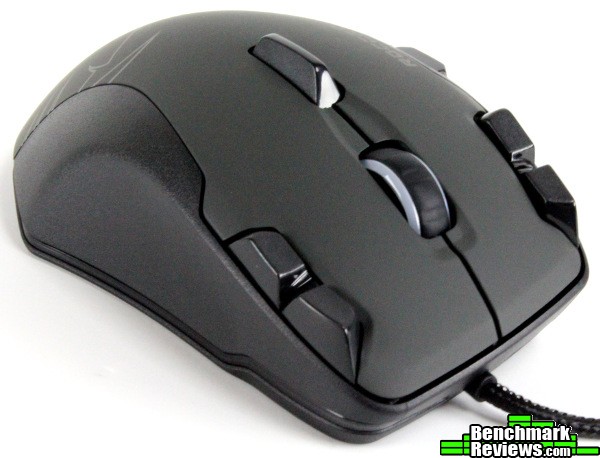
The height of the dorsal switch is pretty tall, but not enough to cause any accidental button presses. You’ll still need an intentional movement to activate the two-way switch, but it’s a motion that is easy to perform with a bit of practice – in fact, it’s almost the same motion used to tilt a scroll wheel. This is a pretty simple (brilliant, really) solution to the tilting scroll wheel – while the functionality is great, I’ve yet to use one that doesn’t feel a bit flimsy in use. Roccat’s solution allows for an extremely solid scroll wheel and the ability to “tilt.”

The 8200 DPI Pro-Aim R3 laser sensor is made by Avago (from the specifications I’m assuming it is the Avago ADNS 9800), and is located a bit forward of center. Two large PTFE mouse feet at the front and back of the Tyon glide over most surfaces without a fuss – overall, the Tyon feels very stable, but if you press down hard enough with your thumb you could get it to rock inward ever so slightly. Really though, it would have to be an intentional motion to do so; even intense gaming sessions didn’t result in any unwanted movement. The large feet should tolerate wear pretty nicely too, although that depends greatly on the mousing surface used. Roccat includes their Tracking & Distance Control Unit with the Tyon, allowing the sensor to calibrate itself to a variety of surfaces (along with adjusting the lift-off distance).

The Tyon is for right-handed users only, but at least all controls are easily accessible from the hybrid grip. The thumb curve and wider palm area suggest a comfortable palm grip; claw users may find the Tyon to be surprisingly comfortable as well due to the vertical, grippy surface on the right side. I myself use a strange combination of claw/palm grips – the best way I’ve found to explain it is that I find Razer’s Lachesis to be very comfortable. Yeah. I’ll go into more detail on how comfortable I found the Tyon compared to a few other mice after we take a look at the software package driving all of those programmable buttons and lights.
We’ll compare a few mice with the Tyon on the next page, but first let’s take a look at Roccat’s driver suite. The Tyon uses the latest version of Roccat’s Talk FX driver which has a wide variety of functions.

The Main Control tab contains most of the “speed” settings. Most users won’t find anything out of the ordinary here; choosing among these options is fairly intuitive. The DPI Setting that is currently selected on the right (marked “Active”) will be the DPI the Tyon defaults to when switching to that particular profile.

The Button Assignment tab is where most users will probably spend most of their time. The Easy-Shift[+] function essentially allows for each button to have two uses – those on the list on the left side are the standard button assignments, and those on the right are only activated in concert with an Easy-Shift[+] button press.

You’ll need to switch to the Side Buttons sub-tab in order to finish your button assignments on the Tyon. While many buttons can be re-mapped as joystick button inputs, only the X-Celerator analog paddle arrives with a default joystick axis assignment. Both XBox controller axis and buttons (Xinput) and DirectX joystick axis and buttons (Dinput) can be mapped to the analog thumb paddle. If your particular game supports the XBox 360 controller chances are you’ll be using Xinput commands. Other games may use DirectX joystick inputs (or both). This can be a bit confusing at first, but just consider what type of device you’re trying to map to the analog paddle and the whole process becomes pretty slick (do you use the analog triggers on a 360 controller for accelerate/brake? Xinput_Z_axis it is!).

Clicking the drop down menu for a particular button brings up a vast menu of assignable commands. If simply assigning buttons isn’t enough, there are a huge variety of preset macros for various popular games too (although the included list is a bit outdated). Of course, you won’t be limited to the presets – making your own macros is easy, if a bit non-intuitive. The first time you select the “Create New Macro…” menu option, you’ll be greeted with a message saying…that you can’t.

Well, that’s because you need to create a Macro Set first; that way you have something to assign the macro to. To do so, click on the “Macro Manager” button in the middle of the Button Assignment screen, then select the macro to edit (or create a new one with the Add Macro Set option). The Basic Macro Editor will be adequate enough to serve the purposes of most gamers, although I didn’t see a way to include mouse buttons in the macro (keyboard keys only).

For those wanting more precise control over timing, the Advanced Macro Editor will allow for more powerful options. Pressing the “2” key every 15ms would look like the above – to change the interval between actions, just drag the bars around. Zooming in and out will give a different range of values for the macro timing.
 The Advanced Control tab’s defaults were just fine for my use; if you experience any tracking or lift-off distance issues you can adjust those settings here. Separate X/Y axis sensitivity controls make an appearance, and polling rate (using a utility called “Mouse Rate Checker”, the Tyon’s polling speed had no problem keeping up at the marketed 1000 Hz) and pointer speed can be set here too. While I personally prefer visual feedback, audio clips can be set to activate when certain events happen as well. Finally, a driver reset option is available if a fresh start is desired.

The Color Control tab contains all of the “bling” settings. The Tyon has a few more color options than most of Roccat’s other mice, so this menu has a few more sections for the type of light effect (solid, blinking, heartbeat, breathing or off), the color flow (this option cycles through the entire spectrum for both zones, while the up/down direction options will change the color for the scroll wheel and bottom perimeter independently) and the speed of the transitions. It’s too bad the color changes aren’t instant like the SteelSeries products I’ve used (and now Razer Chroma devices), as there is a lot of customization one could do on this panel – the initial setup could take awhile! These settings are stored on the device itself though, so switching between profiles is instant (and therefore the color changes). The only notable option missing is the ability to change the color the Tyon will change to when the EasyShift[+] button is pressed – currently, both zones will flash to a light blue while the EasyShift button is being used and there isn’t a way to change that particular color.

Since the Tyon uses Roccat’s TalkFX driver, their Roccat Achievement Display tab makes an appearance too. While a bit on the “gimmick” side for my tastes, I’m still glad to see companies experimenting with options like these. It’s amazing what humans do for incentives…if nothing else, you’ll be able to brag to your friends how far you “moused” that day. Hmm…perhaps I’ll place that on my résumé? While it’s easy to poke fun at the “achievement craze,” it is pretty interesting to see how many clicks you’ve performed throughout the day. So far, it looks like I scroll down three times as often as I scroll up…These settings seem to be stored on the system itself, not on the mouse, as they’ll reset (or remain independent) if you bring the Tyon to different PCs.
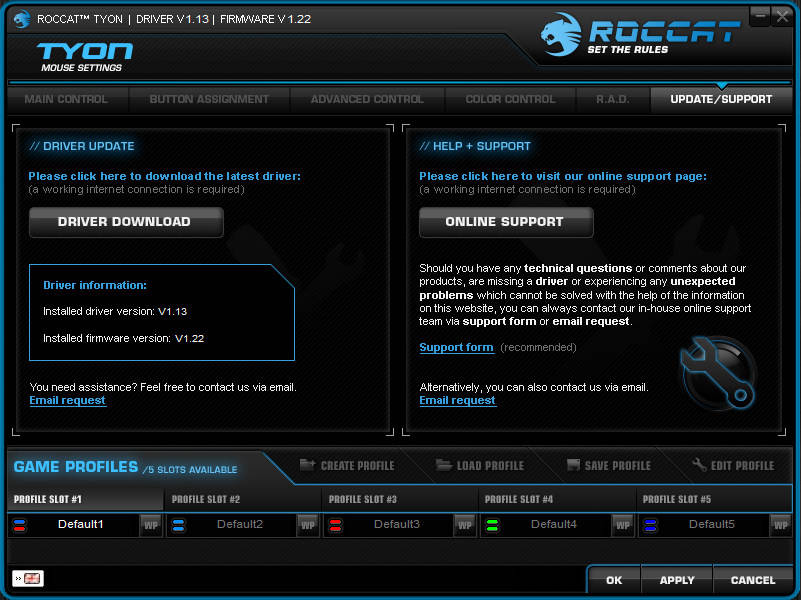 The Update/Support tab is exactly what it sounds like: a one-stop location for driver and firmware updates as well as help and support. Whew – quite an extensive driver utility! A bit of streamlining would help reduce some of the “clutter,” but that’s easy to say and hard to do with so many configuration options.
It’s worth mentioning here that Roccat has made available a Software Developer Kit for working with their TalkFX compatible devices (of which the Tyon qualifies). This includes the ability to synchronize lighting on compatible devices with events in-game. While I don’t know of any games that use Roccat’s version yet, Alienware’s AlienFX works very similar and provides for a surprisingly immersive experience in games that take advantage of it – I would imagine the experience would very similar with Roccat devices. Hopefully the SDK will encourage developers to add these events to their games, as the Tyon would make a great platform for showing off some of these effects.
While I spent a fair amount of time gaming with the Tyon, I’ve always found it helpful to compare physical shapes to other popular (and maybe some not-so-popular) mice. Since ergonomics and comfort are some of the primary reasons to select certain mice over others, it helps to place a few side by side and just see which ones feel comfortable. Grip shapes are exceedingly difficult to objectively test, as they are almost purely personal preference. It’s pretty fair to say you’ll spend most (if not all) of your time gaming at a computer interacting with these peripherals, so to find one that fits your hand ranks pretty high. If possible, try out a mouse you’re interested in at a retail store or a friend’s place – after some time, you’ll be able to look at a mouse and determine with a decent amount of accuracy if it will fit your hand at not. For those users, hopefully the following section will be useful.
 The Roccat Tyon is on the “larger” end of the spectrum for mice size-wise. Obviously the ergonomic Func MS-3r2 on the right takes the prize for overall size, but the Tyon is just a bit larger in volume than popular mice like Razer’s DeathAdder or Logitech’s G700/G500 etc.
Out of the mice shown above, the Logitech G700 and Razer DeathAdder struck me as most similar to the Tyon in size and shape (although the Tyon is even more similar to the Kone XTD, if not the same basic shell from what I can determine from photos). They all have about the same “height”, although the DeathAdder has more of a peak than the flatter Tyon and G700.

I tried to show a grip perspective of the Tyon compared to Logitech’s G700 wireless gaming mouse, since they used similar textures and shapes (both in button feel and surface textures). While I like the G700 for the most part, I’ve always found the body of the mouse to be a little narrow. The Tyon solves that problem nicely. Both mice have an almost-equal amount of buttons to assign to various functions, but the scroll wheel on the Roccat Tyon is vastly superior in feel and function (unless, of course, you commonly use the hyper-scroll feature on the Logitech).

The Razer DeathAdder is widely regarded as one of the best ergonomic shapes on the market (and seems to be their most successful product). According to Razer, it’s the world’s best-selling gaming mouse, so chances are you’ve encountered one or heard people talk about DeathAdders in the past. While they have a similar shape at first glance, the Tyon felt a little more “vertical” than the DeathAdder in use (the DeathAdder feels like you’re gripping the mouse from the top, while the Tyon feels like you grip the mouse from the sides, if that makes sense). Both mice are very comfortable, but the Tyon has far better lighting than the DeathAdder (even the Chroma version, in my opinion) and a much larger array of programmable buttons (even before the dorsal fin and analog paddle are taken into consideration).
I also wanted to show a few colors, especially since the Tyon’s LED lighting is a notch above what I’ve seen in many similar peripherals. While the quality of these .gifs have been reduced resulting in a bit of color banding, the actual effect is much more vibrant in person. Roccat did a very good job with the lighting of this device in my opinion. I’m personally a fan of mice that have customize-able RGB LEDs, since not everyone’s favorite color (or system) falls in the typical solid red, green or blue categories. The full-value blue of the Tyon is nice and bright, with red and green showing up very nicely as well (the red is a fiery red, not a deep blood red – some brightness or saturation settings would be helpful in trying to achieve a deeper red if that’s what you’re going for).
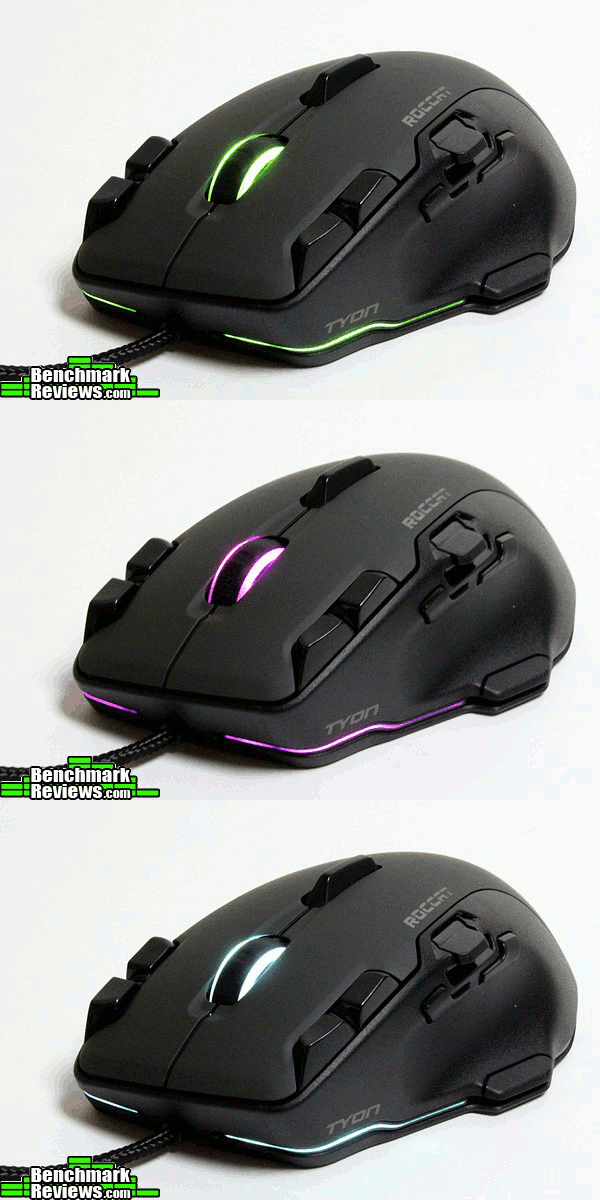 Of course, one of my favorite colors (depending on the week) is notoriously hard to reproduce in LED form. I was glad to see that orange is handled pretty nicely by the Tyon, as well as other colors like pink, white, aqua and yellow (pink, white and green are shown in the .gif above, with blue/red/yellow shown above that). You can pick red/green/blue values from 0 to 255, and each channel seems to blend pretty nicely with the others resulting in some very vibrant color options.
I tried to use the Tyon across as many systems, surfaces and games as I could. I didn’t experience any noticeable sensor skips or jitters with a Razer Destructor 2, Razer Goliathus Speed, SteelSeries QCK or even plain desktop surfaces. I try to stay away from the mouse-mat calibration features after a bad experience with a Razer Ouroboros, but I didn’t run into a need to calibrate the Tracking and Distance Control Unit in Roccat’s Tyon.
After three weeks of as much working, gaming, editing and all-purpose computing that I could fit in, the Tyon didn’t reveal any nagging quirks. The grip shape is a surprisingly good fit for a variety of tasks (precision, minute movements vs. large, sweeping low sens movements), and remained comfortable throughout use. The surfaces remained adequately “grippy” during long gaming sessions, and I didn’t experience any painful hand cramping or discomfort. If anything, the large number of extra buttons on the Tyon just took awhile to get used to; even after three weeks I was still struggling to become fluid in using the dazzling array of functions (especially when the EasyShift[+] button is thrown in the mix). The driver software seemed to work well (make sure to make an exception for the Roccat folder in your antivirus utility, otherwise you may experience long delays in applying your settings), and the Tyon seemed to handle all different types of genres handily. The analog paddle was especially helpful in games like ARMA3 and X3: Albion Prelude (or any game with an abundance of axis to assign).
I wanted to share some of the thoughts I had while using the Tyon over the past few weeks, so I apologize for the “stream of consciousness” format – although I suppose that’s what the Final Thoughts section is for!
The scroll wheel has great feedback. All buttons are satisfyingly “clicky,” and rolling the wheel provides an excellent tactile bump feedback to your finger. It’s really a pleasure to use – among the best I’ve tested, I would have to say. To be fair, most scroll wheels feel pretty nice fresh from the factory – time will tell if this fades over time, but the initial impression is that of quality.
Roccat’s EasyShift[+] function is…well, it’s a bit of a game-changer. Once you use one, you’ll wish every other mouse had the same ability. I find myself looking for this feature in other competitor’s drivers…
I really like the three buttons easily reached by primary/secondary fingers (total of six). This area is under-utilized in other mice, in my opinion – index fingers are far more dextrous than thumbs, it’s nice to have more buttons accessible up by the primary mouse buttons. Six is perfect for many of the games I play.
LEDs are actually really well done. I’ve been messing around with a Razer DeathAdder Chroma recently, and while the color-shifting features are neat they aren’t implemented near as well on that mouse as they are on the Tyon. The DeathAdder Chroma has a bit of spillover from one LED to the next, and certain combinations of colors (a blue/green “aqua” for instance) result in a gradient from blue to green rather than a nicely diffused blend. The Tyon doesn’t have that problem – in fact, Roccat must have sourced some different LEDs than other manufacturers because the Tyon seems to have a significant advantage in brightness and color. The blues are intense, the reds are fiery, the greens vivid; dark/blood reds were a little tricky, but most other colors looked better on the Tyon than many other color-changing mice I’ve used (even difficult colors like white, orange and pink).
The dorsal fin switch is a little awkward at first, but with use it becomes pretty natural. I feel this is an excellent alternative to a tilting scroll wheel (since tilt scroll wheels rarely feel as precise as the stationary ones). Given the Tyon’s excellent scroll wheel feel, it would be a shame to mess this up – this is an excellent solution, and is implemented well. It’s really the same motion you would use to press a scroll wheel to the side anyway.
Finally, the analog paddle. Arguably the most interesting innovation to happen to gaming mice since (multiple) programmable buttons became a thing, the analog paddle feels long overdue. It was a little difficult at first to control very precise movements with your thumb; I had trouble using it as the collective control for helicopters in ARMA3 and instead found better success using the analog paddle for the left and right pedals (yaw). The position of the “X-Celerator” paddle is such that both horizontal and vertical motions translate well in your brain and in-game – it’s easy to make the jump from “raise and lower” to “left and right”. I didn’t have any problems mapping commands to this control in any of the games I tried (Battlefield 4, ARMA3, Mechwarrior: Online, Kerbal Space Program, X3: Albion Prelude). Due primarily to its size, very small/precise movements are a bit difficult – a full-blown joystick replacement this is not. However, the additional granularity of an analog control was very welcome – besides, it could just be mapped to two more buttons if you didn’t want the analog feature, although you’ll need to use a macro to do so (only joystick axis and macros are able to be mapped by default).
I didn’t have any issues with the Roccat Tyon’s performance. Over the course of three weeks, the Tyon was my daily driver, and it was used on a variety of surfaces (hard desk, soft/cloth mouse pads as well as hard/textured pads). I didn’t experience any tracking issues with any of the surfaces I used (Razer Goliathus Speed, Razer Destructor 2, Func Surface 1030XL r2, SteelSeries QCK, as well as a bare desk surface).
Overall, I like the way the Tyon looks. Appearance is definitely a subjective category (for instance, I could do without the large logo in the palm area); while I understand the purpose of branding, I just…don’t really like cats I guess (cue a collective gasp from half of the Internet…). Yes, I know, cats MADE the Internet, but I’m just more of a dog person… Anyway, I would have been just fine with the Roccat and Tyon logotypes (which, incidentally, is one of the reasons I liked the Func MS-3). However, that’s all a bit…petty, really – the design works well, with its foil-like look. I like the gunmetal/primer color used for the main surface, the textures on the sides, even the shape of the buttons. The attractive LED lighting is done well; it avoids drawing too much attention while still providing a splash of color. The entire peripheral avoids looking like something out of a science fiction movie or alien torture device – while there’s definitely a portion of my brain that still delights in absurd designs and lighting, I think the Roccat Tyon is a very tasteful and attractive design (especially for a product branded with the “gaming” designation).
The Tyon felt solid in use. The materials used in its construction were adequate and worthy of a $99 mouse, in my opinion. Of course, the feel of peripherals can be very subjective, but the textures and coatings used throughout the Tyon were pleasant to touch and nicely executed – the transition from the top matte surface to the textured sides was even throughout, and the body of the mouse didn’t creak or groan when in use or gripped hard. The lighting was vibrant and nicely diffused, and the perimeter lighting around the bottom was integrated very nicely into the body of the mouse. All buttons seemed pleasantly stiff and tactile, but the two back/forward thumb buttons had a slight tendency to wiggle if you didn’t press on the larger portion of the button. The X-Celerator analog thumb paddle remained stiff through heavy use as well, and it doesn’t feel like it would get “floppy” over time – of course, only time will tell, but it certainly felt sturdy throughout my weeks of testing.

The functionality of the Tyon is beyond that of any other mouse I’ve tested. Sure, there aren’t any weight adjustments, hybrid wireless setups or morphing/interchangeable parts; the large number of buttons (and button layout), lighting, and analog control (I can’t bring myself to call it the X-Celerator paddle…) are worthwhile tradeoffs in my opinion. Some of this comes down to personal preference, I realize, but the Tyon has more functionality than I am accustomed to in this category. I’d even go so far as to say it sets a new expectation for what a gaming mouse could be.
The value question is a little difficult, as it wanders into subjective territory at times. You could add up the value of the materials and components used, but that only gives you a Bill of Materials – the value of a device changes depending on what you want it to accomplish. A $99 mouse isn’t necessarily required to mouse a cursor across a screen and click icons with an acceptable degree of accuracy. If you want an analog control, multi-color lighting, multiple programmable buttons and a precision sensor in nice package you’ll have to spend some money. In using the Tyon, I never once felt I would have been shortchanged if I had spent the $79.99 (Amazon | NewEgg) that Tyon is currently selling for – I’ve spent much more than that on mice. I feel that the Tyon delivers an incredible value if you plan to use all of its unique features and programming capabilities – if all you want is pretty lights and some extra buttons you may feel the Tyon is a bit expensive (you may want to consider the Kone Pure), but that’s missing the real capabilities of a mouse like this. I’d pay extra just to have the EasyShift[+] button on some of my other mice…
The thing is, the Tyon…well, it’s a game changer. It never once failed to deliver as a gaming mouse, checking all of the boxes one would expect for a device in this category. Additionally, the powerful software suite, Easy-Shift functions and analog thumb paddle place the Tyon in a category all its own. It has one of the best button layouts for the types of games and applications I use, and I can’t imagine others would find much of an issue either. Finding uses for the analog functions took a bit of a learning curve, but when it was all said and done I couldn’t bring myself to switch it out for another mouse. Can you get by with less? Well, sure – but the Roccat Tyon earns every bit of its $99 price tag with the additional functionality it brings, as well as every bit of Benchmark Reviews’ Golden Tachometer award in my opinion. The Tyon is a serious contender for the title of “best mouse I’ve ever used” – and I’ve used, owned and reviewed many mice over the years. Well done Roccat.
+ Essentially flawless (for a laser) tracking performance in testing
+ Linux support!
+ Attractive
+ Unique features really add value (analog control, EasyShift[+] )
+ Excellent button feel / layout
+ Dorsal / tilt button helps keep the scroll wheel’s excellent feel intact
+ Bright, vibrant LEDs are tastefully done
+ Powerful software, inter-device functionality, API for lighting/FX
– Make an exception in your antivirus for the Roccat folder! Otherwise saving changes to the device takes a long time (~ 30 sec) – with the exception in place, changes are saved almost instantly
– Software is powerful, packs a lot of functions in a relatively small area – may be intimidating for some users
– Logo is a bit large (maybe I’m just too much of a dog person…)
– LEDs could use a dedicated brightness/saturation setting for even more color options
-
Performance: 9.50
-
Appearance: 9.25
-
Construction: 9.25
-
Functionality: 10
-
Value: 8.75
Excellence Achievement: Benchmark Reviews Golden Tachometer Award.
COMMENT QUESTION: ?



2 thoughts on “Roccat Tyon Gaming Mouse Review”
Roccat are in my estimation without peer when it comes to computer peripherals and although I’d never buy this particular model, I wouldn’t dream of buying any other brand of gaming peripheral. I’ve had nothing but complete satisfaction in every way with all my Roccat devices even down to the mouse pad.
I have to agree with Wayne!
I have a roccat mechanical keyboard, Kave headset and Tyon mouse. All three items are the best I have ever owned. Love Roccat, the build quality is fantastic, Razer are piss poor in comparison!!
Comments are closed.