By David Ramsey
Manufacturer: Zalman Tech Co., Ltd.
Product Name: Knossos Professional Laser Gaming Mouse
Part Number: ZM-GM4
UPC: 823884205916 EAN: 8809213766039
Price As Tested: $53.44 (Amazon | B&H | Newegg)
Full Disclosure: Zalman has provided the product sample used in this article.
Zalman made their reputation with high-end aluminum cases– who could forget the marvelously insane $1,000+ TNN-500? – and CPU air coolers like their “flower”-designed CNPS7000 series. They don’t make insanely expensive cases any more, and air coolers are arguably irrelevant in the enthusiast market these days, but Zalman’s been branching out into gaming peripherals, and today Benchmark Reviews has their top-end Knossos ZM-GM4 Professional Laser Gaming Mouse to review.

| Sensor DPI | 800-8200 dpi (switchable) |
| Sensor | Avago A9800 gaming sensor |
| Switch type | Omron – 5 million clicks life cycle |
| Programmable buttons | 10 |
| Polling Rate | max 1000Hz |
| Cable | 1.8 meters, braided cable with gold plated USB connector |
| Weight | 135 + 21g optional weights |
| Profiles | 3 onboard |
Let’s unbox this mouse in the next section…
The Knossos ZM-GM4 is nothing if not dramatic (and that seems to be an important feature for gaming peripherals these days): a very industrial-looking flat black rodent with smoked chrome accents.

The included accessories comprise a brief user’s manual, a small tin for the weights you’re not using, and a driver disk. The disk is is one of the smaller-than-standard type, so don’t try to use it in a vertical or slot-loading driver. Of course as an enthusiast you’ll likely simply download the latest and greatest from Zalman’s web site.

The left side of the mouse shows the somewhat odd “function” switch, which you actuate by pulling it back towards the rear of the mouse against a spring load; releasing it will return it to its original position. The switch works fine although the ‘pull to the rear’ operation takes some getting used to. You can also see the hex screw for controlling the width of the left side of the mouse.

The top of the mouse houses the click-stop scroll wheel, the resolution selection button just behind it (it’s actually in the center of the hinge for the weight compartment lid), the “Auto” button, and the compartment for the seven weights, which Zalman ships installed in the mouse. In front of the scroll wheel is what appears to be another button, but it’s not, although it does contain an LED that flashes when you move the mouse. The DPI indicator has four lights, labelled “1” through “4”, and surprisingly are the only other lights on the mouse other than the activity indicator light in front of the scroll wheel.

There are no buttons on the right side of the mouse, though there is a hex nut for width adjustment.

The bottom of the mouse shows a metal base plate and the Avago A988 gaming sensor. The metal plate is the foundation for the screws controlling the adjustable panels. At the bottom left of this image you can see the removable hex wrench that you use to adjust the width of each side of the mouse and the height of the palm rest.

And speaking of those panels…this is the first size-adjustable mouse I’ve seen since the Mad Catz Cyborg RAT 9 Wireless Gaming Mouse I reviewed almost five years ago. The still-available RAT 9 goes beyond the Zalman in that it has replaceable panels as well as size adjustments, but then it costs more than twice as much. However, the Zalman has a greater range of adjustability: with all its panels extended to the maximum, it would almost be large enough for the Hulk’s hand.

Of course, no serious gaming mouse would be complete without a braided USB cable and a logo-stamped, gold-plated USB connector.
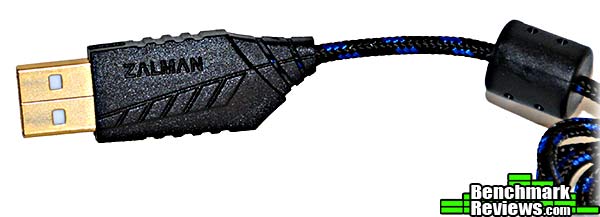
Let’s take a look at the Zalman utility software in the next section.
Zalman’s mouse utility is called “Configuration”, which is certainly straightforward. Configuration settings and macros are stored in the mouse, although Zalman doesn’t list the amount of memory the mouse has, or what type of processor it uses. There are three selectable profiles, and each profile stores:
- Mouse button assignments and macros (if any)
- Four selectable X and Y resolution pairs
- Polling rate
- Scroll wheel speed
- Double click speed (for assigning a double click action to a button)
- Windows pointer speed
The last item is useful since you can set a very high resolution for FPS gaming and still have a usable pointer speed inside Windows.
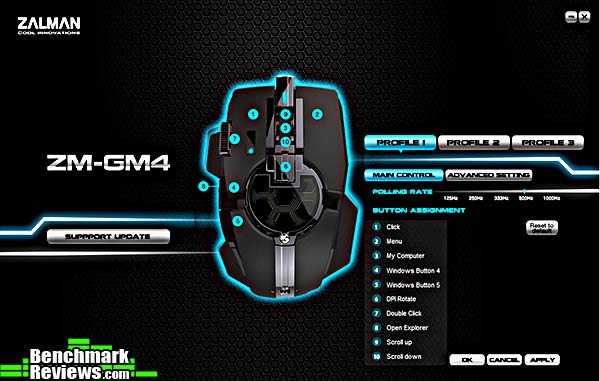
The main screen of the configuration utility shows the button definitions and polling rate for the selected profile. The “Support Update” button to the left of the mouse graphic does nothing except take you to Zalman’s web site.
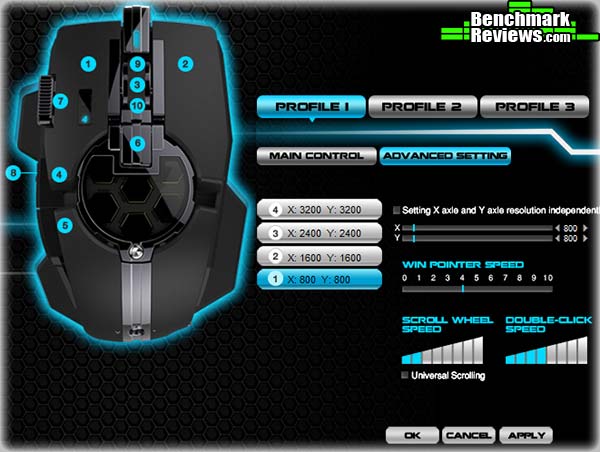
Clicking “Advanced Settings” takes you to this screen, where you can set the X and Y resolutions for each of the four DPI settings, as well as the window pointer speed, scroll wheel speed, and double-click speed.

Clicking on any of the button definitions in the list on the main screen takes you here, where three different popup menus labeled “Basic Commands”, “Additional Commands”, and “Media Commands” give you plenty of choices to assign to the button you want.
One glaring omission: there’s no programmable way to select a new profile– that is, there’s no “Next Profile” command you can assign to a button, nor can you associate profiles with games so that the mouse switches automatically. The only way to change profiles is to stop what you’re doing, run the Configuration utility, and click on a Profile button.
Let’s see how this mouse is to use in the next section.
Zalman’s Knossos ZM-GM4 offers the features you’d look for in a gaming mouse: adjustable tracking resolution and polling rate; a crisp, responsive feel, and programmable buttons. At 135 grams– plus the ability to add 21 grams of extra weight– it’s significantly heavier than some of the all-plastic mice I’ve tested recently, and I like that, especially in a wired mouse. I’ve found that sub-100 gram wired mice can be nudged by tension in their USB cables. The movement is slight, but at 6,000+ DPI, it doesn’t take much.
With a maximum resolution of 8,200dpi, a flick of the wrist will easily traverse even a triple-monitor system; heck, only 10mm of so of movement would span a single 4K display! I remain unconvinced of the need for these insanely high resolutions, but I suppose it’s a matter of keeping up with the competition. Personally I keep my adjustable mice around 1,600dpi. I miss the ability to define a button for “sniper mode”, which lowers the resolution as long as the button is held down.
As delivered the mouse’s default settings are to have button 8– aka “the slide switch on the left side”– launch Internet Explorer. You’d think this would indicate a general “run program X” feature that you could assign to any button. You’d be wrong. In fact, as far as I could determine, the only way to restore the “launch IE” function once you’ve defined something over it is to click the button to force the mouse back to its default settings. This is weird.
Setting the Zalman to poll at 1kHz and waving the pointer over Mouse Rate Checker reveals that it can indeed hit its designated maximum polling rate of 1kHz.

I find most gaming mice to be a little slim, although I’m not a big guy (5’10”, 160lbs), so I appreciated the fact that I could use the built-in hex wrench to adjust the side panels and palm rest of the mouse outwards a bit. Being able to tailor the mouse size to your hand is a very nice feature to have, and it’s unprecedented in this price range as far as I know.
Overall the mouse and its software are easy to use, and over the week I used it in a variety of FPS games, where its laser sensor provided precise tracking and instantaneous response.
Like most gaming mice, the Zalman ZM-GM4 stores its profiles in onboard memory. Unlike most, it’s limited to a mere three profiles at any one time, and there’s no way to save or load profiles to your computer, which is a problem if you have more than three games you’d like to have customizations for. FPS gamers can probably live with this, but I think that the MMO/RPG crowd is going to want a rodent with more memory or at least the ability to save and load configuration settings.
There’s no documentation provided on the macro feature, but that’s common these days, and it’s really pretty simple to figure out. You can record keystrokes, and choose whether or not to record the delays between key commands. The size of each macro is surprisingly limited: the longest I could record was nine characters (“Now is th”), so you’re not going to be able to record email addresses or canned phrases for office use. But it’s probably plenty for most games, and the macros (and all the other settings) are saved in the mouse, so if you wish you can carry your customized mouse to another system.

There’s no macro editing– you can overwrite an existing macro with a new one, but that’s it. Then again these macros are so short that it’s not a big deal.
So, how did I like Zalman’s mouse overall?
I have reviewed several gaming mice of late, and in the sub-$100 category, the Zalman ZM-GM4 Knossos is my current favorite, despite its clunky name. Although the online prices for this mouse vary widely, you should be able to find it for under $70, and you’re getting quite a lot for your money even at the high end of that range.
This mouse stands out mainly for its adjustability: being able to change the width of the mouse and the height of the palm rest is a huge competitive advantage over other mice in this price range, which must try hit a size and shape that’s comfortable for everyone.
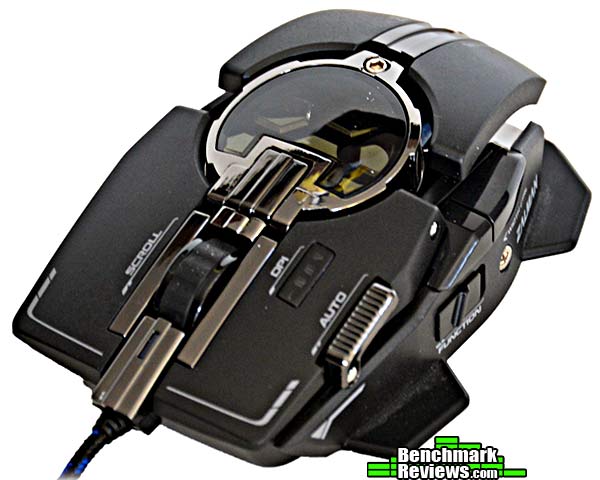
So we have a reasonably-priced adjustable mouse with dramatic looks and lots of programmable buttons. What’s not to like? Well, just two things, really: lighting/memory and software.
While the Knossos’ competitors are festooned with lights, often color-programmable, it has only two, rather dim, blue LEDs: the unusual “USB activity light” ahead of the scroll wheel, and the DPI indicator light that illuminates the numbers “1” through “4”. The DPI indicator is almost useless, as the numbers are very small and hard to read: a quick glance isn’t enough to easily resolve it, and your finger will probably be on top of the indicator anyway. A more centrally-located “bar graph” resolution indicator would be a much better solution.
The utility software works well but is quite limited, especially compared to its competition. You have only three profiles, and there’s no way to save or load profiles off the mouse. You can’t assign a program launch to a button. There’s no “sniper” mode. And most annoyingly, you must run the Configuration program to switch to a different profile. All of this can be addressed through a software update (well, except the limited memory in the mouse), and I hope Zalman does so soon. As it is the profile limitations along will severely limit the utility of the mouse for serious MMO/RPG fans.
The ZM-GM4 is Zalman’s current top-of-the-line mouse, and it’s very competitive at its price point, being the only size-adjustable mouse available under $100 that I know of. It’s got lots of buttons and lots of features, but is let down somewhat by software and hardware limitations.
There’s a lot of competition in the sub-$100 gaming mouse field these days, enough so that it’s no longer necessary to spend a huge amount of money to get the features and performance gamers want and need in a pointing device. Zalman’s mouse picks up this baton and runs with it, adding mechanical features like adjustability that its competitors don’t have. On the other hand, its surprisingly small profile memory and the inability to save profiles off-mouse will limit its appeal to fairly large sections of the gaming community, so there’s that.
These limitation just keep this mouse from a Golden Tachometer award, but if they don’t bother you, the ZM-GM4, even at the high end of its online price range for $53.44 (Amazon | B&H | Newegg), is an excellent deal, with performance and features that would be impressive in a mouse that cost twice as much.
+ Nice weighty mouse, with extra adjustable weights
+ 10 buttons
+ Can customize width of mouse and height of palm rest
+ Can set Windows pointer speed separately from resolution
– Limited onboard memory and no way to save profiles off-mouse
– No “sniper” feature
– Configuration software isn’t quite there yet
-
Performance: 9.50
-
Appearance: 9.00
-
Construction: 8.75
-
Functionality: 8.25
-
Value: 9.00
Quality Recognition: Benchmark Reviews Silver Tachometer Award.
COMMENT QUESTION: Who makes your favorite gaming mouse?



One thought on “Zalman ZM-GM4 Knossos Gaming Mouse Review”
The mouse was interesting, but it was the “and air coolers are arguably irrelevant in the enthusiast market these days,”. Huh ?
I would argue that CLC coolers are now being widely recognized as irrelevant these days. It is real hard to find a CLC that is not outperformed by a quieter and cheaper air cooler. The main attraction of a CLC appears to be telling your friends “my system is water cooled”. The final “nail in the coffin” for CLCs was the release of the OLC type units from Swiftech which flat out embarrass every CLC on the market in terms of thermal and acoustic performance. I don’t want to belabor the point in comments about a mouse review but in the next cooler review, I’d love to see more about how you arrived at this mindset.
My thoughts on the mouse that it was a nice initial effort and it would appear they got the basics down well and at a good price point…. the bling and software can be fine tuned later. I love the feature in the Enthoo Luxe where the case controls coordinate both the external LEDs and added interior LEDs. Would be nice to see someone make an LED control system / USB hub where the color information from the color selection for LED control was also fed out as in the NZXT Hue to coordinate the KB, Mouse and other peripherals.
Comments are closed.