By Meng Vang
Manufacturer: GAMDIAS Technology, Inc.
Product Name: Mechanical Gaming Combo
Model Number: GKC1001
UPC: 848475001135
Price As Tested: $69.99 MSRPFull Disclosure: The product sample used in this article has been provided by Gamdias.
Founded in 2012, Gamdias, the God of gaming, is a gaming brand based on Greek Mythology. The company focuses on PC gaming peripherals, such as gaming mice, keyboards, headsets, and other accessories while aiming for quality and design. Gamdias is starting off the new year with their Hermes Mechanical Gaming Combo, which includes their Hermes Lite GKB1000 mechanical gaming keyboard and their Erebos Lite GMS7300 optical gaming mouse.
The Hermes Lite GKB1000 mechanical gaming keyboard features Gamdias certified mechanical Red switches with Red LED’s behind every key. Lighting effects include responsive lighting, a pulsating effect, and full backlit lighting at a brightness level of low, medium, or high. The Erebos Lite GMS7300 optical gaming mouse features an Avago ADNS-3050 optical sensor with a maximum DPI of 3500. It also has Omrom switches and a forward and backward button, which can be reprogrammed to perform different functions. The LED’s on the mouse are RBG capable and can be adjusted through the downloadable Gamdias Hera software. In this article Benchmark Reviews tests the Gamdias Mechanical Gaming Combo GKC1001, and reveals what this mechanical gaming combo has to offer.

- Gamdias Mechanical Red switches with 50 million click life-cycle
- Built-in memory for macro recording keys
- WSAD and arrow keys exchange function
- 6 multimedia shortcut keys
- Advanced 3500 DPI optical sensor
- Hera software support
- Anti-ghosting with 21-key rollover
- On-the-fly macro recording
- 5 phase for brightness level adjustment
- GMS7300 gaming mouse
- 6 smart keys
| Key Switch | GAMDIAS certificated mechanical switches |
| Dimensions | 440 x 170 x 37mm |
| Weight | 1.14kg |
| Build-in Memory | 256K |
| Programmable keys | 2 |
| Backlit | Keys with 5 levels Brightness |
| Anti-Ghosting | 6 KEY Anti-Ghosting |
| OTF Macro Record | Yes |
| Windows Key Disable | Yes (Game Mode) |
| All-Keys Lock | Yes |
| Cable Length | 1.8m (Braided Cable with Gold-plated Connector) |
| Graphical UI | Yes (Gamdias Hera) |
| Interface | USB |
| Tracking Method | Advanced Gaming Optical Sensor |
| Keys | 6 keys |
| Dimensions | 118.7 x 62.38 x 37.8mm |
| Weight | 95g |
| Sensor | Avago ADNS-3050 |
| Micro Switch (L/R) | Omron D2FC-F-7N |
| Switch Lifecycle | 10M times / 60g |
| Built-in Memory | 128K |
| Resolution | 800 / 1200 / 1600 / 2000 / 3500 DPI (Default 1200) |
| Cable Length | 1.8m (Braided Cable with Gold-plated Connector) |
| Graphical UI | Yes (Gamdias Hera) |
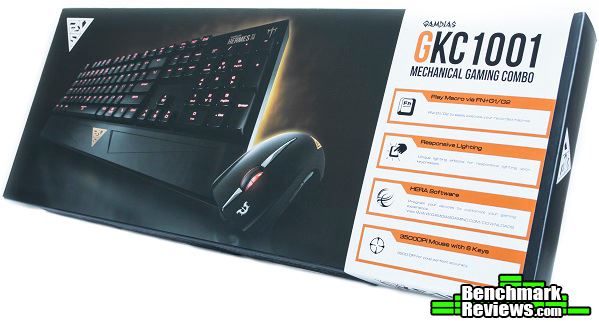
Let’s go through a quick overview of the mechanical gaming combo. It comes in a standard box with an illustration and some features about the product. More specifications are printed at the back of the box, which we will talk more about them in this review.
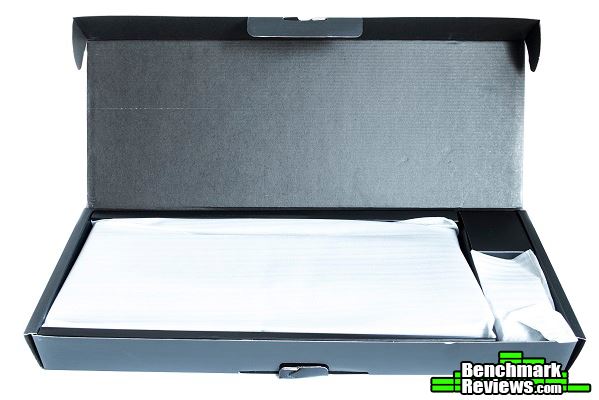
Upon opening up the box, the keyboard and mouse are both wrapped in their own foam protected bags. Although the exterior of the box is not in the best condition, our sample arrived without any scratches due to the adequate cardboard packaging around the product.
In terms of accessories, we have the quick start guide along with a few stickers. There are no additional key caps for swapping out the stock ones, but thankfully Gamdias still includes a handy-dandy key cap puller for the red mechanical switches.

The layout of the Hermes Lite GKB1000 mechanical gaming keyboard maintains a simple and standard layout with no dedicated macro or media control keys. Dedicated LED lights for the caps, scroll, and num lock are also absent. A built-in palm rest is included with the keyboard, but it cannot be removed since it is attached to the frame.

The keyboard stands on six rubber coated feet to ensure a firm grip on a smooth surface. Cable routing channels are marked underneath the keyboard to give some flexibility in routing the cable to the left, middle, or the right of the keyboard.

Let’s take a look at the Erebos Lite GMS7300 optical gaming mouse. It also has a standard design with left and right clicks, a scroll wheel, and a backward and forward button. Above the scroll wheel is a DPI cycle button, which allows any user to change the DPI settings on-the-fly. The mouse supports RGB lighting on the scroll wheel and the rear logo and can be customized via the downloadable Gamdias Hera software.
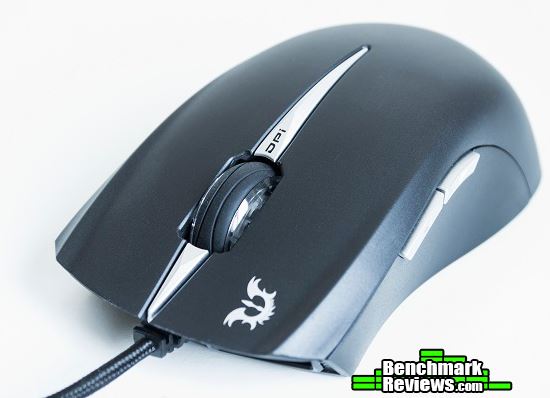
On the palmrest of the GSM7300, the Gamdias logo will illuminate once there is power to the mouse. Changing DPI settings can change the color of the LED to indicate which DPI setting the mouse is currently running at.

Both the GKB1000 mechanical gaming keyboard and GMS7300 gaming mouse have a gold-plated USB 2.0 connector. This allows a better connection to a USB port and can last longer than a normal USB connector. The connector does have some curvature on the rubber part in order to make it easier to remove from a USB port.

Let’s jump into the next section where we talk more about the keyboard and its features.
The GKB1000 mechanical gaming keyboard has the ability to switch between six different profiles via the 1-6 keys. These profiles can store different lighting effects and macro functions. Keys F2 and F3 are media control keys, while F4 lets the user swap the WASD keys for the arrow keys when pressed.

Here we have some media control keys. F5 is the play/pause button, while F6-F8 are the volume control buttons.

Recording macros on-the-fly can be done by hitting the Fn key with the F9 button. We will talk more about how this works when we talk about the Hera software. F11 lets the user lock the entire keyboard to prevent any keys from registering. This is a useful feature to have for video and photo editing.

No dedicated macro keys are present on the GKB1000. Instead, it uses the B (G2) and space bar (G1) as macro keys.

The windows key is located down on the bottom right of the keyboard layout. I like this idea as it would be more difficult to accidentally hit the key during a game session. Normally, the Fn key should be here instead, but the option to swap the two keys around can be done through the software.

Removing the key caps reveals the red LED lights on each key switch. Of course, the GKB1000 mechanical gaming keyboard may not have RGB lighting, but these red LED’s are much brighter and vivid compared to what an RGB keyboard can deliver.

These are TTC Red mechanical switches rated at 50 million clicks. They are similar to the linear Cherry MX Red switches and require the same 45 cN actuation force to register.
There is a firm grip to the surface thanks to the five rubberized grips on the bottom of the keyboard.

Flipping out the feet does give some extra height to the keyboard and the rubberized pads on the two feet allows for a better overall grip.

In the next section, let’s take a look at the features the GMS7300 gaming mouse has to offer.
The GMS7300 Erebos Lite optical mouse has a smooth plastic finish around the entire body with no rubberized grips on either side of the mouse. Here we can see there are two buttons; a forward and backward button. These two buttons can be programmed to perform other functions via the downloadable software.

The other side of the mouse is identical to the left side except for the missing buttons.

The GMS7300 gaming mouse has an Avago ADNS-3050 optical sensor with a max DPI of 3500, which is a good entry-level gaming sensor. It can easily glide around a smooth surface area thanks to the slippery feet on the bottom. Note that adjustable weights are not present with the GMS7300.

From the factory, changing DPI settings will change the profile settings on the mouse. This will change the color of the LED’s as well. It comes with five preinstalled DPI levels: 800 DPI (Red), 1200 DPI (Amber), 1600 DPI (Green), 2000 DPI (Cyan), and 3500 DPI (Blue).
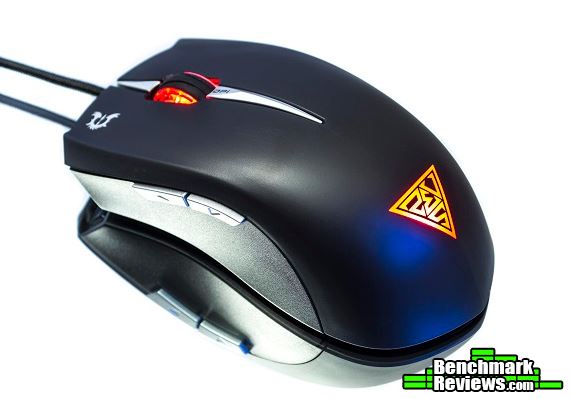


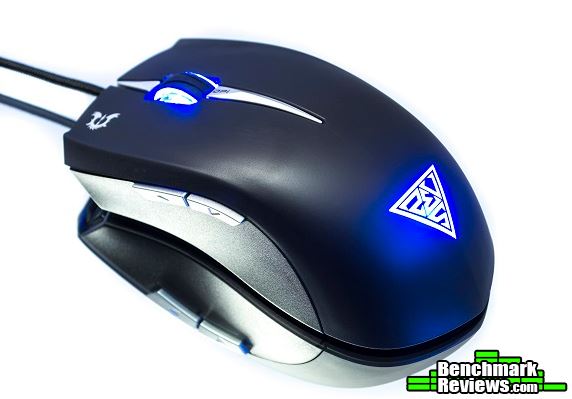
Of course, changing DPI settings on-the-fly without changing the LED color can be done via the downloadable software as well. Speaking about the software, let’s take a look at it in the next section.
Taking a look at the Hera software, we can see it has a nice graphical user interface with plenty of options to go through. In the Key Assignment tab for the GKB1000 mechanical gaming keyboard, we can assign a specific function to a key or assign a key to a new letter. Recording macros onto the G1 and G2 keys (B and space bar) can be done here as well. We can also swap the Windows key and Fn key around and switch the keyboard from 6-key to 21-key rollover.
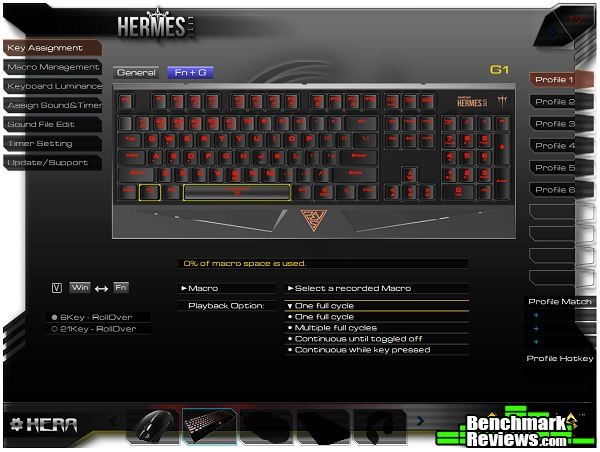
In the Macro Management tab, we can create, record, and delete macros if we want. The Hera software does allow importing and duplicating macro settings for your convenience. When recording macros on-the-fly using Fn with the F9 key, the LED’s on the keyboard will blink simultaneously to indicate it is in recording mode. Once you are finished recording, simply press Fn with F9 to stop recording and bind the recording to either the G1 or G2 (B or space bar) key.

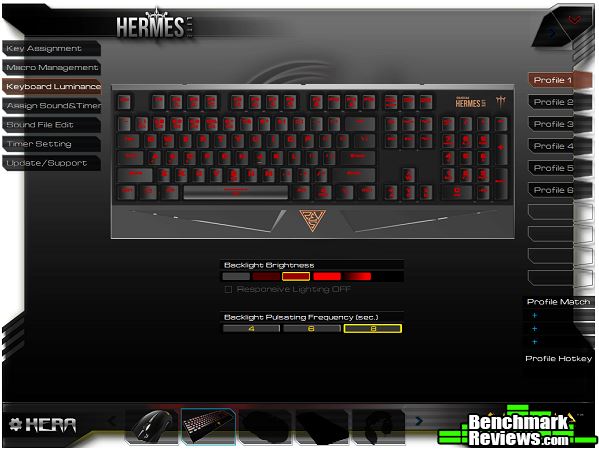
You can adjust the brightness and pulse frequency under the Keyboard Luminance tab. Like most gaming keyboards, there can be one lighting effect for each of the six profiles included. Responsive lighting is available when the keyboard LED’s are turned off and the check box next to “Responsive Lighting OFF” is not checked. What will happen is the keyboard will only light up once a key is pressed. Once the key is released, the LED’s turn off again. There are a few brightness levels, such as low, medium, high, and a pulsating effect. You can also adjust how fast or slow you want the pulsing frequency to be.
In the Sound and Timer tab, you can assign a certain sound to a key and have it play as soon as the key is pressed or delay it with a timer. I personally would not use this feature, but I am sure some people would find a use for it, such as playing different sounds when changing profiles or recording a macro.

You can also record your own sounds and save them to the software. Once the sounds are saved, they can be assigned to any key and played once that assigned key is pressed.

Taking a look at the Key Assignment tab for the GMS7300 gaming mouse, we can assign different functions to each individual button. All buttons, for example the DPI cycle button, can be programmed to perform other functions if needed.
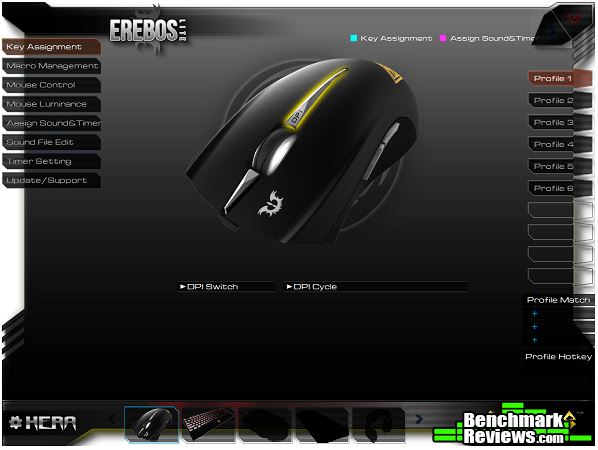
We can control the cursor speed, polling rate, and DPI settings through the Mouse Control tab. There are five DPI levels we can adjust to our liking. Something I would have liked to see here was a setting to adjust the lift-off distance of the mouse.
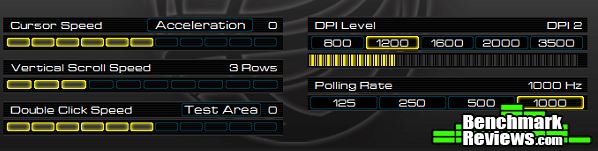
In the Mouse Luminance tab, we can choose between multiple color options or create our own color for the lighting effect. By default, the mouse changes LED colors because the check box is checked for the “Change color by Profile” option. By not checking this check box, it lets us keep the same color while allowing us to change the DPI settings when we cycle through the different DPI levels. The GMS7300 gaming mouse does have a pulsing effect as well.

Do note that the Gamdias Hera software comes in a zip file instead of an executable file. Also, if you wish to update the software, this can be done under the Update/Support tab. In the next section, we will test the keyboard and mouse combo to see how it performs.
The GKB1000 mechanical gaming keyboard feels just like any mechanical keyboards based off the Cherry MX Red switches. The Red TTC mechanical switches are good to type on, but they do require some time to get comfortable typing with especially for people who are coming from blue or black switches. This has nothing to do with the GKB1000 mechanical gaming keyboard, just mechanical red switches in general, whether they are Cherry MX or Kailh switches.
The keyboard does support 6-key rollover, which works well when I verified it with the Aquakey test software. Once I switched over to 21-key rollover, I was not able to press more than 10 keys without having a few keys go unregistered. I am not sure if this is something to do with the software or the keyboard itself, but this is an issue that should be fixed with a firmware update.
The keyboard looks great with all of the LED’s turned on. There are no dedicated LED’s for the caps, scroll, and num locks. Instead, when you press these keys, for example the num lock key, it will activate the LED underneath the num lock key. Press it again and the LED turns off. Responsive lighting works well, but the LED’s just seems like they stay on when typing at a fast pace. One problem I did encounter was a bug with the pulsating effect. The pulsating effect works well for the most part, but sometimes the LED’s would turn off completely for a split second causing the pulsating effect to begin again. This does not happen often, but it does happen at random times.

The print screen key stays lit even when the entire keyboard lighting feature is turned off. This only happens if the windows disable function is disabled. When the light is off, the windows disable function becomes enabled. I am not sure why the LED indicator has to be on the print screen key, but it would have made a lot more sense if it were on the actual windows key itself, assuming the LED indicator does swap once you swap the windows key and Fn key around through the software.

The GMS7300 gaming mouse does have a polling rate of 1000 Hz as advertised. It works well in FPS games and does not have mouse acceleration when compared to a laser mouse. The optical sensor is located in the center of the mouse making it easier to aim the cursor to a specific point on the screen.

Although it was not built for claw gripping, the GMS7300 has a longer body shape for larger hands. I would have liked to see some type of grip on the sides of the mouse, but it is light enough and glides around very easily without having to apply too much pressure to push it.
The Avago ADNS-3050 optical sensor does a good enough job when tracking moving objects in a game. At 3500 DPI, the tracking does get a little jittery when trying to move the mouse slowly, but most people would not play at that high of a DPI anyway. Like what I mentioned in the previous section, I would have liked to see a lift-off distance adjustment in the software. The lift-off distance is about 5mm from the bottom of the mouse to the surface, which is ideal for a gaming mouse but I personally like it if the distance were to be shorter. It would be nice if the software did allow the user to adjust the lift-off distance to their desire just so there is a bit more flexibility.
The GKB1000 mechanical gaming keyboard performs just as well as a keyboard with Chery MX Red switches. I was able to compare it to the Corsair K65 RGB keyboard with genuine Cherry MX Red switches and the two keyboards perform very similar to each other. The GMS7300 gaming mouse is a good mouse to start with and includes RGB capabilities and has an optical gaming sensor. I like the fact that it has a longer body for larger hands, but I just wish the software did allow the user to adjust the lift-off distance for more flexibility.
The mechanical gaming combo looks great with its simple design and red LED’s. Of course an RGB keyboard can give you 16.8 million colors, but the GKB1000 gives off a much better red than even some of the best RGB keyboards. The GMS7300 gaming mouse is a good match to the keyboard as it maintains a simple design as well. I like the fact that it is RGB so the LED’s can be changed to whatever color the user wants. There are not a lot of bells and whistles on this gaming combo, but the simple design should be a good complement to most desktop setups.
Both the mechanical keyboard and mouse are made mostly out of plastic, but they are durable enough to withstand a few knocks here and there. The TTC Red mechanical switches on the GKB1000 mechanical gaming keyboard are rated for 50 million clicks, while the Omron D2FC-F-7N switches on the GMS7300 gaming mouse are rated for 10 million clicks. Assuming there will not be any electrical failure in the future, this mechanical gaming combo will be long obsolete by the time these switches fail.
When it comes to functionality, there are a few areas to improve. I do like the fact you can lock the entire keyboard without having it register any keys when combining the Fn and F11 keys. Being able to save profiles, macros, and lighting effects onto the mice and keyboard without having run the software every time you start Windows is a huge plus for me. As for improvements, the 21-key rollover does not work as advertised and the pulsating effect on the keyboard would bug out at random times. Not that these are huge flaws, but a customer paying for full 21-key rollover support and a pulsating effect will expect to get exactly that from this product. I hope to see this fixed with possibly a firmware update in the near future.
As of February 2016, the Gamdias Hermes Mechanical Gaming Combo is set to hit the market at a price of $69.99. This is a great price as it includes a mechanical keyboard with red switches and a gaming mouse with RGB capability. It may not have all the gaming features like some of the more expensive mice and keyboards, but being under $100 is really something to look at for someone on a tight budget.
+ Six separate profiles
+ Affordable gaming combo
+ Record macros on-the-fly
+ RGB capability on GMS7300 gaming mouse
+ Great for typing, gaming, and productivity
+ Ability to customize settings via Hera software
– 21-key rollover and pulsating effects can be improved
– Print screen key is somehow the windows disable indicator LED
-
Performance: 9.25
-
Appearance: 9.00
-
Construction: 9.00
-
Functionality: 7.00
-
Value: 8.75
Recommended: Benchmark Reviews Seal of Approval.
COMMENT QUESTION: What do you think about the Gamdias Hermes Mechanical Gaming Combo?


