By David Ramsey
Manufacturer: Corsair Components, Inc.
Product Name: K70 LUX RGB Mechanical Gaming Keyboard
Model: CH-9101010-NA
UPC: 843591073226
Price As Tested: $139.99 (Newegg | Amazon)Full Disclosure: Corsair has provided the product sample used in this article.
No matter what type of keyboard you need, Corsair will have one for you. You can choose from a very broad array of products with a smorgasbord of mechanical switch types, lighting, and other features; from “fairly ordinary” to “has more computing power than your desktop rig did 10 years ago.” Benchmark Reviews has previously tested the K70 RGB Rapidfire gaming keyboard and found it to be a premium product; for this article we’re testing the Corsair K70 LUX RGB Cherry MX Red mechanical gaming keyboard.
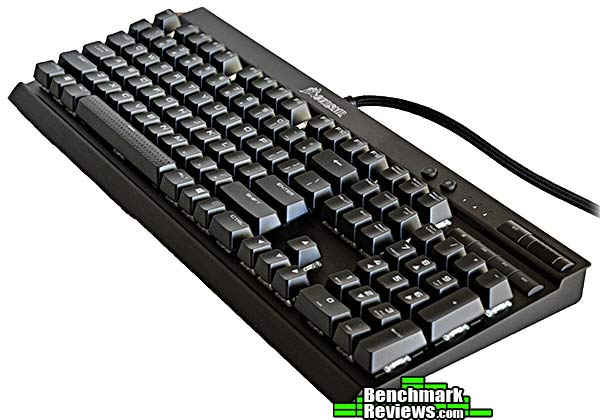
- Cherry MX Red mechanical key switches, 45g activation force, 2mm actuation distance, rated for 50 million keystrokes
- Programmable per-key full RGB backlighting
- Pass through USB 2.0 port
- Included extra textured and contoured FPS and MOBA key caps
- Easy access media keys
- Detachable, soft-touch wrist rest
- 100% anti-ghosting with 104-key rollover over USB
- Windows lock key
- Two-year warranty
Let’s take a look at this keyboard in the next section.
Corsair offers six variants of the aluminum-bodied K70 RGB keyboard: the Rapidfire version we’ve previously reviewed; the LUX version with Cherry MX Red, Brown, or Blue switches; and the slightly more expensive non-LUX version with MX Red or Brown switches. The non-LUX versions have internal processors and memory so that you can program lighting effects and macros that stay with the keyboard and can be used on other systems, while the LUX versions depend on Corsair’s CUE software to provide macro and lighting functionality. The front of any K70 is dominated by its frameless design and black anodized aluminum key plate.

The back of the keyboard contains only the product label and fold-out feet. Probably due to the very thick USB cable, there are no cable channels.

One interesting item is the addition of fold-out support feet at the front of the keyboard:

The thick, braided USB cable is permanently attached, and has the requisite gold plating on the USB connectors and braided sleeving on the cable itself. One cable is for the keyboard itself while the other cable is for the USB pass-through port on the back of the keyboard.

A selector switch on the back enables you to choose between 1, 2, 4, and 8ms reporting rates, as well as a “BIOS Mode”. Even the slowest 8ms reporting rate gives you 125 keystrokes per second, so the utility of this feature escapes me. “BIOS Mode” is required for the keyboard to operate on some older systems; however, this disables communication with the CUE software, so in this mode you’ll lose everything except the built-in static lighting pattern (all keys red except WASD and the arrow keys, which will be white).

At the upper right of the keyboard are the dedicated media keys, knurled metal volume control, mute switch, Windows lock key, and the lighting intensity key, which when pressed cycles through three lighting intensities plus off.

Accessories include the snap-on, rubberized wrist rest, some textured replacement key caps (with a plastic key cap puller) for FPS and MOBA gamers, and a couple of pamphlets. The wrist rest is a nice inclusion but I worry about the long-term durability of its snap-on connectors. No software or documentation is provided, but you can download a very complete manual and the Corsair Utility Software needed to fully utilize the keyboard from Corsair’s web site.

Let’s take a closer look at this keyboard in the next section.
While the Corsair K70 LUX RGB is available with Cherry MX Red, Blue, or Brown switches, our review sample was the gamer-preferred red variant.

Cherry’s new clear switch housing works with the internal LED to diffuse the light more evenly than the older top-mounted LED design. The result is a more even lighting with softer “edges”, but the lower legends on keys still won’t be as brightly lit as the upper keys (notice the dimmer shifted symbols on the number keys in the image below).

As with other K70 keyboards, the thick metal key switch mounting plate serves as the top of the keyboard; there’s no separate, raised plastic bezel. This gives the keys an attractive “floating” look and makes cleaning detritus out of the keyboard easier.

Corsair provides a plastic key cap puller and alternate key caps for WASD and QWERDF for FPS and MOBA gamers. The alternate caps have textured grey rubber faces and are contoured to keep your fingers in place during intense play. In this shot you can also see that the space bar is also textured, although the texture is cast into the plastic and is not a separate rubberized layer.

The very thick USB cable ends can be a little crowded when plugged into adjacent USB ports; additionally, the sleeved cable itself is relatively inflexible and hard to route cleanly on your desktop.

In the next section I’ll cover the Corsair Utility Engine software you’ll need to fully utilize this keyboard.
With dozens of vendors producing high end mechanical gaming keyboards these days, Corsair’s CUE software has served to distinguish their products. While it’s always been extremely capable, CUE has also been quite complex, and somewhat hobbled by a less-than-intuitive user interface. The new release of CUE solves many of these problems.
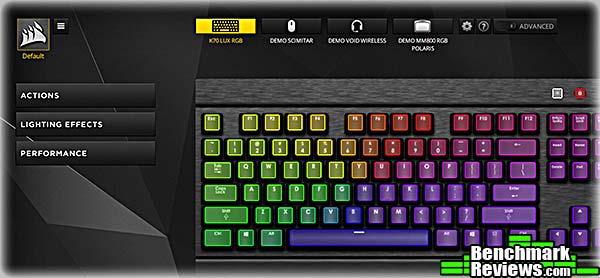
CUE can control all of your Corsair external peripherals: keyboard, mouse, and trackpad. The new main screen defaults to showing the connected keyboard (if there is one), complete with synchronized, animated lighting effects that match your current keyboard settings. CUE now includes “demo modes” for peripherals you don’t have, such as the Scimitar mouse, Void headset, and Polaris trackpad as shown in this image. You can select these missing devices and explore their capabilities within CUE, a clever marketing trick.
At the left you can see the three main selections for the K70 LUX RGB keyboard: Actions, which are macros and other operations you can assign to keys; Lighting Effects, and Performance. Let’s look at these features individually.

Actions are where you’ll define macros, but you’re not limited to macros: as shown in the menu above, you can define keys that replay simple text sequences, control media, launch applications, set timers, and switch profiles as well (a Profile is a collection of actions, lighting effect, and performance settings.)

Macros are normally recorded with millisecond precision, and you can choose whether to include mouse actions in macros as well, even with a non-Corsair mouse.

You can edit macros by inserting or deleting individual steps, and Corsair provides convenience functions such as a one-click way to remove all delays between macro steps. If you screw up when editing a complex macro, you can revert it to its original form.

CUE comes loaded with a number of lighting effects: color waves, pulses, and spirals; static lighting, and whimsical effects like the Rain effect shown above. Each effect has a specific set of controls that apply to it: in the Rain effect above, note that you can select random or alternating colors, as well as the speed at which the virtual raindrops fall. Dedicated users with time on their hands can create arbitrarily complex lighting effects, which can be saved and shared with other users. Corsair maintains a library of third party lighting effects that users can download and install.

The Performance tab lets you selectively disable key combinations such as Alt-Tab that, pressed accidentally, might blow you out of your game. This is a welcome addition to the more standard feature of simply disabling the Windows key. You can also select colors for the Lock and Brightness button lights.

Any set of associated Actions, Lighting Effects, and Performance settings is called a Profile. Profiles can be linked to specific games (or any other applications) so that they load automatically when the game is launched. CUE can identify most applications on your system, but apparently cannot “look inside” Steam or Origin folders for games there– you’ll have to dig down through the folders yourself. Profiles may be saved and shared with other users.
Although the K70 LUX RGB keyboard required CUE to be loaded and running to power its features, you can save a single static lighting configuration directly to the keyboard, which will be in effect when CUE is not present.
I’ll present my final thoughts and conclusion about this keyboard in the next section.
The Corsair K70 LUX RGB keyboard is functionally identical to the Corsair K70 RGB RAPIDFIRE that Benchmark Reviews has previously tested; the only difference is that this keyboard is equipped with standard clear-body Cherry MX Red key switches instead of the custom Rapidfire switches. As I noted in my previous review, the difference between the standard MX Red and Rapidfire switches is pretty subtle:
“It’s important to realize that as far as typing feel goes, Cherry MX Speed switches feel exactly like Cherry MX Red switches: they’re both linear, 45g switches with 4mm of total travel. The only difference is that the Speed switches actuate at 1.2mm from the top of the key stroke, rather than 2mm from the top of the stroke.”
Dedicated gamers may prefer the Rapidfire switches, but I think for most people it would be hard to tell the difference. Still, Corsair is all about choice, so pick the version you’d prefer.
My only hardware complain is that both keyboards have a thick USB cable that’s stiff and difficult to route cleanly around your desktop.
While there’s little difference between the K70 LUX RGB and the K70 RGB Rapidfire, the new version of CUE is a welcome improvement, with a dramatically improved user interface that makes dealing with its deep well of features a lot easier. Corsair has even improved the contrast of the controls and lettering to make them more visible, with is a big help.
 My only real CUE complaint remains its inability to assign actions to modified keys– that is, using the Shift, Alt, or Ctrl keys in combination with another key. Especially for a keyboard without dedicated macro keys such as the K70, this would be a big help.
As of March 2017, the Corsair K70 LUX RGB Cherry MX Red keyboard sells for $139.99 (Newegg | Amazon).
The Corsair K70 LUX RGB keyboard is a heavily-built and feature-filled gaming keyboard aimed directly at enthusiasts who don’t want to compromise. Thin side bezels keep it smaller than most other 104-key keyboards, and the thick aluminum top plate and clear Cherry RGB switches give it a lot of eye appeal. Corsair continues to use genuine Cherry MX switches in their enthusiast keyboards, and while one can debate whether Cherry switches are worth the price premium over the Chinese clone switches used in many other keyboards, there’s definitely a market for “the real thing”. Given that, it’s still surprising that the warranty for this keyboard is only two years, when many of the clone-switch competitors have five-year warranties.
While the non-LUX K70 RGB keyboards have internal processors and memory and can be loaded with profiles that will operate without CUE, this version requires CUE to be running if you want anything other than a static lighting configuration. This isn’t a big deal for most users, but should you want to take your keyboard to a different or non-Windows computer, you can pay $10 more for the non-LUX version.
I’ve always liked the design and construction of Corsair’s K-series keyboards, with their thick, anodized aluminum switch mounting plate serving as the top of the keyboard, without a separate plastic bezel. This design, combined with the clear-bodied Cherry switches, means that lighting effects are visible from the side of the keyboard, which is cool.
The entire keyboard just reeks of quality, even using metal for components like the knurled volume scroller which virtually any other company would have made of injection-molded plastic.
This is an expensive keyboard, but if you’re a serious gamer or simply want a visually spectacular and extremely customizable keyboard for any reason, it’s worth it.
+ Genuine Cherry MX Red
+ Massively capable CUE enables astonishing lighting effects and other actions, synchronized among all your Corsair peripherals
+ Included optional key caps for FPS and MOBA gamers
+ Snap-on wrist rest
+ USB pass-through port (although only USB 2.0)
– Thick, clumsy USB cable
– Requires CUE to be installed and running.
– Very expensive enthusiast product
– Cannot define macros using modifier keys
– 2-year warranty?
-
Performance: 9.75
-
Appearance: 8.50
-
Construction: 9.50
-
Functionality: 9.75
-
Value: 8.00
Excellence Achievement: Benchmark Reviews Golden Tachometer Award.
COMMENT QUESTION: What do you demand most from a gaming keyboard?



One thought on “Corsair K70 LUX RGB Keyboard Review”
This keyboard is very comfortable to use, and the optional hand rest is perfect without being “too much”. The full-sized keyboard is nice if you’re using the numberpad/arrows, or generally like “more room” on a keyboard.
Comments are closed.