By David Ramsey
Manufacturer: IOGEAR Corporation
Product Name: HVER RGB Aluminum Gaming Keyboard
Model Number: GKB704RGB
UPC: 881317516510
Price as Tested: $42.99 (Amazon | Newegg)
Full Disclosure: IOGEAR provided the product sample used in this article.
Any enthusiast will know the name IOGEAR; this prolific peripherals company has been around for years and has a broad and popular catalog of products. Today Benchmark Reviews has the IOGEAR HVER RGB Aluminum Gaming Keyboard for review. This interesting input device includes popular features like partial aluminum construction, programmability with multiple profiles, and RGB lighting, but keeps costs down by eschewing mechanical key switches for rubber domes. How much of a sacrifice is this? We’ll see in this review.
- “Hover key” design with aluminum top plate
- Double-shot keys
- RGB multi-zone LED backlight
- 26 anti-ghosting keys
- 6 programmable macro keys with 3 profiles for a total of 18 macros
Let’s take a look at this keyboard in the next section.
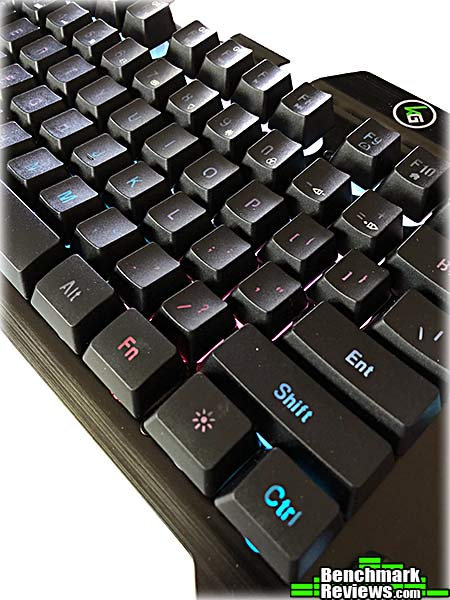
IOGEAR’s HVER RGB Aluminum gaming keyboard is a standard 104-key design, presently selling online for $42.99 (Amazon | Newegg). The top plate is black anodized brushed aluminum; the keys are black with translucent white legends that light up when the keyboard’s backlights are on.

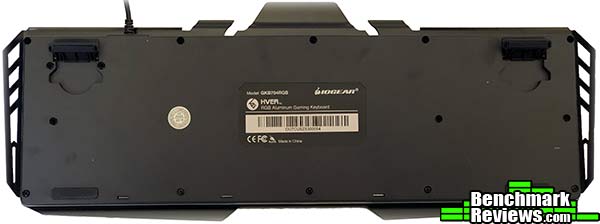
A label below the arrow keys reads “KALIBER GAMING”; presumably a sub-brand for IOGEAR’s gaming peripherals, although they’re inconsistent about their use of the term on their web site. The back of the keyboard sports two fold-out feet and a product label.
The indicators for the num lock, caps lock, and mode have a raised, rather baroque, appearance. The Mode indicator (at the far right) will light to indicate the Windows key is disabled; blink to indicate gaming mode, and stay off for normal mode.
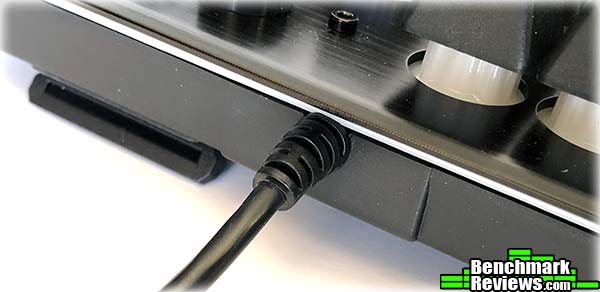
 There are no pass-through USB ports on the keyboard, and the plain, non-braided USB cable is permanently attached…
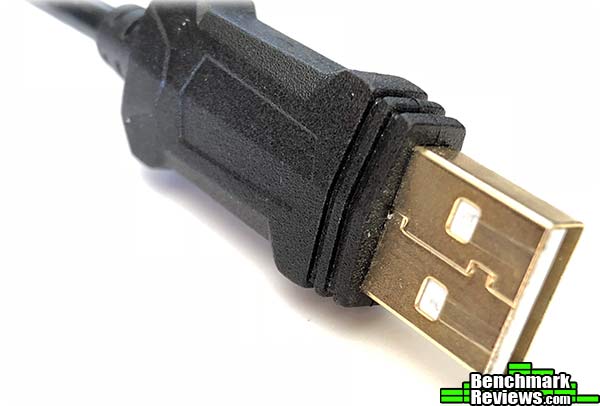
…although the USB Type A connector may (or may not) be gold-plated. IOGEAR does not call it out as such.
Let’s continue our examination of this keyboard in the next section.
Many keys on the HVER RGB perform multiple functions: some keys are overloaded for multimedia functions and backlight control, both of which are invoked by holding the FN key at the same time; while the F1 through F6 keys are also used for the assigned macro functions. Note the “P3” label visible on the “3” key– in conjunction with the FN key, pressing “1”, “2”, or “3” will switch the keyboard to that profile.

Although these are rubber-dome switches, IOGEAR says their unique “plunger design” results in “… a super-smooth, positive keystroke engagement, similar to the feel of a mechanical keyboard.” I wouldn’t go quite that far– I don’t think anyone would ever mistake this for a mechanical keyboard– but it does feel really good for what it is, with smooth, linear travel and a good tactile bump.
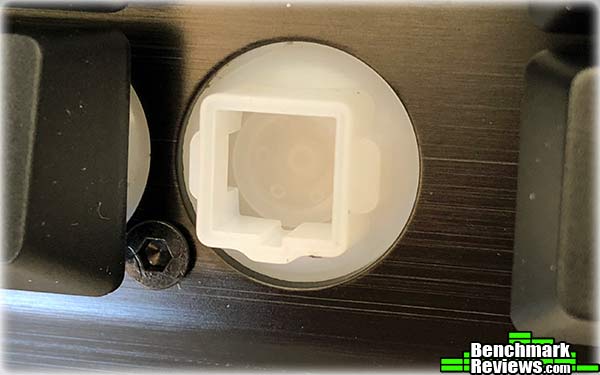
The individual RGB LEDs for each key are under the translucent rubber sheet, which diffuses their light. This provides a nice swath of light but does mean the key legends are not lit nearly as brightly as an LED mechanical switch, which has its LED on top of the switch, right under the key cap.

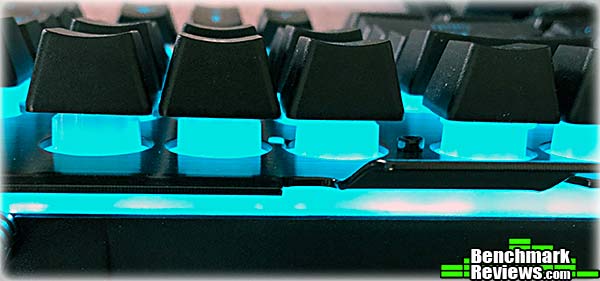
Much of the LED light spreads out through the key stem as well as the translucent plastic base under the aluminum plate.
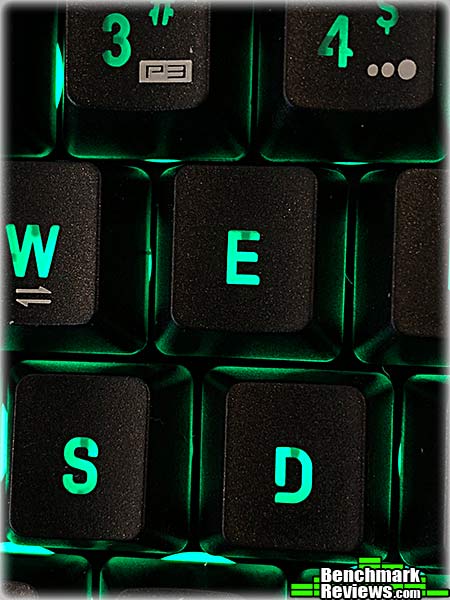
One thing I noticed was the odd design of the double-shot keys: internal structures in the plastic looked like inclusions in a gem stone, showing up as black marks on the legends. This appears to be normal for these keys but does detract from the look of the backlit key legends.
Although this keyboard does have an aluminum top plate, it doesn’t act as a base plate for the key switches as it would on a mechanical keyboard. Rather, the electronics, rubber membrane, and key plungers are housed in a thick plastic “sandwich” formed by the black bottom layer and the translucent middle layer. The aluminum piece is secured to the top of this assembly with screws. While this isn’t the type of construction I’ve seen on more expensive gaming keyboards, it does make the entire keyboard very rigid.

In the next section I’ll go over the keyboard’s built-in functionality as well as the operation of IOGEAR’s utility software.
The HVER RGB keyboard has some built-in functionality: there are basic multimedia controls that work without any extra software, and you can choose from a pre-defined selection of lighting effects: multicolor strobes, breathing, static colors, and the like. These functions are indicated on the lower portions of the relevant keys.
But to get the most from this keyboard, you’ll want to download and install IOGEAR’s software, which is called “HVER RGB”. Using this utility you can assign macros to the F1 through F6 keys, and other functions to most of the keys on the keyboard. The oddly non-resizable application window lets you drag the keyboard image back and forth to reveal the keys you’re interested in. At the right side of the window are six categories of actions (labeled “BUTTON”) you can assign to a key: Default (no action, whatever the key does normally), Mouse Event, Keyboard Event, Fire Key, Media, and Macro. Clicking any of these categories, I mean BUTTONs, reveals options in the EFFECT column.

You assign functions and macros to keys by left-clicking one on them in the EFFECT column, dragging them to the key you want to use, and then left-clicking again. As you drag a little labeled rectangle will follow your cursor. In the image below I have clicked on the OPEN EXPLORER effect and dragged it to the F8 key.

To remove a key’s special function, you select DEFAULT in the BUTTON column and drag the DEFAULT effect to the key, which is simple enough. As for the rest of the BUTTONs…
Mouse Event lets you post left, right, and middle mouse clicks, as well as “BACKWARD” and “FORWARD” events. While the click events worked fine, I never saw any reaction from keys assign the BACKWARD and FORWARD events.

KEYBOARD EVENT lists things like CLOSE WINDOW, CUT, COPY, PASTE, SELECT ALL, and so forth. FIRE KEY lets you assign a key, repeat count, and delay between repeats (in milliseconds); MEDIA duplicates the functions already available to the user through the function keys, and MACRO lets you define simple macros. First select whether you want to record delays between keystrokes; ignore them, or have a fixed delay; then click the RECORD button and type away. Once you’re finished you can give the macro a suitable name.

You assign a macro to a key by clicking on it once and dragging it over. However, although almost any key on the keyboard will highlight as you drag over it, you can only drop macros on the F1 through F6 keys. With three profiles, you can have up to 18 macros.
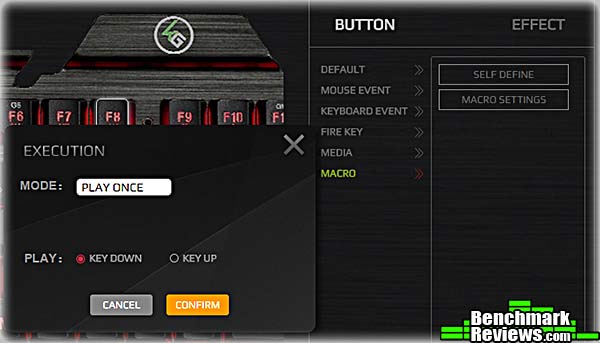
The MACRO SETTINGS button– which looks exactly like something you’d drag to a key, but isn’t– will invoke a dialog showing all your current macros for the selected profile. You can examine these macros but sadly there is no facility to edit them: you’re limited to deleting and re-recording the macro.

The HVER RGB software defines three profiles; while you cannot control the keyboard lighting from the utility, the lighting effect used when a profile is created is stored with the profile. You select the profile you want by pressing Fn + 1, 2, or 3 on the main keyboard (the keys have “P1”, “P2”, and “P3” labels to help you remember), and the keyboard will confirm the selection by blinking all keys red for profile #1, green for profile #2, and blue for profile #3.
In the last section I’ll give you my final thoughts on this keyboard.
Mechanical gaming keyboards with programmable features are expensive, and I applaud IOGEAR for trying to come up with a less expensive alternative that keeps the price down with high quality rubber dome switches but offers functionality similar to that offered with more premium mechanical keyboards.
The HVER RGB offers a reasonable set of features, although as with most programmable gaming keyboards you’ll need to spend some time figuring out how to use it and getting used to the…how shall I put it?…quirks and features of the keyboard/software combo, since there’s no manual on the software and only a brief “Quick Start Guide” provided for the keyboard.
Here are some things I figured out over the course of this review:
- Macros can only be assigned to keys F1 through F6. That at least is documented.
- Other BUTTONs can be assigned to any alphanumeric key.
- Macros only work when the keyboard is in “gaming mode” as shown by the blinking indicator; all other key assignments work in any mode.
- Mouse movements (FORWARD and BACKWARD) don’t seem to work. Not sure what they’d really do anyway.
- Sometimes you need to click the “APPLY” button in HVER RGB to get changes to propagate to the keyboard. Sometimes you don’t. I never did figured out the rules for this.
- Although you’d think RESET ALL would clear all macros and key redefinitions, it actually doesn’t seem to do anything. The Quick Start Guide says you can also reset the keyboard to its default state by pressing Fn + ESC, but while this makes the keyboard blink its lights, it doesn’t seem to change anything.
- Each key has an RGB LED, but they are not individually controllable; you’re limited to the built-in colors and effects. Folks who like their WASD and arrow keys a separate color, or create elaborate color-coded MMORPG layouts should look elsewhere. On the product page, IOGEAR claims “The HVER RGB also allows you to match the lighting of your other gaming gear by setting your custom backlight color from the RGB spectrum, with the help of the Kaliber Gaming software.”, but the software I downloaded had no such capability.
- Oddly, this keyboard will not work on a Macintosh. AT ALL. No lights will show, no key presses will register. The Mac’s System Report, USB section, will not even show the keyboard is connected. While it’s unlikely anyone would buy this keyboard to use on a Mac, it does perhaps indicate a problem with the USB controller or firmware in the keyboard. I’ve never had a USB device simply not work or even show up on a Mac.

So what do you get for $44.95 / $42.99 (Amazon / Newegg)? You get a well-contructed (the aluminum top plate makes the keyboard very rigid), good looking, rubber dome gaming keyboard with a large subset of the features you’d see on a high-end mechanical board costing three times as much. The only reservation I have about the construction of this keyboard is the visual appearance of the key legends, which are often obscured by some structure inside the key, such as the dark areas you can see in this closeup of the “4” key:
You’ll give up the crisper feel and response of mechanical keys, and the somewhat quirky HVER RGB utility could really use some work (and documentation), but for the most part it does its job well. If your keyboard budget won’t stretch far, you could do a lot worse than this; at the end of the day, the IOGEAR HVER RGB Aluminum Gaming Keyboard is a very good value at its street price of $42.99 (Amazon | Newegg).
+ Low price for these features
+ Aluminum to plate provides exceptional rigidity and quality feel
+ Easy to set color effects from the keyboard
– Lighting not per-key controllable; macros not editable
– Key legends partially obscured by internal moldings
– HVER RGB utility could use some work (and documentation)
– Rubber dome keys lack the feel and response of mechanical keys
-
Performance: 8.75
-
Appearance: 9.00
-
Construction: 8.50
-
Functionality: 8.25
-
Value: 9.25


