By Meng Vang
Manufacturer: NZXT, Inc.
Product Name: H500i Mid-Tower Case with CAM-powered Smart Features
Model Number: CA-H500W-W1 (Matte White)
UPC: 815671013798
Price As Tested: $99.99 (Newegg)Full Disclosure: The product sample used in this article has been provided by NZXT.
The NZXT S340 was a very successful and popular computer case for both entry level builders and enthusiasts. It provided good features for the price and was very easy to build with. Then came the S340 Elite, which included the same features along with a glass side panel, a cable puck, and other features over the vanilla S340.
As a replacement for the successful S340 cases, NZXT has launched two new cases in their H-Series lineup; the H500 and H500i. These cases come in multiple colors and feature a tempered glass side panel, two pre-installed 120 mm Aer F120 fans, and a removable front radiator bracket for easy installation. The H500i does have a few more features, like a vertical GPU mount, the CAM-powered Smart Device, and two built-in RGB lighting strips. Our friends at NZXT were kind enough to send Benchmark Reviews the matte-white H500i for this review.

- CAM Powered Smart Device to simplify installation and manage use of RGB lighting and fans
- Premium, all-steel construction with the sleek H-series design; available in four color combinations
- Tempered glass panel showcases custom RGB lighting
- System installation and expansion made easy with all-new cable management system
- Water-cooling installation simplified for both AIO and custom loop
- Adaptive Noise Reduction optimizes cooling and noise balance for best gaming comfort
| Dimensions | W: 210mm H: 435mm D: 428mm (without feet) W: 210mm H: 460mm D: 428mm (with feet) |
| Material(s) | SECC Steel and Tempered Glass |
| Weight | 7 kg |
| Motherboard Support | Mini-ITX, MicroATX, and ATX |
| I/O Ports | 2 x USB 3.1 Gen 1 1 x Audio/Mic |
| Filters | Front right side panel, bottom front and PSU intake |
| Expansion Slots | 7 |
| Smart Device | 3 x Fan channels with Max 10W per channel output* 1 x RGB LED port support up to 4 x HUE+ LED strips or 5 x Aer RGB fans Built-in noise detection module *Note: If a splitter is used, fan control is regulated depending on the fan connected to the 4-pin port. Do not use low-noise adapters. |
| System Requirements | PC with open internal USB 2.0 port and Windows® 10 operating system recommended. Internet connection is needed to download CAM.Some CAM features require Internet access, a valid email address and acceptance of our current Terms of Service. |
| Vertical GPU Mount | Support 2 slot GPUs Riser card with 30cm length recommended. Riser card not included. |
| Drive Bays | 2.5”: 2+1 3.5”: 2+1 |
| Radiator Support | Front: Up to 280mm Rear: 120mm |
| Fan Support | Front: 2 x 120/2 x 140mm Top: 1 x 120mm (1 Aer F120 Case Version included) / 1 x 140mm Rear: 1 x 120mm (1 Aer F120 Case Version included) |
| Fan Specs | Aer F120 (Case Version) Speed: 1200 + 200 RPM Airflow: 50.42 CFM Noise: 28 dBA Bearing: Rifle Bearing |
| Clearance | Cable Management: 19-23mm GPU Clearance: Up to 381mm CPU Cooler: Up to 165mm Front Radiator: 60mm Rear Radiator: 60mm Reservoir & Pump: Up to 180mm (Along cable bar), Up to 86mm (Along bottom panel) |
| Warranty | 2 Years |
| Model Number | CA-H500W-W1 |
| EAN | 5060301694105 |
| UPC | 815671013798 |
The NZXT H500i has launched with the market price of $99.99 (Newegg). Inside of the accessory box, we find an installation guide and plenty of mounting screws for the motherboard, storage devices, and the power supply unit. The mounting screws are nicely organized in labeled bags.

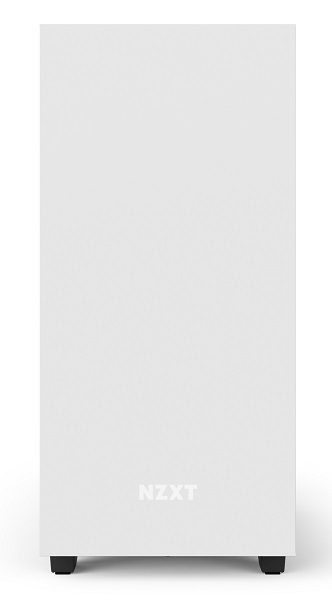
Looking at the case from the front, we can see the H500i still maintains that NZXT minimalistic appearance. It looks identical to the S340 Elite with just the simple company logo towards the bottom.
On the main side of the case, the tempered glass side panel does not extend all the way to the power supply chamber. This is a similar design to the Phanteks P300, which saves money on glass production. The glass rests on a lip on the power supply chamber and is held on with a single thumbscrew at the rear of the case.

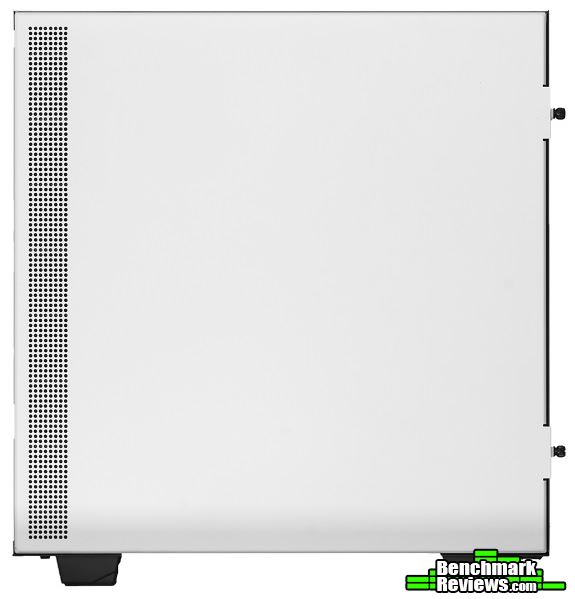
The opposite side panel contains just a simple matte white steel pane. We can see the front ventilation towards the front of the case.
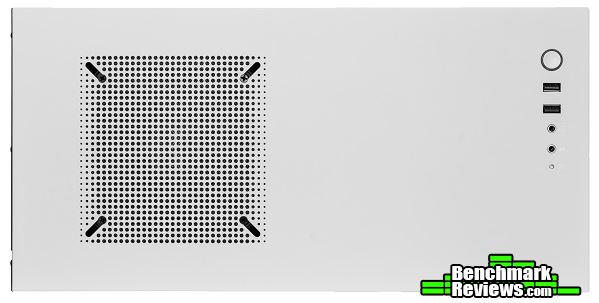
Like the S340 Elite, the top has is a single fan mount for a 120 or 140 mm fan. There is a dust filter sandwiched between the fan and the case, which does make it somewhat difficult to replace when putting everything back. Towards the front are the front I/O ports. This includes a power button, two USB 3.1 ports, standard 3.5 mm headphone and microphone jacks, and activity LED.
The bottom of the case does have some similarities to standard gaming cases, like a dust filter for the power supply. Now the hard drive cage can move further or closer to the front of the case thanks to the adjustable rails.

Now that we have seen a quick look, let’s go ahead to show more about the features the H500i has to offer.
Inside the H500i, we notice a S340-like design with no additional hard drive cages or optical drive expansion slots. But unlike the S340 Elite, the SDD tray on the side of the power supply chamber is no longer present. Instead, there are two SSD trays on the top of the power supply chamber, which can be readjusted.

Behind the motherboard tray are the cable routing channels for improved cable management. Of course, these are removable if you choose not to use them. We can also see many cable tie-down points in every corner of the motherboard tray, which is especially useful for routing something like the CPU power cable.

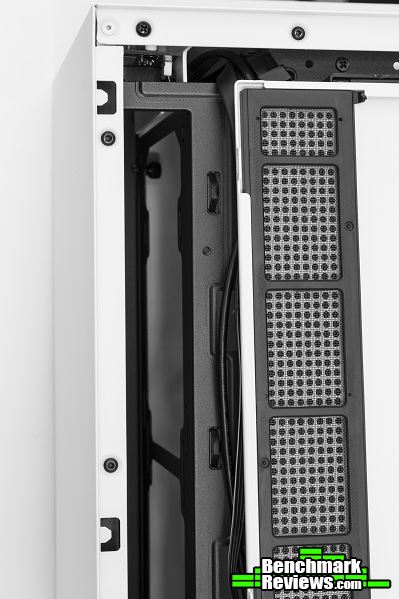
The ventilation for the front of the case does have a dust filter for filtering out larger dust particles.
On the power supply chamber, there are many ventilation holes to allow additional airflow to the power supply unit. Here we get a closer look at the SSD mounting brackets, which are re-adjustable to fit anywhere on top of the power supply chamber.

Not included on the H500, the H500i comes with the CAM-powered Smart Device. This device combines the functionality of the HUE+ and Grid+ V3 into one. The Smart Device has three fan channels and an RGB port for up to four HUE+ LED strips or five Aer RGB fans. Its main function is to provide RGB customization features while optimizing cooling performance for a quiet system. It plugs into the motherboard using a standard USB 2.0 header.

In the next section, we will look at a few more features the H500i has to offer.
With the H500 and H500i, NZXT wants to maintain an easy build experience by adding a removable front radiator mount. This mount can support a 240 or a 280 mm radiator with fans, and is held on the case by two thumbscrews.

The opposite side panel does not slide off like a traditional side panel. Instead, it hangs onto the front of the case like a door and comes off once opened at a wider angle.

Taking off the glass side panel will look something like this. Instead of the glass coming completely off the case once we remove the screws, it just rests nicely on a lip on the power supply chamber. Now it is safe to pull it up and off the case without risking damage.

Here we get a closer look at the seven expansion slots and the vertical GPU slots. These vertical GPU slots are not included on the H500. Mounting a graphics card vertically will improve the appearance of the system. Just be sure to have an extra PCI-E riser cable on hand as the H500i does not come with one from the box.
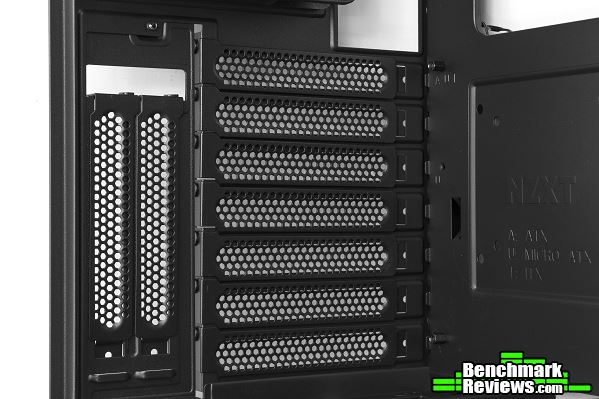
Like the H700i we reviewed earlier this year, the H500i has these small cable hooks that prevent lose cables from hanging. These can tidy things up for a more organized looking system.

Behind the cable bar is one of the two built-in LED lighting strips. NZXT has realized that many users like putting LED strips behind the cable bar to enhance interior lighting.

In the next section, we will take a look at the CAM software to see the capabilities of the Smart Device.
Upon opening the CAM software for the first time, the software will ask us to log in or create a new NZXT account. The reason for this is so the software can store all fan profiles and lighting settings in the cloud. We could continue as a guess, but doing so will limit us to only a few setting we can play with as most of the CAM settings are stored on an account.

Once we have successfully created an account, the software brings us to the dashboard where we can monitor the core components and their real time data.

There is also an overclocking section for tweaking the GPU. We can set power limits and adjust GPU and memory frequencies just like other GPU overclocking software.

In the cooling section, we have the option to control up to three different fans. The H500i does come with a few Y-cables for adding more fans, so we do not have to limit ourselves to only three. We are able to customize the fan levels using the New Custom Profile option, which makes it easy to perfectly tune each fan according to CPU temperature.

There are a lot of options to choose from within the lighting section. We can select between a number of presets to tweak their settings, or we can select from Smart, Custom, Audio, or Games. Smart lets us adjust the different colors relative to the CPU or GPU temperature and frame rate. Custom allows us to customize fixed, breathing, and wave effects, and Audio changes the colors of the lights depending on how loud or quiet the sound through Windows is. The Games tab can animate lighting effects through games, although CS:GO is the only one currently supported.

There is much to talk about the CAM software, so let’s look more into it in the next section.
The Smart Device section in the CAM software allows us to set up an adaptive cooling to balance fan nose and temperature. This calibration may take up to an hour depending on the noise levels around the computer. The best thing to do is to keep outside noise to a minimum for the most accurate readings.

Starting the calibration, the software will first spend a few minutes calibrating the idle fan noise level and temperature of the CPU and GPU. Once that is done, it will calibrate noise and temperature when a game is running. Playing a demanding game is ideal for most systems, but I had to run a few more programs to bring up the load. If the system load is too low, the software will require additional time to complete.
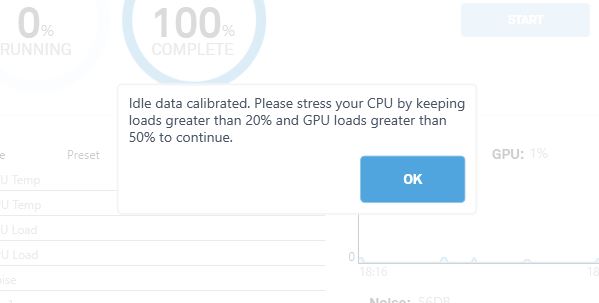
Once both idle and load calibrations are complete, we can look at the data and compare our results. We can also select between Idle and Load to see the variance between the two modes.

My system always ran under cooler temperatures even with the fans turned down, so there is not much variance between the preset and adaptive modes in terms of idle. The reason why my initial CPU temperatures is higher is because I set my fans to turn off if the CPU temperature is less than or equal to 45 degrees.

Now when it comes to load, the temperature to both CPU and GPU have increased significantly with the adaptive preset. I expected these results as my system had no cooling problems from the get-go. Of course, results will vary with different systems. If your system runs mostly hot all the time, you may see better results with the adaptive preset.
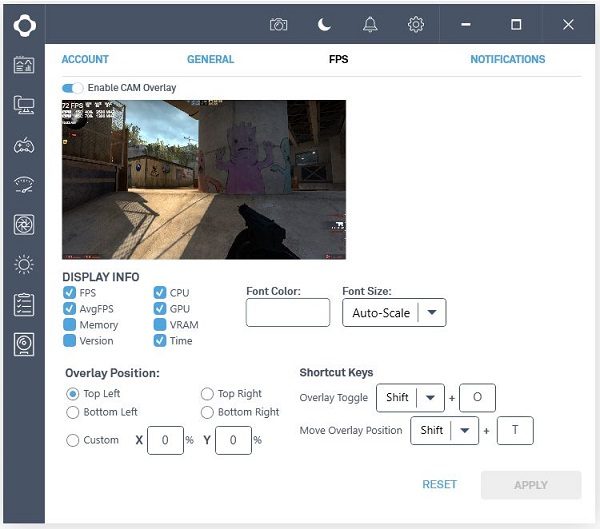
With CAM Overlay, we can use it to display useful information in game, like FPS, temperatures, and other information. This is useful for benchmarking purposes, but it is not supported by all games, as I soon found out.
Now that we have gone over the CAM software, let’s dive into the build.

-
Motherboard: ASRock X99 Extreme4
-
System Memory: 4x8GB 2666MHz DDR4
-
Processor: Intel Core i7 5820K @ 4.5GHz
-
Audio: Creative Sound Blaster Recon3D
-
Video: MSI GeForce 780 Ti
-
Disk Drive 1: Crucial MX100 256GB SSD
-
Disk Drive 2: WD Blue 3TB HDD
-
Enclosure: NZXT H500i
-
PSU: EVGA 850P2 850W Modular
-
Monitor: HP 23bw 23″ IPS display
-
Operating System: Windows 10 Professional 64-Bit
The build experience with the H500i was very straight forward, and reminded me of the S340 with its similar interior layout. Using the removable front radiator mount, I was able to install my 240 radiator with fans without any trouble. The internal cable bar did not come into contact with the front cooling components, but it was a tight fit to get the large 24-pin motherboard cable to fit through. Although it was physically possible to put the fans on the other side of the radiator mount to make room for a push/pull configuration, I would not recommend it as the fans were too close to the front panel.

There is a lot of room for cable management despite the many cables from the factory. Routing cables behind the motherboard tray was a breeze thanks to the cable channels and the many tie-down points. Cable tie-down points were located at almost every corner making it very convenient to manage oddly placed cables.

This sample build shows how a system can look with a graphics card vertically mounted. As we can see, there is still room underneath the graphics card for the two SSD mounts for additional storage.
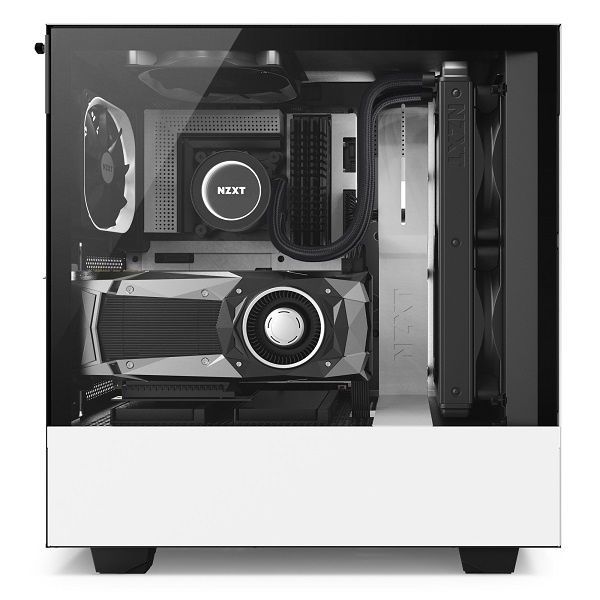
With the S340 and S340 Elite cases, airflow was not their greatest strength. NZXT has made an attempt to improve airflow on the H500/H500i by including some front ventilation on the steel side panel and at the bottom of the case. This allowed for better cooling performance over its predecessor. Cooling performance was almost as good as the Fractal Design Meshify C, and it was overall cooler than the Phanteks P400. Modern computer cases have adopted this solid front panel design, which at first was a problem for airflow. I am happy to see that the H500i maintains this solid front panel design without compromising cooling performance.

The CAM software and Smart Device really improves on gaming functionality. For computer systems that do not have good fan controls in their BIOS, the Smart Device is a solution to optimize noise and temperature. Modern motherboards include their own fan control settings that allows flexible customization. If you are able to obtain low noise and temperature with your system through the motherboard, the adaptive preset may not do much of a difference. As for RGB lighting, the LEDs are very bright and really light up the interior. However, I would have liked to see smoother lighting transitions when changing between different colors.

Let’s go into my final thoughts and end this review with my conclusion in the next section.
As a replacement for the S340 and S340 Elite, the H500/H500i needed to provide the same type of building experience along with added features to enhance the over user experience. I can confidently say that the H500i does make a great replacement as long as the user is comfortable with the CAM device. Of course, there is the cheaper H500, which will not include the CAM device, LED strips, and the vertical GPU brackets. Tempered glass comes standard on both the H500 and H500i, and cooling performance is surprisingly good for a smaller mid-ATX case like this.

Cooling performance is pretty good with the H500i as the side ventilation provides adequate airflow to cool the internal components. My system still runs normally under load even with a 4.5GHz overclock on the Core i7 5820K. The case already comes with two fans, meaning it is ready to cool out from the box. Water cooling options are limited to only the front radiator bracket, but the H500i was not designed to house a complete custom water cooled setup.
With different color options, you can have control over the color theme of the case. We received the matte white edition, which looks amazing. The built-in RGB LED strips really improves the appearance overall. The CAM software works well with the Smart Device as I had no problems adjusting different settings and playing around with the lighting effects. If the lighting transitioned smoother, that would have been a nice extra touch.
In terms of construction, the H500i feels rather sturdy for a case in this price range. The frame feels solid even without the tempered glass side panel, and the little extra features, like the interior cable hooks, do go a long way. The glass panel sits on a lip to prevent it from falling off the case, and the rear side panel swings out easily without having to slide it off.
Functionality wise, the H500i makes a great compact gaming case without the aggressive gamer-like designs. The Smart Device is like the HUE+ and Grid+ V3 combined together, which allows for a cooler running system at the quietest noise level possible. The CAM GUI looks modern and pretty straight forward to understand, but having the lighting and fan profiles run through the software is not my cup of tea. Since the beginning of RGB peripherals, most companies require software to run for lighting effects and other things to work. Sadly, that is how most things are nowadays where each peripheral requires its own software.
As of June 2018, the NZXT H500i is currently available online for $99.99 (Newegg). This is a good asking price considering it comes with the CAM device, RGB LED strips, and the vertical GPU bracket. There is the H500 for less money if the CAM device and RGB illumination is not something you want. If you are looking for a new case and have no RGB lighting or fan controls, the H500i is a great buy as you will save lots of money without having to purchase a HUE+ and Grid+ V3, which comes to around $100 for just those two devices.
+ Good value
+ Easy to build
+ CAM-powered Smart Device
+ Excellent cable management system
+ Customizable RGB lighting/fan profiles
– Top dust filter is difficult to replace
– RGB lighting/fan profiles are not stored on the Smart Device
-
Performance: 9.00
-
Appearance: 9.50
-
Construction: 9.00
-
Functionality: 8.75
-
Value: 9.00


