By Jason Vaught
Manufacturer: DuckyChannel International Co., Ltd.
Product Name: Ducky DK9008 Shine 3
Model Number: DK9008S3-CUSALAAG1
UPC: 4711467196354
Price As Tested: $149.99 (Amazon | NCIX)
Full Disclosure: The product sample used in this article has been self-supplied.
The Ducky Shine Series, arguably one of the best mechanical keyboards on the market, has released the Ducky Shine 3 DK9008S3. Often referred to as the YOTS or “Year of the Snake”, the 2013 Shine 3 is the offshoot descendant of the 2012 Year of the Dragon Shine 2 DK9087 (a tenkeyless version in the shine series). This model, like it’s predecessor, comes with a wide array of switch options including Cherry MX Black, Blue, Brown, and Red, and a wide array of LED color options including: Blue, Red, Green, White, Magenta, and Orange. With so many options, there is really no reason not to find the perfect fit for you in the Ducky Shine 3 DK9008S3-CUSALAAG1.
In this review, I will be utilizing the ever so satisfying Cherry MX Blue switch version of this keyboard. Cherry MX Blues have a “clicky” tactile bump when the activation point is hit, providing the most tactile feel, but also making them the loudest of the switch options.
Note: This is not the limited edition Ducky Shine 3 Snake, it is simply the 2013 Shine 3 DK9008.
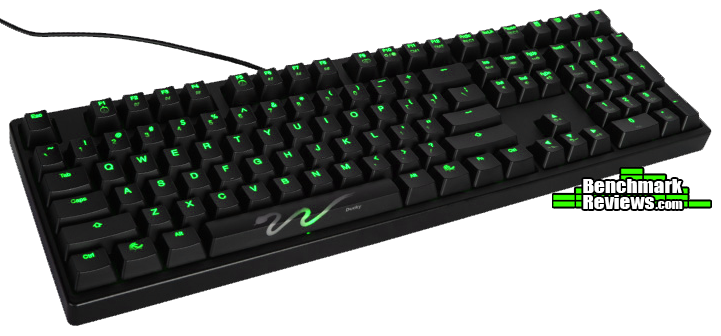
The best and, in my opinion, only way to test a keyboard is to simply use it! I’ve been utilizing this wonderful peripheral for over 2 months now. I’m currently using it to type this review, as well as for all my gaming (including Diablo 3, Battlefield 4, Battlefield 3, and World of Tanks to name a few). It has officially replaced my old mechanical keyboard!
- Dual layer PCB for extra durability
- Detachable cable for convenience
- Full LED backlighting
- 2 User customizable backlighting profiles
- Reactive lighting mode
- UV Coated keycaps
- DIP Switches for extra settings
- Model: DK9008S3
- Place of manufacture: Taiwan
- Interface: USB
- LED Color: Green
- Languages: US, Thai
- Switches: Cherry MX Black, Blue, Brown, and Red
- Dimension: 442(L) x 140(W) x 41.5(H) mm / Weight: 1.4kg
- Polling Rate: 1000Hz
The Ducky Shine DK9008 is not marketed specifically as a gaming keyboard, but it fits the bill nicely. Not to mention the fantastic typing experience that comes with mechanical keyboards.
At first glance the Ducky Shine 3 looks like your basic keyboard, with a few modifications of course. The layout is one everyone is familiar with, with only a few extra buttons above the keypad.

The multi-command buttons above the keypad, normally where your Num Lock, Caps Lock, & Scroll Lock indicator lights would be, provide convenient access for your Calculator, My Computer, E-mail Client, and your default browser’s Home Page. They are out of the box compatible with Windows and access the default windows action for each function.

Customization and versatility of the Shine 3 is definitely an important aspect to Ducky, featuring dip switches on the bottom of the board to be able to allow further default layout changes, making the keyboard fit your specific needs. Making things more convenient, the Shine 3 features a removable mini USB to USB cable, making it easier to transport or simply move the keyboard without having to reach around the back of your PC
The dip switches alter the following:
- Windows Key Disable
- Control and Capslock Swap (Great for people who game)
- Windows key and Alt swap
- DEMO Mode (It’s important to note that you can set this to DEMO mode and power it from USB without a PC)

The Shine 3 features a dual layer PCB, making it a hefty and very durable platform for you typing needs. The key height is average (for mechanical keyboards), without exposing the posts. The bezel gets pretty close to flush with the bottom of each key, this will help keep some larger pieces of debris from collecting inside keyboard. The flip out feet provide a marginal height adjustment, but given the angle of the keycaps, it does change the feel of your typing experience.

Ducky Shine 3 DK9008 Detailed Specifications
- Model: DK9008S3
- Place of manufacture: Taiwan
- Interface: USB
- LED Color: Green
- Languages: US, Thai
- Switches: Cherry MX Black, Blue, Brown, and Red
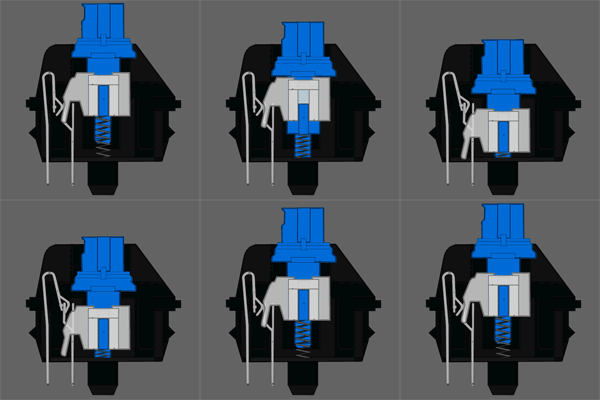
Here is a visual representation of how the Cherry MX Blue switch works. When you press down on this switch, you’ll feel a little bump and hear a high-pitched clicking sound the moment the keyboard input is sent to your PC. As you can see in the diagram, the switch is actuated when you press the key halfway down (right when the white piece starts to move downward). With some practice, you can use this feedback to type faster while using less effort because you can teach yourself to stop pressing when you hear the click and feel the bump instead of pushing the key all the way down (called “bottoming out”).
Now let us take a closer look at some of the special features that sets the Ducky apart from its mechanical brothers.
The Ducky Shine 3 does excel exceptionally well in one key area, lighting. Ducky Channel really invested some thought into how they wanted their keyboards illuminated. Customization, effects, and even profile specific functions allow the user to make this keyboard truly their own.
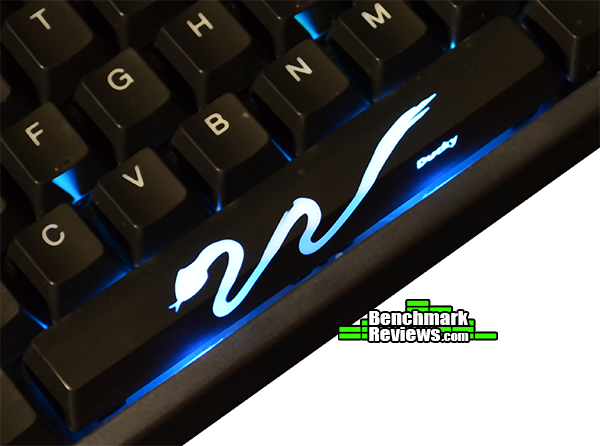
The Shine 3 comes with a Snake design spacebar, but if you prefer a more traditional spacebar then you can swap it out for the included Duck head spacebar. Although cool looking, it removes all lighting effects from the top of the key, while preserving them on the side of the key.
Note: The spacebar key uses a somewhat proprietary design, it effectively uses three switches, one real switch in the middle and one “non-activating” switch on each side. Removal of the spacebar needs to be done with patience and care, as it can result in cracking in the center. Even though Ducky provides a key removal tool, I recommend you use it or something similar and pry at the middle of the spacebar, not on the sides.

After removing the spacebar, you can see the Cherry MX Blue switch underneath along with two “dummy” switches and two additional LEDs (RGB).

Depending on your configuration, you can have the model specific LED on the spacebar’s switch illuminated all the time or simply illuminated when you press it. The RGB LEDs on the spacebar are controlled by utilizing the FN + Ins (Red) / Home (Green) / or PgUp (Blue) keys. You can always reset it back to zero (no color) by pressing the FN + Esc. Below are some different colors generated with these LEDs.

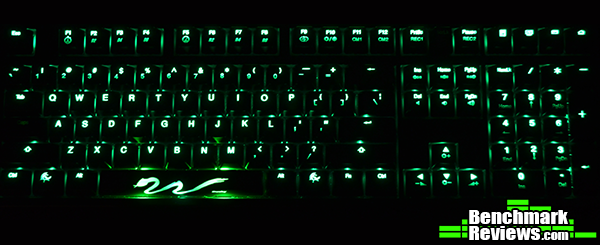
The Shine 3 version that I’m writing this review with is the green LED version, utilizing the Cherry MX Blues. Here is a shot with the “Full – 100%” lighting effect at maximum brightness and the room lights off. As you can see, it produces a nice soft glow that I don’t find overly bright, though some might. In this photo I’m utilizing the green setting of the RGB LEDs on the keyboard as well.
Along with the replacement spacebar, Ducky also includes red replacement keycaps for the WASD keys, a perfect option for gamers. Once again another shot of the Cherry MX Blue switch, this time with the LED on the switch illuminated.  If you don’t like the idea of having the WASD keys be red, while the rest of the board black, then Ducky created a solution for that as well! Ducky has built in a “record” function, broken up into two different profiles called CM1 (FN+F8) and CM2 (FN+F9). To record in customization mode 1 (CM1) you hit FN+ Print Screen, to record in customization mode 2 (CM2) you hit FN+ Pause. What this enables is the ability for you to select which keys remain illuminated under each profile, allowing you to fully customize your gaming experience.
Note: Print Screen Key will not be recorded in Customization Mode 1. Pause Key will not be recorded in Customization Mode 2. If no changes are made within 30 seconds in recording mode, the recording session will be terminated. In CM1 and CM2 mode, you will also be able to adjust LED brightness. 
The Shine 3 also utilizes some interesting lighting effects, all of which have speed adjustment, and brightness adjustments utilizing the FN + arrow keys. The lighting effect options include:
- Full (100%) – Full light up keyboard as pictured above. Adjustable brightness settings via the FN + and either up or down arrow.
- Breathing – The lights are all lit, and scale up and down in a pattern based on the speed you set it to. Careful with this setting, as at full blast it seems you might could trigger a seizure.
- Wave Marquee – Left to right, it will dim and brighten across the keyboard, also speed adjustable
- Snake Marquee – This mode is just like the old snake game, it starts out at the top row, moving from left to right, and when it reaches another row, it begins to move right to left, alternating with each row, illuminating about nine keys at a time with different brightness settings.
- Reactive Mode – This mode allows you to either set the keyboard at full illumination, making each key dim with the press of the key, or set the keyboard to full dark and make each key illuminate with each press of the key. This setting is my personal favorite, and the brightness levels in all aspects of it are adjustable.
- Ripple Mode – This mode is kind of fun, when you press a key, the surrounding keys all illuminate and spread outwardly in circular pattern til they reach the edge of the keyboard on both sides. You can adjust the speed of the ripple from very slow to blazing fast. When typing rapidly, it makes for a very interesting light show.
- Aurora Mode – This mode illuminates the keys on both sides of the key that you’ve pressed, in an outward motion on each side, illuminating only the keys on the row of which the original keypress occurred. It does not, however, illuminate the actual key that you have pressed itself.
- Dark Mode – Not officially listed as a “mode”, but some might find it useful to be able to just have an all dark keyboard with no illumination.
As I previously stated, the best way to test a keyboard is to simply use it, but there is another feature that we can test for accuracy, NKRO (N-Key Rollover) Rollover. During normal typing on a membrane or “squishy” keyboard, only one key can be pressed at a time, with the exception of modifier keys (Shift or Control). With N-Key Rollover each keypress is correctly detected regardless of how many other keys are being pressed or held down at the same time. This is especially useful when gaming on keyboard heavy games. We’ll be utilizing Aqua’S KeyTest software to test this.
As you can see, there was no problem with multiple presses on the keyboard. The remarkable part about this test is that it achieves this with absolutely no software on the PC and through USB, whereas most other keyboards need a PS/2 connection to achieve this.

The Ducky Shine 3 offers some performance tweaks which can be adjusted to best suit your needs, such as USB Repeat Delay and Repeat Acceleration. This modifies the speed at which the characters are input when a key is pressed and held down for any length of time. I actually accidentally set this to the highest setting and when I would hold down the backspace key, it would delete a whole paragraph almost instantly! Glad I fixed that one. The speeds are adjusted using the FN + F1 through F8 keys respectively. Each with multipliers of 1x, 2x, 4x, and 8x.
Though not specifically marketed as a gaming keyboard, I find the Ducky Shine 3 to be an excellent option for gaming, the linear action of the Cherry MX Blues makes for a very nice feel. Similar to that of my Razer Orbweaver, which also utilizes Cherry MX Blues. I find using the Ducky Shine 3 DK9008 very satisfying, and I can’t help but constantly change aspects about it’s LED profiles, including the brightness and lighting effects! By far my favorite feature would have to be the switches, I just can’t get enough of the Cherry MX Blues. If you’ve never tried a mechanical keyboard, or never tried a Cherry MX Blue mechanical keyboard, then the Ducky would be, by far, and excellent choice. There are only two things that I can think of to improve this keyboard: 1. Adding some USB ports and 2. Maybe an optional wrist pad. Other than these small personal preferences, the Ducky is a solid contender to be in your peripheral arsenal.
This keyboard, like the Func KB-460 (an excellent keyboard that utilizes Cherry MX Reds and winner of our Golden Tachometer Award), utilizes nor needs any software for all of it’s features (with the exception of the Func needing software for key remapping). I don’t know about you, but having a keyboard that I can plug in, that remembers my settings through on-board memory and not having yet another piece of software to install to get it working 100%, is a huge bonus.
Since the Ducky Shine 3 is not marketed specifically as a gaming keyboard, even though it has some special gaming features, I have based my review and ratings on it as a backlit mechanical keyboard in general.
The Shine 3 performs as well as my previous Cherry MX Blue mechanical, the DasKeyboard, in terms of typing. What this keyboard offers that the Das did not, is customization, media/multi-media keys, and backlighting (although form my understanding the newer DasKeyboards do feature some media keys now). All functions work as advertised, I even went to Ducky’s website and downloaded a digital copy of the manual for quick reference, which can be found here.

The Shine 3 sports a very sleek, no frills appearance. This, along with it’s UV coated keycaps make it pleasant to the touch, with a soft rubbery feel. The matte black finish helps hide your fingerprints, helping curb some of my OCDness about fingerprints on shiny surfaces.
The Shine 3’s dual layer PCB does add some considerable weight, but I think that is warranted and generally accepted as a standard with mechanicals. They’re made to take a lot of typing, and give the user a pleasant experience while doing so. This board is very sturdy, making it an option to be a lan-party keyboard very likely, although some would prefer a tenkeyless version.
Ducky has really gone all out when it comes to this keyboard’s functionality. Storing your settings and customization options directly on the keyboard has become a widely accepted standard, as it should be. All of it’s functions, from the multi-media keys, to the lighting effects, and to the LED brightness levels work perfectly out of the box without the need for software taking up valuable space on your system. Of course some people would prefer a keyboard that has some dedicated macro keys for gaming purposes, but that is a small sacrifice to keep the footprint of this keyboard at a manageable size.
After becoming personally acquainted with this peripheral, I view it as an exceptional value. I could also see the other side of the coin for others who might find $149.99 to be a bit too steep for a keyboard. Compared to a membrane keyboard it is way overpriced, but in the realm of the mechanical keyboard, it’s not too far off the mark of what the average retail price is.
I highly recommend this to anyone looking for a mechanical keyboard that features multiple customization options without the need for software. It truly is a prime example of what makes Ducky one of the industry leaders in mechanical keyboards.
+ Cherry MX Blues
+ N-Key rollover through USB
+ No software to install
+ On board memory for profile/setting storage
+ Loads of customization options
– No palm rest option
– No additional usb ports
– Cherry MX Blues might be too loud for some
-
Performance: 9.50
-
Appearance: 9.50
-
Construction: 9.50
-
Functionality: 9.00
-
Value: 9.25


