By Jason Maxfield
Manufacturer: Gamdias Technology Co. Ltd.
Product Name: Demeter Laser Gaming Mouse
Model Number: GMS5010
UPC: 848475000978
Price As Tested: $38.99 (Newegg | Amazon)
Full Disclosure: The product sample used in this article has been provided by Gamdias.
This is the Gamdias Demeter Laser Gaming Mouse GMS5010. Who is Gamdias you ask? They are a Taiwan based company founded in 2012. They focus on making gaming keyboards, mice, headsets, and more, with global domination of esports at the heart of their goals. With the Gamdias hardware lineup based on the Greek Mythology of old, will Gamdias rise to the competition? In this article, Benchmark Reviews tests the Gamdias Demeter and rates it’s worth.
The Gamdias Demeter is one of their more entry-level products for gaming. The Demeter features an array of options for macro creation, timers, built-in memory, adjustable DPI and poll rates, 6 smart keys, 10 million click life-cycle switches, and LED color choices to display. The Demeter’s design is aimed at gamers who have needs that exceed your standard 3-button mouse designs. To use all of these features Gamdias has a program interface called Hera, that you can download from their website.
| Weight System | N/A |
| Cable Length | 2m (Braided Cable with Gold-plated USB Connector) |
| Keys | 5+1 Keys |
| Resolution | up to 3600 DPI |
| Polling Rate | 125 / 250 / 500 /1000 Hz |
| On-board Memory | 256K |
| Dimension(LxWxH) | 119.3 x 63.5 x 40.3 mm |
| Tracking Method | Advanced Gaming Laser Sensor |
| Switch Life-cycle | 10 Million |
| Graphical UI | Yes (GAMDIAS HERA) |
The Gamdias Demeter comes in a nicely wrapped clam shell inside a box with their logo design printed on the box so it’s raised and glossy. It is a nice touch. Other than the usual images and information on the box, there is very little content inside the box itself. You get a quick installation guide and a couple of stickers with your Gamdias Demeter.
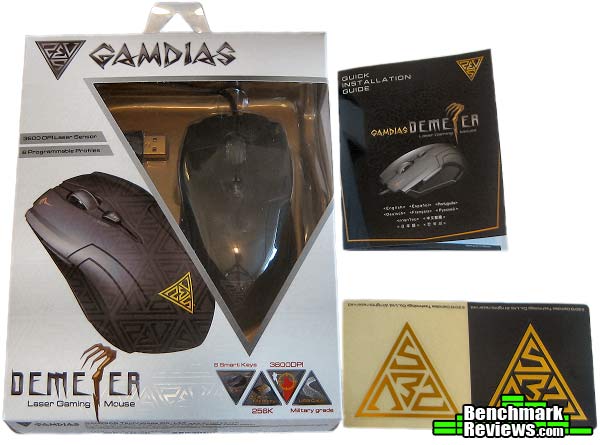
The quick installation guide is pretty sparse with information. It has just enough to tell you to plug it in and where to go to get the Hera software for your Gamdias Demeter. The stickers are a nice touch, but I find them too large to want to actually use on my desktop tower.

On the right side of the Gamdias Demeter you have your profile button. This button can only function as the profile button. The Gamdias Demeter has a nicely braided 2 meter cable with a gold USB connector. It also includes a Velcro strap to keep your cord untangled if you were to take it with you to a LAN party.
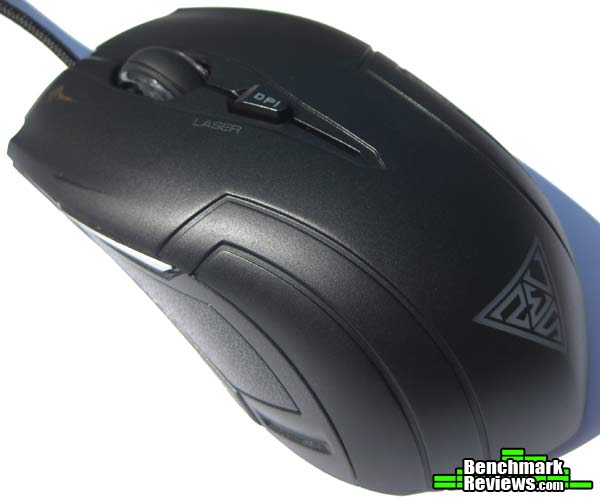
On the left side of the Gamdias Demeter you have the back button on the side. This button can also be programmed for macro’s or timers. I will explain more about that later when I get to the Hera software application. The back side of the Gamdias Demeter has the companies logo, which will light up when plugged in. Unfortunately it only has one shade of color, yellow. The light is also fairly bright and can be a bit annoying in a dark room until your hand is placed over it to shield your eyes.
 |
 |
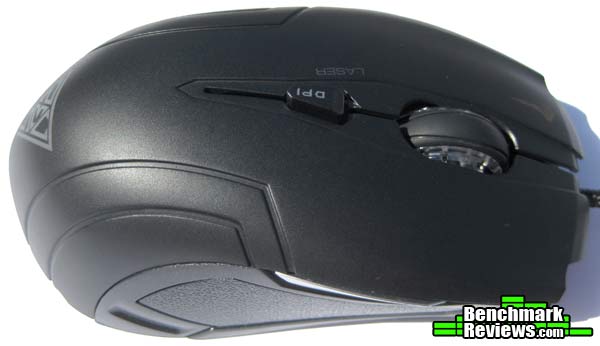
You can see on top of the Gamdias Demeter sits your DPI button. This comes in handy for when you want to change DPI on the fly. Also, take note of the shape of this mouse. It is designed to be used for right or left-handed users.

The bottom of the Gamdias Demeter has a nice slick plastic wedge at the back and front of the mouse allowing it to glide effortlessly on your mouspad.

Here is a better look at the right side of the mouse. The profile button is fairly large which makes it easy to change profiles instantly. The only draw back I had is that my hands are a bit big and I would accidentally change profiles in the heat of battle while gaming.
I found the overall heft and build of the Gamdias Demeter to be very good. It feels very solid in my hand and not too small. The weight on it is nice as well. I have been using a wireless mouse for a long time and I have gotten used to a heavy mouse. I was pleasantly surprised that it wasn’t a lightweight. The texturing on the sides allows for a nice tactile grip.
The mouse wheel tracks with your typical ‘click’ motion and has LED lights at the bottom that illuminate the clear plastic with an assortment of colors that you can program.
Now we get to the heart of the Gamdias Demeter with the Hera software. The Hera software is used for all of Gamdias’ keyboards, mice, and some of their other hardware. Each product has its own profile that can be downloaded through the application. The Hera software can be downloaded from the Gamdias website. Once you download the program, you run it, and then it will detect what piece of Gamdias hardware you have installed and download the appropriate software.
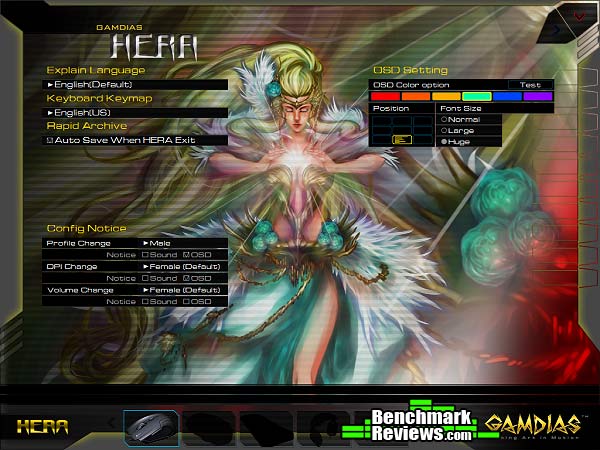
This is the main page of the Hera software. You can select this page anytime by clicking ‘Hera’ in the bottom left. This page allows you to select languages, keyboard map, OSD options, configuration notices, and auto save on exit. The OSD for profile change and DPI settings is nice. You can even select a prerecorded male or female voice to accompany the profile or DPI changes. I’d recommend to just use the OSD notifications as the recordings are very loud. When you are done with your settings you just click on your device to go back to your mouse settings.
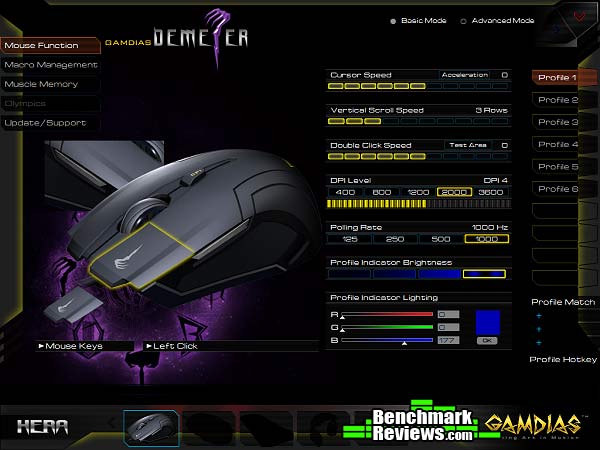
This is where you can choose between basic and advanced modes (at the top right) for your mouse settings and profiles. There are profiles along the right side you can toggle through and set each profile to your liking. There is also an option to assign hot-keys to each of the profiles as well, for even faster access to a your profiles. From the basic page you can control most of the functions of the mouse for quick access.

In the advanced mode of the Hera software you can assign functions to your keys. In this example, I have the back button set up to run a macro and the middle mouse button to run a timer. The color coding let’s you know if you have a macro or other function assigned. Hovering over each key will highlight it as white and selecting it as yellow.

Down to the macro management section you can manage and setup macros. This simple macro I made to test it, just simply opens up my start bar, selects computer, then closes it. You can add delays between each function and also record mouse movement and key clicks, or manually add destination coordinates and key presses yourself.

In the mouse control section you can set your cursor speed acceleration, DPI level, polling rate, vertical scroll speed, and double click speed. This feature comes in handy if you need to slow the mouse down, or speed it up, for certain games or applications.
 The mouse luminance section is where you can control the colors and intensity of your scroll wheel LED. This is a pretty cool feature. You can select from various colors or use the slider to make your own custom color. At the top of the page, you can choose the level of intensity for your LED. The last option to the right (highlighted in yellow above) is to have a slow strobe effect.
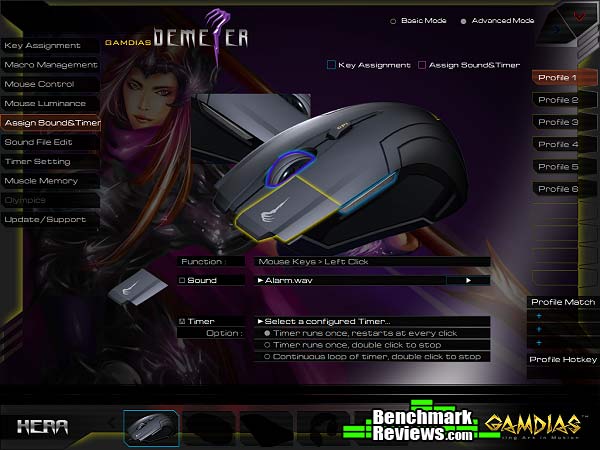
In the assign sound and timer section of the Hera software you can manage your sounds and timers. There are 5 sounds included for use when assigning a sound. Or, you can use your own sound file. The timer section allows you to assign timers created from the timer settings tab.
 Here in the sound file section, you can edit or record your sounds for your alarm and timers. You can even record a voice message with your microphone.

The timer settings section is where you can create and edit timers. You have options for on screen display (OSD) for a visual queue that your alarm/timer is about to go off. This is a nifty option if you throw a pizza in the oven and go back to gaming. The alarm timer will remind you so you don’t burn that pizza! I’m sure with some imagination other uses will become available.
 The muscle memory section is just a record of your mouse usage and statistics. As you can see with the thousands of mouse clicks so far I have been putting the Gamdias Demeter through it’s paces. You’ll notice the color coding is done by scale of 5K, 100K, or 10 million. Since I took these screen captures, I have gone over 126k clicks on the right mouse and over 66k on the left mouse button. At the bottom you can see other stats, such as burst speed, which is how fast you click in milliseconds between successive clicks.
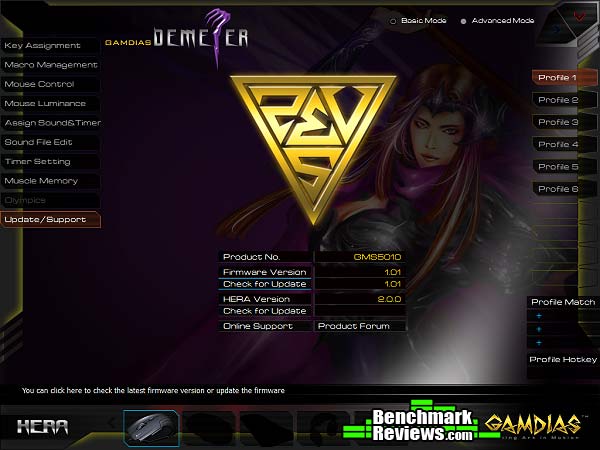
On the update/support section of the Hera software you can check for firmware and software updates. Clicking the product forum will take you to the Gamdias website.
The best part about the Hera software is that there is no need to install it. You just run the program when you need to change settings. Once you save your profiles you can shutdown the application and everything is stored in the on-board memory. This makes the Demeter a nice mouse to use on multiple computers and not have to worry about getting it just right on a different PC or laptop.
One thing to keep in mind, if you do plan on using The OSD, macros, or timers, you will need to leave the Hera software running. It can be minimized to your system tray, and only takes up about 40 to 45 megabytes of RAM. I noticed the macros do not work correctly without Hera running. The OSD and timers will not work at all without the software.
The Gamdias Demeter was tested on USB 2.0 port for over 80+ hours. The programs and games I used for testing included, Photoshop, Paint Shop Pro, Mass Effect 3, League of Legends, Elder Scrolls Online, Elder Scrolls: Skyrim, XCOM: Enemy Within, Infinite Crisis, Dues Ex: Human Revolution, Assassins Creed IV: Black Flag, and general Windows and browsing usage.
- CPU: AMD Phenom II 555 BE unlocked to 4 core @ 3.4 Ghz
- Motherboard: MSI 870-G45
- System Memory: Crucial Ballistix 4GB @ 1600Mhz
- GPU: Asus HD 4870
- Audio: On-board
- PSU: OCZ ModXstream 700W
- Monitor: Hitachi CM800 21in. CRT monitor @ 1600×1200 resolution
- Operating System: Windows 7 Ultimate Edition 64 bit
I tested the Gamdias Demeter DPI and polling rates from 125hz to 1000hz. The Demeter performed to specifications. Using the mouse rate checker program, it was spot on for each and every poll rate. The DPI changes were noticeable by feel alone.
 During my testing with the Gamdias Demeter, I noticed how much more fluid the mouse moves when compared to my old wireless mouse. With the higher DPI settings I no longer had to drag and drop the mouse to move the mouse around the screen as efficiently. When I required a more precise touch, I could instantly lower the DPI to accomplish this task. I must say that this mouse feels comfortable even after hours of use during gaming or just general computer usage.
I have not found a particular use yet for the macro system or timers, but they do work well. I noticed a lack of keys to assign when using the macros or timers during testing. Once you assign a macro to a key, you can keep the default function or disable it. I found that during gaming the best key to use would be the middle mouse button or the left side key, since they generally do not have in-game functions. With some time and patience, I’m sure chaining macros through multiple profiles bound with hot keys can make up for the lack of keys to assign macro functions.
All-in-all, I have to say the Demeter has performed solidly without a single glitch or problem during my testing.
Gamdias may be a new company, but with a product like the Demeter, they certainly seem to be on the right track. For what seems to be an entry level mouse, it surely has a lot of features for the price. This should make it popular for anyone looking to get a nice laser gaming mouse at a good price.
The Demeter is a decent looking mouse with a clean, almost minimalist design to it. The Demeter is sturdy and has a solid heft and feel. It is comfortable for hours of gaming or general PC usage.
I found the right side profile key to be a bit bothersome while gaming. I had a tendency to accidentally hit it. This doesn’t cause much of a fuss, since I have all the profiles currently set up the same. If Gamdias had made this key a bit smaller or further toward the front of the mouse, I don’t think I would of had an issue with it. This key doesn’t have any other function and making it a little bit harder to access would of worked out better for me. Granted, this may or may not be an issue for others. I have fairly large hands, so keep that in mind if you are taking a look at the Gamdias Demeter. With a little more attention to key layout, this would of been perfect otherwise.
The configuration with the Hera software will let you change any of the keys functions, with the exception of the profile key. This is a very nice feature for a product with a decently low price tag. The Hera software is something I haven’t really seen before, since it is used for all of the Gamdias keyboards, mice, and some of their headsets. This is a really awesome feature and I hope to see other manufactures go this route. Having the ability to configure multiple pieces of hardware with one program would save time and potential headaches.
The little bit of bling you get with the LED lights is fun to play around with when coming up with your own color schemes. But the fact you can not change the rear LED light to match the front makes for a bit of a mismatch.
Gamdias looks to make huge waves with their line-up of gaming gear and i’m curious to see where this new company will go with their products. As of May 2014, the Demeter can be had for $38.99 (Newegg | Amazon). If the limited keys do not bother you, and you are in the market for a nice gaming mouse that won’t break the bank, I’d recommend the Gamdias Demeter.
+ 6 Programmable profiles to choose from
+ Selectable DPI rates
+ Customizable macros and timers
+ Adjustable polling rates up to 1000Hz
+ Customizable LED scroll wheel colors
+ 256K On-board memory
+ Price
– Limited buttons to choose from when setting macros or alarms
– Bright yellow LED on the back of mouse can not change color
– Profile key tends to get pushed on accident
– Macro and timers can be a bit tedious to set up
- Performance: 9.00
- Appearance: 8.50
- Construction: 9.50
- Functionality: 8.50
- Value: 9.50


