By David Ramsey
Manufacturer: Corsair Components, Inc.
Product Name: K70 RGB RAPIDFIRE
Model: CH-9101014-NA
UPC: 843591078047
Price As Tested: $169.99 (Newegg | Amazon)Full Disclosure: Corsair Components, Inc. provided the product sample used in this article.
With mechanical gaming keyboards now common, vendors are looking for more ways to distinguish their products. Corsair competes on features, and in an exclusive deal with German key switch manufacturer Cherry, brings a new mechanical switch to the market: the Cherry MX Speed. This switch forms the backbone of the new Corsair K70 RGB RAPIDFIRE mechanical gaming keyboard, and while it’s an impressive new feature, it’s far from all this high-end keyboard has to offer. Benchmark Reviews offers a look at this new product for gamers who want only the very best.
- Cherry MX Speed mechanical key switches, 45g activation force, 1.2mm actuation distance, rated for 50 million keystrokes
- Programmable per-key full RGB backlighting
- Pass through USB 2.0 port
- Included extra textured and contoured FPS and MOBA key caps
- Easy access media keys
- Detachable, soft-touch wrist rest
- 100% anti-ghosting with 104-key rollover over USB
- Windows lock key
- Two-year warranty
Let’s take a look at this keyboard in the next section.
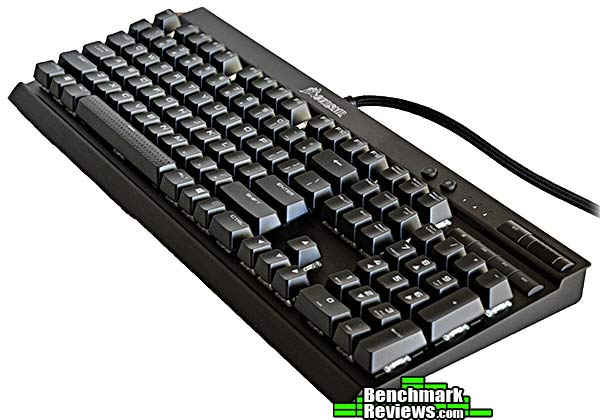
While the standard K70 RGB is available with Cherry MX Red or Brown switches, the RAPIDFIRE variant comes with Cherry’s new, exclusive-to-Corsair MX Speed switches– surprisingly at the same $169.99 (Newegg | Amazon) as the Red and Brown versions. Like other high-end Corsair keyboards, the top plate is a thick piece of anodized aluminum rather than plastic.

The back of the keyboard contains only the product label and fold-out feet. Probably due to the very thick USB cable, there are no cable channels.

One interesting item is the addition of fold-out support feet at the front of the keyboard:

The thick, braided USB cable is permanently attached, and has the requisite gold plating on the USB connectors and braided sleeving on the cable itself.

A selector switch on the back enables you to choose between 1, 2, 4, and 8ms reporting rates, as well as a “BIOS Mode”. Even the slowest 8ms reporting rate gives you 125 keystrokes per second, so the utility of this feature escapes me. “BIOS Mode” is unexplained; it’s not needed to update the keyboard’s firmware.

At the upper right of the keyboard are the dedicated media keys, knurled metal volume control, mute switch, Windows lock key, and the lighting intensity key, which when pressed cycles through three lighting intensities plus off.

Accessories include the snap-on, rubberized wrist rest, some textured replacement key caps (with a plastic key cap puller) for FPS and MOBA gamers, and a couple of pamphlets. The wrist rest is a nice inclusion but I worry about the long-term durability of its snap-on connectors. No software or documentation is provided, but you can download a very complete manual and the Corsair Utility Software needed to fully utilize the keyboard from Corsair’s web site.

Let’s take a closer look at this keyboard in the next section.
The signature feature for the Corsair K70 RGB RAPIDFIRE keyboard is the inclusion of the new Cherry MX Speed switch. Visually, there’s nothing to distinguish it from other Cherry late-model illuminated switches except for its new silver-colored stem. Although the switch has the 45g spring pressure, 4mm total travel, and linear, click-free stroke of a Cherry MX Red switch, the actual actuation– that is, the point at which the key press registers– occurs only 1.2mm into the key travel. Standard Cherry MX switches actuate 2mm into the key travel, so the MX Speed switches cut 0.8mm out.
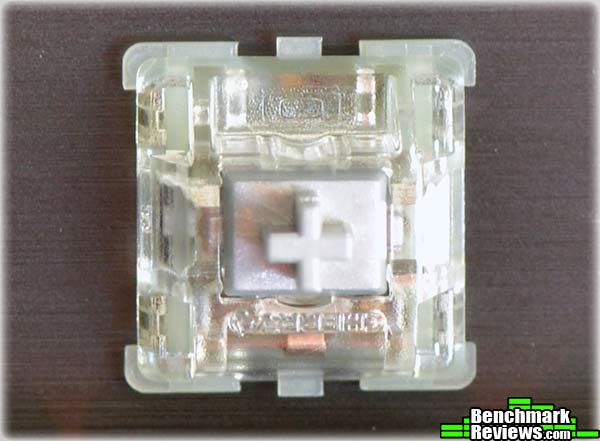
Cherry’s new clear switch housing works with the internal LED to diffuse the light more evenly than the older top-mounted LED design. Still, the lighting is strongly biased towards the top of the switch.
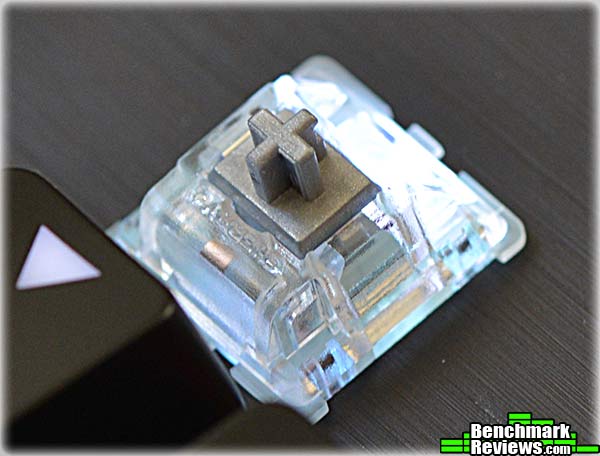
The result is a more even lighting with softer “edges”. It’s still top-biased (only Logitech’s custom “Romer-G” switches provide true center lighting), and the lower legends on keys won’t be as brightly lit as the upper keys (notice the dimmer shifted symbols on the number keys in the image below). Overall the lighting is noticeably dimmer than other keyboards using switches with top-mounted LEDs.

As with other K70 keyboards, the thick metal key switch mounting plate serves as the top of the keyboard; there’s no separate, raised plastic bezel. This gives the keys an attractive “floating” look and makes cleaning detritus out of the keyboard easier.

Corsair provides a plastic key cap puller and alternate key caps for WASD and QWERDF for FPS and MOBA gamers. The alternate caps have textured grey rubber faces and are contoured to keep your fingers in place during intense play. In this shot you can also see that the space bar is also textured, although the texture is cast into the plastic and is not a separate rubberized layer.

The very thick USB cable ends can be a little crowded when plugged into adjacent USB ports.

In the next section I’ll cover the Corsair Utility Engine software you’ll need to fully utilize this keyboard.
The lighting and macro features of the Corsair K70 RGB RAPIDFIRE keyboard are controlled through the Corsair Utility Engine (CUE) application, which is used with all Corsair gaming hardware, including mice and headsets. The price for all this capability is a certain level of complexity, and you’ll need to spend a lot of time with the 153-page manual to get the most out of this keyboard. In this section I’ll try to hit most of the high points…
CUE uses Profiles and Modes to control the keyboard. A Profile is a collection of one or more Modes, and each mode defines a set of lighting effects, actions (macros, text, timers, mouse movement, etc.) and settings (polling, on-screen display, macro recording features, etc.). Profiles can be selected within CUE or defined to load automatically with specified applications (although you can define keys to switch Profiles, Corsair recommends that you not do this), while modes within a profile can be selected from defined keys for that specific mode. Best of all, profiles and modes can be imported and exported, and shared with other Corsair users.

The CUE utility has four main sections, shown at the upper left of the screen: Profiles, Actions, Lighting, and Settings. The idea is that you create actions and lighting effects, which you then incorporate into modes inside profiles. Got it? In this screen shot we’re in the Default profile, which as delivered has a single Default mode. Remember, each mode can have its own separate lighting effects and actions. Each profile will have a Default mode, which is the mode that’s active when the profile is loaded.

Actions can include Macros, which records all keyboard and mouse operations; Text, which is simply text typed on the keyboard, Keystroke, which records individual press-and-release actions with millisecond timing; Shortcut, a way to launch other programs, DPI, which can change the DPI setting of a Corsair mouse on the fly, Timers, Mouse (mouse button and scroll wheel actions), and Media Control. There are two ways to create new actions: right-click on a key and choose Assign New Action, and the action you defined will automatically be assigned to that key; and by selecting Action at the top of the window and then clicking the New link. The latter method is more versatile since you can then create a list of actions that you can assign to any key simply by dragging an action out of the list and dropping it on the key you want. Note that action assignments are tied to your current mode and profile settings. Once you’ve assigned an action to a key, simply mousing over the key will show the name of the action assigned to it.

Individual actions, even those as simple as the text action above, offer very detailed settings: in this case I can specify that the text be either typed or pasted; be toggled on or off, or repeated as long as the assigned key is pressed; repeat a specified number of times with specified delays between repeats– well, you get the idea.
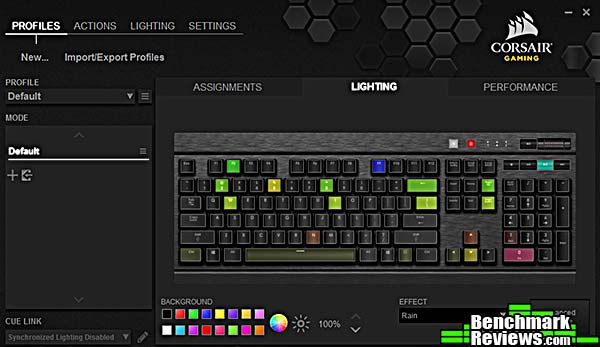
The standout feature of this keyboard is its incredible lighting effects. You can, as shown above, designate a color for any key, or assign lighting effects you create in the Lighting section to any key or group of keys. You can select a group of keys by left-clicking and dragging across the keys, or by holding down the Control key and selecting multiple keys by clicking on them.

Pre-defined light effects include the now-standard chromatic ripples, waves, and pulses, but the truly motivated can click the Advanced Settings button shown above, or select the Lighting tab in the main window, and define per-key effects with brightness, color, and duration at the millisecond level. As an example of what you can do with this, Corsair includes a “spiral rainbow” effect as standard. Corsair has an online library of user-contributed effects including crackling electric arcs and roaring flame effects that simply cannot be duplicated on other keyboards.

Profiles can be linked to specific games (or any other applications) so that they load automatically when the game is launched. CUE can identify most applications on your system, but apparently cannot “look inside” Steam or Origin folders for games there– you’ll have to dig down through the folders yourself.
In the Settings section, you can back up and restore your entire collection of profiles, as well as define how the program starts up. You can also check for updates to CUE and update the firmware in your keyboard.

I’ll present my final thoughts and conclusion about this keyboard in the next section.
The Corsair K70 RGB RAPIDFIRE is the second Corsair keyboard I’ve tested with bespoke Cherry keys switches. Previously, the Corsair Strafe RGB MX Silent keyboard impressed with its new internally-damped silent switches, and now we have a quicker-reacting variation.
It’s important to realize that as far as typing feel goes, Cherry MX Speed switches feel exactly like Cherry MX Red switches: they’re both linear, 45g switches with 4mm of total travel. The only difference is that the Speed switches actuate at 1.2mm from the top of the key stroke, rather than 2mm from the top of the stroke.
This is a very subtle difference. Although it’s a discernible difference if you’re paying attention and have a standard MX Red keyboard nearby for comparison, I personally found it hard to notice in normal typing or even gaming use. That’s not so say that everyone won’t: some 16-year-old gamer with the reflexes of a cat on crack might well think that this is the keyboard they’ve been waiting for. Personally, I would have preferred either a tactile key, so my fingers would “know” when the actuation point was passed, or perhaps a key with reduced overall travel. But Corsair prices the K70 RGB RAPIDFIRE the same as the K70 RGB versions with MX Red and MX Brown switches, it won’t cost you anything extra to try it out.
Corsair’s new CUE software continues to set the standard for keyboard macro and lighting programmability. As I noted in my previous Strafe RGB review, it’s almost absurdly elaborate, and its astonishing macro capabilities are probably better suited to a keyboard with dedicated macro keys such as Corsair’s own K95 series. The ability to spread key definitions across modes and profiles provides enormous versatility. While it’s complex and requires some real effort to learn to use fully, the CUE software remains one of the best reasons to purchase a Corsair gaming keyboard.
I still have a few CUE complaints: like many vendors, Corsair seems to think that the aesthetic appearance of light gray and gray text on a dark background outweighs any visibility issues (I’ve enhanced the contrast of the CUE screen shots in my image editor for this review). And I still wonder why I can’t assign actions to keys with modifiers: that is, you can assign an action to the F1 key, but not to shift-F1, alt-F1, or ctrl-F1. And note that with the exception of what Corsair calls “background lighting”– a static lighting pattern that can be assigned as the keyboard’s default appearance– all of the lighting effects and actions and whatnot are stored within CUE, and CUE must be running for them to work.
My review sample did not come in a retail box, but Corsair’s web site notes that the keyboard has a two-year warranty. That’s good, although not great, with several competitors offering longer warranties.
This is a heavily-built and sumptuously-featured gaming keyboard with custom Cherry key switches, and if you didn’t think that was going to cost a lot, you might be surprised at the price, although at $169.99 (Newegg | Amazon) it’s the same as its more prosaic K70 MX Red and MX Brown variants. You can save a little money if you don’t need the numeric pad by going with the otherwise identical K65 RGB RAPIDFIRE (MSRP $139.99, although it’s not available as of the time of this review)… but those number pad keys sure are handy for macros!
With so many high-quality Chinese clone switches hitting the market since Cherry’s patents expired, it can be hard for keyboards using the more expensive German originals to compete. Corsair’s second introduction of a new Cherry switch variant only available through them gives them a distinct advantage, and at least a temporary lead over the competition. The only thing that surprises me about this very expensive keyboard is the two-year warranty; with less expensive clone keyboards offering 3-5 years, it seems odd that Corsair is only offering two.
The operation of this keyboard is different from most others, since you must use the Corsair Utility Engine; without it, the keyboard defaults to red backlighting with white WASD and arrow keys (although you can change this to a different, static “background”), and of course you have no macros or any other features. You cannot store macros or lighting effects on the keyboard itself.
I’ve always liked the K-series design and construction, with the thick, anodized aluminum switch mounting plate serving as the top of the keyboard, without a separate plastic bezel. The entire keyboard just reeks of quality, even using metal for components like the knurled volume scroller which virtually any other company would have made of injection-molded plastic.
This is a very expensive keyboard, but if you’re a serious gamer or simply want a visually spectacular and extremely customizable keyboard for any reason, it’s worth it.
+ Unique Cherry MX Speed key switches
+ Massively capable CUE enables astonishing lighting effects and other actions, synchronized among all your Corsair peripherals
+ Included optional key caps for FPS and MOBA gamers
+ Snap-on wrist rest
+ USB pass-through port (although only USB 2.0)
– Advantage of MX Speed switches over MX Red is pretty subtle
– Requires CUE to be installed and running.
– Very expensive enthusiast product
– Cannot define macros using modifier keys
– 2-year warranty?
-
Performance: 9.75
-
Appearance: 8.50
-
Construction: 9.50
-
Functionality: 9.75
-
Value: 8.00
Excellence Achievement: Benchmark Reviews Golden Tachometer Award.
COMMENT QUESTION: What do you demand most from a gaming keyboard?


