By Jason Vaught
Manufacturer: Corsair Components, Inc.
Product Name: Scimitar PRO RGB Optical MOBA/MMO Gaming Mouse
Model Number: CH-9304111-NA
UPC: 843591089012 EAN: 028816498900
Price As Tested: $79.99 (Amazon | Newegg)Full Disclosure: The product sample used in this article has been provided by Corsair.
What is the point in purchasing a gaming mouse vs a regular mouse? When you make the decision to invest in a quality gaming mouse, such as the Corsair, it goes without saying that you won’t only be using the mouse for gaming. With the features and responsiveness this mouse offers, it will easily become your “go to” mouse for all of your objectives.
If your hunt is for a very nice corded USB gaming mouse that meets and exceeds expectations, then you’ve come to the right place. In this article for Benchmark Reviews we dive deep into the Corsair Scimitar Pro’s features. We’ll be testing DPI responsiveness, its customization, and real world everyday use for both gaming and other mouse intensive tasks such as Photoshop.
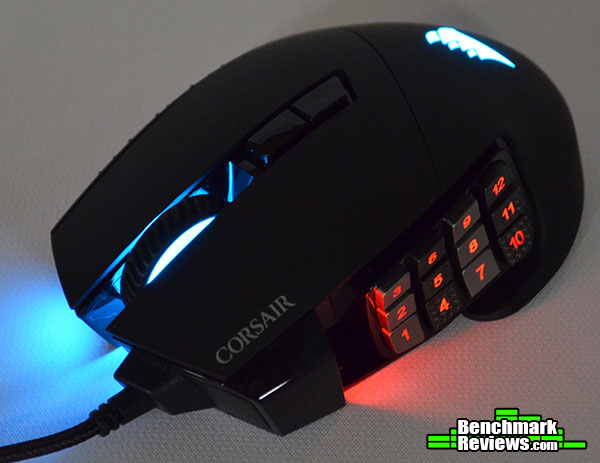
- Pixart 16,000dpi Optical Sensor
- Onboard storage with hardware macro and lighting playback (3 onboard profiles)
- CUE Software Controlled
- 17 programmable buttons
- 12 programmable side buttons can be adjusted up to 8mm (1mm increments)
- Report Rate (Polling Rate): 125 Hz -1000 Hz user adjustable
The Corsair Scimitar Pro is marketed as an MOBA/MMO gaming mouse that sports key slider customization, RGB lighting effects, CUE software, as well as onboard memory for macros and lighting control (selectable between 3 different profiles).

Here is what comes in the box. The Corsair Scimitar Pro, quick start guide, warranty guide, and a slider key (more on that below). As it has become the norm, Corsair did not include any software, opting for you to install the most current version from the Corsair website.
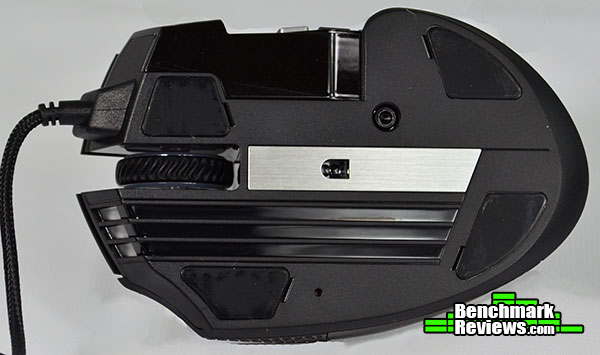
The bottom of the mouse is what you’d imagine with any optical mouse, an optical sensor! Seriously, this Pixart sensor sports an impressive 16,000 dpi, a major plus for the 4K crowd. Next to the sensor is a small hex screw, this screw is what you use to adjust the 12 key slider on the side of the mouse.

Above is a shot of the 12 button slider. Note that the keys are mechanical, something rare in mice. Corsair was intuitive enough to place a “home” button on the side, if you’ll notice the small raised shelf of the number 5 button, similar to the F & J on your keyboard.
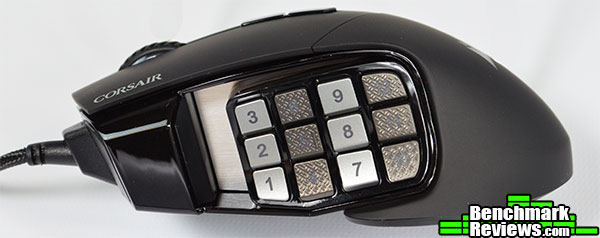
The 12 mechanical button side keys feature textured rows and a home button feel on the number 5 key. The textured surfaces on opposite rows helps you orient you thumb to the correct key with precision and speed. This idea has proven to be especially useful with playing Diablo III and Tom Clancy’s The Division.
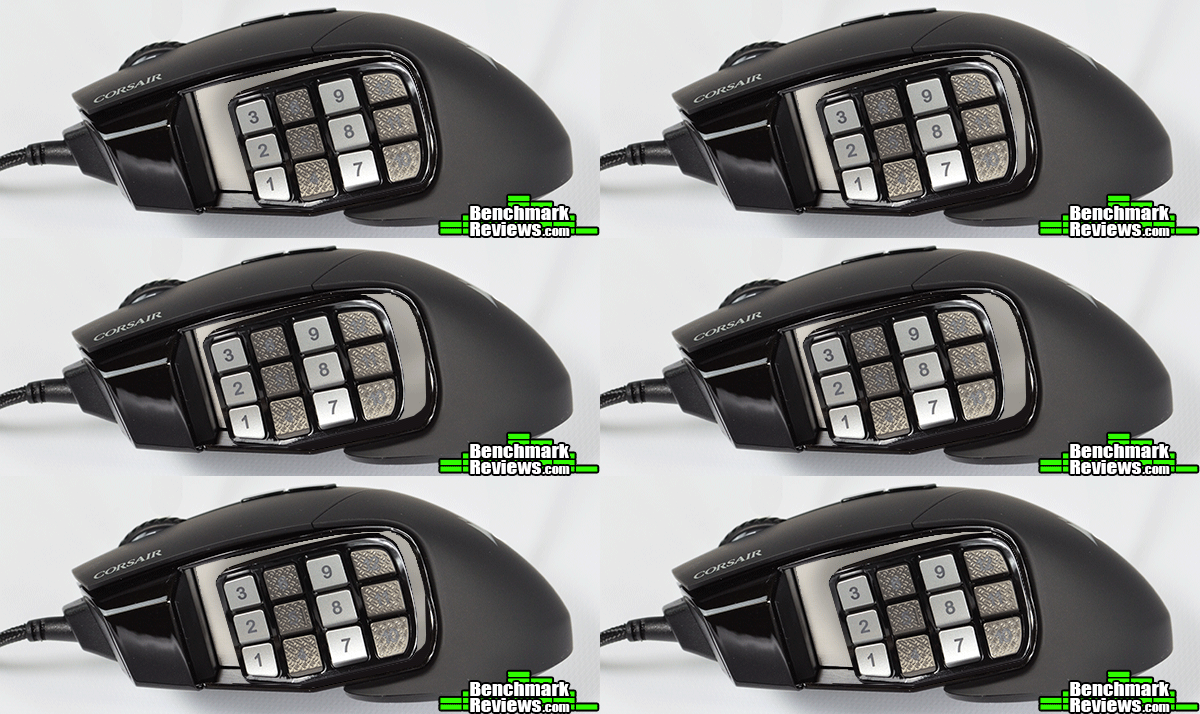
I created the above GIF (ehem, it’s pronounced JIF) to demonstrate how the slider actually moves. It travels a total distance of 8mm with 1mm incremental adjustments. To adjust the slider, you simply loosen the slider lock on the bottom of the mouse and slide it in the desired direction.

The front of the mouse features more RGB lighting, a lighted scroll wheel, and a braided mouse cable. As you can see above, the Corsair Scimitar Pro does sport the extra width that is popular with MOBA/MMO gamers to help facilitate button presses on the mouse while maintaining control.
The Corsair Scimitar Pro integrates with Corsair’s already widely used configuration software called the “Corsair Utility Engine” or CUE. The CUE software helps you fully customize the feel of your mouse, even down to changing the X and Y axis DPIs independently of each other if so desired.

The actions section of the CUE software is where you program your macros and customize your buttons. Macros can be set to record delays, keyboard events, mouse clicks, mouse wheel scroll, and of course, mouse movement.
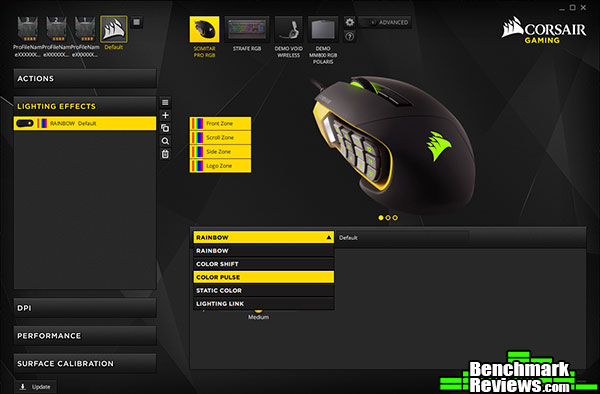
The lighting effects section of the CUE software is where you adjust the lighting effects of the mouse. It comes preloaded with one default pattern, the rainbow pattern.

The DPI menu allows you to fine tune your DPI presets with 6 different levels of adjustment. The six different levels are color coded and can be turned on and off with a simple click of the switch to the left of each preset. This area is also where you can adjust the X and Y DPI independently of each other.
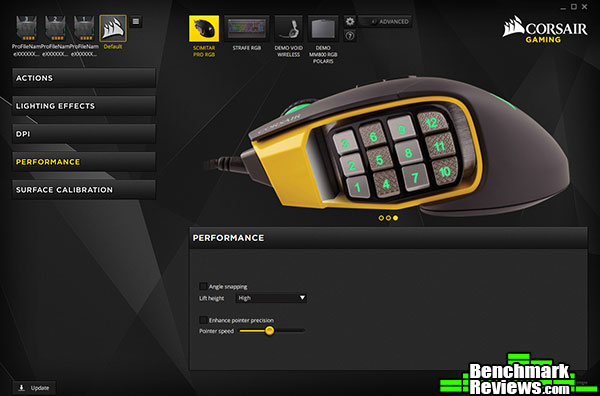
The performance section of the CUE software is where you can enable angle snapping, adjust the lift height, adjust the pointer speed, and enable pointer precision.

The final section is the surface calibration area. By grabbing the small yellow corsair logo in the center of the on screen mousepad and dragging it in a quick circular motion, also while maintaining the speed indicator in the green zone, you can calibrate the mouse precisely to your surface/material of choice.
The best way to test a mouse is to simply use it. We’ve also tested the mouse with USB 2.0 and USB 3.0. With the Corsair Scimitar Pro Gaming Mouse being equipped with a slider for the thumb buttons, I expect maximum comfort from this mouse. The Corsair Scimitar was tested for an overall period of 30 hours with Diablo III, Tom Clancy’s The Division, and Photoshop CS6.
- Motherboard: MSI X99A SLI PLUS LGA 2011-v3 Intel X99
- System Memory: HyperX Savage 64GB (8x8GB)
- Processor: Intel Core i7-5930K Haswell-E 6-Core 3.5 GHz LGA 2011-v3
- Audio: On-board
- Video: 2 x XFX Double Dissipation R9-290X (4GB) (Crossfired) (1 card after-market water cooled)
- PSU: Seasonic 1200W Platinum
- Monitor: Dell UltraSharp U2412M IPS 24″ x 3 @ 5760×1200
- Operating System: Windows 10 Pro (64-bit)
The Corsair Scimitar Pro performed very well during gameplay. Regretfully, I did have some wrist pain after each extended session. This could be the result of simply adjusting to a new mouse, or it could be that the mouse is smaller in size compared to my regular mouse and personal favorite, the Roccat Nyth.
As for Photoshop, the easily adjustable DPI settings make it work very well for fine motor control when utilizing Photoshop tools. The macro buttons came in handy for executing routine or redundant Photoshop tasks.

The Corsair Scimitar Pro can change its polling rate between 125 and 1000Hz. The max, 1000Hz, was used for all of my tests. According to our (Benchmark Reviews) polling tools, Direct Input Mouse Rate & Mouse Rate Checker, the Scimitar Pro performed exactly as advertised on both USB 2.0 & 3.0.
Overall, the Corsair Scimitar Pro is a fantastic gaming mouse. With it’s plethora of lighting customization and adjustable thumb buttons, not to mention its impressive 17 programmable buttons. It is a corded mouse, which if you ask some of my gaming buddies, is a big negative. But, for me, a corded mouse is preferred.

In terms of performance, the Corsair Scimitar Pro performed at my expectations. It is, after all, a Corsair product, and one would be hard pressed to find a Corsair product that didn’t please. Would you use this for your regular, every day mouse? Well, maybe. Would you use this for your gaming mouse? Most definitely. The pixart sensor is very accurate while forgiving for the occasional mouse lift (yes I’m one of those). It’s loud RGB lighting wouldn’t be appropriate at the job setting, but would fit in perfectly in your fortress of solitude.
Appearance wise, it basically looks exactly like the Corsair Scimitar. This look, while a bit intimidating for the uninitiated, is very favorable with MOBA/MMO players as well as some FPS players. It has an ergonomic curve that can only be utilized by right handed people, but with it’s abundance of lighting around the mouse and the ability to customize the colors and patterns to your heart’s content, it’ll make you stand out for sure at your local LAN party.
The mouse seems solidly constructed, I hadn’t tried to destroy it, yet. In all seriousness, it does seem like it could handle being carried around in a book-bag as you go back and forth to gaming parties. The cord has a thick braid on a sturdy cord. The USB connector also has stress relieve and seems to be of a higher quality as well.
The Corsair Scimitar Pro functions perfectly as a gaming mouse for MOBA/MMO players. As an FPS player’s mouse, well that will come down to preference. I personally like the customization of the buttons and the ability to have them perform whatever task I deem necessary while in game. Some other FPS players, however, would deem the buttons overkill and prefer a lower profile mouse to achieve a good “Claw” style grip.
As of January 2017, the Corsair Scimitar Pro sells online for $79.99 (Amazon | Newegg). For under $100, its a steal. With it’s unique and adjustable side buttons, RGB lighting, and the Pixart 16,000 dpi sensor, this mouse is an excellent choice for gamers who want great features for a fair price.
I would recommend this mouse to any gamer who prefers RGB equipment and possibly already has a Corsair keyboard, as this would combine the software for both in to one program. MOBA/MMO gamers specifically should like this mouse, and with the adjustable slider, comfort for those gaming sessions shouldn’t be an issue. While it was an issue for me, I’m confident that if I used the mouse for a few more weeks my wrist would become accustomed and the pain I experienced would be a non issue.
+ Pixart 16,000 dpi sensor
+ 17 programmable buttons
+ 12 mechanical thumb buttons
+ CUE software works well
+ RGB lighting
+ Onboard memory with 3 profile support
+ Feels good in the hand
+ Thumb button slider function for custom fit
– Corded (to some this is a con)
– Mouse feet could have been thicker for durability reasons
– Mouse surface could be slick if you have sweaty palms
-
Performance: 9.25
-
Appearance: 9.00
-
Construction: 9.00
-
Functionality: 9.25
-
Value: 9.00


