By Meng Vang
Manufacturer: ROCCAT GmbH
Product Name: Leadr Wireless Multi-Button RGB Gaming Mouse
Model Number: ROC-11-852
UPC: 4250288168565
Price As Tested: $137 (Amazon | Newegg)Full Disclosure: The product sample used in this article has been provided by Roccat.
Roccat has gone wireless with its Leadr optical gaming mouse. The Leadr includes a few new features, like the Owl-Eye 12000 DPI optical sensor (PixArt 3361). This is a modified version of the PixArt 3360 with improved responsiveness and manual surface calibration. With a body design similar to the Roccat Tyon, the Leadr also includes RGB lighting, an elegant charging dock, and customizable settings and profiles via the Swarm software. It does have a 20 hours battery life, which should set some great expectations for long gaming sessions. Benchmark Reviews has a chance to review the Roccat Leadr with its new Owl-Eye optical sensor, so let’s jump in to a quick overview of this wireless gaming product.
- Unrivalled Wireless Optics zero lag: 1000 Hz polling + 20h battery all day gaming, Charging Dock & Top-up USB Cable charging dock with status LEDs
- Roccat owl-eye optical sensor unrelenting pointer precision with 12000 dpi, 32-bit processor + 512 KB Memory for rapid macro storage and execution
- 14 ergonomic mouse buttons programmable + solid 2D Titan Wheel -Next-gen Button Layout featuring X-Celerator analog paddle + Fin Switch, ROCCAT EASY-SHIFT[+] button duplicator technology
- Two-level RGB Illumination customizable light system, 16.8m colors – Alienware AlienFX Lighting System Compatible
- Roccat Swarm Powered comprehensive driver & software suite
- ROCCAT® Owl-Eye optical sensor with 12000dpi
- Wired/Wireless combo mouse
- 1000mAh inbuilt Li-Ion rechargeable battery
- 2.4GHz wireless transmission
- 1000Hz polling rate
- 50G acceleration
- 250ips maximum speed
- Mouse acceleration: no
- Angle snapping: no
- 72MHz ARM Cortex-M0 (both mouse & stand)
- 512kB onboard memory (mouse)
- Adjustable lift-off distance
- 1.8m micro USB to USB cable
- Width 8.1 cm , Height 4.6 cm , Length 12.9 cm , Weight 134 g
The Roccat Leadr gaming mouse is currently available online for $137 (Amazon | Newegg). It comes in a large box that has a picture of the product along with its features and specifications.

In the box, we can see the Leadr nicely packaged underneath a plastic cover surrounded by a thick layer of cardboard. This prevents any physical damage to the product during shipment.
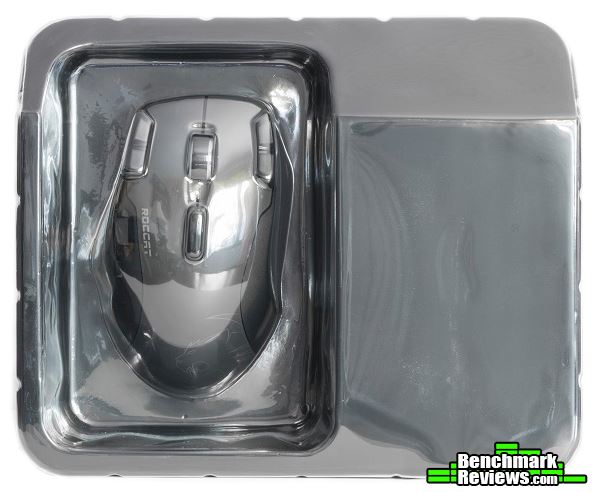
In terms of accessories, we find a quick installation guide, a few stickers, and a disposable information booklet.

Included with the accessories are a charging dock and 1.8m braided micro-USB cable. The charging dock doubles as the wireless receiver and has a mouse battery indicator near the bottom.

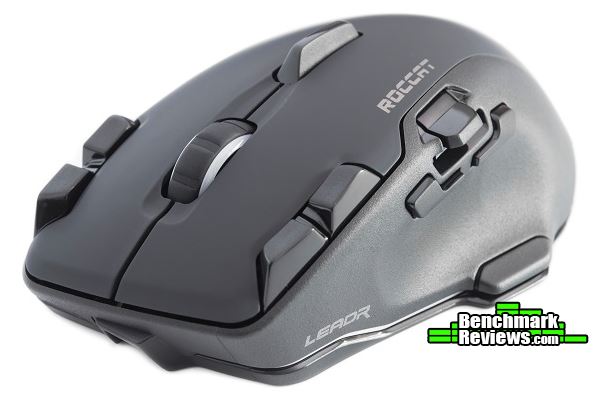
Here we can see that the Leadr shares a similar body shape and design as the Tyon. The top has a rubberized finish, which should improve durability in the long run. There are 14 fully-programmable buttons on the mouse for various functions. The 2D Titan Wheel scrolls well between pages and the Owl-Eye 12000 DPI optical sensor should have no problems in game.

Now that we have seen a quick overview of the Leadr, let’s go into more details on what this product has to offer.
Aside from the standard left/right click buttons here at the top, there are some additional buttons as well. The two buttons on the left click are for DPI cycling, while the two on the opposite side are for profile switching. There is also a mid-knuckle Fin Switch above the 2D Titan Scroll Wheel. At the rear is the company logo, which supports RGB lighting.

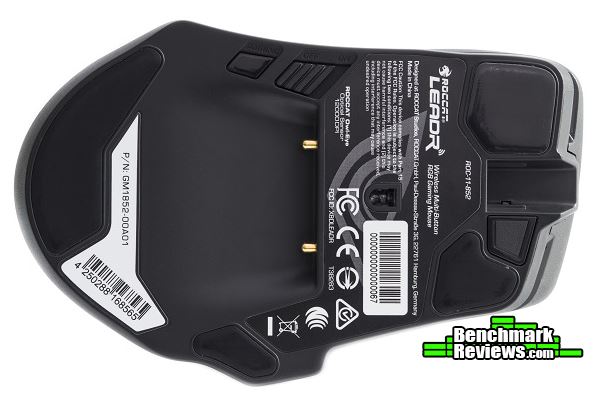
The bottom has plenty of glide pads for smooth tracking. In the middle, we can see the two metal contact points for the charging dock along with a pairing button and power switch. The 12000 DPI 3361 optical sensor is more bias towards the front of the mouse.
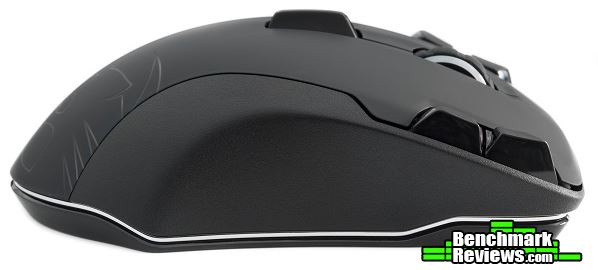
The left side of the Leadr includes two forward and backward buttons, an Easy-Shift[+] button on the thumb rest, and an X-Celerator single-axis analog thumb paddle. Like the Tyon, the thumb grip curves inward to allow a better grip but can also prevent the thumb from accidentally hitting the side buttons.

No additional side buttons are present on the opposite side except for the two profile switches on the right click button.
At the front, the provided USB cable connects to the center of the mouse for wired operation. The 2D Titan wheel does illuminate and it feels extremely durable with up and down scrolling.

At the rear, the surface maintains a smooth design with only the company logo. The left side of the mouse is slightly higher than the right making it more comfortable for the wrist.

In the next section, we will take a look at the charging dock to see how it works.
The charging dock is pretty large at about 110mm wide and 180mm tall. It does have a battery status LED and a clip to hold the mouse for charging.

Behind the dock is a port for the micro-USB cable and a paring button towards the side. The charging dock sits on the surface using three rubberized grips on the bottom of its stand.

Once attached to the dock, the internal battery of the mouse begins to charge. The battery status LEDs on the charging dock will display a charging animation.

At 129g, according to my scale, the charging dock should maintain a good grip on the mouse to prevent it from falling off. The mouse can be detached from the dock by lifting it upwards.

With the mouse battery at full, all four LEDs on the charging dock will come on. Even if the mouse runs out of battery, it can still function with the micro-USB cable attached to the front. This charges the internal battery while keeping the mouse operational.
Let’s take a look at the Roccat Swarm Gaming software in the next section.
The Roccat Swarm Gaming software has a nice graphical user interface with plenty of options to go through. Like the Corsair Utility Engine and the Razer Synapse software, Swarm can manage all of your Roccat gaming peripherals in one software. In the Settings tab, you may create, edit, and delete custom profiles. Five separate profiles allow us to store multiple key assignments, lighting effects, and other settings within the mouse.
In the Settings tab, you can adjust Windows sensitivity, vertical and horizontal speed, and double-click speed. You can have up to five DPI levels with their own DPI settings. The DPI range is from 100 to 12000 and can be adjusted in steps of 100.

In the Button Assignment tab, you can assign different functions to each mouse button. These functions include media, internet, macro commands, and Easy-Shift[+] technology. If you are familiar to the Cooler Master Storm TactiX (TX), Easy-Shift[+] works the same way. Assigning a button to the Easy-Shift[+] function will switch all the mouse buttons to their secondary functions when pressed. Of course, you can rebind the Easy-Shift[+] functions as well.

With the Leadr, you can set up to 28 different functions on each button using Easy-Shift[+]. By default, the X-Celerator single-axis analog thumb paddle functions like the scroll wheel. Of course, it can serve analog functions by re-programming it.

The Advanced Settings tab allows us to customize the report rate, lift-off distance, and lighting effects. You may also choose if you want the program to play a sound when switching DPI, profiles, volume, and sensitivity. This only works when the Swarm software remains running in the background. There are two lighting zones and five lighting effects to choose from. A few lighting effects will allow you to adjust the speed of which the colors transition.

Inside of the Macro Manager, you may record and edit macro functions in order to assign them to different keys. The Swarm software does have plenty of popular games to choose from where you can edit and reassign key functions in a specific game.

In the next section, we will take a look at how the Leadr performs.
Sensor Tracking Performance and Polling Rate
As expected, the Leadr performed very well and was able to handle very fast flicks across the surface thanks to the 12000 DPI 3361 optical sensor. No acceleration was present during testing and the average polling rate was around 1000 Hz as advertised. I did not notice any major effect when gaming at 12000 DPI, but Roccat recommends using the mouse at a DPI of 400-3000. At 2600 DPI, the mouse performed just as well as other gaming mice I had tested. It performed similarly to the Kone EMP, which has the same sensor. Some users may benefit from using a higher DPI setting, but more DPI does not mean better performance.
Using the Mouse Rate Checker software, I was able to achieve a polling rate of around 1000 Hz in wired mode.

In wireless mode, the mouse was also able to achieve an average polling rate of around 1000 Hz.

The Owl-Eye 3361 optical sensor originated from the popular 3360 optical sensor. It offers true 1:1 accuracy along with a Distance Control Unit (DCU) for adjusting surface calibration. Roccat recommends a DPI of 400-3000 for optimal performance, but the sweet spot is somewhere between 2000 and 3000 DPI.
That does bring up the question to why anyone would want to purchase a 12000 DPI mouse only to use it at 400 DPI. The Razer Mamba Tournament Edition and the SteelSeries Rival 700 both have crazy 16000 DPI sensors (or CPI for SteelSeries). Not sure if that makes you a better gamer but that 16000 DPI sure looks good on paper, doesn’t it? Like the megapixels to a camera, we cannot say a mouse is better than the other just by comparing DPI sensitivity because there is so much more to a mouse than just DPI. We need to consider other crucial factors, like sensor performance, body shape, weight, and button placement.
There is a lot that goes into a topic like this; should you use a low DPI or a high DPI for gaming? I personally prefer something over 2000 DPI but nothing more than 3500 DPI for gaming. The optimal DPI zone of the 3361 sits right around here, which is something I am happy to see. With older sensors, I can notice quite a bit of jittering with slow movements at a very low DPI, but the jitter was nonexistent at the 2600 DPI I am using now. But if you can pull off fancy moves and headshot every enemy that gets in your way, stick with whatever you have and be happy with it.
Wireless Performance
Upon setting up the charging dock and the mouse, I was very skeptical about the wireless performance. Roccat claims “Zero lag and with virtually zero latency” with the Leadr, so I was expecting just that. After a few weeks of mostly wireless operation, I experienced no performance issues. It felt no different than in wired mode even with many hours of wireless gaming. I played with a few wireless gaming mice in the past; some had performance issues, while some had major performance issues. The Leadr performed well and the battery lasted a pretty long time even with the LEDs on.
Battery Life
Rated at 20 hours, the battery had plenty of juice to last me a few gaming sessions. I did a mixture of gaming and general web browsing with the battery lasting a good three to four days at most. Of course, battery life does depend on your type of usage and lighting settings. When it needed a charge, I unplugged the micro-USB cable from the charging dock and plugged it into the Leadr. This allowed me to continue using the mouse as it charged.
One problem I still have with the Leadr is the battery status indicator always showing full on the charging dock. The battery to the mouse did drain out several times, but the battery indicator on the dock still reported full. I placed the mouse on the dock to charge, but the battery indicators blinked for a few seconds and returned to full even though the mouse barely had a charge. With the drivers and firmware up to date, this could just be a fault with my unit.

Button Response and Placement
Although I have not used the Roccat Tyon, I felt comfortable with the Leadr as the buttons were all in the right places. The two side buttons sat directly above my thumb allowing easy access. They were also harder to mis-click since the thumb rest curved into the body of the mouse. The 2D Titan scroll wheel was very solid with no trouble scrolling up and down web pages. The wheel had a bump, which provided enough resistance to prevent accidental scrolling. I made use of the thumb paddle for flying an aircraft in game, which worked well for games that support analog functions.
RGB Lighting Accuracy
Replicating a pure white color can be difficult for some RGB peripherals. When it came to color reproduction, the Leadr did well. When set to white, the scroll wheel was mostly white with a bit of pink. The camera was unable to pick this up, but it was noticeable in person.
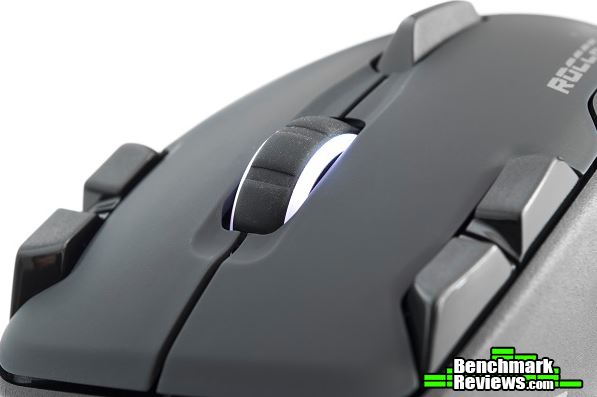
The rear logo was the same as the white was a bit on the pinker side. Other colors, like red, green, and blue, looked well produced. The light from the scroll wheel and the rear did reflect slightly off each other. Depending on the color of the scroll wheel, the rear logo will have just a small tint of that and vice versa.

Size Comparison with Other Mice
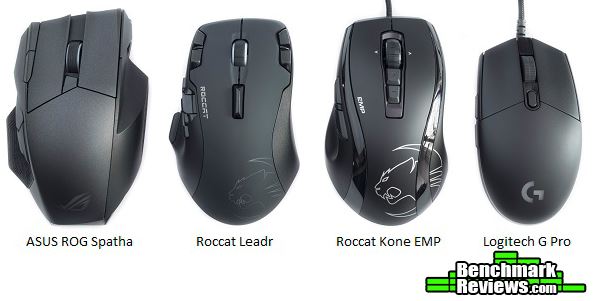
Putting the Leadr next to a few other competitive gaming mice, it was slightly larger than the Kone EMP, but smaller than the ROG Spatha. The body shape and design felt similar to the Kone EMP making it more natural when compared to the ambidextrous body shape of the G Pro. On the scale, it was about 12 grams heavier than the Kone EMP without the cable, but much lighter than the 175g ROG Spatha.
Let’s go into my final thoughts and end this review with my conclusion in the next section.
Although it is a bit late to the wireless party, the Leadr performs well in both wired and wireless modes. The Owl-Eye sensor performs very well as it is a PixArt 3360 with a few tweaks. The Leadr does weigh in at 129g, but it is not the heaviest wireless mice. Battery life is solid with 20 hours of juice, and the additional buttons can give an advantage over a standard gaming mouse. My unit likes reporting a full battery charge at all times, but I hope a future update can fix this. If you have medium to larger hands and are looking for a high performance wireless gaming mouse, or something with a ton of buttons for productivity, the Leadr is your best option.

As expected, the Owl-Eye optical sensor on the Leadr performs very well against other mice with a 3360 optical sensor. Buttons respond well and the shape of the mouse feels very comfortable in my hand. The 2D Titan scroll wheel feels tough and I experienced no performance issues in wireless mode.
Although appearance depends on personal preference, I do like the looks of the Leadr. It looks identical to the Roccat Tyon but with RGB lighting. RGB accuracy is not the best, but there is nothing too flashy or overly designed in terms of body design. To me, the simpler the looks, the better suited it is to match any setup.
The Leadr feels solid all around. Its 2D Titan scroll wheel should last a very long time, although there is just a small rattling noise coming from inside the mouse while shaking it. The Owl-Eye sensor is more bias towards the front of the mouse, which can affect aiming for some users. Built from mostly rubber and plastic, the body should last through several years of gaming.
In terms of functionality, the Leadr performs very well in games and I also used it to edit all of the pictures in this article. The Swarm software works well, but my only major complaint is the always full battery status. This seems like an issue with just my unit, so I would not worry too much if I were you.
As of June 2017, the Roccat Leadr wireless gaming mouse currently sells online for $137 (Amazon | Newegg). This puts it right around the same price range as the Logitech G900 and Razer Mamba Chroma. All perform very close to each other, but the extra buttons and Easy-Shift[+] technology gives the Leadr a large advantage when shifting gears into productivity. This makes the Leadr suitable for gaming and productivity.
+ Great build quality
+ Comfortable body shape
+ Great wireless performance
+ Lots of buttons for customization
+ Excellent 12000 DPI Owl-Eye (PixArt 3361) optical sensor
– Large charging dock
– RGB lighting is not the most accurate
– Charging dock always shows full battery life (this may only be my unit)
-
Performance: 9.75
-
Appearance: 9.00
-
Construction: 9.00
-
Functionality: 8.50
-
Value: 8.50


