By David Ramsey
Manufacturer: Corsair Components, Inc.
Product Name: Raptor K40 Gaming Keyboard
Model Number: CH-9000051-NA
UPC: 843591046862
Price As Tested: $79.99 (Amazon | Newegg)
Full Disclosure: Corsair provided the product sample used in this article.
Mechanical keyboards such as Corsair’s Vengeance K70 keyboards have garnered praise from industry pundits and users alike. But there’s no escaping the fact that keyboards with individual mechanical key switches are expensive: the aforementioned K70 retails for $130.00. But as it turns out, you can get much of the style and functionality of Corsair’s high-end keyboards for a lot less money. Today Benchmark Reviews takes a look at Corsair’s Raptor K40 Gaming Keyboard.

Corsair’s CH-9000051-NA keyboard attempts to strike a balance between features and cost: it does this by eliminating “peripheral” features like a braided cover on the USB cable, metal construction, USB pass-through ports, a wrist rest, and most importantly, mechanical key switches. Although they’ve been increasing in popularity, there’s no getting around the fact that mechanical key switches are expensive, so the Raptor K40 Gaming Keyboard uses a rubber-dome design to keep the cost down.
Now, for some this is a deal-breaker, but only for some. In my experience computer users are divided into two groups: those for whom only mechanical keyboards will do, and those who really don’t care that much about how a key “feels” when you press it. If you’re in the latter camp, then the features and design of the K40 may be for you.
- Plastic base, rubber dome key switches
- Full key matrix anti-ghosting with full key rollover on USB
- 16.8 million color customizable backlighting
- Six dedicated, programmable G-keys (18 keys per profile)
- On-board profile storage (36K of memory)
- Multimedia keys (Stop, Previous, Play/Pause, Next, Mute, Volume Up, Volume Down)
Does the Raptor K40 have what it takes? Let’s see…
The Corsair Raptor K40 looks very similar to keyboards in Corsair’s Vengeance line. It’s a standard 104-key layout with the addition of macro and multimedia keys.

The back of the keyboard contains only the attached USB cable. The silver top and back appear to be the same aluminum used on Corsair’s Vengeance keyboards, but they’re actually plastic.

The K40 uses the same “exposed key” design as the more expensive Vengeance series, which exposes the key posts rather than surrounding them with a plastic bezel. Not only does it look cool, but it makes keeping the keyboard clean a lot easier: blowing out dust and crud doesn’t require disassembling the keyboard.

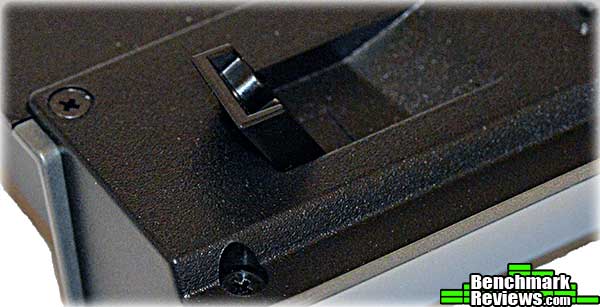
Flip-out plastic feet subtly elevate the rear of the keyboard if you wish.
The six programmable “G Keys” are at the left of the keyboard. The “WASD” gaming keys are silver to distinguish them from the rest of the keyboard.

Media keys work without any extra software on both Mac and Windows platforms. If you choose “Hardware playback” (more on this later), macros will work on non-Windows platforms, since they’re executed by the keyboard. However, the macro definition software is Windows-only.

Let’s take a closer look at the hardware of this keyboard in the next section.
The keyboard’s internal LED lighting uses full RGB LEDs, giving you a choice of over 16 million colors. Blue, red, and yellow are just a few pre-defined choices Corsair provides. The color choice applies to the entire keyboard. You can also specify that the keyboard “pulse” (slowly changing the brightness from off to full and back) and cycle (rotate through colors). There are three levels of intensity, plus off.

Opening the keyboard reveals a standard rubber-dome contact sheet. The domes provide both the spring return as well as the electrical contact when pressed. Although they’re not as durable or “crisp” as mechanical key switches, rubber dome switches have the advantage of being completely silent.
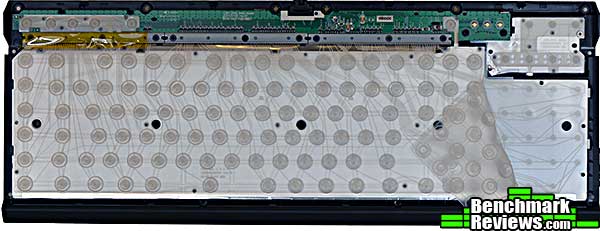
Ten RGB LEDs along the bottom of the keyboard use light pipes and plastic diffuser grids to spread the light to each key.

The light exits upwards through the clear plastic dome switch layer and the clear legends molded into each key. Since the light from just a few LEDs must illuminate the entire keyboard, the keys aren’t as brightly lit as keys with individual LEDs. The lighting is clearly visible in bright room lighting when set to the highest of its three levels, but will show best in a dimmer environment.

Although the keyboard is constructed entirely of plastic and is very lightweight, I found it to be exceptionally rigid, much more so than generic rubber-dome keyboards. Aside from the design and shape of the plastic parts, these 17 screws clamping the parts together probably helped. This gives the keyboard a higher quality feel than you might expect.

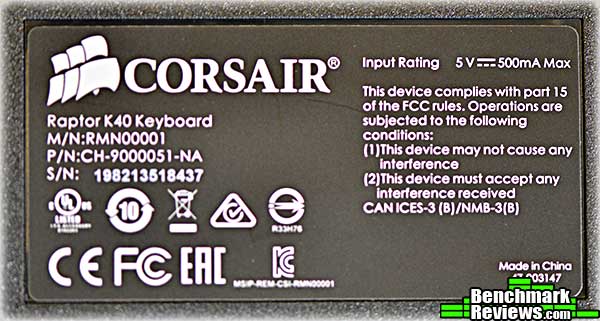
The label on the back of the keyboard shows the USB input rating at 500mA. This is the full power allotted to a standard USB port, and the keyboard probably needs it for the backlighting and internal electronics. It probably won’t work right if you plug it into an unpowered USB hub.
There’s no real documentation or software included with the keyboard, as is all too common these days. You’ll need to visit the Corsair web site to download the keyboard software, and the multi-language leaflet’s description of the software features might politely be described as “cursory”.

So much for the physical aspects of the keyboard. Let’s get to the software.
Like most gaming keyboards, the Corsair Raptor K40 keyboard contains programmable macro keys. There are six of these, labelled G1 through G6. However, each “profile” can define up to 18 macros, in three groups of six. You select the group assigned to the “G keys” by pressing the M1, M2, or M3 buttons at the top of the keyboard. The currently selected “M button” is lit. (The Lock button disables the Windows key when it’s selected.)

There are two ways to define macros: you can type a sequence of keys on the keyboard, or select from two specialized menus under “Advanced Options.” In this image, I’ve assigned the string “Now is the time” to the G1 key in the M1 group. I can use the Playback Options section of this window to specify that the sequence repeat once, N times (where N is any number), that it repeat rapidly as long as the key is held down, or that it repeat continually until I press the key again. To define a macro takes several steps:
1. Press the M1, M2, or M3 key to select the group the macro will be in.
2. Press the MR (Macro Record) key.
3. Press the key you want to assign the macro to (G1-G6).
4. Type the character(s) you want to assign to the key.
5. Last, press the MR key again to close the macro.
6. Optionally, type a name for the macro in the area provided.
This is a simple procedure, but sadly you cannot use meta keys in conjunction with the G keys, for example, “shift G1” or “alt G2”. Also, you cannot edit macros once they’ve been defined: screw up one key while typing, and you must re-enter the entire macro. Admittedly, most macros are going to be rather short, so this isn’t a big deal.

Interestingly, with the Raptor K40 you can decide whether you want the macro features to be played back by the keyboard software running under Windows, or by the keyboard itself. To activate the latter mode, check the “Hardware Playback” check box at the lower left of the panel. If you choose software playback, changes you make to profiles, profile selections, macros, etc. all apply instantly. If you choose hardware playback, you must specifically upload a profile into the keyboard for it to take effect…but you can then unplug the keyboard and take it to any other computer– even a Mac– and the macros will work.
For multi-key macros, the default setting inserts a 50ms delay between each keystroke. You can change this in millisecond increments, have no delay at all, or, oddly, choose random delays (when would you want random delays?) While each macro you define can have a different delay, you can only use one delay per macro– in other words, the delay between all keys in a macro must be the same.

Special actions you can assign to macro keys include these Basic and Advanced commands. While these are useful, the list seems a little short. Where, for example, is the command to simply open a given URL?

This panel lets you define the color used for the backlight. Corsair provides eight presets but you can set the red, green, and blue components individually from 0-255. You can also select “LightFX”, that will either pulse the keyboard lighting on and off, or cycle through a range of colors…but only if “Hardware Playback” is not checked. These color settings are saved as part of a profile and the M1, M2, and M3 portions of a profile can each have their own color scheme.

Profile management is pretty simple: you can have an arbitrary number of named profiles, which you can export (if you want to mail your profile to a friend), import, delete, and “Send to K40” (which you must do to enable a profile if “Hardware playback” is checked. If “Hardware Playback” is not checked, you can assign applications to profiles, and the profiles will be loaded automatically with the application. Since the color scheme is saved with the profile, the keyboard’s appearance will change as the application loads, which is fun: fire up Crysis 3 and your cool blue keyboard changes to angry red!

The macro and profile management software is basic but works well. It would be nice to be able to edit macros, though, or even delete them.
In the last section of this review I’ll give my final thoughts and conclusions on this keyboard.
The Corsair Raptor K40 Gaming Keyboard might best be thought of as a “starter” or “minimalist” gaming keyboard. You don’t get mechanical key switches, per-key lighting, USB pass-through, a wrist rest, or a lot of programmable keys. You do get a very well-built, basic macro keyboard that supports enough macros to be a good addition to most games, or even productivity programs like Photoshop.

Although high-end mechanical gaming keyboards get most of the press, there’s a lot of competition at the lower end of the market, too, with companies like SteelSeries, Microsoft, Razer, Thermaltake, and others offering keyboards with features and capabilities very similar to the K40…and many of them sell for $10-$20 less. Admittedly this is the only keyboard in this price range with RGB LED lighting, and that might be worth something to you. Still, at $79.99 (Newegg/Amazon), this is a fairly expensive non-mechanical keyboard.
Overall, I was more impressed with this keyboard than I thought I’d be. I still prefer mechanical switches, to the point where my day-to-day keyboard is an old IBM Model M, but the Raptor K40 is one of the nicest rubber dome keyboards I’ve used.
The Corsair Raptor K40 Gaming Keyboard does a good job of holding up the lower end of Corsair’s gaming keyboard line. While not equipped with the expensive mechanical switches Corsair uses in their Vengeance keyboards, the K40 nonetheless impresses with its features and solid, non-flexible construction. The RGB LED backlighting is unique in this class of keyboard, but you’ll pay $10-$20 more than most competitive keyboards for this feature.
The performance of the K40 was quite good: the rigid design of the keyboard helps compensate for the feel of the rubber dome keys. My one complaint is that the keyboard is so light that vigorous typing or gaming can sometimes cause the keyboard to move, depending on the surface it’s on.
Corsair mimics the appearance of their more expensive aluminum keyboards with clever material and design details on the K40. Some other gaming keyboards strive to distinguish themselves with strangely-shaped wrist rests and other appurtenances. The K40 manages to look interesting and purposeful without going overboard.
The quality of construction is what one would expect from Corsair. At the end of the day, it’s an all-plastic, rubber-dome keyboard, but I don’t really see how you could make a better all-plastic, rubber-dome keyboard. The shape of the parts and the plethora of screws clamping them together result in a rigid, quality-feeling keyboard.
With only 6 programmable keys, the Raptor K40 is at a disadvantage compared to higher-end keyboards. Of course each game profile can contain three sets of these keys (18 total), and switching between the sets takes a single button press. Better yet, you can assign keyboard colors to go with each profile’s set, so you can identify your current configuration at a glance. It’s also nice to be able to choose between executing macros at the driver level, for fast configuration and updating, or downloading and executing the macros directly from the keyboard, which enables you to take the keyboard to other computers with a pre-defined set of commands. Associating specific backlight colors (and behaviors, if you’re running in “driver mode”) with individual profiles is a real plus.
Value is perhaps the one weak point of this keyboard. Available online for $79.99 (Amazon | Newegg), it’s priced $10-$20 above its competitors. You’ll have to decide if the fancy backlighting is worth it.
+ Very solid, non-flexible feel for an all-plastic keyboard
+ Versatile backlighting
+ Ability to load macros directly into keyboard, or execute from driver
– Can’t edit existing macros
– Backlighting not as bright as LED-per-key designs
– Must download software; very sparse included documentation makes learning all of the keyboard’s features a matter of trial and error
– Sacrifices many useful features (USB pass through, etc.) to keep cost down
-
Performance: 9.00
-
Appearance: 9.50
-
Construction: 9.50
-
Functionality: 8.25
-
Value: 7.50


