By David Ramsey
Manufacturer: EVGA Corporation
Product Name: TORQ X10 Gaming Mouse
Model Number: 901-X1-1103-KR
UPC: 843368030230 EAN: 4250812404985
Price As Tested: $49.99 (Newegg pre-order) $69.99 Carbon (Newegg pre-order)
Full Disclosure: EVGA Corporation provided the product sample used in this article.
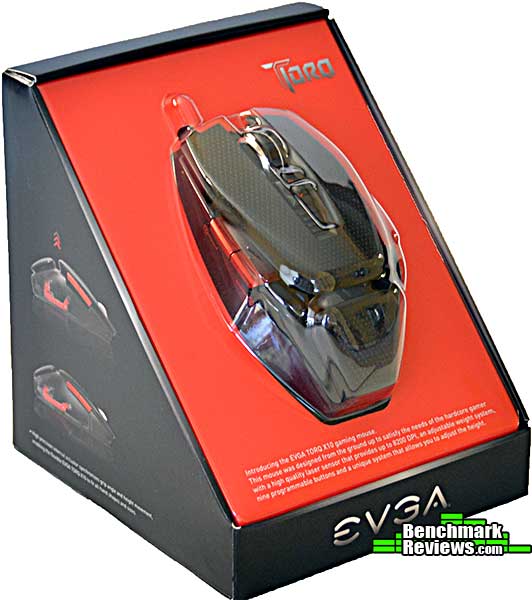
Gamers drive high-end computing: if you don’t think so, consider the renaissance of (expensive) mechanical keyboards in the last couple of years. Of course gaming mice have been common for a while, and EVGA has just thrown their hat into this very competitive ring with the EVGA TORQ X10 mouse. Boasting a fully ambidextrous design, 9 programmable buttons, an 8200-DPI laser sensor, solid metal base, and a dramatic style, the TORQ X10 mouse also comes in at a very competitive price, especially if you pre-order it. Benchmark Reviews connects this new mouse to our gaming machine to investigate how well it works in this article.
Mice, like keyboards, are very personal things. A mouse that some people like, others will hate; it could be size, or the way the mouse feels. Wireless mice seem to be the norm these days, but many gamers prefer the perceived superior responsiveness and reliability of a corded mouse, and the X10 is corded.
What distinguishes a gaming mouse from a “normal” mouse? Generally, it will have more buttons; the buttons will be programmable, and the mouse hardware itself will be different: gaming mice tend to be sturdier, have higher resolution sensors, and some offer physical adjustability, so the shape, size, and weight of the mouse can be changed. Let’s take a look at the EVGA TORQ X10 and see what it’s got.
| Max DPI | 8200 |
| Sensor | Avago 9800 laser |
| Switch type | Omron – 20 million clicks life cycle |
| Programmable buttons | 9 |
| Min/Max Weight | 147g/160g |
| Max Polling Rate | 1000Hz |
| LEDs | Red, green, blue, yellow, orange, pink, purple |
| Feet | PTFE |
| Profiles | 5 onboard (512K memory) |
| Design | Full ambidextrous design |
Let’s unbox this mouse in the next section
The EVGA TORQ X10 package includes the mouse (with a nicely braided USB cable), a set of weights, an adjustment tool, and an envelope labeled “Accessory” that contains a multi-language quick start guide and a spare set of PTFE mouse feet.
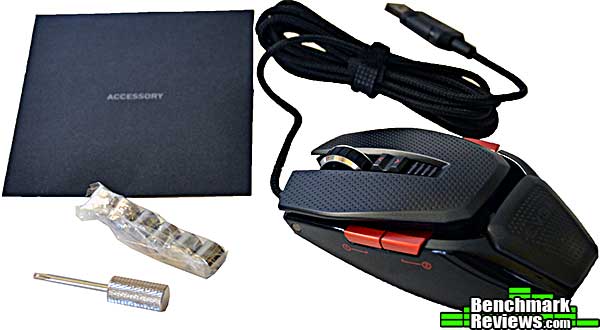
The mouse has a stippled hard plastic surface. The metal scroll wheel has a ribbed rubber covering, and the two red thumb switches on the side look exactly like anodized metal but are actually plastic. The rocker switch controlling on-the-fly DPI selection sits above four red LEDs.
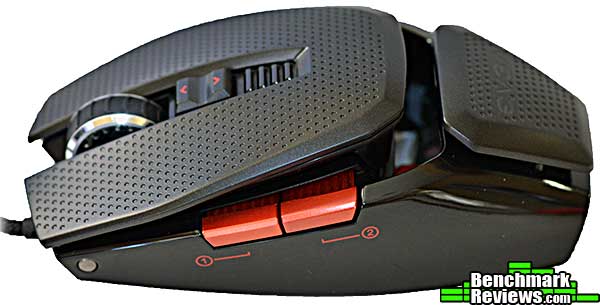
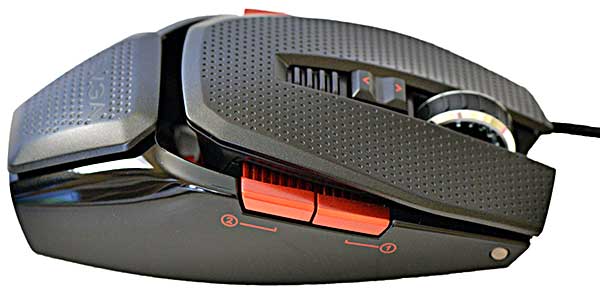
Here’s a surprise: the right side of the mouse is identical to the left side of the mouse. In fact the design is completely symmetrical and can be used by either right- or left-handed persons.
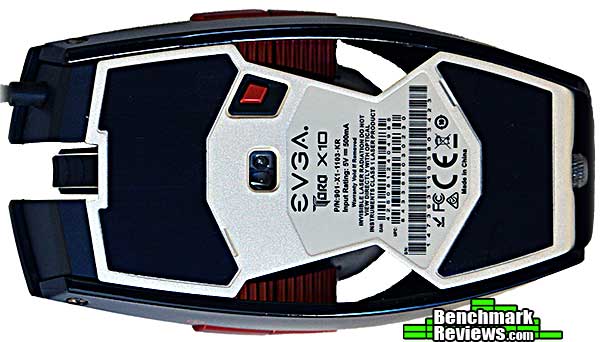
At the bottom of the mouse we can see the Avago laser sensor. Is 8200DPI too much? We’ll see. In the meantime, the red button above the sensor in this image cycles among the mouse’s five macro profiles. It might seem odd to have this on the bottom of the mouse, but you wouldn’t want to accidentally switch profiles in the middle of a game, would you? When you press this button, a “PROFILE X” message appears briefly at the bottom of the screen, showing what profile you just selected (1-5).
I’ll look at the detailed features of the TORQ X10 in the next section.
At the rear of the mouse is this recessed screw. You can use the included adjustment tool to turn it to adjust the height of the TORQ X10 mouse.
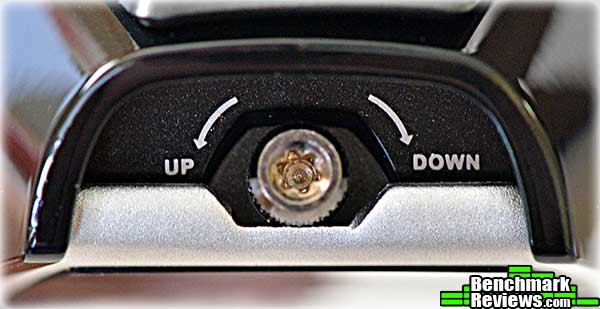
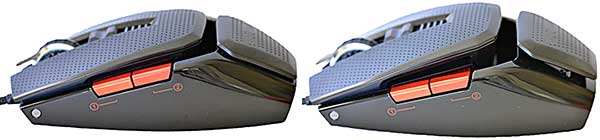
Adjusting the screw raises or lowers the panels on top of the mouse. At the left of the image below is the mouse at full “Down”; at the right is the mouse at full “Up”. As you might expect, there’s a dramatic difference in the feel of the mouse at these two extremes. I prefer a tall mouse so I left mine adjusted at full up for testing.
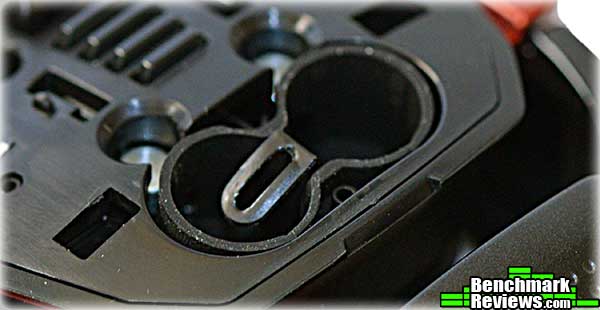
The top of the mouse pops off to reveal the rubber weight holder. You have to pry fairly hard at the rear of the button panel to pop it off. I was afraid it might break, and it did come loose with a crack, but it seems fine.
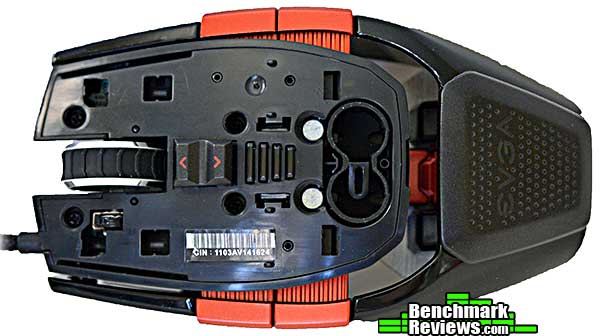
The weight holder has a molded-in tab so you can pull it out of the mouse.
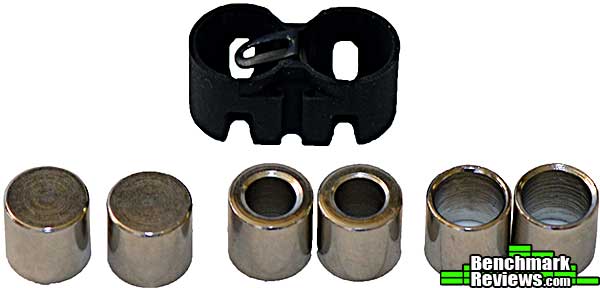
EVGA includes three sets of different weights. There are 9 possible combinations of weights, including no weights at all. With no weights, the mouse is 147 grams; with the two solid weights, it’s 160 grams.
Let’s take a look at the supporting software for this mouse in the next section.
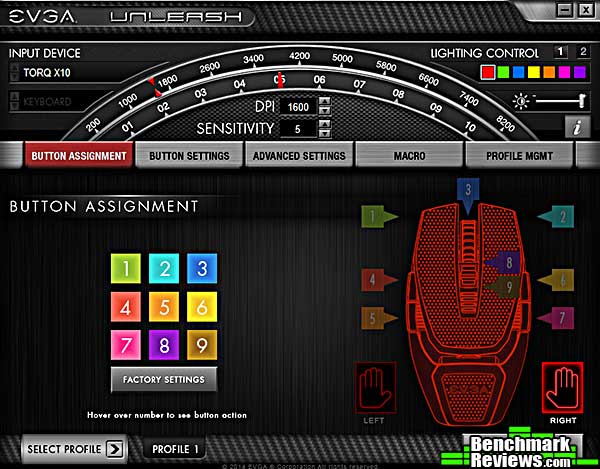
EVGA calls their mouse utility software Unleash, and it is one of the nicer and more usable utilities of its type (with the exception of macro definitions, which I’ll get to later). The first screen you see upon invoking the software is the Button Assignment screen. There are a total of nine assignable buttons on the mouse (every button except the “Switch Profile” button on the bottom). This screen is purely informational: hovering over a button on the colored grid shows the button’s assigned function. For example, if you hover over the blue “3” button, a popup will show “Right Click”, assuming you haven’t changed it to something else.
Also notice at the lighting control, DPI, and sensitivity adjustments at the top of the application window. This part of the user interface is constant across all the other screens.
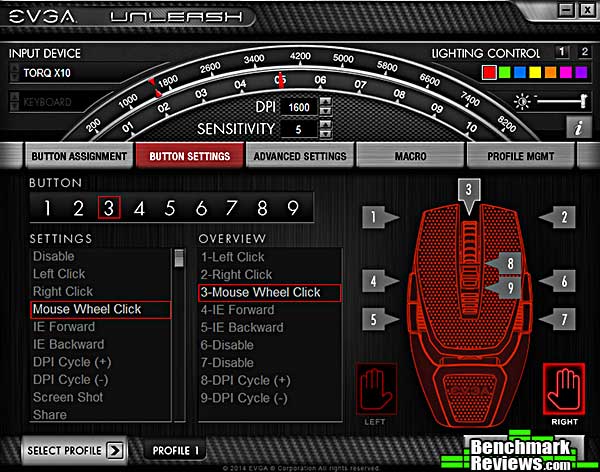
Actual button assignment is handled by the Button Settings screen. This is where you’ll define the non-macro operation of the buttons. Select the button you want to define from the list at the right (which also shows the currently-assigned function), then choose its function from the list on the left. Macros defined for the currently selected profile will appear in the Settings list as well, although there’s a problem with that I’ll get to later.
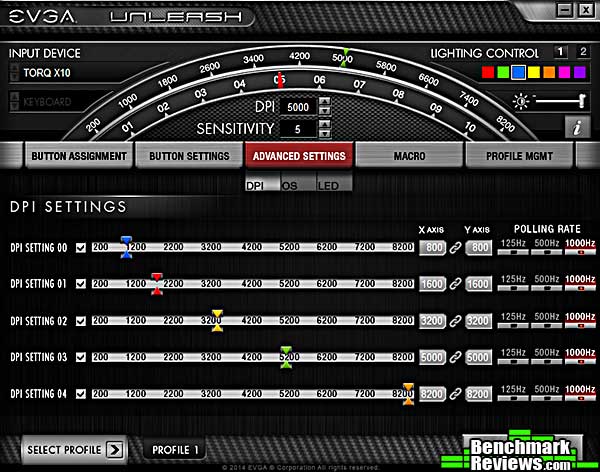
 The Advanced section has three sub-sections: DPI, OS, and LED. In the DPI section you set the DPI and polling rate you want for each of the mouse’s five DPI settings.; note that DPI can be set individually for the horizontal and vertical axes. The current setting you’re using is indicated by the four LEDs on the mouse below the DPI rocker switch, with no LEDs lit serving as a fifth setting. Every time you move the rocker switch, the new DPI setting you’re using appears briefly at the bottom of the screen.
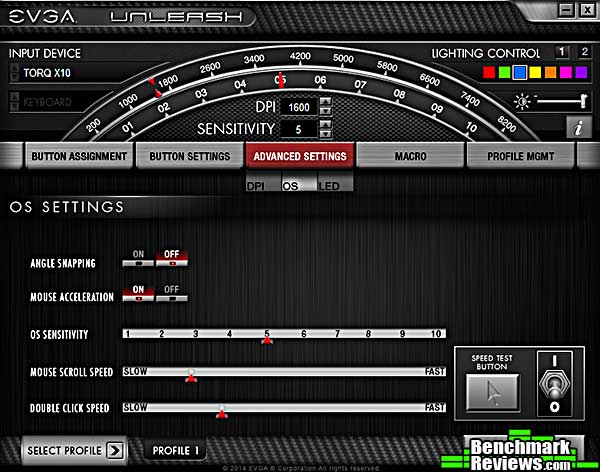
In the OS section, you can adjust “Angle Snapping” (whatever that is), mouse acceleration, “OS Sensitivity”, as well as mouse scroll and click speeds. Presumably this is called “OS” because the settings are the same as the ones in the Mouse control panel in Windows, and indeed changes made to obvious settings like “Double Click Speed” in one control are reflected in the other. I would still like to know what “Angle Snapping” is.
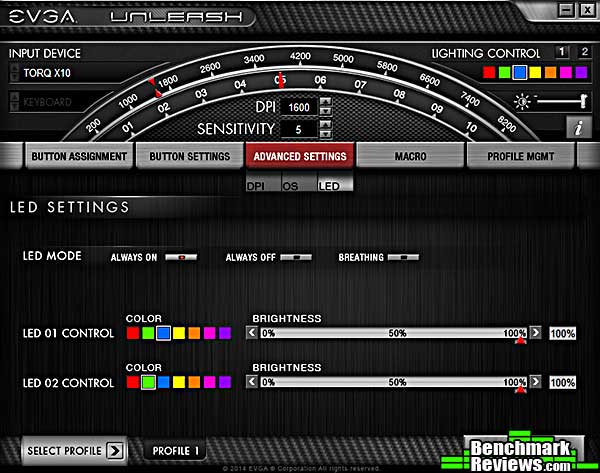
Although the mouse has three LED-lit sections (the scroll wheel, the DPI indicators, and the EVGA logo), only the scroll wheel, aka “LED 01” and the EVGA logo (“LED 02”) can have their colors changed– the DPI indicators will always be red. For the other LEDs, you can choose from seven different colors and control the brightness as well; optionally, you can turn the LEDs off completely or have them “breath”, varying the brightness automatically in a pulsing pattern. Note that the color and intensity controls for both LEDs are always available at the top of the window, in the Lighting Control section.
Let’s see how this mouse is to use in the next section.
A gaming mouse should offer quick– and adjustable– response, a crisp feel, and programmable buttons. The TORQ X10 offers all of these, and I used it in a variety of games ranging from Rise of the Triad (the re-release, not the original), Crysis 3, and Wolfenstein: The New Order. Playing on a 2560×1600 screen, I found that 1600dpi was the maximum I used and provided very fast response; I don’t see how the 8,200dpi setting would be useful unless you were running a multi-monitor setup with three or more monitors.
The two red buttons on the left side of the mouse fall easily to thumb, at least if you’re holding the mouse with your right hand. The corresponding buttons on the right, however, require a significant movement of your hand on the mouse to bring your middle or ring fingers into a position to press the buttons, especially the rear button. This limits the number of buttons you can reach easily during a fast-paced game, although you can re-purpose the DPI switch rocker if you have games in which you don’t need to change the mouse resolution while playing.
All in all I found this an excellent mouse for the FPS games I favor; the only feature I missed was a “sniper” button, that lowers the mouse resolution as long as it’s held down.
One of the things I dislike about many new gaming peripherals is that their utility software comes without any documentation– in fact, these days, the software is not included with the device, but typically must be downloaded from the vendor’s web site. Macro definition in particular varies widely in its implementation, and I often have to spend more time than I’d like figuring out exactly how to use a specific utility’s macro features. EVGA Unleash is no different, so here’s how it works.
First, click the NEW button. This will place a default macro name in the first available slot (there are twelve slots, but you can only use the first nine). Type a name for your macro and press Return to save it. You may be tempted to simply click in one of the macro slots and start typing, and that will in fact work, but it will not clear any previous macro actions.
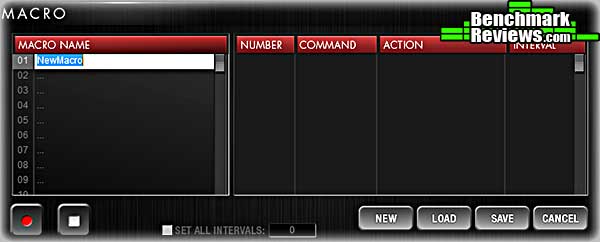
Press the RECORD button (the one with the red dot) and perform whatever actions you want to assign to this macro. Press the STOP button (white square) when you’re done. You’ll see your actions, recorded with millisecond precision, in the panel at the right. Note that if you want a consistent defined interval between each action, you can specify it with the Set All Intervals control near the bottom of the window. In this example I’ve defined a new macro, Test 1, and assigned it the action of typing the letter “Q”.
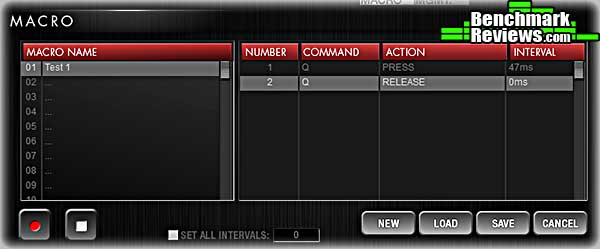
Click the SAVE button to send the macro definition to the mouse. This is critical. If you forget this step and click NEW to start another macro, you’ll erase your existing macro definition. Below you can see I’ve created a new macro, Test 2, and assigned it some scroll-wheel action as well as typing. I’ll click SAVE and I’m done.
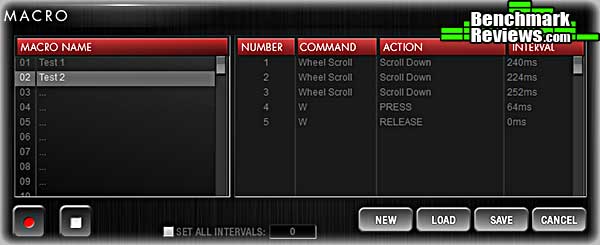
But you might be confused by what you see if you now click on Test 1:
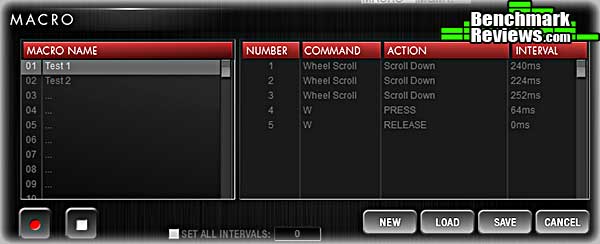
Even though Test 1 is selected, the macro definition shown is that for Test 2. Confusing? You bet! You must remember the click the LOAD button whenever you select a new macro to read the macro definition back from the mouse into the utility:
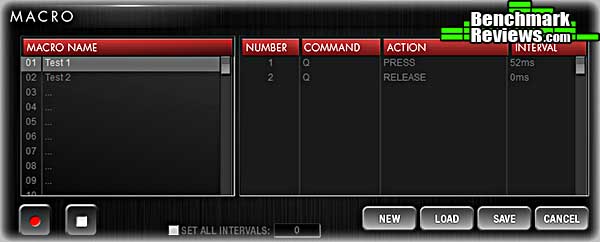
In other words, when you’re looking at existing macro definitions, you must press LOAD after selecting each macro. EVGA Unleash doesn’t seem to have a way to keep all a profile’s macros loaded at once, so you have to remember while working with macro definitions to click SAVE to save each one, individually, and LOAD to load each one that you’re looking at, individually.
You can save existing macros to your computer using the Macro Management tab as shown below. This is a mechanism you can use to copy macros between profiles: save the macro, switch to the new profile, then load the macro.
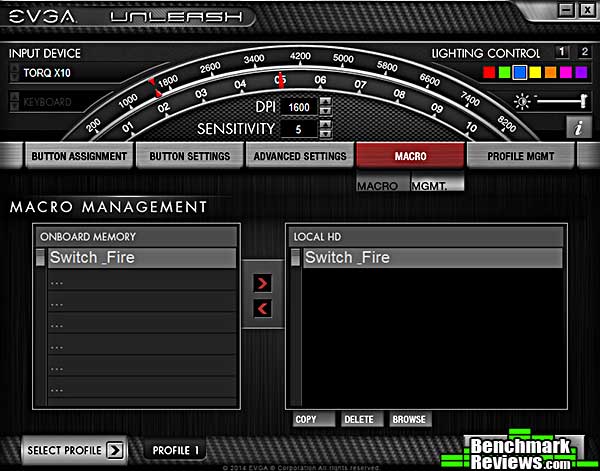
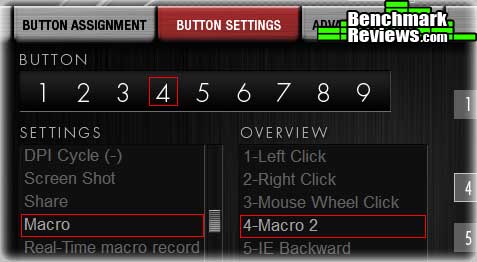
To assign your newly defined macro to a mouse button, you must return to the Button Settings screen, and therein lies a problem I have with this software: to assign a macro, you choose the button from the list on the right (oddly labeled Overview) and then click on “Macro” in the list at the left. This opens a popup menu labeled simply “Macro 1”, “Macro 2″…”Macro 9” (although you can create Macro 10, Macro 11, and Macro 12, there’s no way to assign them to a button) rather than using the names you assigned to the macros. So although I’ve created a macro called “Switch_Fire” as shown above, it’s just “Macro 1” as far as the button settings panel is concerned. Not being able to see the macro names when you’re making button assignments is a real drawback.
Each group of macros belongs to a Profile, and your current profile is always shown at the bottom left of the window. Profiles include all mouse settings, not just macros: everything from the DPI settings to the LED colors and brightness are included. This is handy since you can define different color scheme for each profile and tell which one is active just be glancing at your mouse. As with individual macros, profiles can be either stored in the mouse memory or saved to the hard disk.
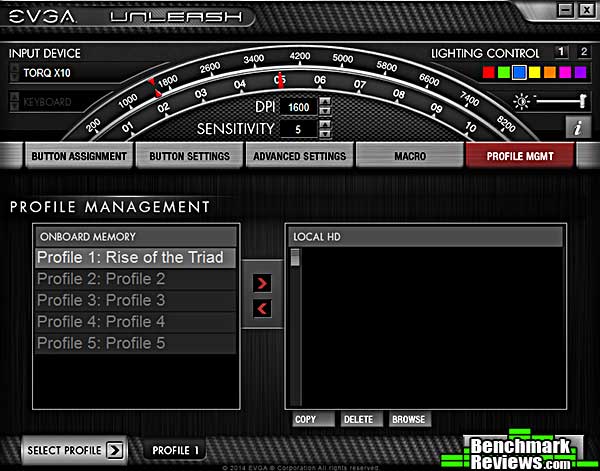
Having the mouse store and execute macros using its onboard CPU and memory means that you can take your mouse to different computers and have all your macro definitions come along with you. This is convenient but it does mean that the mouse can’t automatically set the correct profile based on the game you’re playing, as is possible with software-based macro systems.
So what’s my overall impression of the EVGA TORQ X10 mouse?
I took a friend to an electronics store a few weeks ago to shop for a new mouse for her office computer. She was completely stunned by the sheer variety of rodents available, and was especially intimidated by the gaming mice, wanted to know why someone would want a mouse with so many buttons. It was actually a good question, because even in the gaming mouse field, there are mice optimized for shooters, mice optimized for MMORPGs, and “generalist” gaming mice like the EVGA TORQ X10.
People’s mouse preferences will vary, but what I look for in a gaming mouse is:
- Solid construction
- Fast response
- Crisp button action
- Software features
- Styling and lighting
The EVGA TORQ X10 mouse has all these features; along with an extremely attractive pre-release price for a mouse of this caliber. I have only two complaints: first, popping off the top of the mouse to change the weights feels wrong. It feels– and sounds– like you’re breaking the mouse. It makes me wonder how many times you can pop the top of the mouse off before something actually does break. Second, macro definition section of the EVGA Unleash utility, which took me some time to figure out. I still think it could be made much simpler to use by automating more of the mouse-to-utility communications, rather than requiring the user to remember to press SAVE and LOAD at the proper times.

I’d also like to see the option of keeping all the macro definitions in the mouse driver, rather than in the mouse itself. This would allow the driver software to automatically select the profile assigned to a game, which would be much more convenient than having to manually select a profile. Some gaming keyboards I’ve reviewed recently allow the user to select keyboard- or driver-resident macros, and I like that feature a lot.
The only other feature I missed is a “sniper” button, which reduced the mouse resolution as long as the button’s held down. This is a real help in many FPS games and I think EVGA could easily add it if they wanted to.
The EVGA TORQ X10 is the company’s first gaming mouse, and they’re off to an excellent start. EVGA aims its products at the higher end of the enthusiast market with things like water-cooled graphics cards and dual-CPU motherboards, and while the TORQ X10 isn’t quite that boundary-pushing, it’s a solid contender.
The performance of the mouse, with an 8200dpi sensor and 1kHz polling rate, was everything you’d expect. The solid metal base, metal scroll wheel, weight system, and Omron switches, combined with excellent construction, give the mouse a heavy, quality feel, which is only compromised when you snap the top of the mouse off to change weights.
The TORQ X10’s appearance, dark black with contrasting textures and red buttons, is striking, and with customizable LED coloring, you can have everything from a rather low-key mouse (with all the LEDs off) to one that makes more of a statement.
The ambidextrous design of the mouse is both a strength and a weakness: while it opens up the gaming mouse market to left-handed gamers, a largely-ignored group, the design means that the switches on the far side of the mouse (right side for right-handers, left side for left) are somewhat clumsy to reach. If you’re a right-hander who needs lots of buttons, you might want to consider a mouse with more thumb-accessible controls.
Right now, at a pre-release price of $49.99 (Newegg) for the plain version and $69.99 (Newegg) for the carbon-fiber clad version, this mouse is a screaming deal, coming in at half the price of some comparable mice. After the official June 27, 2014 release date, these prices will increase to a still-competitive $99.99 and $129.99, so if this looks good to you, get it while it’s hot!
+ Slick design
+ Customizable height, weight, and LED lighting
+ Ambidextrous design for a gaming mouse southpaws can actually use
+ Robust utility software
+ Amazing pre-release price
– Ambidextrous design compromises some button usability
– No “sniper” feature
– Macro definition software non-intuitive
– Removing mouse top to change weights
-
Performance: 9.75
-
Appearance: 9.25
-
Construction: 9.50
-
Functionality: 9.00
-
Value: 9.25 (based on pre-release price)



4 thoughts on “EVGA TORQ X10 Gaming Mouse Review”
COMMENT QUESTION: Who makes your favorite gaming mouse?
Logitech.
i had a G5 G5X G600 G602 (still have the G602… impressed 2 Energizer Lithium and still running 5 out of 5 bar in the battery status after a bit more than 2month )
oh well that EVGA mouse look attractive in the carbon clad type … but it’s kinda too little on the function side (after using a G600 and a G602 it’s difficult to settle for less than 8 buttons on the left side) i think if i ever need a wired mouse i will look for a G502 Proteus Core (well 3 button less than the G602 but still 5 buttons on the left side)
I’m still rockin’ a Logitech G9 and G9x gaming mouse for my systems.
So this is the $50 version without the carbon fiber right? Have you tested the carbon fiber version and how it feels (in the hands)?
Yes, we tested the non-carbon fiber version. The photos of the carbon fiber version show a smooth finish, so I would expect it to be purely decorative, and to feel the same as the non-carbon version.
Comments are closed.