By David Ramsey
Manufacturer: ASUSTeK Computer Inc.
Product Name: LGA2011-V3 Intel Desktop Motherboard
Model Number: X99-A
UPC: 886227892273 EAN: 4716859892274
Price As Tested: $246.99 (Amazon | B&H | Newegg)
Full Disclosure: ASUS provided the product sample used in this article.
If you’re looking at building an X99-based system, you already know they’re expensive. But if you can live without features like a second Ethernet port and onboard WiFi, you can get great performance and save some money too. In this article, Benchmark Reviews takes a look at ASUS’ new X99-A LGA2011-v3 mainstream motherboard for Haswell-E systems.

In my Intel Core i7-5960X Extreme CPU Performance Review, I argue that the Haswell-E CPU is not really a good fit for most enthusiast users, since processors like the Core i7-4790K provide better performance in most applications for much less money. Still, if you want the maximum performance from a dual- or triple-card GPU setup, and still have enough PCI-E lanes left over for other uses, Haswell-E systems are definitely the way to go.
The ASUS X99-A follows the “LGA2011/2011-v3” motherboard layout we’ve seen before, with four DIMM sockets on either side of the CPU socket, and power supply circuitry at the top and side.

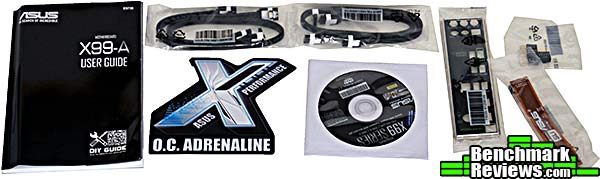
The included accessories comprise a manual, driver disk, a large case decal, four latching SATA cables, an I/O shield, ASUS’ “Q-connectors” for front panel audio and front panel ports, and finally a rather long dual-card SLI bridge. Considering that running a triple-card SLI or CrossfireX system is one of the main reasons to buy an X99 system, the lack of a 3-card SLI bridge is odd.
At the lower left edge of the board are pretty gold caps for the audio circuitry, the front panel audio header, a connector for an optional external fan controllers, a serial port header, (tiny)power and reset buttons, and a Trusted Platform Module header.

Moving past the TPM header, we see a USB 3.0 header, two USB 2.0 headers, and the front panel header. ASUS’ supplied “Q-connector” for the front panel header makes connecting your case’s front panel wires a snap.

There are six PCI-E slots, four x16 and two x1. With a 40-lane CPU such as our test Core i7-5960X, lane allocation with three cards is 16-16-8; with a 28-lane CPU, it’s 16-8-4. In either case the last PCI-E x16 slot is disabled if you’re using an m.2 SSD.

The rear I/O panel provides the USB Flashback button, a PS/2 combo connector for those of you still using antediluvian mice and keyboards, four USB 2.0 connectors, six USB 3.0 connectors, a gigabit Ethernet port, and a standard analog audio block with an optical out.

Let’s continue looking at this board in the next section.
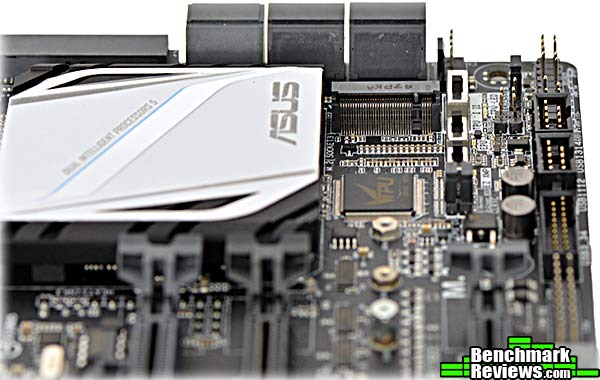
As with the X99-DELUXE, the X99-A has physical switches for XMP memory selection, enabling or disabling the EPU (Energy Processing Unit, a custom micro controller for power saving operation), and two levels of instant overclocking with the TPU (Turbo Power Unit) switch. You can see what’s probably the TPU micro controller in this image. I say “probably” because although ASUS used to label the TPU and EPU separately, on this board they’re both labeled “TPU”.
If you look just to the left of the EX XMP switch, you’ll see two jumpers. The lower jumper clears the CMOS, while the upper jumper unlocks higher CPU voltage settings. Even though this is not ostensibly an “enthusiast” board, the latter is a nice feature to have.
 Between these three switches and the X99 chipset heat sink is the m.2 SSD socket. M.2 SSDs offer higher performance than even the fastest SATA-based SSD since they connect via a pair of dedicated PCI-E lanes. Note that using an m.2 SSD will restrict the third x16 slot to only x4 as the other lanes are needed for the SSD.
The X99-A gets by with a single SATA Express connector…

…but there’s another pair of Intel-powered SATA 6G connectors by the second USB 3.0 connector on the front edge of the board.

The gold Nichicon audio capacitors look pretty, and are normally found in high-end audiophile gear. Combined with the Realtek ALC1150 audio codec, the result is an onboard audio system so good that you shouldn’t ever feel the need for a separate audio card.

An 8-phase power system supports the CPU. Since Intel has moved much of the voltage regulation functions onto their modern CPUs, the elaborate 12, 16, and higher-phase power supplies we used to see in enthusiast motherboards simply aren’t needed any more.

Custom chips used on the X99-A include ASUS’ own Digi+ power control, the TPU (or EPU) micro controller on the components side of the motherboard, an ASMedia ASM1074 USB 3.0 hub, a Winbond BIOS chip, a Nuvoton voltage/temperature sensor-controller, and the EPU (or TPU) on the back of the board.

In the next section I’ll look at the ASUS X99-A BIOS.
I’ve reviewed a lot of motherboards over the years, and the introduction of the UEFI (Unified Extensible Firmware Interface) BIOS remains the biggest change I’ve seen in how we interact with our systems. The upgrade from keyboard-driven, text-based BIOSes that had to be squeezed into a meager 8K of ROM space to the much more detailed mouse-driven graphical BIOSes we have now was immense.
The problem is that with the new display and motherboard capabilities, designing a BIOS that can present the relevant information in a clear and concise format is a huge challenge. ASUS, in my opinion, does a better job of this than anyone else.
The BIOS for the ASUS X99-A LGA2011-v3 motherboard is virtually identical to the BIOS of its big brother, the X99-DELUXE motherboard, and this is a Good Thing. The first screen you’ll see in the ASUS X99-A BIOS is this:

The home screen, which ASUS calls EZ Mode, is a masterpiece of design, showing you all the information you need without being confusing or graphically complex. You can make simple adjustments to the overall system performance with the EZ System Tuning section at the upper right; below that, you can use the mouse to drag your devices in the order in which you want them to boot. CPU core voltage, temperature, fan speed, SATA devices, and DRAM specifications are all right there, easy to read.
While this screen will be more than adequate for many users, the enthusiast user will immediately press F7 to go into Advanced Mode (you can configure the BIOS so that Advanced Mode is the default, if you wish).

This is where you can really get down and dirty with board settings. Across the top of the screen you’ll see the main sections: My Favorites, Main, AI Tweaker, Advanced, Monitor, Boot, Tool, and finally Exit, which will return you to the EZ Mode home screen.

ASUS has refined their AI Tweaker section over the years, and it allows for extremely fine-grained control over the performance of the system. The general design is that the simple stuff is at the top, and as you scroll down through the (many screens) of settings, the more complex and detailed stuff becomes visible. This screen starts out with relatively simple settings such as CPU core multiplier, cache ratios, and basic overclocking settings. Set the AI Overclock Tuner to “Manual”, start scrolling down, and you can tweak individual memory timing parameters, set CPU core voltage with hundredth-of-a-volt precision, and adjust other settings even I don’t really understand. Many settings show a brief explanatory text at the bottom of the screen when you select them, although some remain obscure. Then again, how can you summarize the t_RDRDr setting under “memory timing”?

The Advanced section is where all the non-performance adjustments live. This includes CPU features like Intel Virtualization Technology and Hyper-threading, and USB and SATA configuration, and so on.

The Monitor section shows you the various component temperatures and voltages reported by the onboard sensors. I’ve never seen the use of this feature, since you have to be in the BIOS to see the data, and by definition your system’s going to be at idle.
Let’s continue our examination of the BIOS in the next section.
The Tools section of the advanced BIOS interface is where you’ll find the ability to store and recall overclocking profiles and flash a new BIOS that you’ve downloaded.

A new feature in the Tool section, first seen in the X99-DELUXE motherboard, is the GPU Post feature. This section shows you each installed GPU and how many PCI-E lanes it’s using. It’s also where you define the behavior of the fourth PCI-E X16 slot– the one you’d use for a third card in a triple-GPU system– if you’re using an m.2 SSD. You can choose to either devote some lanes to the m.2, and run this slot with only four lanes (x4 mode), or to disable the m.2 feature and run the slot with 8 lanes (x8).

The Boot section is more elaborate than you’d suppose: in addition to choosing the boot device– which you can, after all, easily do from the EZ Mode home screen– you can also determine a variety of system initialization parameters, such as the type of USB and SATA support you have during the boot process, how the system behaves after a power loss, and so forth.

ASUS retains their Favorites feature in the X99-A BIOS. This section stores quick links to the settings you use the most, so you can easily reach them with a single click, without having to navigate the admittedly complex hierarchy of the Advanced section to get to them.

However, sadly, the new “interface” to the Favorites section is retained in this motherboard. In ASUS’ original implementation, a single key stroke added the currently selected item to the Favorites list. Now, you have to navigate a tree-selector to choose the items you want to have in the list.

Once you’ve made all the changes you want, pressing F10 to save them first shows you this handy list of everything you’ve changed.

In the next section I’ll take a look at ASUS’ AI Suite 3 utility.
ASUS includes “the usual suspects” in their software bundle: an antivirus program, a virtual DVD mounter, a skinned version of CPU-Z, and so forth. But the star of the show remains AI Suite 3, an array of monitoring, tweaking, and overclocking utilities bundled together into a single application.
When you start AI Suite 3, the first thing you’ll see is this panel that’s familiar to anyone who’s owned a recent ASUS mobo:
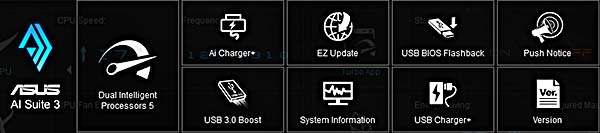
This panel provides buttons for configuring the nine major sections of AI Suite 3:
Dual Intelligent Processors 5 lets you manually or automatically adjust the TPU and EPU performance and power-saving micro controllers, as well as automatically optimizing overall performance, power, noise, and cooling of the system. I’ll investigate this capability in more detail in the Overclocking section.
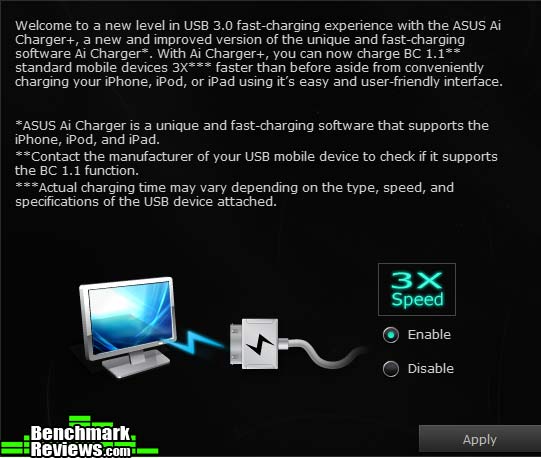
AI Charger + provides fast charging for iPhones, iPods, and iPads
EZ Update checks in with ASUS’ servers periodically for software updates

USB BIOS Flashback keeps a current BIOS image on a connected USB drive (checking ASUS servers periodically for updates), available to update your system at any time.

Enhanced USB 3.0 performance comes in two varieties with USB 3.0 Boost: for devices that support UASP (USB Attached SCSI) protocol, and for devices that don’t. The system will automatically detect which type of device is inserted and do the right thing.

More software in the next section…
System Information shows detailed specifications for the motherboard, CPU, and memory, although oddly it doesn’t show any settings like memory timings, CPU multipliers, etc.:
 USB Charger + is functionally similar to AI Charger +, but works with non-Apple devices like large Android tablets. USB Charger + works only through a dedicated USB port outlined in green on the back panel of the computer.
 Push Notice provides for schedule startups and shutdowns, as well as alerts based on system parameters like CPU voltage, fan speeds, and component temperatures.

But the most complex part of AI Suite 3 is the Dual Intelligent Processors with 5-way Optimization panel, aka “DIP 5”.

This panel links to sub-panels forf the Turbo Power Unit (TPU), Energy Power Unit (EPU), Digi+ Power Control, Fan Xpert 3, Turbo App configuration, and more. Each sub-panel provides fine-grained control of its particular aspect. For example, clicking the TPU button invokes this sub-panel, wherein you can set the base clock, CPU multiplier (per core or applied to all cores at once), as well as CPU and cache voltages.

Turbo App is where you designate specific apps that you want to run as fast as possible. This lets you configure the system to run at lower speeds for mundane tasks, cranking things up for games and such. You can also configure network priority and load specific audio configurations for the foreground application.

Let’s take a look at overclocking in the next section.
As has been their practice for some time now, ASUS provides many different overclocking and performance enhancing features, whose operations covers the gamut from “simple enough for a rank beginner” to “challenging the experienced overclocker”. Frankly it’s gotten a little confusing, as it’s not always obvious how the various systems interact. Here’s what you have to work with– and decide upon:
- EZ XMP
- EPU
- TPU I / TPU II
- EZ System Tuning
- EZ Tuning Wizard
- AI Tweaker
- AI Suite 3 / DIP 5
- Manual control of TPU and EPU
That’s eight different overclocking mechanisms, and it wouldn’t surprise me if I missed a couple. In general the hardware switches have the highest priority: any settings the switch changes will be reset to what the board thinks they should be every time you turn the computer on. For example, if the EZ XMP switch is on, and you go into the BIOS and disable XMP, it will be on the next time you boot the system. This makes sense but it gets more complex when it’s not obvious exactly which settings a switch changes. For example, the TPU I settings doesn’t change BCLK, but the TPU II setting does.
The rule here is that if you’re using any of the software overclocking mechanisms, set all the hardware switches to the Off position. Otherwise the hardware switches will have precedence the next time you boot.
In my previous review of the ASUS X99-DELUXE motherboard, I had problems with the EZ Tuning Wizard and EZ System Tuning features in the BIOS, both of which resulted in an unbootable system. I’m happy to report that both of the options worked perfectly on the X99-A (and I see there have been two BIOS revisions for the Deluxe since I reviewed it, and I’d bet that they work perfectly on this board now, too.)
With the Intel-supplied Core i7-5960X Haswell-E CPU, I settled on four overclocking profiles: stock (none), TPU II, the settings achieved with the 5-way optimization sequence from AI Suite 3, and the best manual overclock I was able to achieve. Here are the settings for each profile:
| BCLK | Mult | XMP? | CPU GHz | CPU Volts | |
| Stock | 100 | 35 | No | 3.5 | 1.1 |
| TPU I | 100 | 39 | Yes | 3.9 | 1.17 |
| TPU II | 125 | 31 | Yes | 3.875 | 1.2 |
| DIP 5 | 100 | 44 (all cores) | No | 4.4 | 1.3 |
| Manual OC | 100 | 44 (all cores) | No | 4.4 | 1.3 |
Note something amazing here: for the first time, a motherboard’s auto-overclocking feature was able to achieve the same performance I could manually: in this case, all cores at 44x under load running with a CPU core voltage of 1.3v. I achieved this result by setting the DIP 5 tuning parameters as shown below:

Previously, the X99-DELUXE had come close, but only ran four cores at 44x, dropping down to 43x with 5-8 cores loaded. Also, the X99-DELUXE voltage was slightly lower at 1.25v.

This is humbling. The difference is that AI Suite 3 reached these settings in less than 10 minutes, whereas it took me over an hour. Also, the DIP 5 feature also optimized power usage, cooling, and sound by determining the characteristics of each fan attached to the system.
So how was the performance? Let’s see in the next section.
For these tests I ran the following benchmark programs:
- AIDA64 v4.60.3100
- CINEBENCH 11.5
- x264HD 5.0
The first number in each chart is the stock score of the ASUS X99-DELUXE motherboard, followed by the stock score of the X99-A motherboard, then the overclocking results from the TPU II switch and the DIP 5 auto-overclocking. Normally I would also include the scores from my manual overclocking settings, but there’s no point here since the DIP 5 settings are the same!
Let’s start with a good synthetic test like AIDA64. As usual I’ll be doing Queen, Photoworx, ZLIB, and Hash benchmarks.

The first thing you’ll notice is that the stock scores are virtually identical between the ASUS X99-A and the significantly more expensive X99-DELUXE. You’ll see this repeated throughout the remainder of these benchmarks.
With the Queen test, we see a nice scaling with CPU frequency, as expected.
Photoworxx is relatively insensitive to CPU speed, but really likes memory bandwidth, so the TPU II setting posts the highest score here. It’s hundreds of megaHertz slower than the DIP 5 settings, but it’s running the Corsair memory’s XMP profile, which boosts the memory speed from 2,133MHz to 2,666MHz.

Next are the ZLIB and Hash benchmarks, all of which scale nicely with CPU frequency. Let’s take a look at CINEBENCH next…

Again, nice scaling directly with CPU speed.
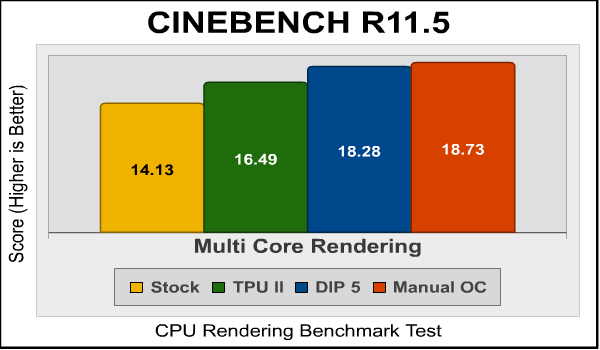
The multi-core test shows the same scaling with CPU frequency. Last, let’s run the x264HD transcoding benchmark:

Again, very nice scaling with CPU frequency. One thing to take away from these tests is how close the TPU II and DIP 5 results are. Granted, the DIP 5 is slightly faster, and it optimizes other aspects of the system, but it does take some time to run and the process can be intimidating to the uninitiated (since the overclocking invariably ends with a system lockup or crash before reverting to the last working settings). Flipping the TPU switch to the “II” position gets you about 85%-90% of the performance for virtually zero time and effort.
Join me in the next section as I lay out my final thoughts on this motherboard.
An X99-based system with a Core i7-5960 processor will munch through computationally intensive multi-threaded tasks like video transcoding with amazing speed, but the CPU’s lower overall core speed means that for programs with 4 or fewer threads– i.e. most of what even an enthusiast will run– it’s actually slower than a Core i7-4790K, which costs about a third as much.
For an enthusiast or gamer, the real advantage of an X99 system is all those extra PCI-E lanes. The paltry 16 lanes provided by a LGA1150 CPU is just enough for a pair of GPUs, leaving only the eight slower PCI-E lanes provided by the X97 chipset for everything else. In contrast, an LGA2011-v3 CPU has 28 or 40 lanes, making it ideal for triple-GPU systems and running high bandwidth peripherals like SATA Express and m.2 SSDs, while still having lanes left over for extra USB 3.0 ports and additional PCI-E cards.
The ASUS X99-DELUXE motherboard I reviewed recently is an excellent choice if you can use its high-end features and have $400 to spend on a motherboard. But the X99-A costs $150 less, and offers the same performance and overclocking abilities while giving up only the following features:
- No built-in WiFi
- Only supports one m.2 SSD instead of two
- No extra ASMEDIA SATA Express controller
- No extra gigabit Ethernet port
While all of these extras are nice, I personally wouldn’t use any of them in my personal system, so why pay the extra money?

For most gamers and enthusiasts, I still think an X97 system with a high-end LGA1150 CPU like the Core i7-4790K represents a better value than any X99 system. However, if you need or just really want an 8-core Intel CPU on your desktop, I think the ASUS X99-A represents the best value for the money.
In the last section I’ll present my conclusion based on the testing and features of this motherboard.
ASUS likes to cover all the bases, so for any particular Intel chipset they’ll typically offer a range of motherboards ranging from a “value” motherboard to workstation-oriented and enthusiast designs. The X99-A is the “value” X99 motherboard.
But don’t think for an instant that “value” means “cheap”: compared to the much more expensive X99-DELUXE, you’re giving up only features that most of us don’t need, without any compromise whatsoever in performance.
ASUS appears to have cleaned up all of the minor BIOS glitches I observed in my early production X99-DELUXE motherboard, and all operations including the various auto-overclocking options worked perfectly. Amazingly, for the first time ever, a board’s automatic overclocking software achieved the same results I was able to get on my own with hours of manual tweaking and testing. Honestly, while I’m somewhat sad that my overclocking skills are rapidly being rendered obsolete, it’s nonetheless very impressive that they managed to pull this off.
I remain conflicted on the very concept of the Haswell-E CPU as a consumer part. Professional content producers would be better served with a Xeon-based system, because they can be expanded with additional CPUs for even more power, and for consumers, better overall performance is available for less money with an X97-based system. But if you’ve got to go X99, the ASUS X99-A is a very good choice for $246.99 (Amazon | B&H | Newegg).
+ Updated UEFI reaches feature parity with LGA1150 boards
+ Multiple (and reliable) overclocking options
+ Everything you need in a system, and nothing you don’t
+ Amazing auto overclock from AI Suite 3
— X99 still doesn’t make sense for most people
— No tri-SLI bridge? Really?
-
Performance: 9.75
-
Appearance: 9.00
-
Construction: 9.50
-
Functionality: 8.00
-
Value: 9.00
Excellence Achievement: Benchmark Reviews Golden Tachometer Award.
COMMENT QUESTION: Who makes the best motherboards, in your opinion?