By Julian Duque
Manufacturer: ASUSTeK Computer Inc.
Product Name: ASUS ROG USB Gladius Gaming Mouse
Model Number: 90MP0081-B0UA00
UPC: 886227807956
Price As Tested: $80.99 (Newegg | Amazon)
Full Disclosure: The product sample used in this article has been provided by ASUS.
The ASUS Republic of Gamers (ROG) line of products is no stranger to gaming peripherals, however recently, ASUS has turned to it’s newer product line, Strix, to release most of it’s gaming oriented products. This made the release of the ASUS ROG Gladius mouse confusing at first, but after realizing that this is ASUS’ premium mouse option it only made sense to put it in ASUS’ most prominent line of products. In this article, Benchmark Reviews takes a look at the ASUS ROG Gladius Gaming Mouse.
Of course, the perfect pointing device has to be a combination of many things, plus some user preferences and of course ASUS understands this and have tried to make the Gladius a bit differently than other mice. Not only can you switch between different cables, but you can also open the mouse and change the switches for your own customization. This leads to a new level of customization that has never been seen before, and ASUS deserves kudos for this.

Looking at the specifications found on the product’s website, it seems that ASUS made a lot of right decisions with the Gladius. The size and dimensions are standard, although I would consider the Gladius a bit longer than most mice. This is important as none of the above mentioned characteristics can be changed. ASUS also mentions compatible Omron switches, which you can easily obtain from sites like Amazon.
- Connectivity Technology: Wired
- Tracking: Optical
- OS Support: Windows® 8.1. Windows® 8, Windows® 7
- Dimensions: L 126 x W 67 x H 45 mm
- Weight: 116 g
- Color: Steel Grey
- Resolution: 6400dpi
-
Compatible switches:
-Omron D2F Series switches: D2F, D2F-F, D2F-01, D2F-01F
-Omron D2FC Series switches: D2FC-3M, D2FC-F-7N, D2FC-F-7N(10M), D2FC-F-7N(20M)
.
It seems that mouse packaging has become pretty standardized nowadays, just a simple box that will allow you to see part of the mouse behind it’s plastic cover which will maintain it from getting damaged during shipment. Opening the box you will find all of the goodies that ASUS includes with the ROG Gladius, as well as an instruction manual but no CD drive. In this section I will discuss the overall design of the ASUS ROG Gladius.
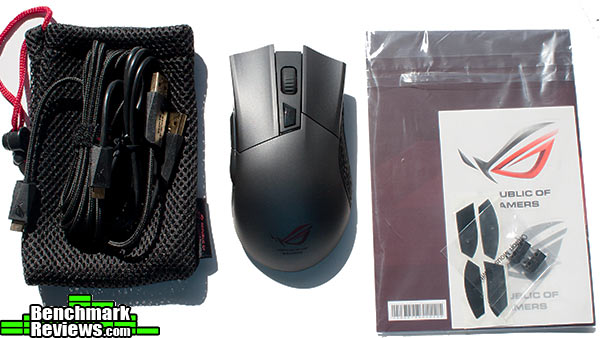
First let’s look at some of the accessories ASUS has included. Because the Gladius uses a detachable USB interface, ASUS has included two cable options, a 2 meter braided cable and a 1 meter rubber cable. These should give you the ability to use your mouse both at your home, or to easily detach it from your desktop and take it with you to school or work. Along with the carrying pouch that they also included ASUS has also included four Teflon feet, a user’s manual, some Republic of Gamer stickers, and two extra Omron switches.
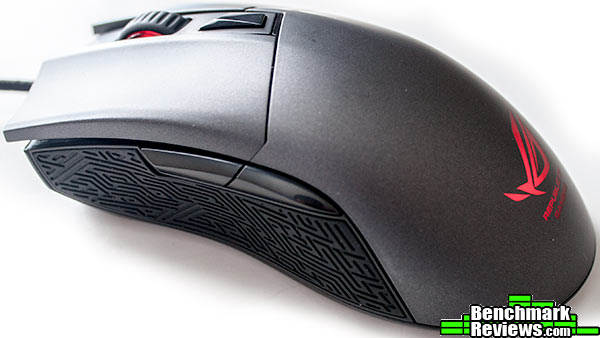
ASUS may not be known for their pointing devices, as there are smaller companies that are notably more focused in this type of products, but with the release of the Gladius it really seems like ASUS is looking up to appeal to this market and to their customers. The Gladius’ curved design easily allocates all three types of hand posture; claw grip is easy to use as the mouse is elongated and has rubber support on both sides, palm grip users will find the shape of the Gladius to easily accommodate even the biggest of hands, and fingertip users can even accommodate their pinky readily on the rubber support at the right. Button placement is ideal as it is hard to intentionally press the side buttons but they are there when you need them.
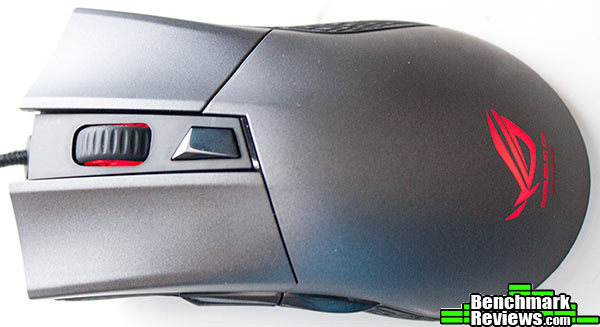
The scroll wheel has very segmented and noticeable steps, but it is not stiff and feels really well to turn. Under it is an ambient LED that gives the ASUS Gladius that Republic of Gamers look from the front. Behind the scroll wheel we find a DPI button that allows users to change between two DPI settings. By default it is configured in a low DPI setting which lights up the LED located right underneath the button. From the top you might also notice that the Gladius is not exactly meant for left hand users, as the right is curved inwards making it uncomfortable for left-handed users.
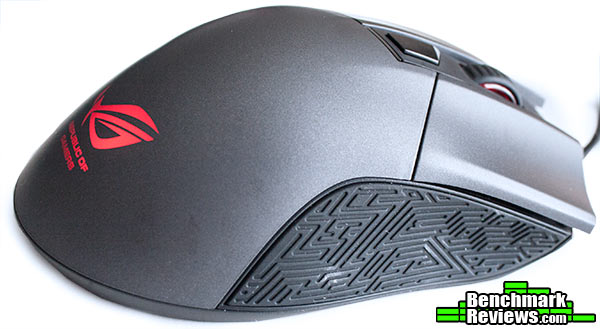
Adorned with a metal black finish and a Republic of Gamer’s illuminated logo the ASUS Gladius is no shy mouse. Of course, you can always turn off the LED using ASUS’ software, but clearly this mouse was not meant for an office environment. The finish however is elegant, and surprisingly, not rubberized, making it smooth even for sweaty hands. It does seem durable and it does not catch fingerprints easily, however note that the rubber sides do catch dust by the tons.
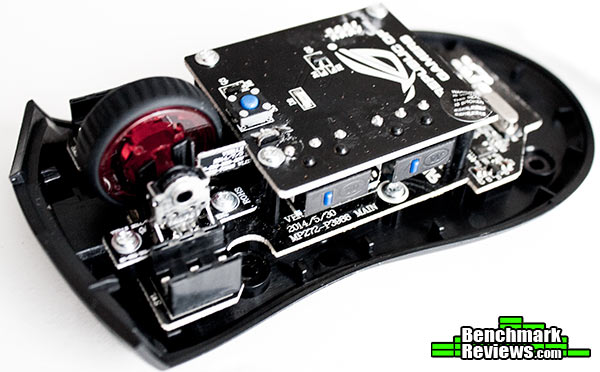
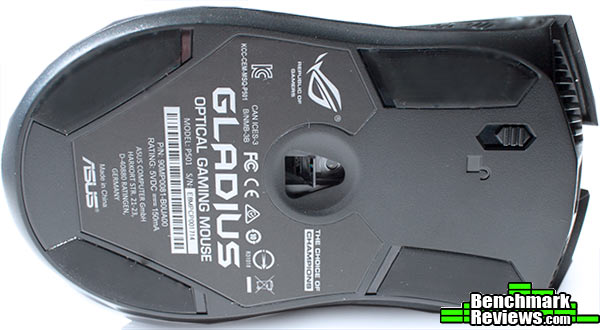
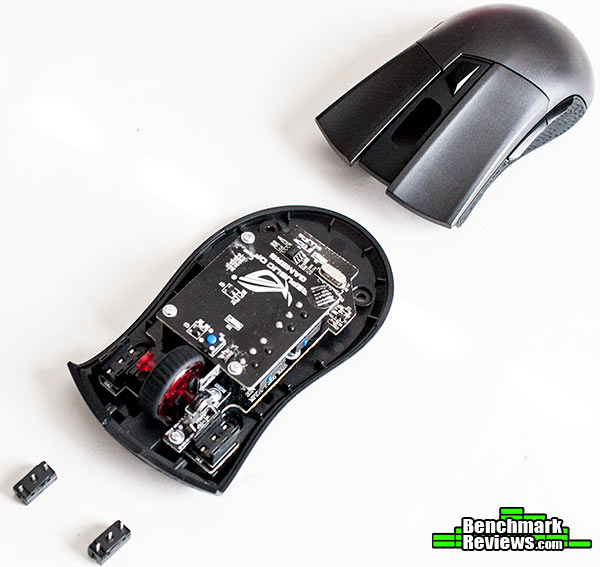
Probably one of the most innovative features I have seen in any mouse, is being able to open the mouse and swap the switches. This was clearly a first time for me. Fortunately ASUS has made this extremely easy, simply take off the four teflon feet, unscrew the four screws, and you will have access to the insides of the Gladius. In here we can notice that the two front, and two side switches are Omron.
One of the most important features of a gaming mouse of this caliber is the software that it brings along. Although you will not be able to find a CD with the included accessories, you can easily download the software for the ASUS ROG Gladius from ASUS’ website. Installing it should take less than a minute. Unfortunately this software is supported only for Windows 7 and 8 as of now, with future promises to Mac.
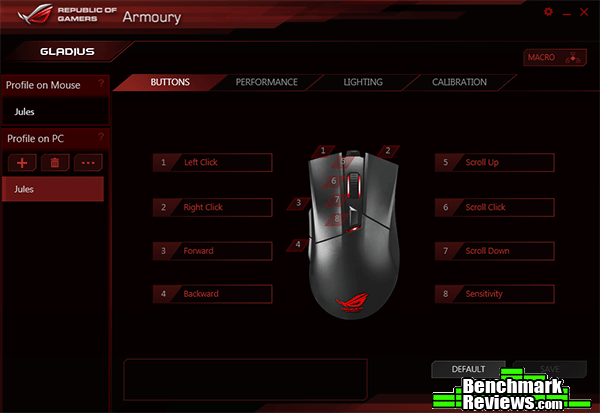
Every time you open the program, or what ASUS calls “The Armoury”, if there is a software or firmware update the program will install it. Once opened we find an overview of the mouse were you can select to customize anything from the scroll down to the scroll up, all the way to the sensitivity. To the left you also find which profile is being stored at the moment in the mouse.
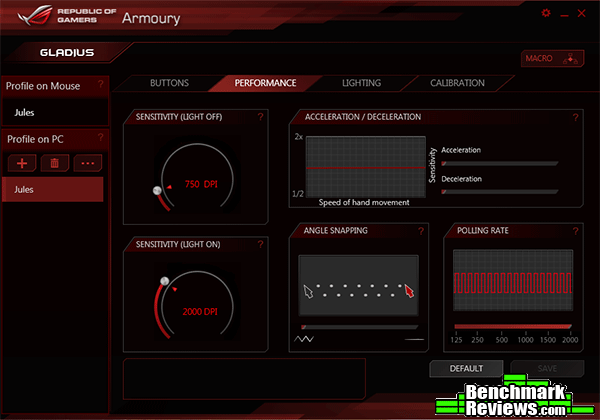
ASUS did really well to provide a dedicated performance area in which things like Acceleration and Angle snapping can be completely turned off. Of course, if you prefer to have some acceleration (as most people have become accustomed to) you can easily tweak all of this settings here. You can also modify polling rate, and the two programmable DPI settings.
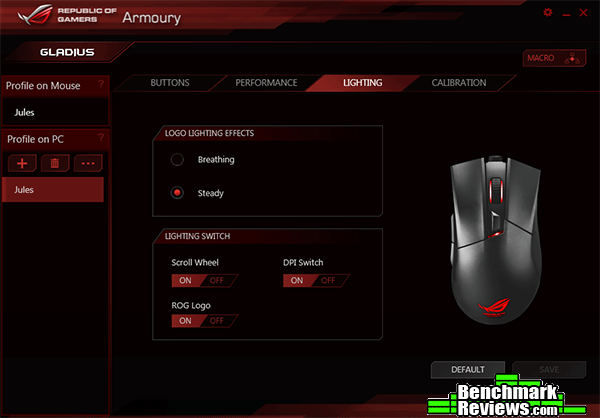
The lighting section is still lacking some customization. It does allow you to select which LEDs to turn on and off, but other than that you can only select between breathing and steady mode for the LED at the back. ASUS will most likely add more features later on. Remember that after each change to a profile you must save it, and then load the profile again into the mouse by dragging it to the “Profile on Mouse” Box.
Nowadays, most pointing devices are able to run at extremely high DPI settings without failing, yet this is not a clear sign that tracking has improved vastly lately. To fully understand how this works think about a bowman and a target, DPI is how many arrows he can throw in a period of time, yet this does not determine how good the bowman is. A good mouse does not need to run at 8200 DPI, in fact most users will find any DPI above 3600 to be unusable. The ASUS ROG Gladius uses a Pixart 3988, a sensor that is most commonly known among mice enthusiasts for its 0 acceleration feature, and precise tracking.
Like most of my tests, I have taken certain precautions to obtain accurate results and give you my experience with the product at hands. It is for this same reason that I have disabled things like windows acceleration and angle snapping. Mouse acceleration simply means that the physical distance you move the mouse for is not the sole factor of the input that goes into the system, it is for this reason that I have disabled it using the CPL mouse fix for Windows 7. Angle snapping/correction is a simple threshold to keep the movements under a certain range, however this might compromise small movements specially at high DPI settings.
– OS: Windows 7 Professional (mouse acceleration disabled)
– Mouse Pad: XTracPads Ripper XL Mouse Pad
– Pointing Device: ASUS Republic of Gamers Gladius Mouse
– Software: Mouse Rate Checker 1.1, Left 4 dead, Team Fortress Classic.
Polling Rate
Polling rate or report rate is how often the mouse sends a signal to the system. This is important in a mouse as a higher polling rate will serve to improve the precision of a mouse, specially at high settings. The ASUS ROG Gladius comes with a Polling rate limit of 2000 Hz, which is double the modern standard for gaming peripherals. To accurately measure the polling rate we used Mouse Rate Checker 1.1. The test was conducted 5 times per each DPI setting, and both the highest and lowest results were eliminated in the average calculation.

Although the ASUS Gladius never reaches it’s 2000 polling rate limit, even at the highest resolution setting we were still able to get over 1000 on every test that we performed. This is probably not going to affect how well the mouse performs but it gives a clue as to what power the Pixart sensor can handle.
Tracking and Accuracy
As expected, every inch of movement that I made was displayed with no hiccups or tracking issues. In Left 4 Dead the tracking was truly felt when using the sniper, which allowed me to accurately behead fast moving zombies, and easily turn around and run before the rest reached me. This shows that even at low DPI settings the ASUS ROG Gladius shows no signs of acceleration. When playing Team Fortress, I cranked up the resolution to 3000 DPI, something I am not used to. Incredibly, the Gladius almost made me stick with a higher DPI, simply because it tracked so accurately, so much that I kept the setting for a couple of days and still averaged really well. When testing on glass and in white surfaces I did find some pretty noticeable tracking errors but that is pretty common with most optical sensors. Overall the Pixart 3988 is top quality and it is my favorite addition to the ASUS ROG Gladius.
I think someone at ASUS has taken down notes from the enthusiast mouse community. Clearly the Pixart 3988 along with the Avago 3090 and 3060 are probably the best sensors out there, even though they do not support super high DPI resolutions. ASUS’ choice of using Pixart’s best sensor is clearly shown in the results, making the ROG Gladius a top contender among it’s category. The Gladius also brings a mark of ingenuity, allowing for modular switches that allow users for unique customization. Of course regarding weight, I would have liked to see a system of weight customization; the default weight distribution is already good for me, but other people would prefer a heavier mouse. I would have also liked to see a dim option for the LEDs inside the GUI, but this last bit may be corrected in future software updates.
Probably the category in which the ASUS ROG Gladius stands out the most is in performance. Everything from it’s looks down to it’s modular switches are made so that the user can get the best gaming experience. Having used many sensors already, the Pixart 3988 is probably among the the top three in my list and even manages to beat all of Avago’s 9000 series pointing processors. Button customization and Macros will also improve gaming experience, adding to the already excellent performance of the ASUS ROG Gladius.
The black metal finish, along with the red accents found throughout the spine of it’s body, the ASUS ROG Gladius looks ready to take on any FPS game. The front features what seems to be the vents of a sports car, however this are blocked in the back to prevent any dirt to get inside the mouse. Both sides of the mouse have a rubber texture that reminds me a lot of ASUS’ upcoming ROG desktop line, and overall design is truly eye catching and beautiful.
Regarding construction, I prefer that pointing devices are made of light materials such as plastic. This is because steel is too heavy and it is easier to add weight to a plastic mouse than it is to remove it. Of course the ROG Gladius has the appropriate weight distribution, as seen above all the heavy components are located towards the middle and not the back. The black metal finish is pretty resistant to scratches, however we do not have a true way of testing things such as wear. ASUS also includes a standard 1 year warranty.
One cool functionality of the ASUS ROG Gladius is the included two USB cables that allow you to quickly detach the cable from your desktop and take it on the go. I have actually found this feature really useful during my testing time. The included carrying pouch will prevent the Gladius from getting lost or hit. One lacking feature however is left hand usage as the shape of the Gladius is suited only for right hand users.
Of course such a premium offering comes in a price and that is probably the most notorious drawback of the ASUS ROG Gladius. You can obtain the Gladius for $80.99 (Newegg | Amazon), which is still considerable for bringing an excellent mouse with excellent customization. This is not a budget mouse, this is product is targeted towards pro consumers, but if you have the money to get one I am pretty sure you won’t regret it.
+ Great optical sensor
+ Perfect button placement
+ Modular Omron switches
+ Weight distribution is adequate
– Expensive
– No weight customization
– No dim option for LEDs
-
Performance: 9.75
-
Appearance: 9.00
-
Construction: 9.00
-
Functionality: 8.75
-
Value: 8.50


