By Bruce Normann
Manufacturer: NETGEAR, Inc.
Model Number: GS110T-100NAS
UPC: 606449080759
Price As Tested: $119.99 (NewEgg / Amazon)
Full Disclosure: The product sample used in this article has been supplied by NETGEAR.
Network switches are not reviewed by the press that often, but they are a necessary part of many home or small business networks, so we need to take a look now and then at what’s available, what works, and how well they work. NETGEAR is a major player in the networking market, and they have several different product lines to choose from. Today we’re looking at one of the less expensive offerings in their ProSafe SmartSwitch line.
First, let’s clarify what a network switch is. It is strictly a wired device, and is most often designed to switch Ethernet traffic. There are telco switches, and video switchers, and fiber optic switches, but the vast majority of network switches you and I will encounter handle Ethernet. In Wireless networks, routers and adapters generally communicate directly with one another, but wireless media bridges are starting to make that distinction a little fuzzy. You could use the couple of ports on the back of your router to connect a few devices together, but switches still have some advantages:
-
Switches allow dozens of devices to connect
-
Switches keep traffic between two devices from getting in the way of your other devices using the same network
-
Switches allow control of who has access to various parts of the network
-
Switches allow you to monitor usage
-
High-end switches have pluggable modules to tailor them to network needs

Until recently, there were only two types of switches, un-managed and managed. The first type is truly plug-and-play, there are no settings to make, no configurations to set, and they always work the same way, for every device plugged into one of their ports. This was the only kind of switch available to the average consumer, and they served their purpose well. The managed switches were strictly for the corporate LANs and data centers. They were configured by the high holy priests of corporate IT, called LAN Administrators. No one could make a change in the network unless one of them logged into one or more switches and made it, usually with cryptic command-line instructions. Nowadays, they can log in to a GUI via a web browser, but I know that some of them still use command line arguments.
Today, there is a new class of switches, commonly called a “Smart Switch”. It’s a blend of the two previous extremes, and is targeted to both corporate users and what the industry politely calls “ProSumers”. That’s you and me, in case you didn’t recognize your new title. If you’ve ever logged into your router, some months after you first installed it, and changed some settings you’re a Prosumer. If the SSID on your router is still “linksys”, you’re not. Definitely not.
The GS110T is a low-to-mid range model in the NETGEAR family of ProSafe Gigabit Smart Switches. It’s got enough ports to future-proof most home network installations, plus some special interfaces. Most of what I’ll be covering in this review is perfectly applicable to several other models in the ProSafe product line, so be sure to check out the full line in order to find a switch that meets your needs. Now, let’s take a closer look at the GS110T, and see what it offers in both features and performance.
The ProSafe Smart Switch product line is two layers removed from the consumer line of devices, and its form, fit, and function is consistent with its place in the product hierarchy. A grey suit in the business world imparts a certain gravitas to the wearer, and the same trick works for networking equipment. There are a total of ten GbE ports lined up in a row on the front panel; eight of them are the common RJ-45 spec, and two are Small Form-factor Pluggable (SFP) Ports. We’ll explore the SFP ports in more detail later, but the important thing to know is that they are for interfacing with fiber optic cables, and they have a potential transmission range of 10 km. The overall package is slim and sturdy, with an all metal case. Some people like to have the ports on the front, with integrated status lights, as the GS110T has. Other folks like to have the ports on the back, with separate status lights on the front panel. I’m always plugging things in and taking them out, or trying to figure what’s plugged into what, so I like having the ports on the front. In a typical home environment though, I can understand wanting the ports in the back, to avoid cable clutter. For larger, rack mounted units, rear ports are definitely the way to go.

The eight RJ-45 connectors on the front of the GS110T are auto-sensing and auto-negotiating ports with Auto UplinkTM capability. Most users will see both green LED indicators lit on a port that’s in use, indicating the presence of a valid 1000 Mbps link. They both blink when packets are transmitted/received on that port. Slower connections (10/100) use combinations of the left and right port LEDs to signal the same thing. The SFP ports are similar in operation, but there is just one LED per port, and it sits to the left of the port instead of being integrated into the connector body. At the far left, the power LED indicator turns yellow while the switch is booting up and green when it’s ready for normal operations. Two reset buttons can be accessed through small holes in the front panel. The one marked “Reset” does a hard reboot, just the same as pulling the power plug, and no configuration settings are changed in the process. The one marked “Factory Defaults” resets everything, including the password, VLAN settings, and individual port configurations. I never had the need to use the reset button, as the switch didn’t need to be rebooted during my testing, which spanned several months. I did reset the unit back to its Factory Defaults several times, when I wanted to reconfigure the switch for different purposes.

The bottom is mostly unadorned, with four small rubber feet that come packaged in the box, and are applied by the user, if needed. The cross-slotted holes towards the center of the bottom plate can be used for wall mounting the switch, if desired. The default IP address for accessing the switch is printed on the S/N label here. This is a welcome aid, as I usually have to go back to the product manual to find this information. This means more paper, stuffed in a drawer somewhere, taking up space.

The rear of the GS110T is also very plain, with only a few necessary features. The power receptacle is on the far right and accepts the typical pin & sleeve DC plug from the supplied 12V/1A wall wart PSU. On the far left are a grounding screw and a hole for a Kensington lock. Since one likely use case for this switch, with its two fiber optic ports, is remote deployment, the lock hole might prove useful. This is just the sort of device that would be useful in a small conference room, with eight ports for users in the room and a fiber link back to the main LAN room.

The NETGEAR GS110T is reasonably well ventilated, with holes on both sides of the unit and the rear, where they have very little chance of being blocked. There is no fan; all the airflow is passively induced. During the time I used it, it never got beyond “warm” on the outside surfaces. The center of the top cover seemed to be the warmest spot, but as I said, it wasn’t hot by any stretch. We’ll take a look later at the internal packaging, and see what kind of heat sinking is required for chips that can pump 20 Gbps around on a continual basis.
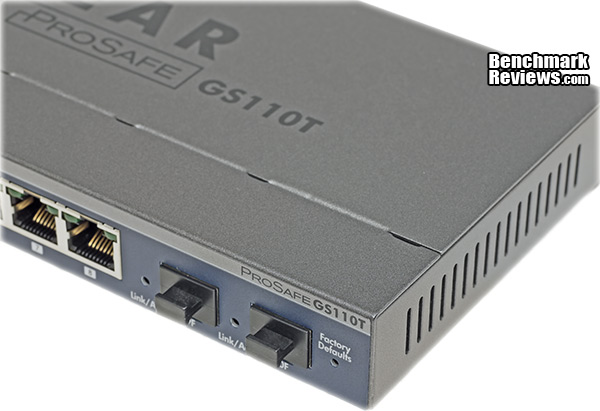
The left side of the GS110T looks similar to the right hand side. In this view you can see the device is booting up (Yellow Power LED) and during the initial startup, the Link/Activity LEDs on the eight RJ-45 sockets light up to show they’re working.

Now that we’ve seen the external features of the GS110T, let’s break out the tools and see what’s under the hood.
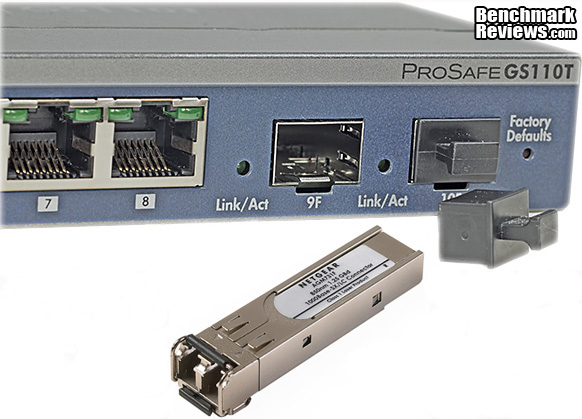
The two SFP connectors on the right hand side of the front panel have small plastic plugs installed at the factory, presumably to keep dust out. Although they are intended to ultimately interface with fiber optic cables for long cable runs, the optics (LEDs, lenses, etc) are completely contained in the adapter plug. The interface from the GS110T to the adaptor plug is 100% electrical, so I’m not sure what the dust covers are protecting.
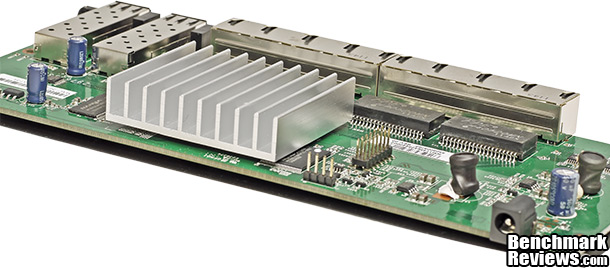
Once the top cover is removed, most of the construction details are laid bare. There’s one printed circuit board, which covers the entire width and depth of the unit, and all the components, functions, lights, connectors are integrated on the one PCB. The board is held down with screws to standoffs on the bottom plate and is very firmly mounted. Only one of the chips on the PCB has a heatsink attached to it, and there are very few integrated circuits on the board itself, indicating a high level of integration into the main chip. The switches with Power-Over-Ethernet (POE) have a few more components added into the mix, as the heavy current delivery demands are not yet integrated into high-end switching devices. The passive heat transfer from the main IC is aided by a silicone pad sandwiched between the top cover and the aluminum heatsink. Part of this design is meant to transfer heat to a bigger radiating area, and it’s also intended to maintain pressure on the heatsink to keep it firmly planted on the chip it serves. This is one of the clear lessons in CPU cooling we’ve learned at Benchmark Reviews, that consistent, firm pressure at the heatsink/chip interface is a key element in heat transfer performance.

Looking at the bottom of the PCB, once it’s removed from the case, we see a couple of insulating components. The larger sheet of thick insulating plastic sheet is kept in place by the four mounting screws which pass through it, and another silicone thermal pad, that you can’t see yet. The smaller, round domed components are specialized covers for the slotted screw holes on the bottom plate, which are used for wall mounting. Two of the four stainless steel standoffs that the PCB sits on are visible at the far end of the chassis.

The PCB has a very simple overall layout. Power comes in at the lower right, and is filtered and regulated there. All the I/O is along the top edge of the board, including the manual switches and indicators. The main switching IC in the center is surrounded by its support chips. Just to the right, partially hidden under the heatsink is the FLASH memory where all the configuration settings are stored. To the left of the main IC is the DDR 400 DRAM, and located in the ideal spot, between the switch IC and the Ethernet connectors, are the pulse transformers that isolate the signals and provide the proper terminating impedance.

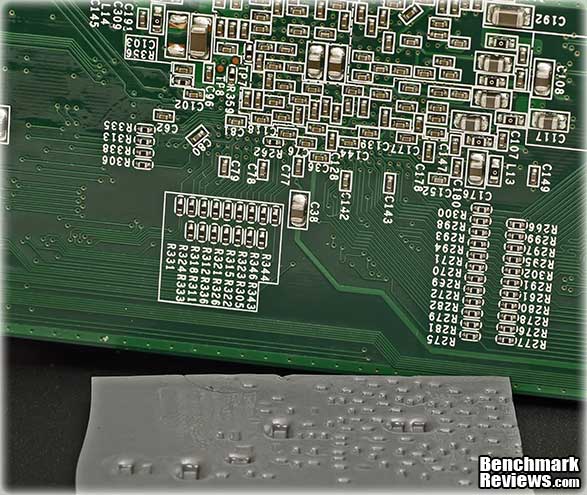
Directly below the main IC, which does duty as a Switch, CPU, and x8 PHY, there are a hundred or so surface mount devices soldered to the PCB. Just like in a video card, where the area around the GPU gets hotter than the rest of the card, backside cooling in this spot is an effective way to pull heat out of the assembly. In this case, NETGEAR used another of the silicone thermal pads to both even out the temperature on the PCB and transfer some heat out to the bottom surface of the metal case.
Now that we can get a good look at the PCB, let’s dig down one more later, to the chip level. The next section is called Technology Details…
I did not remove the heatsink from the switching IC, fearing that I would damage it in the process. The lack of any hardware holding it in place intimates that the thermal paste in use is that hard, plastic-like material that cures in place. That stuff can be hard as a rock and just as stubborn once it has set. But, I can almost guarantee that the switching chip is made by Broadcom, and judging from the 8+2 port layout, it’s probably the BCM53312. This 8-Port GbE + 4-Port GbE Multilayer Switch is one of the most highly integrated switches that Broadcom produces, which explains the minimal number of support chips on this PCB. Since the CPU and the Gigabit PHY functions are built in, there’s very little that needs to be added to the BCM53312 in order to build a functioning network switch. The fact that it can do all this with passive cooling is a bonus.
The Flash memory that stores all the configuration data, is provided by Marconix, and is a 128MB model with the basic designation of MX29GL. It is a high performance version, with page mode read access. Later in the article we’ll look at all the configuration options that are available on the NETGEAR ProSafe products, including this GS110T, and the need for fast read/write access to the Flash memory will become more obvious. The embedded web server runs from this storage space as well, so this component does get a workout while the SmartSwitch features are in use.

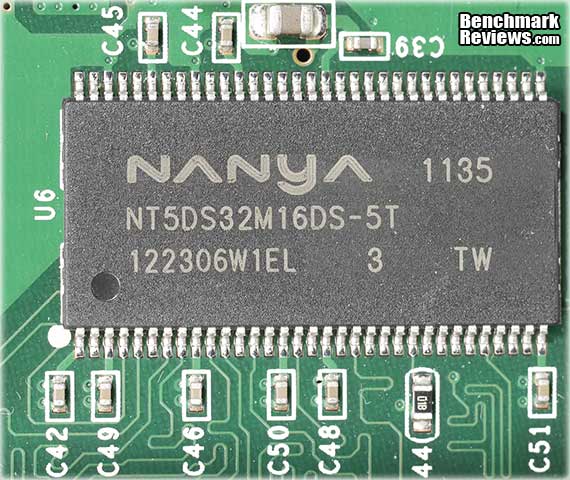
The Switching module and the integrated CPU both need access to some basic DRAM in order to do their jobs. In the GS110T, NANYA provides a single DDR400 chip, which has an overall capacity of 512MB, in a 32M x 16 arrangement. The specs from NETGEAR only specify 64 MB of SDRAM for this model, but perhaps that is all that is used for this application, even though more is physically available on the chip.
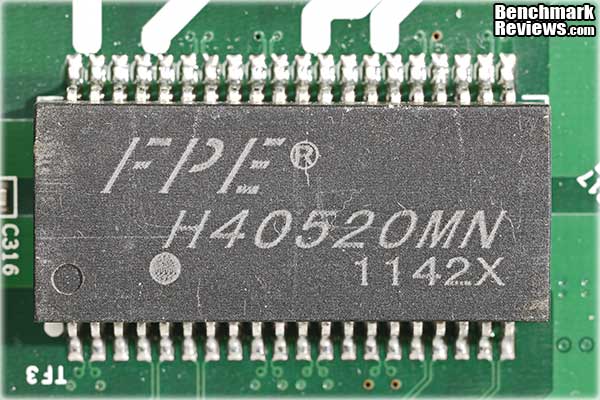
With high speed serial data transmission, cable performance is an important component of reliable operation. Equally important is the impedance that the active devices present at the connector body. One of the best ways to get this critical interface right is to use transformers, a seemingly ancient technology, that somehow hasn’t been replaced with silicon yet. There are four FPE H40520MN quad transformer modules sitting between the Broadcom switch IC and the 1000BASE-T connectors on the front panel that perform this important function.
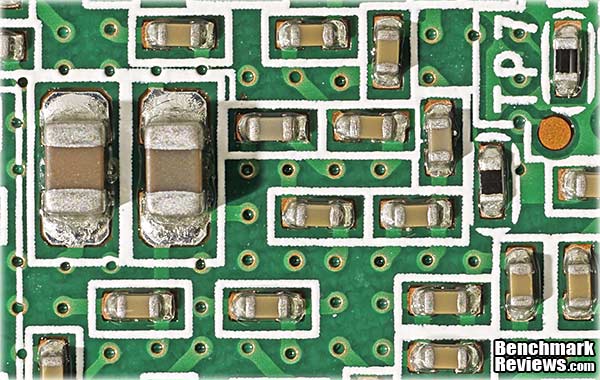
The construction quality was top notch, throughout the GS110T, even down to the manufacturing processes used on the printed circuit board. Directly below the main IC on the board, there are over a hundred very small SMD components that are difficult to see clearly with the naked eye. The wave soldering process looks excellent here, and throughout the board. Plus, this is one of the cleanest PCBs I’ve seen in awhile. No fuzzy bits, no funky residues, no discolorations, no excess adhesives, nothing that would detract from the long term reliability of the system. Reliability is the key word here; the customers who routinely buy this class of switch are building networks for people and companies that use them for profit, not for fun. If they stop working, everyone stops working and the company loses money until it’s fixed.
Unless you want to start straining your eyeballs on block diagrams and logic/timing charts, that’s about as far as we can go on the hardware side. Let’s start digging into the features and specifications of the NETGEAR GS110T before we fire it up and see how the control software works.
The GS110T is part of the NETGEAR® family of ProSafe® Gigabit Smart Switches. This part of the product line features intelligent network switches in a compact form factor, and is designed for SMB customers needing high performance, enhanced configuration features, and straight forward device management. This particular model has eight 10/100/1000 Mbps ports, each capable of powering 2000 Mbps of data throughput in full-duplex mode. In addition, two dedicated Gigabit SFP ports are available for fiber uplinks, offering greater transmission distance and better security. The GS110T comes with an intuitive, Web-browser interface which offers easier Smart Switch management. The comprehensive interface allows you to monitor switch performance, configure ports, and set up port trunks, VLANs, and traffic prioritization without having to look up commands in the manual. Here’s a quick look at some of the basic features and benefits for the GS110T:
| FEATURES | BENEFITS |
| Dedicated Fiber Uplink | Directly connects to FTTx networks. Used in fiber networks for better security and reliability |
| Traffic Management | Prioritize traffic to ensure quality of latency-sensitive services and applications despite increasing traffic loads |
| Advanced Security with 802.1x and ACL | User-based authentication and added filtering to permit or deny traffic based on MAC or IP addresses |
| Auto Voice and Auto Video | Assist customers to easily set up VoIP or IP surveillance networks with a couple of simple steps |
| Centralized Management via the New Smart Control Center | Discover all the Smart Switches in the network, configure them from a central location; schedule mass configuration and firmware uploads |
I’ve become used to a long list of features and specifications for the Network Attached Storage products I’ve reviewed recently, especially the ones that offer a variety of consumer-based capabilities in addition to their business-basic functions. I didn’t expect that long of a list with a network switch, even one with built-in management, but I was wrong. Let’s take a minute to explore what this device offers:
Network Protocol and Standards Compatibility
- IEEE 802.3 10BASE-T
- IEEE 802.3u 100BASE-TX
- IEEE 802.3ab 1000BASE-T
- IEEE 802.3z 1000BASE-X
- IEEE 802.3x full-duplex flow control
Administrative Switch Management
- IEEE 802.1Q static VLAN (64 groups, static)
- IEEE 802.1p Class of Service (CoS)
- Port-based QoS
- DSCP-based QoS
- DiffServ
- IEEE802.3ad Link Aggregation (manual or LACP)
- IEEE 802.1D Spanning Tree Protocol (STP)
- IEEE 802.1w Rapid Spanning Tree Protocol (RSTP)
- IEEE 802.1s Multiple Spanning Tree Protocol (MSTP)
- IEEE 802.1ab Link Layer Discovery Protocol (LLDP)
- SNMP v1, v2c, v3
- RFC 1213 MIB II
- RFC 1643 Ethernet Interface MIB
- RFC 1493 Bridge MIB
- RMON group 1, 2, 3, 9
- RFC 2131 DHCP client
- Voice VLAN
- Auto-VOIP
- DHCP Filtering
- Auto denial-of-service (DoS) protection
- HTTP and HTTPS
- Ping and traceroute
- Power saving when link down
- IEEE 802.1x
- Port-based security by locked MAC addresses
- IP and MAC ACL
- Storm control for broadcast, multicast and unknown unicast packets
- IGMP snooping v1/v2/v3
- Protected Port
- Port-based ingress and egress rate limiting
- SNTP
- Port mirroring support (many to one)
- Web-based configuration
- Configuration backup/restore
- Password access control
- RADIUS Support
- TACACS+ support
- Syslog
- Firmware upgradeable
Electromagnetic Emissions
- CE EN 55022, EN 61000 and EN 55024
- FCC Part 15 Class B
- VCCI Class B
- C-Tick
Safety
- CE mark, commercial
- CE EN 60950-1
- CCC
- CB
- KCC
Modules
- AGM731F 1000BASE-SX SFP Module
- AGM732F 1000BASE-LX SFP Module
- AGM733 1000BASE-ZX SFP Module
System Requirements
- Category 5 UTP Network cables or above
- Network card for each PC
- Network software (e.g., Windows®)
- Web browser (e.g., Internet Explorer 6.0 or higher, Netscape 6.0 or higher)
Warranty and Support
- ProSafe Lifetime Warranty†
- ProSupport 24×7 Advanced Technical Support, 1 year (included)*
ProSupportTM Service Packs Available
- XPressHW, Category 1: PRR0331 (3-year next-business day hardware replacement contract)
- OnCall 24×7, Category 1: PMB0331 (3-year Advanced Technical Support contract, including Remote Diagnostics performed by our technical experts for prompt resolution of technical issues, and next-business day hardware replacement)
* 1-year 24×7 Advanced Technical Support included, including Remote Diagnostics performed by our technical experts for prompt resolution of technical issues.
† Lifetime warranty for product purchased after 05/01/2007. For product purchased before 05/01/2007, warranty is 3 years.
Power Supply
- Power consumption: 8.5W
- 12V/1A external power adapter
Network Ports
- Eight 10/100/1000 Mbps auto sensing Gigabit RJ-45
- Two Gigabit SFP (Fiber Optic interface modules sold separately)
LEDs
- Per port: (10/100 and Gigabit): Link/activity, speed
- Per device: Power
Physical Specifications
- Dimensions:(W x D x H) 236 x 101 x 27 mm (9.29 x 3.97 x 1.06 in)
- Weight: 0.69 kg (3.7 lb)
Environmental Specifications
- Operating temperature: 32° to 122° F (0° to 50° C)
- Storage temperature: -4° to 158° F (-20° to 70° C)
- Operating humidity: 90% maximum relative humidity, non-condensing
- Storage humidity: 95% maximum relative humidity, non-condensing
- Operating altitude: 10,000 ft (3,000 m) maximum
- Storage altitude: 10,000 ft (3,000 m) maximum
Performance Specifications
- Forwarding modes: Store-and-forward
- Bandwidth: 20 Gbps
- Packet Forwarding Rate: 1,488,000 pps
- Network latency: Less than 4 nanoseconds for 64-byte frames in store-and-forward mode for 1000 Mbps to 1000 Mbps transmission
- Buffer memory: 512 KB per system
- Address database size: 4,000 media access control (MAC) addresses per system
- Addressing: 48-bit MAC address
- Flash Memory Size: 16MB
- SRAM Size & Type: 64MB DDR
- Mean time between failure (MTBF): 472,147 hours at 25C (~54 years)
- Acoustic noise: 0
Package Contents
- ProSafe® 8-port Smart Switch with 2 Gigabit SFP Ports (GS110T)
- Rubber footpads
- 12V/1A external power adapter
- Wallmount kit
- Resource CD
- Installation guide
Ordering Information
- North America: GS110T-100NAS
- UK: GS110T-100UKS
- Japan: GS110T-100JPS
- Europe: GS110T-100GES
- Australia: GS110T-100AUS
Initial Settings
The NETGEAR GS110T Smart Switch uses embedded Web server and management software for configuring and monitoring its functions. The GS110T acts like a simple switch in its base configuration. The management software uses a standard Web browser to access more advanced features, which allows you to monitor the performance of your switch and optimize its configuration for your network. When the switch is powered up for the first time, the provided Smart Control Center software is used to discover the switch and view the default network information that is loaded into its flash memory. If a DHCP server is present on the network, the switch may get an IP address assigned to it; otherwise it will use the static network ID that it has stored in its configuration file. Here’s what it looks like when you first log in; you will probably only see one device on your screen. If you make any changes to the network, just press the “Discover” button on the lower right, and any new devices will show up in the list.

One of the first decisions that need to be made is whether to use DCHP to assign IP addresses or to use static IP addresses. If you’re used to unmanaged switches, this is going to be all new to you, unless you went through this process with your router. A router is typically the first piece of network equipment a homeowner acquires, simply because it comes as part of the package their ISP sends to them. Without prior knowledge or experience, the typical user just leaves them on the default settings. Only about half even do the simplest step of changing the SSID. I live in an urban area, so I pretty much have to set mine to a unique name, as I’ m within signal range of at least eight other wireless routers in my neighborhood.

Port Configuration
Once you’ve logged in, the next step is to configure the ports that you will be using. There are two different views available, a basic tabular version or a more graphical device view. This truncated view shows some of the configuration options for each of the ports. Ports with a device connected to them will show up with an entry in the Physical Status column. In this case, two GbE devices are connected to ports 1 & 4, and a Fast Ethernet (100 Mbps) device is attached to port number 3.

Looking at the “Device View”, there is easy access to the variety of configuration options which can set up on each individual port. There are also menu items for retrieving detailed or summary statistics on port usage.

If you just click on the front panel portion of the diagram, then the system-level configuration options are available in a cascading menu structure. There is a comparable menu structure that uses the tabs, the dynamic menu bar directly below them, and a sidebar to provide the full range of menu selections, so you’re spoiled for choice. Modern users expect to be able to access software functions in a variety of methods, and NETGEAR has obliged them throughout this entire software package.

Now that we’ve covered the basics for setting up the SmartSwitch, let’s investigate some of the many security features that NETGEAR includes with the ProSafe models.
NETGEAR Security Features
DHCP Filtering is a very basic technique for protection against an unauthorized DHCP server snooping traffic for passwords or employing a man-in-the-middle attack. By configuring each port as either a trusted port or an untrusted port, only the authorized DHCP server is allowed to forward DCHP responses; any responses on the untrusted ports are discarded.

Access Control Lists are a popular way of granting access only to known users, which is prudent whether the network is wired or wireless. The GS110T can perform this function using either the MAC address of the known user, or their IP address. There are separate sections of the menu for setting each of these up manually, and there is also an ACL Wizard to simplify configuration.

Port Authentication is another powerful technique for blocking out unknown, unauthorized, and unwanted users from the network. The GS110T, as well as all the other switches in the NETGEAR ProSafe product line, uses the 802.1X protocol in tandem with a RADIUS server to perform third-party authentication for every device that tries to access the network. There are nearly a dozen different settings that can be applied in this mode, in order to make access control as tight or as loose as you want it. For instance, a “Guest VLAN” can be set up on the authentication server, which restricts access to other resources on the network. You can make certain resources available on the guest VLAN, such as printers, while segregating all the other devices onto another VLAN. One nice feature is the summary page which you can view, without actually going into the configuration screen. This makes it easier to see how the switch is configured, without worrying about accidentally making an unwanted change.

Traffic control comes in a couple different forms. MAC filtering, dynamic or static port locking, and Storm Control all work in slightly different ways to keep unwanted traffic off your network. MAC filtering links MAC addresses to VLAN IDs, and looks for a match with the relationship that’s entered in the filter table. Port locking has a convenient dynamic mode, where one or more devices can be connected to a port, which then interrogates the device and stores its MAC address as “allowed”. You control how many devices can go through this process on each port, from zero to 600. A value of zero effectively disables the dynamic capability, and you have to manually enter the MAC address of the device you want to allow access to that particular port. However, once the port is configured in the dynamic mode, you can then convert the port to static mode and keep the address that was loaded dynamically.

Storm control prevents a large number of broadcast messages from being transmitted to all other ports simultaneously. It blocks the messages coming into to the port that is being monitored for this kind of activity. Think of it like a spam filter that stops the unwanted message at the source, before it gets sent to everyone else on your network.

There are a number of additional security features available on the GS110T, such as setting up HTTPS access, TACACS+ control, etc. I covered most of the security features above, but only in a cursory way. There’s a 240 page software manual that explains things in a lot more detail than I can convey here. It should be very clear by now that smart switches like the NETGEAR ProSafe line offer the opportunity for a substantial security upgrade for your network.
To benchmark a network switch, I’m using the most straightforward and standardized test I have: Passmark Performance v7.0 Advanced Network Test. This test measures throughput between two PCs connected through the switch which is the device under test. One PC is set up as the ‘Client’ and the other is set up as the ‘Server’. Each test is run at least five times, the highest and lowest results discarded, and the remaining results are averaged to give a final result.
To establish a baseline benchmark speed, I connected two workstations (Test System #1 and #2, below) to the NETGEAR GS110T switch, and ran the PassMark Advanced Networking Test in Client-Server mode. I also used Test System #3, and discovered that its CPU couldn’t keep up with the GS110T switch, so all benchmark results displayed below were generated using the Quad-Core Intel systems. The Advanced Network Test is designed to test the data transfer rate between two computers both of which must be running the PerformanceTest application. One of the computers must act as the server and the other computer acts as a client. It connects to the server machine and sends data to it for the user-specified duration of the test. Unless at least 10 test samples have been taken, the test results are not valid, so this application takes 100 samples during each network test run. I used all default values for this benchmark, as shown in the screenshot below. The screens have different elements grayed out, depending on whether you are sitting at the Client computer or on the Server side.
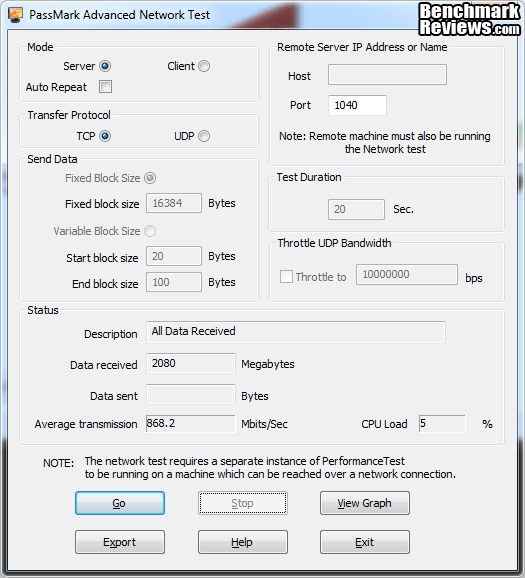
This benchmark eliminates most of the variables involved in network speed testing, but not all. The PCs themselves can introduce spurious issues, such as hardware bandwidth limitations, resource conflicts, wait states, and buffer inconsistencies. The following chart shows why you have to dig a little deeper than just looking at the Average Transmission rate that is displayed on the main screen. For some reason, the start of this test was impacted, and was only running at about half speed for the first two seconds. The average value (shown in yellow) doesn’t really reflect the true capability of the network. I’m a firm believer in using real-world test scenarios as part of a comprehensive benchmarking effort, but we have to be careful not to confuse anomalies with persistent limitations. After several minutes the average might approach the real throughput level, but after 20 seconds (a looooong time in network transmissions), the calculated average result is almost 10% lower than the true number.

Another test run, with slightly different hardware, looked completely different. This kind of result showed more of what I think of as a real-world limitation, somewhere in the signal flow. In this case, the averaging function really does illustrate the true capability of the system, and 20 seconds was enough this time for the calculated average to settle down to the correct value. Note, this was a test run with the AMD Phenom II X2 system, and it was the only machine that showed this behavior.

And then there’s this almost perfect chart; there’s no doubt about what the real-world throughput of this system is. You can still see a few minor dips and peaks, but they’re only 1-2% variations.

Test System 1 (Server)
- Motherboard: MSI Z68-Express Z68A-GD80 (1.23.1108 BIOS)
- System Memory: 4x 4GB Corsair Vengeance LP DDR3 1600MHz (9-9-9-24)
- Processor: Intel Core i5-2500K Sandy Bridge 3.3GHz (BX80623I52500K)
- CPU Cooler: Thermalright Venomous-X (Delta AFB1212SHE PWM Fan)
- Video: Intel HD Graphics 3000
- Drive 1: OCZ Agility3 SSD 120GB (AGT3-25SAT3-120G)
- Enclosure: Lian Li Armorsuit PC-P50R
- PSU: Corsair CMPSU-750TX ATX12V V2.2 750Watt
- Operating System: Windows 7 Ultimate Version 6.1 (Build 7600)
Test System 2 (Client)
- Motherboard: ASUS P7P55D-E Pro (1002 BIOS)
- System Memory: 4x 2GB GSKILL Ripjaws DDR3 1600MHz (7-8-7-24)
- Processor: Intel Core i5-750 (OC @ 4.0 GHz)
- CPU Cooler: Prolimatech Megahalems (Delta AFB1212SHE PWM Fan)
- Video: ATI Radeon HD 5770 1GB GDDR5 (Catalyst 8.840.3.0)
- Drive 1: OCZ Agility3 SSD 240GB (AGT3-25SAT3-240G)
- Drive 2: Seagate Momentus-XT Solid State Hybrid Drive ST95005620AS 500GB
- Enclosure: CM STORM Scout 2 Gaming Case
- PSU: PC Power and Cooling Silencer 750W Crossfire Edition
- Operating System: Windows 7 Home Premium SP1
Test System 3 (Client)
- Motherboard: ASUS M4A88TD-V EVO/USB3 (1308 BIOS)
- System Memory: 4 x 2GB OCZ, AMD Black Edition OCZ3BE1600C8LV4GK, DDR3 1600 (8-8-8-24)
- Processor: AMD Phenom II X2 555 Black Edition Callisto 3.2GHz Socket AM3
- CPU Cooler: Cooler master Z600
- Video: ATI Radeon HD 5670 512MBB GDDR5 (Catalyst 8.801.0.0)
- Drive 1:Corsair F100 SSD 100GB (CSSD-F100GB2)
- Drive 2: Western Digital Velociraptor 300GB Drive WD3000HLFS
- Enclosure: SilverStone Fortress FT01 SST-FT01B-W Gaming Case
- PSU: OCZ ModXStream Pro 500 Modular ATX12V V2.2, OCZ500MXSP
- Operating System: Windows 7 Home Premium SP1
Support Equipment
- Intel EXPI9301 CT Gigabit Ethernet NIC, x1 PCIe 1.1, 1x CAT5
- Intel E10G42BT, X520-T2, 10Gbps Ethernet NIC, x8 PCIe 2.0, 2x CAT6a
- 10-Foot Category-6 Solid Copper Shielded Twisted Pair Patch Cables
Networking Comparison Products
- NETGEAR 10-port GbE Smart Switch GS110T
- TRENDnet 8-port GbE Switch TEG-S80g
- TRENDnet TEW-673GRU Dual Band N300 Wireless Router
- Linksys EA4500 Dual Band N450 Wireless Router
Wired networking equipment is part of a very mature industry. At the very high end of the market, where a router or switch costs $5,000 – $10, 000, there is still a lot of new technology and innovation, however. Recent shifts toward virtualization and cloud computing demand extreme bandwidths and scaling factors. In order to deliver on the many promises the industry has made for these two technologies, something “simple” like a switch or router better not get in the way of overall performance. It’s the same way in the home or small business. More and more devices are connecting to smaller, domestic networks, and the backbone has to keep up, or everyone suffers.
One thing about a mature industry is that it’s ruled by standards. Given the very nature and mission of networking equipment, it’s impossible to imagine that the industry could exist without them. If you want to connect a dozen devices together and have them interface correctly, you need to not just have standards, but adhere to them. So, if a router or switch is rated for 1000BASE-T, it had better perform exactly like the IEEE 802.3-2008 standard says it should. So, let’s take a look at several GbE solutions I have in the test lab, and see if there is indeed a standard level of performance from a range of similar products.

In TCP/IP transfers, the NETGEAR GS110T Smart Switch achieved an average speed of 868 Mbps. Compared to the other devices under test, an unmanaged GbE switch and two GbE routers, the GS110T lagged behind in overall speed, by about 5%. The reason is that there were a number of performance dips that occurred consistently enough to harm the average throughput. Here’s an example that shows how the transfer rate bounced back and forth between ~915 Mbps and ~830 Mbps. As I said in the testing methodology section, there are myriad reasons why full performance may be hindered or interrupted once you start plugging a number of unique systems together. FWIW, I only saw this kind of behavior on the two network switches I tested; the routers were steady as a rock. Without these dips, just looking at the plateaus, you can see that the potential is there, and it’s realized more often than not. Some other process is consuming resources somewhere in the signal chain, or a buffer is getting filled up and then flushed on a semi-regular basis, it’s hard to tell which.

The UDP results were much lower on the Smart Switch, reaching only 343 Mbps. The unmanaged switch roughly doubled that performance, and the two GbE routers achieved speeds somewhat close to their TCP/IP performance. On this test, it was the switches that delivered reasonably consistent results and the routers that were all over the chart. The upper traces in the chart below are for the NETGEAR GS110T Smart Switch, and the lower traces are for the Cisco Router. Unlike TCP, the UDP protocol does not divide a message into packets, transmit the packets and then reassemble them at the other end. UDP also doesn’t provide sequencing of the data. There’s a bit more work for the application programs on each end of the data transfer to do; they have to ensure that the entire message arrived, and that it’s in the right order. In this benchmark, the applications were the same for all tests, the PassMark Advanced Networking Test in Client-Server mode. These are all 20 second traces, BTW, and in that time frame each channel of the switch or router is technically capable of shifting approximately 2.5 Gigabytes of data between devices.

The total bandwidth of the GS110T is a full 20 Gbps, the maximum rated capacity of the device, and I wish I had a way of testing that. Ten devices at max speed, in full duplex – I have trouble imagining a scenario that generates that much data, outside of a scientific research lab. Obviously datacom providers and folks like Amazon Web Services, who manage one of the biggest cloud-computing centers in the world, would have no trouble filling this sort of pipeline a thousand times over. For the rest of us, the challenge will almost always rest on the limited capability of a single device on the network, to feed a number of other devices, all at the same time. What happens when everyone decide to back up their data to the NAS at the same time? Four TVs, all streaming HD video from one DVR? Of course, most houses just have one Internet feed, and 3-4 people watching YouTube, Netflix, and Hulu in the evenings.
Now that we’ve examined the functionality and the performance of the NETGEAR GS110T SmartSwitch, let’s look at some of the reasons why you might need one, in our Final Thoughts section.
Two questions lie at the heart of this review, and I haven’t addressed them yet, so let’s get them out in the open. One, who needs a wired switch these days, when almost every device seems to be running off either Wi-Fi or 3G/4G cellular? Two, why do I need a Smart Switch when a dumb one will do. (OK, for the record, they’re called Unmanaged Switches…)
First of all, if you’ve got a house full of users, you could be taxing the wireless capability of your router, especially since the latest and most expensive devices only give you 450 Mbps. I used to think that this was all the bandwidth anyone needed, but that was before “The Internet of Things” crept up on me. Internet Radio, HD video streaming to multiple screens from various storage locations, Hi-Res Audio (24/192) streaming to the hi-fi, YouTube and Hulu everywhere you turn, half a dozen IP-based security cameras, daily backups to the NAS, regular backups to the cloud – you get the idea. Throw a few teenagers and a couple of high tech parents all together in one house, and that’s what you get. About the only thing that’s not connected to the network so far are my kitchen appliances. Notice that not everything is coming in through the Internet, so your ISP’s data rate makes no difference, and there’s an opportunity to pass some of the traffic through a wired connection at GbE speeds. My wife’s home office is an example where I deployed a switch to simplify the wiring, because nothing in that room runs off Wi-Fi, and the router is on another floor. A switch can also help you fight Wi-Fi dead spots. If you can run an Ethernet cable from one floor to another, then just plug in a wireless access point that can reach your dead zones. Wires are good – wires are bad; it all depends on the application.

Let’s face it, network configuration used to be a black art, only practiced by people who belonged to a secret society. Wi-Fi changed that, Starbucks changed that, and Android changed that. Now, when your mother comes to visit, she wants to log in to your home network with her Wi-Fi only iPad, and woe be unto you if you can’t remember your SSID and password, letter perfect. If she’s locked out because you turned on MAC address filtering, and only allow specific devices to have access to your network, that’s another thing. Her maternal pride will overcome her annoyance at not being able to do whatever it is that moms do on their iPads.
The same goes for friends and relatives visiting with their notebooks, etc. The thing is, not everyone is as careful as they should be about computer security. All it takes is one kid, back from college with their notebook chocked full of viruses and worms. Guess what, the college network is full of firewalls and other security appliances, and yours isn’t. The kid’s excited, because he can finally access all the streaming media that was locked down on the school’s network. Hmmmm, guess what’s included on all those sites that they’re now able to visit, from your network. If it sounds like a good time to set up a Guest VLAN, that isolates everything you value from all the threats that are sure to come knocking, yes it is! That’s why you need a smart switch, because an unmanaged switch really only behaves like an aggregator, while a managed switch can also act as a splitter. You can set up four separate VLANs on the GS110T, and no traffic crosses those lines unless you want it to. That unruly laptop will only see the connection to your ISP, nothing else. Feel safer? You should.
Now that I’ve got you thinking about possible applications for a Smart Switch, let’s review what we’ve learned about the NETGEAR ProSafe GGS110T SmartSwitch, and see how it rates.
Although the rating and final score mentioned in this conclusion are made to be as objective as possible, please be advised that every author perceives these factors differently at various points in time. As Albert Einstein said, “Not everything that can be counted counts, and not everything that counts can be counted.” While we each do our best to ensure that all aspects of the product are considered, there are times that unforeseen market conditions and manufacturer changes occur after publication, that could render our rating obsolete. Please do not base any purchase solely on our conclusions, as they represent our product rating for the sample received which may also differ from retail versions.
The performance of the NETGEAR ProSafe GS110T SmartSwitch was every bit as good as it needed to be, to meet industry standards. Sorry, no amount of overclocking, overvolting or anything else is going to make it exceed 1000 Mbps. In fact, it didn’t quite make 1000; it only pulled 868 Mbps in the TCP/IP testing. The two routers I tested got a little better performance out of the two test systems, both averaging about 940 Mbps. As I’ve experienced in NAS testing, GbE can be a real performance restraint when you’ve got more than 4 HDDs in RAID, which are each capable of 125MB/s transfer rates. Until costs for 10GbE network gear come down though, we’re stuck with single GbE. UDP performance was worse for all of the devices I tested, The two switches both fared worse than the two routers, and the GS110T had its performance cut in half. I’m inclined to chalk that up to a configuration setting that I didn’t get right, as the unmanaged switch did much better.
The appearance of the NETGEAR GS110T is clearly aimed at the business consumer. This is not a product that you’re going to see on the shelves of your local big box store. The plain cardboard box it comes in, also underscores that aspect of its market positioning. Just because the outsides aren’t trendy or flashy doesn’t mean that it doesn’t look good, though. I happen to like understated design themes, so I warmed up to the GS110T right away. The appearance is still modern, even if it isn’t a white, rounded rectangle.
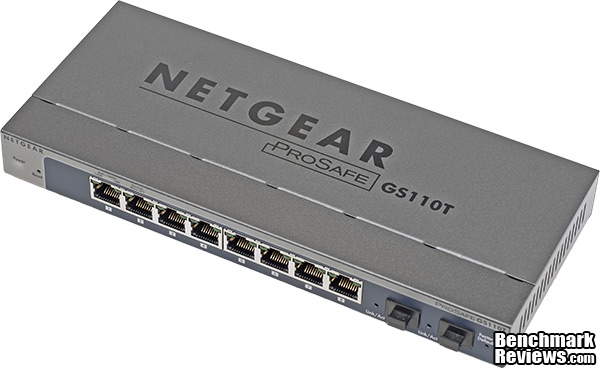
The construction of the GS110T SmartSwitch was top notch. The enclosure was quite sturdy and well fitted together. All the mating parts lined up perfectly and when it was time to reassemble the unit after the teardown, and it went back together very easily. There were no sharp edges to worry about and the surface finish on all the parts was impeccable. The PCB was manufactured to a very high standard, one of the best I’ve seen in a while. These switches are designed to last a long time and operate in tough environments, and high build quality is a prerequisite for reliability.
Functionality is where the GS110T really shines. Smart switches in general have more features than their unmanaged siblings, but there is no hard and fast rule for what functionality must be included in order to qualify as a smart switch. The Smart Control Center software that handles all the management functions for the ProSafe series of switches is very comprehensive and relatively easy to use. The security features alone make it worth the price of admission, to me. Don’t take my word for it, go back and read the middle sections of this review and see for yourself.
The NETGEAR ProSafe GS110T SmartSwitch is available for $119.99 from both NewEgg and Amazon. Considering all the features you get, compared to an unmanaged switch, and the better build quality for the ProSafe product line, I think these smart switches offer reasonable value for money. For those who only need the 3-4 ports on the back of a typical home router, the price probably seems high, but those who can use the special functions that are only available on a smart switch will see it as a good value and a necessary purchase.
The new class of Smart Switches aren’t for everyone, but for those that have a need for their expanded feature set, they’re a real game changer. Their cost is way below business class switches, and they have just the right amount of tools and controls to make the difference between a secure network and one that’s vulnerable from within. There are several models in the ProSafe product line that are similar to the GS110T, and have either fewer or more ports. They are close enough in design that a large portion of this review is applicable to them, as well. The models that have Power-Over-Ethernet (POE) are different enough on the hardware side that I can’t really speak about them at this time. The software features I described should all be there, along with some additional tools for the power distribution functions.
+ Excellent build quality
+ Comprehensive software controls
+ Flexible security features
+ Good throughput on TCP/IP traffic
+ Very little heat output
+ Expected long-term reliability
+ Software ease-of-use
+ Fiber optic ports, if you need them
+ Easy setup with appropriate defaults
+ Excellent documentation
+ Large product line with many choices
+ Strong user community support
– UDP performance lags way behind TCP/IP
– Price may be an issue for home users
– Didn’t beat my unmanaged switch on performance
- Performance: 8.75
- Appearance: 9.00
- Construction: 9.50
- Functionality: 9.50
- Value: 9.00
Excellence Achievement: Benchmark Reviews Golden Tachometer Award.
COMMENT QUESTION: What feature do you like most on the NETGEAR ProSafe GS110T?