By David Ramsey
Manufacturer: Toshiba/OCZ
Product Name: OCZ RD400 NVM Express M.2 Solid State Drive
Part Number: RVD400-M2280-512G-A
UPC: 842024037669
Prices: 128GB – $119.99, 256GB – $174.99, 512GB – $309.99, 1TB – $769.99Full Disclosure: Toshiba/OCZ provided the product sample used in this article.
OCZ Storage Solutions was acquired by Toshiba, and they’ve been repurposed as Toshiba’s “enthusiast” brand for solid state storage. Prior to the Toshiba acquisition, OCZ’s “RevoDrive” PCIe SSDs used proprietary memory boards with multiple SSD controllers on a PCIe card to achieve large capacities (for the time) and amazing performance at an equally amazing price– in the sense that they were very expensive. These days, better performance can be achieved with a PCIEx4 SSD in the m.2 form factor, mounted on a simple PCIe adapter card (that you don’t have to use if your motherboard has an m.2 slot). Today Benchmark Reviews checks out this modern iteration of a PCIe SSD in the 512GB Toshiba RD400.

| Capacity | 512GB |
| Interface | PCIex4 |
| Protocol | NVMe |
| Form Factor | m.2 2280 on PCIe card |
| Controller | Toshiba prioprietary |
| NAND | Toshiba 15nm MLC Flash |
| TRIM | Yes |
| Max. Read | Up to 2600MB/sec |
| Max. Write | Up to 1600MB/sec |
| Write Endurance | 296TB |
| Warranty | 5 years |
Benchmark Reviews has championed SSDs over hard disks for many years, as we feel that even when prices were much higher than they are now, the superior performance was worth it. Now that SSD prices have come down dramatically, there’s little reason for any but the most basic computers to use a spinning hard disk as a primary drive.
However, we’re now in the middle of another transition: within the last 18 months or so, standard SATA SSDs have all run up against what used to be the performance province of only the higher-end drives: the bandwidth limitations of the SATA interface. This means that no matter how fast your SSD is, you’re never going to see more than about 550MB/s transfer rates unless you stripe multiple drives together in RAID 0.
Moving from SATA to PCI Express (PCIe) is the obvious solution, but it required different controllers, and many desktop systems, especially enthusiast systems, simply didn’t have the PCI-E lanes to spare. The introduction of Intel’s Skylake architecture added more PCI-E lanes, and the icing on the cake was the introduction of NVMe (Non-Volatile Memory Express) to supplant the older IDE and AHCI protocols, which were design for spinning hard disks and suffered from efficiency issues with fast SSDs.
The latest crop of PCI-E m.2 SSDs implementing the NVMe protocol promises vast increases in performance. Let’s see how this drive compares.
Now a sub-brand of Toshiba, OCZ’s products use Toshiba controllers and NAND in their solid state storage products. The “RD” in “RD400” harkens back to the “RevoDrive” appellation OCZ used for its previous generation products, before they were acquired.
I am still not a fan of the m.2 form factor, which replaces sturdy, easy-to-handle 2.5″ metal or plastic enclosures with tiny, delicate bare circuit boards the size of a stick of gum. The RD400’s drive is a single-sided 2280 unit, which means it’s 22mm wide– as are all m.2 drives– and 80mm long. A sticker covers all the active components on the drive, and a little experimentation revealed that removing it would completely destroy it, so no chip photos this time around.

The only thing on the back of the PCB is a label.

The RD400 we received was mounted on a PCI-E card, which is handy if your system doesn’t have any native m.2 slots. You can buy the drive without the card for $20 less.
If you remove the drive from the PCI-E card, you can see a thermal pad that presumably helps wick heat away from the controller. The pad is not sticky, but makes firm contact with the back of the drive when the single mounting screw is tightened.
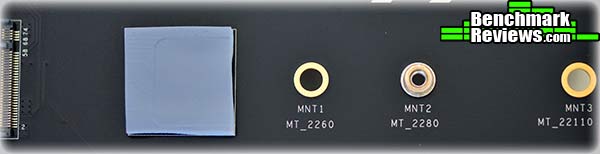
If you buy the version of the drive with the PCI-E card, OCZ thoughtfully includes a half-height rear bracket for use in small form factor systems.
In the next section I’ll look at Toshiba’s SSD Utility software.
The archaic custom of including utility media with computer accessories having died out some time ago, you’ll make a brief trip to the Toshiba/OCZ web site to download SSD Utility.

This simple and functional utility has the main divisions of Overview, Tuner, Maintenance, Settings, and Help across the top; for each selected tab, subdivisions appear at the lower left– in this case Dashboard, SSD Details, System Details, and SMART. The Dashboard screen shown above lets you quickly check how full the drive is, whether its firmware is up to date, any alerts, and overall “health” and drive temperature. While the SSD Details and System Details are things you probably already know, it’s nice to be able to look at detailed SMART (System Monitoring Analysis and Reporting Technology) information:

The Tuner section includes a simple performance benchmark…

…as well as an SSD Tuner section that allows you to set over-provisioning on the drive. Over-provisioning reduces the effective storage area of the drive by setting aside a designated portion of the drive’s storage space to buffer write operations, replace failed blocks, and other things the drive controller might require. Over provisioning is why you see some SSDs that might seem to have odd capacities like 120GB instead of 128GB, or 480GB instead of 512GB. The utility notes that over provisioning can “improve performance and lifetime of your drive”, and in this case allows you to allocate up to 143GB for this purpose. That’s overkill, but I’d have appreciated some guidance here on what an appropriate over provisioning amount might be. As delivered the drive has no over-provisioning.

The Settings part of the utility lets you designate some specific monitoring and alert functions; the defaults are shown below. It’s probably a good idea to leave these all on.

OK, let’s get to the benchmarks!
When we test storage devices, the two main metrics to consider are access time and transfer rate. Simply put, access time is the time is takes the storage device to start delivering data once the request has been received, while transfer rate is how fast (megabytes per second) the data comes once the transfer operation begins. With a hard disk, data transfer cannot begin until the disk’s head servo physically moves the read/write head to the correct track, and the rotation of the disk brings the designated sector under the head. Although modern servos are very fast, in the best case you’re still looking at several milliseconds to do this, while an SSD’s access time is always under a millisecond. The disadvantage is even worse if the data isn’t all in a contiguous space on the disk, since the head will have to be repositioned on the fly, leading to more delays.
Early consumer SSDs actually had slower transfer rates than the best hard disks, although their instantaneous access times more than made up for it. The zenith of consumer hard disk performance was probably reached in 2012 with the release of the Western Digital Velociraptor 1 terabyte disk. Spinning at 10,000RPM, this disk could under ideal circumstances (i.e. a synthetic bandwidth test) reach a sequential transfer rate of over 230MB/s. Keep this figure in mind as you read this review.
Early on in our SSD coverage, Benchmark Reviews published an article which detailed Solid State Drive Benchmark Performance Testing. The research and discussion that went into producing that article changed the way we now test SSD products. Our previous perceptions of this technology were lost on one particular difference: the wear leveling algorithm that makes data a moving target. Without conclusive linear bandwidth testing or some other method of total-capacity testing, our previous performance results were rough estimates at best.
Our test results were obtained after each SSD had been prepared using DISKPART or Sanitary Erase tools. As a word of caution, applications such as these offer immediate but temporary restoration of original ‘pristine’ performance levels. In our tests, we discovered that the maximum performance results (charted) would decay as subsequent tests were performed. SSDs attached to TRIM enabled Operating Systems will benefit from continuously refreshed performance, whereas older O/S’s will require a garbage collection (GC) tool to avoid ‘dirty NAND’ performance degradation.
It’s critically important to understand that no software for the Microsoft Windows platform can accurately measure SSD performance in a comparable fashion. Synthetic benchmark tools such as ATTO Disk Benchmark and Iometer are helpful indicators, but should not be considered the ultimate determining factor. That factor should be measured in actual user experience of real-world applications. Benchmark Reviews includes both bandwidth benchmarks and application speed tests to present a conclusive measurement of product performance.
- Motherboard: MSI Z170A GAMING M7 Socket LGA 1151
- Processor: 4.0GHz Intel Core i7-6700K Skylake CPU
- System Memory: 16GB DDR4 2133MHz
- Operating System: Microsoft Windows 10
The following storage hardware has been used in our benchmark performance testing, and may be included in portions of this article:
- Crucial RealSSD-C300 CTFDDAC256MAG-1G1 256GB SATA 6Gb/s MLC SSD
- Crucial m4 CT256M4SSD2 256GB SATA 6Gb/s MLC SSD
- Crucial M550 Solid State Drive515GBCT512M550SSD1
- Crucial MX100 Solid State Drive 512GBCT512MX100SSD1
- Crucial BX100 Solid State Drive 500GB CT500BX100SSD1
- Intel SSD 311 Series Larson Creek SSDSA2VP020G2E
- Intel SSD 320 Series MLC Solid State Drive SSDSA2CW160G3
- Intel SSD 335 Series Solid State Drive SSDSC2CT240A4K5
- Intel SSD 520 Series MLC Solid State Drive SSDSC2CW240A3
- OCZ Agility 2 OCZSSD2-2AGTE120G 120GB MLC SSD
- OCZ Agility 3 AGT3-25SAT3-240G 240GB MLC SSD
- OCZ Vertex 2 OCZSSD2-2VTXE120G 120GB MLC SSD
- OCZ Vertex 3 VTX3-25SAT3-240G 240GB MLC SSD
- OCZ Vertex 3.20 MLC SSD VTX3-25SAT3-240G.20 MLC SSD
- OCZ Vertex 4 VTX4-25SAT3-256G MLC SSD
- OCZ Vertex 450 VTX450-25SAT3-256G MLC SSD
- OCZ Vertex 460VTX460-25SAT3-240G MLC SSD
- OCZ Octane OCT1-25SAT3-512G MLC SSD
- OCZ Vector VTR1-25SAT3-256G MLC SSD
- OCZ Vector 150VTR150-25SAT3-240G MLC SSD
- Patriot Torqx 2 PT2128GS25SSDR 128GB MLC SSD
- WD SiliconEdge-Blue SSC-D0256SC-2100 256GB MLC SSD
- AS SSD Benchmark 1.6.4067.34354: Multi-purpose speed and operational performance test
- ATTO Disk Benchmark 2.46: Spot-tests static file size chunks for basic I/O bandwidth
- CrystalDiskMark 3.0.1a by Crystal Dew World: Sequential speed benchmark spot-tests various file size chunks
- Iometer 1.1.0 (built 08-Nov-2010) by Intel Corporation: Tests IOPS performance and I/O response time
- Finalwire AIDA64: Disk Benchmark component tests linear read and write bandwidth speeds
- Futuremark PCMark Vantage: HDD Benchmark Suite tests real-world drive performance
This article utilizes benchmark software tools to produce operational IOPS performance and bandwidth speed results. Each test was conducted in a specific fashion, and repeated for all products. These test results are not comparable to any other benchmark application, neither on this website or another, regardless of similar IOPS or MB/s terminology in the scores. The test results in this project are only intended to be compared to the other test results conducted in identical fashion for this article.
NOTE: The OCZ RD400 is a Non-Volatile Memory Express (NVMe) drive. While Windows 10 includes a generic NVMe driver, Toshiba recommends the use of their custom NVMe driver with the RD400. Benchmark Reviews has tested the RD400 with both drivers and will present the results for each benchmark with each driver. In the summary charts, the result obtained with the Toshiba driver is bordered in green, and the result obtained with the WIndows driver is bordered in red.
Alex Schepeljanski of Alex Intelligent Software develops the free AS SSD Benchmark utility for testing storage devices. The AS SSD Benchmark tests sequential read and write speeds, input/output operational performance, and response times.
AS-SSD Benchmark uses compressed data, so sequential file transfer speeds may be reported lower than with other tools using uncompressed data. For this reason, we will concentrate on the operational IOPS performance in this section.
This benchmark provided a surprise: although the performance results were great with Toshiba’s native driver, the results for the 4K subsections of the test with the Windows driver were terrible…the lowest we’ve ever recorded, in fact.

OCZ RD400 Results (Toshiba driver)
As the chart below shows, the RD400 acquits itself well with Toshiba’s NVMe driver, but falls to the very bottom of the pack if Windows’ internal driver is used, with a read speed of 107.1MB/s and a write speed of 1.91MB/s.

In the next section, Benchmark Reviews tests transfer rates using ATTO Disk Benchmark.
The ATTO Disk Benchmark program is free, and offers a comprehensive set of test variables to work with. In terms of disk performance, it measures interface transfer rates at various intervals for a user-specified length and then reports read and write speeds for these spot-tests. There are some minor improvements made to the 2.46 version of the program that allow for test lengths up to 2GB, but all of our benchmarks are conducted with 256MB total length. ATTO Disk Benchmark requires that an active partition be set on the drive being tested. Please consider the results displayed by this benchmark to be basic bandwidth speed performance indicators.

512GB OCZ RD400 ATTO Benchmark Results
The results obtained with the Toshiba driver (very) narrowly edge out the results obtained with the Windows 10 native driver. In either case the results are at the very top of the single-drive performance rankings.

This chart shows the difference in performance between SATA and m.2 SSDs very well: note that the SATA SSDs all bump up against the SATA bandwidth limit, while the m.2 SSDs provide up to five times the performance.
In the next section, Benchmark Reviews tests sequential performance using the CrystalDiskMark 3.0 software tool…
CrystalDiskMark 3.0 is a file transfer and operational bandwidth benchmark tool from Crystal Dew World that offers performance transfer speed results using sequential, 512KB random, and 4KB random samples. For our test results chart below, the 4KB 32-Queue Depth read and write performance was measured using a 1000MB space. CrystalDiskMark requires that an active partition be set on the drive being tested. Benchmark Reviews uses CrystalDiskMark to illustrate operational IOPS performance with multiple threads. In addition to our other tests, this benchmark allows us to determine operational bandwidth under heavy load.
CrystalDiskMark uses compressed data, so sequential file transfer speeds are reported lower than with other tools using uncompressed data. For this reason, we will concentrate on the operational IOPS performance in this section.
CrystalDiskMark 3.0 reports single-threaded sequential speeds reaching 1589MB/s reads and 1468MB/s writes. 4K tests at a queue depth of 32 produced 762MB/s read and 571MB/s write performance.

512GB OCZ RD400 SSD CrystalDiskMarkResults
The chart below summarizes 4K random transfer speeds with a command queue depth of 32. Here the native NVMe driver pushes the OCZ RD400 to the top of the chart, beating even the Samsung 950 PRO in RAID 0!

In the next section, we continue our testing using Iometer to measure input/output performance…
Iometer is an I/O subsystem measurement and characterization tool for single and clustered systems. Iometer does for a computer’s I/O subsystem what a dynamometer does for an engine: it measures performance under a controlled load. Iometer was originally developed by the Intel Corporation and formerly known as “Galileo”. Intel has discontinued work on Iometer, and has gifted it to the Open Source Development Lab (OSDL). There is currently a new version of Iometer in beta form, which adds several new test dimensions for SSDs.
Iometer is both a workload generator (that is, it performs I/O operations in order to stress the system) and a measurement tool (that is, it examines and records the performance of its I/O operations and their impact on the system). It can be configured to emulate the disk or network I/O load of any program or benchmark, or can be used to generate entirely synthetic I/O loads. It can generate and measure loads on single or multiple (networked) systems.
To measure random I/O response time as well as total I/O’s per second, Iometer is set to use 4KB file size chunks over a 100% random sequential distribution at a queue depth of 32 outstanding I/O’s per target. The tests are given a 50% read and 50% write distribution. While this pattern may not match traditional ‘server’ or ‘workstation’ profiles, it illustrates a single point of reference relative to our product field.
All of our SSD tests used Iometer 1.1.0 (build 08-Nov-2010) by Intel Corporation to measure IOPS performance. Iometer is configured to use 32 outstanding I/O’s per target and random 50/50 read/write distributionconfiguration: 4KB 100 Random 50-50 Read and Write.icf. The chart below illustrates combined random read and write IOPS over a 120-second Iometer test phase, where highest I/O total is preferred:

While random IOPS are significantly off the pace set by the Samsung 950 PRO, they’re still much better than even the very best SATA drives. The performance is slightly better in this benchmark with the Windows NVMe driver.
In our next section, we test linear read and write bandwidth performance and compare the speed of the RD400 SSD against several other top storage products using the AIDA64 Disk Benchmark.
Many enthusiasts are familiar with the Finalwire AIDA64 benchmark suite, but very few are aware of the Disk Benchmark tool available inside the program. The AIDA64 Disk Benchmark performs linear read and write bandwidth tests on each drive, and can be configured to use file chunk sizes up to 1MB (which speeds up testing and minimizes jitter in the waveform). Because of the full sector-by-sector nature of linear testing, Benchmark Reviews endorses this method for testing SSD products, as detailed in our Solid State Drive Benchmark Performance Testing article. One of the advantages SSDs have over traditional spinning-platter hard disks is much more consistent bandwidth: hard disk bandwidth drops off as the capacity draws linear read/write speed down into the inner-portion of the disk platter. AIDA64 Disk Benchmark does not require a partition to be present for testing, so all of our benchmarks are completed prior to drive formatting.
Linear disk benchmarks are superior bandwidth speed tools because they scan from the first physical sector to the last. A side affect of many linear write-performance test tools is that the data is erased as it writes to every sector on the drive. Normally this isn’t an issue, but it has been shown that partition table alignment will occasionally play a role in overall SSD performance (HDDs don’t suffer this problem).
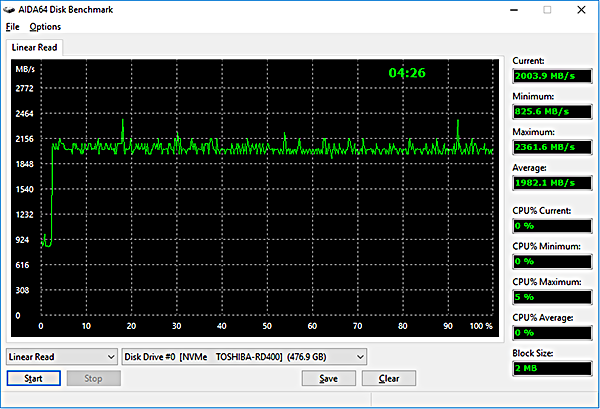
As shown above, average read performance was just under 2GB/s, although you can see there’s an odd initial “ramp up” at the start of the test, and a variance of a couple of hundred megabytes per second on average.
AIDA64 linear write-to tests were next…

Write performance is more even overall than read performance on this benchmark, with less average “jitter”. A score of 1.4GB/s is very good.
The chart below shows the average linear read and write bandwidth speeds for a cross-section of storage devices tested with AIDA64. The Toshiba OCZ RD400 again edges out the Samsung 950 Pro for top marks in this benchmark. In this benchmark the use of the Windows driver provides noticeably better linear read performance.

Linear tests are an important tool for comparing bandwidth speed between storage products, serve to highlight the consistent-bandwidth advantages of SSDs, which don’t suffer the performance drop-off that HDDs do as the test proceeds away from the fast outer edge of the disk.
In the next section we use PCMark Vantage to test real-world performance…
PCMark Vantage is an objective hardware performance benchmark tool for PCs running 32- and 64-bit versions of Microsoft Windows 7. PCMark Vantage is well suited for benchmarking any type of Microsoft Windows 7 PC: from multimedia home entertainment systems and laptops, to dedicated workstations and high-end gaming rigs. Benchmark Reviews has decided to use the HDD Test Suite to demonstrate simulated real-world storage drive performance in this article.
PCMark Vantage runs eight different storage benchmarks, each with a specific purpose. Once testing is complete, results are given a PCMark score while and detailed results indicate actual transaction speeds. Since it simulates real-world consumer workloads, Vantage gives much more weight to read speeds, and fast iOPS are not as important as they would be in a server or other business environment. With an overall score of 99679 (Toshiba NVMe driver), the RD400 showed good performance, but as you can see from the chart below, the use of the Windows NVMe driver increases the overall score by over 60%.

In this benchmark, the use of the Windows drivers returns a dramatically higher overall score– by just over 60%– than the native driver. Let’s look at the individual test scores:

512GB OCZ RD400 PCIe SSD PCMark Vantage Results (Windows driver)

512GB OCZ RD400 PCIe SSD PCMark Vantage Results (Toshiba driver)
As you can see, in the PCMark Vantage benchmark, the Toshiba driver returns lower scores in every single test, and the difference is dramatic in some tests– for example, importing pictures is over three times faster using the Windows driver.
In the next section, I share my review conclusion and final product rating.
IMPORTANT: Although the rating and final score mentioned in this conclusion are made to be as objective as possible, please be advised that every author perceives these factors differently at various points in time. While we each do our best to ensure that all aspects of the product are considered, there are often times unforeseen market conditions and manufacturer changes which occur after publication that could render our rating obsolete. Please do not base any purchase solely on our conclusion, as it represents our product rating specifically for the product tested which may differ from future versions.
This is the second NVMe drive that Benchmark Reviews has tested, and the first that comes with its own custom NVMe driver. While the drive works perfectly with the Microsoft NVMe driver built into Windows 10, performance is often better on these benchmarks with Toshiba’s bespoke driver. The chart below summarizes the difference the Toshiba NVMe driver makes in each test. The biggest issue is the dramatic drop in performance on the PCMark Vantage test. Based on these results I’d say it’s probably best to use the Toshiba driver.
| Windows NVMe | Toshiba NVMe | % change | |
| AS-SSD Read | 107.1 | 844.0 | +688 |
| AS-SSD Write | 1.91 | 479.2 | +24989 |
| ATTO Read | 2697 | 2704 | +0.26 |
| ATTO Write | 1651 | 1651 | 0.0 |
| Crystal DiskMark Read | 762.3 | 973.8 | +28 |
| Crystal DiskMark Write | 570.9 | 757.4 | +33 |
| IOmeter IOPs | 143736 | 139824 | -3 |
| AIDA64 Linear Read | 2216 | 1902 | -14 |
| AIDA64 Linear Write | 1457 | 1406 | -3.5 |
| PCMark Vantage Overall | 159989 | 99679 | -38 |
SATA SSDs are experiencing a steep price decline, with new terabyte-class drives available for well under $300. At the same time, many if not most of these drives are pushing against the SATA bandwidth limitations, about 550MB/s in the real world. So if you want more performance, you can either stripe some SATA drives in RAID 0, or move to m.2. (Another interface standard, SATA Express, exists but appears to be stillborn, with no commercially available SSDs using it.)
I do like the fact that you can get this drive pre-mounted on a PCIe card. The performance is identical to using an m.2 socket, and it’s easier and safer to handle this card than the tiny, bare m.2 circuit board. In either case, OCZ stands behind this product with a full 5-year warranty.
This is premium product and priced as such: you’ll pay about three times as much for this m.2 drive as you would for the same capacity in SATA. Of course you’re getting at least three times the performance, and sometimes much more, but for most of what I’ll call “consumer workloads”, this extra performance won’t be readily noticeable– certainly nothing like the performance jump you see in moving from a spinning hard drive to a SATA SSD.
So is it worth it? Well, the m.2 form factor lends itself to ultra-compact systems, and there are now many mITX motherboards with m.2 slots. So there’s that. And if few “consumer workloads” can exploit the performance this drive has to offer, well, it’s nice to have some headroom, and in any case there will always be the enthusiast segment that demands the very best of any particular component available, regardless of real-world utility.
As far as software goes, SSD Utility provides a number of handy features, such as proactive alerts for any problems that might develop with the drive. The adjustable over-provisioning feature is nice but I wish Toshiba had provided some example use cases for guidance. Also, a migration utility to move one’s Windows installation to a new drive would have been nice.

Since this is an NVMe drive, you must be running Windows 7 (which requires downloading and installing the special driver) or later (using the special driver is optional for Windows 8.1 and Windows 10). In our testing, the OCZ RD400 beat the Samsung 950 PRO in four out of six benchmarks, and costs about the same and has the same 5-year warranty; and offers the optional PCIe card for systems without m.2 sockets, and also offers a 1TB option that Samsung does not…yet.
At the time of this article, the OCZ RD400 NVM Express M.2 Solid State Drive was available online for: 128GB – $119.99, 256GB – $174.99, 512GB – $309.99, 1TB – $769.99.
With excellent performance, a good utility, and a competitive price for the segment, the OCZ RD400 512GB drive is a platinum-plated stick of excellence for enthusiasts who want the very fastest storage available.

+ Vastly faster than any SATA SSD; NVMe support
+ Good utility software
+ Included PCIe card makes this m.2 device usable in systems without an m.2 socket
+ 5-year warranty
– Utility doesn’t provide over-provisioning guidance
– No included migration software
- Performance: 9.75
- Appearance: 8.25
- Construction: 9.75
- Functionality: 9.25
- Value: 8.00
Excellence Award: Benchmark Reviews Golden Tachometer Award.
COMMENT QUESTION: Which brand of SSD do you trust most?


2 thoughts on “OCZ RD400 PCIe NVMe SSD Review”
Could we get a test comparison to load certain games, like load times comparisons to sata ssd?
example, Star Citizen can have some pretty long load times with SATA SSD, would be nice to know if these drives help out much in these situations etc.
While the storage device certainly has a lot to do with load time, the speed and architecture of RAM and CPU are also heavily involved. It would be disingenuous to compare one to another unless the user has the exact same system that we use for testing, which is very unlikely.
Comments are closed.