By Meng Vang
Manufacturer: GAMDIAS Technology, Inc.
Product Name: Zeus P1 RGB Optical Gaming Mouse
Model Number: GD-ZEUS P1
UPC: 848475001647
Price As Tested: $49.99 (Amazon | Newegg)Full Disclosure: The product sample used in this article has been provided by Gamdias.
The Zeus P1 RGB optical gaming mouse is part of a new RGB gaming peripheral line from Gamdias. It comes with a 12000 DPI optical sensor with eight programmable buttons. Textured rubberized side grips allow the user to better grip the mouse, and the double level RGB customizable streaming lighting design adds a unique appearance. The standard body shape design looks nothing like its predecessor but it is still suitable for users with medium to large hands. Here at Benchmark Reviews, we will take a look at the Gamdias Zeus P1 RGB optical gaming mouse and compare it to the competition. Let’s take a look at the specs sheet and go over a quick overview of this product.

- 2 RGB light streams outline
- 12,000 dpi and a switch lifecycle of 20 million clicks
- 8 of these buttons are available to be customized with the help of our Hera software
- Assign macros, change lighting, reassign buttons, and much more
- A well-rounded design with 2 rubber grips gives the complete control with comfort
- Tracking Method Advanced Gaming Optical Sensor
- Dimension(LxWxH) 127.26 x 72.45 x 40.85 mm
- Weight 125g
- Keys 8 Keys
- Resolution 1600/2400/5600/8200/10800/12000 DPI (Default 1600)
- Polling Rate 1000Hz
- Switch Lifecycle 20 Million
- USB Cable Length 1.8m
- Graphical UI Yes (GAMDIAS HERA)
The Gamdias Zeus P1 RGB gaming mouse is currently available online for $49.99 (Amazon | Newegg). The box has a picture of the product along with its features and specifications listed around it.
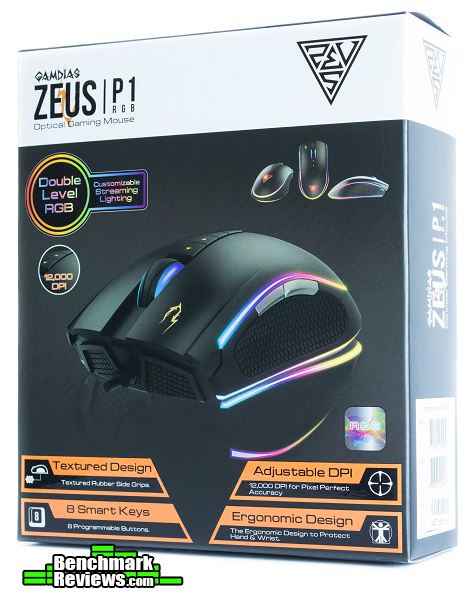
Inside the box, we find the Zeus P1 nicely packaged underneath a plastic cover surrounded by a thick layer of cardboard. This prevents any physical damage to the product during shipment.

As for accessories, we find only a multilingual quick installation guide along with the mouse. The Hera software is not included in the box, but it can be downloaded from the Gamdias website.

The body of the Zeus P1 is built from a durable ABS plastic material along with some textured rubberized side grips. Gamdias completely redesigned the body so it looks nothing like its predecessor, the original Zeus. Two RGB LED light streams wrap around the mouse to give it a beautiful, personalized look with multiple lighting effects. We can also see all of the standard buttons along with some additional buttons at the top for DPI toggling.

Now that we have seen a quick overview of the Zeus P1, let’s go into more details on what this product has to offer.
Taking a look at the top of the mouse, we can see the standard left and right buttons along with a rubberized scroll wheel. There are three buttons at the top for DPI toggling and the OMRON switches have a 20 million click life cycle. Towards the rear is the Gamdias logo, which illuminates and indicates which DPI level the mouse is currently on.

At the bottom of the Zeus P1, there are three Teflon glide pads for smooth tracking. The mouse does not include a weight system, but that is perhaps due to its stock weight at 125g. We can see the 12000 DPI optical sensor is more bias towards the front of the mouse.

The left side of the Zeus P1 includes two large buttons for forward and backward controls. This textured rubberized grip surface can allow the user to better grip the mouse.

No additional side buttons are present on the opposite side. Instead, we can see the textured rubberized grip surface along with the double RGB light streams.

At the front of the Zeus P1, the braided USB cable attaches to the center of the mouse. The rubberized scroll wheel does not illuminate, but it does reflect a bit of light coming from the double RGB light streams.

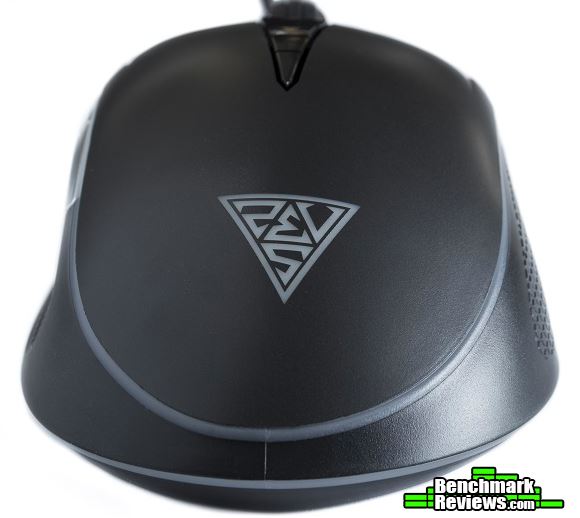
At the rear, the surface maintains a smooth design with only the Gamdias branding logo. The logo changes colors to indicate the current DPI level on the mouse.
The Zeus P1 has a braided 1.8 meter USB 2.0 cable with a gold-plated connector at the end.

Let’s take a look at the Hera software in the next section.
Taking a look at the Hera software, we can see it has a nice graphical user interface with plenty of options to go through. Like the Corsair Utility Engine and the Razer Synapse software, Hera can manage multiple gaming peripherals simultaneously. In the Key Assignment tab, we can assign different mouse and keyboard functions to any button. Five separate profiles allow us to store multiple key assignments and lighting effects within the mouse.

In the Macro Management tab, we can create, record, and delete macros if we want. The Hera software does allow importing and duplicating macro settings for your convenience.

Mouse control lets you adjust cursor speed, scroll speed, double click speed, DPI sensitivity, and polling rate. Surprisingly, there is not an adjustment for lift-off distance. In terms of DPI, there are six customizable DPI levels to choose from. The DPI range is from 400 to 12800 (not 12000, oddly) and can be adjusted in steps of 200.

The fun begins with the lighting effects in the Mouse Luminance tab. Aside from selecting a single color, there are a few lighting effects to choose from. Each lighting effect will have its own brightness, speed, and directional settings. Unfortunately, the rear logo cannot be customized as it is the LED indicator for the current DPI level.

Sound and Timer allows you to assign a certain sound to a button. A few pre-recorded sound effects are available to choose from, but you may record or import your own sounds as well. The timer function can delay a sound to remind you to do something later. This feature can also be useful when changing profiles, DPI levels, or recording macros.

You can also record your own sounds and save them to the software. The sounds will only work when the Hera software is running.

The Timer Setting tab allows you to create and modify reminders. You can create timers by dialing in the amount of days, hours, minutes, and seconds. Choose an alarm from a list of five presets, and type in something to remind you what alarm it is once it comes on. For example, you can type in “Remove pizza from oven” so you do not accidentally burn your lunch while gaming. You can also choose a font size and the position of the text on the screen.

In the next section, we will take a look at how the Zeus P1 performs.
Sensor Tracking Performance and Polling Rate
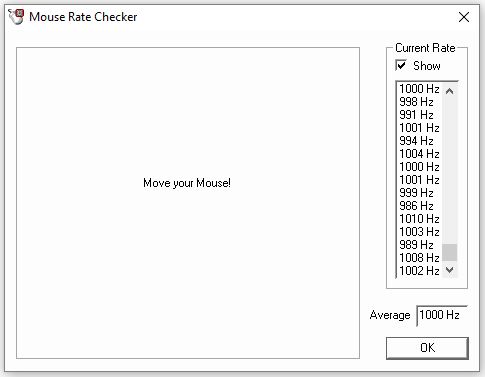
The Zeus P1 performed well and was able to handle very fast flicks across the surface thanks to the 12000 DPI optical sensor. No acceleration was present during testing and the average polling rate was around 1000 Hz as advertised. The software allowed the sensor to reach a maximum DPI of 12800 even though 12000 was the maximum. At 12800 DPI, the sensor performed and tracked well. I did not notice a major difference in game compared to the 2600 DPI I am familiar with. Some users may benefit from using a higher DPI setting, but more DPI does not mean better performance.
In the Hera software, the DPI range was from 400 to 12800 and can be adjusted in steps of 200. I found 200 to be too much of a large step for adjustments. Something like increments of 50 would have been more ideal. Also, many professional players play at low DPI sensitivities. With the Zeus P1, 400 was the lowest, which is normally what professional players use. If you play at anything lower than 400 DPI, you may be out of luck with the Zeus P1.
With that being said, why would anyone purchase a 12000 DPI mouse only to use it at 400 DPI? Heck, the Razer Mamba Tournament Edition and the SteelSeries Rival 700 both have crazy 16000 DPI sensors (or CPI for SteelSeries). Not sure if that makes you a better gamer but that 16000 DPI sure looks good on paper, doesn’t it? Like the megapixels to a camera, we cannot say a mouse is better than the other just by comparing DPI sensitivity. There is so much more to a mouse than just DPI. We need to consider other crucial factors, like sensor performance, body shape, weight, and button placement.
There is a lot that goes into a topic like this; should you use a low DPI or a high DPI for gaming? I personally prefer something over 2000 DPI but nothing more than 3500 DPI for gaming. I can notice quite a bit of jittering with slow movements at a very low DPI, but the jitter was nonexistent at the 2600 DPI I am using now. But if you can pull off fancy moves and headshot every enemy that gets in your way, stick with whatever you have and be happy with it.
The Gamdias website did not specify which sensor was used in the Zeus P1. But from the feel of it, it felt somewhat similar to the PixArt PMW3360/3366 optical sensor. It performed well against the Logitech G Pro, which utilized the PMW3366 optical sensor. If I had to guess, I would say the Zeus P1 used a 3360 optical sensor. Physically, the sensors between the G Pro and the Zeus P1 looked the same, but I cannot confirm it is a 3360 optical sensor.
Button Response and Placement
I liked the placement of the large side buttons as they were easily accessible with my thumb. They responded perfectly fine and the overall shape made it suitable for medium to large hands. Although the left and right buttons did not curve in towards the body of the mouse, I had no problems using the Zeus P1 over other mice.
RGB Lighting Accuracy
Replicating a pure white color can be difficult for some RGB peripherals. When it came to color reproduction, the Zeus P1 did fairly well. When set to white, the double layer RGB light streams were a bit on the pinkish side with some purple towards the front of the mouse. I also noticed the light was not as bright above the two side buttons, and there was a small tinted area towards the rear-right of the mouse. Of course, you would have to pay close attention to even notice this.

Reds, greens, and blues looked good all-around including the colors in between. I wished there was an option to customize the color to the rear logo. For example, if you are building a green themed setup, you may want to stick with the third DPI level. Just make sure to tune the DPI setting at that level. The Zeus P1 may not have the brightest LED’s, but it looked amazing with the lights dimmed.
Light Streams
I had great expectations for the double level RGB customizable streaming lighting design. This was perhaps the most attractive part about the Zeus P1. In a dimly lit room, the light streams looked amazing with the circular wave effect. At the highest transitioning speed, the colors transitioned smoothly throughout the light streams and looked great with my setup. At anything lower than the highest speed, the colors did not transition very smoothly with the circular wave and parallel wave lighting effects.

There are a lot of great looking mice out on the market. Some may have aggressive body designs, tons of LED’s, metal body construction, and so on. With that, there would often be compromises on their body shape, buttons, weight, and worst of all, their sensors. I have seen plenty of attractive looking mice over the years only to find something terribly wrong with them. Since then, I preferred functionality over appearance. But for some reason, the Zeus P1 had both; it performed well and looked good with its RGB light streams.

Not only did it look the part, the Zeus P1 performed well thanks to its 12000 DPI optical sensor. Its body shape plus the weight did not affect my aim as it was fairly light weight and comfortable. It was not the lightest mouse, but it was also not the heaviest. Some players would prefer a heavier mouse, but I prefer a very light mouse so I can perform very quick flicks and turns during a game. I play competitively, so I need a light weight mice with a stable sensor in order to aim and maneuver correctly. The last thing I need is extra weight while playing competitively since weight will only hinder my movement speed.
Size Comparison with Other Mice
Let’s compare the shape and size of the Zeus P1 against other gaming mice. The Zeus P1 was just a bit longer than the Mamba TE. It did not have much of a middle curve compared to the Mamba TE, but it felt more natural when compared to the ambidextrous body shape of the G Pro. On the scale, it was about 10 grams heavier than the Mamba TE, but it was nowhere near as heavy as the 175g ROG Spatha.

Because of its standard body shape, I was able to adapt to the Zeus P1 very quickly. It felt somewhat similar to the Mamba TE without the noticeable hump in the center. The side buttons felt a bit mushier compared to the Mamba TE and G Pro, but they were easily accessible due to their larger size. Unfortunately, I was unable to obtain the original Zeus for this comparison, but I liked the simpler body design on the Zeus P1. The original Zeus had too much of a “gamer” look to it, so it potentially made it non-suitable for some desktop setups. Of course, there are many gamers out there who would prefer a more aggressive body design, so it really depends on the person and their style. But in my opinion, the simpler the design, the better it can blend in with any setup.
Let’s go into my final thoughts and end this review with my conclusion in the next section.
The Zeus P1 looks amazing and performs well with its 12000 DPI optical sensor. Usually, a beautiful mouse would need to compromise a few things just so it can look good. With the Zeus P1, it looks great with its double level RGB customizable streaming lighting design and its simple body shape. It is fairly light at around 125g and is suitable for users with medium to large hands. The Hera software may seem a bit limited for some users, but there are a lot of users who would much rather prefer to tune a few settings and get on with gaming. Users looking for an upgrade from an older mouse should really consider the Zeus P1.

Performance wise, the Zeus P1 does great with its 12000 DPI optical sensor. I noticed no acceleration while gaming and the buttons responded with no noticeable problems. Gamdias did not specify the sensor, but it performs and looks physically identical to the 3360/3366 optical sensor. If I had to guess, I would say this is the 3360 optical sensor. But then again, I cannot confirm this unless I crack the mouse open or something. If you do crack your Zeus P1 open by accident, you are backed up with a one year and two month warranty here in the US.
The double level RGB customizable streaming lighting design makes the Zeus P1 stand out from the crowd. Even the body shape looks nothing like its predecessor. The LED’s look really good in low light conditions, but it would be nice to have the option to customize the rear logo as well. Customization may not be as flexible as the Chroma customizable lighting on the Razer Mamba TE, but the customizable streaming lighting design is a good start for something new.
When it comes to construction, the Zeus P1 is built mainly from a durable plastic material with rubberized side grips. No sensor rattle was present, but the scroll wheel did rattle just a bit while shaking the mouse around. The OMRON switches are rated at 20 million clicks, so this mouse should last you until your next upgrade.
The mouse functions well as a gaming mouse or a desktop ornament. It looks great, feels well built, and performs well without any noticeable delay or acceleration. The Hera software works well and can manage multiple Gamdias gaming peripherals in one application. When terminating the software, it would crash almost every time. But at least it has not crashed in the middle of using the software.
As of January 2017, the Gamdias Zeus P1 RGB gaming mouse currently sells online for $49.99 (Amazon | Newegg). This is a very aggressive price when compared to the Mamba TE and some of the offerings from Logitech. If you are looking for an affordable mouse with some cool looking light streams but still want to increase your kill-death ratio, the Zeus P1 may be the mouse for you.
+ Great build quality
+ Good RGB color accuracy
+ Inexpensive mousing product
+ Excellent 12000 DPI optical sensor
+ Attractive double level RGB light streams
– LED’s are dim, but looks great in dimly lit rooms
-
Performance: 9.25
-
Appearance: 9.25
-
Construction: 9.00
-
Functionality: 8.75
-
Value: 9.00


