By David Ramsey
Manufacturer: ASUSTeK Computer Inc.
Product Name: LGA1150 Intel Motherboard
Model Number: Z87-Deluxe/Dual
UPC: 886227515462
Price As Tested: $337.99 (Amazon | Newegg)
Full Disclosure: ASUS provided the product sample used in this article.
How many new features can you cram onto a motherboard that are both useful and innovative? ASUS is the expert at doing this, and their history of innovations is long: the custom EPU and TPU processors; intelligent fan control, the ability to update your BIOS on a board with no CPU and RAM installed, and so forth. The Z87-Deluxe/Dual LGA1150 motherboard shows that ASUS is not content to rest on its laurels. With new features like Near Field Communications and 802.11ac support, this motherboard has it all.
Of course, fancy hardware along isn’t much good without supporting software, and ASUS has updated their drivers and utilities, especially their flagship AI Suite do-it-all utility. The already excellent UEFI BIOS has been tweaked further and given a fresh coat of paint as well.

The Z87-Deluxe Dual is one of ASUS’ mainstream motherboards, which ASUS has moved from a blue and black color scheme to a black and gold color scheme. While I’m not used to it yet, I will admit that it’s pretty striking…kind reminds me of the John Player race cars of the 70s and 80s, not to mention my friend’s Trans Am. Of course, what we’re really interested in here are the features and performance, so let’s get started.
The Z87-Deluxe Dual is a standard ATX form factor motherboard. ASUS uses the available board space to stuff on features like 10 SATA 6G ports, Dual Intelligent Processors, six 4-pin PWM fan headers, a four-digit POST code display, and lots of buttons and indicator LEDs.

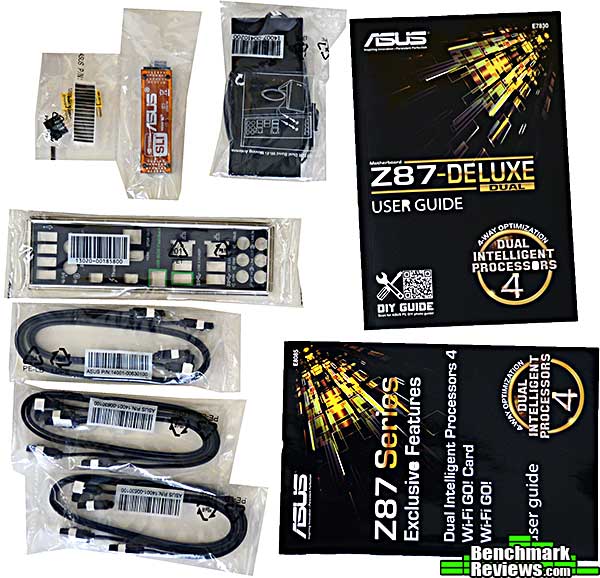
The accessories (clockwise from upper left) include Q-Connectors for easy attachment of the front panel and audio wires, an SLI connector, a combo antenna for 802.11ac and BlueTooth 4.0, the user guide, a features manual, six latching SATA cables, and an I/O shield. Although the board includes a PLX chip and supports quad-GPU SLI and 3-way CrossFireX, ASUS does not include a tri-SLI bridge.
ASUS includes the NFC Express Near Field Communication hub with the Z87-Deluxe Dual. It connects to a rear USB 3.0 port and has two additional USB 3.0 ports on one side. The yellow tag contains a chip the NFC Express recognizes when it’s tapped on top of the receiver. (The bubbles in this image are from a removable plastic label covering the top of the receiver).

With 10 SATA 6G ports, you’re not going to run out of connectivity. The yellow ports are supported by the Z87 chipset, while the dark brown ports are courtesy of an ASMedia controller.

The I/O panel comprises four USB 2.0 ports, antenna connectors for the 802.1ac and BlueTooth 4.0 radios, two USB 3.0 ports on top of a Thunderbolt port, an optical audio port, HDMI video out, and a second Thunderbolt port; the BIOS Flashback button, four more USB 3.0 ports and two gigabit Ethernet ports, and finally an analog audio panel. The audio, by the way, is full Digital Theater Systems (DTS) certified. Oddly enough, there’s no e-SATA port, which I find useful for docking stations.

ASUS claims this is the first Intel-certified dual Thunderbolt motherboard (that’s where the “Dual” in the name comes from). And those Thunderbolt ports can be useful: the Z87-Deluxe Dual motherboard can support three monitors natively since the Thunderbolt ports can be used to drive DisplayPort monitors with a simple adapter. And all three ports (Thunderbolt and HDMI) support 4K Ultra HD resolutions (albeit at a 24Hz refresh rate).

ASUS replaces the two separate stick antennas they’ve used on previous boards for WiFi and BlueTooth with this integrated antenna. And note that this board supports the very latest WiFi 802.11ac specification, so with a matching router, you’ll get great WiFi performance.
Let’s take a closer look at the some of the hardware details of this board in the next section.
There’s been a “component quality war” going on in the motherboard field for some time now. ASUS has equipped the Deluxe Dual with 5,000-hour solid capacitors as part of their “5x Protection”, which comprises DRAM overcurrent protection, precise power control via Digi+ VRM, enhanced electrostatic discharge protection, stainless steel housings for the rear I/O ports, and the aforementioned 5K caps.

The ASUS LGA1150 motherboard uses a number of third-party and custom chips to implement its features, some of which are shown below. Clockwise from the top left, we have the ASMedia ASM1074 USB 3.0 hub controller, a Nuvoton 6791D for fan control and voltage monitoring, a PLX 8608 8-lane PCI Express switch, a Winbond BIOS chip, ASUS’ own TPU controller, and last an Intel DSL4510 Thunderbolt controller.

The Z87-Deluxe Dual provides the full ATX complement of seven slots: three PCI-E x16 and four PCI-E x1. The yellow x16 slot provides the full sixteen PCI-E lanes with a single video card, but splits into an x8-x8 configuration with two cards. The image shows the PLX chip just below the third x1 slot; it’s what enables a 8x/4x/4x configuration with three video cards. Don’t worry about 4x lanes holding you back– these are PCI-E 3.0 lanes, remember.
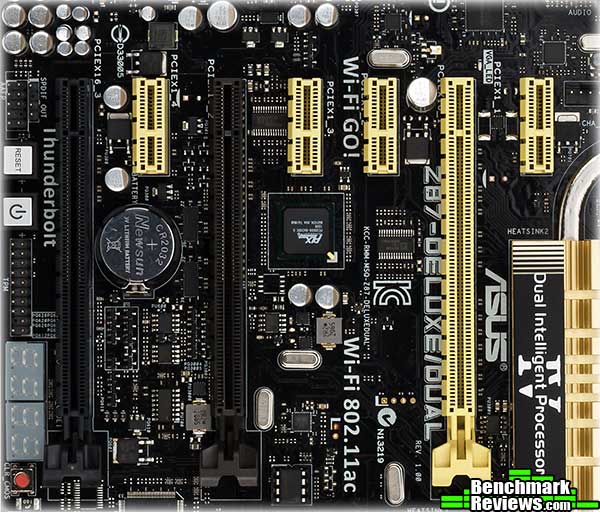
Looking at the lower left of the board, going from the left, we can see the SPDIF Out connector, just above the analog audio connector (should your case have front panel microphone/headphone ports). Next are the onboard Reset and Power switches, followed by the Trusted Platform Module connector and the four-digit POST code display.

Past the POST code display, there’s the Clear CMOS button (which I would really prefer to have on the rear I/O panel), two USB 2.0 headers, the DirectKey button (pressing this button when the system is off will turn it on and go directly into the BIOS), a chassis fan connector, and the front panel header. Above the front panel header are the TPU and EPU switches. On previous ASUS motherboards, the TPU switch has had only “on” and “off” positions, but now there are two “on” selections. Position 1 performs a mild multiplier overclock (assuming you have a “K” series CPU) while position two also tries a BCLK overclock. I’m not sure how effective the latter will be, but we’ll find out in the testing portion.

The Mem OK button is becoming a standard feature. If you render your system unbootable with a memory overclock, pressing this button will instantly reset the stock memory timings.

The CPU socket area is clear of obstructions and the heat sinks for the voltage regulator modules shouldn’t cause clearance problems for any heat sink. Under the heat sinks we can see the chokes for the 16-phase CPU power circuits.

Of course, these days it’s not all about the hardware– there’s the BIOS and utility software too!
ASUS has always had the best-designed UEFI BIOSes, in my opinion. They’ve upped their game with the release of their Z87 lineup, and even tweaked the color scheme.

The default BIOS page layout has been updated to show CPU, DRAM, and fan settings across the top. The middle area, with its system performance settings, and the lower area, with the attached disks the user can drag into preferred boot order, remain the same.

Pressing F7 or clicking the Advanced Mode button at the top right of the main screen switches the BIOS to advanced mode. This is where most enthusiasts will prefer to spend their time.

The CPU Configuration section displays the specifications of the processor, as well as allowing you to enable or disabled a variety of CPU features.

The SATA Configuration section now has a setting for Link Power Management (Aggressive LPM Support). You can save power by having unused SATA devices power down, but this adds a small wait when the devices are needed as they must be powered up and brought back online. You can also change the default device names to more descriptive names as shown above.

Of course, ASUS gives you fine-grained control over the Thunderbolt ports as well. Unfortunately, I have no Thunderbolt devices to test with!
There’s more BIOS goodness in the next section.
Overclockers will gravitate to the AI Tweaker section. It’s here that you’ll be able to adjust every CPU, memory, and power setting you’ve ever heard of, and frankly a lot of settings you haven’t heard of!

The main Tweaker page serves as a stepping-off point for the individual sections on the CPU, DRAM, and power adjustments. There are a few general settings at the bottom.

The CPU section has the usual suspects, but bear in mind that what you see on this screen will vary depending on the CPU installed in the system. You won’t be able to adjust the CPU Core Ratio, CPU Strap, or some other settings with non-“K” series CPUs.

I was going to count how many settings you could change on the AI Tweaker RAM page, but I lost count after 20. OK, actually I counted twice and got 49 different DRAM settings, including interesting ones like Scrambler Setting. I’m told that setting this to “Optimized” will improve stability.
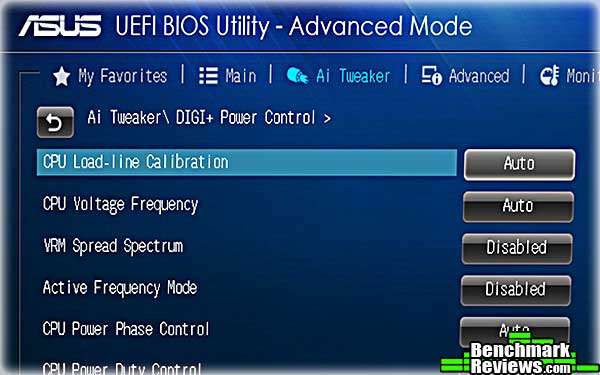
Of course, if you’re overclocking, you’re going to need to work with the power settings too. ASUS was one of the first (if not the first) vendor to adopt fully digital power supplies on board with their Digi+ design, and experienced overclockers will be able to make good use of all the capabilities available.

Another cool BIOS feature ASUS introduced on their Z87 line is the concept of a Favorites section. At almost any point in the BIOS, you can press F4 and add that specific setting to the My Favorites page. This makes accessing your frequently-used settings much easier. Here I’ve added CPU Load-line Calibration, 1-Core Ratio Limit, and DRAM Frequency to my Favorites page.

This last item is one of my favorite features: a list of all the settings you’ve changed, before you have to commit to saving them. Ingenious.
I’ll examine ASUS’ new version of AI Suite in the next section.
Like all ASUS motherboards of the past few years, the Z87-Deluxe Dual motherboard comes with a version of ASUS’ AI Suite utility software. The exact features included in this utility will vary according to the motherboard it’s bundled with: for example, Republic of Gamers motherboards get a version with the Turbo V Evo automatic overclocking feature, while TUF motherboards get Thermal Radar. This board doesn’t have either of those, but there’s still a lot to cover.

This version of AI Suite has a much different user interface from previous versions. This is the 4-Way Optimization screen, and while there’s a lot of information here, overall this interface does a good job of presenting summary information about CPU performance, EPU energy savings, and fan and power settings. Below the 4-Way Optimization button is text that explains that clicking the button will “…automatically detect the best configuration based on actual usage.” Let’s give it a shot…

Before you begin optimization, you can click an Advanced Settings button to bias the type of tuning you’d like. Here you can adjust the settings for CPU overclocking, EPU power savings, fan control, and power settings. I left the settings as shown above and started the tuning.
Auto Tuning immediately bumped the CPU multiplier to 43, as shown above. Then, after a delay, it rebooted and started tweaking individual core multipliers, running a brief stress test at each step.
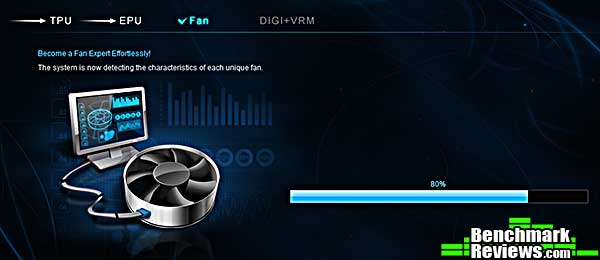
After finishing the CPU overclocking and EPU settings, the system turned to the fans. Since the Z87-Deluxe Dual doesn’t have multiple onboard temperature sensors like the TUF series motherboards, you can’t slave individual fans to specific sensors as you can with those motherboards’ Thermal Radar feature. What this step does is run each fan through its full RPM range and stores the results so that it knows what “full speed” and “minimum speed” settings are for each fan. Using this information lets you subsequently set cooling modes like “Silent” and “Performance” that will make best use of each fan in the system.

The actual tuning process took maybe 10 minutes. After finishing with the CPU, EPU, fan, and power settings, AI Suite displays a summary screen showing the results. It’s interesting to see that it decided on a 44x multiplier when one or two CPU cores are loaded, and a 43x multiplier when three or four cores are loaded. The Digi+ Power Control was set to maximum load line calibration and “Extreme” CPU power phase control. The utility also detected and used the memory’s XMP profile, which a surprising number of “auto tuning” utilities don’t.
But there’s more to AI Suite than automated optimizations, as we’ll see in the next section.
AI Suite also provides control of a variety of other features, as you can see from the screen shot below. We’ve seen all of these on previous ASUS motherboards.

Network iControl lets you prioritize network usage by selected programs. You could, for example, set reduced priority for a BitTorrent client, and a high priority for a networked game, so that long downloads in the background wouldn’t adversely affect game play. You can also configure a No Delay TCP setting that will automatically bundle multiple small requests into a single packet, saving the 40-byte-per-packet overhead each separate request would normally incur.

Fan Xpert 2 isn’t as elaborate as the Thermal Radar feature of ASUS’ TUF motherboards. You can’t slave a fan’s performance to the readings of an individual temperature sensor, but the system will automatically determine the RPM range for every fan in the system, and allow you to select Standard, Silent, Turbo, and Full Speed modes that adjust all fans appropriately. You can pre-define and save fan speed profiles that you can recall with a click.

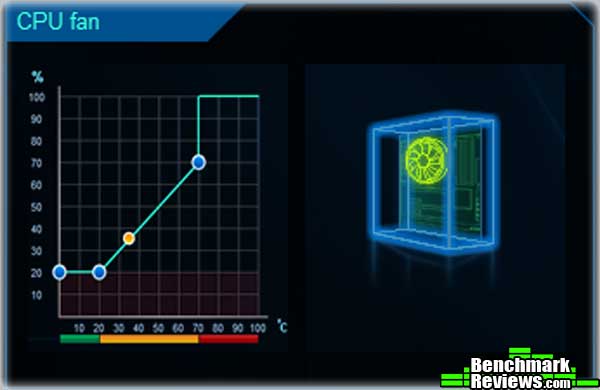
There’s one exception to the “no temperature sensors” rule: you can adjust the performance curve of the CPU fans (there are two CPU fan headers) based on the reported CPU temperature.
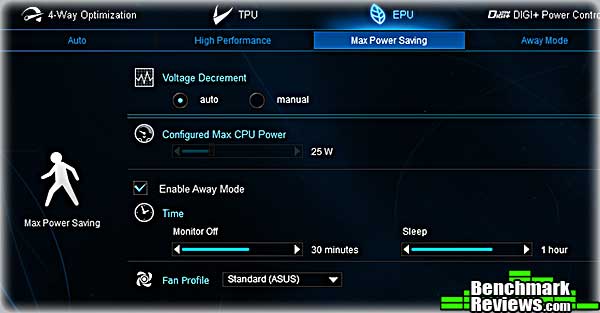
If you wish to manually tweak parameters rather than letting 4-Way Optimization do it for you, you can of course dive into each subsection and fiddle about to your heart’s content, as this EPU settings screen shows.
Of course there are details adjustments for the CPU and Digi+ Power as well. These settings don’t duplicate absolutely everything in the BIOS, but they do have everything you’d want to adjust most of the time.

There are still other AI Suite features:
- There are two USB fast-charge features: USB Charger+ and AI Charger. USB Charger+ will provide fast charging on the USB BIOS Flashback port (the port is outlined in green on the I/O shield). AI Charger provides rapid charging on the ASMedia-supported USB 3.0 ports, and only works with Apple “i-devices” and BC 1.1 compliant devices.
- WiFi Engine can operate in either of two modes: a client mode, where it connects your system to an existing WiFi network, and AP (Access Point) mode, which it can share an Ethernet network connection over WiFi.
- USB 3.0 Boost uses two different protocols to speed up USB transfers: Turbo protocol will work with most USB 3.0 devices, while UASP (USB Attached SCSI Protocol) provides even better performance for devices that support it. The proper protocol will be selected automatically depending on the device that’s plugged in.
- Wi-Fi Go enables remote control of your system, as well as easy file transfers. All you need is the free Wi-Fi Go Remote application on your Android or iOS device:

As this next screen shows, transferring photos from my iPhone camera to the PC was trivial: just select the photos you want and click Send. Remote Desktop worked fine, although seeing a 2560×1600 screen on my 4″ iPhone display wasn’t actually very useful.

In the next section I’ll take a look at the included NFC Express box.
NFC stands for Near Field Communication, and it’s a standard originally developed for smart phones and other mobile devices. The idea behind NFC is that devices must be very close– typically within a few inches– in order to communicate, and that the protocol doesn’t require logging in and in general is simpler to set up than WiFi. NFC can be used between two powered devices, such as your phone and a payment pad at a store, or between a single powered device and an unpowered device. Unpowered devices are called “tags”.
The ASUS Z87-Deluxe Dual comes with an NFC pad they call NFC Express, and one bright yellow tag you can put on your key ring. It’s in the form of a small plastic box that connects to the motherboard via one of the rear USB 3 ports– it also acts as a USB 3 hub with two additional ports on one edge.

ASUS only supplies Windows 8 drivers for he NFC Express, so you’re out of luck if you’re sticking with Windows 7. When the drivers are installed and the device is connected, AI Suite’s WiFi GO! icon is replaced with a new NFC Express icon. Clicking this icon opens a new NFC Express page that has four selections: Windows 8 Login, Quick Launch, Remote Desktop, and Photo Express.
Windows 8 Login lets you log into Windows 8 by tapping the yellow tag on the NFC Express box. Simply enter the account and password you want to log into, place the tag on the box, and click OK, and the tag is programmed. Subsequently you can log into Windows just by tapping the tag on the box.

With Quick Launch, you can configure profiles of applications and files, and save them to an NFC-enabled device or a tag. Touching the tag to the box will automatically open all the files you selected:
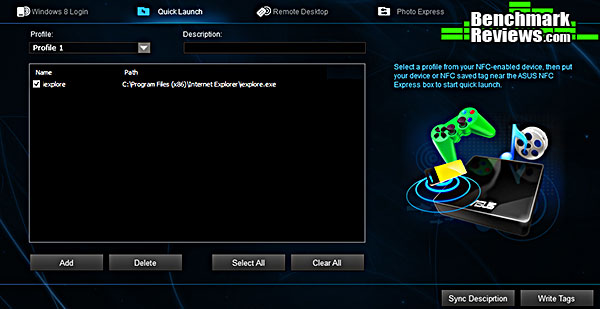
And that works fine, too. In fact, the same tag can be used both to log in and to launch applications. However, you’re limited to files that “Windows 8 knows about”; as best I can determine, you can’t select arbitrary *.exe files: you can only select things shown in the file selection dialog, and it doesn’t show much. Also, the system’s only good for launching files in the desktop environment: you can’t launch tiled apps, and if you touch the tag to the NFX Express box while in the interface formerly known as Metro, the apps will launch, but you’ll have to manually switch to desktop mode to see them.
I couldn’t test Remote Desktop and Photo Express since I don’t have an NFC-enabled phone or tablet. However, it seems to me that Remote Desktop over NFC would be of limited utility since the phone or tablet would have to be very close to the NFC box. Photo Express purports to automatically move photos from your NFC device to the computer, which is nice, but you have to have AI Suite open and set to the Photo Express page for this to work. Using File Transfer from WiFi GO! Remote seems easier, since you can do it from anywhere in your WiFi network range and don’t need to set up the receiving computer beforehand.
The trouble is, it seems as if you must choose one or the other: once I installed the NFC drivers, WiFi GO! vanished as an option in AI Suite, its icon replaced by NFC Express.
I’m sure the utility of NFC Express will continue to evolve, but right now I think WiFi GO! will be more useful for most people.
After a few years of testing motherboards, I’ve noticed that motherboards based on the same chipset tend to have very similar performance. This wasn’t always the case, but now that the memory controller’s in the processor, and the PCI-E lanes are in the chipset, it’s not surprising that everyone’s “Y22″ chipset motherboard performs pretty much alike…at stock settings, anyway. Haswell collapses the field even further by moving voltage regulation circuitry onto the CPU. Say goodbye to those exotic 24-phase CPU power supplies of yore…
So testing motherboards, unlike testing CPUs or video cards, is more about examining the proprietary features that make one different from another, as well as testing a board’s overclocking ability, especially if it’s marketed to the enthusiast community.
I tested the ASUS Z87-Deluxe Dual board with a Core i7-4770K CPU at both stock and overclocked speeds. For the stock clocks, I used the memory’s XMP profile. For the overclock, I used the auto overclocking features provided by the TPU switch on the motherboard. This motherboard is the first ASUS motherboard I’ve seen where the TPU switch has two settings, flagged by green (setting 1) and yellow (setting 2) LEDs.

Obviously what the TPU settings are will depend on your CPU. For my Core i7-4770K, the settings were:
TPU1: Strap 100, 43x multiplier for 1 or 2 cores, 42x for three cores, and 41x for four cores. XMP profile selected for memory. Load-line calibration and power phase both set to “Extreme”.
TPU2: Strap 125, multiplier 34x for 4.250GHz on all cores. Power settings the same as with TPU1, but the memory was run at its default 1333MHz due to the strap change.
I also included results from the highest manual overclock I could achieve, which as I know from experience with this processor is a strap of 100 and a 45x multiplier on all cores. I included the benchmark results from the stock-clocked MSI Z87 MPOWER MAX motherboard with the same CPU, memory, video card, and disk for comparison.
- Motherboard: ASUS Z87-Deluxe Dual with BIOS 1305
- Processor: Intel Core i7-4770K “Haswell” CPU
- System Memory: 8G (2x4G) DDR3-1600 at 9-9-9-24 timings
- Video Card: AMD Radeon HD6850
- CPU Cooler: Thermalright Silver Arrow
- Operating System: Windows 7 Home Premium x64
- AIDA64 v3.00.2500
- SPECViewPerf 11
- x264HD 5.0
I’ll start with synthetic benchmarks in the next section.
AIDA64 is a full 64-bit benchmark and test suite utilizing MMX, 3DNow! and SSE instruction set extensions, and will scale up to 32 processor cores. An enhanced 64-bit System Stability Test module is also available to stress the whole system to its limits. For legacy processors all benchmarks and the System Stability Test are available in 32-bit versions as well. Additionally, AIDA64 adds new hardware to its database, including 300 solid-state drives. On top of the usual ATA auto-detect information the new SSD database enables AIDA64 to display flash memory type, controller model, physical dimensions, and data transfer performance data. AIDA64 v1.00 also implements SSD-specific SMART disk health information for Indilinx, Intel, JMicron, Samsung, and SandForce controllers.
All of the benchmarks used in this test- Queen, PhotoWorxx, ZLib, and hash- rely on basic x86 instructions, and consume very little system memory while also being aware of Hyper-Threading, multi-processors, and multi-core processors. Of all the tests in this review, AIDA64 is the one that best isolates the processor’s performance from the rest of the system. While this is useful in that it more directly compares processor performance, readers should remember that virtually no “real world” programs will mirror these results.

In the Queen test, the ASUS board starts out with a small but noticeable advantage over the MSI board. Manual overclocking to 4.5GHz nets a nice 15% performance increase.
The PhotoWorxx test is much more dependent on memory bandwidth than CPU horsepower– see the way the score dips for the TPU2 settings, which clock the memory back down to 1333MHz.

The ZLIB and AES tests continue the trend: the ASUS board has a slight advantage over the MSI board at stock clock speeds (about 5%). The TPU2 setting has a noticeable advantage over the TPU1 setting, especially in ZLIB. Heavily threaded tests like these will benefit from the fact the TPU2 runs all four cores at 4.25GHz; the TPU1 setting has a higher 4.3GHz speed when one or two cores are in use, but drops to 4.2GHz when all four cores are loaded.
Let’s take a look at SPECViewPerf in the next section.
The Standard Performance Evaluation Corporation is “…a non-profit corporation formed to establish, maintain and endorse a standardized set of relevant benchmarks that can be applied to the newest generation of high-performance computers.” Their free SPECviewperf benchmark incorporates code and tests contributed by several other companies and is designed to stress computers in a reproducible way. SPECviewperf 11 was released in June 2010 and incorporates an expanded range of capabilities and tests. Note that results from previous versions of SPECviewperf cannot be compared with results from the latest version, as even benchmarks with the same name have been updated with new code and models.
SPECviewperf comprises test code from several vendors of professional graphics modeling, rendering, and visualization software. Most of the tests emphasize the CPU over the graphics card, and have between 5 and 13 sub-sections. For this review I ran the Lightwave, Maya, and Seimens Teamcenter Visualization tests. Results are reported as abstract scores, with higher being better.
The lightwave-01 viewset was created from traces of the graphics workloads generated by the SPECapc for Lightwave 9.6 benchmark. The models for this viewset range in size from 2.5 to 6 million vertices, with heavy use of vertex buffer objects (VBOs) mixed with immediate mode. GLSL shaders are used throughout the tests. Applications represented by the viewset include 3D character animation, architectural review, and industrial design.
The maya-03 viewset was created from traces of the graphics workload generated by the SPECapc for Maya 2009 benchmark. The models used in the tests range in size from 6 to 66 million vertices, and are tested with and without vertex and fragment shaders. State changes such as those executed by the application- including matrix, material, light and line-stipple changes- are included throughout the rendering of the models. All state changes are derived from a trace of the running application.
The tcvis-02 viewset is based on traces of the Siemens Teamcenter Visualization Mockup application (also known as VisMockup) used for visual simulation. Models range from 10 to 22 million vertices and incorporate vertex arrays and fixed-function lighting. State changes such as those executed by the application- including matrix, material, light and line-stipple changes- are included throughout the rendering of the model. All state changes are derived from a trace of the running application.

SPECviewperf tests actually comprise code from real-world applications, so their results are more indicative of total system performance than the pure CPU performance metrics we see from synthetic tests like AIDA64. Here we see the ASUS motherboard at its first disadvantage to the MSI MPower: it’s not until we get to TPU2 and manual overclocking that it can surpass the former’s scores. Things are better for ASUS in the Maya tests, and the TCVIS tests show little significant differences.
Tech ARP’s x264 HD Benchmark comprises the Avisynth video scripting engine, an x264 encoder, a sample 1080P video file, and a script file that actually runs the benchmark. The script invokes four two-pass encoding runs and reports the average frames per second encoded as a result. The script file is a simple batch file, so you could edit the encoding parameters if you were interested, although your results wouldn’t then be comparable to others.
This is another example of a useful benchmark that’s based on real-world code. I like encoding benchmarks since they’re one of the few tests that can measure a real-world use of the power of modern multi-core processors. I like this particular benchmark since it’s the best “overclock killer” I’ve seen: systems that will run most stress tests all day long with a given set of overclock settings will crash on this benchmark.

The Z87-Deluxe Dual continues to show its better performance at stock clocks. This purely CPU-bound benchmark benefits from overclocking, with
I describe my overclocking experience with this board in the next section.
As with many ASUS motherboards, there are a surfeit of overclocking mechanisms. Specifically, you can overclock by manually tweaking settings in the BIOS, by letting the BIOS do it for you with “OC Tuner”, by moving the TPU switch to position 1 or 2, and last by using 4-Way Optimization within AI Suite. Caveat: most of these overclocking adjustments are dependent on “K”-series Haswell CPUs. You won’t be able to overclock much, if at all, with non-“K” series devices.
If you’re the kind of reader that skips to the end of the book to see how things turned out, I’ll give you the manual overclocking results up front: the best I was able to do with a manual overclock was a multiplier of 45x on all cores, at 1.3 volts. This is the same maximum I’ve hit on virtually every Z87-based motherboard I’ve tried and it’s obviously a limit of my particular CPU, at least with air cooling. If you keep up with this sort of thing you’ll know that Ivy Bridge and Haswell silicon simply doesn’t overclock that well.

That said, I was very impressed by how well the various mechanisms ASUS provides actually did. Here are the actual settings made by moving the TPU switch to position 1 and position 2, as well as the more comprehensive changes made by ASUS’ 4-Way Optimization feature in AI Suite:
| Multiplier | ||||||
| Strap | 1 Core | 2 Cores | 3 Cores | 4 Cores | RAM | |
| Stock | 100MHz | 39x | 39x | 39x | 39x | 1600MHz |
| TPU1 | 100MHz | 43x | 43x | 42x | 41x | 1600MHz |
| TPU2 | 125MHz | 34x | 34x | 34x | 34x | 1333MHz |
| Auto Tuning | 100MHz | 44x | 44x | 43x | 43x | 1600MHz |
| Manual OC | 100MHz | 45x | 45x | 45x | 45x | 1600MHz |
Interestingly, both the TPU1 and Auto Tuning mechanism set different multipliers depending on the number of cores in use. I’m also very impressed by how well the Auto Tuning feature (invoked as part of 4-Way Optimization) worked. I didn’t include a benchmark run with this setting, but as you can see from the table above, its results would have come in just under those I achieved with manual overclocking.
I have never seen an auto overclocking mechanism come this close to the results I could achieve manually. Kudos to ASUS!
As Intel moves more and more capabilities onto its CPUs and chipsets, vendors must differentiate their products with other features. ASUS has several broad lines of motherboards: the TUF series trade on their mil-spec components and 5-year warranties, while the Republic of Gamers boards are aimed at overclockers and hardware hackers. Building a workstation? ASUS’ WS Series boards have you covered.
The mainstream boards are for everyone else, and they come in varieties ranging from rather basic to the Deluxe versions such as this Z87-Deluxe Dual. With features ranging from the subtle but very useful in some cases (the PLX chip that allows for three- or four-way video card setups) to the more obvious (10 SATA 6G ports and onboard WiFi and BlueTooth), there’s something here for everyone.

Honestly, this board pretty much nails the ATX form-factor sweet spot for me: it’s got the enthusiast-level features like a 4-digit POST code display, onboard power and reset buttons, and a PLX chip. It has what I consider the perfect ATX slot layout. There are more than enough fan connectors, and they’re all four-pin PWM versions, and Fan Xpert 2 will ensure that you can use them all effectively. For the future, there’s two Thunderbolt ports.
I only missed two things on this board:
- An eSata port on the I/O panel (there were probably no lanes free what with the 10 SATA ports otherwise on the board, and you can work around this by a prudent case choice anyway)
- A tri-SLI bridge. This omission seems odd since these are normally included with capable motherboards and I don’t really know where you’d find one otherwise.
I have to admit it: in the past, when I’ve spent my own money for motherboards, I’ve gravitated to the ROG series. But I’ve never really needed them; I just thought they looked cool with the red and black color scheme and I liked the “Yeah, I’ve got a seriously bad mobo” thing.
But this board has more features and utility for most folks. If you don’t have a tank of LN2 in your garage, you might as well go with this board, even if you’re a serious overclocker and gamer. With the limitations of the Haswell CPUs, you’re not going to get better overclocking without going to exotic cooling, and most people will find the WiFi GO! features more useful than the temperature probe connectors on a Maximus VI Extreme.
Performance of the board was excellent, and I’m not just talking about the (CPU limited) performance. The Auto Tuning feature in the 4-Way Optimization portion of AI Suite provided a tailored overclock very close to what I was able to achieve with an hour of hand-tweaking. This makes maximum performance easily accessible to anyone. This is a big deal: buy a “K” series CPU, and some high-performance memory and a good CPU cooler. Install everything and press a button. A few minutes later, you’ve very, very close to the theoretical maximum performance of your components.
Unless you have a windowed case, you probably don’t care what your motherboard looks like. But if you do, the black and gold Z87-Deluxe Dual will make a good impression.
As with all ASUS motherboards, the construction quality was excellent. Electrostatic discharge protection, 5K caps, and other features should make this board very reliable in the field.
Functionality is just dripping off this board. The only criticism I have here is of the NFC Express box, which seems to have been pushed onto the market before it was really ready. I just don’t see what use most people will be able to make of it…other than a USB 3.0 hub.
Available online for $337.99 (Amazon | Newegg), this is a pretty expensive motherboard. This is a lot of money but it pays for features like NFC Express, dual Thunderbolt ports, and the PLX chip. If you don’t need these features, ASUS has less expensive options such as the Z87-Deluxe and Z87 Expert.
+ Best auto-overclocking I’ve ever seen.
+ PLX chip. Yes, some times you just need a lot of GPUs
+ “4-Way Optimization” really works!
+ Excellent fan control
+ POST code display, onboard Power and Reset
+ Flash your munged BIOS without a CPU or RAM
+ Someday, I expect to really appreciate the Thunderbolt ports
– NFC Express not ready for prime time; only works under Win 8; disables WiFi GO!
– No tri-SLI bridge
-
Performance: 9.75
-
Appearance: 9.00
-
Construction: 9.50
-
Functionality: 9.75
-
Value: 8.50
Excellence Achievement: Benchmark Reviews Golden Tachometer Award.
COMMENT QUESTION: Who makes the best motherboards, in your opinion?

3 thoughts on “ASUS Z87-Deluxe/Dual LGA1150 Intel Motherboard Review”
Thanks for your Excellent review
I had read several reviews before buying, and was curious which Ethernet port was the Intel one.
I just received my new ASUS Z87-Deluxe/Quad motherboard, and it has an “Intel” sticker that covers the top of the ethernet output port (the one closest to the BIOS feedback button), that states in three lines ” Intel Ethernet, Great Capability, GBit LAN”. Then by default, the Ethernet port next to the Analog port is the Realtek port !
I have recently purchased the ASUS Z87 and just read this excellent review.” I also purchased the Intel i7 4790 processor and question, how big of a deal is it not to have purchased the i7 4790K vs. the “boxed” version. I plan to use the PC for normal every day use and the occasional video editing. Should I really consider returning the i7 4790 for the “K” series? Finally, I am planning to puchase 16GB of RAM at 2133 Mhz.. Is this a smart move when the CPU supports only up to 1600 Mhz even though the motherboard will support much faster RAM?
The Intel i7 4790K CPU comes unlocked from the factory at 4.4 GHz, while the i7 4790 is locked (not able to be overclocked) and runs at 4.0 GHz. Typically i7 4790K costs about $30 more than i7 4790. If you’re not overclocking, which is an enthusiast activity and doesn’t usually yield significant performance gains, there’s no reason the i7 4790 wouldn’t operate nearly the same as i7 4790K in day-to-day operations.
As for the memory, the CPU can use RAM faster than 1600 MHz, but usually only if the clock settings are adjusted. With that much system memory you’re likely not utilizing more than 50% even under load, so data strobe cycles matter. Think of it this way: an instruction has to pass through all of the memory before returning to the processor. More memory equals a longer round-trip, but faster memory helps reduce the penalty.
Personally, I would buy 8GB of 1600 MHz DDR3 and check the system resource monitor tool to see if more was really necessary. Oh- and use an SSD for the primary drive!
Comments are closed.