By Bruce Normann
Manufacturer: ASUSTeK Computer Inc.
Product Name: Dual Band Wireless AC1750 Gigabit PCIe Adapter
Model Number: PCE-AC66
UPC: 886227293902
Price As Tested: $99.99 (NewEgg | Amazon)
Full Disclosure: The product sample used in this article has been provided by ASUSTeK.
The ASUS PCE-AC66 802.11ac wireless PCIe adapter is currently the only wireless adapter I know of, that allows you to experience the wonders of 3-Stream IEEE 802.11ac Wi-Fi. It won’t be the last, for sure, because the gains in wireless throughput are too good to pass up. There are several significant changes in the new 802.11ac standard, and upping the maximum allowable number of spatial streams is one of them. Theoretically, eight individual streams are supported by 802.11ac, but the new chips from Broadcom top out at three streams on a single IC. That’s enough to push 1.3Gbps across the airwaves on the 5GHz Wi-Fi band, which is probably where the consumer devices will stay. There are several wireless adapters on the market that are capable of handling two streams, but right now the PCE-AC66 is alone at the top of the 802.11ac heap, with three streams and the data rates to match.
The new IEEE 802.11ac Wi-Fi standard is not officially approved, but it does appear to be stable, and there are products on the market already from all the serious players in wireless networking. While 802.11n was a step forward, and many of us have been appreciative of the additional legroom that the 5GHz band allows, there was still plenty of room left for improvement in Wi-Fi performance. It didn’t take long for wireless communication vendors like Broadcom to release new silicon that exploits the many enhancements available in the new standard. The ASUS PCE-AC66 wireless adapter is designed to take full advantage of the higher throughput and expanded signal coverage that’s available with the latest 802.11ac chips that are now available.

The PCE-AC66 wireless PCIe Adapter has three high gain external antennas, and the adapter is designed so that each of them can transmit and receive simultaneous 2.4GHz and 5GHz signals. With three data streams running concurrently on each band, you have concurrent access to throughputs of 450Mb/s on the 2.4GHz 802.11n channel and 1300Mb/s on the 5GHz 802.11ac channel. A word of caution; those throughput numbers represent the raw data rate that the wireless signal can support. They do not take into account the communications overhead associated with typical data streams such as TCP/IP or UDP. So don’t be disappointed with the test results you see in this article or elsewhere; real world throughput is much lower, even for loosely structured protocols like UDP.
Before we get to the testing stage, let’s have a thorough look at the PCE-AC66 hardware and its features.
PCIe cards are not the first form factor I think of when the topic of Wi-Fi adapters comes up. A PCIe slot implies a desktop system, and most of them have wired network connections, courtesy of that thin unshielded twisted pair (UTP) Ethernet cable that’s relatively easy to route wherever you need it. Still, there are times when it’s just more practical to set up a PC with a wireless connection. However, just because a wireless connection is more convenient, it doesn’t mean that you want to sacrifice performance. ASUS understands that logic, and they have a lot of experience with customers who want the very best performance available. That’s what the ASUS PCE-AC66 Wireless PCIe Adapter aims to deliver, even if it’s in a form factor that doesn’t seem obvious at first blush. Some effort has gone into making the PCE-AC66 the best looking Wi-Fi Adapter out there, even if it’s going to end up trapped inside a PC chassis where few will ever see it. If you have a windowed case, this is the kind of peripheral that makes your system window-worthy. There’s still a strong sense of form following function, as the large red heatsink is there for a reason. There is a powerful Broadcom 5th generation Wi-Fi IC working away inside the unit, as well as two separate high-power RF amplifiers for the 2.4GHz and 5GHz bands. Those RF power amps are part of the reason this Wi-Fi adapter seems to blast right through walls and other common obstructions with ease.

The PCE-AC66 can support direct connection to the three dual-band antennas, right on the expansion card itself, or the dedicated antenna stand can be used to achieve a better signal. The antenna base has two features that make it easy to deploy and improve the RF performance. The first is the magnets built into the base that allow you to mount it on a vertical surface. It needs to be steel or some other ferrous material, in order for the magnet to be attracted to it, so don’t try this with your high-end aluminum case. Secondly, the three separate antenna leads are built into the stand, so you don’t have to juggle the mounting base and three RF coax cables, all at once. All three conductors are bonded into one flat cable assembly, and are attached with a strain relief on one side of the triangular base. The retail package includes the PCIe card, 3 antennas, the magnetic base with integral cables, full-size and half-height expansion brackets, a CD with drivers and utility software, and documentation. The packaging is attractive and informative; in case you have the opportunity to see it on display in a store, you can tell what you’re getting and what it does without going on-line. A quaint, dated concept, I know…..

The 45 degree orientation you see below is the recommended setup for the three antenna stalks, and there are detents at 0, 45, and 90 degrees on all three antenna bodies that make it easy to set them that way. They also rotate continuously, so you can point them outward at equal 120 degree intervals. The three included antennas are no bigger than a number of antennas that I’ve seen on other wireless PCIe Adapter, since the start of the 2.4GHz era. They just look bigger here, because the magnetic base provided with the PCE-AC66 is relatively small, by comparison. The antennas attach to the base with standard SMA coaxial connectors. Antennas are actually very complicated devices, even though they may appear to be simple. The standard antennas included with the PCE-AC66 are rated at 3.5dBi, which is a decent rating. In order to significantly improve the signal strength, the antennas would have to be much larger, between 12″ and 15″ long. Those are much too unwieldy for a small mounting base like this, and they would most likely need to be mounted on a larger surface. The flexibility to move the provided base around slightly and improve the signal reception, plus have it STAY there because of the magnet, is probably just as useful as having a bigger antenna that’s rigidly mounted. Besides, as we’ll see later, the whole point of an 802.11ac wireless adapter is to use technology to improve performance, rather than brute force hardware mods.

The PCIe card itself is relatively small and straightforward. There are no controls on it, just the three SMA connectors poking through the I/O plate and an old-school style LED indicator that signals the flow of traffic in and out of the adapter. The large red heatsink is the dominant visual component, which hints at the processing power sitting directly below it. We’ll have a look at those later, when we tackle Insider Details. For now, it’s enough to know that the kind of data throughput that this card can pump out means that a heatsink is called for. Maybe a smaller one would have been enough, but once you have to install one, a bigger one is only marginally more expensive than a smaller one.

The back side of the ASUS PCE-AC66 is pretty standard. A few power supply components, some decoupling caps, and an assortment of resistors clumped around the footprints of the major ICs occupying the face of the PC board. One thing I’ve learned to pay attention to in the last couple of months is the FCC ID number on the regulatory compliance sticker. There is a wealth of information contained in the FCC testing data, which is in the public domain. Before the product hits the market most of it is embargoed, but once the public can buy the item, all bets are off and the regulators are required to release the information. They do an impressive tear-down, usually. Too bad their camera is way below par.

Now that we’ve seen every angle of the ASUS PCE-AC66 from the outside, let’s take a peek at what’s under the hood, so to speak.
Once the large heatsink covering the PCE-AC66 is removed, it’s easy to see that the heat is being generated in two very distinct locations. The large chip at the end of the board is the star of the show here – the 802.11ac “radio”, sourced from Broadcom. Covering almost half of the board’s real estate below the heatsink is an aluminum RF shield, commonly called a “can”, because it completely encloses a section of the active circuitry. If you’ve ever ripped apart an old cell phone, you’ll be familiar with the construction details of these shields. It’s impossible to see any details of the circuitry through the RF shielding cans, and they are just as impossible to disassemble without destroying them. Thankfully, the FCC has generously shared the photos of their full tear-down with the world, and I’ll show you what’s inside later. Two things strike me, looking at the partially disassembled board. One, the gentle curve of the PC traces connecting the BCM4360 to the RF power amps that are hidden underneath the shield. RF signals don’t like making sharp corners, and when they do, RF leakage is a common side effect. Secondly, the thermal package here is seriously compromised by the monstrously thick thermal pad sitting between the BCM4360 and the heatsink. Clearly, the RF power amps are getting the lion’s share of benefit from that big red heatsink.

The BCM4360 Wi-Fi chip sits at the top of their “Fifth Generation” line of Wi-Fi devices. This IC is one of the things that set this PCIe Adapter apart from the pack, by generating the three 802.11ac data streams that give you that massive 1.3Gbps maximum data rate. The BCM4360, contains a number of performance enhancing features, including:
- Support for 80MHz channel bandwidth, twice as wide as current 802.11n devices
- 256-QAM, a higher modulation scheme that increases data transfer efficiency
- Standardized Beam-Forming technology that helps increase wireless range, penetration, and data rates
- Support for Low Density Parity Check Codes (LDPC) and Space-Time Block Codes (STBC)

Once the RF shielding can is removed, all of the basic functional blocks are revealed. On the left are the two RF power amplifiers for the 2.4GHz and 5GHz bands, and their associated support devices. With the heatsink and shield in place, the signal flow wasn’t completely clear, but you can now see how each RF section of the board feeds the three separate antennas. The component layouts at each of the three antenna pickup points show the two RF signals being pumped into each antenna, one in the 2.4GHz band and one in the 5GHz band. Each of the three data streams are isolated from one another electrically, and with solid metal partitions in the RF shielding. Overall, it’s a clean, tidy design layout, and is on par with the mature design that I saw in the companion ASUS RT-AC66U 802.11ac wireless router that I reviewed last month. The picture below is courtesy of the FCC, and I apologize for the quality of the image. However, I certainly appreciate the fact that I don’t have to destroy the review sample, just to get a peek at the high tech chips inside. Trust me; it’s almost impossible to get those aluminum lids off without destroying them, and usually something else on the board gets trashed at the same time.

The antenna base that is included with the PCE-AC66 card does double duty as both a movable platform for the three antennas, and as an extension cable. Three SMA connectors are built into the triangular plastic stand at each of the corners. It’s very convenient and easy to switch the antennas from the back of the PCIe card to the antenna base, and vice versa. The connectors are well made and screw on and off easily and reliably. Everything that needs to be is gold plated, so there’s no worry about corrosion, which would definitely be a problem with the small voltages involved with these RF signals. Remember, at this point in the signal chain, you’re just talking about whatever voltage is developed by radio waves hitting a piece of wire.

The other end of the antenna base (electrically, anyway) is populated by three female SMA connectors which screw onto their counterparts on the back of the PCIe card. In order to achieve the benefits of a remote antenna setup, it’s important that the cables and connectors be of high quality. Otherwise, the signal losses involved end up throwing away all the gains you made by locating the antenna in the best possible spot for clear reception. I definitely saw improvements in data rates when I optimized the locations of the router and adapter antennas, during my testing. Since the router and the PC that this PCIe adapter is going to sit in are probably going to stay in one place, it’s worth your while to get the antennas set up in the best possible location and orientation.

The easiest way to optimize the antennas at the PC end of the connection is to use the utility software that ASUS includes with the PCE-AC66 802.11ac Wi-Fi adapter. Both the Signal Strength measurement and the Data Rate measurement tell their part of the story. The signal strength value changes more rapidly (the refresh rate is set in software…) and is most useful when trying different antenna locations or orientations. Just for reference, the signal strength is measured with a specialized form of the decibel scale. dBm is a unit of measurement for the power of radio frequency signals, using the signal voltage and the load impedance. The dBm scale is logarithmic, and it’s based on a reference magnitude of zero dBm = 0.001 Watt. BTW, the “B” in dBm is supposed to be capitalized, in honor of Alexander Graham Bell, who the measurement scale is named after. The strongest signal I got in my testing was -24dBm, which is 4.0 microwatts. You can see from the screenshot below that I only needed -28dBm (1.6 microwatts) to achieve the maximum data rate of 1300 Mbps on the 5GHz band.

Let’s take a look at the Features and Specifications of the PCE-AC66 Wi-Fi adapter next. It’s a fairly simple device, so it won’t take us long to review them.
# Include product features and specification here if they are long and very detailed, such as with a video card or motherboard. If the features and specifications are short, include them at the bottom of the introduction page.
World’s Fastest 802.11ac Wi-Fi PCIe Adapter

The ASUS PCE-AC66 is a new 802.11ac Wi-Fi PCI Express adapter which upgrades your desktop from tangled Ethernet cables to carefree, industry-leading 802.11ac at up to 1.3Gbps. Plus, the stylish magnetic antenna base gives you more flexibility in adjusting antenna placement to get the best possible signal reception.
The ASUS PCE-AC66 uses Broadcom’s new 5th generation Wi-Fi 802.11ac chipset to reach speeds of up to 1.3Gbps through the 5GHz band, which is three times faster than 802.11n Wi-Fi. At the same time, it maintains full backward compatibility with all previous Wi-Fi protocols, providing high performance two-way transmission while ensuring a smooth transition to 802.11ac and seamless interconnection with existing devices.
5th Generation 802.11ac Chipset
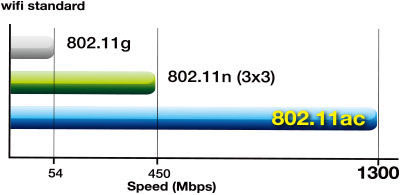
Designed with the latest networking technology, from industry leader Broadcom, the PCE-AC66 delivers the world’s fastest wireless performance, with a maximum data rate of 1300Mb/s on a single 5GHz channel. Broadcom’s new 5G Wi-Fi chip, the BCM4360, contains a number of performance enhancing features, including:
- Support for 80MHz channel bandwidth, twice as wide as current 802.11n devices
- 256-QAM, a higher modulation scheme that increases data transfer efficiency
- Standardized Beam-Forming technology that helps increase wireless range, penetration, and data rates
- Support for Low Density Parity Check Codes (LDPC) and Space-Time Block Codes (STBC)
The BCM4360 is the top tier of Broadcom’s new family of 5G Wi-Fi chips, and is the only one that supports the PCIe interface and implements three-stream 802.11ac specifications, offering speeds up to 1.3Gbps.
150% Greater Wi-Fi Coverage

Powerful two-way transmission and a signal-boosting high-gain design give the PCE-AC66 improved two-way transmission that extends Wi-Fi range and coverage by up to 150% compared to generic client devices. This extended reach means the elimination of dead spots at any location, offering fast and uninterrupted HD streaming and smooth multiplayer gaming wherever you may be.
Optimized and Reliable Wireless Coverage via Ai Radar

ASUS Ai Radar intelligently strengthens connections to compatible wireless devices. With the high-powered amplification and beam-forming package of the PCE-AC66 PCIe adapter and ASUS RT-AC66U 802.11ac wireless router, Ai Radar provides optimized signals, with better coverage and improved data throughput.
Flexible extended antenna placement

The three detachable antennas of the PCE-AC66 can be placed remotely via bundled extension cables. A magnetized stand also comes in the box, which can easily attach to various surfaces for more placement options. By making the antennas mobile, the design offers more flexibility in choosing locations for better signal reception and quality.
Stylish aluminum heatsink handles heat for extra stability

The added heatsink uses highly-conductive aluminum to remove heat from the chipset, ensuring greater reliability for non-stop operation. Lower temperatures translate into a more stable device in all climate conditions, even during hot summers, and greater stability means more consistent connectivity and longer product lifespan. Plus, the heatsink has been crafted for a stylish look, once more showing ASUS always goes beyond the spec.
Source: asus.com
Network Standard: IEEE 802.11ac
Antenna: 3 x R SMA Antenna
Operating Frequency: 2.4GHz/5.1~5.8GHz
Operation Channel: 11 for N. America, 13 Europe (ETSI)
Data Rate: 802.11ac : downlink up to 1300Mbps, uplink up to 1300Mbps(20/40MHz)
Output Power:
b mode : 24.5 dBm
g mode : 19 ~23 dBm
n mode : 18 ~22 dBm
Modulation: CCK, DQPSK, DBPSK, OFDM
Management: Transmission power adjustment, Wireless configuration
Utilities: Wireless setting
Security: 64-bit WEP, 128-bit WEP, WPA2-PSK, WPA-PSK
Certificates: CE, FCC, C-Tick, IC, NCC
Dimensions: 103.3 x 68.9 x 21 mm (WxDxH)
Weight: 125 g (Device Only)
OS Support: Windows 8, Windows 7, Windows 2000, Windows XP
Source: asus.com
To test the ASUS PCE-AC66 PCIe Adapter I used two similar test applications, both of which are specifically designed for testing network throughput. The first one was Passmark Performance v7.0 Advanced Network Test. The second one was TamoSoft Throughput Test v1.0, Build 19. These tests measure throughput between two PCs connected through a router, switch, or a wireless connection. Normally, the networking hardware is considered the device that is under test. If you have a known baseline for several components in the network, say two identical network adapters and a switch, you can also test the performance of other devices in the communication chain, such as wireless adapters or network interface cards (NICs). In order for this test to work one PC must be set up as ‘Client’ and the other must be set up as the ‘Server’. Each test was run at least five times with the highest and lowest result omitted and the remaining results averaged to give a final result.
During earlier testing of GbE and 10GbE network switches, I’ve already established a baseline benchmark speed for these two workstations, Test System #1 and #2, below. Both of them are Quad-Core Intel systems, and can easily sustain Gigabit transfer speeds and higher, in wired mode. In the past, I used all default values for this benchmark, as shown in the screenshot below, but I discovered in this round of testing that certain combinations required a longer settling time before the true steady-state throughput was revealed. I’ll show an example of that, later. The user interface screens for the Passmark Performance test are the same at both ends, with different elements grayed out, depending on whether you are sitting at the Client computer or on the Server side. The TamoSoft application has different screens for the Client and Server sides, and only the client side displays the throughput graph that I’m showing here.

This benchmark eliminates most of the variables involved in network speed testing, but not all. The PCs themselves can introduce spurious issues, such as hardware bandwidth limitations, resource conflicts, wait states, and buffer inconsistencies. In some cases, the networking hardware is having issues communicating with other networking gear. The following chart shows why you have to dig a little deeper than just looking at the Average Transmission rate that is displayed on the main screen. For some reason, at the start of this test the two systems were having a hard time establishing a rapport, or the benchmarking tool is having trouble tracking the signal flow. The average value (shown in yellow) doesn’t really reflect the true capability of the network until things start to settle down around the two minute mark. The default time period that’s set in the software for this benchmark is 20 seconds (a looooong time in network transmissions), and the calculated average result at that point is more than 50% higher than the real number. I maxed out the test period to 200 seconds, and was finally able to see some convergence on the data rate after the first minute or so. BTW, the chart below is from a UDP test, where an awful lot of data was NOT making it across; more than 300Mbps was being sent out, and less than 20Mbps was being received and accepted. NOT a good result, as you’ll see….

For the second set of tests, I used an application that I discovered when trying to get the measure of some 10GbE networking gear that was on the test bed. Many of the current test products had difficulty measuring the full performance capabilities of a 10GbE network, but I did find a couple of applications that showed promise for normal test speeds. TamoSoft Throughput Test v1.0, Build 19 was the best of the bunch, especially in its ease of use and real-time graphical display of throughput. The graphs I show from Passmark Performance v7.0 Advanced Network Test are only available for viewing after the test is complete. Plus, there is a 200 second limit for the Passmark software, and I was able to run the TamoSoft test for as long as I wanted. Oh, and did I mention that you can run the TCP/IP and UDP tests at the same time? You can specify that only TCP data be used for the test, and I did run several tests to confirm that there were no differences, when running the UDP tests alongside the TCP one. Results for both upload and download are presented, and I ended up using the two download averages for reporting purposes. In the run below, that means a TCP result of 115.18 Mbps and a UDP result of 421.11 Mbps would be counted as the results. The packet loss (19.1 %) and Round-trip time (2.0 ms) are shown as well, but I didn’t report that. If the readers really want that data, let me know in the comments section and I’ll see about including it, somehow. TamoSoft has a bunch of additional test applications that are more comprehensive and are available for purchase, but this one is free for downloading.

Test System 1 (Server)
- Motherboard: MSI Z68-Express Z68A-GD80 (1.23.1108 BIOS)
- System Memory: 4x 4GB Corsair Vengeance LP DDR3 1600MHz (9-9-9-24)
- Processor: Intel Core i5-2500K Sandy Bridge 3.3GHz (BX80623I52500K)
- CPU Cooler: Thermalright Venomous-X (Delta AFB1212SHE PWM Fan)
- Video: Intel HD Graphics 3000
- Drive 1: OCZ Agility3 SSD 120GB (AGT3-25SAT3-120G)
- Enclosure: Lian Li Armorsuit PC-P50R
- PSU: Corsair CMPSU-750TX ATX12V V2.2 750Watt
- Monitor: SOYO 24″; Widescreen LCD Monitor (DYLM24E6) 1920X1200
- Operating System: Windows 7 Ultimate Version 6.1 (Build 7600)Results
Test System 2 (Client)
- Motherboard: ASUS P7P55D-E Pro (1002 BIOS)
- System Memory: 4x 2GB GSKILL Ripjaws DDR3 1600MHz (7-8-7-24)
- Processor: Intel Core i5-750 (OC @ 4.0 GHz)
- CPU Cooler: Prolimatech Megahalems (Delta AFB1212SHE PWM Fan)
- Video: ATI Radeon HD 5770 1GB GDDR5 (Catalyst 8.840.3.0)
- Drive 1: OCZ Agility3 SSD 240GB (AGT3-25SAT3-240G)
- Drive 2: Seagate Momentus-XT Solid State Hybrid Drive ST95005620AS 500GB 7200 RPM 4GB Cache
- Enclosure: CM STORM Scout 2 Gaming Case
- PSU: PC Power and Cooling Silencer 750W Crossfire Edition
- Monitor: Samsung 23″; Widescreen LCD/LED Monitor 1920X1080
- Operating System: Windows 7 Home Premium SP1
Support Equipment
- Intel EXPI9301 CT Gigabit Ethernet NIC, x1 PCIe 1.1, 1x CAT5
- Intel E10G42BT, X520-T2, 10Gbps Ethernet NIC, x8 PCIe 2.0, 2x CAT6a
- 50-Foot Category-6 Solid Copper Shielded Twisted Pair Patch Cable
- ASUS RT-AC66U Dual-Band Wireless-AC1750 Gigabit Router
- TRENDnet TEW-673GRU Dual Band N300 Wireless Router
- Linksys EA4500 Dual Band N450 Wireless PCIe Router
There is a constant and random potential for Wi-Fi signal degradation in a typical home or office environment. A drop in signal strength and the maximum available data rate usually occurs at locations that are distant from the source, or where there are barriers between the source and receiver. I performed all testing with the router(s) in the same location, and moved the PC and Wi-Fi adapter to three different locations in the house. Yes, I dragged a full-sized PC and monitor around the house, because that represents the real-world scenario. The first test location was in the same room as the router, at a distance of 10′ with a clear line of sight between the router and adapter antenna arrays. The second location was 20′ away in an adjacent room, with back-to-back closets directly between the two devices. I don’t think the clothes had as much impact as the two sets of tightly stacked wire hangers did. The third location was with the PC and adapter downstairs, 25′ away from the router, in its same location upstairs. The kitchen, which probably has more metal in it than any room in the house, was between the router and the network adapter.
In all cases, I used the signal strength display in the adapter software to optimize the location and orientation of the antennas. This is exactly what you should do when setting up any wireless device, taking care to avoid obstructions and reflecting surfaces that might degrade the signal. Signal strength and stability are both important, when optimizing antenna locations. Of course, all this ‘care and feeding’ of your Wi-Fi device goes out the window if you’re using mobile hardware, but that’s not what we’re testing this time. I used the default transmission power settings on all devices during this test. The ASUS pair can be set to pump out 200mW, which is really overkill for most home setups. If you need that much power, you’re better off installing a Wi-Fi repeater in an intermediate location. It’ll give you more reliable performance, and your neighbors will thank you.

The encryption level was set to WPA2-PSK during the entire testing process. You get better throughput without encryption, but most people understand the need for encryption and they use it, at least if my neighborhood is anything to go by. I concentrated my testing on 802.11n and 802.11ac in the 5GHz band, since there is not much point in proving that the newest hardware can perform with an outdated protocol. I know the 802.11b/g standard often allows for better wall penetration, because of the lower frequency that it gets used with, 2.4GHz v. 5GHz, but most Wi-Fi users are moving to the 5GHz band to avoid the congestion on the older frequency band.
The first test was conducted at a distance of 10 feet, which is slightly more than double the minimum recommended distance of 1.5 meters. ASUS suggests reducing the transmitting power of the router and adapter if they are located any closer than 1.5 meters. The default transmitting power is set at the factory to 80mW, and was not changed during any of the benchmarking runs. In this test, the router and adapter were located at approximately the same height and there was a clear line-of-sight between the two sets of 3×3 antennas, with no obstructions. I frequently found that the best signal transfer occurred with all six antennas pointing straight up, vertical. For mobile targets the 45 degree orientation may offer the most stable RF performance, so experimentation is encouraged.
The first thing to note is that these benchmark results show ‘Real-World’ throughput. Nobody using Wi-Fi is actually getting the throughput performance that’s highlighted on the front of the manufacturer’s box. Those are theoretical numbers, and they refer to the raw data bitrate that’s possible with the hardware in question. In this particular test, with the PCIe adapter and router in the same room, I did achieve the theoretical maximum data rate of 1300 Mbps, as indicated by the monitoring software that was included with the Wi-Fi adapter. But, between the data encryption that I was running and the error handling overhead of the various communication protocols, the effective data rate is always going to be much lower. My test results represent what a typical user would experience.

TCP results for the three routers were strong in the line-of-sight test, with the two 802.11n routers pulling in throughputs in the mid 70 Mbps range. The ASUS RT-AC66U easily bested that with 802.11ac performance in the mid 90 Mbps range. UDP performance was another story altogether. The TRENDnet and Linksys routers both threw away more than 80% of the bits transmitted with this protocol. The RT-AC66U had a very low rate of bit loss at this short distance, and there were some trials where there were zero bits lost. That’s extremely rare for a UDP data stream. The effect of all that is clearly shown in the results, where the ASUS pair had an average transmission rate of 369 Mbps and the closest performance with an 802.11n router was 63 Mbps. Clearly, the combination of three data streams and 802.11ac give superior performance. The ASUS PCE-AC66 adapter, matched up with a router that supports the same features, is the only solution that gives you both.
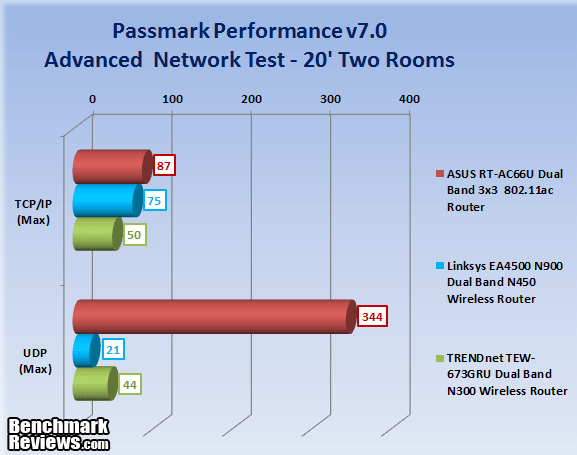
Moving the PC and Wi-Fi adapter into an adjacent room, with double the distance and multiple obstructions between the antenna arrays reduced the effective transmission rate slightly. The ASUS RT-AC66U went from an average throughput of 95 Mbps to 87 Mbps. That’s an 8 percent reduction, but in real life, you probably wouldn’t notice it. The Linksys actually gained two megabits per second in this test, and had an average rate of 75 Mbps. The TRENDnet lost about a third of its throughput, and ended up with a 50 Mbps rate in this test. The UDP benchmarks followed a similar trend, with the ASUS pair still maintaining a throughput well over 300Mbps. The Linksys stayed about the same, and the TRENDnet lost about 30% of its throughput at the longer distance, with obstructions. None of these performance losses would translate to a noticeable difference for web surfing, but file transfers, data backups, or HD video streaming would probably be affected.

Using your Wi-Fi device one room removed from the centrally placed router is hardly the most challenging test, so in order to up the ante I dragged the test PC downstairs to the room that’s furthest away from the router location. That room happens to be the pantry, right next to the kitchen. Both rooms have a high packing density, with lots of wood and metal items to block and deflect radio waves. The only thing more challenging would be to go over to my neighbor’s house, and set up in his kitchen. The higher performance of the 802.11ac standard is really evident here, where the ASUS pairing of PCE-AC66 adapter and RT-AC66U router held on to most of their line-of-sight performance levels. The TCP throughput was back up to 96 Mbps for the ASUS, while the other two routers dropped back to 66 and 51 Mbps. In UDP, the ASUS stayed above the 300 Mbps rate, and the closest the 802.11n routers came was 43 Mbps.

I want to show one chart that demonstrates the beam forming capability of the new 802.11ac products. After about 90 seconds, the Broadcom BCM4360 radio chip that’s inside both the ASUS RT-AC66U router and the PCE-AC66 adapter has completed an analysis of the three separate RF signals going back and forth between the two 3×3 antenna arrays, and has adjusted the phase of each of them to generate a coherent wave front. This has the same effect as making the signal stronger, which then increases data throughput, as you can clearly see. There is an increase in real-world throughput of approximately 20% with this technology, if implemented correctly, as ASUS has done here. This technique is old hat in the RF world – it was invented in 1905 and actually implemented by both sides during WWII. If you ever noticed the four short antennas arranged in a 12″ x 12″ square on the trunk of a police cruiser, then you’ve seen a multiple-input multiple-output (MIMO) antenna system in action. Beam forming was actually introduced in the 802.11n Wi-Fi standard, but hasn’t really been successfully implemented until now, with the new batch of 802.11ac routers coming into the market. The only catch is – you need an 802.11ac adapter that has all the same tricks up its sleeve. The ASUS pair I used in this benchmark use the same Broadcom architecture, and are 100% compatible. There’s been a lot of conjecture about how well this technology was going to work, and now we have the answer.
Clearly, none of these results are anywhere near the typical wired data rates of 1 Gbps. The UDP rates aren’t bad, consistently above 300 Mbps with compatible hardware, but the TCP throughput carries a mighty high burden of communication overhead. Two other things stand out to me, as I review these benchmarks. For a lot of people, the new 802.11ac standard is going to be worth the upgrade costs, in terms of enhanced coverage and increased throughput. Also, there is a very real and measurable difference between the best Wi-Fi systems and the rest. I can’t say that the ASUS PCE-AC66 Wi-Fi adapter is THE best, because I haven’t tested them all. But the features and capabilities you get with this adapter are unparalleled and worth the investment, IMHO.
The first test was conducted at a distance of 10 feet, which is slightly more than double the minimum recommended separation distance of 1.5 meters. ASUS suggests reducing the transmitting power of the PCIe Adapter and the adapter if they are located any closer than 1.5 meters. The default transmitting power is set at the factory to 80mW, and is easily adjusted with the included software. In this test, the PCIe Adapter and router were located at approximately the same height and there was a clear line-of-sight between the two sets of 3x antennas, with no obstructions.
The first thing I noticed with the TamoSoft results is that the UDP performance of all three PCIe Adapters was more uniform. The results with the Passmark test suite seemed like more of an On-Off situation, with the best performance six or seven times higher than the best of the rest. I’m glad I had more than one test suite in house, to gain a better perspective. All that pain I went through when I got the latest 10GbE networking hardware on the test bench paid off…

With only 10 feet separating the PCIe Adapter and routers, and no obstructions or reflecting surface between the two, radio signals were clear and stable during this test. The ASUS combination of PCE-AC66 adapter and RT-AC66U IEEE 802.11ac router pulls first place in both TCP and UDP tests. The average result for the ASUS pair was 121 Mbps with TCP and 611 Mbps with UDP. Both of those results are for the “Downstream” test, as I explained in the Testing Methodology section. That’s a 50% improvement over the n-based routers in TCP, and a whopping 2.6x performance advantage in UDP. Even in less challenging situations, the new 802.11ac standard provides a significant performance benefit.

Moving the PC and Wi-Fi adapter into an adjacent room, with double the distance and multiple obstructions between the antenna arrays changed the results slightly. In TCP, the ASUS 802.11ac pair went from an average throughput of 121 Mbps down to 106 Mbps. That’s a 12 percent reduction, but in real life, you probably wouldn’t notice it. The Linksys actually gained about ten megabits per second in this test, while the TRENDnet lost about the same amount. The UDP benchmarks followed a similar trend, with the ASUS throughput reduced to 447 Mbps, about a 27% loss. The Linksys gained about 50 Mbps, and the TRENDnet also gained about 20 Mbps of throughput at the longer distance, complete with obstructions. Anyone who says they can make sense out of radio waves is a magician, a god, or a liar. These are all still good, usable throughputs for a home environment, especially since they are real data rates, not theoretical numbers.

Next, I dragged the test PC downstairs to the room that’s furthest away from the router’s stationary location in the library upstairs. The furthest downstairs room happens to be the pantry, right next to the kitchen. Both rooms have lots of dense wooden and metal items on the surrounding walls to block and reflect radio waves. The only thing more challenging would be to go over to my neighbor’s house and set up shop in his kitchen! The ASUS PCE-AC66 and RT-AC66u pair held on to most of their line-of-sight performance levels, even in the toughest location. The TCP throughput was down only slightly, to 113 Mbps for the ASUS, which is less than a 10% loss. The other two PCIe Adapters both dropped back to 74 and 66 Mbps, which are still decent results. In UDP mode, the ASUS team stayed close to the rate achieved in the adjacent room, just dropping back about 5% to a 425 Mbps rate. The two 802.11n routers lost quite a bit more performance in this location and achieved 183 and 117 Mbps of throughput.

The results with the TamoSoft software test application were generally consistent with the ones I obtained with the Passmark Advanced Network Test. The UDP benchmark in the TamoSoft app is probably more realistic than what Passmark provides. There were too many packet losses with the Passmark test, and the wild oscillations that occurred at the beginning of the test were not present when I used the TamoSoft throughput test. Clearly, none of these results are anywhere near the typical wired data rates of 1 Gbps. They never will be, until we have to start encrypting ALL our data transmissions, in a vain attempt to avoid having our Netflix data being monitored.
Radio waves are pesky things. For close to a hundred years, humans have been fiddling with radio antennas, trying to get better reception. In the early days of radio, it was called “The Wireless”. One, or maybe two, duly appointed members of the household were tasked with adjusting the Rube Goldberg contraption of wires, bars, poles and clips, until the receiver locked in on the local signal for a while, and everyone breathed a sigh of relief as their favorite syndicated show came on the air. Television brought new challenges – rabbit ears and tin foil were the weapons of choice against the random onslaught of snow. Listening to static was bad enough, now we had to watch it, too.

Today, we see cell phone nomads wandering around from window to window in their steel-encased buildings, trying to get a clear signal and avoid dropping their call. Then, we get to the biggest RF data feed of all time, the internets. Users are increasingly accessing the web via Wi-Fi. Blame the Tablets… Blame the cellular service providers, who envisioned turning their mountains of gold into platinum, and priced their 4G data packages out of reach. Whoever you want to blame, the Wi-Fi versions of tablets are flying off the shelves 5 times faster than the ones with cellular modems built in. The number of Wi-Fi access points is doubling approximately every three years. There are over 3 million Wi-Fi Hotspots in the USA today, and that number will also double by the year 2016. It’s almost enough to make me want to go out and buy a Chromebook.

What’s the number one thing people are accessing on their mobile screens? VIDEO. Never mind how many devices there are, and their exponential growth rate, the typical data rates for each content creator and content consumer are also growing exponentially. Don’t worry, x2 times x2 is only x4….!! The importance of Wi-Fi in the mobile communications landscape is underrated by most consumers. We all think we’re going to continue getting our mobile data from 4G cellular providers, but the fact is they can’t keep up with demand. Then there’s that ugly little economics theory of “Supply and Demand” that’s going to make its presence felt, long before we actually hit any technology limits. So, as quaint and 1990’s as it seems, Wi-Fi hotspots are going to continue to be a big part of our mobile data supply chain.
Just so you don’t get the future confused with the past (…oh, those clothes!!), the Wi-Fi hotspots that are on the horizon are called Hotspot 2.0. Yeah, let’s hope the technology is more original than the name… There is already an IEEE standard for it (802.11u), and the basic idea is to make Wi-Fi hotspots behave more like a cellular network. You don’t have to log in to a new network every time your phone moves out of range of one cell tower and within range of another, it all happens automatically and is completely transparent to the user. Hotspot 2.0 is an industry initiative that uses 802.11u as a fundamental building block, and provides for seamless Wi-Fi authentication and handoff. The network discovery, registration, and authentication steps a Wi-Fi user performs manually today will all be automated with Hotspot 2.0.
Today’s new 5th generation Wi-Fi hardware is just one more step in a long history of communication technologies that have transformed the world. More change is on the way; in the meantime enjoy what we currently have at our disposal.
Important: This section is a brief five point summary on the following categories; Performance, Appearance, Construction, Functionality and Value. Although the ratings and final score in this conclusion are as objective as possible, please be aware that every author perceives these factors differently, at various points in time. As Albert Einstein said, “Not everything that can be counted counts, and not everything that counts can be counted.” While we each do our best to ensure that all aspects of the product are considered, there are often times unforeseen market conditions and manufacturer changes which occur after publication that could render our rating obsolete. A high or low score does not necessarily mean that it is better or worse than a similar product that has been reviewed by another writer here at Benchmark Reviews. These are subjective ratings, and they’re unique to the individual who creates them. Please do not base any purchase solely on our conclusions, as they represent our product rating for the sample received, which may differ from the retail versions available when you are ready to purchase.
It’s appropriate to talk about performance first, as that is where the ASUS PCE-AC66 really shines. The performance of the PCE-AC66 is truly excellent, especially since it’s the only adapter that can utilize all three data streams from the new batch of high-end 802.11ac routers, like the ASUS RT-AC66U that Benchmark Reviews recently tested. The performance of this ideally matched team barely tapered off with either distance or obstructions, in contrast to the 802.11n routers I paired it with. Part of the credit has to go to the new 802.11ac standard, but the teardown revealed a solid, clean design and construction that undoubtedly contributed to the high benchmark performance I observed. There is no doubt that this is the Wi-Fi adapter to get for throughput and reliable signal coverage, especially if you’ve got one of the new 802.11ac routers that supports three separate data streams. At this point, every one of them out on the market is using the same Broadcom BCM4360 chip, so compatibility issues should be minimized.

The ASUS PCE-AC66 is in another league as far as appearance, among PCIe Adapter products. This is the kind of gear that windowed cases were made for! The antenna base is also smartly finished, and the fact that it’s a bit out of the ordinary in appearance works in its favor. There’s no reason to hide those antennas on the rear panel of you PC case, and some strong performance reasons why you shouldn’t. Go ahead; flaunt your inner My Favorite Martian.
The construction of the ASUS PCE-AC66 is first rate. The card itself is well designed, with a clean layout. With RF signals, it’s critical to get that aspect of the design right. You would be amazed at all the seemingly ordinary, mundane things that work like an antenna at radio frequencies. 90 degree corner on the PCB trace – check; 3 inch piece of straight conductor, with a large-value resistor at the end – check; that little coil in the power supply circuit – check. If you are a hammer, everything looks like a nail; same concept for RF, everything looks like an antenna. Fortunately, there are people who spend their days worrying about these things, and the PCE-AC66 never gave me any trouble with RFI. After looking at the lab tests the FCC did on it, it’s doubly clear that there was nothing out of whack. If there was, they would have found it, and that little FCC sticker wouldn’t be attached to the back of the PCB.
Functionality of the PCE-AC66 PCIe Wi-Fi adapter gets top marks. ASUS takes full advantage of all three external antennas to maximize signal transfer. The combination of adjustable transmitting power and bandwidth, beam-forming technology, and three streams of 802.11ac work together to provide a greatly expanded useful range. The magnetic external antenna base is also useful for getting the best possible signal strength and the highest data rate. My only complaint is that the attached cable set was shorter than I thought it should be. I could have easily used an additional meter of cable length in all three of the locations I placed the PC. The cable routing was awkward in almost every instance, because of the short cable length.
The ASUS PCE-AC66 802.11ac wireless PCIe Adapter is available online for $99.99 (NewEgg | Amazon). This product is definitely at the high end for wireless PCIe Adapters, but there just isn’t any other Wi-Fi adapter on the market that can do what this one does. In terms of value, the extra speed that you paid for when you upgraded your router to a high-end 802.11ac model won’t be there, unless you pair that expensive new router with the PCE-AC66 Wi-Fi adapter. Also the increased coverage and the stability of the Wi-Fi connection in difficult locations make the PCE-AC66 worth the price of admission, for me. For the first time, I’m considering putting the downstairs office PC on a wireless connection, and getting rid of that 50′ length of CAT6 cable that snakes its way around every corner and crevice of this old house. If this product had been available five years ago, there wouldn’t be nearly as many holes in my walls and floors!
Summing up, the ASUS PCE-AC66 802.11ac Wi-Fi adapter is currently the fastest 802.11ac Wi-Fi adapter on the market today. Its range, sensitivity, and signal stability are all top notch, allowing PCs that used to be tied to a wired connection to be freely moved about. Its construction quality is excellent, it has a well-designed external antenna solution, and it looks good to boot. It costs a little more than the average Wi-Fi adapter, but its enhanced performance and features make up for it. Definitely recommended.
+ Very high throughput
+ 3 data streams = 1,300 Mbps max data rate
+ Expanded Wi-Fi range with 802.11ac
+ Beam forming technology that really works
+ Easy to adjust transmitter power for each band
+ Excellent construction quality
+ Unique stylish looks
+ Flexibility of external antennas w/SMA connectors
+ Monitoring app included with signal strength display
+ Magnetic base for external antenna stand
– PCIe form factor only, USB 3.0 version has more universal applications
– Cable set on external antenna base is a bit short
-
Performance: 9.50
-
Appearance: 9.25
-
Construction: 9.25
-
Functionality: 9.00
-
Value: 9.25
Excellence Achievement: Benchmark Reviews Golden Tachometer Award.
COMMENT QUESTION: Which “Desktop” PCs are on Wi-Fi in your house?


6 thoughts on “ASUS PCE-AC66 Wi-Fi AC1750 PCIe Wireless Adapter Review”
According to NewEgg, this thing has been “Discontinued”.
It may or may not be sold again.
The main complaint is noncompatibility with the P67 chipset.
“COMMENT QUESTION: Which “Desktop” PCs are on Wi-Fi in your house?”
None, here. Just netbooks and one TV so far.
The real computers are all hardwired.
Newegg’s page says “Not available” and “OUT OF STOCK”. It doesn’t say anything like you suggested.
In Stock at Amazon and B&H, and Open Box at Newegg
Compatibility issue is with Z87 chipset, not P67, AFAIK.
ASUS is working on the problem.
I had ZERO issues with my Z68 setup.
PCE-AC66 and newer version, PCE-AC68 are both in stock at Newegg now.
New version (PCE-AC68) is: newegg.com/Product/Product.aspx?Item=N82E16833320173
Don’t know yet if there is an upgrade path.
P67 is just one of many Intel chipsets anyway, so it shouldn’t be a major factor in deterring people… anyway mine with the X79 works just fine.
Previously I used a powerline based network as I didn’t have the luxury of drilling holes into walls. The powerline works ok…ish but after upgrading to fiber it didn’t make sense to stick around with a 200mbps network when I can get something better.
Currently, I pair this with the RT-AC66U, a Wifi ac capable router from Asus. I have a wall separating myself and the source and the distance is about 10m. Maximum would be at ~850mbps so I still get close to a standard gigabit connection so I’m content with the current setup.
I’m curious what kind of encryption you are using.
Comments are closed.