By Tom Jaskulka
Manufacturer: Thermaltake Technology Co., Ltd
Product Name: Core V21 Stackable Micro-ATX Computer Case
Model Number: CA-1D5-00S1WN-00
UPC: 841163060001
Price As Tested: $69.99 (Amazon | NewEgg)
Full Disclosure: The product sample used in this article has been provided by Thermaltake.
The Core series by Thermaltake launched with the E-ATX full tower Core V71 last year. Since then, Thermaltake has expanded into the mid-tower (V31, V41, V51) and mini-ITX (V1) form factors. The Core V21 that Benchmark Reviews will take a look at today rounds out Thermaltake’s lineup with their first micro-ATX Core offering. At first glance, the Core V21 shares many design similarities with the other Core chassis. As is true with many things in life, looks can be deceiving as the V21 is the first Core chassis to officially offer a multitude of motherboard orientations. While it arrives in stock format with a horizontal motherboard layout, it can be transformed in a matter of seconds to a traditional or inverted layout. We’ll see how this works as we build a system inside the Core V21 over the next few pages.

| P/N | CA-1D5-00S1WN-00 |
| Case Type | Micro Case |
| Dimension (H x W x D) | 336 x 320 x 424 mm (13.2 x 12.6 x 16.7 inch) |
| Net Weight | 6.5 kg / 14.3 lb |
| Side Panel | Transparent Window |
| Color | Exterior & Interior : Black |
| Material | SPCC |
| Cooling System | Front (intake) : 200 x 200 x 30 mm fan (800rpm, 13dBA) |
| Drive Bays | -Hidden : 3 x 3.5’’ or 2.5” , 3 x 2.5’’ |
| Expansion Slots | 5 |
| Motherboards | 6.7” x 6.7” (Mini ITX) , 9.6” x 9.6” (Micro ATX) |
| I/O Port | USB 3.0 x 2, HD Audio x 1 |
| PSU | Standard PS2 PSU (optional) |
| LCS Upgradable | Supports 1/2”、3/8”、1/4” water tube |
| Fan Support | Front: 1 x 120mm or 2 x 120mm 1 x 140mm or 2 x 140mm 1 x 200mm Top: 1 x 120mm or 2 x 120mm or 3 x 120mm or 4 x 120mm 1 x 140mm or 2 x 140mm Rear: 1 x 120mm 1 x 140mm Bottom: 1 x 120mm or 2 x 120mm Left / Right Side: 1 x 120mm or 2 x 120mm 1 x 140mm or 2 x 140mm |
| Radiator Support | Front: 1 x 120mm or 1 x 240mm 1 x 140mm Top: 2 x 120mm or 2 x 240mm 1 x 140mm or 1 x 280mm Rear: 1 x 120mm Left / Right Side: 1 x 120mm or 1 x 240mm 1 x 140mm or 1 x 280mm |
| Clearance | CPU cooler height limitation: 185mm VGA length limitation: 350mm PSU length limitation: 200mm (With Bottom Fan) |
Specifications taken from the manufacturer’s product page.
The V21 is very “Core” in its appearance, but Thermaltake has a few new tricks up its sleeve with this micro-ATX chassis. Let’s take a look around the outside first then dig in for a closer look on the next few pages.
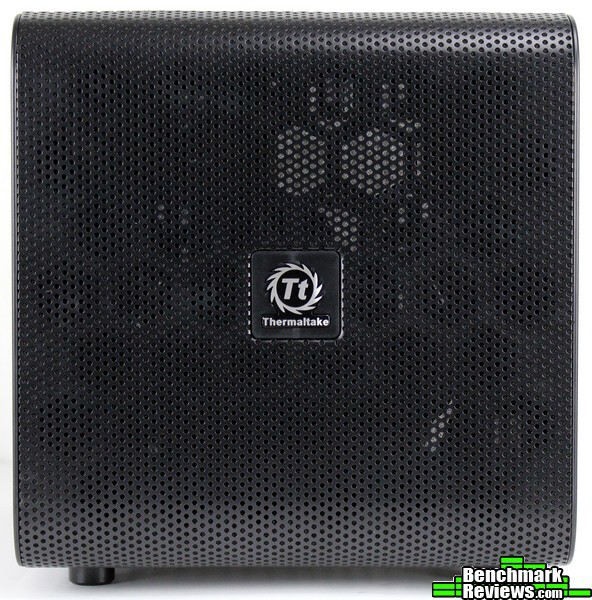
Like the other Core chassis, the front of the V21 consists entirely of a curved, round-hole mesh panel. A honeycomb lattice inside lends some strength to the mesh fascia, and a fine dust filter is sandwiched between the layers. The Thermaltake badge in the middle is secured by a magnet – along with the almost square dimensions (336mm x 320mm), these features hint at functionality unique to this particular Core chassis…

Moving around to the left side, a crystal clear acrylic side window showcases a horizontal motherboard tray along with a glimpse of the 3.5″ HDD cage. The I/O cluster is pretty standard, with a large power button and the power/HDD actiivity LEDs above two USB 3.0 ports. The 3.5mm headphone/mic jacks sit underneath, with a reset button finishing out the cluster.

The other side of the Core V21 consists of a mesh panel – this panel is interchangeable with every side (yes, including the bottom or top!), so if you’d rather show off a CPU cooler or give a GPU more ventilation it’s a simple matter to switch the windowed panel over to a different location. This intake is filtered too, and is actually secured to the hexagon mesh by thin magnetic strips along the edges. The effect is seamless – I didn’t even realize the filters were removable at first! There was no mention of it in the manual, but these filters are essentially a thin mesh sheet – they can be peeled off, washed, and replaced without removing the panels.
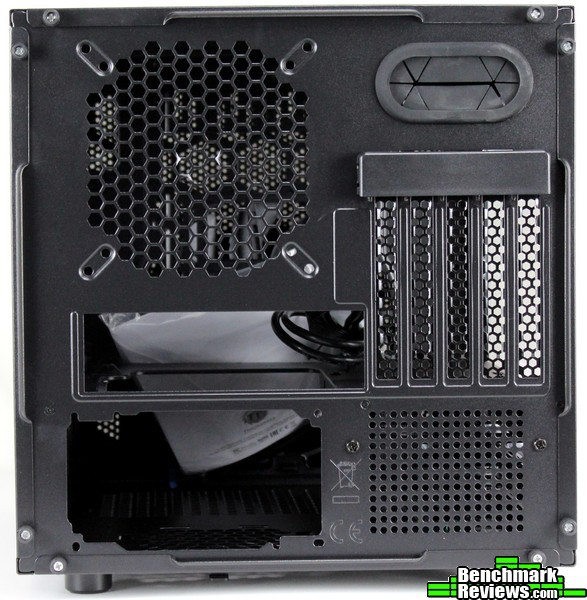 The back of the Core V21 provides a nice snapshot of the internal layout. The horizontal motherboard tray almost bisects the chassis, but the 140/120mm fan mount above the motherboard I/O shield takes up a little more room than the ATX power supply and 3.5″ HDD cage underneath.
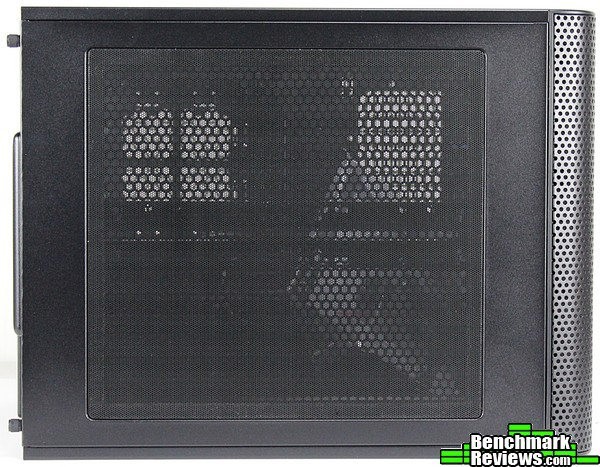
You’d be forgiven if you thought I included a duplicate photo above; it looks almost exactly like the left side of the chassis! This is the top of the Core V21, and it uses the same mesh panel as the side. Again, if you’d prefer to have a window up here instead, all of the panels are interchangeable.
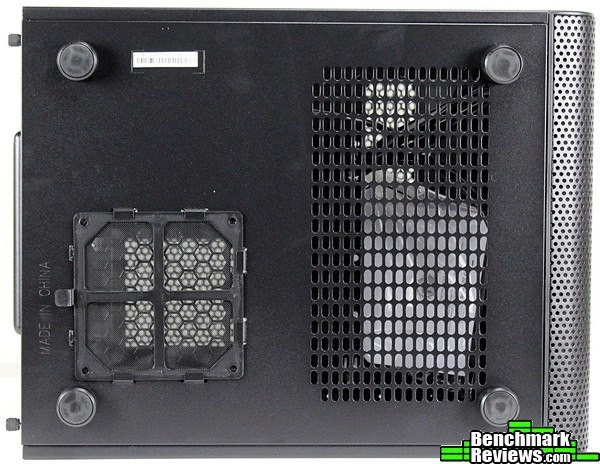 Even the bottom panel is interchangeable with the others, although (for obvious reasons) most users will keep this panel on the bottom. Four posts lift the chassis off the ground just enough to keep fresh air flowing into the filtered PSU intake vent. An unfiltered mesh cutout doesn’t do much in the default orientation, but it could come in handy later…
From the outside, the Core V21 looks like a pretty simple mATX cube. Let’s take the panels off and take a look at some of the more interesting details.

While most cases on the market today have easily removable side and front panels, top and bottom panels are another story. The Core V21, on the other hand, uses just two thumbscrews each for all of the panels (with the front panel simply snapping in with four plastic posts). The V21 is spacious enough for a micro-ATX chassis that working within wouldn’t have been too difficult. That being said, removing the top and bottom panels allows for unprecedented access to the internals. This is shaping up to be an interesting experience indeed…

With the side panels removed it’s easy to see how open the inside of the Core V21 is. A spacious, horizontal motherboard tray separates Thermaltake’s chassis into two zones, with the power supply and HDD cage sitting underneath – at the moment anyway…

I was excited to see tool-less mounts for 2.5″ drives on the right side of the motherboard tray, although with the market’s rapid adoption of 7mm SSDs these 9mm trays will still need some screws to keep a thinner drive from shifting around. Thumbscrews hold these three trays in place, but they can be relocated to multiple different positions along this side of the Core V21.
 A giant 200mm fan occupies the majority of the front panel. What looks to be a 5.25″ bay slot appears just above the fan, but unless one is willing to modify the front panel this remains purely cosmetic (although a fan controller or something similar may fit…). There are multiple slots for 120/140mm fans and radiators on this panel as well.
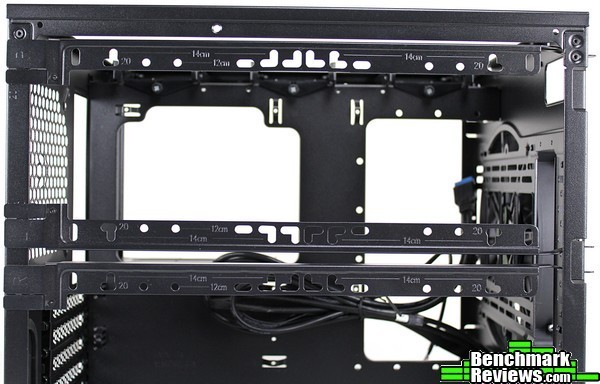
Radiator and fan compatibility extends to the two sets of rails supplied with the Core V21. These moveable rails can be relocated to the sides of the chassis if more airflow across the motherboard is desired (or a bottom-to-top airflow orientation when the chassis is rotated…more on that later). 120mm and 140mm markings are stamped into the rails to assist with installation, but the manual doesn’t say anything about the “20” marking – does this mean 200mm fans? Only one way to find out…

The nice part about this rail system is components can be relocated after they are installed. The latching mechanism doesn’t look like it would hold up to thousands of repeated installations, but overall it seems sturdy enough for typical use. The front of the rails simply insert into slots in the front of the chassis frame. These slots are spaced for most 120/140mm fan arrangements – a 200mm spacing was noticeably missing, but perhaps there’s a way around that.

There are two sets of these rails in the Core V21. As you can see they can be easily swapped to the sides to quickly reposition radiators or fans. A tab helps to snap each rail into place; they can be a little cumbersome to work with at first but after a very short learning curve it’s easy to detach and re-attach these rails wherever they are needed (it’s even easier with fans or radiators installed).
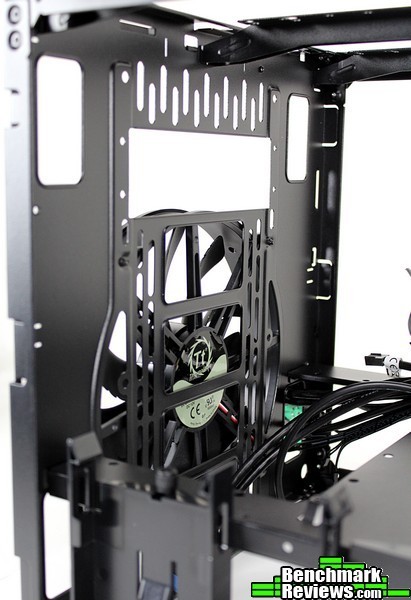
If you don’t plan on needing to move a radiator around or change up airflow patterns, there’s more than enough room up front to accommodate typical 240/280 all-in-ones or aftermarket radiators and fans.

The PCI slots are positioned above the 3.5″ HDD tray. Thermaltake chose to use five PCI slots for this micro-ATX case, so CrossFireX/SLI setups will have a little more breathing room (not to mention the greater compatibility with many motherboards). One of the screws for the removable HDD cage is visible here, with two more on the back of the chassis allowing a user to remove the HDD cage entirely if desired. The motherboard standoffs are pressed out of the frame itself – while most motherboards should have enough clearance around their mounting holes to avoid any shorts, I’m a little more concerned what options a user has if they strip out the threads. Brass standoffs do still have a place, even though the convenience of pre-installed or machined mounting posts is appreciated (to be fair, brass standoffs can strip motherboard trays too…). Basically, be careful, as with any case, not to overtighten screws!
With all of the panels removed (even the bottom!) building in the Thermaltake Core V21 should be a pretty easy process. Let’s see if we run into any issues.
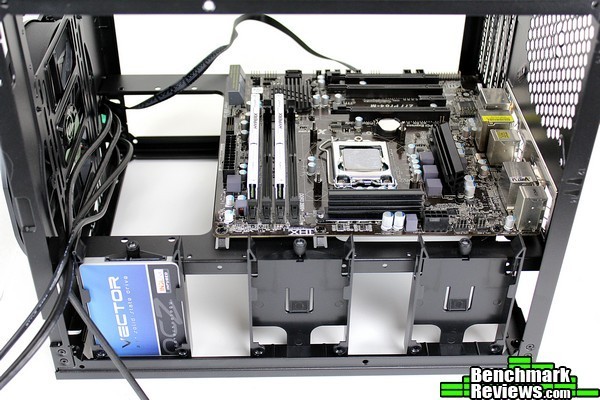
At least those pressed-out standoffs remove a step in the build process – just place the motherboard on top and screw it down. The tool-less 2.5″ drive sleds are easy to use as well; I didn’t bother fastening down the OCZ Vector SSD as the plastic clips held it in place. Since it was a thin SSD a few screws would prevent any movement whatsoever, but they weren’t absolutely necessary.

The PSU installs easily with the four standard screws. While the metal used for the rear panel is a bit on the thin side (it is a $70 retail chassis after all), I didn’t experience any flex or bending with the PSU in the above orientation (remember, the Core V21 can be used in multiple orientations).

For those users with larger or heavier PSUs (or anyone concerned about support) the manual walks through the installation of a PSU support bracket. While the pictures could be a little more clear, most users should have no problem after glancing at the two pieces for a minute. The manual makes this bracket out to be a necessary part of the PSU installation; for all but the heaviest of power supplies it probably won’t be needed.

It may not be worth installing anyway, if only due to the difficulty in getting the lower bracket “hooked” in to the chassis while simultaneously lining it up to fasten the two pieces together. Be prepared for a bit of frustration for this part – perhaps a fabric strap might have been a better option. Also, take a moment to note the location and clearance of the CPU cooler cutout in the motherboard tray. If your CPU cooler uses a backplate, make sure it’s installed before the PSU! Yet another reason to rethink this support bracket (or forgo it entirely) – I wouldn’t relish the thought of having to redo this portion later…
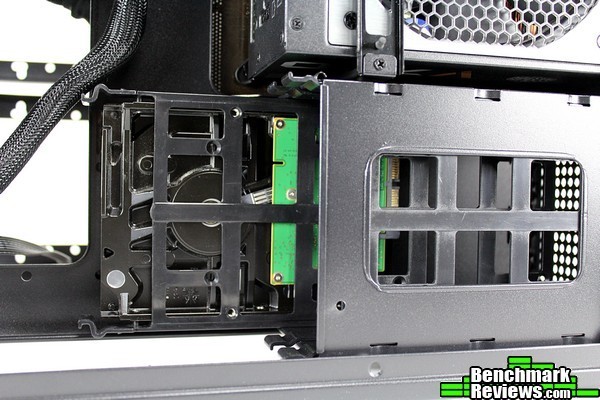
Of course, you could just make it easy on yourself and remove the HDD cage to get that PSU bracket installed (I’d highly recommend it if you choose to install the PSU bracket!). The HDD cage can be removed with three screws; it normally sits right beside the power supply. I initially used the top tool-less drive tray to install a hard drive and thought Thermaltake had made a mistake as the drive would only fit “backwards”. Was I really supposed to route cables behind the cage?
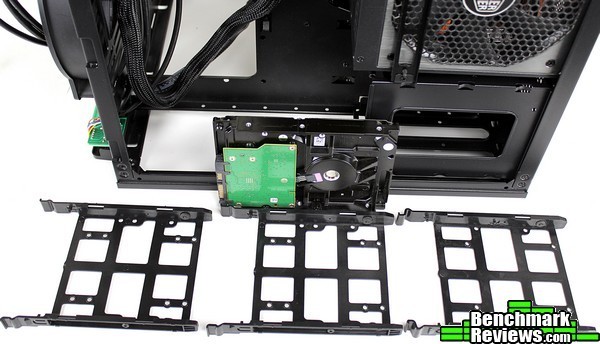
Looking a little closer at the three drive trays it seems one has a different set of mounting posts than the other two. Using any of the other trays allowed for a normal mounting direction – perhaps this was just a fluke, but something to be aware of nonetheless.
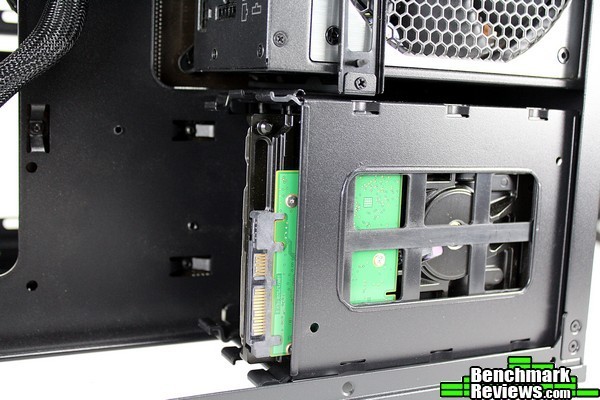
At least these HDD trays are easy to use. Once I realized the issue, it was only a matter of seconds to swap the drive out to a new tray and reinsert the tray into the cage with a positive “click.” With the connectors now facing the right way it was time to start connecting all of the components.
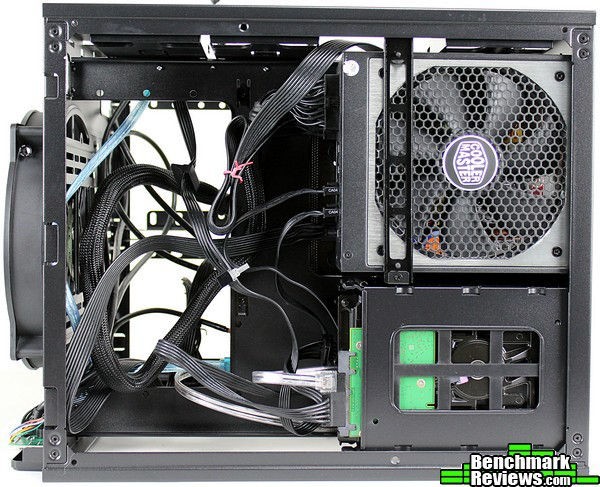
With the bottom panel removed wiring was a simple task. There’s more than enough room in this compartment to stash cables and multiple holes for cable ties to assist with cable management. Practically any PSU would work in the Core V21; modular PSUs, while convenient, certainly wouldn’t be necessary to cut down on clutter. There’s even enough room along the sides of the motherboard tray to pass a few cables (like the 8-pin EPS connector for the CPU). Speaking of which, let’s move to the next page and install the CPU cooler and graphics card.
There’s only a few components left to install – let’s start with the Corsair H100i 240mm CPU cooler.

Although many cases are compatible with 240mm AIO coolers like the H100i, few make installing such a cooler simple. Generally, you have to mount either the radiator/fans first, then attempt to line up the water block (or vice/versa, fighting tension from the hoses the entire time). The Core V21 solves this problem by making the mounting point itself removable – it was a simple matter to install the pump and cold-plate to the motherboard first, then fasten the rails to the radiator and fan portion of the H100i. Of course, that’s if the backplate was already installed…

Once the rails are installed, the entire thing just clips into the chassis. Remember, these rails have mounting slots across the top and along the sides of the Core V21 too, it would take mere seconds to reorient the H100i’s radiator and fans to a side orientation if desired.

A plastic cover unclips from the PCI slot covers, revealing a set of normal screws. Generally, I prefer thumbscrews here but there wouldn’t be a lot of room for leverage since the PCI slots are flush with the exterior panel. While it may not be as secure if the Core V21 was used in a vertical motherboard orientation, I’d almost prefer to see a tool-less system used here instead of screws (in spite of most tool-less PCI slot systems being drastically inferior to screws).

It’s tough to complain too much though given how easy it is to work inside the Core V21 with all of the panels removed. Installing the graphics card was laughably simple, and it’s easy to see that extra-long cards would fit just as easily (the Core V21 supports GPUs up to 350mm). Of course, some front radiator/fan combinations may reduce that distance which is a tradeoff many cases make. With two radiator mounting locations on the top and two on the sides, this probably won’t be an issue for most users.
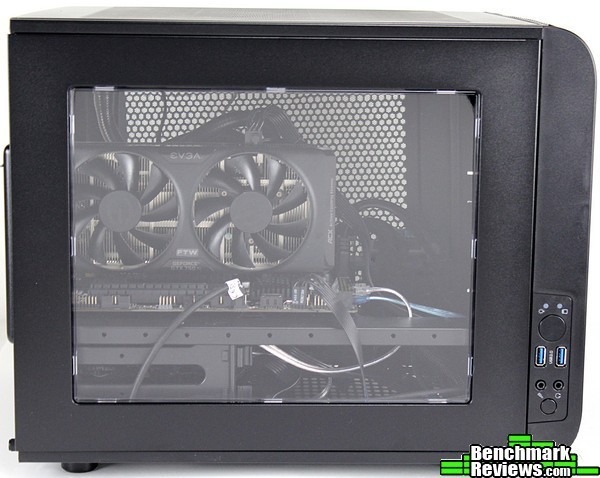
With all cables connected and all panels replaced, the main components are displayed nicely through the window. It’ll take a bit of work if you want to hide the cables underneath the motherboard tray as much as possible (perhaps a cable management shield would be a nice touch).

Therein lies one of the Core V21’s unique tricks – if you don’t like the horizontal motherboard orientation, just rotate the panels (and therefore the internals) to place all of the cables behind the motherboard tray! A more traditional vertical orientation was accomplished in less than a minute from the default horizontal configuration. Of course, there is one final detail – more on that in a bit… From here, an inverted-ATX arrangement would simply be a matter of swapping the top and bottom panels and flipping the entire thing upside down (ending with an internal layout similar to the BitFenix Prodigy M).

First, I wanted to find out what those “20” markings were on the fan mounting rails. The manual doesn’t specify compatibility with 200mm fans other than in the front of the Core V21, but who reads the manual anyway? In any case, it must be for radiators or something else as a BitFenix Spectre Pro 200mm fan wouldn’t quite fit – although, as seen in the picture above, one set of mounting holes was more than enough to hang the fan in a very workable position. It wouldn’t work in a horizontal orientation, but if you really wanted more airflow it isn’t out of the question.

Speaking of more airflow, CrossFireX/SLI configurations could easily benefit from additional fans. While it would be trivial to add 120/140mm fans directly above the GPU area, a 200mm fan almost works too (again, only one set of rails lines up with the mounting holes). Note the new position of the H100i radiator, by the way – it took a total of about ten seconds to relocate from the previous “top” of the Core V21 to the new “top”. However, there’s still one thing missing from this new, vertically-oriented Core V21…

…the I/O cluster! That’s right, now that the Core V21 is in a vertical orientation the I/O cluster (including the power/reset buttons) face the floor/desk surface/etc. Obviously, that isn’t the best solution. Take a close look at the square cutouts in the corners of the front frame – these, along with the sets of three small rectangular holes in close proximity allow one to re-position the I/O panel along any of the four sides.

While you’ll still need to disconnect and re-route the cables after removing the single screw to relocate the I/O cluster, it’s still a simple matter to flip the chassis in whichever orientation you like. Having to relocate the I/O cluster seems a minor quibble, given how quick and painless the rest of the process is.
While a bit disorienting at first, being able to orient the chassis whichever way you wanted during the build process was…well, it was delightful! I never considered how much easier it would be to route cables/install a PSU/etc. if you could just remove the floor of the case. Thermaltake’s mini ITX offering, the Core V1, had a similar function but it is much more “realized” in the Core V21.
The Core V21 doesn’t have quite the refined quality of Fractal Design’s Node 804, but it certainly fulfills my wish for more airflow than Fractal’s offering (not that the Node 804 suffered from cooling options either). The open-air test-bed feel is perfect for tinkerers like myself, not to mention the various possible orientations.
Without another Core V21 it’s impossible to test the “stacking” functionality, but it is worth mentioning this capability. While it would be simple to remove the top/bottom panels and create a pass-through to the other case (for additional radiators, tubing, etc.), anyone that chooses to stack two Core V21 will most likely do so to save space. Thermaltake includes a “stacking kit” in the accessory/parts bag, so it’s certainly an option. The cube-shaped dimensions will likely keep everything stable when stacked as well.

I’ll try and summarize my experience with the Thermaltake Core V21 in terms of Performance, Appearance, Construction, Functionality and Value categories, but as always I feel like I should add a disclaimer. You must understand that my own preferences and uses for cases differ from most; while I try to view each case as objectively as I can, I probably can’t avoid my own bias from affecting my conclusion in some manner. I implore you to think in depth of your OWN uses and preferences, and use my reviews as a guide or simply as another perspective.
I had no issues with the stock performance of the Core V21, although it is notable that the chassis only comes with one fan (albeit a 200mm one, which is a rarity in the market – not even the BitFenix mATX enclosures arrive with a 200mm fan). The Core series have always been relatively barebones though, so this comes as no surprise – and the chassis doesn’t seem to suffer from it. If you include the removable rails, there are five additional 120/140mm fan mounts that can be used to add airflow if needed anyway. With all the mesh, don’t expect any sound dampening – like the other Core cases, performance/airflow is the focus with noise taking a backseat. Frankly, those looking for the quietest system possible aren’t really the target market for chassis like this anyway, but with as much airflow as the Core V21 is capable of it’s quiet enough with the right components.
The appearance of the Core V21 isn’t a large departure from the rest of the Core series, other than being cube-shaped instead of a typical tower. Either the “all mesh” approach appeals to you or it doesn’t, but the overall design is very efficient – there aren’t any wasted design elements. I personally appreciate the “Core” aesthetic – it’s pretty simple overall with a performance-based focus.
The construction could use a little help (which isn’t much of a surprise; I felt the same way about the Core V71). The panels and overall frame are a bit on the thin side, although everything feels solid enough when assembled. For a chassis that begs to be tinkered with I have to wonder how many times I can remove and replace the fan mounting rails without bending one of the tabs. The side panels warped on their own when removed (which wasn’t ultimately an issue – it seemed they were manufactured this way to lend a bit of stiffness to the panel when installed). A little more substance to the construction would improve the overall feel of quality, but I’m not sure I’d be willing to pay more for a better “feel” when the chassis works perfectly fine as-is. Besides, I can’t really say the Core V21 is poorly constructed – it isn’t. It actually holds up rather well, despite the light weight – it’s just apparent that there were some (admittedly non-essential) sacrifices made to hit a price point. For a series designed to focus on the other components in a build, I would say this is a reasonable decision.
The functionality of the Core V21 is – I’m not even sure there’s a word for it – dizzying? Unparalleled? I was able to relocate a 240mm radiator and fans from the top of a horizontal motherboard tray, flip the case on its side to a more traditional vertical orientation, and replace the Corsair H100i in a top exhaust location in a few seconds. These capabilities more than make up for any shortcomings elsewhere in the chassis, in my opinion. Add in the tool-less features and removable mesh filters (that I entirely missed the first time!), and it’s easy to see Thermaltake was serious about packing some functionality in the Core V21. There aren’t many cases in this form factor that can accommodate so many different configurations – the functionality of the Core V21 is the real selling point.
After reviewing mATX chassis like the Prodigy M ($109), Node 804 ($109), Pandora ($150), and EVOLV ($145) I was preparing myself for another ~$100 chassis. Given the construction concerns I had above, I wasn’t quite sure what to think about the value offered by the Core V21 even though the functionality was quite attractive. Then I saw the price. The Core V21 launched at a retail price of $69.99 (Amazon | NewEgg), making it a price leader in the mATX category. When the performance, functionality, tool-less features and 200mm cooling fan (even the light-weight construction) are all factored in that’s a compelling price.
Yet again, Thermaltake does a great job in offering a chassis with the bare essentials; the “Core”, if you will, to any particular build. It’s easy to build in, roomy, stylish, and endlessly configurable. The absurd functionality will keep even the most obsessive tinkerers relatively complacent, and it arrives at a price point that compliments (instead of dominates) the whole system. While there are a few areas of improvement, I would still recommend this chassis to anyone looking for a good “Core” for their next build. For these reasons, I feel a Benchmark Reviews Silver Tachometer Award is appropriate for what Thermaltake has done with their micro-ATX addition to the Core series.
+ Choose-your-own panels/orientation
+ Includes 200mm fan stock
+ Tool-less features
+ Wide compatibility with fans/coolers
+ Rapid reconfigurability
+ 5 PCI slots
+ Can be combined with another Core V21 for more space/dual systems
– (Optional) PSU mounting system needs to be rethought
– Side panels flimsy when not attached
– Focus on airflow means no sound dampening
-
Performance: 8.50
-
Appearance: 8.50
-
Construction: 7.75
-
Functionality: 9.75
-
Value: 9.25


12 thoughts on “Thermaltake Core V21 Micro-ATX Case Review”
I really like this dual chamber cube design, the horizontal motherboard tray provides ideal support for heavy graphic cards and the multitude of cooling options is awesome. I truly believe the trend toward more compact builds will accelerate and tower chassis will become obsolete along with optical drives, mechanical drives and 1,000 watt psu’s.
Love this design and perfect for my next build as I was looking at modifying a small case for a horizontal board layout.
One point about the pictured rails for fan mounting, they are marked L + R, in the picture they are on the wrong sides.
Edit…. my mistake, there are four rails, not two.
Why is there no edit function on here?
After reading the review numerous times and studying the design, It is obvious to me it isn’t suitable for the build I want after all.
I want to be able to rotate the front panel 90 degrees, having the USB ports and Power button on top and retain the horizontal motherboard layout, this isn’t possible because it isn’t a cube, the dimensions make it impossible, or at least it would look the panel didn’t belong.
Logged-in users may edit their posts. Otherwise anonymous visitors like you would be editing every other post, because anonymity.
Thanks guys, and Olin, I didn’t realise despite being logged in as a user of this site that I appeared as anonymous to you guys. I can clearly see my signed in name but no edit function.
You might be right. Editors and Contributors have the ability, but I’m not able to confirm for logged-in Subscribers. For us, we see ‘edit’ beside the date/time of the comment.
For what it’s worth, the arrangement you are suggesting
IS indeedEDIT: MIGHT be possible. When I get the opportunity, I’ll test it out 🙂 I think I misunderstood your original comment! /EDIT The “curve” portions of the front panel would be located on the sides of the chassis instead of the top/bottom, but the I/O panel can be relocated to any of the four sides (left, right, top, bottom) without changing the orientation of the motherboard tray – just the face of the front panel itself. Hope that helps! Check out the last portion of the “Build” pages for a better idea of how that works.EDIT (again): Just tested it out – the front panel can be rotated in any direction independent of the chassis (I had thought it was square, but it’s been a little bit since I’ve worked with it so had to make sure 🙂 ). You can position the I/O panel on the top or bottom of the V21 while keeping the motherboard tray horizontal.
Tom, is there a way to preserve the standard layout (horizontal, up chamber components, lower chamber psu and hdd) but inverting the INTERNAL front panel, to have the 200mm ‘top’ instead of ‘bottom’? Thanks, Gabriel.
Hmm, so as I saw in the photos, there is nothing holding us to add a 270mm PSU, that would be trouble only with bottom coolers?
I’m assuming by bottom coolers you mean radiators/fans that would extend into that “bottom” compartment – I’d have to measure it again to be sure, but I can’t imagine it would be an issue even with larger power supplies. The PSU in the pictures is a CM V700, which is 170mm long (not including the modular connectors). Another 100mm should fit easily even with a single-width radiator and fan; I’ll see if I can update with an actual measurement.
I wish I had read this before doing my build this past weekend ^^ – all of the little quirks and minor frustrations were exactly as I experienced them. Since it’s been 5 years since I’ve done a build, I didn’t even think of doing a motherboard layout other than how it came – and I like it just fine, but I may consider it, since as you discuss, it’s so easy. Definitely the easiest case I’ve ever worked with! I’m inspired and will probably fiddle with the cables and drive tray tonight for a little better organization. I’ll use the money I saved on this to get an enclosure for my optical drive.
This was the first time that the physical build took less time than fiddling with the stinkin’ BIOS and drivers!
Comments are closed.