By David Ramsey
Manufacturer: SilverStone Technology Co., Ltd.
Product Name: ECM20
Model Number: SST-ECM20
UPC: 844761012137 EAN: 4710007222133
Price As Tested: $17.99 (Amazon)
Full Disclosure: SilverStone provided the product sample used in this article.
The m.2 form factor is becoming popular for SSDs due to its small size, and, in PCI-E guise, superior performance. As our recent test of the Samsung 950 Pro m.2 SSD has shown, PCI-E m.2 SSDs offer performance many times that of the very best SATA SSDs, so if you’re looking for a storage upgrade, m.2 is definitely the way to go. While m.2 slots are only available on the latest motherboards, SilverStone Technology’s ECM20 m.2 adapter card offers an inexpensive way for older systems to enjoy the performance and space savings of modern m.2 SSDs. Benchmark Reviews tests the ECM20 and compares the performance of a modern m.2 PCI-E SSD on this adapter card with its performance on a native m.2 port.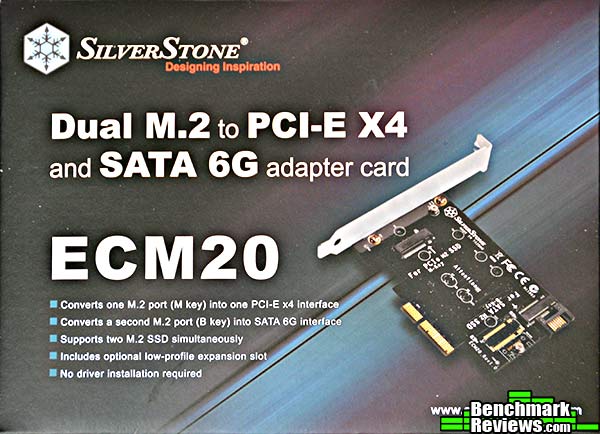
- Supports one SATA6 SSD and one PCI-E 4x SSD
- No drivers required
- Includes extra bracket for low-profile systems
- Supports Windows, Mac OS X, and Linux operating systems
Let’s take a look at this adapter in the next section.
Inside the ECM20’s box you’ll find the card itself, a low-profile bracket, a fairly useless “manual”, and two small packages of mounting screws.
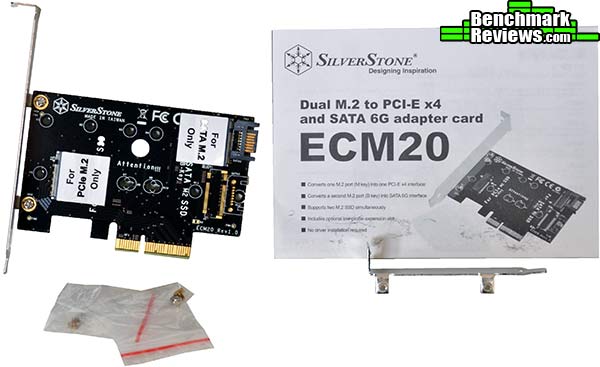
Large stickers on the card helpfully designate the SATA m.2 and PCI-E m.2 slots. There are no electronic components on the front of the card.

Removing the stickers is necessary to use the card, but they leave residue you’ll need to clean off.
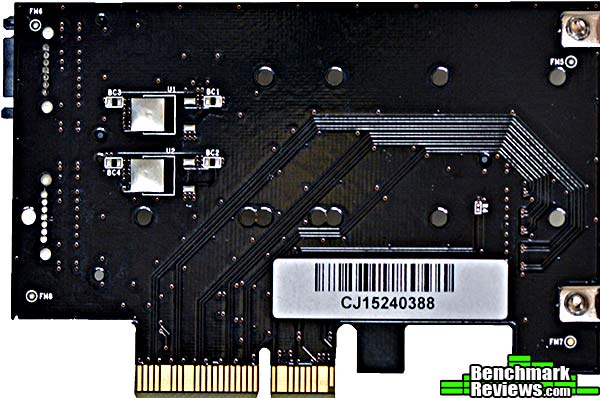
The rear of the card has the only electronic components: a few surface-mount capacitors, probably used as filters.
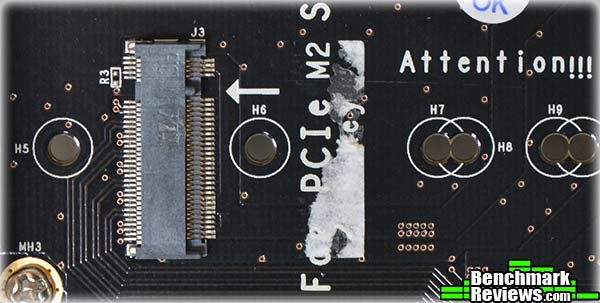
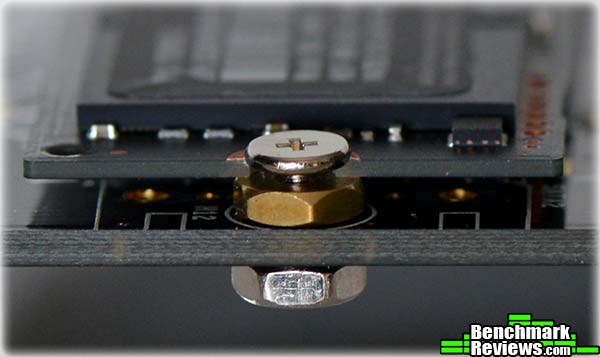
Each of the small plastic pouches included has these three components, which you’ll need to mount the SSDs. You’ll also need a really small Philips-head screwdriver, and, ideally, a very small nut driver, although small needle nose pliers will do in a pinch.

You’ll add these components to different places on the board depending on the size of the SSD you’ll be mounting. SilverStone provides no guidance on how to “assemble” a mounting point, but I eventually figured it out.
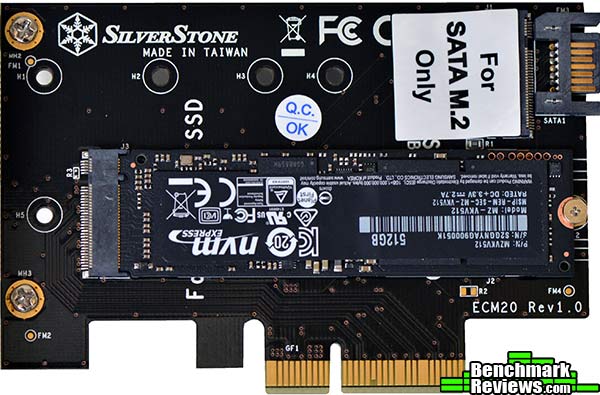
Here’s what it looks like ready to go, with a SATA m.2 drive mounted in the top slot and our Samsung 950 PRO NVMe SSD mounted in the bottom slot. Note that the SATA m.2 drive must be connected to a SATA port on your motherboard with a SATA cable.

So how does the performance of this card compare with using the native ports on our MSI Z170 motherboard? Let’s find out.
It’s important to understand that the SilverStone ECM20 adapter has no active electronic components. It’s a very simple device that provides an m.2 mounting point for interfaces that already exist on your system. While the performance of the SATA m.2 slot will be pretty constant (since you’re simply connecting the port to an existing SATA interface via a cable), the bandwidth available to the PCI-E m.2 slot– and thus its performance– will vary.
Top-end PCI-E SSDs like the Samsung 950 PRO are designed to use 4 PCI-E 3.0 lanes. If you have fewer lanes available, or the lanes use the older 2.0 protocol, the SSD will still function, but not at peak performance. And it’s not always easy to determine how many lanes, and what type, your system can provide.
You will get the full 4x PCI-E 3.0 lanes easily in these configurations:
- A Z99-based system
- A Z170-based system
- A Z77, Z87, or Z97-based system with only one graphics card
If you have a Z77, Z87, or Z97-based system running multiple GPUs, all 16 of the available PCI-E 3.0 lanes will be used by the card, leaving only the 8 PCI-E 2.0 lanes provided by the chipset. And some of these remaining lanes may be used by other features of the board; complicating the issue is the fact that some boards allocate the remaining lanes automatically, while some have configuration switches on the board…so you’ll need to check your motherboard manual to ensure that you set up the best configuration.
Note that even with PCI-E 2.0 lanes, the performance of PCI-E m.2 SSD will be much better than that of a SATA SSD.
I tested the SilverStone ECM20 on Benchmark Reviews’ updated SSD test platform, using an MSI Z170A Gaming M7 motherboard and Intel Core i7-6770K CPU, with a Samsung 950 PRO m.2 SSD.
Unsurprisingly, the performance of the Samsung 950 PRO SSD in the SilverStone ECM20 adapter card was identical to the performance we recorded with the SSD in one of the board’s native m.2 slots:
| Z170 Native m.2 | SilverStone ECM20 | |
| AIDA64 Linear Read (average) | 2165 MB/s | 2193 MB/s |
| AS-SSD 4K/64 thread read | 1175 MB/s | 1170 MB/s |
| AS-SSD 4K/64 thread write | 374 MB/s | 376 MB/s |
| ATTO max read | 2584 MB/s | 2510 MB/s |
In each case, the differences were minor, with less than 1.5% variance between the performance achieved with the native m.2 port and the performance achieved on the adapter card.
In the last section I’ll give my final thoughts and recommendation.
Benchmark Reviews expects that m.2 form factor, NVMe SSDs will be the next phase of the solid state storage revolution. While AHCI SATA SSDs will dominate sales for the next year or two, enthusiasts who want the very best performance will gravitate towards m.2 devices. The SilverStone ECM20 adapter provides a path for users whose motherboards lack native m.2 ports to take advantage of this.
While the product itself is very simple and requires no drivers or configuration, it’s left to the user to determine the suitability of their system and the best way to configure it to use the card. And this is the source of my only complaint about the product: there is virtually no documentation provided either with the product or online to educate and advise the user about PCI-E lane use and allocation. Depending on the motherboard and system configuration, performance of a PCI-E SSD on this adapter can potentially vary dramatically. While I recognize it’s a complex subject, I wish SilverStone had at least tried to address this.
The SilverStone ECM20 m.2 adapter provides an m.2 SSD upgrade path for users whose motherboards lack native m.2 ports. It’s a very simple adapter that requires no drivers or configuration, but the onus is on the user to determine the suitability of their system and the best way to configure their motherboards.
As far as appearance goes, this is a very plain and functional board, but it’s going to be inside your computer and not readily visible even in a windowed case. Functionally, the board performs perfectly (not that there’s really much to go wrong, what with no active electronics) and the construction seems solid. Value-wise, at only $17.99 (Amazon), this adapter board is a no-brainer if you want to dive into the m.2 waters now with an older system.
Pros:
+ Provides inexpensive upgrade path to m.2 for older systems
+ Accommodates both SATA and PCI-E SSDs
+ No drivers or configuration required
– Fiddly SSD mounting screws require a steady hand and tiny tools
– No documentation provided on PCI-E lane allocation
– Removing sticky labels leaves messy residue
-
Performance: 9.75
-
Appearance: 8.50
-
Construction: 9.00
-
Functionality: 9.75
-
Value: 9.75


19 thoughts on “SilverStone ECM20 m.2 Adapter Review”
You don’t seem to mention if this card is able to be used for booting windows from
Yes, you can boot from m.2 SSDs in either port.
Hello!
I know, that this is a rather old(ish) article, but i thougt you might answer my questions anyway 🙂
So i just got a Samsung 950 Pro, and since since my onboard M.2 port isn’t fast enough (ASUS Maximus VII Ranger), so i ordered a Silverstone ECM20. Im currently using the SSD on the MOBO’s M.2, since the adapter isn’t arriving until next month. My question is, that is there any kind of setting that i have to adjust in the bios, once i install the SSD on the adapter? The PCIEx8_4 is set to M.2, but other than this? Honestly, i was searching the web before asking a stupid question, but the M.2 to PCIE cards are not well known, and i couldn’t find a thing, sadly.
And for my second question: after putting the ECM20 into the build, do i need to reinstall my windows 10, or it will boot without a question?
Thanks for the help in advance,
Verdynius
As a Z97 chipset-based board, your Maximus VII Ranger has 16 PCI-E 3.0 lanes available from the processor, and 8 PCI-E 2.0 lanes from the chipset. You want four of the 3.0 lanes for the best performance from the Samsung 950. The only way to use those lanes is to plug the ECM20 adapter card into one of the red video card slot– hopefully you’re not using two graphics cards.
Normally, if you’re just using one graphics card, all 16 PCI-E 3.0 lanes would be allocated to that card. I’m not sure how the Maximus VII will handle one video card in one x16 slot and the adapter card in the other x16 slot. Hopefully it will just see two devices and allocate lanes to the adapter card. As far as I know the only possibilities are that it will either ignore the adapter card (in which case it won’t work at all), or it will allocate 8 lanes to it (wasteful, since it only needs four, but there you go).
If you can’t use the secondary graphics card slot, obviously the x4 slot is your only option. While you won’t get the full performance of the 950, it will still be faster than any SATA SSD.
You shouldn’t have to do anything to the drive once it’s moved to the card, except perhaps re-set the preferred boot device in your motherboard’s BIOS.
Thank you for the help, it’s really appreciated! The adapter just arrived an hour ago, installed the SSD onto it, inserted into the free red socket. Booted it up, checked the bios to be sure, but the correct Windows Boot Manager was selected already, and it booted like a charm.
Read/write speeds are very similiar to the ones in your article, just a bit lower (~10%) everywhere. But thats maybe because the OS im currently running is on that device.
Thanks again, keep up the great work!
Hi, i have MSI Z77A-GD65 Gaming (ful Z77 chipset)…Can I use this card with NVMe Sam SM951 and boot to OS? On everything PC with PCIex? How i set-up in bios? Thanks for answer.
Probably. If you have a graphics card in your PCI-E x16 slot (which I assume you do), you’ll be using PCI-E 2.0 lanes from the chipset to drive the SSD, so you won’t be able to get its full performance. But it should still be faster than a SATA SSD.
I believe NVMe only works on the Z97 and newer chip sets.
Good point. It’s theoretically possible to enable NVME boot support on earlier chipsets with a BIOS upgrade, but as far as I know, nobody’s done it yet.
I’m using it with the new 0CZ RD400 as the PCIe card and Transcend 512GB SATA III MTS800 as my SATA M.2. I’ve also got the now famous Samsung 951 on the board itself, so my PCIe 5 slot is unavailable on my Asus Rampage V Extreme board. The problem I’m having is that the Transcend SATA drive is not recognized, either by my computer or Mini Tool Partition Wizard. I’m running 5 boots, a total of 8 onboard drives and build for a living (about 20 years now) so I test with Linux, Windows 7, 7 Ultimate, 8.1 and 10 Pro. Anyone have any ideas? it reads the PCIe drive just fine on the card, and all my SATA ports are enabled in bios. I’m stumped (not for the 1st time 🙂 )!
Kevin,
Two things occur to me. First– and forgive me– did you plug a SATA cable from one of your ports to the SATA connector on the card? This is required for the SATA m.2 port on the card to work.
If the answer to the above question is “Yes”, then my next suggestion would be to grab your motherboard manual. Your Rampage V is the latest X99 chipset, but depending on the CPU you’re using and the other motherboard features and devices you’re using / have connected, some of your SATA ports may be disabled to free up PCI-E lanes for the stuff you’re doing. This is my best guess as to what’s happening, other than a dead MSATA drive, since the ECM-20s mSATA port is just a passive pass-through of signals from the SATA ports it’s plugged into. There’s not much to go wrong.
I have a Gigabyte 990FXA-UD7 (AM3+ with AMD FX-9370 CPU, 32GB, Samsung 840 SSD SATA, One Video Card R9 390) and I installed the ECM20 Card with a Crucial 512GB M.2 mounted on it. Windows doesn’t it see nor the BIOS. The latest BIOS is about the same date as the one installed (Circa 2013). I tried updating the BIOS but kept getting file size incorrect. BIOS is Version FC. This MOBO has about 6 hours on it total so I hate to dump it. Any ideas to get this to work, even if at a slower transfer rate..?? HELP…..!!
BTW it’s a Crucial MX300, and after looking up the specs it appears just to be a SATA 525 GB Read/Write speed SSD in an M.2 Format is my best guess. Just cannot get the Bios or W10 Pro to see it. I just tried it in a different x16 slot an will check it there…
Upon further review it appears the Crucial MX300 is a SATA m.2 SSD…so I hooked up a SATA Data cable to the ECM20 card and still nothing…I tried a different slot as well… Perplexing…
I figured it out… I had to move the Crucial MX300 from the M.2 PCIEx slot on the card over to the SATA M.2 Slot, then add the SATA Data cable…Viola…Windows sees it..!!
Looks as if you figured it all by the time I managed to reply! Yes, the confusion between mSATA and PCI-E SSDs in the m.2 form factor can be a problem…
I bought a Samsung 850 Evo MZ-N5E500BW for my Asus Maximus VII Hero (Z97 Chipset). The ssd will arrive next week and i think the m.2 port of my mobo has another interface. ¿Can i make things work or do i need to buy one of these?
Yes, you will need an adapter. ASUS’ specs for that motherboard say that the slot supports PCI-E m.2 devices, but the Samsung SSD you’ve bought is an mSATA. So you’ll need to plug it into an adapter like this one and run a SATA cable from the adapter to one of your SATA ports.
Thanks, i bought one in Amazon.
Comments are closed.