By David Ramsey
Manufacturer: Micro Star International
Product Name: Z170A GAMING M7 Desktop Motherboard
UPC: 824142025536 EAN: 4719072353988
Price As Tested: $204.99 (Newegg | Amazon)
Full Disclosure: MSl provided the product sample used in this article.
The advent of Intel’s Skylake 6th-generation Core processors and their supporting Z170 chipset marks the biggest change in Intel’s consumer line since the original X68. While the Skylake CPU holds few surprises other than its support for DDR4 memory, the Z170 chipset finally brings to the mainstream market what it’s so desperately needed: more PCI-E lanes, and of the 3.0 variety at that! Of course MSI adds their own unique touches to this system and today Benchmark Reviews checks out the MSI Z170A Gaming M7 LGA1151 motherboard.

While there’s little to distinguish the previous Z77, Z87, and Z97 chipsets, the Z170 is the best argument for upgrading your rig since Sandy Bridge was introduced. Let’s take a look at what’s new:
Intel’s progress in mainstream chipsets (i.e. not including the LGA2011 and 2011v3 platform) has been very slow, with only incremental improvements– a few more USB 3.0 ports here, some SATA 6 there– for the past few years. And while native support for these features was nice, it wasn’t anything that hadn’t been done with third-party chips before. The one thing the mainstream systems increasingly needed was more PCI-E lanes, and with the Z170, Intel has finally obliged. Why do you want more PCI-E lanes? Because all the spiffy new I/O devices, like m.2 SSDs, are using them.
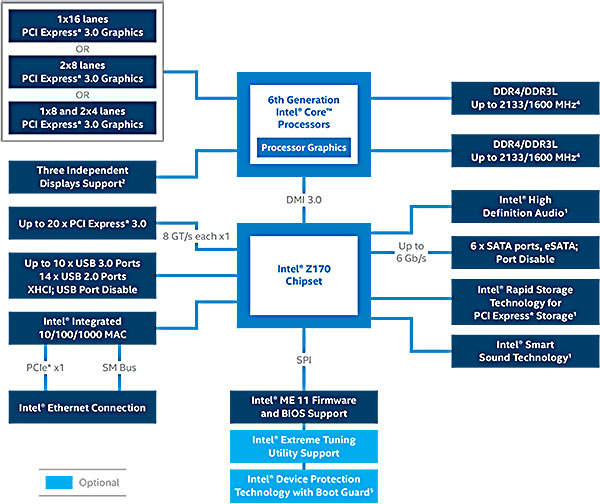
The main thing in this diagram is the box labeled “Up to 20xPCI Express 3.0”. That’s the real win here. Chipset support for PCI-E lanes started with the Z68, which supplied 8 PCI-E 2.0 lanes, and there it stayed through the Z77, Z87, and Z97 chipsets. I’ve prepared a summary chart below showing native interface capabilities of Intel’s last few chipsets.
| SATA 3gb | SATA 6gb | USB 2.0 | USB 3.0 | PCI-E 2.0 | PCI-E 3.0 | m.2 support | |
| Z68 | 6 | – | 14 | – | 8 | – | – |
| Z77 | 6 | – | 10 | 4 | 8 | – | – |
| Z87 | – | 6 | 8 | 6 | 8 | – | – |
| Z97 | – | 6 | 8 | 6 | 8 | – | 2xPCI-E 2.0, mSATA |
| Z170 | – | 6 | 14 | 10 | – | 20 | 12xPCI-E 3.0, mSATA |
| X99 | – | 10 | 8 | 6 | 8 | – | – |
With the 16 lanes supplied by the Skylake CPU, a Z170-based system now has a total of 36 PCI-E 3.0 lanes available. An X99 system can still beat this, depending on the CPU: while the X99 chipset only provides 8 of the slower PCI-E 2.0 lanes, the Haswell-E LGA2011v3 CPU can supply up to 40 PCI-E 3.0 lanes on its own (the number of lanes depends on which CPU). Note that since the chipset PCI-E lanes cannot be used for GPUs, Z170 systems still don’t support triple-GPU setups any better than their predecessors, with an 8x4x4 configuration. So an X99 system still has the edge here.
Let’s take a look at this board in the next section.
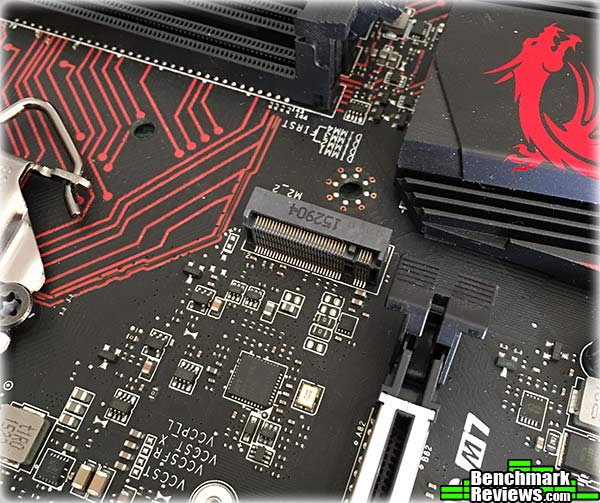
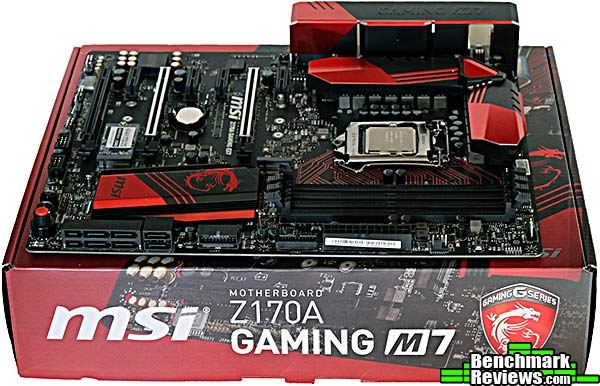
The MSI Z170A Gaming M7 motherboard follows the red-and-black color scheme MSI has used on their previous enthusiast boards. The layout is pretty standard for an ATX motherboard, with the only unusual items being the two m.2 slots (one occupied in this photo) under the first and fourth PCI-E X1 slots.

The board’s accessories include the usual driver disk and manual, back I/O shield and SATA cables, NVIDIA SLI bridge and quick-connect headers for the front panel blocks. “Gamer” extras include a metal case badge, a door knob hanger, and cable labels, which are nice.

At the lower left edge of the board are the audio header, a two-digit POST code display, a trusted platform module connector (does anyone use these?), a system fan header, and the two front panel headers. After Windows has finished booting, the POST code display shows the CPU temperature, which is a nice touch.
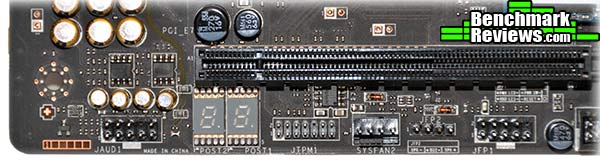
Next are two USB 2.0 headers, a button for flashing the onboard BIOS, a “slow mode” switch (used to help boot into Windows under liquid nitrogen cooling), and the power, reset, and overclocking buttons.

The last item applies a fixed overclock when the ring is rotated off zero; the degree of the overclock depends on the value the external ring is rotated to. Charmingly for all us Spinal Tap fans, the overclocking ring goes to 11.

From left to right, the rear I/O panel has a PS/2 style mouse port MSI calls the “Gaming Device Port”, two USB 2.0 ports, a Clear CMOS button, a special vertical USB port for BIOS updates, a Displayport and two HDMI video connectors, gigabit Ethernet, three USB 3.0 ports (oddly, with red tabs instead of blue tabs), and the first USB 3.1 port I’ve seen on a production motherboard. Last is the audio panel. Having only three USB 3.0 ports seems stingy, but at least there’s a USB 3.1 Type C port.

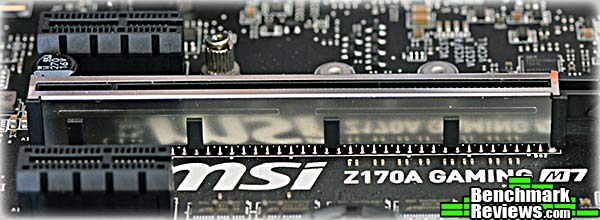
There are three PCI-E X16 slots and four PCI-E X1 slots. The first two X16 slots have metal shields, while the last X16 slot, as you can see, only has contacts out to an X4 length, but that’s fine since that’s all this board will ever allocate to that slot anyway.

Let’s continue looking at this board in the next section.
The two m.2 slots on the motherboard can both handle the longest 80mm m.2 SSD variants (2280), and each slot will automatically configure itself to work with either PCI-E or mSATA SSDs.
Here’s a closer look at MSI’s metal-shielded PCI-E slots. MSI says their “Steel Armor” provides additional mechanical support for heavy GPUs as well as enhanced shielding. I dunno if either of those claims is anything more than marketing-speak, but I must admit they look really cool.
This “hot key” switch in front of the memory sockets enables some useful utility functions directly from the keyboard when it’s enabled: stuff like incrementing and decrementing the CPU base clock and multiplier, turning the system on and off, or updating the BIOS.
 The Realtek ALC1150 audio chip is shielded under the (soldered-on) Audio Boost cover and backed with gold-colored Chemicon audio capacitors. MSI says the audio circuitry is electrically isolated from the rest of the motherboard. It looks as if the time for separate audio cards has largely passed.
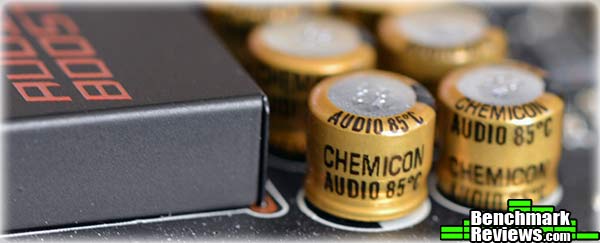 There are six SATA 6g connectors; the separate block at the left supports either two SATA Express drives (should any ever actually exist) or four standard drives. Next are two USB 3.0 headers, one pointed outwards and one pointed up.
 The demise of the Fully Integrated Voltage Regulator (FIVR) that Intel introduced on the Haswell CPUs means a cooler-running processor; it also means motherboard vendors can now compete with beefy power regulation sections. Titanium chokes and solid aluminum-core “dark” capacitors are what MSI uses here.
 In the next section I’ll look at the MSI Z170A Gaming M7 BIOS.
MSI has added a “simplified” layer to their evolving ClickBIOS that they call EZ Mode, but while it may be simple, it’s all many users will ever need. A system hardware and settings summary occupies the top portion of the screen, with graphical indications of the status of the Game Boost dial and XMP button.
Down the left side of the screen are selectors for CPU, Memory, Storage, Fan Info, and Help; clicking any one of these replaces the center portion of the screen with detailed information on the item clicked.
 For example, here’s the Storage sub-section, which lists the devices plugged into each SATA port. One small complaint I have about this section is that the m.2 slots are considered SATA ports, so my boot SSD, which is plugged into an m.2 port, is shown as occupying SATA Port5.
 In fact, this is even how the Board Explorer graphical section shows it:
 No, there really isn’t anything plugged into that SATA port. Honest. Using the m.2 slot may disable that port (it does), but I’d really prefer to see an indication of the actual port I’m using.
Pressing F7 will switch to the ClickBIOS Advanced view, which allows more detailed information and settings.
 For example, click the large OC tile at the left of the Advanced screen will display all the settings and controls any overclocker could ever need. One feature of Intel’s Skylake CPUs is that we can now adjust the base clock in 1mHz increments, just like we could back in the day.
 Of course there are plenty of other advanced settings. This is where you’d do things like disable the CPU’s onboard video, tweak the USB configuration, and so forth.

All of this is presented in a pretty easy-to-use fashion. I’d say MSI is getting close to being as good as ASUS’ UEFI BIOSes. They’re even adopting some features like the “summary of what you changed”:

In the next section I’ve present an overview of the bundled Windows-level software included with this motherboard.
MSI includes a nice software bundle with the Z170A Gaming M7 motherboard. The centerpiece is the MSI COMMAND CENTER, which allows fine adjustment of CPU clock and multipliers, as well as voltage and fan control, which are things you’d normally need to drop into the BIOS to tweak, including fine control of the system fans.
 Of course you can also adjust settings for the RAM as well…
 …and the overclock settings of the Game Boost dial. Although the dial “goes to 11”, there are really only eight possible settings.
 As on their other gaming systems, MSI includes the Killer Network interface for the Ethernet port. With the supplied utility you can fine-tune the amount of network bandwidth used by individual applications.
 The Live Update application keeps all your MSI software up to date and can be configured to check for updated automatically.
 Oddly, MSI includes a couple of single-function utilities like Fast Boot (which, as best I can tell, simply reduces the pause you see at boot time where you have time to press a key to drop into the BIOS or choose a boot device), and Fast Charger, which enables high-amperage charging over some USB ports. Why these functions aren’t simply integrated into the Command Center is a mystery.
As with previous MSI motherboards, Fast Boot didn’t seem to make any difference in my testing– there was less than two seconds’ difference in boot-to-login times when it was enabled or disabled. The GO2BIOS button ensures that your board boots directly to the BIOS the next time you restart, but I found it unnecessary: unlike many boards, pressing the Del key at startup time to get into the BIOS instantly rewards you with an on-screen acknowledgement and reliable entry to the BIOS– you won’t be sitting there, pressing the Del key rapidly and cursing when your system ignores you and boots to Windows.
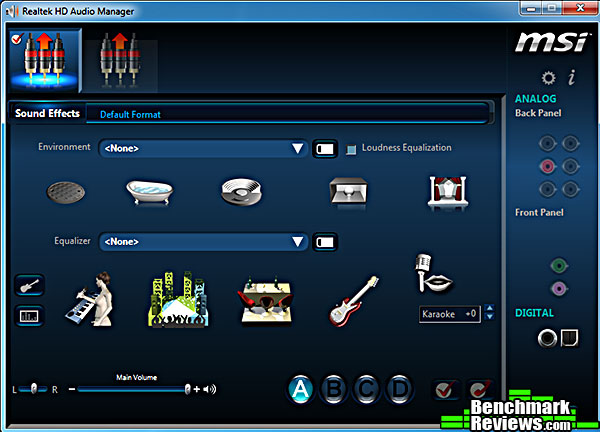
And of course there’s the Realtek HD Audio Manager to manage the audio subsystem.
 In the next section I’ll describe overclocking this motherboard.
There are two basic mechanisms used for auto-overclocking on enthusiast motherboards:
- A menu of fixed, pre-configured parameters.
- Heuristic systems that tweak parameters, run stress tests, and reboot. This loop is followed until failure.
MSI’s Game Boost dial uses the “fixed parameter menu” system, and applies pre-configured settings based on the position of the dial. Since these parameters are not editable, you’re stuck with MSI’s choices if you use Game Boost. Here are the settings as shown in the BIOS:
 Here are the values Game Boost uses for Set 2 and Set 4– which I verified by dropping into the BIOS and checking the OC settings– as well as my own manual settings:
| Base Clock | Multiplier | Core voltage | XMP | Final freq. | |
| Set 2 | 100Mhz | 44x | 1.25v | On | 4.4gHz |
| Set 4 | 102Mhz | 45x | 1.28v | On | 4.59gHz |
| Manual | 100mHz | 46x | 1.32v | On | 4.60gHz |
Of course, overclocking is never guaranteed, and to make things worse, I had no available water coolers for this attempt. Still, the monstrous Thermalright Silver Arrow heatsink with its dual fans remains the best air cooler I’ve ever tested, and the Skylake CPUs do run cooler than ever…
I tested the stability of the overclocking settings by running AIDA64’s System Stability Test, which stresses all CPU cores simultaneously. The best I was able to do with the Game Boost dial was Set 2; the system would boot and run under Set 4, but crash or freeze a few seconds after starting the System Stability Test.
I thought the voltage settings were a little conservative– the CPU temperature under load didn’t even hit 60 degrees– so I turned the Game Boost dial back to zero and started adjusting things manually (If the Game Boost dial isn’t on zero, most overclocking settings in the BIOS are locked out).
By setting the core voltage to 1.32v, I was able to get a stable overclock at 4.6gHz by setting the multiplier to 46x and leaving the base clock at 100mHz. The system would freeze a second or two after starting the AIDA64 stress test with the multiplier at 47x. With the 4.6gHz overclock the system was completely stable and the CPU temperature topped out at 63 degrees. My guess would be that a water cooler wouldn’t make any difference here.
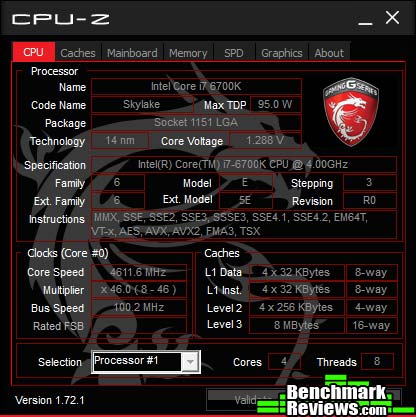 With my manual overclock, I was able to beat MSI’s Game Boost by 200mHz, mainly because MSI’s voltage increases are very conservative. Still, the difference between 4.4gHz and 4.6gHz is only 4.5%, so while my manual overclock was better, the real-world performance differences wouldn’t be noticeable.
In the next section I’ll present my final thoughts and conclusions about this motherboard.
Intel’s Skylake CPU and its accompanying Z170A chipset represent significant changes from the past generations. The Fully Integrated Voltage Regulator, a touted feature of Haswell, is gone; but the real news is that Intel’s mainstream platform finally gets the extra PCI-E lanes it so desperately needed.
MSI offers no fewer than nine motherboards in their “Z170A GAMING Series”, which can be problematic if you’re shopping. is the Z170A Gaming M7 better than the Z170A Gaming Pro or the Z170A Krait Gaming or the Z170A XPower Titanium? Well, you’ll just have to read the specs and see what you want.
That said, the Z170A Gaming M7 actually slots in towards the high end of the range, and if it eschews built-in 802.11AC wireless and programmable color LEDs on the board itself, it does offer all the goodness Intel’s baked into the Z1709A chipset as well as a slew of next-gen interfaces like m.2, SATA Express, and USB 3.1. Solid enthusiast features like a robust power system and good Realtek ALC1150-based sound with fancy caps just sweeten the deal. Onboard Power and Reset buttons, and a POST code display that doubles as a CPU temperature indicator are nice touches as well.
MSI has put a lot of thought into this motherboard: for example, the m.2 slots can handle either mSATA or PCI-E SSDs, and they’ll automatically configure themselves appropriately. This is the motherboard Benchmark Reviews will be using going forwards in our SSD testing, and it worked great with an mSATA SSD as a system drive (you can see it in the image below) and our first NVMe SSD test, the Samsung 950 PRO.
 Although MSI offers fancier motherboards, the Z170A Gaming M7 would be where I spend my money. I am of the perhaps parochial opinion that desktop motherboards should connect with Ethernet and use wired keyboards; and if my aging ears cannot detect the difference between the Realtek ALC1150-based audio on this board and whatever super system is used on the fancier motherboards, well, honestly, I probably couldn’t have detected the difference when I was 20, either.
In the last section I’ll present my conclusion based on the testing and features of this motherboard.
The MSI Z170A Gaming M7 is a solid, high-end gaming motherboard that effectively leverages the new features of Intel’s Z170A chipset without going overboard on “tack-on” features. Probably the only thing that struck me as silly was the rather flimsy aluminum shroud covering the I/O ports. A lot of motherboards seem to be doing things like this now, but a nicely-molded and better-fitting plastic piece would be preferable to this bit of stamped sheet metal, which has no discernible function other than to try and look cool…a function it fails at.
But, honestly, that’s pretty much it when it comes to hardware criticisms of this board. Everything an enthusiast needs is there: MSI has even started providing dual CPU fan headers, which I put to good use running the dual fans of my Thermalright Silver Arrow CPU cooler.
The performance of the board was excellent. I was a little disappointed in my relatively meager overclock, but from what I see online the Core i7-6700K just doesn’t have very much headroom.
Appearance-wise, the board follows the aggressive red-and-black scheme of other MSI gaming motherboards. It can look a little overbearing, but aside from the aluminum port shroud, there’s really nothing to complain about.
The construction of the board appears as solid as any other motherboard from a top-tier maker.
Functionally, this board stands out for its inclusion of dual m.2 slots and a USB 3.1 connector, as well as onboard power, reset, and overclocking controls.
Available online for $204.99 (Newegg | Amazon), this could be considered a pricey motherboard…but by including everything enthusiasts need, and nothing they don’t, it represents a good value that would make an excellent long-term foundation for your Skylake build.
+ Improved ClickBIOS
+ Full of next-gen interface goodness
+ Probably more PCI-E lanes than you’ll ever need
+ Onboard power, reset, and overclocking…plus POST code display
— What’s with that silly I/O port shroud?
— Some separate, single-function utilities should be built into Command Center
-
Performance: 9.75
-
Appearance: 9.00
-
Construction: 9.50
-
Functionality: 9.75
-
Value: 9.00
Excellence Achievement: Benchmark Reviews Golden Tachometer Award.
COMMENT QUESTION: Who makes the best motherboards, in your opinion?


2 thoughts on “MSI Z170A GAMING M7 Motherboard Review”
I have a question about motherboard that really bugs me since i would like to use MSI boards in the future. Fan headers that are on my MSI Z87 G65 gaming motherboard offer PWM control only on CPU header while other 3 offer just voltage control. So. what i wanna know is have MSI changed things a little bit and put PWM control on all 5 fan headers or is the situation the same as i described it for my MB. Thanks
It’s going to be different for every motherboard model, and then, making things a bit more difficult, some UEFI/BIOS settings will allow you to change a fan header to turn PWM on or off. You might want to look into the settings on your board to see if this isn’t already possible.
Comments are closed.