By David Ramsey
Manufacturer: Corsair Components, Inc.
Product Name: Raptor M45 Gaming Mouse
Model Number: CH-9000052-NA
UPC: 843591046923
Price As Tested: $59.99 (Amazon | Newegg)
Full Disclosure: Corsair provided the product sample used in this article.
What’s the difference between a “regular” mouse and a “gaming” mouse? It’s a reasonable question, and one that Corsair hopes to answer with the Raptor M45 Gaming Mouse. Basically, the difference boils down to features and responsiveness. The Corsair Raptor M45 has both of these in spades.

When optical mice started replacing “ball mice” in the late 1990s, their resolution was only a few hundred dots per inch (DPI) and their polling rates relatively low, which was adequate to traverse the small computer screens and play the simple games of the day. But modern large screens and rapid-fire games demand high resolution and polling rates, and gamers want definable buttons and other features. We’re here to find out how well the Corsair Raptor M45 meets these needs.
- Chassis material: Plastic
- 7 programmable buttons
- PixArt optical sensor
- Max. sensor resolution: 5,000 DPI
- High-mass scroll wheel
- Soft-touch finish
- DPI selector switches with LED indicator
Let’s take a first look at this mouse…
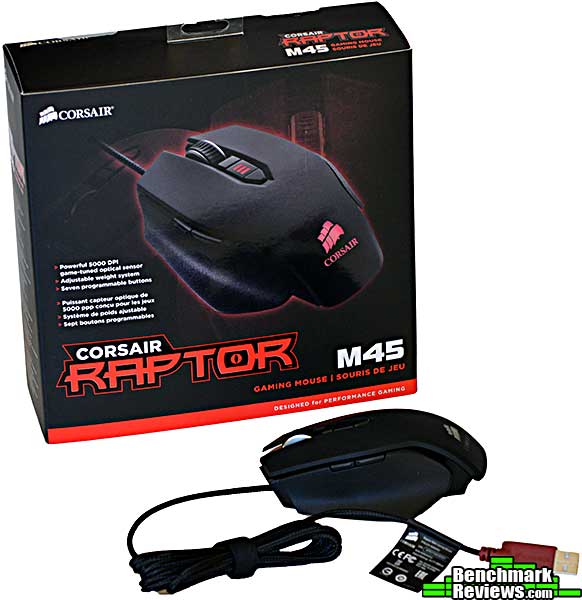
Corsair certainly has the “product presentation” thing down. When you first open the M45 Gaming Mouse box, you’re presented with this:

The contrast between the bright red box and black mouse, along with the stark simplicity of the presentation, makes a striking first impression.

The mouse itself is fairly ordinary-looking, at least by the standard of gaming mice. This left oblique view shows all seven programmable buttons: the two thumb buttons, the left and right-click buttons, the scroll wheel (which can be pressed down as a button), and the two DPI selector buttons just below the scroll wheel, flanking the LED DPI indicator. The USB cable is covered with black braided sleeving.

The right side of the mouse is a plain grip surface without any buttons or controls.

The rubber-covered metal scroll wheel has a nice heft to it. The mouse cord attaches to the right side of the mouse (as seem from the front)…this is definitely a right-handed mouse.
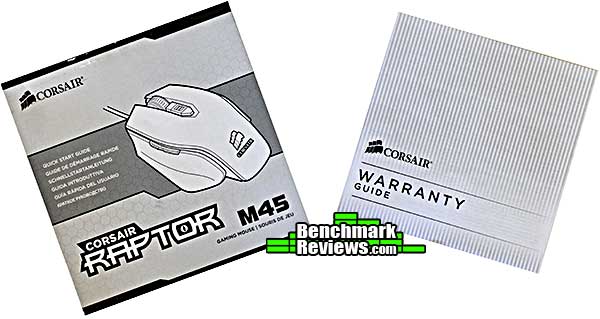
As with most mice and keyboards these days, the documentation is extremely minimal and you’re referred to the web site to download the latest version of the driver software.
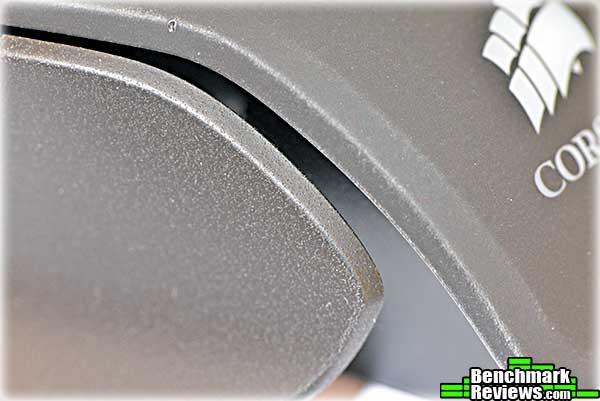
The Corsair Raptor M45 mouse has two different surface finishes; they’re not visually obvious without a magnifying glass, but you can feel them. The top surface and primary and secondary buttons are covered with a smooth, rubberized coating, while the right and left side panels have a very fine, sandpaper-like texture for better grip.
On the bottom of the mouse we see the optical sensor and three removable metal weights. The weights comprise a metal screw and a metal donut that fits around the screw’s shaft. Corsair doesn’t give the mass of these weights but I found the difference in “feel” to be noticeable comparing the mouse with all the weights vs. none of the weights.
Note that the optical sensor is positioned near the middle of the mouse body, rather than towards the front. Some prefer a front-mounted sensor so that a twitch of the wrist can fling the cursor across the screen. Last, note that the M45 is equipped with five PTFE glide pads, rather than the three or so you’ll find on ordinary mice. The little notch by each pad makes it easy to peel off when it’s worn, and Corsair sells extra sets of glide pads for $4.95.

Right below the mouse wheel are the two DPI switches: as delivered, the upper switch increases the DPI and the lower switch decreases it. In between the switches is a three-segment red LED indicator that displays which of the three configurable DPI settings you’ve chosen. You can configure the exact value of each of these three settings in the mouse utility software. You did download and install the utility software, right?

These three LEDs serve to visually indicate which (configurable) DPI setting you’ve chosen. Pressing the button below the LEDs reduces the DPI, while pressing the button above them increases it, with the LEDs keeping track (you can, of course, redefine the behavior of these buttons.) The “Corsair” logo at the rear of the mouse is also lit, and you can turn this off if you want…but why would you want to?

These two thumb buttons are perfectly positioned. Don’t laugh: I’ve used mice where these buttons were obviously not designed for use by humans with normally-articulated thumbs.

Let’s take a look at the M45 mouse utility software in the next section.
You’ll need to download the Corsair utility software for the Raptor M45 Gaming Mouse. If you read my review of Corsair’s Raptor K40 Gaming Keyboard, you’ll notice the software user interface looks quite similar. That’s because it’s actually the same software, which can control both the mouse and the keyboard if you have multiple Corsair products. All of your recognized Corsair devices are listed at the top left of the window; clicking on a device will select its controls. In this shot you can see that “M45” is highlighted; just to its left you can see part of the Raptor K40 keyboard selector.

The mouse control utility has three main sections: Assign Buttons, Manage Performance, and Manage Profiles. The first section, Assign Buttons, is where you define macros. The macro definition process for the Raptor M45 mouse is similar to that for the K40 keyboard, with one important difference. In both cases you begin the process by clicking the “MR” button, but on the keyboard your next step is to press the physical key you want to define, whereas with the mouse you must click on the number of the button you want to define on the diagram of the mouse, rather than clicking the actual mouse button. It took me a while to figure this out because, you know, no documentation…

Here I have defined Button 6 (the “forward” thumb button) to be a “triple tap”: pressing it will emit three left-click actions in sequence. This works great for using the low-power silenced pistol in Crysis 3, which you can fire while cloaked but often doesn’t kill with a single shot. This was a two-step process: first, I defined Button 6 as “left click”, and then I selected “Playback Options” and configured it to execute three times for each press of the button. As you can see from the screen above you can also configure it to execute as long as the button is held down, as well as defined the interval between “clicks”, which defaults to 50ms (20 times per second).
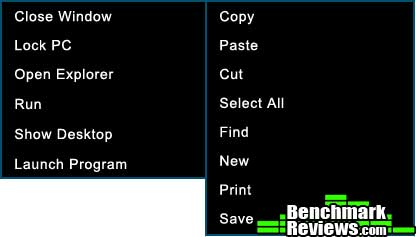
In addition to various “click” functions, you can specify that a button click execute one of a number of utility functions as shown above.
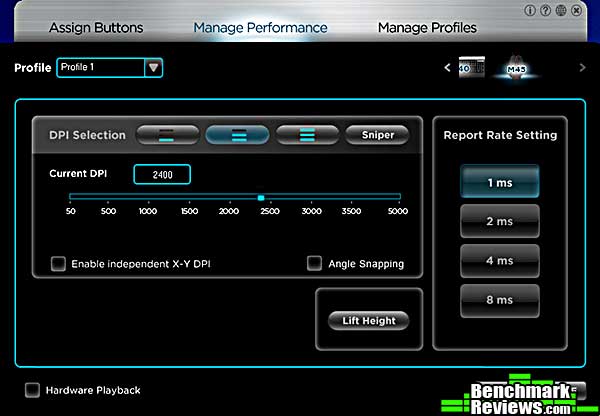
The second section of the utility is Manage Performance, and here you can select the DPI of each of the three on-the-fly settings as well as “Sniper Mode”. Sniper mode is typically a low-DPI setting to enable precise positioning of a weapon. While the Raptor M45 lacks a dedicated sniper button as seen on some other mice, you can redefine any of the 7 buttons to invoke this mode. With the ability to adjust both DPI and the polling rate, it’s easy to adjust the mouse’s tracking behavior to suit any preference.

As with the Raptor K40 keyboard, groups of settings– which in this case include button definitions as well as performance settings– can be saved as profiles. Also as with the K40 keyboard, you can elect to have these profiles execute in the software, or you can click Hardware Playback at the bottom left of the window, then click the Save to M45 button to copy the profile settings directly to the mouse.
There are advantages to each method. If you choose to keep the profile settings in software, you can associate each profile with an application, and that profile data will be loaded automatically when you run that application. If you choose Hardware Playback, profile settings will not take effect until you manually copy them to the mouse (by selecting the profile and clicking the “Save to M45” button), but you can then detach the mouse, carry it to another computer, and all of your settings will come with you.
In the last section I’ll present my final thoughts and conclusion.
What does the Corsair Raptor M45 mouse have over an ordinary mouse? Even no-name $10 mice from an office supply store are high-resolution opticals these days, and honestly you can place most games with these mice just fine.
That said, the true gamer will want, and indeed need, more than that generic mouse can provide. “Twitch gaming” really uses ultra-high resolutions, and high-quality sensors (and firmware) that seamlessly handle a variety of surfaces without skipping are a necessity. Slick styling, braided USB cables, and backlit logos arguably serve no function, but the pleasure in using a high-quality product designed for gamers is something worth paying for.
Of course, functionality is important, too. Your generic mouse won’t have adjustable DPI or programmable buttons, nor will it allow you to define performance profiles and button definitions that will be automatically loaded with each game (or other application). Using the Raptor M45 over the course of this review, I came to appreciate the comfortable shape, “grippy” sides, and instant responsiveness.
I have only two complaints about this mouse: first, the lack of documentation provided (even online) about the operation of the utility software; and second, the USB cord is stiff enough so that when you release the mouse, the tension in the cord can push it a few millimeters, moving the cursor on the screen. Admittedly this last item is more an issue in non-gaming scenarios.
You can pay more for a mouse with more buttons, a metal chassis, and more blinky lights, but the Raptor M45 Gaming Mouse is a very solid product. Few gamers will need anything more.
While the Raptor M45 slots in below Corsair’s “premium” Vengenace line of mice, it’s good enough to make you wonder why you’d want to pay more for the ostensibly “better” mice in the Corsair lineup.
With the PixArt 5,000-DPI sensor, the performance of the M45 was stellar, equal to mice I’ve used that cost almost three times as much.
The appearance of the Raptor gaming mouse is somewhat generic for the category: flat black, swoopy shape, and glowing red indicators. It’s a handsome, if understated, piece of kit.
Although the Raptor series mice lack the metal chassis of the Vengeance series, the mouse nonetheless exudes a solid, quality feel.
Corsair provides a lot of functionality in this mouse. The ability to have button macros and performance configuration handled by the driver software or directly by the mouse hardware adds a welcome degree of versatility.
Priced online for $59.99 (Amazon | Newegg), I think this mouse represents an excellent value.
The Corsair Raptor M45 mouse hits a sweet spot between generic optical mice and expensive, high-end gaming mice. I think for most gamers this is one of the best bang-for-the-buck mouse purchases you could make.
Pros:
+ Solid, quality construction
+ Adjustable weight system
+ Hardware or software execution of macros and performance settings
– No place to store removed weights
– Stiff USB cord
– Lack of documentation
-
Performance: 9.50
-
Appearance: 8.50
-
Construction: 9.50
-
Functionality: 9.75
-
Value: 9.50
Excellence Achievement: Benchmark Reviews Golden Tachometer Award.
COMMENT QUESTION: What is your favorite gaming mouse?


