By Olin Coles & David Ramsey
Manufacturer: ASUSTeK Computer Inc.
Product Name: Intel Z97 LGA 1150 Motherboard
Model Number: Z97-DELUXE (NFC & WLC)
UPC: 886227745722 EAN: 0886227745722
Price As Tested: DELUXE NFC WLC $399.99 (Newegg), DELUXE $289.99 (Newegg)
Full Disclosure: ASUS provided the product sample used in this article.
It’s a rare occasion that Intel releases a motherboard chipset without a corresponding processor to accompany it, yet here we are. With the introduction of Intel’s Z97 Express platform comes support for existing 4th-generation 22nm Haswell / Devil’s Canyon and upcoming 5th-generation Intel desktop processors fit for the LGA 1150 socket. Among the updates are: PCIe M.2 support for on-board solid state storage, enough bandwidth for up to six SuperSpeed USB 3.0 ports, and up to six SATA 6 Gb/s ports that fully support Intel’s Rapid Storage Technology 13.
Carryover technology includes support for up to three independent displays from the board’s DP/HDMI/DVI/VGA interface choices. Utilizing a DisplayPort 1.2 monitor enables users to daisy-chain up to three linked displays through one connected port at the board. Like Intel’s Z87 platform, there are 16x PCIe 3.0 lanes available, plus four PCIe 2.0 lanes delivered by the Haswell CPU. Dual channel DDR3 system memory finishes out the platform, so no DDR4 support will debut with this launch.

While there may not be a wealth of change to accompany Intel’s Z97-Express, companies such as ASUS have included many of their own in-house innovations on the platform. For the ASUS Z97-series you’ll find support for DDR3/DDR3L up to 3300 MHz with overclock. The ASUS Z97-DELUXE, -PRO, and -A series all include 10 GB/s SATA Express ports and a M.2 SuperSpeed Inter-Chip. Three 16x PCIe 3.0 ports and Realtek eight-channel (7.1) DTS audio come standard on all ASUS Z97-Express boards. Of course, ASUS retains their feature-rich UEFI BIOS for all Z97-series motherboard products, and even adds several visual improvements to the interface.
Where ASUS really pulls away from their competition is with digital power control for memory and processor, utilizing up to 16 power phases to ensure absolute precision stability. All hardware points are controlled by Dual Intelligent Processors 5, which consists of DIGI+ Power Control, TPU, EPU, Turbo App, and Fan Xpert. ASUS Z97-DELUXE and Z97-PRO models feature dual-band Wi-Fi 802.11ac (a/b/g/n/ac) and BlueTooth 4.0 wireless functionality. In this article Benchmark Reviews showcases the ASUS Z97-DELUXE (NFC & WLC) motherboard, and reveals the many hardware features packed onto this mainstream channel desktop board while showing off overclocking performance.
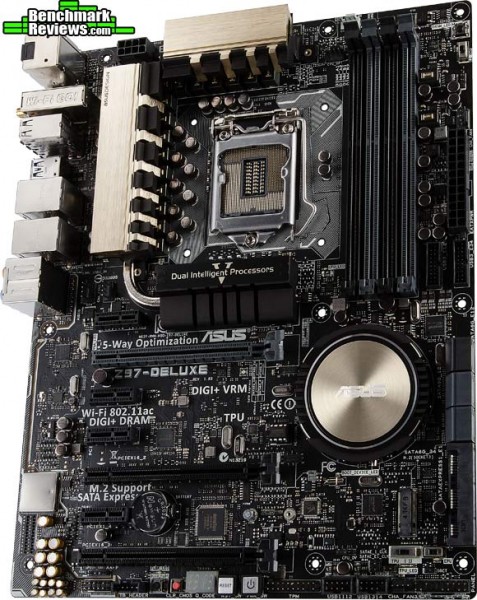
The ASUS Z97-DELUXE series (and also Z97-PRO series) are standard ATX form-factor desktop motherboards designed for the desktop enthusiast channel. By using the entire ATX landscape into their design, ASUS packs on features like Dual Intelligent Processors 5 (which we detail in the next section), dual-band Wi-Fi 802.11ac wireless, BlueTooth 4.0, DTS UltraPC II audio, dual Gigabit Ethernet adapters, PWM fan headers, a four-digit POST code display, and colonies full of USB and SATA ports.

As the name suggests, there are some added features which set the ASUS Z97-DELUXE (NFC & WLC) motherboard apart from the rest of the series. A few newly designed expansion adapters comes bundled with the Z97-DELUXE (NFC & WLC) motherboard: an ASUS ThunderboltEX II/Dual adapter that supports Intel Thunderbolt 2, an ASUS NFC Express 2 receiver and an ASUS Wireless Charger station. These may not come bundled with the other ASUS Z97 boards, but they’re all supported by them.

As you might expect from the top desktop motherboard supplier, ASUS kits come packed with cables and accessories. There are ASUS Q-Connectors for easy attachment of wire leads onto the front panel and audio headers, a flexible NVIDIA 2-Way SLI connector, a combination wireless antenna for 802.11ac and BlueTooth 4.0, six latch-securing SATA 6 Gb/s cables, standard and mini-USB cables, standard and mini-DisplayPort cables, a Thunderbolt header connection cable, wall-mounted AC-USB power adapter, an ASUS Q-Shield I/O panel, and several user manuals for the board and various adapters.

Utilizing Intel HD Graphics support, the ASUS Z97-DELUXE series offers on-board DisplayPort, mDP, and HDMI video outputs. The other Z97 counterparts offer DisplayPort, HDMI, DVI, and VGA (analog D-Sub) connections. The Z97-DELUXE and Z-97 PRO series include support for quad-GPU NVIDIA SLI and three-way AMD CrossFireX. An SLI bridge comes with each kit, however CrossFire bridges are no longer necessary as the technology supports software-based bridging.
Audio support has been strong among desktop offerings for the past few years, and the Z97-series is no different. Realtek ALC1180 eight-channel (7.1) DTS audio comes standard on all ASUS Z97-Express boards, boasting high-quality 112 dB SNR output.
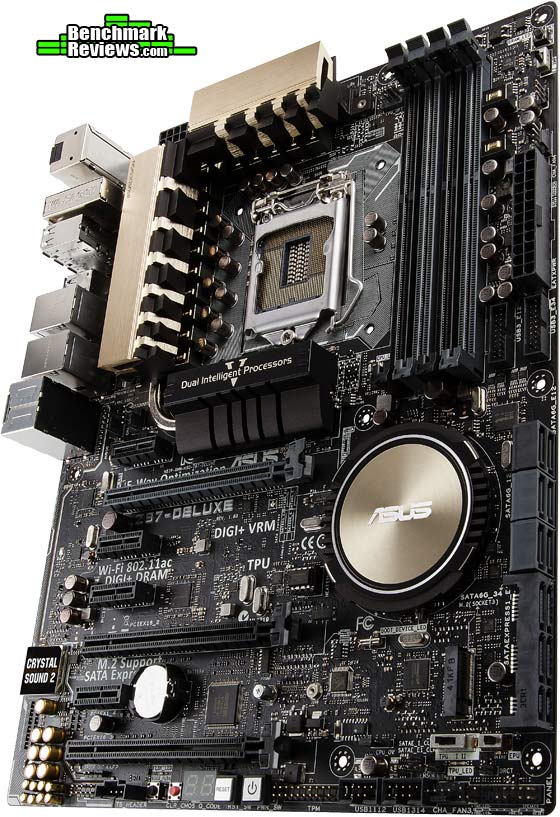
ASUS Wi-Fi GO! delivers Dual-Band Wi-Fi 802.11ac and BlueTooth 4.0 support for ASUS Z97-DELUXE and Z97-PRO motherboards (Z97-A lacks this features), and replaces two separate stick antennas issued with previous releases for an integrated Wi-Fi and BlueTooth antenna. Since these boards supports the very latest Wi-Fi 802.11ac specification, by using a matching AC router (the ASUS RT-AC66U would be our first choice) you’ll get great wireless performance. For cabled networking, all ASUS Z97-series boards include an Intel I218-V Gigabit LAN controller, however Z97-DELUXE adds a second network card using the Intel I211-AT controller.

With storage device capacities ever-increasing, you’ll be surprised by so many SATA and SATA-Express connections. All of the ASUS Z97-series boards include 10 GB/s SATA Express ports and a M.2 SuperSpeed Inter-Chip based on the socket 3 design. ASUS Z97-DELUXE features eight total SATA 6 Gb/s ports and two SATA-Express ports.
In the next section, we dig deeper into the ASUS Z97-DELUXE motherboard and find out what its made of…
Although ASUS has packed their boards with everything imaginable, the primary purpose of Z97 Express is to support 14nm Broadwell-D desktop processors when they arrive in early 2015. Intel plans to debut a full lineup of refreshed 4th-generation 22nm Haswell desktop processors later this year (code named Devil’s Canyon: faster speeds, improved thermal interface material), but ahead of that release they’ve set the groundwork for 5th-generation processors with Z97. Intel Z97 Express uses the same LGA 1150 socket design, and supports both existing 4th-generation and upcoming 5th-generation Intel desktop processors. The good news is that socket LGA 1150 will fit Haswell, Devil’s Canyon, and Broadwell desktop processors and can use the same heatsink cooler as Z79 and Z89 boards have used (LGA 1156, LGA 1155, LGA 2011). The bad news is that Broadwell is still a very long ways off.
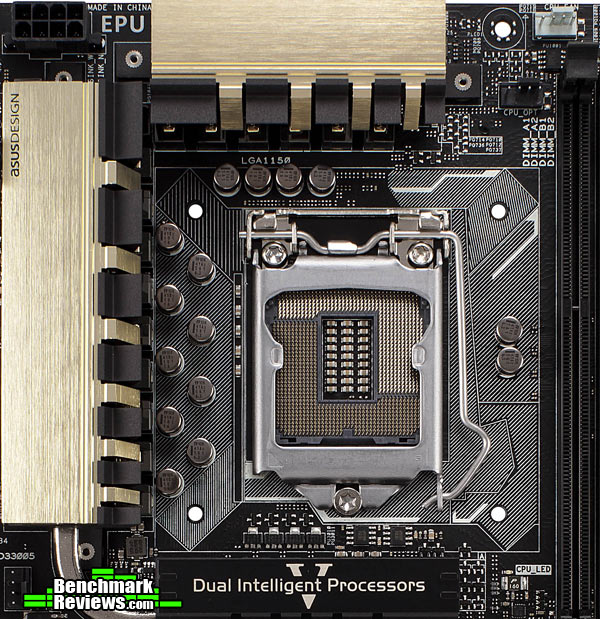
Surrounding the LGA 1150 socket is an array of Japanese 5,000-hour solid capacitors, which are well known to provide superior durability and sustained stability. Hidden under solid aluminum heatsinks are the boards sixteen power phase components, the heart of ASUS’ DIGI+ power control. A large white square surrounds the Intel LGA 1150 socket, illustrating the available area designated for (aftermarket) heatsink coolers. Note that there’s at least an extra 1/8-1/4 inch surrounding this area, so that oversized RAM modules will not interfere with cooler placements.

Four DIMM slots support up to 32GB of non-ECC unbuffered DDR3 system memory when using 8GB RAM modules. Modules must be set in pairs, occupying either black or gray slots for each set. Similar to past ASUS designs, these DIMM sockets utilize retaining levers on one side (top) and a permanent edge on the other (bottom). ASUS MemOK! assists you in recovering from an unbootable system due to unstable memory overclock, while ASUS EZ XMP helps you overclock that memory using its designed profile.
Two front-panel USB 3.0 headers are supported by the board’s ASMedia ASM1042e chip, which also supplies six separate SuperSpeed USB 3.0 ports in the back to compliment four Intel-supplied USB 2.0 ports.

Realtek ALC1180 audio is output through either a 7.1-channel digital optical Tos-Link SPDIF output or 5.1-channel analog 3.5mm audio jacks that feature a new de-pop circuit to reduce start-up noise. ASUS uses highest-quality Japanese capacitors to provide warm sound with natural fidelity, and utilizes separate PCB layers for stereo channels to help preserve the sound quality of sensitive audio signals. All audio enclosures are treated with EMI shielding covers, which prevent and reduce electrical noise interference that might affect amplifier sound quality. Once you’re plugged in, ASUS Crystal Sound 2 takes control to auto-optimize an audio profile fine-tuned to either headset or speaker hardware.

Thanks to Intel’s Z97 Express chipset paired to ASMedia chips, there’s no shortage of SATA-based storage connectivity. An ASMedia ASM1467 chip delivers the first two SATA 6 Gb/s ports (black), then Intel’s Z97 Express pitches in for two pairs of ports in the middle, followed by four more SATA 6 Gb/s ports and a pair of SATA Express ports by way of three ASMedia ASM1467 chips. An ASMedia ASM106SE SATA-Express bridge chip controls the M.2 (socket 3) SuperSpeed Inter-Chip, and an ASMedia ASM1480 16-to-8 channel multiplexer/demultiplexer switch chip ties everything together on the bus.

ASUS Z97-DELUXE and Z97-PRO boards provide the full ATX complement of seven slots: three PCIe x16 and four PCIe x1. Shared between three PCIe x16 slots are sixteen PCIe 3.0 lanes of bandwidth available, which can be dedicated towards a single graphics card, or split into an x8-x8 configuration with two cards. The board’s PLX chip enables a 8x/4x/4x configuration with three video cards installed, but don’t worry about 4x holding you back because these are PCIe 3.0 lanes after all.
All the ASUS Z97-series motherboards use a number of third-party and custom-made chips to implement proprietary features, such as “5-Way Optimization”. ASUS Dual Intelligent Processor 5 is a collection of five applications that manage system control for adjustable hardware aspects on ASUS Z97-series boards. ASUS Turbo App and ASUS Fan Xpert are two apps that depend heavily upon a Nuvoton NCT6791D system management chip to maintain voltage, adjust system parameters, manage network priority, and optimize audio. ASUS TPU delivers “on-the-fly” overclocking for CPU and iGPU via a TPU KB3720QF chip, which operates in either “Ratio Boost” or “BCLK + Ratio Boost” mode. ASUS DIGI+ Power Control delivers precise digital power control for increased stability by using 16-Phase digital power control chokes. Finally, an ASUS EPU chip detects and shuts off unused ports to save energy.
Included with the ASUS Z97-DELUXE and Z97-PRO kits is a ASUS 2T2R dual-band 2.4/5.0 GHz wireless antenna (WiFi 802.11a/b/g/n/ac compliant). ASUS Wi-Fi GO! enables users to create a wireless hotspot using the new 802.11ac standard, producing up to 867 Mb/s data throughput. Users can also utilize wireless AP Mode support for an extended wireless 802.11 a/b/g/n connection. The ASUS Interactive Home Cloud enables remote data sharing and control through three function sets: Wi-Fi GO!, Media Streamer, and NFC Express 2. ASUS Media Streamer is a a digital repository for sharing media for remote access, and matches nicely to smart devices. ASUS Wi-Fi GO! enables a remote desktop, file transfers, Cloud GO! support, and a remote keyboard and mouse.

Near Field Communication (NFC) is a wireless data exchange technology that allows for simplified transfer simply by touching NFC devices together. Bundled with the ASUS Z97-DELUXE (NFC & WLC) board is their new ASUS NFC Express 2 near-field communication receiver, along with a yellow tag that contains a NFC chip paired to the receiver. The NFC Express 2 receiver yields another two USB 3.0 ports directly on the hub. The last bundled extra is the ASUS Wireless Charger station, which will recharge supported WPC Qi 1.1 compliant battery-powered devices.
Some key features that ASUS NFC Express 2 unlocks are:
- Remote Desktop: remotely control your PC anywhere, anytime
- Windows 8 Login: tap to log in to your PC – no typing required
- Video-to-go: Tap to pick up movie clips from your PC, from right where you left them. Don’t miss a moment of what you’re watching with smart resume functionality. Tap your phone to switch video output from your PC to your phone to your smart TV and pick up right where you left off. *Install ASUS Media Streamer to enable this function.
- Photo Express: Photo-transfer from smartphone to PC
- Quick-Launch Apps: Launch favorite apps, games, websites – all at once
- Bluetooth Pairing: Auto pairing with your PC and play music stored in your smart devices. Tap to pair your smart devices with your PC for Bluetooth A2DP* playback through your PC speakers. *The Advanced Audio Distribution Profile (A2DP) is a Bluetooth profile that allows for the wireless transmission of stereo audio streamed from one device to another.
ASUS also bundles a wireless charger unit with their Z97-DELUXE (NFC & WLC) motherboard kit. Wireless charging uses an electromagnetic field to transfer energy between two objects, usually between a wireless charger and battery-powered device. Wireless chargers typically use an induction coil in both charging station and portable device to send the energy to charge batteries. Qi (pronounced “Chee”) is an interface standard developed by the Wireless Power Consortium for inductive electrical power transfer. The ASUS Wireless Charger unit is compatible with Qi-certified products fitted with a Qi wireless charging receiver (not included).

The newly designed ASUS ThunderboltEX II/Dual expansion adapter delivers two Thunderbolt connectors plus two DisplayPort inputs, and comes bundled with the Z97-DELUXE (NFC & WLC) motherboard. All other ASUS Z97-series motherboards (and previously released Z87-series boards) support the ThunderboltEX II (single port) or ThunderboltEX II/Dual expansion adapters, which may be purchased separately. The new dual-port adapter is based on the Intel DSL5520 Thunderbolt 2 controller chipset, delivering 20 Gb/s bandwidth on each port and allowing six devices per connection for a total of twelve chained devices.
The Z97-DELUXE series motherboards can support three monitors natively since Thunderbolt ports can each be used to drive DisplayPort monitors, and all three ports (Thunderbolt, DisplayPort, and HDMI) support 4K Ultra HD resolutions (albeit at a 24Hz refresh rate).
However, in this article we’re concerned with pure computational performance. I’ll go over the features the motherboard provides to enable you to get the best from your silicon, and examine the variety of automatic tuning features it has. I’ll run benchmarks with the board at its stock settings, as well as with the settings reached with its automated overclocking features. Last, I’ll test under the highest overclock I can reach “by hand.”
- Motherboard: ASUS Z97-DELUXE
- Processor: Intel Core i7-4770K “Haswell” CPU
- System Memory: 8G (2x4G) DDR3-2133 at 11-12-11-30 timings
- Video Card: NVIDIA GTX580 reference card
- CPU Cooler: Thermalright Silver Arrow
- Operating System: Windows 7 Home Premium x64
- AIDA64 Enginner v4.30.2900
- SPECViewPerf 11
- x264HD 5.0
With Intel being the sole supplier of chipsets for their processors, all motherboards with the same CPU and supporting chipset will provide pretty much the same performance at stock settings. Vendors strive to distinguish their products with additional features, which can be as disparate as a clever new BIOS or entirely new hardware capabilities grafted on via custom or third-party silicon. From a performance perspective, ASUS has historically added value with enhancements to standard interfaces, such as their accelerated USB 3.0, and hardware and software features that make overclocking easier, even for the novice. With the Z97-DELUXE they’ve even added entirely new high speed interfaces: M.2 and SATA Express. If you’re looking for a future-proof board for your next rig, this could be it.

However, in this article we’re concerned with pure computational performance. I’ll go over the features the motherboard provides to enable you to get the best from your silicon, and compare the variety of automatic tuning features with the best I can do “manually.” Let’s get started in the next section.
ASUS continues to improve their UEFI BIOS, even as their other features (switches on the motherboard and elaborate Windows-based utilities) reduce the need for all but the most technicallly-inclined users to actually go into it. Most of the Z97-DELUXE BIOS features and capabilities are the same as those introduced with ASUS’ Z87 boards, and you can read an in-depth review of this BIOS in our Z87-Deluxe/Dual LGA1150 motherboard review here. Refining what is arguably the best UEFI BIOS out there, ASUS adds new features such as graphical fan tuning. One nice capability: ASUS’ fan control now works with both 4-pin PWM and standard 3-pin fans, automatically detecting each fan type and using voltage to control the RPM of 4-pin fans and pulse-width modulation to control the RPM of four-pin fans.

You can auto-tune your system from the BIOS, too. An EZ Tuning Wizard asks some questions about your intended system usage…

…as well as the type of cooling system you have, among other things:
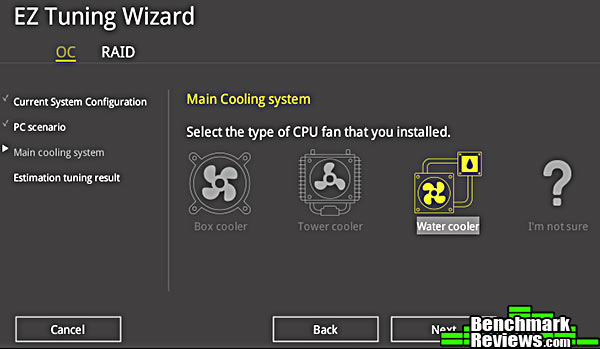
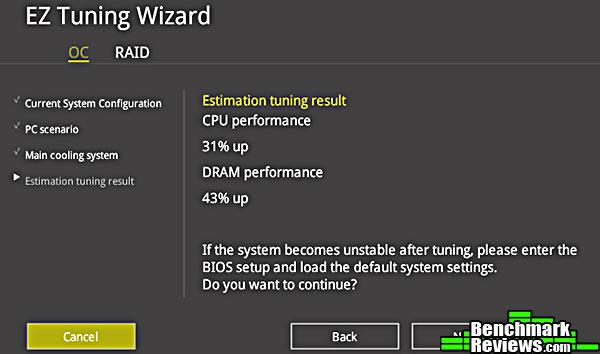
It will tell you what it thinks it can do before you commit to it:
ASUS has completely reworked the EZ Mode screen, the first screen shown when you enter the BIOS (sadly ASUS appears to have removed the ability to go directly to the Advanced BIOS screens). There’s a lot of information and controls on this screen, including CPU information, CPU temperature and voltage, memory specifications, the status and speed of connected fans, boot device order, and more. You can start system tuning the aforementioned EZ System Tuning control, and even set up a RAID array. One apparent problem in this early BIOS: sometimes the SATA information listed on this screen will show “N/A” for all devices, even though there are SATA devices connected and the system boots perfectly.

The enthusiast will want to immediately dive into the Advanced section of the BIOS, invoked by pressing the F7 key. The main sections available– My Favorites, Main, AI Tweaker, Advanced, Monitor, Boot, Tool, and Exit— are the same as those we originally saw in ASUS’ Z87 motherboard BIOSes. The color scheme has been updated and a few things moved around, but the only completely new feature I see is the Quick Note capability, invoked by pressing F9. This gives you a small, 9-line note pad for (short) notes you may want to keep and refer to later. The amount of information you can keep is very limited, but it’s useful nonetheless.
The section where you can adjust fun things is, of course, the AI Tweaker section. Here, ASUS has expanded the explanatory text that appears at the bottom of the screen as various options are selected. For example, if you’re changing the multiplier used when three cores are loaded, the bottom of the screen will note “Configure the 3-core ratio limit that must be higher than or equal to the 4-core ratio limit. The 1-core and 2-core ratio limit must not be set to Auto.” The text is not always this helpful, especially on more obscure parameters, but is still nice to have.

Of course, ASUS provides more tools than a fancy BIOS. Let’s take a quick look at the current version of the AI Suite Windows-based utility in the next section.
AI Suite 3 is the latest iteration of ASUS’ AI Suite utility. This was one of the first, if not the first, utility that allowed you to change things like the CPU multipliers and voltage directly from within Windows, without having to reboot the system, drop into the BIOS, make the changes, and boot again.

A new feature this time is 5-Way Optimization. Invoking this feature– which I will do in the next section– optimizes CPU speed, fan operation, power savings, and the operation of ASUS’ Digi+ Power digital power system. That’s only four things, so what’s the fifth? The fifth is a feature called Turbo App, and it lets you denote specific apps that will run at higher performance with different audio schemes and network priorities. For example, you can keep the system running cool and slow with routine applications (you don’t need full power balancing your checkbook in Quicken), and automatically ramp up performance, adjust the audio, and set the networking to higher priority for online games. I do note, however, that Turbo App doesn’t automatically decide which apps to support, nor how to do so; you need to make these changes yourself for each application. In the screen shot below, I’m setting the performance for Internet Explorer.

Adjusting the CPU performance on the fly is the responsibility of ASUS’ custom TPU chip…

…and in AI Suite 3 you can tweak pretty much anything you can do in the BIOS:

You can set the multipliers using for 1, 2, 3, or 4 loaded cores, together or separately, as well as adjust the CPU and CPU cache power by both voltage and wattage. Flipping to the next screen allows you to adjust the CPU strap.
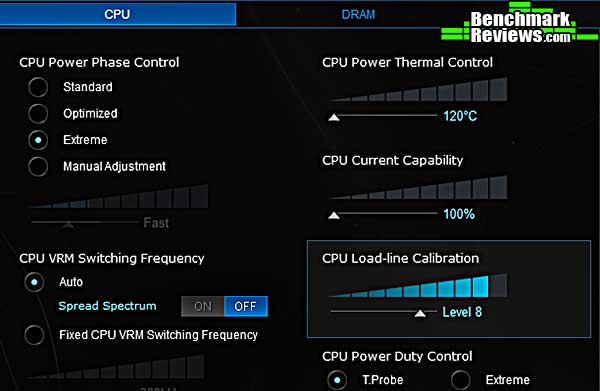
Once you’ve adjust the CPU performance, it’s time to drop into the power section to tweak ASUS’ Digi+ Power digital power system. Here you can set the power phase control, VRM switching frequency, load-line calibration, and specify the CPU thermal control and current capability. Cranking these power settings up will really roast your processor, so a good cooling system is a must, preferably a water cooler.

Of course, if you’re going to be ramping up the CPU, you’re going to generate more heat, so the Fan Xpert screen should be your next stop. ASUS can adjust the speed of both 3-pin fans (by adjusting the voltage) and 4-pin fans (using pulse-width modulation), and the Z97-DELUXE motherboard will automatically determine which type of fan is plugged into each header. You can make quick adjustments by choosing the broad settings– Silent, Standard, Turbo, and Full Speed— at the bottom of this screen, or adjust the curves manually based on the reading of various temperature sensors. Aside from the temperature sensor built into the Haswell CPUs, this motherboard adds sensors on the voltage regulation modules, the Z97 Express chipset, the motherboard itself, and even has a separate plug for an optional extra temperature sensor you can put any place you want. While not as elaborate as the “Thermal Radar” ASUS equips its TUF series boards with, this is still a step beyond what most other vendors provide.

It’s not all about performance, of course, and ASUS also lets you set your system to use its power efficiently, and to automatically ramp down to a low-power mode when no activity is detected for a while.
In the next section I’ll discuss overclocking this motherboard, and let ASUS’ 5-Way Optimization loose to see what it can do.
One potential problem for new owners is the sheer number of overclocking mechanisms ASUS provides. I count no fewer than six different ways to overclock (and I may have missed one):
- Switches on the motherboard
- EZ Tuning Wizard in the BIOS
- Auto tuning in the BIOS
- Manual tuning in the BIOS
- Auto tuning using AI Suite 3
- Manual tuning using AI Suite 3
Which should you select? It’s not an obvious choice, especially if you’re not an experienced overclocker. Heck, it’s not an obvious choice to me and I am an experienced overclocker! Basically, these six methods fall into one of three categories:
- Apply a fixed, pre-defined overclock: motherboard switches, EZ Tuning Wizard in the BIOS
- “Tune” an overclock by changing settings, running a stress test, and looping until the system crashes: Auto tuning in the BIOS or AI Suite 3
- Completely manual operation
If you’re a novice, first consider the switches on the motherboard. The Z97-DELUXE introduces a new switch that you should always set to On:  Setting the EZ XMP switch to “On” will tell the system to automatically use the XMP profile in your memory DIMMs (if they have one). This is the Intel-defined Extreme Memory Profile that the memory vendor guarantees the memory will run at, typically with faster clock speed and tighter timings than the defaults. Since your memory’s guaranteed to work with its built-in XMP profile, there’s no reason not to leave this switch on permanently– if your memory has no XMP profile, there’s no effect. Next on the motherboard is the TPU switch, which gained a second position in ASUS’ previous-generation Z87 motherboards.
  Setting this switch to position 1 will apply a fixed, rather conservative, overclock to the CPU using multiplier adjustment. Setting it to position II will apply both BCLK/strap and multiplier adjustments. If you’re not looking to get the ultimate performance from your rig, the motherboard switches might be as far as you want to go. Really, everybody should use them, because free performance. But if you’re an enthusiast who really wants to see what your particular slice of Haswell goodness can really do, not just what ASUS is sure will work with all 4700K processors, you can take it a little further. I’m going to use the automated tuning feature built into the latest version of ASUS’ AI Suite Windows utility, and compare its results with the best I can do manually– which I already know from much previous testing! Here are the specs for the test system: CPU: Intel Core i7-4770K (Haswell) Memory: Kingston HyperX DDR3, 2x4GB, 2133mHz, 11-12-11-30 Cooler: Thermaltake Silver Arrow Video: NVIDIA GTX580 reference card Here are the settings that change with various overclocking techniques: I checked at stock (using the motherboard defaults), with the TPU switch set to position 1 and position 2; after an AI Suite 3 auto-tune, and my manual tune. In all cases the memory was running at its XMP spec as shown above.
| Strap | Power Phase | Load Line Calibration | 1 core | 2 cores | 3 cores | 4 cores | CPU Voltage | Highest Clock | |
| Stock | 100mHz | Optimized | Level 2 | 39x | 39x | 39x | 39x | 1.27v | 3900mHz |
| TPU 1 | 100Mhz | Extreme | Level 8 | 43x | 43x | 42x | 41x | 1.30v | 4300mHz |
| TPU 2 | 125Mhz | Extreme | Level 8 | 34x | 34x | 34x | 34x | 1.17v | 4250mHz |
| Auto Tune | 100Mhz | Extreme | Level 8 | 44x | 44x | 43x | 43x | 1.31v | 4400mHz |
| Manual Tune | 100Mhz | Extreme | Level 8 | 45x | 45x | 45x | 45x | 1.35v | 4500mHz |
Now, what’s interesting here is that the settings for stock, TPU 1 and 2, and the settings reached by AI Suite’s “auto tune” feature are all identical to the settings I found when I tested the ASUS Z87 Deluxe Dual motherboard last year. That implies that ASUS has taken their various tuning and tweaking technologies about as far as they can go…for now.
This pre-release version of AI Suite 3 had its problems, though. Although the 5-Way Optimization process worked perfectly, AI Suite 3 showed incorrect values for the strap, multiplier, and final CPU speed, as well as always informing me that I had increased performance by “000%”.

Let’s see how the various settings perform in the next section.
I tested the ASUS Z97-DELUXE LGA1150 motherboard at four different settings: the stock setting, with the TPU switch set to the second position, with auto tuning performed by AI Suite 3, and with the best manual overclock I could achieve. Note that ASUS, like many other motherboard vendors, does play a little trick: at true stock settings, the Intel Core i7-4770K CPU under heavy load will run its cores with the 39x multiplier if one or two cores or loaded, but drop down to lower multipliers as three and four cores come under load. ASUS calls their “trick” ASUS Multicore Enhancement, and what it does is run all four cores at 39x under load. ASUS Multicore Enhancement is enabled by default on this motherboard, so that’s how I ran with the “stock” settings.
AIDA64 is a full 64-bit benchmark and test suite utilizing MMX, 3DNow! and SSE instruction set extensions, and will scale up to 32 processor cores. An enhanced 64-bit System Stability Test module is also available to stress the whole system to its limits. For legacy processors all benchmarks and the System Stability Test are available in 32-bit versions as well. Additionally, AIDA64 adds new hardware to its database, including 300 solid-state drives. On top of the usual ATA auto-detect information the new SSD database enables AIDA64 to display flash memory type, controller model, physical dimensions, and data transfer performance data. AIDA64 v1.00 also implements SSD-specific SMART disk health information for Indilinx, Intel, JMicron, Samsung, and SandForce controllers.
All of the benchmarks used in this test- Queen, PhotoWorxx, ZLib, and hash- rely on basic x86 instructions, and consume very little system memory while also being aware of Hyper-Threading, multi-processors, and multi-core processors. Of all the tests in this review, AIDA64 is the one that best isolates the processor’s performance from the rest of the system. While this is useful in that it more directly compares processor performance, readers should remember that virtually no “real world” programs will mirror these results.

We see nice scaling in the Queen test, with a 12% performance increase with Auto Tuning, and a 17% increase with manual tuning. Photoworxx, as we’ve seen previously, responds oddly and unpredictably to CPU speed increases.

The ZLIB and Hash benchmarks both scale nicely. Let’s see how things go with one of my favorite benchmarks, SPECViewPerf…
The Standard Performance Evaluation Corporation is “…a non-profit corporation formed to establish, maintain and endorse a standardized set of relevant benchmarks that can be applied to the newest generation of high-performance computers.” Their free SPECviewperf benchmark incorporates code and tests contributed by several other companies and is designed to stress computers in a reproducible way. SPECviewperf 11 was released in June 2010 and incorporates an expanded range of capabilities and tests. Note that results from previous versions of SPECviewperf cannot be compared with results from the latest version, as even benchmarks with the same name have been updated with new code and models.
SPECviewperf comprises test code from several vendors of professional graphics modeling, rendering, and visualization software. Most of the tests emphasize the CPU over the graphics card, and have between 5 and 13 sub-sections. For this review I ran the Lightwave, Maya, and Seimens Teamcenter Visualization tests. Results are reported as abstract scores, with higher being better.
The lightwave-01 viewset was created from traces of the graphics workloads generated by the SPECapc for Lightwave 9.6 benchmark. The models for this viewset range in size from 2.5 to 6 million vertices, with heavy use of vertex buffer objects (VBOs) mixed with immediate mode. GLSL shaders are used throughout the tests. Applications represented by the viewset include 3D character animation, architectural review, and industrial design.
The maya-03 viewset was created from traces of the graphics workload generated by the SPECapc for Maya 2009 benchmark. The models used in the tests range in size from 6 to 66 million vertices, and are tested with and without vertex and fragment shaders. State changes such as those executed by the application- including matrix, material, light and line-stipple changes- are included throughout the rendering of the models. All state changes are derived from a trace of the running application.
The tcvis-02 viewset is based on traces of the Siemens Teamcenter Visualization Mockup application (also known as VisMockup) used for visual simulation. Models range from 10 to 22 million vertices and incorporate vertex arrays and fixed-function lighting. State changes such as those executed by the application- including matrix, material, light and line-stipple changes- are included throughout the rendering of the model. All state changes are derived from a trace of the running application.

Lightwave scales nicely, although Maya and TCVIS seem bound more by the video card than the CPU. In the next section I’ll try some video transcoding…
Tech ARP’s x264 HD Benchmark comprises the Avisynth video scripting engine, an x264 encoder, a sample 1080P video file, and a script file that actually runs the benchmark. The script invokes four two-pass encoding runs and reports the average frames per second encoded as a result. The script file is a simple batch file, so you could edit the encoding parameters if you were interested, although your results wouldn’t then be comparable to others.
This is another example of a useful benchmark that’s based on real-world code. I like encoding benchmarks since they’re one of the few tests that can measure a real-world use of the power of modern multi-core processors. I like this particular benchmark since it’s the best “overclock killer” I’ve seen: systems that will run most stress tests all day long with a given set of overclock settings will crash on this benchmark.

Here we can really see the performance benefits of overclocking. Just flipping a switch on the motherboard raises the Run 1 performance by almost 8% and the Run 2 performance by almost 9%. Auto tuning gives a 9% and 10% boost, respectively, while my manual overclock hits 17% and 15% increases.
Join me in the next section for my final thoughts and conclusion.
For the sake of discussion, I will presume that we’re all wondering why Intel would offer a fresh motherboard chipset without a corresponding new processor to launch with it. Intel’s Z87 Express chipset works wonderfully with current 4th generation Haswell desktop processors, and board partners like ASUS have (over)loaded their product with features beyond the needs of most enthusiasts. We’re still a few months away from a Haswell series refresh with Devil’s Canyon, which retains the same 22nm architecture for LGA 1150 but delivers small speed bumps at each SKU level and comes with improved pre-applied thermal interface material. Z97 Express sets the groundwork for 5th-generation processors, but these 14nm Broadwell-D desktop CPUs are not rumored to debut until Q1 2015. That could mean two things for the next year: 1) with at least 6-9 months until Broadwell arrives, system builders will continue to use Haswell-based CPU inventory, and 2) once Broadwell arrives, Z97 Express will remain the supported channel board chipset for quite some time afterward. Of course, there’s still time for Intel to make changes to their plans for X99 Express, but their roadmap draws a clear picture of the plan.
As it looks now, Haswell-E (Enthusiast) is where things will get interesting. The new 14nm enthusiast 6- and 8-core desktop CPU will utilize a new LGA 2011-3 socket, which is why is won’t be supported on Z97 Express. With the arrival of Intel’s X99 Express chipset enthusiasts will be treated to: DDR4 memory support, five PCIe 3.0 x16 card slots, and ten SATA 6 Gb/s ports. Intel’s Haswell-E processors and X99 Express motherboards are rumored for arrival in late 2014 near the holiday shopping season.
With this Z97 Express chipset launch, we’ve got a new channel board that can and will support all Haswell, Devil’s Canyon, or Broadwell desktop processors available now or in the future. This will likely create quite the product life cycle for Z97-based boards, well into 2016. This bodes well for the ailing desktop computer industry, which has trimmed away so much fat that all that remains are bone and the strongest muscles. Keeping Intel’s strategy to remove itself from the desktop board market, Z97 and X99 could be what we’re given to chew on for quite some time.

As we previously mentioned, Intel didn’t give vendors a lot new to work with with the Z97 Express chipset. Its main feature– support for forthcoming Broadwell desktop CPUs– isn’t useful yet, and a couple of extra USB 3.0 and SATA 6G ports isn’t that exciting. If you have a Z87 or even a Z77 based motherboard, there’s little compelling reason to upgrade.
That said, if you’re building a new rig, there’s no reason not to get the latest and greatest, and ASUS has upped the ante by including support for SATA Express and M.2 storage technologies. Granted there are no SATA Express SSDs actually available now, but the optional Hyper Express enclosure will let you connect two M.2 SSDs to the SATA Express ports.
Given the multitude of overclocking options and mechanisms, one thing I’d like to see ASUS offer is a “Gentle Introduction to Overclocking”, which would explain the various options in detail, estimate the amount of performance improvement each was capable of, and help a new user progress along the way from simply flipping switches on the motherboard to changing unpronounceable settings in the BIOS.
In my testing, all the built-in overclocking features made the exact same settings to my 4770K CPU as did the same features on the ASUS Z87-Deluxe/Dual motherboard, and the CPU-bound performance was pretty much the same (the SPECViewPerf benchmark scores are different because different video cards were used on the two motherboards). That’s probably just because ASUS has taken automatic overclocking further than anyone else; I consistently get better results from the auto overclocking features of ASUS boards than I do from other boards. From a pure performance point of view, this is about the best you can do short of one of ASUS’ Rampage Extreme motherboards with its liquid nitrogen feature set.
Although the Z97 chipset isn’t as exciting as Intel’s previous chipset launches, ASUS has used the opportunity to buff the shine on their motherboard range by adding features like SATA Express support and tweaking their already excellent BIOS as well as their Windows utilities. Is it possible to have too many features on a motherboard? I don’t know, but the Z97-DELUXE certainly seems to be trying to answer than question.
From a performance point of view, the Z97-DELUXE offers the same performance and auto-tuning capabilities as ASUS’ previous Z87-based motherboards. This isn’t a bad thing; it just shows how far ASUS has pushed the envelope in this area. The “5-Way Optimization” feature in ASUS’ AI Suite 3 utility considers system power and cooling along with CPU frequency for a balanced, stable approach. Granted, you can still do better with hand-tweaking for your particular workload, but in most cases the performance improvement this gets you will be something you’ll only see in benchmarks.
The Z97-DELUXE is an excellent motherboard that offers superior automatic performance tuning as well as all the features and capabilities an enthusiast user could want. At the time of this writing, the Z97-DELUXE version was available for $289.99 (Newegg), and the Z97-DELUXE NFC & WLC sold for $399.99 (Newegg). ASUS warranties the Z97 DELUXE motherboard for three years.
+ Robust ASUS Dual Intelligent Processors 5 feature set
+ 10 GB/s SATA-Express expansion ports
+ 10 GB/s M.2 SuperSpeed Inter-Chip
+ Built-in dual-band Wi-Fi 802.11ac (a/b/g/n/ac)
+ BlueTooth 4.0 wireless functionality
+ Includes ASUS ThunderboltEX II/Dual, NFC Express 2, and Wireless Charger
+ Support for upcoming Broadwell desktop CPU
– Expensive enthusiast product
– Z97 chipset lacks innovative features
-
Performance: 9.25
-
Appearance: 9.00
-
Construction: 9.25
-
Functionality: 9.75
-
Value: 7.75