By David Ramsey
Manufacturer: ASUSTeK Computer Inc.
Product Name: LGA2011-V3 Intel Desktop Motherboard
Model Number: X99-DELUXE
UPC: 8622785224 EAN: 716659852247
Price As Tested: $398.99 (Amazon | Newegg)
Full Disclosure: ASUS provided the product sample used in this article.
Since Intel no longer manufacturers desktop motherboards, it works closely with its partners to ensure products are ready when new CPUs and chipsets are introduced. The X99 Express chipset, part of the LGA2011-V3 system that replaces the aging X79/LGA2011 system, is Intel’s newest foray into very high end desktop systems, and today Benchmark Reviews looks at the bundled software, features, utilities, and performance of the ASUS X99-DELUXE motherboard.

In my Intel Core i7-5960X Extreme CPU Performance Review, I argue that this Haswell-E CPU is not really a good fit for most enthusiast users, since processors like the Core i7-4790K provide better performance in most applications for much less money. This hasn’t stopped ASUS from producing an X99 motherboard stuffed full of the high-end features and amenities we’ve come to expect from their Deluxe motherboards. Benchmark Reviews provided an overview of this new motherboard in our ASUS X99-DELUXE Motherboard Preview, so now it’s time to look at the features and performance of this product in more detail.
If you didn’t know you were dealing with an ASUS enthusiast motherboard, you’d figure it out pretty quickly after installing the software. There’s nothing specific to the X99 here: what we have is ASUS standard set of utilities as we’ve seen on previous motherboards. This isn’t a criticism, for ASUS has, in my opinion, the best set of utility software out there. Most of the functions are gathered under the umbrella of AI Suite 3, which, when invoked, will display this panel that’s familiar to anyone who’s owned a recent ASUS mobo:

This panel provides buttons for configuring the nine major sections of AI Suite 3:
Dual Intelligent Processors lets you manually or automatically adjust the TPU and EPU performance and power-saving micro controllers.
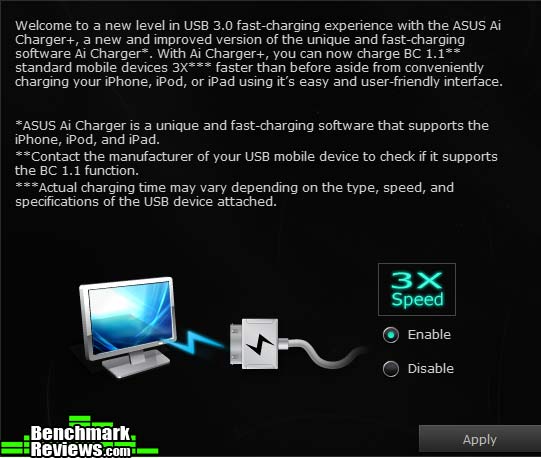
AI Charger + provides fast charging for iPhones, iPods, and iPads
EZ Update checks in with ASUS’ servers periodically for software updates

USB BIOS Flashback keeps a current BIOS image on a connected USB drive (checking ASUS servers periodically for updates), available to update your system at any time.
 WiFi Engine lets you configure the onboard 802.11ac system.

Enhanced USB 3.0 performance comes in two varieties with USB 3.0 Boost: for devices that support UASP (USB Attached SCSI) protocol, and for devices that don’t. The system will automatically detect which type of device is inserted and do the right thing.

More software in the next section…
- EZ XMP
- EPU
- TPU I / TPU II
- EZ System Tuning
- EZ Tuning Wizard
- AI Tweaker
- AI Suite 3 / DIP 5
- Manual control of TPU and EPU
That’s eight different overclocking mechanisms, and it wouldn’t surprise me if I missed a couple. In general the hardware switches have the highest priority: any settings the switch changes will be reset to what the board thinks they should be every time you turn the computer on. For example, if the EZ XMP switch is on, and you go into the BIOS and disable XMP, it will be on the next time you boot the system. This makes sense but it gets more complex when it’s not obvious exactly which settings a switch changes. For example, the TPU I settings doesn’t change BCLK, but the TPU II setting does.
What surprised me this time was the amount of trouble I had with the various auto-overclocking options, especially from within the BIOS. Selecting EZ System Tuning or going through the EZ Tuning Wizard options generally resulted in a system that wouldn’t POST, with the POST LED sticking with a mysterious “bd” display:

I say “mysterious” because according to the manual, codes from B8 through BF are “reserved for future AMI codes”, whatever those are. In some cases resetting the system would let it boot, albeit into a BIOS warning that “Overclocking failed! Press F1 to continue”, but in a few cases I had to press the CLR_CMOS button to get the system to boot.
Upgrading to the latest 0801 BIOS reduced the frequency of this problem but it still occurred at least half the time I tried any of these overclocks; but I’m sure ASUS will fix this with a future BIOS release. I’ve seen a similar problem with the EZ Tuning Wizard feature in the BIOS of ASUS’ Sabertooth Z79 Mark 1 motherboard, which also produced unbootable overclocks.
With the Intel-supplied Core i7-5960X Haswell-E CPU, I settled on four overclocking profiles: stock (none), TPU II, the settings achieved with the 5-way optimization sequence from AI Suite 3, and the best manual overclock I was able to achieve. Here are the settings for each profile:
| BCLK | Mult | XMP? | CPU GHz | CPU Volts | |
| Stock | 100 | 35 | No | 3.5 | 1.1 |
| TPU II | 125 | 31 | Yes | 3.875 | 1.1 |
| DIP 5 | 100 | 44 (1-4 cores), 43 (4-8 cores) | No | 4.4/4.3 | 1.25 |
| Manual OC | 100 | 44 | No | 4.4 | 1.3 |
Follow me to the next section for the results!
Let’s start with a good synthetic test like AIDA64. As usual I’ll be doing Queen, Photoworx, ZLIB, and Hash benchmarks.
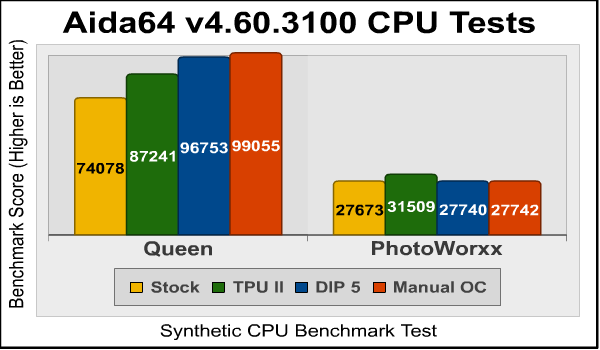
With the Queen test, we see a nice scaling with CPU frequency, as expected. Since Queen saturates all the cores, the results for the DIP 5 optimization aren’t quite as good as those for my manual tune, since the DIP 5 settings run the cores are 4.3GHz when more than four are loaded.
Photoworxx is relatively insensitive to CPU speed, but really likes memory bandwidth, so the TPU II setting posts the highest score here. It’s hundreds of megaHertz slower than the DIP 5 or manual settings, but it’s running the Corsair memory’s XMP profile, which boosts the memory speed from 2,133MHz to 2,666MHz.
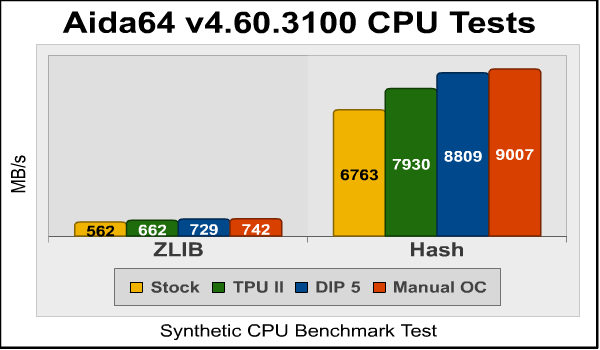
Next are the ZLIB and Hash benchmarks, all of which scale nicely with CPU frequency. Let’s take a look at CINEBENCH next…
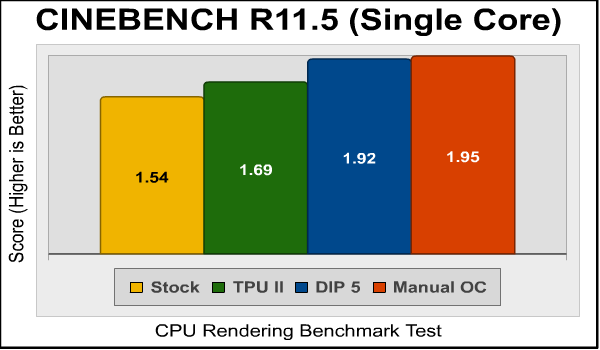
Again, nice scaling directly with CPU speed. Since this is a single-core test, both the DIP 5 and manual settings are running at 4.4GHz, so I’m a little curious about that 3% difference, which was consistent across multiple runs.
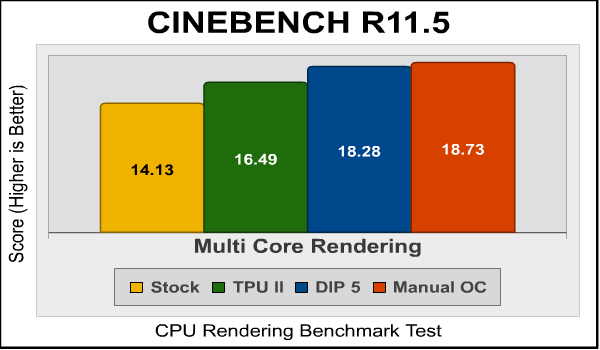
The multi-core test shows scaling with frequency. Last, let’s run the x264HD transcoding benchmark:
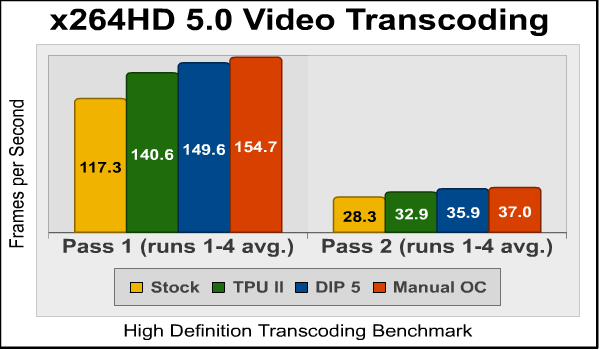
Again, very nice scaling with CPU frequency. One thing to take away from these tests are how close the auto overclocking performed with AI Suite 3 came to the settings I achieved manually. I have never had any auto overclocking mechanism ever get this close to the best manual overclock I could achieve.
Join me in the next section as I lay out my final thoughts on this motherboard.
As I said in my performance review of the Intel Core i7-5960X CPU, I have a hard time figuring out the intended market. Its lower clock speeds mean that it’s slower for most of the day-to-day computing and gaming even enthusiasts would do, while its 8 cores can crunch through computationally intensive transcoding and rendering tasks like a Xeon CPU– which isn’t surprising considering that all it is is a Xeon that can use non-ECC memory and be overclocked.
ASUS’ X99-DELUXE motherboard has all the features and tweaks you’d expect of a high-end enthusiast motherboard: tri-SLI support (with a clever switch to reallocate some PCI-E lanes to m.2 use if you’re only running two graphics cards), lots and lots of overclocking features, fancy audio circuitry, a POST code display, onboard power and reset switches, and so on. Frankly the workstation-oriented ASUS X99-E WS seems to make more sense as a platform for Haswell-E, but let’s not forget that ASUS had several enthusiast boards like the Rampage IV Black Edition for the old X79/LGA2011 systems, so it’s not as if this is something new for them.

So we’re left with a conundrum: I don’t think the Haswell-E / LGA2011-V3 platform makes sense for most consumers, but I can’t really ding ASUS for making an incredible motherboard for it. I don’t think they’ll sell very many of them, but the folks that buy them will doubtless be satisfied.
In the last section I’ll present my conclusion based on the testing and features of this motherboard.
ASUS has done their usual sterling job with this motherboard. Stuffed with hi-spec components and popular, useful features, the X99-DELUXE is like a set of Goodyear Eagle F1 Supercar tires for your Ford F150 pickup.
Regardless of the suitability of an LGA2011-V3 system for any particular purpose, it makes sense for ASUS to keep the platform current and competitive with its more mainstream LGA1150 setups. Their X79 systems were getting a little long in the tooth, really, and it’s nice to see the very latest BIOS user interface and features on the very latest Intel system.
However, there were a few little signs that this board isn’t quite ready: I was shocked that several of the auto-overclocking features left the board unable to POST, and a few niggling little bugs in the BIOS caught my eye. For example, this BIOS has the nifty feature of showing you exactly which settings you’ve changed, and how, when you save and reboot, a nicety ASUS introduced to their LGA1150 boards a year or so back. But in some cases, I could change a setting (like BCLK) and the BIOS would report that nothing had been changed (the change did stick).
ASUS rolled out a new BIOS just a couple of days ago that addressed some of these problems, so I’m sure in a month or so that everything will be working perfectly. The non-booting BIOS overclocks do worry me a little since I saw a similar problem in the Sabertooth X79 Mark I I reviewed earlier this year. On the other hand, using the “5 Way Optimization” feature in AI Suite 3 resulted in the best automatic overclock I’ve ever seen. I expect ASUS to fix the BIOS overclocking issues in a future release.
So…do I recommend this board or not? Well, that depends: if you’re someone who can actually use a Haswell-E effectively– that is, if you’re a professional content producer– then I think you’d be better served with ASUS’ own X99-E WS motherboard. Avilable online for $398.99 (Amazon | Newegg), the X99-DELUXE is a very expensive motherboard, but if you’re an enthusiast or home user who likes $1,000 CPUs, this is about the nicest home you could give one.
+ Updated UEFI reaches feature parity with LGA1150 boards
+ Switchable PCI-E lane allocation
+ Multiple m.2 mounting options
+ Amazing auto overclock from AI Suite 3
+ First beam-forming 802.11ac onboard
— Some minor problems in BIOS
– Some overclocking features produce non-bootable systems
– Does it really make sense for anyone?
-
Performance: 9.25
-
Appearance: 9.00
-
Construction: 9.50
-
Functionality: 9.00
-
Value: 8.50
Excellence Achievement: Benchmark Reviews Golden Tachometer Award.
COMMENT QUESTION: Who makes the best motherboards, in your opinion?

One thought on “ASUS X99-DELUXE Motherboard Performance Review”
At the moment, this board has some issues. It looks like the early BIOS as your review notes is not entirely stable.
Check this out:
https://www.legitreviews.com/intel-x99-motherboard-goes-up-in-smoke-for-reasons-unknown_150008
Could be defects with the early revisions.
Best to wait it out and see if there’s a revision 2.0 and/or BIOS updates to correct these issues.
Comments are closed.