By Julian Duque
Manufacturer: Cooler Master, Inc.
Product Name: CM Storm Mizar USB Wired Laser Gaming Mouse
Model Number: SGM-4005-KLLW1
UPC: 884102024795
Price As Tested: $59.99 (Amazon l Newegg)
Full Disclosure: The product sample used in this article has been provided by Cooler Master.
For some odd reason Cooler Master seems to be releasing products everyday, whether it’s a new case or a new peripheral, their product line has been increasing exponentially in the past few years. What is not odd is the fact that many of Cooler Master products Benchmark Reviews has come across end up highly appraised. Today we are looking at one of two pointing devices Cooler Master has released this month. The Cooler Master Mizar serves as a reminder to earlier gaming peripherals, with an ergonomic design and no sharp angles, rather looking like something to rival MIcrosoft’s own line of peripherals, it still brings the more cataloged features to suit modern gamers.
It seems to be an ongoing trend for gaming mice manufacturers to implement ergonomic designs to their latest releases. There is no negative side to this though, just look at the popularity the Razer DeathAdder has gained among the gaming community. Of course Cooler Master has more powerful and expensive offerings than the Mizar, but this is their first shot at this trend.

A quick glance at the specifications found on the Cooler Master website and I am amazed already. Just the fact that they can offer an Avago 9800 at such a cheap price is quite surprising. They do mention the weight with and without the USB cable, which is important as a heavy braided cable can add a lot of undesired friction. What is curious is the omission of what type of switches were implemented in the Mizar, but a visit to their shop and we find that the two front ones are Omron switches but no mention to the rest of the buttons.
| Body Coating Material | Soft Touch Paint |
| Sensor | Avago ADNS 9800 Laser Sensor |
| DPI | Up to 8200 |
| Probrammable Buttons | 7 |
| Onboard Memory | 128KB |
| Polling Rate | 1000 Hz/1ms |
| Dimensions (W x H x D) | 60.4 x 40.2 x 124.8 mm 2.38 x 1.58 x 4.91 inches |
| Weight (with USB Cable) | 121 g / 0.27 lbs |
| Weight (without USB Cable) | 100g/0.22lbs |
| Buttons | 7 |
| Velocity | 150ips |
| Acceleration | 30g |
| LED Illumination | Yes, 7 colors + white |
| Form factor | Palm Grip / Claw Grip |
| Cable | 1.8m braided and gold plated cable |
| Software | Yes, downloadable |
| Software support: | Windows® Only |
| Warranty | 2 years |
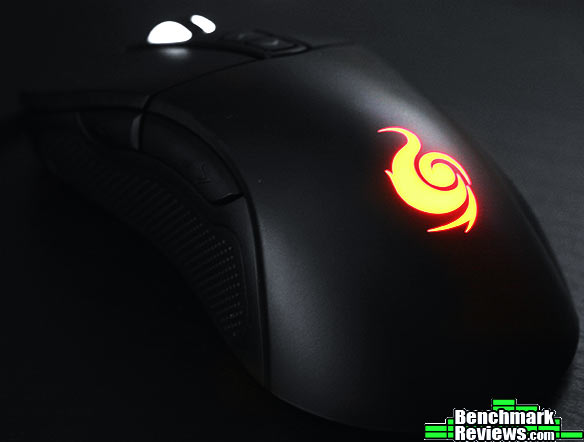
Clearly Cooler Master did their homework by making a good ergonomic design in their first attempt. Unfortunately it will only be comfortable if you are right handed as the shape and buttons are made specifically for right handed users. Alright so the mouse looks elegant and all, but Cooler Master wants to make sure you know what their CM logo looks like in 7 different colors by adding an RGB LED to it. There are also LEDs located in the scroll wheel and the two center buttons used to change DPI on the fly, however this LEDs are not programmable.

The matte black finish is a clear plus. It adds to that ergonomic feel as it is anything but flashy. It is also very easy to clean, which you will find yourself doing a lot as it is a fingerprint magnet. I find this finish to be very pleasant as it gives a somewhat rubberized finish which makes it really easy to grip and is not as slippery as with other cheaper offerings. Regarding the paint’s durability I have no real way of testing this, but I suspect that as with most CM products it will last you a long time.

All around the CM Mizar we find a plastic body that is extremely light. Unfortunately we do not find support for extra weight, so maybe a couple of coins should the trick if you prefer a heavy mouse. Of course the shape of the mouse might resemble any of the other competitors in this bracket but yet I still feel that Cooler Master hit the perfect spot with the size of the Mizar. It is right in the middle of what I would classify as small and large mice.

On both sides of the mouse we find a rubber cover to accommodate your hand when using a palm grip. The right portion of the mouse is elongated making the Cooler Master Mizar suitable for even a claw grip position. The two side buttons are placed near the thumb and are configured for page up and page down by default. They are placed fairly well as you won’t find yourself accidentally hitting them but accessible enough to use them.
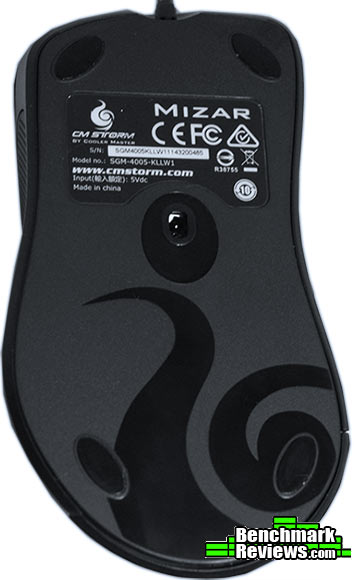
This is were things start to get interesting. The bottom is adorned by a cooler master logo, and most importantly the Avago 9800 sensor, which we will test later on. Sensor positioning is perfect, being slightly offset to the front, almost right beneath the scroll wheel. There are also four Teflon feet that can be removed and replaced as with time these will most likely be subject to wear.
The exterior of the Cooler Master Mizar is a great sign of the overall quality of itself. There is no significant mistakes or issues and the only problem I found were regarding fingerprints on the paint finish and dust in the rubber cushion, which are common even on the more expensive solutions out there. I see the ergonomic design and the LEDs being a very strong selling point, so clearly the CM Mizar is a strong contender so far.
The primary reason why we review the GUI on most of our devices is because things like Macro, profiles, RGB customization, and the drivers themselves can cause a product that seems to work fine on paper, be a complete disaster when it comes to it’s implementation. The Cooler Master Mizar does not come with an installation CD, and at the time of this review the software is still on it’s earliest version.

The Cooler Master Mizar GUI looks very stylish, with a dark background and purple highlights. But this is not what we are here for is it? The main menu allows you to assign custom inputs to each of the seven buttons on the mouse. The software only allows you to switch the right and left click once you have assigned this input to another button. You can also assign a quick fire setting from both your keyboard or your mouse keys in any of the Mizar buttons. At the bottom we also find spots for four profiles which are all stored in the Mizar’s internal memory.
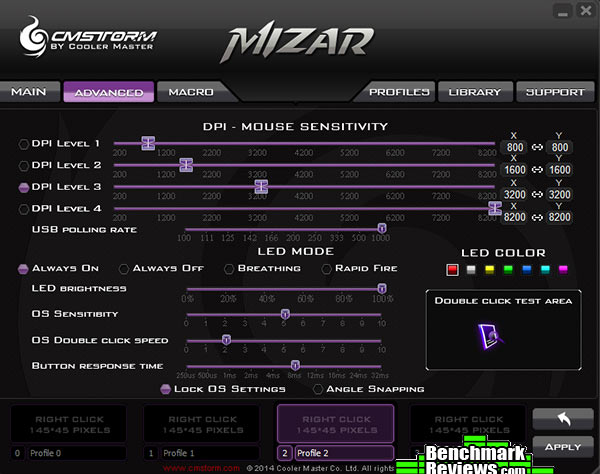
The advanced section encompasses probably the most notorious features of the GUI. In here you get to modify the four DPI mouse settings, the polling rate (which I recommend you leave at its maximum), and the CM Logo LED. The LED customization options are great, even having the ability to toggle it off which is a feature that is too frequently missed. You can also lower and increase LED brightness, OS sensitivity, OS double click speed, and Button response time which I recommend you leave as default.
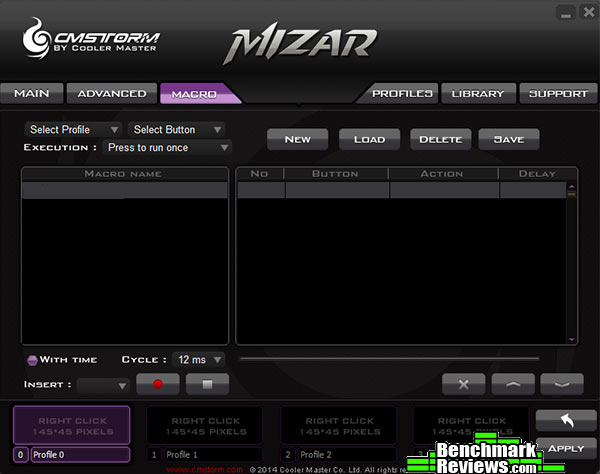
The Macro section of the GUI is still a work under progress. This is where I noticed that Cooler Master has not included any form of product guides with the MIzar. However, after a lot of tinkering I found the Macros completely customisable from execution, to the cycle time between each macro iteration. The Macros are saved in the library, were you can upload and import external macros into your local library.

The library section is nothing exceptional but it does give a very good overview of your macros library. Importing and exporting was easy, and adding macros to any profiles or buttons can be done through here instead of having to go to the main section. There is nothing really else to say about the GUI that Cooler Master has created for the Mizar, of course it is not perfect, and it is missing a product guide that could certainly come in handy.
Nowadays, most pointing devices are able to run at extremely high DPI settings without failing, yet this is not a clear sign that tracking has improved vastly lately. To fully understand how this works think about a bowman and a target, DPI is how many arrows he can throw in a period of time, but this does not determine how good the bowman is. A good mouse does not need to run at 8200 DPI, in fact most users will find any DPI above 3600 to be unusable. The Avago 9800 featured in the Cooler Master Mizar is a laser sensor featured in many premium gaming mice, it is quite surprising to see it being implemented in a mid tier mouse like the Mizar.
Like most of my tests, I have taken certain precautions to obtain accurate results and give you my experience with the product at hands. It is for this same reason that I have disabled things like windows acceleration and angle snapping. Mouse acceleration simply means that the physical distance you move the mouse for is not the sole factor of the input that goes into the signal, it is for this reason that I have disabled it using the CPL mouse fix for Windows 7. Angle snapping/correction is a simple threshold to keep the movements under a certain range, It comes disabled by default and I will be testing the Mizar without it.
– OS: Windows 7 Professional (mouse acceleration disabled)
– Mouse Pad: XTracPads Ripper XL Mouse Pad
– Pointing Device: Cooler Master Mizar Gaming Mouse
– Software: Mouse Rate Checker 1.1, Left 4 dead, Team Fortress Classic.
Polling Rate
Polling rate or report rate is how often the mouse sends a signal to the system. This is important in a mouse as a higher polling rate will serve to improve the precision of a mouse, specially at high settings. The Cooler Master Mizar comes with a Polling rate limit of 1000 Hz, which is the modern standard for gaming peripherals. To accurately measure the polling rate we used Mouse Rate Checker 1.1. The test was conducted 5 times per each DPI setting, and both the highest and lowest results were eliminated in our average calculation.
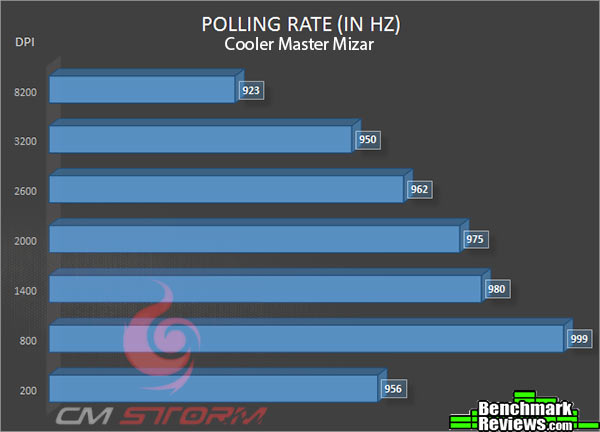
Not surprisingly the polling rate never drops below 900, even at the highest DPI. This certainly means that you won’t experience any input lag when gaming with the Cooler Master Mizar.
Tracking and Accuracy
Battefield, Left 4 Dead, and Team Fortress Classic are all first classic first shooter games in which tracking and accuracy can be decisive factors on who kills who. As a native low DPI gamer I am mostly concerned with negative acceleration. Negative acceleration occurs when the sensor continues to recognize the input signal, but cannot accurately track the physical distance covered by the mouse. This manifests itself in fast movements such as trying to turn around and not having enough distance covered as if you were to do the same action slowly. Unfortunately, the Avago 9800 showed a clear amount of acceleration as compared to it’s predecessor the Avago 3060 which I have become accustomed to. This wasn’t the biggest issue when doing things like trying to take accurate shots in Battlefield 4, but it became an annoyance when trying to run away in Left 4 Dead. At higher DPI settings (3000 or above) there was no noticeable acceleration, of course it is harder to actually detect any inconsistencies.
Overall any DPI setting above 1200 had none to almost unnoticeable acceleration. The truth is that most people will probably never even notice any form of acceleration unless they used a huge mouse pad and set their DPI extremely low. But for those who do, the Avago 9800 is not the sensor for you. For the rest of us, the Cooler Master Mizar might be a compelling option, and certainly one to consider.
Cooler Master has clearly gone in right track with the Mizar. They chose an excellent design, a good market, and their merits for a first try at a truly ergonomic design is definitely welcomed. But of course there are some small details that Cooler Master shoot look at to improve an already good product. Things like including a driver disk, and a user’s manual could have really improved my experience with the GUI, which as of this moment requires some tinkering to fully understand. Cooler Master should also include a toggle off switch for all of the LEDs and not just for the one with the CM Storm logo on it. They should also look into using a cheaper sensor with a good history of no trackingissues such as the Avago 3090 or 3060, to replace the Avago 9800 which brings interesting features and extreme DPI settings but at low DPI settings shows some clear signs of acceleration.
The Cooler Master Mizar brings within the popular Avago 9800 which allows for a maximum DPI of 8200. It also brings a ton of features including Angle Snapping, Macros library, and on board memory to store your profiles. The quick fire setting is probably my favorite feature of any of the Cooler MAster Mizar as it allows for easy macros implementation on any of the Mizar buttons. As great as the Avago 9800 is, some negative acceleration was present in my testing at low DPI settings, however at higher DPI levels the Avago 9800 is clearly a mighty competitor.
The Mizar is Cooler Master’s first attempt to implement a fully ergonomic design. The mouse comes in at a very light 100g with no weight customization and with the appropriate dimensions of an award winning design. Button placement is appropriate with easily accessible side and top buttons, and the Omron switches on the front feel amazing. Sensor positioning is also great being lightly offset to the front, and overall Cooler Master did a great job with the MIzar layout.
As cheap as plastic may be, I wouldn’t really find it appropriate for Cooler Master to use any other material for this product. Plastic is what gives the Mizar it’s lightness, and without proper weight customization, it should be taken into account that it is easier to add weight to a mouse than to take it off. The implementation of Omron switches gives you also a good hint for the durability of the Cooler Master Mizar, as they are rated for heavy usage and 30 millions of clicks. Cooler Master has also included a 2 year warranty which is actually pretty high for a gaming peripheral.
Cooler Master made the Mizar to not be just a regular mouse with fancy LEDs, they also added more features which can expand the functionality of the Mizar. Things like Macros and on board memory really help improve the gaming experience, and might be of extra help when playing certain games. Multiple programmable buttons and on the fly DPI settings have become a standard on gaming devices lately, so it is no surprise that Cooler Master has included them with the Mizar.
The final debate remains: available online for $59.99 (Amazon l Newegg), is the Cooler Master Mizar a good offering? In my opinion, the answer is yes. I have yet to see a cheaper mouse that brings all the functionality that the CM MIzar encompasses, and does it as well as the more premium options out there. There are some things to be corrected such as replacing the expensive Avago 9800 with a more accurate sensor, but the fact still remains that the discrepancies that we saw with the Avago 9800 can not be easily noticed, and the Cooler Master Mizar is a very good value for anyone in the look for a great mouse.
+ Comfortable Ergonomic Design,
+ Good button layout.
+ Very good value.
+ LED and button customization
+ Supports Macros.
– No user manual is included.
– Some acceleration at low DPI settings
-
Performance: 7.75
-
Appearance: 9.00
-
Construction: 8.50
-
Functionality: 9.00
-
Value: 9.50
COMMENT QUESTION: What DPI setting do you use?



One thought on “Cooler Master Mizar Gaming Mouse Review”
this mouse looks very nice, but I will buy a less expensive in my country, but with the same sensor avago
Comments are closed.