By David Ramsey
Manufacturer: EVGA Corporation
Product Name: TORQ X5 Gaming Mouse
Model Number: 902-X2-1052-KR
UPC: 843368032135 EAN: 4250812406446
Price As Tested: $49.99 (Amazon)
Full Disclosure: EVGA Corporation provided the product sample used in this article.
EVGA continues their expansion into the peripherals market with the introduction of their TORQ peripherals line; today, we have the new EVGA Torq X5 Gaming Mouse to review. Benchmark Reviews has previously looked at the EVGA TORQ X10 Gaming Mouse and we liked it enough to give it our highest rating. The new X5 Gaming Mouse sacrifices a few features for a lower price point, but how does it perform? Let’s find out.
Which pointing device you prefer is a personal choice, like keyboards. Some people prefer the feel of a mechanical keyboard’s individual switches while others are perfectly happy with inexpensive rubber-dome keyboards. Any gamer is going to want a good mouse, and while the upper end of the mouse market is moving towards cordless mice, the guaranteed responsiveness and reliability of a corded mouse appeals to many. Like the TORQ X10, the new TORQ X5 is a corded mouse.
What distinguishes a gaming mouse from a “normal” mouse? Generally, it will have more buttons; the buttons will be programmable, and the mouse hardware itself will be different: gaming mice tend to be sturdier, have higher resolution sensors, and some offer physical adjustability, so the shape, size, and weight of the mouse can be changed. Let’s take a look at the EVGA TORQ X5 and see what it’s got.

| Max DPI | 6400 |
| Sensor | Pixart 3968 optical sensor |
| Switch type | Omron – 20 million clicks life cycle |
| Programmable buttons | 8 |
| Min/Max Weight | 85g (without cable) |
| Max Polling Rate | 1000Hz |
| LEDs | Red, green, blue, yellow, orange, pink, purple |
| Feet | PTFE |
| Profiles | 5 onboard (512K memory) |
| Design | Full ambidextrous design |
Let’s unbox this mouse in the next section
The EVGA TORQ X5 mouse comes with a braided USB cable and a pearlescent white finish that glitters nicely in the light. Although the white plastic might appear to be a soft-touch material, it’s not.
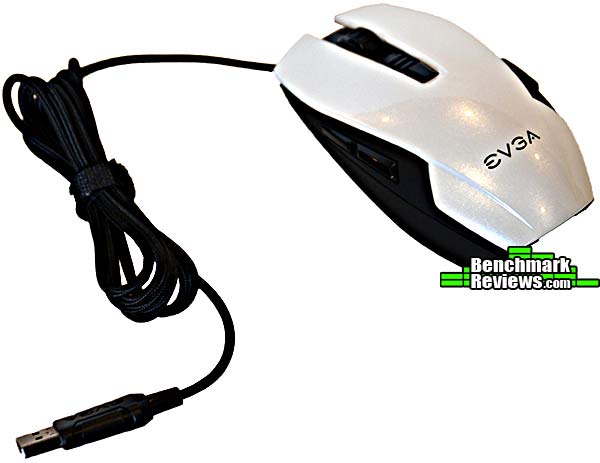
The accessories comprise an extra set of PTFE mouse feet, a quick start guide, and a mysterious flyer in some ideographic language. As is common with computer accessories these days, you must go online to the vendor’s web site to download the appropriate driver and utility software, because pressed CDs still cost almost a dime each in bulk.

As with the TORQ X10, this is a perfectly symmetrical, ambidextrous mouse.
 Underneath the scroll wheel are an LED “bar graph” whose segments light up in sequence as you click the switch beneath them to change the DPI on the fly.
 Since the mouse is symmetrical in design, each side has these two switches. While it’s easy to press the switches on one side of the mouse with the thumb of the hand holding the mouse, pressing the switches on the other side of the mouse is less graceful.
 The bottom of the mouse shows the centrally-located optical sensor, and the trapezoidal button that selects among the 7 possible LED colors for the mouse lighting. Some gamers prefer that the sensor be located closer to the front of the mouse where small wrist movements will have more of an effect, but with the insanely high DPI available on modern gaming mice, I didn’t find this to be an issue.

Let’s take a look at EVGA’s mouse utility software in the next section.
EVGA calls their mouse utility software Unleash, and it is one of the nicer and more usable utilities of its type (with the exception of macro definitions, which I’ll get to later). The first screen you see upon invoking the software is the Button Settings screen. There are a total of eight assignable buttons on the mouse. To assign an action to a button, simply click the button’s number on the diagram, which will highlight it in red. Then choose the function you want from the list at the right– if you have macros defined for the current profile, selecting “Macro” will open a pop-up menu of choices. The current button settings are shown at the left of the screen.
Also notice at the lighting control, DPI, and sensitivity adjustments at the top of the application window. This part of the user interface is constant across all the other screens.

The Advanced Settings section has three sub-sections: DPI, OS, and LED. In the DPI section you set the DPI and polling rate you want for each of the mouse’s four DPI settings (the fifth, disabled setting will be enabled with the TORQ X10 mouse); note that DPI can be set individually for the horizontal and vertical axes. The current setting you’re using is indicated by the 3 LEDs on the mouse below the DPI switch, with no LEDs lit serving as a fourth setting. Every time you press the switch, the new DPI setting you’re using appears briefly at the bottom of the screen.

In the OS section, you can adjust “Angle Snapping” (where small angles are ignored; for example, it helps to draw straight lines, since the line will tend to “snap” to straight), mouse acceleration, “OS Sensitivity”, as well as mouse scroll and click speeds. Presumably this is called “OS” because the settings are the same as the ones in the Mouse control panel in Windows, and indeed changes made to obvious settings like “Double Click Speed” in one control are reflected in the other.

Unlike its big brother TORQ X10, the TORQ X5 has only a single LED: but you can control its color, brightness, and whether or not it uses a “breathing” effect to slowly pulse on and off. EVGA thoughtfully disables the control for the non-existent second LED, but leaves it visible as a reminder that you didn’t go for the X10.

Overall the seven colors offer a range of “moods” for the mouse.

Let’s see how this mouse is to use in the next section.
A gaming mouse should offer quick, easily adjustable response, a crisp feel, and programmable buttons. The TORQ X5 offers all of these, and I used it in a variety of games ranging from F.E.A.R. 2: Project Origin through Wolfenstein: The New Order. Playing on a 1080p screen, I had to adjust the tracking resolution down to 1,000 dpi to make it playable; I have trouble imagining the circumstrances under which the 6,400dpi setting would actually be useful.
The two buttons on the left side of the mouse fall easily to thumb, at least if you’re holding the mouse with your right hand. The corresponding buttons on the right, however, require a significant movement of your hand on the mouse to bring your middle or ring fingers into a position to press the buttons, especially the rear button. This limits the number of buttons you can reach easily during a fast-paced game, although you can re-purpose the DPI switch if you have games in which you don’t need to change the mouse resolution while playing. The right switches– or the left switches if you’re a southpaw– would be most useful for rarely used functions like profile swapping.
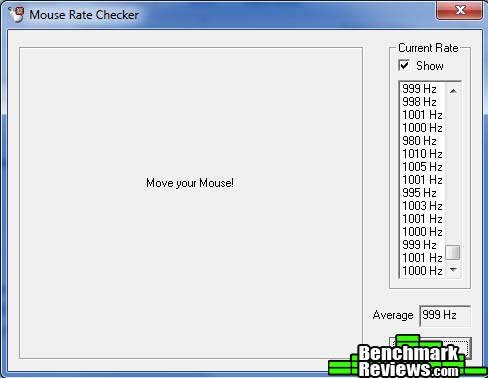
Like the TORQ X10, the X5 lacks a “sniper” button that reduces the tracking resolution while it’s held down. However, it is able to easily achieve its claimed 1kHz polling rate:
One of the things I dislike about many new gaming peripherals is that their utility software comes without any documentation– in fact, these days, the software is not included with the device, but typically must be downloaded from the vendor’s web site. Macro definition in particular varies widely in its implementation, and I often have to spend more time than I’d like figuring out exactly how to use a specific utility’s macro features. EVGA Unleash is no different, so here’s how it works.
The mouse supports up to five resident profiles, and each profile comprises a set of macros as well as LED color and effects. This last part is nice since you can discern which profile you’re using by mouse color. Make sure you’ve selected the profile you want to work with from the PROFILE control at the lower left of the window.
To start, click in the MACRO NAME field of the macro you want to define (or edit). Type a name for the macro and hit Return to save it. Now, click the unlabeled Record button– it has a red dot it in and is just below the list of macro names– to start recording a macro. A macro can include both mouse clicks and key presses, and the timing is recording to the millisecond. If you don’t want to have a string of text reproduced with the same timing as you typed it, you can select the “SET ALL INTERVALS” control to insert a defined time between each action. When you’re finished entering your macro, click the Record button– which has changed to a Stop button– again.

One thing to keep in mind here is that the mouse is where the macros live: that’s why it has its own processor and 512K of flash memory. You must click the SAVE button to send the macro definition to the mouse.
While the mouse can only hold five profiles at once, you can use the IMPORT and EXPORT buttons in Profile Management to save other profiles. Any of the current five profiles can be auto-selected when a given program is run (multiple programs can be assigned to each profile). Sadly, the software doesn’t offer a list of installed applications from which to choose, so you’ll have to know where to find the executables for your games in your directory hierarchy.

To assign your newly defined macro to a mouse button, you must return to the Button Settings screen, select a button, then choose Macro from the list of options to set. When you click Macro, a pop-up menu containing the names of all of the macros defined for the current profile appears, and you can select the one you want. Earlier versions of Unleash only showed “Macro 1”, “Macro 2”, etc. for the macros; this newer version shows the names you assigned.
Having the mouse store and execute macros using its onboard CPU and memory means that you can take your mouse to different computers and have all your macro definitions come along with you.
So what’s my overall impression of the EVGA TORQ X5 mouse?
If you’re shopping for a new mouse, you might be stunned by the choices available. There’s everything from very simple “office” mice to very expensive wireless gaming mice with laser sensors and more buttons than you’d imagine possible. There are mice optimized for shooters, mice optimized for MMORPGs, and “generalist” gaming mice like the EVGA TORQ X5.
People’s mouse preferences will vary, but what I look for in a gaming mouse is:
- Solid construction
- Fast response
- Crisp button action
- Software features
- Styling and lighting
The EVGA TORQ X5 is a nice mid-range gaming mouse. It might feel a little light if you’re used to the heft of a larger mouse with a metal frame, but it doesn’t feel cheap or shoddy. It’s nice to see the improvements EVGA has made to the Unleash software, curing most of the problems I complained about in my review of the TORQ X10.
Honestly, the biggest problem with the EVGA TORQ X5 is the existence of the EVGA TORQ X10. EVGA’s MSRP on these mice is only $20 apart, with the X10 at $70 and the X5 at $50, but in the real world the delta’s only $15. And that extra $15 gets you:
- Heavier mouse with adjustable weights, with a metal frame and scroll wheel, and higher resolution
- Extra mouse buttons. Extra LEDS. A fifth position on the DPI adjustment switch.
- The ability to physically adjust the size and height of the mouse to better fit your hand.
- A more dramatic design with a soft-touch black surface with red accents.
- A dedicated profile selector switch on the bottom of the mouse.
This last item is something I wound up missing on the TORQ X5. You can select the profile you’re using in three ways: manually open the Unleash utility and use its interface; configure the software to auto-load the profile appropriate for the game you’re playing, or press a button on the mouse. But here’s the rub on that last one: without a dedicated profile switch button, you must assign “Profile +” to a button to get this functionality. And you must assign it in every profile…otherwise you lose the ability when you switch to a profile without this feature. This is a good function to put on the “off side” buttons, but a dedicated switch as on the X10 is a lot more useful.

The high-end TORQ X10 was EVGA’s first gaming mouse, and the TORQ X5 is a capable mid-range addition. The performance of the mouse, with a 6400dpi sensor and 1kHz polling rate, was crisp and precise, every bit the equal of its big brother.
Still, the X5 feels very light, almost ephemeral, after using the X10, which isn’t surprising since it weighs less than half as much. This doesn’t compromise the functionality of the mouse in any way, of course, but it’s something to be aware of.
The X5’s pearlescent finish and adjustable LED lighting are slick, and the mouse looks good in any setting. The crisp Omron switches are the same type used in mice that cost twice as much, and feel great to use.
The ambidextrous design of the mouse is both a strength and a weakness: while it opens up the gaming mouse market to left-handed gamers, a largely-ignored group, the design means that the switches on the far side of the mouse (right side for right-handers, left side for left) are somewhat clumsy to reach. If you’re a right-hander who needs lots of buttons, you might want to consider a mouse with more thumb-accessible controls.
The problem with this mouse is its big brother TORQ X10: at $64.99 (Newegg | Amazon), compared to $49.99 (Amazon), you’ll pay only $15 more and yet get significantly more mouse. The X5 is a nice mouse, but I’d say skip a movie and go for the X10.
+ Slick design
+ Customizable LED lighting
+ Ambidextrous design for a gaming mouse southpaws can actually use
+ Improved utility software
– Ambidextrous design compromises some button usability
– No “sniper” feature
– Macro definition software non-intuitive
– X10 is only a little more money, but a lot more mouse.
-
Performance: 9.75
-
Appearance: 8.75
-
Construction: 8.75
-
Functionality: 8.50
-
Value: 8.75
Quality Recognition: Benchmark Reviews Silver Tachometer Award.
COMMENT QUESTION: Who makes your favorite gaming mouse?



2 thoughts on “EVGA TORQ X5 USB Gaming Mouse Review”
“No LEDs” -:(
” No “sniper” feature”
“And that extra $15 gets you: Heavier mouse with adjustable weights, with a metal frame and scroll wheel, and higher resolution”
– aww i want to carry a brick around
Not to mention the optical sensor on this mouse is far better than the over-used buggy 8200dpi w/ inconsistent accleration. This mouse is better than the x10 in every way, and the x10 is also ambidexterous. This site is called ‘benchmark reviews” but you’re focusing too much on things that don’t matter. I don’t even know a macro software that IS intuitive.
Advice for some better reviews in the future 🙂
Ah, so you’ve used both mice for at least a week and compared them to each other?
Well, like I said in the second paragraph of this review: “Which pointing device you prefer is a personal choice, like keyboards.”
Comments are closed.