By Olin Coles
Manufacturer: Cooler Master Technology Inc.
Product Name: MasterLiquid Pro 240
Model Number: MLY-D24M-A20MB-R1
UPC: 884102028205 EAN: 4719512051672
Price As Tested: $119.99 (Amazon | Newegg)Full Disclosure: The product sample used in this article has been provided by Cooler Master.
Cooler Master recently announced their new MasterLiquid series of all-in-one liquid CPU coolers, built using a special “FlowOp” technology that analyzes how heat is absorbed and dissipated to construct a better cooling solution than the competition. The end result was a dual chamber design that improved the cooling performance, but also dramatically extended the product’s functional lifetime. In this article, Benchmark Reviews tests the Cooler Master MasterLiquid Pro 240 CPU cooler (MLY-D24M-A20MB-R1) to see how well it performs.

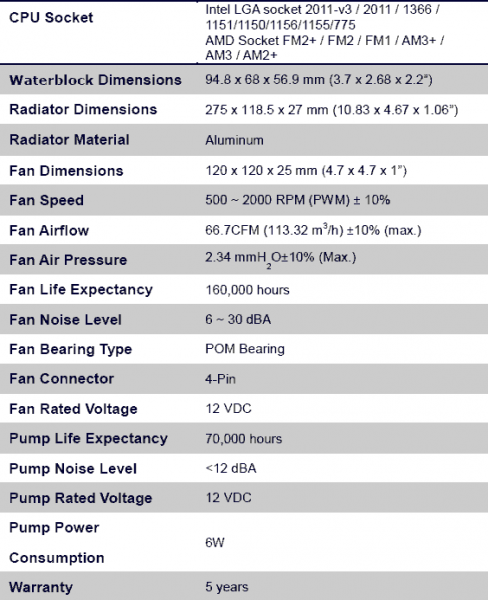
To use Cooler Master’s new MasterLiquid series of CPU coolers, you’ll need a computer case with either a 120mm (for Pro 120 – $99) or 240mm (for Pro 240 – $119) fan opening to mount the radiator. Cooler Master includes a myriad of brackets for mounting the water block to any CPU socket utilized in the past ten years (or more), so it’s highly likely your motherboard and processor are fully supported. Support specifications are listed below:
Based on outward appearances, MasterLiquid Pro 240 (as well as Pro 120) appears very similar to every other liquid cooler you’ve seen lately. There are several critically important differences within, but on the outside two primary differences are making a big impact: MasterLiquid’s unique square fin radiator design, and MasterFan Pro Air Balance fans.
 Most AIO liquid coolers utilize a radiator construction with fins that fold into dense triangles, where only the tips touch the water channel to transfer thermal energy. Cooler Master took a fresh approach to solving this problem by uses square fins with larger contact surface and more spacious fins that make it easier to push air past.

MasterFan Pro Air Balance fans have a life expectancy of 160,000 hours MTBF (mean time between failure), which rates 10K more than Noctua, and 100K longer than Corsair. In addition to the extended lifespan of these components, the fans are also rated to produce a mere 6-30 dBA of noise – practically inaudible.
The MasterLiquid Pro 240 AIO liquid cooling solution is said to have been strictly tested and certified by Cooler Master’s professional lab to operate without maintenance for over 160,000 hours. In addition, the entire MasterLiquid Pro series carries a 5-year product warranty.

The waterblock on MasterLiquid Pro bears a striking resemblance to high-end custom waterblock components, which is not by mistake. Cooler Master isolates the heat-sensitive pump components by using a dual-chamber block. Liquid heated by the CPU is isolated and immediately drawn away, while cool liquid flows past the pump.
The pump is designed to connect to the (CPU) fan header on a motherboard, and draws a mere 6 Watts of power. The other liquid cooling kits we tested in this article require a fan header as well as a connection to an internal USB port for additional power.
Every single computer case Cooler Master has made in the past decade will accommodate the MasterLiquid Pro 120, while all but three models (Scout II, Elite 110/130) will have the dual 120mm opening required for MasterLiquid Pro 240. For best results, mount the radiator so that fans blow air directly upward and out of the enclosure.
In the next section, we explain the preparation needed for optimal thermal transfer performance. It’s long, but worth understanding the techniques we use to achieve the best cooling results.
Processor and CPU cooler surfaces are not perfectly smooth and flat surfaces, and although some surfaces appear polished to the naked eye, under a microscope the imperfections become clearly visible. As a result, when two objects are pressed together, contact is only made between a finite number of points separated by relatively large gaps. Since the actual contact area is reduced by these gaps, they create additional resistance for the transfer of thermal energy (heat). The gasses/fluids filling these gaps may largely influence the total heat flow across the surface, and then have an adverse affect on cooling performance as a result.
The entire reason for using Thermal Interface Material is to compensate for flaws in the surface and a lack of high-pressure contact between heat source and cooler, so the sections above are more critical to good performance than the application of TIM itself. This section offers a condensed version of our Best Thermal Paste Application Methods article.
After publishing our Thermal Interface Material articles, many enthusiasts argued that by spreading out the TIM with a latex glove (or finger cover) was not the best way to distribute the interface material. Most answers from both the professional reviewer industry as well as enthusiast community claim that you should use a single drop “about the size of a pea”. Well, we tried that advice, and it turns out that maybe the community isn’t as keen as they thought. The example image below is of a few frozen peas beside a small BB size drop of thermal paste. The image beside it is of the same cooler two hours later after we completed testing. If there was ever any real advice that applies to every situation, it would be that thermal paste isn’t meant to separate the two surfaces but rather fill the microscopic pits where metal to metal contact isn’t possible.
 |
 |
After discussing this topic with real industry experts who are much more informed of the process, they offered some specific advice that didn’t appear to be a “one size fits all” answer:
- CPU Cooling products which operate below the ambient room temperature (some Peltier and Thermo-electric coolers for example) should not use silicon-based materials because condensation may occur and accelerate compound separation.
- All “white” style TIM’s exhibit compound breakdown over time due to their thin viscosity and ceramic base (usually beryllium oxide, aluminum nitride and oxide, zinc oxide, and silicon dioxide). These interface materials should not be used from older “stale” stock without first mixing the material very well.
- Thicker carbon and metal-based (usually aluminum-oxide) TIM’s may benefit from several thermal cycles to establish a “cure” period which allows expanding and contracting surfaces to smooth out any inconsistencies and further level the material.
The more we researched this subject, the more we discovered that because there are so many different cooling solutions on the market it becomes impossible to give generalized advice to specific situations. Despite this, there is one single principle that holds true in every condition: Under perfect conditions the contact surfaces between the processor and cooler would be perfectly flat and not contain any microscopic pits, which would allow direct contact of metal on metal without any need for Thermal Interface Material. But since we don’t have perfectly flat surfaces, Thermal Material must fill the tiny imperfections. Still, there’s one rule to recognize: less is more.
CPU coolers primarily depend on two heat transfer methods: conduction and convection. This being the case, we’ll concentrate our attention towards the topic of conduction as it relates to the mating surfaces between a heat source (the processor) and cooler. Because of their density, metals are the best conductors of thermal energy. As density decreases so does conduction, which relegates fluids to be naturally less conductive. So ideally the less fluid between metals, the better heat will transfer between them. Even less conductive than fluid is air, which then also means that you want even less of this between surfaces than fluid. Ultimately, the perfectly flat and well-polished surface is going to be preferred over the rougher and less even surface which required more TIM (fluid) to fill the gaps.
This is important to keep in mind, as the mounting surface of your average processor is relatively flat and smooth but not perfect. Even more important is the surface of your particular CPU cooler, which might range from a polished mirror finish to the absurdly rough or the more complex (such as Heat-Pipe Direct Touch). Surfaces with a mirror finish can always be shined up a little brighter, and rough surfaces can be wet-sanded (lapped) down smooth and later polished, but Heat-pipe Direct Touch coolers require some extra attention.
To sum up this topic of surface finish and its impact on cooling, science teaches us that a smooth flat mating surface is the most ideal for CPU coolers. It is critically important to remove the presence of air from between the surfaces, and that using only enough Thermal Interface Material to fill-in the rough surface pits is going to provide the best results. In a perfect environment, your processor would mate together with the cooler and compress metal on metal with no thermal paste at all; but we don’t live in perfect world and current manufacturing technology cannot provide for this ideal environment.
Probably one of the most overlooked and disregarded factors involved with properly mounting the cooler onto any processor is the amount of contact pressure applied between the mating surfaces. Compression will often times reduce the amount of thermal compound needed between the cooler and processor, and allow a much larger metal to metal contact area which is more efficient than having fluid weaken the thermal conductance. The greater the contact pressure between elements, the better it will conduct thermal (heat) energy.
Unfortunately, it is often times not possible to get optimal pressure onto the CPU simply because of poor mounting designs used by the cooler manufacturers. Most enthusiasts shriek at the thought of using the push-pin style clips found on Intel’s stock thermal cooling solution. Although this mounting system is acceptable, there is still plenty of room for improvement.
Generally speaking, you do not want an excessive amount of pressure onto the processor as damage may result. In some cases, such as Heat-pipe Direct Touch technology, the exposed copper rod has been pressed into the metal mounting base and then leveled flat by a grinder. Because of the copper rod walls are made considerably thinner by this process, using a bolt-through mounting system could actually cause heat-pipe rod warping. Improper installation not withstanding, it is more ideal to have a very strong mounting system such as those which use a back plate behind the motherboard and a spring-loaded fastening system for tightening.
In all of the tests which follow, it is important to note that our experiments focus on the spread pattern of thermal paste under acceptable pressure thresholds using either a push-pin style mounting system or spring-loaded clip system. In most situations your results will be different than our own, since higher compression would result in a larger spread pattern and less thermal paste used. The lesson learned here is that high compression between the two contact surfaces is better, so long as the elements can handle the added pressure without damaging the components.
Benchmark Reviews has solicited suggestions from the enthusiast community, and received guidance from some of the most technical overclockers on the planet. As a result, our testing methodology has been refined with every new project. Because of this, each article is really its own stand-alone product, and cannot be fairly compared to the others. This particular article is a perfect example of that principle, since we’re using a fresh methodology. Benchmark Reviews continues to test CPU coolers using the stock (bundled) fan whenever applicable.
Testing was conducted in a loosely scientific manner. Ambient room temperature levels were maintained within one degree of fluctuation, and measured at static points beside the test equipment with a calibrated digital thermometer. Manufacturer-supplied thermal paste was not used in these tests, and a common Thermal Interface Material of our choosing (listed in the support equipment section below) was utilized instead. The processor received the same amount of thermal paste in every test, which covered the ICH with a thin nearly-transparent layer. The heatsink being tested was then laid down flat onto the CPU, and compressed to the motherboard using the supplied retaining mechanism. If the mounting mechanism used only two point of force, they were tightened in alternation; standard clip-style mounting with four securing points were compressed using the cross-over method. Once installed, the system was tested for a baseline reading prior to testing.
At the start of each test, the ambient room temperature was measured to track any fluctuation throughout the testing period. AIDA64 System Stability Test was utilized to create 100% CPU-core loads and measure each individual processor core temperatures. It’s important to note that software-based temperature reading reflects the thermal output as reported from the CPU to the BIOS. For this reason, it is critically important (for us) to use the exact same software and BIOS versions throughout the entire test cycle, or the results will be incomparable. All of the units compared in our results were tested on the same motherboard using the same BIOS and software, with only the CPU-cooler product changing in each test. These readings are neither absolute nor calibrated, since every BIOS is programmed differently. Nevertheless, all results are still comparable and relative to each products in our test bed (see The Accuracy Myth section below).
Since our test processor reports core temperatures as a whole number and not in fractions, all test results utilize AIDA64 to report averages (within the statistics summary panel), which gives us more precise readings. To further compensate for this, our tests were conducted several times after complete power down thermal cycles. Conversely, the ambient room temperature levels were all recorded and accurate to one-tenth of a degree Celsius at the time of data collection.
When each cooler is tested, Benchmark Reviews makes certain to keep the hardware settings identical across the test platform. This enables us to clearly compare the performance of each product under identical conditions. Careful consideration is made so that ambient room temperature does not fluctuate more than 1°C during testing, to ensure that the thermal delta would not change enough to impact our test results. Benchmark Reviews reports the thermal difference in our test result charts. For the purpose of this article, thermal difference (not the same as thermal delta) is calculated by subtracting the ambient room temperature from the recorded CPU temperature.
Intel Test System
-
Processor: Intel Core i7-2600K 3.40 GHz (overclocked to 4.0 GHz @ 1.40V)
- Motherboard: ASUS P8P67 EVO (Intel P67-Express Chipset)
Benchmark Software
-
FinalWire AIDA64 Engineer Edition v5.75
All of the tests in this article have been conducted using vertical motherboard orientation, positioned upright in a traditional tower computer case. At the start of our test period, the test system is powered on and AIDA64 system stability tests are started with Stress CPU and Stress FPU options selected. For a minimum of thirty minutes AIDA64 loads each CPU core to 100% usage, which drives the temperature to its highest point. Finally, once temperatures have sustained a plateau, the ending ambient room temperature and individual CPU core levels are recorded.
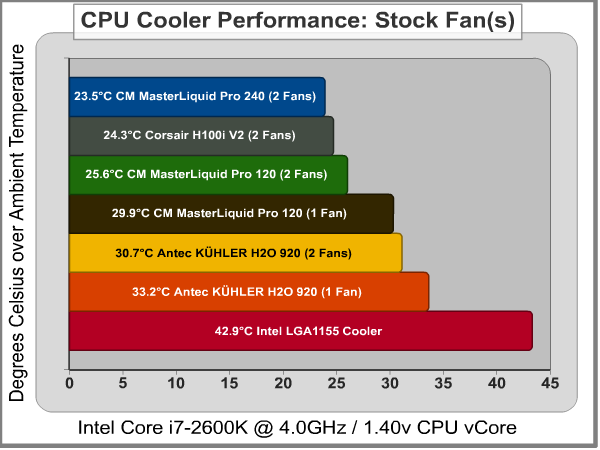
Using the bundled Intel LGA1155 cooling solution as a baseline measure of performance, this air-cooled heatsink typically reduced 100%-utilized CPU temperatures to 42.9°C over the ambient room temperature. The remainder of our test coolers were all-in-one liquid cooling solutions, which offer much better thermal management.
The Antec KÜHLER H2O 920 utilizes a 12cm radiator, and can accommodate two cooling fans (included). With one fan attached temperatures hovered at 33.2°C over ambient, but adding a second fan helped reduce that average to 30.7°C over ambient room temps at full load. Next was the Cooler Master MasterLiquid Pro 120, which includes two cooling fans for a 12 CM radiator. This all-in-one liquid cooling solution produced 29.9°C with a single fan attached, and improved to 25.6°C with both fans.
At the top of our thermal performance results were the 24cm radiators, with twice the capacity and cooling surface. These coolers require a case with dual 120mm fan vents for proper fit and operation. Corsair’s H100i V2 comes with two 120mm fans, which were both attached to the radiator. Under full processor load, the Corsair’s H100i V2 averaged 24.3°C over ambient room temperatures. The best performance was achieved with the MasterLiquid Pro 240 cooling solution, which delivered 23.5°C over ambient with both (bundled) 120mm Air Balance fans attached.
Aside from the stock Intel thermal cooling solution, all of the liquid coolers utilized fans that created very little noise and were typically more quiet than the cooler’s pump motor. Although subjective, MasterLiquid Pro’s pump seemed to be nearly silent during operation when listening up close to the waterblock.
All modern processors incorporate an internal thermal diode that can be read by the motherboards’ BIOS. While this diode and the motherboard are not calibrated and therefore may not display the actual true temperature, the degree of accuracy is constant. This means that if the diode reports 40°C when it’s actually 43°C, then it will also report 60°C when it’s truly 63°C. Since the design goal of any thermal solution is to keep the CPU core within allowable temperatures, a processor’s internal diode is the most valid means of comparison between different heatsinks, or thermal compounds. The diode and motherboard may be incorrect by a small margin in relation to an actual calibrated temperature sensor, but they will be consistent in their margin of error every time.
IMPORTANT: Although the rating and final score mentioned in this conclusion are made to be as objective as possible, please be advised that every author perceives these factors differently. While we each do our best to ensure that all aspects of the product are considered, there are often times unforeseen market conditions and manufacturer changes occurring after publication which might render our rating obsolete. Please do not base any purchase solely on this conclusion, as it represents our rating specifically for the item tested which may differ from future versions. Benchmark Reviews begins our conclusion with a short summary for each of the areas that we rate.
Our first rating is performance, which compares how effective the Cooler Master MasterLiquid Pro 240 All-In-One liquid cooler performs against other cooling solutions, especially other water cooler kits. We compared the MasterLiquid Pro 240 against four other cooling solutions: Corsair’s H100i V2 that’s a direct competitor, its smaller sibling, MasterLiquid Pro 120, Antec’s KÜHLER H2O 920, and Intel’s bundled retail thermal cooling solution.
Measuring thermal management on an overclocked system under 100% load on every processor core is an extreme basis for measurement, but that’s how we separate the top performers. Cooler Master proved that it has engineered beneficial technological advances in their MasterLiquid Pro 240 beyond the competition, as Corsair’s H100i V2 cooler was outperformed along with the others. Both MasterLiquid Pro 240 and H100i V2 share square fins, but it seems that Cooler Master’s use of more spacious fins helped make it easier to push air past them and yield better cooling. It’s also worth noting that Cooler Master’s custom waterblock was designed with micro-fine densely-packed plates so that liquid heated by the CPU is isolated and immediately drawn away, while cool liquid flows past the pump.
In terms of appearance, liquid coolers usually consist of a small waterblock and connected radiator, thereby lacking the large array of shiny fins and polished heat-pipes to help make them into eye-catching fashion mavens. While there have been colorful LED-backlit waterblocks on the market, these typically require separate wiring in addition to the pump’s requirements – which in the case of Corsair’s H100i V2 and Antec’s 920 would mean going beyond the two fan connections and an internal USB header. Cooler Master did right by streamlining MasterLiquid Pro 240 to a single motherboard connection, and thereby reducing cable clutter.
MasterLiquid Pro 240 gets high marks for construction. The waterblock mounting system is far easier than the others tested, and far more durable as well. They use FEP tubing (Fluorinated Ethylene Propylene), which will outlast your computer system and then some. Cooler Master also isolates the heat-sensitive pump components by using a dual-chamber waterblock, thereby extending the products lifetime. And according to Cooler Master’s product specifications, their bundled 120mm MasterFan Pro Air Balance fans have a life expectancy of 160,000 hours MTBF (mean time between failure), which rates 10K more than Noctua fans, and 100K longer than Corsair fans.
Based on my experience with this cooling system, functionality is another area where MasterLiquid Pro 240 shines. The kit is designed to tame temperatures on the hottest overclocked computers, and indeed it does. In addition to the extended lifespan they’ve afforded most components, the fans included with this kit are also rated to produce only 6-30 dBA of noise – which is practically inaudible – and a step closer to a truly silent PC. The only caveat with this system is that it requires a 120 x 240mm mounting space, which tends to exclude small form factor enclosures.
At the time of this writing, the Cooler Master MasterLiquid Pro 240 liquid cooling kit (model MLY-D24M-A20MB-R1) was found online for $119.99 (Amazon | Newegg). In terms of value, this price is very agreeable, especially considering the product carries a five-year hardware warranty. Looking at the competition in this class, most tend to be more expensive with less warranty; even a few air-cooled heatsinks are priced in this range!
In conclusion, I would recommend the MasterLiquid Pro 240 to any PC hardware enthusiast who demands a silent, top-performing CPU cooler with the ability to cool even the hottest overclocked processor in a full-size enclosure. For SFF builds I’m a fan of the MasterLiquid Pro 120, which shrinks the footprint without losing much thermal performance. Regardless of which kit you choose, both are designed to outlast you and your computer.
+ Best cooling performance of the bunch!
+ Practically silent electric pump and cooling fans
+ Waterblock densely packed with micro-fine plates
+ Simple tool-less mounting system for most all CPU sockets
+ Includes two MasterFanPro Air Balance 120mm fans
+ Streamlined cable management – does not require USB
+ Square fins creates greater contact surface area with radiator
+ 5-year manufacturer product warranty
– 120x240mm Radiator may not fit SFF enclosures
-
Performance: 9.75
-
Appearance: 8.75
-
Construction: 9.75
-
Functionality: 9.50
-
Value: 8.50
Excellence Achievement: Benchmark Reviews Golden Tachometer Award.
COMMENT QUESTION: Who do you think makes the best all-in-one liquid cooler?


2 thoughts on “MasterLiquid Pro 240 Cooler Review”
Nice performance there….! Looking at possibly getting an AIO for my five year old daughters build. Either that or invest a hundred or so more dollars and go custom liquid with her choice of coolant color….. Just a thought. ThInking a monster high build for her would be cute…
These new AIO liquid coolers are essentially the same as what you would put together with custom parts, except for they’ve done all the messy work for you. For the price, they’re a compelling product.
Comments are closed.