By Jason Maxfield
Manufacturer: ID-Cooling
Product Name: Dashflow 240
Model Number: ID-CPU-DASHFLOW240
EAN: 6931393301662
Price As Tested: $140.00 MSRP
Full Disclosure: The product sample used in this article has been provided by ID-Cooling
ID-Cooling may not be a name you are familiar with. The company was announced in 2013 during Computex. Although ID-Cooling is relatively new, they are looking to make a splash in the flooded AIO liquid cooler market with their new Dashflow series of RGB AIO liquid coolers. In this article for Benchmark Reviews, I’ll be comparing the performance of the Dashflow 240 against previous coolers I have tested.
Currently, the Dashflow 240 is the only cooler in the line-up. With the ever increasing popularity of RGB-everything, ID-Cooling has stepped up to the plate with RGB sync. Dashflow 240 can sync with ASUS Aura, MSI Mystic Light, and is Gigabyte RGB Fusion Ready. For those with a motherboard without RGB sync capabilities, ID-Cooling includes a controller giving you full control over the RGB functionality of the Dashflow 240.

| Compatibility | Intel LGA2066/2011-3/2011/1366/1151/1150/1155/1156 |
| AMD AM4/FM2+/FM2/FM1/AM3+/AM3/AM2+/AM2 | |
| TDP | 350W |
| Radiator Dimension | 274×120×27mm |
| Radiator Material | Aluminum |
| Tube Material | Premium Sleeved Tubing |
| Tube Length | 350mm |
| Waterblock Dimension | 84×84×46.5mm |
| Cold Plate Material | Copper |
| Pump Current | 0.45A |
| Pump Speed | 2400RPM |
| Pump Bearing | Ceramic Bearing |
| Pump Life Expectancy | 50,000 Hrs |
| Pump Noise Level | 25dB(A) |
| Fan Dimension | 120×120×25mm |
| Included Fans | 2pcs |
| Fan Speed | 900~2000RPM |
| Max. Air Flow | 56.5CFM(1 Fan) |
| Max. Static Pressure | 1.99mmH2O |
| Noise | 16~31.5dB(A) |
| Rated Voltage | 12VDC |
| Operating Voltage | 10.8~13.2VDC |
| Started Voltage | 7VDC |
| Rated Current | 0.25A |
| Power Input | 3W |
| Bearing Type | 2Ball Bearing |
ID-Cooling Dashflow 240 specifications taken from ID-Coolings website.
Next page we have the overview of the Dashflow 240.
In this section we go over the Dashflow 240 and explore a few of it’s components. The ID-Cooling Dashflow 240 (Model Number ID-CPU-DASHFLOW240) is not yet available online (as of APril 2018), but lists for $140.00 MSRP.

ID-Cooling did a good job packaging this unit. It arrived undamaged, thanks to all the foam. When anything has to go through customs, I always worry something is going to get broken or damaged before arriving at my door.
We can plainly see the radiator, pump block, and boxes containing the fans and hardware required to mount the cooler.

After removing items from the boxes, we can see all the mounting hardware and some of the cabling needed for the RGB components in the Dashflow 240. This includes the RGB splitter necessary to connect the fans and the pump block, as well as the RGB controller for those without a compatible motherboard.
The manual covers installing the cooler for both Intel and AMD systems, as well as the installation and operation of the RGB system.

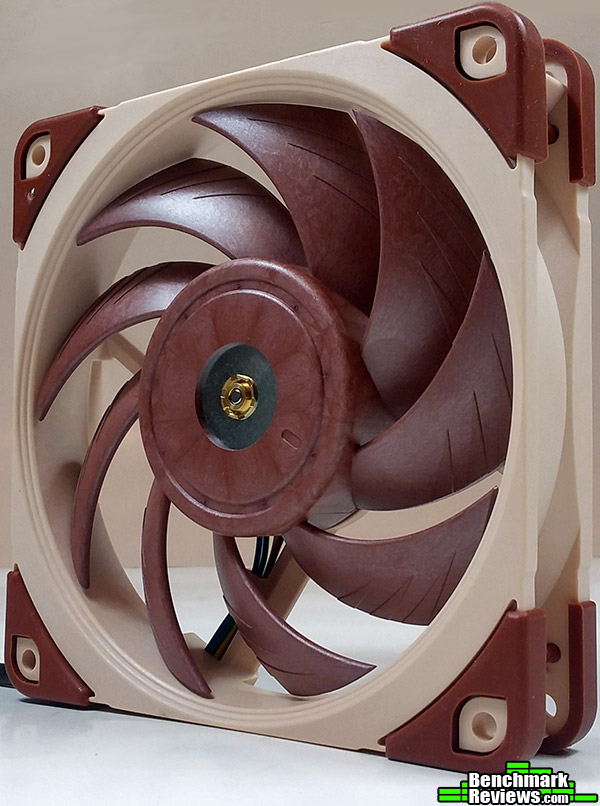
These are the included fans that come with the Dashflow 240. They have RGB lights in the center surrounding the fan motor. The blades of the fans are tinted soft-white, so the LED lights have more of a diffused glow to them when illuminating the blades and the sides of the fan housing.
You may notice the corners of the fans have rubber padding to help dampen vibrations, and the fans have 4-pin PWM connectors for full control of the fans via BIOS or other software.
The fans run from 900 – 2,000 RPM and are fairly quiet around the 1,000 to 1,200 range, but after that the noise ramps up quickly. At 2,000 RPM it sounds like a mini-blower inside the case. But to be fair, any 120mm fan spinning at 2,000 RPM is going to get noisy.

ID-Cooling made sure their logo is very visible on the side of the radiator. The Dashflow 240 has nice metal retention screws and thick braided cables. This gives the Dashflow 240 a very clean and custom look to it.

Now we have a good look at the radiator and pump unit. The metal connectors are used on both the pump and the radiator.
Those radiator hoses are some of the thickest I have ever seen on a radiator before. Not only is it thick, but it’s fairly long in length. A very clean look overall.
On the next page I’ll go over some of the finer details of the Dashflow 240.
Below I’ll use the images to illustrate more details about the ID-Cooling Dashflow 240 cooler.

In this photo we can see the details on the metal fittings, and the power and RGB cables coming out from the bottom of the pump. The top of the pump block has the ID-Cooling logo on it, and is surrounded by tracings of plastic that allow the internal LED lights to illuminate through the block.

Underneath the plastic cover of the block we can see the copper heat plate. There is several mounting holes for Intel and AMD solutions. The copper base appears to be flat and smooth.

This is the back plate for the motherboard. It works for all Intel and AMD mounting solutions. However, I am not a fan of the hard foam on the corners that is used to elevate the metal plate away from the motherboard to prevent shorting to any exposed leads on the back of the motherboard.
The problem with using hard foam is the way the screws are mounted with standoffs, you may not get an even amount of pressure when installing the cooler.
I’ll elaborate more on this in the final thoughts and conclusions section of the article.

Each fan has these two connectors. One is a PWM connector, and the other is an RGB connector. The arrow on the RGB connector designates alignment when hooking these up into the RGB splitter. If the cables are not connected correctly, you can cause damage to the RGB system, and possibly your motherboard, if using the RGB sync capabilities.

These are the cables coming from the CPU block. The SATA power connector supplies the pump with power, while the RGB connector powers the LEDs, and allows them to be synced with the fans and motherboard.

Lastly, we have the RGB controller unit. This controller plugs into one of the leads on the splitter cable. You only need to use this if you do not have a motherboard that has RGB sync capabilities.
Curiously, ID-Cooling opted for a 4-pin molex connection, despite the fact they are using a SATA power connector on the pump section. I would have been very irritated if I had to pull a molex power cord out to power just this one component. ID-Cooling should think about switching this to a SATA power connector instead.
Also, this controller wouldn’t be of much use stashed inside of a case. Which could make using this device a pain, depending on where you could mount this controller in your PC. I’m just glad I didn’t have to use this.
On the next page we go over CPU preparation for mounting the cooler.
It bears repeating here that no heat-sink will work effectively unless it transfers heat from the CPU. To do that, it needs to be in contact with the CPU heat spreader or die, with the greater the contact surface the greater the potential for heat transfer. One of our own writers here at Benchmark Reviews has done a lot of work in this area, and it is certainly worth the time it takes to read (and re-read) the discoveries he made during the famous 80+ thermal paste tests (I still see Newegg reviews reference the discoveries made therein).
I mention this because I still see this as a major source of misinformation – most end users will use far too much thermal interface material when switching CPU coolers. Possibly through little fault of their own – I’ve read official repair manuals stating to use the entire tube of thermal paste when replacing a CPU and heat-sink. This is, in almost every case, FAR too much – to the point of being harmful in most cases. So do yourself a favor and get acquainted with CPU Cooler Preparations and Thermal Paste Application.
Processor and CPU cooler surfaces are not perfectly smooth and flat surfaces, and although some surfaces appear polished to the naked eye, under a microscope the imperfections become clearly visible. As a result, when two objects are pressed together, contact is only made between a finite number of points separated by relatively large gaps. Since the actual contact area is reduced by these gaps, they create additional resistance for the transfer of thermal energy (heat). The gasses/fluids filling these gaps may largely influence the total heat flow across the surface, and then have an adverse affect on cooling performance as a result.
The only reason for using Thermal Interface Material is to compensate for flaws in the surface and a lack of high-pressure contact between heat source and cooler, so the sections above are more critical to good performance than the application of TIM itself. This section offers a condensed version of our Best Thermal Paste Application Methods article.
After publishing our Thermal Interface Material articles, many enthusiasts argued that by spreading out the TIM with a latex glove (or finger cover) was not the best way to distribute the interface material. Most answers from both the professional reviewer industry as well as enthusiast community claim that you should use a single drop “about the size of a pea”. If there was ever any real advice that applies to every situation, it would be that thermal paste isn’t meant to separate the two surfaces but rather fill the microscopic pits where metal to metal contact isn’t possible.
After discussing this topic with real industry experts who are much more informed of the process, they offered some specific advice that didn’t appear to be a “one size fits all” answer:
- CPU Cooling products which operate below the ambient room temperature (some Peltier and Thermo-electric coolers for example) should not use silicon-based materials because condensation may occur and accelerate compound separation.
- All “white” style TIM’s exhibit compound breakdown over time due to their thin viscosity and ceramic base (usually beryllium oxide, aluminum nitride and oxide, zinc oxide, and silicon dioxide). These interface materials should not be used from older “stale” stock without first mixing the material very well.
- Thicker carbon and metal-based (usually aluminum-oxide) TIM’s may benefit from several thermal cycles to establish a “cure” period which allows expanding and contracting surfaces to smooth out any inconsistencies and further level the material.
The more we researched this subject, the more we discovered that because there are so many different cooling solutions on the market it becomes impossible to give generalized advice to specific situations. Despite this, there is one single principle that holds true in every condition: Under perfect conditions the contact surfaces between the processor and cooler would be perfectly flat and not contain any microscopic pits, which would allow direct contact of metal on metal without any need for Thermal Interface Material. But since we don’t have perfectly flat surfaces, Thermal Material must fill the tiny imperfections. Still, there’s one rule to recognize: less is more.
CPU coolers primarily depend on two heat transfer methods: conduction and convection. This being the case, we’ll concentrate our attention towards the topic of conduction as it relates to the mating surfaces between a heat source (the processor) and cooler. Because of their density, metals are the best conductors of thermal energy. As density decreases so does conduction, which relegates fluids to be naturally less conductive. So ideally the less fluid between metals, the better heat will transfer between them. Even less conductive than fluid is air, which then also means that you want even less of this between surfaces than fluid. Ultimately, the perfectly flat and well-polished surface is going to be preferred over the rougher and less even surface which required more TIM (fluid) to fill the gaps.
This is important to keep in mind, as the mounting surface of your average processor is relatively flat and smooth but not perfect. Even more important is the surface of your particular CPU cooler, which might range from a polished mirror finish to the absurdly rough or the more complex (such as Heat-Pipe Direct Touch). Surfaces with a mirror finish can always be shined up a little brighter, and rough surfaces can be wet-sanded (lapped) down smooth and later polished, but Heat-pipe Direct Touch coolers require some extra attention.
To sum up this topic of surface finish and its impact on cooling, science teaches us that a smooth flat mating surface is the most ideal for CPU coolers. It is critically important to remove the presence of air from between the surfaces, and that using only enough Thermal Interface Material to fill-in the rough surface pits is going to provide the best results. In a perfect environment, your processor would mate together with the cooler and compress metal on metal with no thermal paste at all; but we don’t live in perfect world and current manufacturing technology cannot provide for this ideal environment.
Probably one of the most overlooked and disregarded factors involved with properly mounting the cooler onto any processor is the amount of contact pressure applied between the mating surfaces. Compression will often times reduce the amount of thermal compound needed between the cooler and processor, and allow a much larger metal to metal contact area which is more efficient than having fluid weaken the thermal conductance. The greater the contact pressure between elements, the better it will conduct thermal (heat) energy.
Unfortunately, it is often times not possible to get optimal pressure onto the CPU simply because of poor mounting designs used by the cooler manufacturers. Most enthusiasts shriek at the thought of using the push-pin style clips found on Intel’s stock thermal cooling solutions. Although this mounting system is acceptable for casually-used computers, there is still plenty of room for improvement when overclocking.
Generally speaking, you do not want an excessive amount of pressure onto the processor as damage may result. In some cases, such as Heat-pipe Direct Touch technology, the exposed copper rod has been pressed into the metal mounting base and then leveled flat by a grinder. Because of the copper rod walls are made considerably thinner by this process, using a bolt-through mounting system could actually cause heat-pipe rod warping. Improper installation not withstanding, it is more ideal to have a very strong mounting system such as those which use a back plate behind the motherboard and a spring-loaded fastening system for tightening.
Next page I’ll go over testing methodology and testing results of the Dashflow 240.
The CPU coolers tested were mounted in a Thermaltake V51 case. The case was in it’s normal upright orientation and case doors were fully closed during testing. There are two 140mm front intake fans, and one 140mm exhaust fan.
The front 140mm fans are running from a 7v input so there is no variance in fan speed from test to test. I set the exhaust fan to 50% via BIOS. As far as the CPU cooler fans go, I set them to run 100% RPM, so any variance from the BIOS controlling the fans would be eliminated. Settings were left the same for all coolers while testing was done.
The GPU was left installed and running with fans set to a static 35% to keep any variance from the GPU out of the equation.
CPU cooler prep included cleaning the CPU coolers with 90% isopropyl alcohol. Noctua NT-H1 thermal compound was used on the Dashflow 240 for testing.
CPU coolers were mounted in a push configuration, pulling air from the inside of the case and exhausting out of the top. Normally, I use a pull configuration, but the Dashflow 240 has RGB fans, and if you mounted them with a pull orientation, the RGB lights would be facing the top of the case instead of the inside. There is little verified difference between a push and pull configuration, so the results shouldn’t be affected by this configuration.
Testing was performed with AIDA64 Engineer software using their stability test application, which generates 100% CPU load during the entire test run. The stability test was run until CPU temperatures had plateaued, then I began to record ambient air temperature and CPU temperatures over the next minute. I then shutdown the PC completely and turn it back on after a minute or so and ran the test 3 times in total.
After swapping and running the test 3 times in the exact same way with all coolers, I took the results of the CPU temperatures and discarded the highest and lowest temperature results and subtracted that result from the ambient room temperature.
Ambient room temperatures were measured in degrees Celsius using a thermometer with 1/10 decimal point accuracy. Ambient room temps are monitored closely and any variance is no greater than 1C. All testings is performed on the same day to keep results as consistent as possible.
- Motherboard: ASUS Prime X370-Pro
- Processor: AMD Ryzen 5 1600 OC 3.9Ghz 1.381vCore
- Thermaltake V51 case
Listed from best to worst, we have the Corsair H150i Pro RGB winning this comparison by 5C over the ID-Cooling Dashflow 240. The Reeven Naia 240 and SilverStone TD-02 Slim are with-in margin of error. There is a small difference of .3C between all 3 of these coolers.
The Corsair H150i Pro should win this as it is a 360mm cooler, but the 240mm units are not that far off. ID-Cooling has a competitive unit in the Dashflow 240.

I included the data from the AMD Wraith Spire to give you the idea of just how effective liquid coolers are when doing overclocking of your CPU. I was hitting T-die temps of 87C when the testing failed. Ryzen CPUs can start to get unstable around 85C, and apparently this is true with the R5 1600 in my case. The test never failed for any of the liquid coolers.
Next page I’ll go over my final thoughts and conclusions of the ID-Cooling Dashflow 240
ID-Cooling has done a good job with the Dashflow 240. The only major gripe I have is with the mounting system. When mounting the CPU back plate, the hard foam allows too much movement of the plate. What makes it worse is the included screws that go through the mounting plate do not have any means of locking in place, so they can freely spin in place. When you get to the front side of the board and start screwing down the standoff screws, you have no idea when you should stop. I kept trying to count turns and feel the pressure as best as I could, but that’s just not precise enough.
Luckily, it appears that it didn’t adversely affect the results. Once the CPU block is mounted with the thumb screws those can be screwed down all the way until they do not turn anymore. I can’t say for sure if I have the right amount of mounting pressure, and if not, then the cooler is performing at least as good as the other 240mm units I have tested. But, if it’s not, this also means I’m losing potential performance and I have no way of telling.
One minor gripe is about the RGB controller. Just to test functionality I used the RGB controller, and it works as advertised, but when you handle the controller it can easily fall out of the splitter it’s plugged into. Also, there isn’t any convenient way to access the controller inside the case, unless you push it through a cable routing grommet to access it from the inside of the case, and pray it doesn’t detach itself.
Now it’s not all bad news with the Dashflow 240. Contrarily, I did like the performance and looks of the cooler. The RGB functions with the Asus Aura software without any issues. I have full control over the coolers fans, via BIOS or Asus software, and not have to use a proprietary software from ID-Cooling to control the unit, unlike the Corsair H150i Pro that required the use of the Corsair Link software.
Also, for those wondering if the Dashflow 240 can be used in a custom loop, ID-Cooling has no information released that I have seen to suggest the metal fittings would be compatible with a custom loop. I did not want to remove any of the fittings for fear of losing coolant and not being able to replace it. I will update the article if I find anything to the contrary.

Performance was the best I have tested out of the 240mm units in my test line-up, albeit by a very small margin. I still have to wonder if the mounting plate is working optimally or not, and I do not like not knowing if I am getting optimal performance from the Dashflow 240 or not.
The Dashflow 240 is sleek looking from the pump block, hoses, metal fittings, and even it’s fans. The pump block is a bit on the chunky side, specially when compared to the Corsair H150i Pro’s slim pump design. Although, the Dashflow 240 has top mounted hoses on top of the block, so this bulkiness doesn’t impede into the path of DIMM slots or capacitors and chokes near the PWM side of the motherboard.
Construction feels sturdy and top notch for the most part. The only part of the unit that feels a bit cheap is the big plastic cover on the pump block. I think this is partly due to the sides of the cover not really touching anything. It’s more of a shroud along the sides of the pump.
Functionality is mixed for me. While the Dashflow 240 performs flawlessly when synced to the motherboard, using the included RGB controller could be an issue for those that do not have a compatible motherboard. Again, I must point out the function of the mounting plate, and the unknown factor of it’s performance and function could be hampering the Dashflow 240. I suggest ID-Cooling find a better solution to the mounting plate for a more consistent and accurate mounting mechanism.
Value at the time of writing this article is very hard to judge. Given the MSRP of $140.00, I can’t call this a very good value proposition, when other well established companies have comparable units that cost much less in price and perform essentially the same as the Dashflow 240. Perhaps when the Dashflow 240 hits retail, I can revisit this assessment.
I can say I have enjoyed my time with the ID-Cooling Dashflow 240. I can’t speak of the longevity, as the information on ID-Cooling’s website says everything is covered by at least 1 year warranty, and specific models with codes that do not make it easy to identify which series of product has a longer warranty. The reputation of the company is an unknown factor to me as well. All I can say is the Dashflow 240 is built well, and looks great while performing slightly better than the other 240mm coolers I’ve reviewed in the past. And if you are really into RGB, this cooler definitely has the upper hand against the Reeven, SilverStone, and Corsair coolers in my review samples.
The Reeven and Corsair coolers have RGB, but only on the pump. SilverStone’s unit doesn’t have any RGB functionality at all. The Dashflow 240 has RGB on the pump and fans, and it can link to your motherboard and be controlled with your motherboards RGB software. In the end, most of these coolers are so close in performance, it can literally be looks, or a particular function that gets you to by product X over product Y.
+ RGB link
+ Thick braided hoses
+ Metal Connectors
+ Included RGB link fans
– Mounting plate
– included RGB controller isn’t convenient
– Suggested Price
-
Performance: 9.50
-
Appearance: 9.50
-
Construction: 9.25
-
Functionality: 8.00
-
Value: 7.50


2 thoughts on “ID-Cooling Dashflow 240 Liquid CPU Cooler Review”
Did you ever determine that this cooler can be expanded to be part of a (semi) custom loop. The company website seems to indicate that it can, but I was wondering if you had found anything official.
Regards,
Cl;aude
Claude:
I did not find any conclusive information for expansion as part of a custom loop. It appears to just look like it can.
Comments are closed.