By Jason Maxfield
Manufacturer: Corsair Components, Inc.
Product Name: Hydro Series H150i Pro RGB Liquid CPU Cooler
Model Number: CW-9060031-WW
UPC: 843591026499 EAN: 0843591026499
Price As Tested: $169.99 (Newegg | Amazon)Full Disclosure: The product sample used in this article has been provided by Corsair
Corsair has updated their line-up of Hydro Series series of AIO liquid coolers. The Corsair Hydro H150i Pro RGB 360mm CPU cooler is among their latest offerings. Their new line of coolers includes the Corsair H115i Pro RGB of the 280mm variety, and shares the same functionality with this larger 360mm unit. In this article for Benchmark Reviews, I focus on the Corsair Hydro H150i Pro RGB and compare it to some other AIO units I have tested in the past. Let’s find out how well the H150i Pro RGB stacks up to the competition.
Interestingly, The Hydro Pro series is compatible with the Corsair Link software. Corsair Link software allows control of the unit in other ways than if it was simply connected to your motherboard and controlled from within the BIOS. Without the Corsair Link software you would have no control over the RGB LED’s inside the pump of the H150i Pro.
The H150i Pro RGB also includes some of Corsair’s newer 120mm ML (magnetic levitation) fans, which are supposed to be quieter than traditional fans, as there is little friction within the bearing. This also gives the fans a longer expected life-span than traditional fans. But otherwise these fans look the same as previous high static pressure fans that come with Corsair coolers in the past.
Corsair’s pump design is very compact, sleek looking, and has RGB LED functionality lighting the Corsair logo. While the braided hoses coming out of the pump are very flexible and appealing to the eye.


Specifications taken from Corsair’s product guide.
Next is the overview of the Corsair H150i Pro RGB.
Launching on January 8th at the 2018 CES, the Corsair Hydro H150i Pro RGB CPU Cooler will have a street price of $169.99 (Newegg | Amazon). Below is a picture of the very colorful box the H150i Pro RGB comes in. This RGB craze doesn’t appear to be letting up anytime soon from the looks of things.

Here is your product guide, warranty, and all the mounting hardware, and the Corsair Link USB cable.

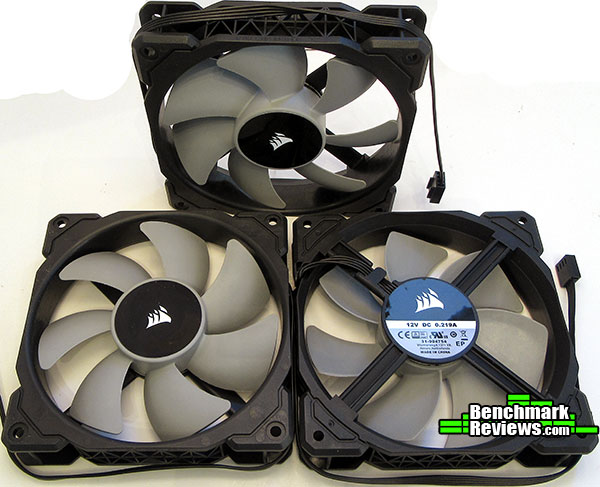
The included 120mm fans that come with the H150i Pro RGB feel very stout and robust, somehow heavier than the plastic frames would suggest. These are the newer ML (magnetic levitation) 120mm fans. The fan blade design looks exactly the same as previous fans and you would never guess by looking at them that they are different.
This is a look at the unit in it’s entirety. Along each side of the radiator is a chrome embossed Corsair logo that looks pretty sweet. Too bad once installed you’ll most likely never see it.
You also get a look at all the cables coming out of that very slim pump/cooler. You have a SATA power cable, 3 fan headers, and one CPU fan header.

Next we’ll go over some detailed features of the Corsair H150i Pro RGB.
Now we can get down to some of the details. Below is a shot of the radiator. The radiator measures 396mm in length, 120mm in width, and 27mm deep. Pretty much your standard AIO 360mm aluminum radiator.

We have a closer look at the pump/cooler unit below. The unit is very slim, and the hoses are a bit thinner compared to other models. The hoses are braided and very flexible. This should give the H150i Pro RGB more flexibility in mounting locations.
The Corsair logo and sides of the pump light up when the included RGB LEDs are powered on.

Below we have a shot of the copper heat plate. Bolted on with 8 screws, and has pre-applied TIM (thermal interface material). The pre-installed bracket is for Intel mounting solutions. Changing the bracket to AMD is easily accomplished by simply giving a slight twist to the left and pulling the bracket away from the pump and installing the AMD bracket in reverse order.

I like the attention to detail Corsair shows here by placing the stickers all in the same orientation. It’s a minor detail, but one that I definitely notice when they are not.
The 3 ML (magnetic levitation) 120mm fans mount easily, and I have them arranged in a pull configuration, as suggested by Corsair’s manual.

A close up shot of the spaghetti wires spilling forth from the pump. The wire at the top of the photo is connected to the CPU header on your motherboard. This wire actually shows the RPM for the pump when reading it in the BIOS. But if you do not connect this cable your BIOS will think you have forgotten to connect a CPU cooler.
The 3 PWM fan headers are used to connect the 3 120mm ML fans, which are controlled by the Corsair Link software. I go over that in more details with the Corsair Link software.
Lastly, we have the SATA power cable, which supplies power for the pump, RGB LED, and fans.

Next page we discuss CPU cooler preparation and thermal interface application.
It bears repeating here that no heat-sink will work effectively unless it transfers heat from the CPU. To do that, it needs to be in contact with the CPU heat spreader or die, with the greater the contact surface the greater the potential for heat transfer. One of our own writers here at Benchmark Reviews has done a lot of work in this area, and it is certainly worth the time it takes to read (and re-read) the discoveries he made during the famous 80+ thermal paste tests (I still see Newegg reviews reference the discoveries made therein).
I mention this because I still see this as a major source of misinformation – most end users will use far too much thermal interface material when switching CPU coolers. Possibly through little fault of their own – I’ve read official repair manuals stating to use the entire tube of thermal paste when replacing a CPU and heat-sink. This is, in almost every case, FAR too much – to the point of being harmful in most cases. So do yourself a favor and get acquainted with CPU Cooler Preparations and Thermal Paste Application.
Processor and CPU cooler surfaces are not perfectly smooth and flat surfaces, and although some surfaces appear polished to the naked eye, under a microscope the imperfections become clearly visible. As a result, when two objects are pressed together, contact is only made between a finite number of points separated by relatively large gaps. Since the actual contact area is reduced by these gaps, they create additional resistance for the transfer of thermal energy (heat). The gasses/fluids filling these gaps may largely influence the total heat flow across the surface, and then have an adverse affect on cooling performance as a result.
The only reason for using Thermal Interface Material is to compensate for flaws in the surface and a lack of high-pressure contact between heat source and cooler, so the sections above are more critical to good performance than the application of TIM itself. This section offers a condensed version of our Best Thermal Paste Application Methods article.
After publishing our Thermal Interface Material articles, many enthusiasts argued that by spreading out the TIM with a latex glove (or finger cover) was not the best way to distribute the interface material. Most answers from both the professional reviewer industry as well as enthusiast community claim that you should use a single drop “about the size of a pea”. If there was ever any real advice that applies to every situation, it would be that thermal paste isn’t meant to separate the two surfaces but rather fill the microscopic pits where metal to metal contact isn’t possible.
After discussing this topic with real industry experts who are much more informed of the process, they offered some specific advice that didn’t appear to be a “one size fits all” answer:
- CPU Cooling products which operate below the ambient room temperature (some Peltier and Thermo-electric coolers for example) should not use silicon-based materials because condensation may occur and accelerate compound separation.
- All “white” style TIM’s exhibit compound breakdown over time due to their thin viscosity and ceramic base (usually beryllium oxide, aluminum nitride and oxide, zinc oxide, and silicon dioxide). These interface materials should not be used from older “stale” stock without first mixing the material very well.
- Thicker carbon and metal-based (usually aluminum-oxide) TIM’s may benefit from several thermal cycles to establish a “cure” period which allows expanding and contracting surfaces to smooth out any inconsistencies and further level the material.
The more we researched this subject, the more we discovered that because there are so many different cooling solutions on the market it becomes impossible to give generalized advice to specific situations. Despite this, there is one single principle that holds true in every condition: Under perfect conditions the contact surfaces between the processor and cooler would be perfectly flat and not contain any microscopic pits, which would allow direct contact of metal on metal without any need for Thermal Interface Material. But since we don’t have perfectly flat surfaces, Thermal Material must fill the tiny imperfections. Still, there’s one rule to recognize: less is more.
CPU coolers primarily depend on two heat transfer methods: conduction and convection. This being the case, we’ll concentrate our attention towards the topic of conduction as it relates to the mating surfaces between a heat source (the processor) and cooler. Because of their density, metals are the best conductors of thermal energy. As density decreases so does conduction, which relegates fluids to be naturally less conductive. So ideally the less fluid between metals, the better heat will transfer between them. Even less conductive than fluid is air, which then also means that you want even less of this between surfaces than fluid. Ultimately, the perfectly flat and well-polished surface is going to be preferred over the rougher and less even surface which required more TIM (fluid) to fill the gaps.
This is important to keep in mind, as the mounting surface of your average processor is relatively flat and smooth but not perfect. Even more important is the surface of your particular CPU cooler, which might range from a polished mirror finish to the absurdly rough or the more complex (such as Heat-Pipe Direct Touch). Surfaces with a mirror finish can always be shined up a little brighter, and rough surfaces can be wet-sanded (lapped) down smooth and later polished, but Heat-pipe Direct Touch coolers require some extra attention.
To sum up this topic of surface finish and its impact on cooling, science teaches us that a smooth flat mating surface is the most ideal for CPU coolers. It is critically important to remove the presence of air from between the surfaces, and that using only enough Thermal Interface Material to fill-in the rough surface pits is going to provide the best results. In a perfect environment, your processor would mate together with the cooler and compress metal on metal with no thermal paste at all; but we don’t live in perfect world and current manufacturing technology cannot provide for this ideal environment.
Probably one of the most overlooked and disregarded factors involved with properly mounting the cooler onto any processor is the amount of contact pressure applied between the mating surfaces. Compression will often times reduce the amount of thermal compound needed between the cooler and processor, and allow a much larger metal to metal contact area which is more efficient than having fluid weaken the thermal conductance. The greater the contact pressure between elements, the better it will conduct thermal (heat) energy.
Unfortunately, it is often times not possible to get optimal pressure onto the CPU simply because of poor mounting designs used by the cooler manufacturers. Most enthusiasts shriek at the thought of using the push-pin style clips found on Intel’s stock thermal cooling solutions. Although this mounting system is acceptable for casually-used computers, there is still plenty of room for improvement when overclocking.
Generally speaking, you do not want an excessive amount of pressure onto the processor as damage may result. In some cases, such as Heat-pipe Direct Touch technology, the exposed copper rod has been pressed into the metal mounting base and then leveled flat by a grinder. Because of the copper rod walls are made considerably thinner by this process, using a bolt-through mounting system could actually cause heat-pipe rod warping. Improper installation not withstanding, it is more ideal to have a very strong mounting system such as those which use a back plate behind the motherboard and a spring-loaded fastening system for tightening.
Next page we move along to the testing and results of the H150i Pro RGB!
The CPU coolers tested were mounted in a Thermaltake V51 case. The case was in it’s normal upright orientation and case doors were fully closed during testing. There are two 140mm front intake fans, and one 140mm exhaust fan.
The front 140mm fans are running from a 7v input so there is no variance in fan speed from test to test. I set the exhaust fan to 50% via BIOS. As far as the CPU cooler fans go, I set them to run 100% rpm, so any variance from the BIOS controlling the fans would be eliminated. Settings were left the same for all coolers while testing was done. The only exception to this was the use of the Corsair Link software. Fortunately, the Link software allows the pump and fans to be set to 100% constantly, so testing consistency was not compromised.
The GPU was left installed and running with fans set to a static 35% to keep any variance from the GPU out of the equation.
CPU cooler prep included cleaning and prepping the CPU coolers with the same TIM that was included with the Reeven Naia 240 cooler. The same amount of TIM was applied to all coolers for this test.
CPU coolers were mounted in a pull configuration, pulling air from the top of the case through it’s fan filter. This is per Corsair’s recommended setup for the H150i Pro RGB. For consistency the other AIO coolers were set up in a pull configuration as well. This configuration makes more sense, since hot air from the GPU, even at idle, spills into the case. With the coolers pulling air from the top of the case down into the chassis, this keeps the air temperature more consistent while testing. This will be my standard testing configuration from now on.
Testing was performed with AIDA64 Engineer software using their stability test application, which generates 100% CPU load during the entire test run. The stability test was run until CPU temperatures had plateaued, then I began to record ambient air temperature and CPU temperatures over the next minute. I then shutdown the PC completely and turn it back on after a minute or so and ran the test 3 times in total.
After swapping and running the test 3 times in the exact same way with all coolers, I took the results of the CPU temperatures and discarded the highest and lowest temperature results and subtracted that result from the ambient room temperature.
Ambient room temperatures were measured in degrees Celsius using a thermometer with 1/10 decimal point accuracy. Ambient room temps are monitored closely and any variance is no greater than 1C. All testings is performed on the same day to keep results as consistent as possible.
I wanted to go over this briefly because setting up this AIO cooler isn’t like your normal units out there. With this unit, you have a SATA power plug, 3 fan headers that plug into the fans, another header that plugs into the CPU header of the motherboard, and the Corsair Link USB cable.
Mounting the cooler is just like any other cooler out there. It’s 360mm radiator isn’t any different, nor are the 120mm fans. For my installation I had to remove the Intel bracket and install the AMD bracket.
AMD mounting method is different than other solutions I have seen before. You use the standard AM socket that comes with your motherboard and attach it to your CPU via clips that you screw down to the plastic mounting bracket already on your motherboard. This makes for an easy out of the box installation on AMD systems.
Things get interesting when you have to hook everything up. It wasn’t very complicated, but just takes a bit of thought as to where are all the wires are going to be routed that come out of the H150i Pro RGB pump/cooler.
Routing the SATA cable up towards the top where I have an optical drive worked out well for getting power supplied to the unit.
I fed the fan header cables from the pump to the back of the motherboard tray along with the fan headers of the fans themselves. This kept the wires from hanging lose in the front of the case and thankfully I have decent access to the top of the motherboard tray via cut-outs in the ThermalTake V51 case.
Connecting the fan cable to the CPU header is simple enough. This allows the BIOS to see that there is indeed a CPU fan connected and running, otherwise the BIOS will get angry and beep at you! The actual reading you will get is the pump motor RPM in the BIOS, so keep that in mind when you see the CPU fan RPM in the BIOS menus.
Routing the USB Link cable could be a pain, depending on your case and layout of components. The cable has a 90 degree bend in it and is oriented toward the top of the case. I ended up routing the cable over the top VRM heatsink and behind the motherboard tray, then looped it around the back of the tray to a USB header at the bottom of the motherboard. As it is, the cable barely reached to the bottom of the motherboards USB 2.0 headers.
-
Motherboard: ASUS Prime X370-Pro
-
Processor: AMD Ryzen 5 1600 OC 3.9Ghz 1.381vCore
Listed from best to worst, we have the Corsair H150i Pro RGB winning this comparison by 5.1C over the Reeven Naia 240 cooler.While the Reeven Naia 240 and SilverStone TD-02 Slim were neck and neck in this comparison.
Sadly, the AMD Wraith Spire couldn’t make the run, as the test resulted in hardware failure. 1.381 volts is just too much for the Wraith Spire to handle.

Below is a screen capture of the AMD Wraith Spire run. I was seeing CPU Diode temps over 87C before the test failed. Ryzen CPUs can get unstable over 85C. This apparently holds true for my R5 1600 as well, as it is rock solid stable with this OC when the temps are kept lower.

Next page I’ll go over the Corsair Link software that controls the H150i Pro RGB.
Corsair Link software has to be used to control the H150i Pro RGB cooler. It’s linked to the motherboard via a USB 2.0 connector. I’m using the latest beta version supplied by Corsair (4.9.3.23) that has support for the H150i Pro.
From the home page you can see various information for your motherboard, disk drives, GPU, RAM, and lastly, the Corsair H150i Pro RGB.
Each of the sections information can be clicked on to open a sub menu, where you can choose to name each display to make it easier to understand what is what. In the image below I have already done that. Ignore the PCH label, as I’ve since discovered that is not the correct read-out. I’m not sure what temperature is being reported.
You can also control the RGB function of the LEDs on the H150i Pro RGB by clicking the color swatch of the LED settings. The configuration has a variety of modes: static, blink, color pulse, color shift, rainbow, and temperature. There is also a slider for speed, with 3 different speeds in total. Corsair seemed to neglect a way to turn the LEDs off though. As far as I can tell you have to set the LED to static, and make the color black, to effectively turn the LEDs off, if you don’t feel like having a light show going on in your case. Also, I noticed after several hours with the LEDs on, they tend to stray from their normal pattern of color, either skipping, or even on static, changing colors. I’ll be forwarding these findings to Corsair and hopefully they can sort this out by the time the H150i Pro RGB is released.
In addition, fans and pumps have 3 different preset modes: quiet, balanced, and performance. Quiet mode sets fans and pump to lower RPMs. Balanced mode puts the fans and pump to more of a 50% to 60% speed, while performance mode puts the fans on a much higher curve and the pump to 100%.
And lastly, you have coolant temperature displayed with the fan and pump RPM information.

Under the options heading is the settings for the Corsair Link software. You can choose a variety of settings to tweak the layout of the software to your liking. You can change the look and colors of the Link software. There are 5 different background settings under the ‘skin’ drop down list, as well as the accent colors for the graphics and text.

You can set custom notifications based on the sensors and depending on the values it will trigger whatever is set. In the example below, I set the CPU temperature max value to 65, so anytime the CPU hits this temp it will set all fans to 100%. After testing this setting I realized this doesn’t work. I explain this a few paragraphs down about the graph exceeding 60C and fans will go to 100% automatically.
You can also set the RGB LED’s to turn red, or whatever color you select by clicking on the color swatch. You can even have it run a file, such as an image or music file, which I did test, and it worked well. It will open music or images with whatever your default program for those file types.

In the configuration window, you have a case image in the background, and a set of tiles on the left side. You can drag them anywhere you want and they snap into a grid formation. This layout visually lets you see what you want to look at quickly and easily once you layout the tiles the way you want. You can also customize the image by right clicking the image and choosing ‘choose case image…’, which has most images of the current and past Corsair cases already included. Alternately, you can take a photo of your PC and use that instead, which I did afterword when I found this ‘hidden’ feature so to speak. As it was an accident finding out I could install my own custom image.

You can also right click on these tiles and configure the perimeters of the tile. In this example image I have the configuration for Fan #1 of the cooler. There is a drop down menu for modes, or you can set custom curves, or set the fans to 100% power. The group can be changed so the fans will react off of whatever is selected. Either CPU temps, motherboard, GPU, and even the water temp of the H150i Pro RGB itself, which is how it is set up by default.
Interestingly, during testing I noticed that if you set the group by CPU temp, if that temp exceeds 60C no matter how you have the fan speed set up, it will crank them to 100%. I intend to follow-up with Corsair on this, so that they can be made aware of this issue, as I don’t want the fans to spin more than 80 to 85%, where they are still decently quiet. 100% isn’t totally bad, but it’s not really necessary either. I only hit those kind of temps during stress tests anyways, so it’s not normally a problem going over 60C.

The Graphing tab opens all the charts you select to show. Hitting the configuration button opens the window you see on the left with check boxes of everything Link monitors. You can set the interval and desired charts to view in the graph, and set a log location as well.

Lastly, we have the device update list. Currently there is no firmware updates for the H150i Pro RGB. I wouldn’t suspect so, since the product isn’t due to launch for another couple weeks at the time of this writing. In the ‘About’ section under the Options menu, you can check for the latest version of Corsair Link software.

I have to say, this software is pretty straight forward. I didn’t read any documentation. Everything just flows well, and it works. I did encounter a few issues with the software as noted above, so there is some room for improvement. Those issues are minor, however, and do not affect the performance of the H150i Pro RGB in any great capacity. I have had a few weeks with this software, and I haven’t found any other glitches or oddities at this point.
There is one gripe about this software though, the fact that you have to use it in order for the cooler to function. You could probably use a Y-adapter for 2 of the fans, and plug them directly into the CPU and CPU OPT headers so the BIOS can control them, but then you wouldn’t have any control over the RGB LEDs on the pump, and miss out on one of the main functions of the unit. Because if you are buying this unit, you more than likely want the RGB LEDs. I would of liked to see an alternate means of functionality, but as it is, the Link software is it.
The other very minor gripe I have is the USB link cable is oriented with a 90 degree angle and since it can only be installed one direction (it’s a mini-USB jack), the wire ends up pointing toward the top of the case. This meant I had to route it up and around the back of the motherboard tray and down to the bottom to access a USB hub on the motherboard, as I mentioned in the Corsair H150i Pro RGB setup section of this article.
Sure, I could of snaked the cable around differently, but then it would of looked bad. Just keep in mind that the cable barely reached with my case. This may or may not be an issue for others, but that depends largely on the case you are using and it’s internal layout.
Next page I’ll go over my final thoughts and conclusion of the Corsair H150i Pro RGB AIO liquid cooler.
Having been my first time testing a 360mm radiator I’m not as impressed by the cooling as I thought I would be. I’m seeing a 5.1C difference compared to the Reeven Naia 240 cooler, and just about the same compared to the SilverStone TD-02 SLIM cooler. Granted this difference may come down to the Reeven and SilverStone units having higher RPM fans.
However, the Corsair H150i Pro RGB fans even at 100% are quieter than the Reeven or SilverStone fans. When the H150i is set to performance the fans are clearly heard over my front 140mm fans, which are running on 7 volts, but they are not as annoying as the higher RPM fans of the SilverStone and Reeven coolers.
At some point, I would like to change my testing method by using standardized fans on each cooler to eliminate fan variables, but at the same time, it skews the actual out of the box performance unless I do testing for both.
The one benefit I have noticed with the larger cooler is that during gaming the temps are kept down easier than the 240mm units. The fans do not need to spool up as high and keeps things quieter. For some this could be a much welcomed feature, as I am not as concerned about noise levels as most, since I’m usually wearing a headset while at my computer.
I wish the RGB functionality of the H150i Pro RGB could be linked with my Asus motherboard so I could sync it properly. I have it set on the ‘rainbow’ preset, same as my X370-Pro motherboard, but the timings don’t sync up. Everything in my computer is doing the rainbow effect, including my front 140mm fans, but none of it is able to sync. With no other option but using the Corsair Link software, just be aware of this if you absolutely have to have RGB functionality synced with the rest of your system.

Performance is kind of a mixed bag for me. The fans, RGB LEDs, and pump perform perfectly. Where I find the performance lacking is in the cooling. I expected the H150i Pro RGB to beat out the 240mm units by a bigger margin. Maybe I’m expecting too much of the unit, but that’s my perspective on it, not only as a reviewer, but as a consumer that would expect this product to cool better than it did, if I had purchased it myself.
The H150i Pro RGB is very appealing to the eye. Granted appearance is always subjective and some may not like the styling, but I find it to be one of the best looking coolers I have reviewed yet. Granted a radiator isn’t that sexy, but the accented chrome logo on the side of the radiator, and the slim pump/cooler unit look really good.
Construction of the H150i Pro RGB is flawless. There isn’t anything out of place or slightly off. I can’t find any blemishes or scratches on this unit. Even the radiator fins are in excellent shape.
Functionality is really good. The Corsair Link software is responsive and has only had a few minor glitches, that don’t ultimately affect performance. One of the biggest dings to functionality is that with all the motherboards supporting RGB LEDs these days, there isn’t any compatibility built-in with the link software to sync LEDs with the cooler and motherboard.
With a launch price of $169.99 (Newegg | Amazon), this unit is pretty pricey when compared to other 360mm radiators currently on the market. My assumption of this higher cost is the 3 120mm ML fans that are included with the kit. Those fans retail separately, and are quite a bit more money than other 120mm fans. But when comparing the Corsair H150i Pro RGB to other models of 360mm by competitors models that can be had at a cost starting around $120 dollars, the H150i Pro RGB comes at quite the premium. Granted most of those lower costing units don’t include the LED functionality, but those that do can be found for less and usually include RGB fans, while the H150i Pro RGB does not. Leading me to find the value of the Corsair H150i Pro wanting.
Corsair H150i Pro RGB AIO Liquid Cooler is a very nice cooler. This unit is either going to fit your ideal build, or it is not. If you plan on doing an RGB build that needs to be synced, this cooler isn’t going to work for you. The Corsair Link software has to be used to control the fans, pump, and RGB LEDs. As far as I know, there isn’t any way to sync it to motherboards that have their own RGB LEDs. The Corsair Link software can control Corsair’s new line of RBG ML fans, so it might be possible to sync this cooler with their RGB fans, but I have not tested this personally, so it’s only speculation on my part.
The high cost of the Corsair H150i Pro RGB is a bit much to digest. Yes, it is a very nice cooler, but only you can decide if the asking price is worth it. I however, would recommend going with a lower costing unit if you are just looking to cool your CPU without all the extra bells, whistles, and hassle of having to run this cooler with the Link software.
+ Slim pump design
+ Nice braided / flexible hoses
+ Good attention to details
+ Corsair Link software is easy to use
– Corsair Link software must be used
– Cooling performance not up to my expectations
-
Performance: 8.00
-
Appearance: 9.50
-
Construction: 10.0
-
Functionality: 8.75
-
Value: 7.50