By Tom Jaskulka
Manufacturer: Logitech International S.A.
Product Name: G513 Carbon Tactile, G513 Carbon Linear
Model Number: 920-008860 (Tactile), 920-008848 (Linear)
UPC: 097855139207 (Tactile), 097855139191 (Linear)
Price As Tested: $129.99 – Tactile (Amazon | NewEgg), Linear (Amazon | Newegg)Full Disclosure: The product sample used in this article has been provided by Logitech.
I had a sudden realization. I’ve been reviewing products for Benchmark Reviews for the better part of a decade, and I have yet to review a Logitech product. That doesn’t seem right, does it? After all, Logitech is nearly synonymous with computer peripherals, having started in Switzerland in 1981 producing my favorite peripheral (the computer mouse). In fact, I’m willing to bet the majority of you will be able to look down at your work desks and see one of their products sitting right in front of you.
So how did I arrive at my current lack of coverage of one of the world’s leading computer peripheral manufacturers? It certainly wasn’t for lack of interest – in fact, far from it. It’s most likely because when an opportunity arose to review a Logitech product, I already had one in front of me. From a Logitech Extreme 3D Pro joystick that is – well, I have no idea how old, to the G700 still being used at work, to the G502/G303/G203/G703/two G403s sitting on various desks at home (yes, they’re all being used, although the G9x and G300 are retired…), as well as the G903/G933 Artemis Spectrum Snow/G633 Artemis Spectrum/G560 headsets and speakers. It’s fair to say I’ve had quite a bit of exposure to Logitech peripherals regardless. And that’s just their gaming range…
That was why I was so excited to have the opportunity to take a closer look at Logitech’s newest offering in their keyboard range, the G513. I’ve been searching for a replacement for my current go-to “workhorse” keyboard, the G413 (itself a near-spiritual replacement for my previous favorite, a Func KB-460 – oh, to find another mechanical keyboard with a wrist rest, clean lines, and USB ports!!) I’ve tried a few different options (G910 – my current gaming favorite, G810, G410, G105, G15…) but the G413 checked a lot of boxes for me: clean lines, relatively compact, quality feel, a built-in USB port, backlit keys…the gunmetal finish and crisp Romer-G switches were a delightful bonus. I missed having a wrist rest, and the option to pick a color other than red LEDs would be nice…

Enter the G513. Per-key RGB backlighting (including LIGHTSYNC, an intelligent RGB applet that can automatically update the keyboard based on the images on-screen), a waterproof leatherette + memory foam wrist rest, a pass-through USB port and sophisticated clean lines check all of the boxes to completely supplant my previous choices. Will these features be enough to make you consider the G513 for your next keyboard? Stay tuned, because Benchmark Reviews was given a chance to take a look at the G513 and something even newer: Logitech’s first Romer-G switch variation, the Romer-G Linear. We’ll dig into all these features and more over the next few pages, so let’s get started.
The Logitech G513 contains an extensive list of features – those details (taken directly from the G513 product page) are contained on this page. It’s worth taking a glance through these items. Most of what separates the Logitech G513 from other keyboards is found here.
A MATERIAL ADVANTAGE
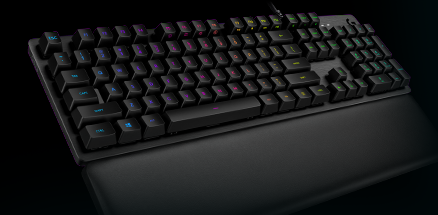
Next-Gen Performance, Advanced Design
G513 is a high performance gaming keyboard, delivering 1 ms report rate and featuring choice of advanced Romer-G Tactile or Romer-G Linear mechanical switch. Full-spectrum RGB combined with LIGHTSYNC technology takes the lighting experience with your games to a whole new level. Aluminum alloy enables a bladelike chassis with a beautiful brushed metal finish.
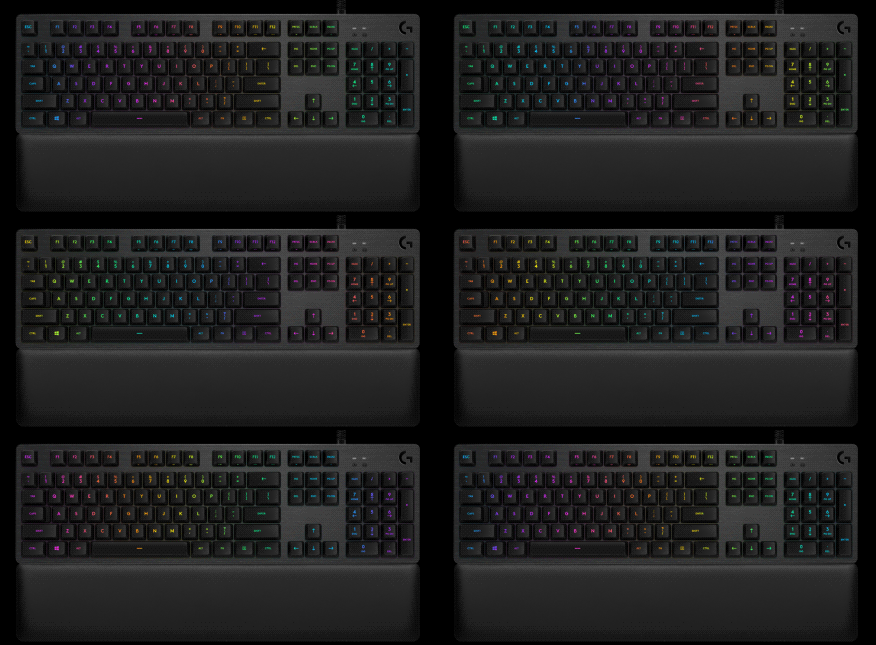
RGB AND LIGHTSYNC
Customizable Full Spectrum RGB
G513 is full-spectrum ~16.8M RGB with customizable per key lighting. Create your own RGB animation effects or choose from preset lighting effects and animations. And with new LIGHTSYNC technology, lighting is driven by games to deliver the most immersive RGB experience ever.1
CHOICE OF MECHANICAL SWITCH
Performance to Suit your Playstyle
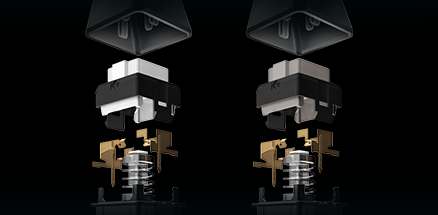
Romer-G is quieter and 25% faster than standard mechanical switches. Now available in two distinct versions: Tactile or Linear. Romer-G Tactile is the original profile, providing a discernible actuation point that you can feel, while Romer-G Linear provides a completely smooth keystroke.2
PREMIUM COMFORT
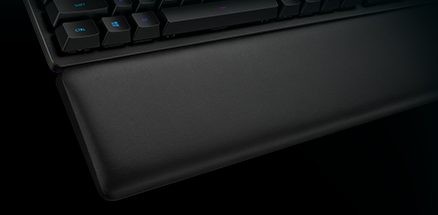
Memory Foam Palmrest Included
The memory foam quickly and fully recovers from pressure, so every use is as as comfortable as the first. Soft, strong and durable leatherette wraps the comfort foam in a waterproof and sweat-resistant material that easily wipes clean. Six bottom-mounted rubber feet keep it firmly in place. This palmrest is ready to game.
AIRCRAFT-GRADE ALUMINUM ALLOY
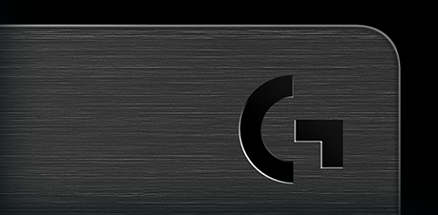
Strength and Beauty
G513 is crafted from incredibly strong and durable 5052 aluminum-magnesium alloy which allows for both a minimal design and a beautiful aesthetic. The rigidity of 5052 alloy also provides a sturdy, non-slip chassis that houses a full suite of features for an unbeatable gaming experience.
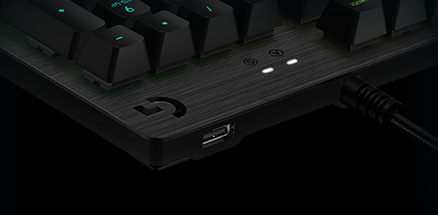
USB PASSTHROUGH
For Charging and Data
Convenience and speed are directly within reach. The additional, dedicated USB cable connects the USB passthrough port to its own input for full power throughput and data speed. Plug in a device to charge or plug in a mouse to charge your adversaries, without missing a beat.
FULL FUNCTION KEYS
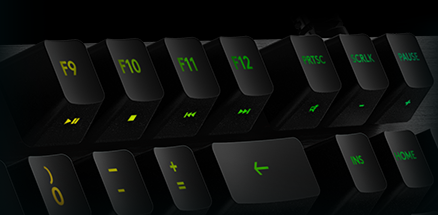
Media and Lighting Control
Media and lighting controls are right at your fingertips. Use the FN key to control volume, play and pause, mute, toggle game mode, change lighting effects, etc. Use the FN toggle feature in Logitech Gaming Software (LGS) and configure your function keys to perform these alt commands by default.
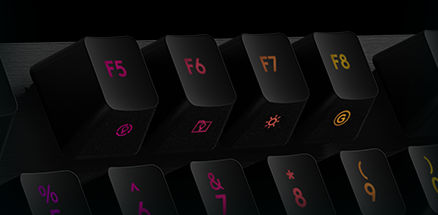
DEDICATED GAMING FEATURES
Game Mode and Onboard Memory
Don’t lose a game because you fat-fingered the Windows key. Toggle game mode with FN+F8. Deactivate additional keys using LGS.
Store per-key RGB lighting profiles in the onboard memory for use on any system.
GAMING KEYCAPS
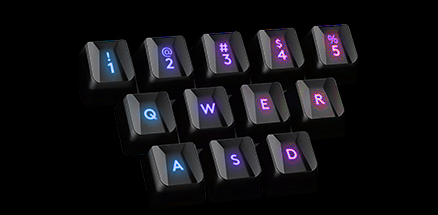
Additional Gaming Keycaps and Puller Included
12 additional keycaps come with G513, so you can upgrade critical gaming keys to be as heroic as your gameplay. Swap them fast and easy with the included puller to remove your Romer-G keycaps.
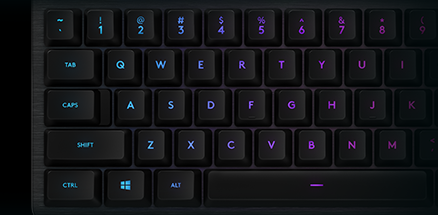
26-KEY ROLLOVER AND ANTI-GHOSTING
Push All the Buttons
Press multiple keys simultaneously in any order and get exactly what you intended with 26-key rollover.
Performance-tuned anti-ghosting gives you reliable control when multiple gaming commands are given simultaneously.
PROGRAMMABLE MACROS
Simplify Complex Tasks
Use Logitech Gaming Software to program custom functions and macro commands on F1-F12 buttons. Make your gaming life easier. Execute complex commands, or unleash a timed series of actions or spells with the press of a button.
PART NUMBER
- Black,Tactile Carbon Version: 920-008860
- Black,Linear Carbon Version: 920-008848
- Silver,Tactile Silver Version: 920-008721
WARRANTY INFORMATION
- 2-Year Limited Hardware Warranty
SYSTEM REQUIREMENTS
- Windows® 10, Windows 8.1, Windows 8, Windows 7
USB port (for keyboard)
Second USB port (for USB passthrough port)
(Optional) Internet access for Logitech Gaming Software
Requires LGS 8.98 or higher for advanced settings.
PACKAGE CONTENTS
- Gaming keyboard
Gaming keycaps
Keycap puller
User documentation
PHYSICAL SPECIFICATIONS
- Keyboard dimensions:
Height: 132 mm
Width: 455 mm
Depth: 34 mm
Weight: (w/o cable): 1020 g
Cable: 1.8 m - Palmrest dimensions:
Height: 88 mm
Width: 445 mm
Depth: 21.5 mm
ROMER-G KEY SWITCHES:
- Durability: 70 million keypresses
Actuation distance: 1.5 mm
Actuation force: 45 g
Total travel distance: 3.2 mm
KEYBOARD SPECIFICATIONS:
- Connection Type: USB 2.0
USB Protocol: USB 2.0
Indicator LIghts (LED): 2
USB Ports (Built-in): Yes, 2.0
Backlighting: Yes, RGB per key lighting
Special Keys:
Lighting Controls: FN+F5/F6/F7
Game Mode: FN+F8
Media Controls: FN+F9/F10/F11/F12
Volume Controls: FN+ PRTSC/SCRLK/PAUSE
Programmable FN keys via Logitech Gaming Software
The features and specifications page does a great job of breaking down the specific selling points of the G513, so for this review I’ll focus on the experience of actually using it. As always, we’ll take a quick look around the keyboard itself, then dig into some detailed features before looking at the results. As of this writing, both keyboards were available online: $129.99 – Tactile (Amazon | NewEgg), Linear (Amazon | Newegg).

Logitech was kind enough to send both versions of the Carbon G513, so we’ll be comparing them side by side. The two models of the Carbon G513 are identical in every way except for the switch type – even the boxes are nearly exact copies, with the designated switch type in the upper right corner (and a small blurb on the back) being the only differences.

The keyboard itself is packed and protected sufficiently. The accessories (key puller and alternate keycaps) are located above the keyboard along with the braided USB cables in the black cardboard cover. At first glance the G513 looks exactly like its red-backlit predecessor, the G413; it features the same gunmetal-colored aluminum/magnesium alloy top cover and has the same dimensions.

The first sign that this is an upgrade from the G413 is the addition of a high quality wrist rest. The leatherette memory foam wrist pad can be found underneath the keyboard in the package. It spans the full width of the G513, and is quite hefty. The G513 is sold in two colors, silver and carbon (shown here). The Romer-G Linear switch type is only available in the Carbon version.
A plastic key puller is included along with a set of angled “gaming” key caps – the same style on that can be found on Logitech’s flagship keyboard, the G910 Orion Spark.
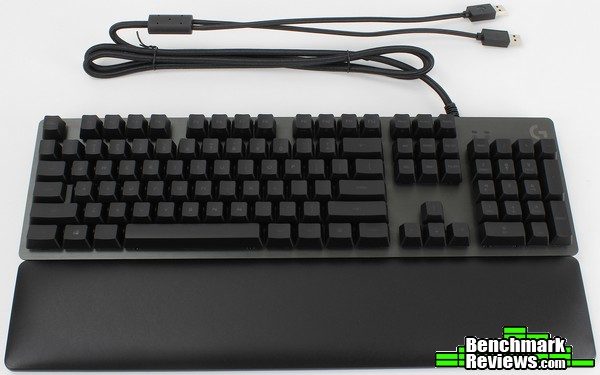
Unlike some other gaming keyboards with a detachable wrist rest the G513 does not use magnets, clips, or any other mechanism to keep the wrist rest in place. Six rubber squares at least provide a non-slip surface to grip most desk finishes, but if your desk is slightly dusty these become pretty slippery in no time. It didn’t become an issue in use (it’s a wide palm rest!) but it could benefit from some magnets on a future model…

The palmrest sure looks seamless when placed against the keyboard, forming a continuous tapered angle. The entire assembly looks and feels very “premium.” Like most keyboards, the G513 features a slightly-concave arrangement of key rows, cradling your fingertips and helping bring those keys that need to be reached for ever so slightly closer.
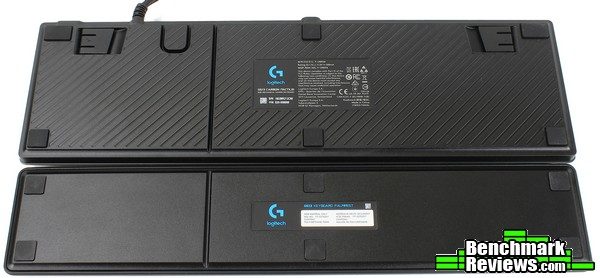
A total of twelve rubber non-slip pads adorn the edges of the G513 and palmrest. Combined, they do a decent job of keeping everything in place – those with very smooth and/or slightly dusty desks will need to make sure these pads stay clean though, as they tend to start sliding around with even a small amount of dust. A single cable-routing channel routes through the right edge of the keyboard and palmrest (which is perfect for keeping the cable of a corded gaming headset off of the keyboard keys – a feature missing from even the flagship G910), with another small loop where the keyboard’s braided USB cable exits the chassis.
With the tour around the outside complete, lets take a closer look at some detailed features of the Logitech G513.

First up: the Romer-G switch. The next page will contain even more information on this switch, but the short version is this – other than arguably the Topre “mem-chanical” switches, Logitech’s (yes, it’s their switch, developed in their labs) is the most unique switch found on the market today. It’s also the “fastest” in terms of actuation points and response times, as much as 25% faster/quicker than the competition.

The included key caps feature the 1-5 number row keys, the WASD cluster and QER keys – the angled surfaces make them distinct and easy to find while gaming, and cradle your fingertips nicely.

They are otherwise of similar dimensions and construction, but may feel ever so slightly shallower/lower due to the flat surfaces used.

I appreciate that the alternate key caps aren’t of a different color or rubberized like some competitor’s offerings – this seems to fit the overall theme of the G513 a little better anyway, allowing the gaming-focused keys to blend in visually and still remain distinct to the touch.

A closer view of the cable routing channels also reveals a pivoting kickstand to change the keyboard angle.
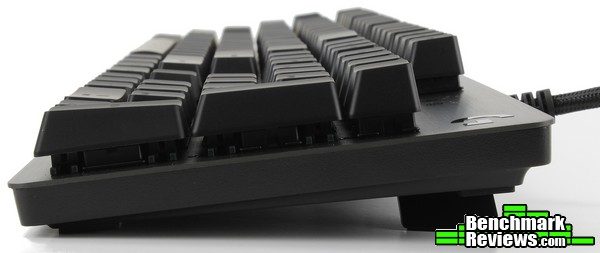
In the raised position, the kickstand still contains enough rubber/non-skid material to keep things in place. It helps raise the braided cable over certain monitor stands too!
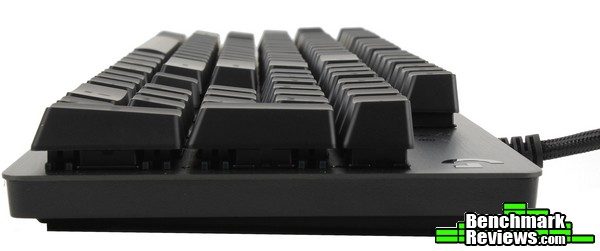
Even “flat”, the G513 still has a very slight incline built-in. I found myself using this orientation the most.

Only two LED indicators are present on this keyboard, just like the G413. Caps Lock is the only lock key that gets its own indicator, with Num Lock and Scroll Lock being relegated to on-screen notifications. The other LED indicator is for “Gaming Mode”, which turns off the Windows key. It’s nice to see these LEDs are RGB-capable as well, so no issues with having a mismatched color scheme for those that are sensitive to such things (to be fair, it was a common complaint of the G910’s dedicated media keys – and truly, a RGB keyboard should be completely RGB).

A full size USB (Type A) port can be found on the upper-right corner of the G513, just like the G413 before it. To my knowledge, these are the only Logitech keyboard models (of the G-series/mechanical boards) that have this feature, which is something I personally wish more gaming keyboards would include. Another peculiar threaded port makes an appearance in the center of the keyboard, between the F8-F9 function keys. I couldn’t find a reference to this feature anywhere, but in talking with some of Logitech’s team I learned it was designed to be compatible with possible future accessories and community-designed attachments (the threaded hole is standard camera mount sized). Given the ARX dock is a pretty standard feature for some of Logitech G-series keyboards, I’m excited to see what they come up with for the G513.

That USB port on the corner is just a pass-through, so the G513 will still take up two USB ports – it just brings one port closer to you. Each USB plug is clearly labeled, and if space is an issue the G513 will work perfectly fine with just the “keyboard” USB cable plugged in.
It’s worth taking a page to talk about the Romer-G switch. The G513 is the first keyboard to offer a new variation: the Romer-G Linear. Let’s spend a few moments talking about the differences.
Other than the color of the switch housing (Romer-G Tactile in white, Romer-G Linear in grey), the new switch doesn’t stray much from the original Romer-G formula. The new Linear version has the same actuation and total travel distances, it just removes the tactile bump of the original Romer-G. I found the experience of the Romer-G Tactile most similar to a Cherry MX Brown keyboard, while having a slightly “tighter” feel and noticeably faster response time than the MX-based key switch. The new Romer-G Linear switch seems to have some natural competition with the new MX Speed Silver switches – it seems even Cherry saw some benefit in the reduced actuation distances of the Romer-G.
| Switch | Romer-G Tactile | Romer-G Linear | Cherry MX Brown | Cherry MX Speed Silver |
| Feedback Type | Discernible Bump | Fluid and Smooth | Tactile | Linear |
| Actuation Distance | 1.5mm | 1.5mm | 2mm | 1.2mm |
| Total Travel | 3.2mm | 3.2mm | 4mm | 3.4mm |
| Average Force | 45gf | 45gf | 55cN | 45cN |
| Tactile Force | 50gf | N/A | N/A | |
| Lifespan | 70M Clicks | 70M Clicks | 50M Keystrokes |
The G513 Carbon is available in both switch types, so let’s look at the original Romer-G (now called the Romer-G Tactile) version.

The upper right corner of the G513’s packaging designates the key switch type. The Tactile switch uses a white housing, which is reflected on the packaging as well.

A breakdown of the available features includes one section on the Romer-G Tactile switch itself, informing those customers perusing store shelves of what makes this switch unique.

Other than the feel and package markings, a white switch housing on the keyboard itself is the only indication you’ve received the Tactile version of the G513. I’ve tried almost every switch type currently on the market – both Cherry MX and Kailh/proprietary switches (other than the silent versions of Cherry MX Red/Black and the MX Speed Silvers) and the Romer-G Tactile was my current favorite. It was the best combination of the Cherry MX Brown and Reds (I liked the Brown for typing and Red for gaming – a faster, lighter MX Brown would have been my ideal preference, and that’s almost exactly what the Romer-G Tactile offers). Cherry MX Blues were pleasant for typing, if you were the only person within earshot…there was just no way I could bring myself to use Blues at work. Romer-G’s provided that same tactile feedback, but were quiet enough not to annoy those across a cubicle wall…plus, it was available in less flashy versions, like the K840 and G413.
The original Romer-Gs quickly became my favorite switch. It started with a G410 Atlas keyboard, but really sunk in when I purchased a G413 for work – they were a perfect blend of responsiveness, feel, and tactile goodness. It was the closest to how I always imagined mechanical keyboards should feel. That is, until I tried Logitech’s brand new Romer-G Linear switches.

The G513 Carbon is the only keyboard currently on the market that offers this switch type. Like the Tactile version, the only indication exists in the upper right corner of the product’s packaging.

It’s the same scenario on the back of the box – only one section differs between the two boards, everything else is the same.
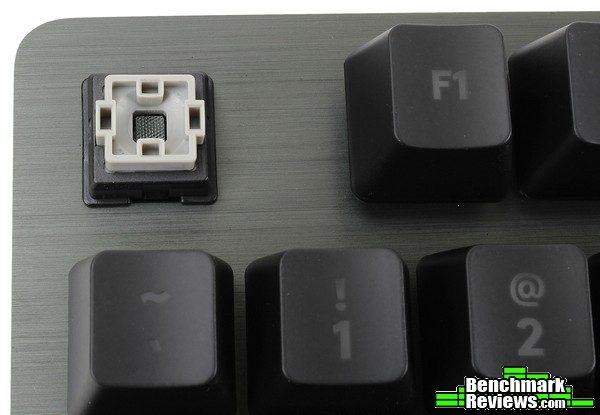
A slight grey tint to the switch body is the only visual hint something is different. Otherwise it contains the same stem and Swiss-developed lens housing to diffuse the RGB LEDs without much impact to their peak brightness. But that switch feel though…it’s something that is hard to put into words. I’ve been in search of the perfect key feel since my first “gaming keyboard” purchase more than ten years ago (a Razer Tarantula that is currently back in its box). I was excited when mechanical keyboards became a little more mainstream a few years ago, and eagerly picked up a few (and had a chance to review a few more). Cherry MX Browns became a quick favorite for a dual purpose (typing and gaming), all-around solid option. Still, I found myself typing faster on many membrane keyboards due to their shallower key travel, so the search continued until I finally tried Logitech’s Romer-G switches. Like Browns, but faster and with a quicker actuation – it was easy to determine the Romer-G’s were the end of my quest for my own personal preferred mechanical switch type.
It will take a little more testing to see if the new Linear switches will supplant my previous favorite, but let’s take a look at the software that runs the G513 first.
The Logitech Gaming Software driver has followed a similar format for quite some time. Still, the newest release (the version in the photos is 9.00.42) supporting the G513 has a few new surprises, so let’s take another look.

LGS is a “unified” driver suite, all compatible Logitech devices will show here – simply click on the icon that represents your device and all corresponding settings will be revealed. The Home screen usually just contains shortcuts to some of the other screens – clicking on the highlighted portions of the G513 here will simply swap to the Macro Editor.

The G513 doesn’t contain any dedicated macro keys (G keys in Logispeak), but the function keys do a great job of standing in if necessary. When first opening this particular screen in LGS, your system will be scanned for current game installs that have corresponding pre-made profiles. This search/scan can be re-run manually at any time. Any existing profiles will be automatically populated for your device if found.
The Command Editor is very flexible and one of the better macro utilities out there for gaming keyboards that I’ve seen. It can map keys to a single Keystroke, or any of the following options:
– Multi Key (what most would consider a “macro”, just a series of consecutive keypresses with or without delays)
– Text Block (many streamers would probably use this to advertise their stream in in-game chat)
– Mouse Function (including scrolling)
– Media (play/pause/next etc.)
– Hotkeys (Alt+F4, Ctrl+C etc.)
– Shortcut (for local programs, network shares, computers, URLs and more)
– Function (Email, Web Browser, Calculator, and some LGS-specific options)
– Ventrilo (Mainly mute/PTT options)

The Lighting Mode screen is where all the real fun starts for customize-ability, especially with the per-key RGB capabilities of the G513. It contains a few different modes – Freestyle is pictured above, where you can select individual keys and make them whatever color you wish. You can drag the cursor around a group of keys, just like selecting folders or files in Windows. That makes this process very intuitive and fun to play with, which is very important for a keyboard with such extensive customization.
The Zones mode breaks the keyboard down into areas, for easily-selectable – well, zones – that can be colored as a set.

Effects contain some of the more advanced/fancy lighting, like the ever popular look-at-my-rainbow-keyboard color wave. A new Ripple option makes an appearance for the G513 (it doesn’t seem to be available yet on my G910 Orion Spark).
The Your Effects mode is where the real fancy stuff is located – and I mean that in the best of ways. The built-in effects are some of the most creative and unique I’ve seen on RGB boards, and really do a great job of showcasing the potential of Logitech’s particular blend of RGB processing. A real-time example of the chosen effect will be displayed above as it simultaneously is displayed on the keyboard itself. Any one of these examples can be copied and modified. It’s worth checking them out first to get a feel for the Custom Effect Lighting editor, but you can also start a new effect entirely from scratch. The next page will have a quick snapshot of some of these effects, and a quick perusal of YouTube will no doubt find many similar demonstrations.

The Gaming Mode screen allows you to select additional keys that are disabled when the keyboard is placed in Gaming Mode – simple enough! Just click the key on the image to disable it, or select it again to enable it in gaming mode.

Finally, the Input Analysis screen allows the Logitech Gaming Software to keep track of key presses (or duration). I’ve seen this feature in other software applications, and still can’t imagine a use for it – perhaps you could all help me out with that one! At least it’s there for those users that are looking for this feature.

The additional buttons launch Overwolf (if installed – it’s also an option to install along with LGS) or open the LGS settings menu (which may have different tabs depending on the device installed). Some legacy or additional configuration options can be found here. A help button rounds out the icons; a sub menu contains some social media links, product registration, and “check for updates” option.
There are no doubt countless videos online now of the different RGB effects demonstrated by today’s gaming keyboards, but I thought it’d be helpful to link a few .gifs for those that would like to see them on the very keyboard I’m typing this on. The Romer-G switch designs allows for some brilliant effects that shine through even in very bright lighting.
The first image shows both the horizontal and vertical color wave effects.
The scanner effect is one of my favorites, and it’s pretty easily edited to use different colors if desired.
The image above shows two effects, Contrastic and “Bleep Bloop”. The latter is perfect for those trying to recreate an 80’s computer hacking movie or any spaceship control board prop seen in the background of most sci-fi films…
A “Matrix” style effect called Datafall is a natural fit for a high-end keyboard – it’s also one of the more impressive effects!
There are a few wave-type effects, doing a surprisingly accurate rendition of a sandy beach or sunrise. The effect pictured above is Explosion, with Fire, Rainbow Ripple, Sunstreak, Ocean Wave and Vertacool showing variations of that theme with different colors. Fire is especially captivating – remember those artificial fireplace screensavers from the early 2000s? Now you can have a fireplace on your keyboard!

The effects are fun to play with, and the Custom Effect Lighting Editor is powerful in its own right. It’s easy to get lost in the multitude of options available with the G513; thankfully custom lighting effects can be saved and exported/imported making sharing a new creation with the community (or taking advantage of those with more creative minds!) a simple matter.

All of those custom lighting effects I’d seen before however – and they weren’t what caught my eye when the G513 was announced. It seems every product (gaming chairs!?) are adorned with RGB capabilities in today’s market, but it’s the practical application of those fancy lighting effects that can really add to your computing experience. Logitech has already had Discord and a few gaming integrations (where your keyboard can respond due to events in-game/application), but LIGHTSYNC’s new Screen Sampler was a feature that sounded exactly what I was looking for: a way to put those animation capabilities to good use.

The premise is similar to the Philips amBX technology, but distilled to the bare essentials – it doesn’t require compatibility with any game, it simply takes a designated area of your monitor and outputs that color on your keyboard (or other compatible peripherals). For the G513, it splits the keyboard in half and displays each side’s corresponding color.

The designated areas of your desktop from which a color is averaged/blended to be displayed on each peripheral can be adjusted – playing around with these areas (and creating separate profiles for each game) can result in some surprisingly effortless ambient experiences that update pretty seamlessly with the action on-screen. It’s this type of thing that RGB was really created for, and I’m glad to finally see it put to some use. There are a few kinks – for instance, if a designated area rapidly changes colors the keyboard will do the same (which can be jarring instead of immersive), and any admin/UAC option (or logging in to Windows) will temporarily turn all lights off since there is nothing to “sample” on screen during those events. An option to fine-tune the way colors blend beyond the options currently available could help with this, but overall it’s a great option that starts to get some real use out of all the RGB peripherals on the market.
I like to test keyboards by simply using them daily for all typical gaming PC activities and noting any irregularities or irritants. Of course, for gathering data points and comparisons certain tools can be useful – primarily, I like to use Aqua’S Key Test. I like to brush up on my typing skills with typeracer.com, and I’ve taken the opportunity to race a few rounds with the Logitech G513 (along with using it to type this article). I generally get more time typing on each keyboard than I’m able to dedicate to playing games, but I’ll load up a few rounds of PUBG, ARMA 3, or Starcraft II to see what the experience is like across a few genres. Let’s take a look.
-
Motherboard: Asus Strix B350-I Gaming ITX
-
System Memory: 2×8 GB G.Skill Trident Z RGB DDR4-2400
-
Processor: AMD Ryzen 2700X
-
Audio: On-board
-
Video: Asus Strix GTX 1070 Ti
-
Disk Drive 1: Samsung 960 EVO M.2 250GB NVMe
-
Disk Drive 2: Seagate Firecuda 1TB SSHD
-
Enclosure: Phanteks Shift
-
PSU: Corsair SF600
-
Monitor: Acer XG270HU 144Hz 2560×1440 LCD
-
Operating System: Windows 10 Pro 64-bit 1803
First up, it’s always good to know on a gaming keyboard if the keys you press will register. Many games require some pretty extensive finger gymnastics to press combinations of keys, so making sure your keyboard of choice will register your input accurately is the task of our first testing suite. Generally, I’ll just lay a palm across the keyboard and try to press as many keys as possible to see if they all register.

The Logitech G513 didn’t register every keypress once I got above ~ 25 keys pressed or so – not surprising, since this is exactly what Logitech states the G513 is capable of. Since this isn’t a situation any game or application ever would require, it’s nothing to worry about – but those looking for full NKRO won’t find it here (the G910 offers more in that regard). Still, in even the most outlandish of typing or gaming scenarios, the G513 does an excellent job of registering all key presses responsively and accurately.
Gaming on the two switch types was pleasant as always, and here the new Romer-G linear switches really came into their own. The linear actuation was perfect for allowing your focus to remain in-game – indeed, your actions became almost telepathic at times, with the rapid actuation and smooth keystroke of the new switches disappearing beneath your fingertips and translating thought into input with a minimum of interference. That type of experience is exactly what I had been searching for when I first tried a mechanical gaming keyboard, and I’m willing to bet other gamers can relate to the same experience.
The wrist rest remained perfectly comfortable even during long hours of ARMA3 and PlayerUnknown’s Battlegrounds, although it did tend to shift a little during heated moments. Some magnets would do wonders for keeping it in place. The compact frame of the G513 was a bonus, as it brought the mouse and pad ever so slightly closer to the center – not to mention saving precious real-estate on my desk. I found myself appreciating the compact design and overall comfort over the dedicated macro and media keys on my G910 Orion Spark.

I always find it entertaining to race coworkers or friends using typeracer.com, which is also a fun way to get a feel for different keyboards and their typing feel. I couldn’t wait to try out the new Romer-G Linear switches, so I did five races on each switch type and used the average WPM speed to “rate” each one. The Linear switches are great to type on, and I had no problem landing right in my typical average typing speed range (86 WPM on the Romer-G Linear version of the G513).

Of course, the original Romer-Gs’ tactile feedback give them a slight edge during the pure typing-focused tests. I still maintain that the Romer-G (tactile/original) switches are the best blend overall for typical computer enthusiast use – whether typing or gaming, and my typeracer results seem to follow the same conclusion. The Romer-G Tactile switches helped me average 88 WPM over five races. However, that isn’t to say the linear switches were worse in any way – indeed, the more I typed on them, the more I grew to prefer their buttery-smooth actuation.
I’ve tried many keyboards in search of that perfect peripheral. Many of those I’ve been lucky enough to have an opportunity to review or try; still many others I purchased on my own in pursuit of a keyboard I could keep on my desk for years and not want to change it out for something else. From Razer to Cougar, Steelseries to Saitek, Func and more – just in Logitech boards I’ve owned the G105, G410, G413, G810 and G910…
It took me some time to consider Logitech’s Romer-G switches, and I’m glad I did as they quickly became my favorite mechanical switch. I couldn’t quite find a perfect fit – the G413 was close, but I change my mind far too often to settle for a single color LED keyboard. When the G513 was announced I suspected my search might be over. Logitech absolutely delivered. The Romer-G Linear switches, packaged beautifully in the G513 Carbon, have found a permanent place on my desk. Now if I could get them in a updated version of the G13 gamepad…

I’ll try and summarize my experience with Logitech’s G513 in terms of Performance, Appearance, Construction, Functionality and Value categories, but as always I feel like I should add a disclaimer. You must understand that my own preferences and uses for cases differ from most; while I try to view each case as objectively as I can, I probably can’t avoid my own bias from affecting my conclusion in some manner. I implore you to think in depth of your OWN uses and preferences, and use my reviews as a guide or simply as another perspective.
I couldn’t find anything to complain about the performance of the G513, in either trim. Technically, Logitech’s flagship G910 Orion Spark has better specifications, but the G513 didn’t feel lacking in any way in this category mechanically or otherwise. The macro editor is just as powerful on the G513 despite its lack of dedicated macro keys, and the RGB processing is top-notch.
Similarly, the appearance and design of the G513 left me without a single complaint. While I hope there will always be a place in my heart for the “spaceship control panel” boards like the G910, I don’t think it’s a stretch to state the G513 is a cut above the typical “gamer” design. It’s…sophisticated. It’s premium. It is equally at home at work or play. It’s one of the first gaming keyboards (like the G413 and Func KB-460 before it) that I’d feel comfortable using at work without feeling like I have to explain myself. In my very own humble opinion, it’s the best looking mechanical gaming keyboard on the market right now.
The G513 is certainly constructed like a premium keyboard. Every aspect of this keyboard feels confidence-inspiring and solid. Even the wrist rest has a surprising heft. The carbon/gunmetal grey aluminum-magnesium alloy top cover is a perfect shade for blending into any setup while remaining subtly distinct; it’s very scratch and fingerprint resistant to boot. The braided cable follows suit, feeling almost overbuilt in its heft (it’s a bit on the stiff side).
Other keyboards boast extensive functionality by throwing every novel feature that marketing can fit on the box. The G513 includes the better version – it’s packed with smart, practical effects and functions that you’ll actually use, both hardware and software. The wrist rest, USB port and choice of Romer-G switches are all appreciated. The Screen Sampler applet included in the latest versions of the Logitech Gaming Software is easy to use and practical, and the Custom Effect Lighting Editor is powerful while remaining accessible. LGS is one of the better software suites for RGB effects – and a special shout out to Logitech for still allowing users to save configs to the device itself (without requiring a cloud login to do so)!
The original MSRP for the Logitech G513 (both Tactile and Linear models) when it launched was $149.99. For RGB mechanical gaming keyboards with a few differentiating features (wrist rests, special switch types, LIGHTSYNC RGB etc.), this is right where it should be. Perhaps due to the scale of Logitech’s operations, it seems many of their peripherals can commonly be found on sale for less – as of the time this article was published the G513 could be found online for $129.99 – Tactile (Amazon | NewEgg), Linear (Amazon | Newegg). Even at MSRP I feel the G513 is an excellent value, but there are a lot of good keyboards in this price range. This category could easily shift towards other products if there are other features you value more (dedicated media/macro keys, for instance), but for me the G513 was worth every dollar of its launch price. That’s right – I went out and purchased an additional G513. I’m not sure I can say much more about the value than that!
If you’re the type to skip to the last line of a review to find a final recommendation – or just haven’t gathered yet from the rest of the review – I can sum up my experience with the G513 (both Tactile and Linear, with an emphasis on the Linear version) with one short phrase: my personal search for the perfect keyboard is now over.
Sure, in time a few refinements will no doubt reveal some new competition for that title. I’ve personally owned, at last count, over twenty gaming keyboards in the past few years. If I had to choose only one to keep it would be this one.
+ Sophisticated, minimalist design
+ Pass-through USB port
+ Remarkable switch feel
+ Very comfortable wrist rest
+ Solid construction, premium feel throughout
+ Lighting effects are among the best on the market with some actual practical uses
+ Available in two switch types, Romer-G Tactile and Linear
+ Compact, efficient layout
+ New Romer-G Linear switches are absolutely worth trying/have become my new favorite switch
– Wrist rest should have magnets to keep it in place
– Compact size means no dedicated media or macro keys
– You’ll want to buy an extra one to bring to work
-
Performance: 9.50
-
Appearance: 10.00
-
Construction: 8.75
-
Functionality: 9.25
-
Value: 9.00


