By Steven Iglesias-Hearst
Manufacturer: ASRock Inc
Product Name: ASRock Z87E-ITX Motherboard
Model Number: Z87EE-ITX/M/ASR
UPC: 4717677320947
Price As Tested: $164.99 (NewEgg | Amazon)
Full Disclosure: The product sample used in this article has been provided by ASRock Inc.
Small form factor PC’s have been gaining a lot of momentum and favor with hardware enthusiasts and hardcore gamers these past couple of years. Since more features are integrated into the CPU in recent releases, it means more real estate has been made on ITX form factor motherboards for extras that may well have not fit previously. With the release of Intel Haswell CPU’s and Z87 chipset, motherboard vendors are now more than ever able to condense the features of a full size ATX motherboard into the ITX form factor without much (if any) sacrifice. See for yourself, take a look at an average Z68 or Z77 ATX motherboard and you will start to notice just how much space isn’t occupied. In this article Benchmark Reviews takes an in-depth look at the ASRock Z87E-ITX motherboard, reporting back on special features and performance as well as giving a visual commentary on the aesthetics of this tiny beast.
Maybe you want to build your own small form factor PC, or maybe you are intrigued by the sheer size of this motherboard and you wonder how can it pack in so many features. The ASRock Z87E-ITX features 6 x SATA3 ports, 1 x eSATA port, 6 x USB 3.0 ports (2x internal), 6 USB 2.0 (4x internal). There is only one PCI-e x16 slot as with all ITX motherboards, but the ASRock Z87E-ITX also features 1x half mini-PCIe and 1x mSATA/full mini-PCIe for extra expansion capabilities. In the front mini-PCIe slot ASRock have included a WiFi 802.11ac + Bluetooth v4.0 module. It is surprising also to learn that the Z87E-ITX motherboard from ASRock has a 6 Phase power design and also supports dual channel DDR3 memory speeds up to 2933+(OC), this will make for some interesting bench testing as we try to find the upper limit of the Haswell CPU design and the capabilities of the motherboard as a whole.

ASRock have competition from ASUS, Gigabyte and MSI in the ITX form factor market as is expected. The ASUS ROG ITX board may pack more features but it will also be more expensive. MSI and Gigabyte will be able to compete on price but not on features. Please read on to find out more about the ASRock Z87E-ITX motherboard.
In this section we take the highlighted features of the ASRock Z87E-ITX motherboard and look at them in more detail.

ASRock also wanted to look after the overclockers with the Z87E-ITX in the form of a 6-phase power design. ASRock assures potential buyers and budding enthusiasts that only the finest components are used in their designs.

Removing the heatsink to the right of the CPU reveals six DrMOS 3-in-1 mosfets. These units combine the Driver IC, Top MOSFET and Bottom MOSFET into one unit. According to the literature on ASRock’s website this design provides more stable and smooth voltage, decreases power loss, boosts the system’s response speed and also lowers the motherboard’s temperature.

Another sacrifice for users planning an ITX build is no quad channel RAM configurations. Due to space constraints users are limited to dual-channel configurations only. Along with this comes a reduced RAM capacity of 16GB. Headers for power/reset buttons and HDD/power LED’s are found in the bottom corner. Next is the USB 3.0 header and then the 24-pin ATX power connector. One of the two 4-pin fan headers is found in the top corner.

To the left of the Z87 chipset heatsink you will find the front I/O headers for USB 2.0 and HD audio. On a regular ATX motherboard these would generally be located at the bottom below the PCI-e slots. This means neat cable management issues will arise once you have a video card installed.

Since there is only one 16x PCI-e 3.0 slot you won’t need to worry about lane allocation across multiple slots. Just above the PCI-e slot is a half mini-PCI Express slot intended solely for the installed WiFi + BT module.
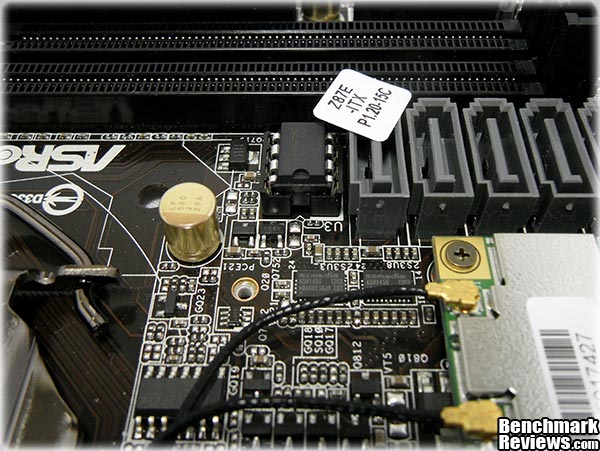
For those that like to play with a modded BIOS or should you get a bad flash, you will find that the BIOS chip is indeed removable. To most this won’t seem such a big deal, but to those unfortunate souls that have had to sacrifice a motherboard because of a faulty BIOS or bad flash this is a godsend.

On the reverse side of the ASRock Z87E-ITX motherboard there is a mSATA / full mini-PCI Express slot. This slot will be just ripe for an mPCI-e/mSATA SSD, and since capacities are always rising in this form factor you won’t necessarily be limited to using it just as a boot drive solution.
In this section we will take a brief look at the ASRock UEFI Setup Utility.

This is the landing screen of the ASRock Z87E-ITX Motherboard UEFI. Information pertaining to CPU and RAM is immediately available without having to find your way to the hardware monitor. There is also an option to choose which page of the UEFI you land on when you enter it during boot. This can be particularly useful when overclocking as you can simply drop straight into the overclocking tab every time your computer reboots, rather than having to select it each time.

The ASRock UEFI works much the same as legacy BIOS with the added bonus of being able to use your mouse. There are no magic sliders to modify CPU speed or memory frequency, it is all still heavily text based which I found very easy to use.

The large icons along the top make for speedy transitions between configuration modes. If you are more familiar with a legacy BIOS you will easily navigate around this UEFI.

The ‘Tool’ tab of the UEFI gives you several useful utilities. A tool I have never seen in a motherboard UEFI, BIOS or any other scenario is the Dehumidifier function. Its description is in the right hand tab of the above screen capture.
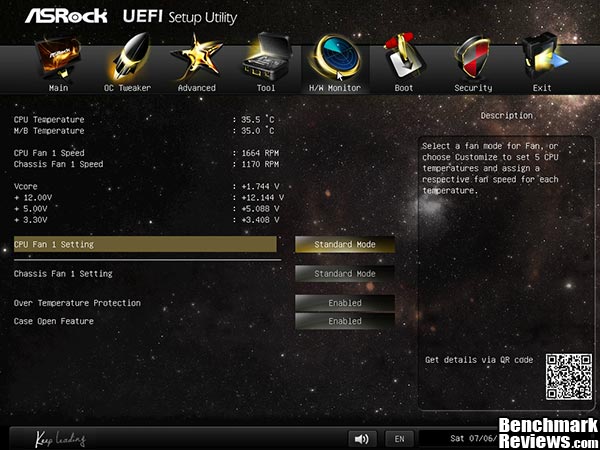
The H/W Monitor section is next. Important values are presented in plain text and there are options to customize or set a pre-defined fan profile below.

Next up is the boot screen. Not only can you select boot priority but you can also change other boot related values that are traditionally found elsewhere in a legacy BIOS.

Standard security features are found next. It looks like there are no hard wired security features that can be modified on this motherboard.
In this section of the review we will take a brief look at the main software for the ASRock Z87E-ITX Motherboard: A-Tuning.
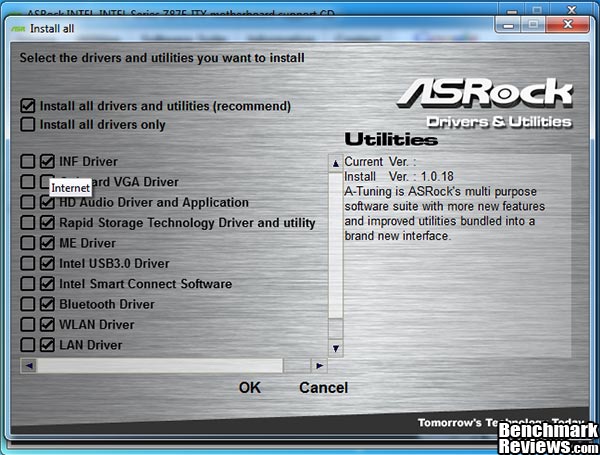
My first impressions of the setup CD utility were not good. It felt very basic like it had took only two minutes to throw together. Once I got to the install all screen I noticed a feature that I had never seen before in a setup utility. Beside each item to install are two check boxes, select the left box and it will install the file from the setup CD, select the right check box and the setup utility will download the latest driver from the internet.
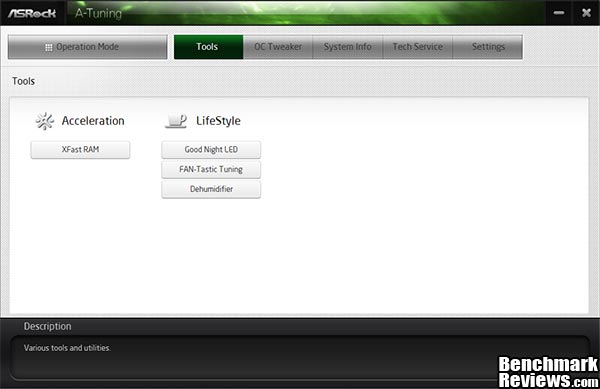
The ASRock A-Tuning utility looks and feels very well made. The UI is fresh and intuitive. The first screen you get to when you open A-Tuning lets you select operation modes between Normal, Performance and ECO. Next is the tools selection screen shown above.

The first tool we will look at is XFast RAM. Below is a description for the user manual that describes the functionality of this feature:
ASRock XFast RAM is included in A-Tuning. It fully utilizes the memory space that cannot be used under Windows 32-bit operating systems. ASRock XFast RAM shortens the loading time of previously visited websites, making web surfing faster than ever. And it also boosts the speed of Adobe Photoshop 5 times faster. Another advantage of ASRock XFast RAM is that it reduces the frequency of accessing your SSDs or HDDs in order to extend their lifespan.
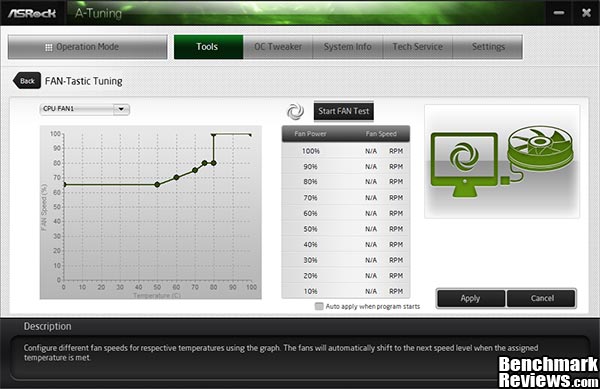
As is the case with the UEFI setup utility; users can also set, amend and define different fan profiles from within the Windows environment.

The next tool worthy of mention is the Dehumidifier. The ASRock Z87E-ITX user manual describes the function as follows:
Users may prevent motherboard damages due to dampness by enabling “Dehumidifier Function”. When enabling Dehumidifier Function, the computer will power on automatically to dehumidify the system after entering S4/S5 state.

I find that overclocking from within Windows much more preferable than overclocking within the BIOS. For many years we have benefited from this when overclocking discreet video cards, and now we can do the same with our CPU’s. All of the required settings are amendable from within the Windows environment and stability can be tested instantly without requiring a boot/reboot.

Scroll down in the OC Tweaker tab and you will find voltages to adjust. If you are new to overclocking then you will want to leave these values as they are or on auto. The current generation Intel Haswell CPU’s feature on-die VRM which means playing with voltages just raises the risk level too high. If you really want to play with Haswell and take it to its full potential I recommend that you read the literature available from Intel and their motherboard partners. Also make sure that your CPU cooling is up to the task.
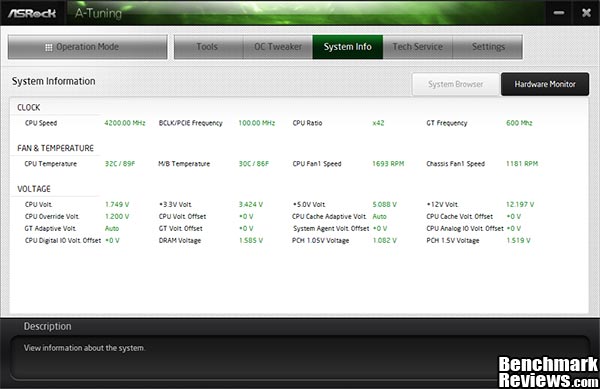
The A-Tuning utility also features a very handy hardware monitor. Values are updated in real time so you can monitor your systems vital statistics while you are running benchmarks or stress testing your system.

Finally we have the system browser section of the A-Tuning utility. This is like a visual map of devices that are attached to your motherboard. Hovering over certain areas of the system browser image will give information pertaining to modules or devices attached in that particular location.
Motherboards based on the same chipset tend to have very similar performance. This wasn’t always the case, but since Intel released their ‘Sandy Bridge’ CPU’s we find ever increasing motherboard features embedded into the CPU rather than the chipset. With this in mind it’s not surprising that everyone’s “Z87″ chipset motherboard performs pretty much alike…at stock settings. The ASRock Z87E-ITX Motherboard is a near full feature motherboard condensed into the ITX form factor (as the name suggests) and has to work extra hard to prove itself worthy of its price tag.
Overclocking is facilitated with the right CPU, but this motherboard isn’t just about overclocking. There is a 6-phase CPU power setup, enhanced power circuitry, and plenty of other features as detailed in this review that you wouldn’t expect to find on an ITX Motherboard.
I will test the motherboard using the synthetic AIDA64 benchmark’s CPU tests as well as a “real world” benchmark, SPECviewperf. Results presented hereafter will represent tests conducted at stock CPU speeds and auto overclocked speeds using the ASRock A-Tuning utility. A-Tuning overclocked the i5 4670K CPU from its stock speed of 3.4GHz to 4.2GHz.
I was able to reach 4.3GHz after a little bit of tweaking but the CPU would not yield better results without more volts and without getting too hot (due to the on-die VRM present in Haswell CPU’s). Since the 100MHz increase didn’t produce any substantial increase in benchmark scores, the results were not included in the charts. rovide a little more detail about this in the overclocking section later in the article.
-
Motherboard: ASRock Z87E-ITX Motherboard with P1.40 UEFI BIOS
-
Processor: 3.4GHz 4th Gen’ Intel Core i5 4670K “Haswell” CPU
-
System Memory: 4GB DDR-3 1600MHz CL11 Dual Channel
-
Disk Drive 1: 160GB Seagate SATA II 7200rpm
-
CPU Cooler: Cooler Master Seidon 120m
-
Operating System: Windows 7 Home Premium x64
- AIDA64 v2.85.2400
- SPECViewPerf 11
Join us on the next page for the AIDA64 benchmark results.
AIDA64 is a full 64-bit benchmark and test suite utilizing MMX, 3DNow! and SSE instruction set extensions, and will scale up to 32 processor cores. An enhanced 64-bit System Stability Test module is also available to stress the whole system to its limits. For legacy processors all benchmarks and the System Stability Test are available in 32-bit versions as well. Additionally, AIDA64 adds new hardware to its database, including 300 solid-state drives. On top of the usual ATA auto-detect information the new SSD database enables AIDA64 to display flash memory type, controller model, physical dimensions, and data transfer performance data. AIDA64 v1.00 also implements SSD-specific SMART disk health information for Indilinx, Intel, JMicron, Samsung, and SandForce controllers.
All of the benchmarks used in this test- Queen, Photoworxx, ZLib, and hash- rely on basic x86 instructions, and consume very little system memory while also being aware of Hyper-Threading, multi-processors, and multi-core processors. Of all the tests in this review, AIDA64 is the one that best isolates the processor’s performance from the rest of the system. While this is useful in that it more directly compares processor performance, readers should remember that virtually no “real world” programs will mirror these results.
The Queen and Photoworxx tests are synthetic benchmarks that iterate the function many times and over-exaggerate what the real-world performance would be like. The Queen benchmark focuses on the branch prediction capabilities and misprediction penalties of the CPU. It does this by finding possible solutions to the classic queen problem on a chessboard. At the same clock speed theoretically the processor with the shorter pipeline and smaller misprediction penalties will attain higher benchmark scores.
Like the Queen benchmark, the Photoworxx tests for penalties against pipeline architecture. The synthetic Photoworxx benchmark stresses the integer arithmetic and multiplication execution units of the CPU and also the memory subsystem. Due to the fact that this test performs high memory read/write traffic, it cannot effectively scale in situations where more than two processing threads are used, so quad-core processors with Hyper-Threading have no real advantage. The AIDIA64 Photoworxx benchmark performs the following tasks on a very large RGB image:
- Fill
- Flip
- Rotate90R (rotate 90 degrees CW)
- Rotate90L (rotate 90 degrees CCW)
- Random (fill the image with random colored pixels)
- RGB2BW (color to black & white conversion)
- Difference
- Crop
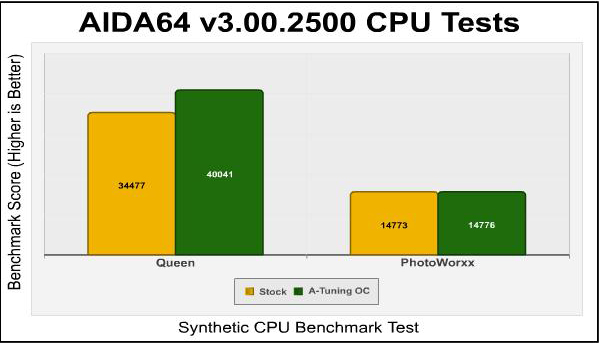
The A-Tuning automatic overclock adds a nice 16.13% to the Queen score but for reasons unknown the Photoworxx score remained almost the same.

The A-Tuning scores are 15..66% and 16.58% better than the base scores in the ZLIB and Hash tests respectively. Now let’s try some real-word benchmarks with SPECviewperf in the next section.
The Standard Performance Evaluation Corporation is “…a non-profit corporation formed to establish, maintain and endorse a standardized set of relevant benchmarks that can be applied to the newest generation of high-performance computers.” Their free SPECviewperf benchmark incorporates code and tests contributed by several other companies and is designed to stress computers in a reproducible way. SPECviewperf 11 was released in June 2010 and incorporates an expanded range of capabilities and tests. Note that results from previous versions of SPECviewperf cannot be compared with results from the latest version, as even benchmarks with the same name have been updated with new code and models.
SPECviewperf comprises test code from several vendors of professional graphics modeling, rendering, and visualization software. Most of the tests emphasize the CPU over the graphics card, and have between 5 and 13 sub-sections. For this review I ran the Lightwave, Maya, and Seimens Teamcenter Visualization tests. Results are reported as abstract scores, with higher being better.
The lightwave-01 viewset was created from traces of the graphics workloads generated by the SPECapc for Lightwave 9.6 benchmark.
The models for this viewset range in size from 2.5 to 6 million vertices, with heavy use of vertex buffer objects (VBOs) mixed with immediate mode. GLSL shaders are used throughout the tests. Applications represented by the viewset include 3D character animation, architectural review, and industrial design.
The maya-03 viewset was created from traces of the graphics workload generated by the SPECapc for Maya 2009 benchmark. The models used in the tests range in size from 6 to 66 million vertices, and are tested with and without vertex and fragment shaders.
State changes such as those executed by the application- including matrix, material, light and line-stipple changes- are included throughout the rendering of the models. All state changes are derived from a trace of the running application.
The tcvis-02 viewset is based on traces of the Siemens Teamcenter Visualization Mockup application (also known as VisMockup) used for visual simulation. Models range from 10 to 22 million vertices and incorporate vertex arrays and fixed-function lighting.
State changes such as those executed by the application- including matrix, material, light and line-stipple changes- are included throughout the rendering of the model. All state changes are derived from a trace of the running application.

Since the SPECviewperf tests actually comprise code from real-world applications, their results are more indicative on total system performance than the pure CPU performance we see from synthetic tests like AIDA64. Still, overclocking produces some performance improvements, most notable being the Lightwave test. The Maya and TCVIS results show what appears to be only a slight performance increase.
Most OEM built PC’s ship with standard or proprietary power supply and they tend not to exceed 450 watts top end. While that might be enough power for a standard PC, overclocked multi-GPU enthusiast systems can easily exceed 700 or 800 watts under load, and can go even higher with extreme cooling and high voltages.
Perhaps this is why all CPU and GPU vendors are embedding their products with power-saving features, and why motherboard vendors try to add even more. And the use of these features can make a significant difference in the power use of your system.
To test the power-saving features of the ASRock Z87E-ITX motherboard, I measured the power draw of the system (with no video card, and the monitor connected to the iGPU) with all the power-saving features in the “ECO” section of the UEFI enabled, and again with all the power-saving features disabled.
| Windows Login | Idle at Desktop | AIDA64 Stability Test | Sleep | |
| ECO enabled | 36 watts | 35 watts | 99 watts | 1 watt |
| ECO disabled | 37 watts | 37 watts | 99 watts | 1 watt |
| ECO disabled, OC | 37 watts | 38 watts | 114 watts | 1 watt |
There was no noticeable difference between the system power consumption results with energy saving enabled or disabled and the idle power consumption was much higher than was expected. I believe this is due to running an all-in-one liquid CPU cooler which demands more power than fans alone. The significant results are noticeable under load conditions, where the entire system is consuming less power than a high end video card will use.
In the 60’s and 70’s there was a big ecology movement after oil prices had risen sharply and we collectively realised that we could not sustain our then current level of consumer lifestyles. In the ensuing years the economy changed for the better and consumption ramped up sharply. We now find ourselves consuming more than ever and we once again need to realise that natural resources can’t possibly sustain us forever. We need to demand more energy efficient products. We need to demand better built and longer lasting hardware. But most of all, we need self control and a more conscious approach towards our consumer habits. Planned obsolescence isn’t helping either but thankfully we are reaching a point where ‘Moores Law’ is beginning to slow it’s pace and maybe our hardware will just have to serve us longer.
ASRock provide overclocking settings in the EUFI much the same as you would find in a standard BIOS as well as an option to automatically overclock the CPU. For automatic overclocking within Windows you will need to install the ASRock A-Tuning utility. A-Tuning will go to work overclocking your CPU while you wait and will gradually raise the CPU speed and relevant voltages in steps until the system becomes unstable and will continue tweaking after a reboot.
After a short time the A-Tuning utility had raised the default speed of 3.4GHz up to 4.2GHz with a voltage of 1.2v. A run of AIDA 64’s stress test saw an idle temperature of 34C and a fluctuating load temperature of 61C~72C. Ambient room temperature during testing was 30C.

I was able to reach 4.3GHz after a little bit of tweaking, but the CPU would not yield better results without more volts and getting too hot (due to the on-die VRM present in Haswell CPU’s). To push this CPU further I would need a substantial upgrade in the cooling department. The short and sweet moral of this is: Higher clock speeds requiring more than 1.25v~1.3v will in turn need much better cooling than most (if not all) top end air coolers and all-in-one liquid coolers can provide.
To give a brief idea of the situation, I managed 4.4GHz semi stable at 1.3v but temperatures peaked at around 89C. This is still considered safe but will inevitably shorten the life of your CPU and isn’t ideal for a full time overclock. Please bear in mind that stability is tested using AIDA 64’s stability test, which pushes the CPU well beyond what ‘normal’ programs ever will, but it will tell you quickly whether or not your overclock is stable.
I’ll give my final thoughts and conclusion on this motherboard in the next section.
In the past ITX form factor motherboards have lacked features that were available in ATX and even m-ATX motherboards. Since Intel are so keen on integrating everything into the CPU die, motherboard partners can really condense their boards down and still offer enthusiasts exactly what they want. The ASRock Z87E-ITX motherboard is a full feature ITX motherboard with extra to offer.
The ASRock Z87E-ITX motherboard features 6 x SATA3 ports, 1 x eSATA port, 6 x USB 3.0 ports (2x internal) and 6 USB 2.0 (4x internal). There is only one PCI-e x16 slot as with all ITX motherboards, but the ASRock Z87E-ITX also features 1x half mini-PCIe and 1x mSATA/full mini-PCIe for extra expansion capabilities. In the front mini-PCIe slot ASRock have included a WiFi 802.11ac + Bluetooth v4.0 module. It is surprising also to learn that the Z87E-ITX motherboard from ASRock has a 6 Phase power design for overclocking your CPU and also supports dual channel DDR3 memory speeds up to 2933+(OC) too.

Performance of a motherboard relies heavily on the components installed in it as far as benchmarks are concerned. Without running a benchmark though, it is really hard to distinguish how well any one component is running. The fact that no problems (major or minor) reared their ugly heads we can reach the conclusion that the ASRock Z87E-ITX motherboard performed as expected. With such high quality components used as standard it was never in doubt that this motherboard would perform well.
Appearance is a subjective and sometimes irrelevant matter. At the end of the day who really cares how your motherboard looks. Especially with an ITX motherboard, by the time you have all of your components installed you simply won’t see much of it any way. Unless you plan to build an aesthetically pleasing PC which you will take on tour to shows or to LAN parties, looks really don’t count. Since this is a graphic review you are free to make your own choice on the aesthetics of the Z87E-ITX motherboard.
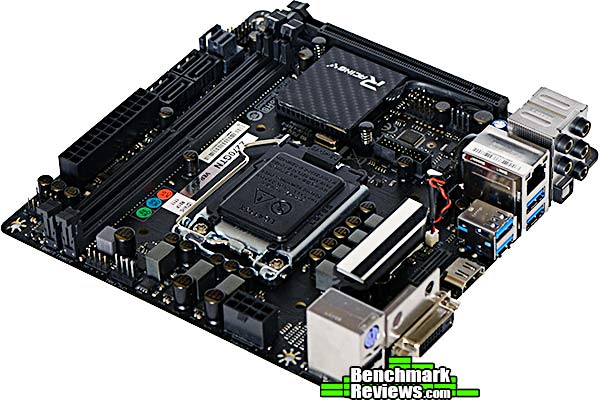
Construction of the ASRock Z87E-ITX motherboard is excellent, it uses high quality components and is put together really well. The PCB area is well utilized but not too over populated in any one area. The layout is really clever and I am surprised that ASRock have been able to fit it all in without any issues. ASRock haven’t always had a good reputation for their hardware, but they really seem to have got their stuff together in recent years. They have shaken off that old multi color stuff they used to put out and now they are in the big leagues with the other top three. This new motherboard does not let them down.
Functionality wise the ASRock Z87E-ITX motherboard makes other ATX motherboards pale in comparison. An ITX motherboard that features 6 x SATA3 ports, 1 x eSATA port, 6 x USB 3.0 ports (2x internal) and 6 USB 2.0 (4x internal). There is only one PCI-e x16 slot as with all ITX motherboards, but the ASRock Z87E-ITX also features 1x half mini-PCIe and 1x mSATA/full mini-PCIe for extra expansion capabilities. In the front mini-PCIe slot ASRock have included a WiFi 802.11ac + Bluetooth v4.0 module. The Z87E-ITX has a 6 Phase power design for overclocking your CPU and also supports dual channel DDR3 memory speeds up to 2933+(OC) too. There are also plenty of bundled utilities to extend the functionality of this motherboard (some covered in this article) that you may find useful.
Beyond any doubt the ASRock Z87E-ITX motherboard is an expensive solution. It’s not the most expensive ITX motherboard on the market (Maximus VI Impact takes that crown) but you need to decide if the extra features merit the cost. $164.99 (NewEgg | Amazon) would be considered high for an ATX motherboard, but you also have to bear in mind that condensing the features of an ATX motherboard into the ITX form factor is not an easy task.
After a giving a lot of thought to the individual ratings, I have decided to give the ASRock Z87E-ITX motherboard the Benchmark Reviews Silver Tachometer Award.
+ Great performance
+ Excellent design
+ Functional software
+ 6 x SATA3 ports
+ 6 x USB 3.0 ports
+ mSATA / mini-PCIe ports
+ 802.11ac + Bluetooth v4.0 module
+ Intel Gigabit LAN
+ Premium components
+ Supports overclocking
+ Great connectivity
– Expensive enthusiast motherboard
– Only two fan headers
-
Performance: 9.00
-
Appearance: 9.50
-
Construction:9.50
-
Functionality: 9.00
-
Value: 7.75
Quality Recognition: Benchmark Reviews Silver Tachometer Award.
COMMENT QUESTION: Do you prefer Intel or AMD desktop motherboards?

One thought on “ASRock Z87E-ITX Intel Desktop Motherboard Review”
Way way expensive. Not worth it.
Comments are closed.