By Tom Jaskulka
Manufacturer: Zalman Tech Co., Ltd.
Product Name: Reserator 3 MAX
UPC: 823884205497
Price As Tested: $129.99 (Newegg)
Full Disclosure: The product sample used in this article has been provided by Zalman.
Zalman has always had a unique approach to CPU cooling. Focusing on quiet performance, they’ve once again returned with their distinctive circular design to…wait, what’s this? An all-in-one water cooler with a round radiator?? Well…from a company known for “Cool Innovations,” I guess we shouldn’t be surprised to see such a unique contribution to the All-In-One CPU cooler market. When you first see it in person, it isn’t difficult to see why the Zalman Reserator 3 MAX AIO liquid CPU cooler was given the Innovation award from the Consumer Electronics Show at the beginning of 2013. Complete with an infusion of nanofluids and a claimed 400W of cooling power, does the Reserator 3 MAX have the performance to back up the looks? Benchmark Reviews is ready to place this unique AIO nanofluid cooler on an overclocked FX processor to see what the Reserator 3 MAX is capable of.

| Reserator 3 MAX | Radiator | Water Block | |
| Material | Pure Copper & Black-Nickel Plated | Base : Pure Copper | |
| Weight | 870g | ||
| Dimensions (LxWxH) | 120x145x79mm | 70x85x37mm | |
| Pump | Embedded Pump | ||
| Fan | Dimensions | Ø120 x 25(H)mm, Blue LED | |
| Speed | 1,000~2,200rpm ±10% | ||
| Noise Level | 18.9~36.7dBA ±10% | ||
| Bearing | Long Life Bearing | ||
| Speed Control | PWM (Pulse Width Modulation) | ||
| Connector | 4Pin(Radiator), 3Pin(Pump) | ||
| Input Voltage | 12V | ||
| Thermal Grease (ZM-STG2M) |
Contents | 1g | |
| Temperature Range | -40°C ~ +150°C (-40℉ ~ +302℉) | ||
If you read through some of my previous reviews, you’ll probably find out that Marvel’s The Avengers was one of my favorite movies (don’t worry, it’s still up there). Honestly, that was just the most recent movie to feature one of my favorite comic book superheros, Iron Man. I mean come on, a billionaire genius inventor that gets to tinker with cars and high-tech hardware all day? What’s not to like? It should come as no surprise then my appreciation for some of the design that went into the Reserator 3 MAX – tell me that picture on the box doesn’t look like an Arc Reactor! I don’t know if that’s the look Zalman was going for or not, but I like it. If anything, it’s great to see something entirely different from the other selections available – one of the best parts of building PCs with enthusiast hardware are the myriad of choices, and I’m glad the Reserator 3 MAX brings Zalman’s unique style to this category.

The contents are pretty simple – there’s a universal back plate, with two mounting rings (one for AMD, the other for Intel sockets). Mounting screws for all modern sockets are included, along with a “loading plate” to increase the contact pressure between the heat spreader of the CPU and cold plate of the cooler (used on the AMD socket). Zalman’s thermal paste is included as well, and it’s pretty decent stuff (ZM-STG2M). I feel Zalman should include at least one more of the pre-cut foam tape square, as it isn’t reusable and would need to be replaced with every installation. You could install the cooler without it – but you might lose a bit of mounting pressure and have a much more frustrating experience when attaching the water block. It’s possible the retail versions would include additional foam tape squares, as I seem to remember my Zalman CNPS-9900MAX included at least two.

If you have looked at Zalman’s recent offerings, the Reserator 3 MAX should fit right in. The radiator (sorry, reserator, since it acts as both a reservoir and radiator) employs the same circular heat-pipe arrangement as the other black pearl nickel coated coolers, along with a 120mm version of the clear-bladed, blue LED-lit fan.

The Reserator 3 MAX product page has some pretty good depictions of the inner and outer cooling loops that circle through the cooling fins – the heated water ends up taking four trips back and forth through the fins as it is cooled and returned to the CPU via the “90 liters per hour” pump. Since heat is radiant, circular designs make a lot of sense; this “quad” cooling loop is a pretty smart use of space.

The reserator is about the same as a thick 120mm radiator, including the fan (about 75-80mm). The hard plastic shell feels very sturdy – it feels more like armor to protect the cooling fins than plastic. You’ll probably notice that it can ONLY be mounted as a chassis exhaust. While a push/pull configuration is possible, you’re still stuck with using the Reserator 3 MAX in an exhaust orientation. This is intended, as the openings in the hard plastic cage allow air from the fan to cool VRMs and other motherboard components which are commonly located near the rear exhaust.

The water block itself seems a spin-off of an Asetek design, but I do not know if there are any similarities other than basic shape. There is a nicely diffused blue LED visible when the pump is plugged in, rendering an almost Tron-like quality to the water block. I personally prefer some sort of LED on the pump housing, as at least I know the pump has power if the light is on (granted, that doesn’t always mean the impeller is working); an added benefit on the Reserator 3 MAX as the pump itself is very quiet.
Let’s take a closer look at some of the detailed features of the Reserator 3 MAX.

The copper base is machined to a smooth finish – it may not be mirror quality, but it seems as good or better than other coolers in this price range. The block and radiator are constructed of copper, with the radiator fins plated in nickel to prevent discoloration over time.

This is probably the most tedious part of installation. Choose your bracket, then proceed to fasten it to the water block using eight screws. Eight! It seems a silly thing to complain about, but if you swap sockets/hardware often, this will get old really fast. Thankfully, you’ll only need to do it once…
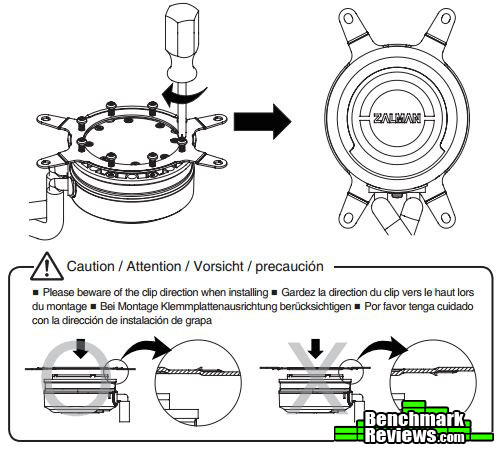
…unless of course you don’t read the manual! In my defense, the Reserator 3 MAX that I received did not include a manual (which is not unusual for review items). I’ve installed many CPU coolers, and figured I would be just fine without it.
I was wrong. Find the manual and read it! The first testing run I performed didn’t seem to fit what I had expected – while the initial idle temps of the FX-8320 were reporting around 1C (yes, that’s one degree above freezing!), the load temps quickly climbed higher than any other water coolers I have tested recently. Look closely at the image from the manual above – can you see where I might have messed up the first time (pay special attention to the caution area)? Don’t worry, I corrected my mistake (I had installed that mounting ring upside-down). However, it would be nice if there was a “this side toward CPU” stamped on that mounting ring; you know, for people that can’t be bothered to read the manual…
I think one of the reasons I had so much confidence installing the Reserator 3 MAX at first was due to the back plate. As far as I can tell, it is identical to the one used by my Zalman CNPS-9900MAX and is assembled in the same manner. Depending on your socket, fit in the mounting posts and snap the covers over them – if you haven’t used a bracket like this before, please read the directions in the manual! It is important to get the load block (the plastic square in the middle) in the correct orientation and on the right socket – if you do this part wrong, you could damage your motherboard, or end up with far too little mounting pressure on the CPU.

Only having one back plate probably saves some cost, but accommodating several sockets just means you’ll end up with some extra material. As always, on a full ATX board you shouldn’t run into any clearance issues, but mini-ITX boards are notorious for having components in the socket area.
It bears repeating here that no heat-sink will work effectively unless it transfers heat from the CPU. To do that, it needs to be in contact with the CPU heat spreader or die, with the greater the contact surface the greater the potential for heat transfer. One of our own writers here at Benchmark Reviews has done a lot of work in this area, and it is certainly worth the time it takes to read (and re-read) the discoveries he made during the famous 80+ thermal paste tests (I still see Newegg reviews reference the discoveries made therein).
I mention this because I still see this as a major source of misinformation – most end users will use far too much thermal interface material when switching CPU coolers. Possibly through little fault of their own – I’ve read official repair manuals stating to use the entire tube of thermal paste when replacing a CPU and heat-sink. This is, in almost every case, FAR too much – to the point of being harmful in most cases. So do yourself a favor and get acquainted with CPU Cooler Preparations and Thermal Paste Application.
Processor and CPU cooler surfaces are not perfectly smooth and flat surfaces, and although some surfaces appear polished to the naked eye, under a microscope the imperfections become clearly visible. As a result, when two objects are pressed together, contact is only made between a finite number of points separated by relatively large gaps. Since the actual contact area is reduced by these gaps, they create additional resistance for the transfer of thermal energy (heat). The gasses/fluids filling these gaps may largely influence the total heat flow across the surface, and then have an adverse affect on cooling performance as a result.
The only reason for using Thermal Interface Material is to compensate for flaws in the surface and a lack of high-pressure contact between heat source and cooler, so the sections above are more critical to good performance than the application of TIM itself. This section offers a condensed version of our Best Thermal Paste Application Methods article.
After publishing our Thermal Interface Material articles, many enthusiasts argued that by spreading out the TIM with a latex glove (or finger cover) was not the best way to distribute the interface material. Most answers from both the professional reviewer industry as well as enthusiast community claim that you should use a single drop “about the size of a pea”. If there was ever any real advice that applies to every situation, it would be that thermal paste isn’t meant to separate the two surfaces but rather fill the microscopic pits where metal to metal contact isn’t possible.
After discussing this topic with real industry experts who are much more informed of the process, they offered some specific advice that didn’t appear to be a “one size fits all” answer:
- CPU Cooling products which operate below the ambient room temperature (some Peltier and Thermo-electric coolers for example) should not use silicon-based materials because condensation may occur and accelerate compound separation.
- All “white” style TIM’s exhibit compound breakdown over time due to their thin viscosity and ceramic base (usually beryllium oxide, aluminum nitride and oxide, zinc oxide, and silicon dioxide). These interface materials should not be used from older “stale” stock without first mixing the material very well.
- Thicker carbon and metal-based (usually aluminum-oxide) TIM’s may benefit from several thermal cycles to establish a “cure” period which allows expanding and contracting surfaces to smooth out any inconsistencies and further level the material.
The more we researched this subject, the more we discovered that because there are so many different cooling solutions on the market it becomes impossible to give generalized advice to specific situations. Despite this, there is one single principle that holds true in every condition: Under perfect conditions the contact surfaces between the processor and cooler would be perfectly flat and not contain any microscopic pits, which would allow direct contact of metal on metal without any need for Thermal Interface Material. But since we don’t have perfectly flat surfaces, Thermal Material must fill the tiny imperfections. Still, there’s one rule to recognize: less is more.
CPU coolers primarily depend on two heat transfer methods: conduction and convection. This being the case, we’ll concentrate our attention towards the topic of conduction as it relates to the mating surfaces between a heat source (the processor) and cooler. Because of their density, metals are the best conductors of thermal energy. As density decreases so does conduction, which relegates fluids to be naturally less conductive. So ideally the less fluid between metals, the better heat will transfer between them. Even less conductive than fluid is air, which then also means that you want even less of this between surfaces than fluid. Ultimately, the perfectly flat and well-polished surface is going to be preferred over the rougher and less even surface which required more TIM (fluid) to fill the gaps.
This is important to keep in mind, as the mounting surface of your average processor is relatively flat and smooth but not perfect. Even more important is the surface of your particular CPU cooler, which might range from a polished mirror finish to the absurdly rough or the more complex (such as Heat-Pipe Direct Touch). Surfaces with a mirror finish can always be shined up a little brighter, and rough surfaces can be wet-sanded (lapped) down smooth and later polished, but Heat-pipe Direct Touch coolers require some extra attention.
To sum up this topic of surface finish and its impact on cooling, science teaches us that a smooth flat mating surface is the most ideal for CPU coolers. It is critically important to remove the presence of air from between the surfaces, and that using only enough Thermal Interface Material to fill-in the rough surface pits is going to provide the best results. In a perfect environment, your processor would mate together with the cooler and compress metal on metal with no thermal paste at all; but we don’t live in perfect world and current manufacturing technology cannot provide for this ideal environment.
Probably one of the most overlooked and disregarded factors involved with properly mounting the cooler onto any processor is the amount of contact pressure applied between the mating surfaces. Compression will often times reduce the amount of thermal compound needed between the cooler and processor, and allow a much larger metal to metal contact area which is more efficient than having fluid weaken the thermal conductance. The greater the contact pressure between elements, the better it will conduct thermal (heat) energy.
Unfortunately, it is often times not possible to get optimal pressure onto the CPU simply because of poor mounting designs used by the cooler manufacturers. Most enthusiasts shriek at the thought of using the push-pin style clips found on Intel’s stock thermal cooling solutions. Although this mounting system is acceptable for casually-used computers, there is still plenty of room for improvement when overclocking.
Generally speaking, you do not want an excessive amount of pressure onto the processor as damage may result. In some cases, such as Heat-pipe Direct Touch technology, the exposed copper rod has been pressed into the metal mounting base and then leveled flat by a grinder. Because of the copper rod walls are made considerably thinner by this process, using a bolt-through mounting system could actually cause heat-pipe rod warping. Improper installation not withstanding, it is more ideal to have a very strong mounting system such as those which use a back plate behind the motherboard and a spring-loaded fastening system for tightening.
Heat-pipe technology uses several methods to wick the cooling liquid away from the cold condensing end and return back towards the heated evaporative end. Sintered heatpipe rods help overcome Earth’s gravitational pull and can return most fluid to its source, but the directional orientation of heatpipe rods can make a significant difference to overall cooling performance.
The following is retained word for word from the source article, but note that not every CPU cooler will be or can be tested in a horizontal orientation. Please refer to the testing methodology on the next page or the pictures in the article to see how each specific cooler was tested.
For the purpose of this article, all CPU-coolers have been orientated horizontally so that heatpipes span from front-to-rear with fans exhausting upward and not top-to-bottom with fans blowing towards the rear of the computer case. This removes some of the gravitational climb necessary for heatpipe fluid working to return to the heatsink base. In one example, the horizontally-mounted tower heatsink cooled to a temperature 3° better than when it was positioned vertically. While this difference may not be considered impressive to some, hardcore performance enthusiasts will want to use every technique available to reach the highest overclock possible.
Testing Methodology
The CPU coolers were tested installed in a computer case in its normal orientation (a NZXT H630). A 200mm top/rear exhaust fan was added to the enclosure to aid in cooling VRMs and most of the front drive cages were removed to clear the path from the 200mm intake fan. The GPU remained installed during testing. All fans were set to 100% to remove that variable from the results (motherboard fan control was disabled). This is how I would assume most enthusiasts would set up a similar case while overclocking a similar platform.
All tests were performed using the AIDA64 Extreme Edition System Stability test using 100% fan settings on an Asus M5A99FX PRO R2.0. The test was allowed to run until temperatures plateaued, then I recorded the ambient temperature of the intake air and began logging temperatures over the next minute. After an initial warm-up run, I ran each test at least three times (more if I received inconsistent results), and recorded the ambient temperature again. Once I had “good data,” I dropped the best and worst results and subtracted the (average over the test) ambient temperature from the median result to arrive at the delta T temperature you see in the chart.
Each time a heat-sink was swapped, the Tuniq TX-2 thermal interface material I used for each application was cleaned off of the contact surfaces with Arctic Silver’s ArctiClean two-step TIM remover, and an appropriate amount of TX-2 replaced for the next heat-sink. Due to the nature of applying TIM and mating two surfaces, I would like to adopt a 3% margin of error – even though my thermometers and the built-in thermal diode measure temperatures down to one-tenth of a degree Celsius, it could be assumed that temperatures within a degree of each other are essentially the same result.
-
Motherboard: Asus M5A99FX-PRO R2.0 w/ 1708 BIOS/UEFI
-
System Memory: 8GB (2x4GB) GSkill Ares 1600MHz DDR3 CL8
-
Processor: AMD FX-8320 Piledriver, 4.6GHz/1.428V LLC (Extreme)
-
Audio: On-Board
-
Video: Sapphire Radeon 7950 3GB 1000MHz Core, 1300MHz mem
-
Disk Drive 1: OCZ Vertex 2 240GB
-
Enclosure: NZXT H630, +200mm exhaust fan (top/rear)
-
PSU: Rosewill Lightning 800W Modular 80+ Gold
-
Monitor: 1920×1080 120Hz
-
Operating System: Windows 7 Ultimate 64-bit w/SP1

Overall, a strong performance from the Reserator 3 MAX. There’s something important that isn’t shown on this graph though, and it’s one of the more exciting aspects of the performance of this particular CPU cooler. The real story here are the VRM temps. Compared to the Swiftech H220 where the VRM heatsinks measured an average of 53.4C while running the System Stability test, the Zalman Reserator 3 MAX cooled those same heatsinks to an average of 44C; almost 10 degrees Celsius cooler!
When I purchased my first AIO liquid cooler (incidentally, the H220) I ran headlong into a problem I hadn’t considered before. While CPU core temps were down, the rest of the system ran much hotter. Now, those MOSFETs are built to get pretty hot and still function, but I like to keep my systems running as cool as possible (both for noise and longevity reasons). I was getting cooler CPU temps, but I was still limited on my overclocks because the VRMs would get uncomfortably warm. In an ATX case you can usually add some more fans, but very few enclosures are built with motherboard cooling in mind.
Since AIO coolers are a good match for many mini-ITX builds due to their smaller size and superior cooling potential in the tight confines of a small enclosure (that are usually limited on fans that can be added for cooling), the Reserator 3 MAX manages to address the problem of chipset cooling there too. To me, and probably many others, this is a very significant benefit.
Leave it up to Zalman to bring their radial style to the all-in-one CPU cooling market, with an added (and very effective) bonus of some VRM cooling. Combined with the exceptional cooling performance of the Reserator 3 MAX, Zalman has produced a unique and highly effective CPU/VRM cooler. The minor annoyances I encountered during installation are simply overshadowed by the performance benefits. I still think the mounting ring could be re-thought to make installation faster, but that only applies to people that constantly switch CPU coolers…and I just don’t feel it is Zalman’s primary responsibility to address those small percentage of users. For a “normal use” application, it isn’t much of a factor.

Performance isn’t “top of the chart” – it’s close, but products like this should remind you there are many more aspects to consider when selecting a CPU cooler. If one were to record VRM temperatures and chart them, most coolers would be in about the same place; with respect to VRM temperatures the Reserator 3 MAX would easily be at the top. Performing exceptionally well in more than one area is a neat trick, and this is one of the only CPU coolers right now that will provide those extra cooling benefits.
Zalman continues to execute their particular affinity for radial coolers and black pearl / nickel coated copper nicely with the Reserator 3 MAX, complete with a subtle blue-lit fan and accents. Appearance is – as always – a subjective rating; I think Zalman nailed it with the Reserator 3 MAX. It looks beautiful and exactly how I would have pictured a futuristic mini powerplant (or…Arc Reactor?) inside my machine. While everyone’s tastes are different, I have no problem saying this is my pick for “best-looking CPU cooler” to date.
I never got the impression that anything on the Reserator 3 MAX was cheap or brittle. Everything is solid and nicely polished. They could take a page from SilverStone’s design book and use a little more metal on the waterblock, but the plastic isn’t horrible and it keeps the weight (and price!) down. The hoses are soft, flexible and premium-feeling, and the fittings seem to be solid and confidence-inspiring. The Reserator itself is well built, and the plastic cage that protects it feels even better and more solid than it looks.
The function of an all-in-one liquid cooler is to keep your CPU cool. With the Reserator 3 MAX, you get an additional bonus by design – it’ll keep your VRMs powering your CPU cool too! Since it uses a 120mm fan, you also get full compatibility with almost every case on the market including a push/pull arrangement if you’d like. I can’t even say the “exhaust-only” mounting is much of a con, since to receive the motherboard cooling the Reserator 3 MAX needs to be mounted in the rear fan port anyway. Could Zalman have included a bracket to allow an intake orientation as well? Maybe, but I doubt it’d be worth the fan/intake noise for an extra degree or two. Besides, the performance is very impressive as is, and you can still add a second fan if you really need one more degree of cooling. This is one of the only products available that will do such a great job of cooling both your CPU and motherboard in one compact, attractive product. I don’t think I could ask for more functionality!
The Reserator 3 MAX as of the beginning of September ’13 was very hard to find, but has since been listed for sale online for $129.99 (Newegg). I initially received my review version before any pricing details were released, and after testing it I was expecting it to be priced around $140-$150. After all, it is competitive with coolers that cost around that mark, and once you factor in the smaller size, nanofluids and VRM cooling benefits I think there’s a lot of value there. When you consider a comparable performing AIO cooler will cost at least $100, and a chipset cooler will be $20 or more, I feel that Zalman priced their Reserator 3 MAX very competitively.
I’m glad that Zalman was willing to apply some tweaks to the now-standard AIO formula. For considering cooling beyond just the CPU and recognizing a computer system as a whole, then designing and manufacturing such an impressive-performing and attractive product, I feel they’ve justifiably earned a Gold Tachometer award. I love seeing different approaches to the same problem, and I think Zalman’s Reserator 3 MAX is one of the best implementations of an AIO cooler so far. It is astounding how much performance they’ve crammed into a 120mm “reserator.” Now I can’t stop looking at the 135mm fan in my Zalman CNPS-9900MAX and hoping for a new product announcement…

+ Design that impresses with both looks AND performance
+ Unique and attractive
+ Powerful cooling ability
+ Also effectively cools VRMs/motherboard components
+ Can be used in a push/pull configuration
+ Wide compatibility (120mm)
– Integrated fan, can not be easily replaced
– Mounting bracket installation could be streamlined
– Would be nice to have LED color options…
– Double sided tape used for mounting back plate can be a hassle to remove, extras would be nice
-
Performance: 9.50
-
Appearance: 10.00
-
Construction: 9.00
-
Functionality: 10.00
-
Value: 9.00
Excellence Achievement: Benchmark Reviews Golden Tachometer Award.
COMMENT QUESTION: Do you prefer air or liquid cooling for your overclocked CPU?


4 thoughts on “Zalman Reserator 3 MAX Nanofluid AIO Liquid CPU Cooler Review”
I think you mean “90 liters per HOUR” pump, not “90 liters per MINUTE”.
Although the latter would be cool. Literally.
Ha! An excellent catch, thanks for pointing that out (it should already be fixed in the article). I even made sure to reference the manufacturer’s page…and apparently just made up my own units. However, I agree that it would be cool – perhaps it was just wishful thinking on my part 😉 Hopefully Zalman will include the…uh…time compressor…on a 140mm model 🙂
managed to stumble across this fan on a parts list page the other day, was wondering how good its cooling is for vrm’s/NB, cause i have a GA-970A-D3 and in ambient temp of 32c, during gaming i see close to 70c, so judgin by your excellently written review, it would be perfect for my upgrade im going to do,
Current: https://au.pcpartpicker.com/b/J5a
Note: i couldn’t find my actual CPU on that site, its a PhenomII X2 560BE oc’d to 3.8GHz (can run stable at 4 but due to high heat here, i don’t flly OC it on the stock air cooler!)
and this is what i want to add to it, (mostly just CPU bottle necking! and also the vidcard is a maybe, want to see how much alone the CPU will boost system performance!
https://au.pcpartpicker.com/user/Xantosh/saved/38qP
Hello Xantosh, and thanks for reading the review! In your new/potential build you linked, you’re also using an 8320 so similar performance wouldn’t be out of the question – of course, with different components, it’s always hard to say what the specific result would be. Using the M5A99FX Pro R2 and the FX-8320 from my testbed, I saw an approximate 10C reduction in the temperature of the VRMs (the heatsink, really) which I could only attribute to the cooling effect from the Reserator 3 Max. It still cooled the CPU adequately too! My one recommendation would be to make sure the motherboard you choose has adequate PWM fan controls, as the results were obtained with the fan (and CPU) running at 100% – it’s a 120mm fan, so it can get pretty loud at full RPM, which you shouldn’t see under normal loads anyway. It’s certainly a unique cooler, and not for everyone, but I appreciated the VRM cooling it provided along with cooling the processor. I hope that helps!
Comments are closed.