By David Ramsey
Manufacturer: Lenovo
Product Name: Horizon 2 AIO
Model Number: FOAQ000PUS
UPC: 888772054786 EAN: 0888772054786
Price As Tested: $1499.99 (Newegg | Amazon)
Full Disclosure: Lenovo provided the product sample used in this article, but we had to give it back.
The desktop computer is changing, acquiring hardware and software features first seen on mobile devices. As Microsoft works to unify the Windows experience across everything from phones to desktops, vendors work to make their desktops work more like phones, with integrated all-in-one designs, touch screens, and new user interfaces. Today Benchmark Reviews looks at Lenovo’s latest entry in this evolving category, the Horizon 2 All-In-One PC.

The Horizon 2 is an all-in-one computer: except for the mouse and keyboard, all the computer hardware is built into the slim 27″ display. A smoothly-pivoting stand lets you adjust the screen to any angle from almost straight up to flat down.
Lenovo calls the Horizon series of machines “table computers”. Well, what is a table computer, why would you want one, and how well do they work? After we get through with the specifications, we’ll try to figure that out.
| CPU | Intel Core i5-4210U (1.7gHz base / 2.4gHz turbo, 2 cores with Hyper-Threading) |
| RAM | 8GB DDR3-1600 |
| GPU | NVIDIA GeForce 840A (1GB frame buffer), Intel HD4600 |
| Ports | 3 x USB 3.0, headphone jack, HDMI |
| Screen | 27″, 1920 x 1080 pixels, touch screen |
| Storage | Western Digital WD10SPXC (1TB), 5400rpm |
| Input | Included wireless keyboard and mouse |
| Wireless | 802.11 ac, Bluetooth 4.0, NFC |
| Battery | 73.3 Wh lithium polymer |
| Weight | 16.6 pounds |
Let’s take a look at this interesting machine in the next section…
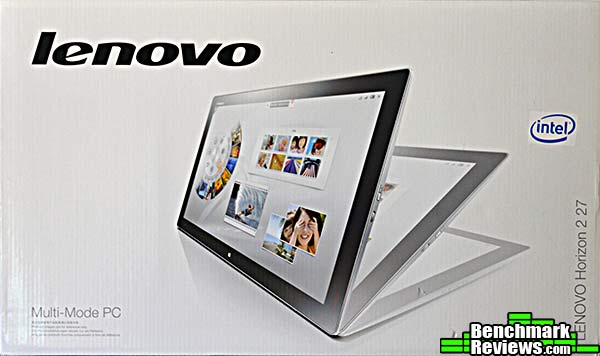
The Horizon 2 all-in-one 27″ computer is delivered in a large, thin box, like a TV set.
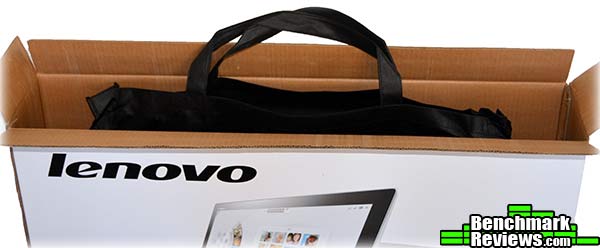
Conveniently, the 16-pound screen section comes in a soft bag with handles, making it easy to remove from the box.
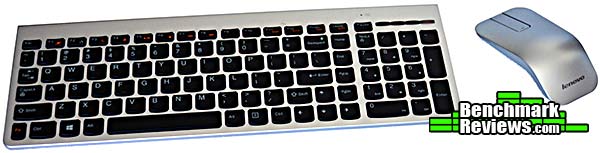
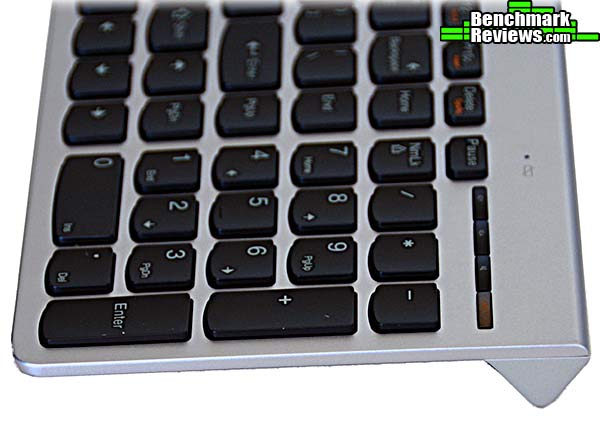
A silver-colored wireless keyboard and mouse are included, and the keyboard has a 10-key numeric pad…
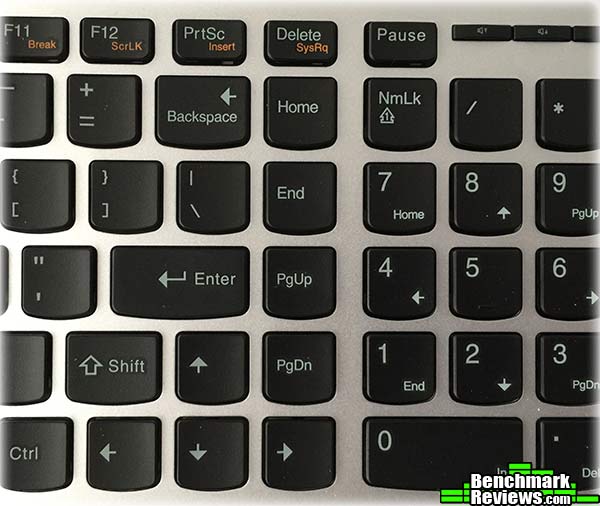
…although the keyboard layout is compressed: the cursor and page keys are merged into the main keyboard area. If, like mine, your fingers expect the “Backspace” key to be the last key on its row, you’re going to have some adapting to do.
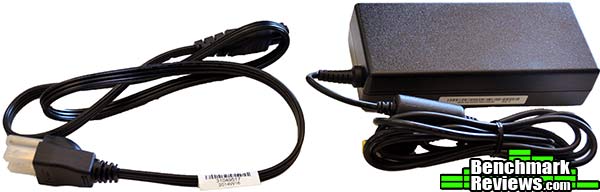
An external power supply keeps the computer slim.
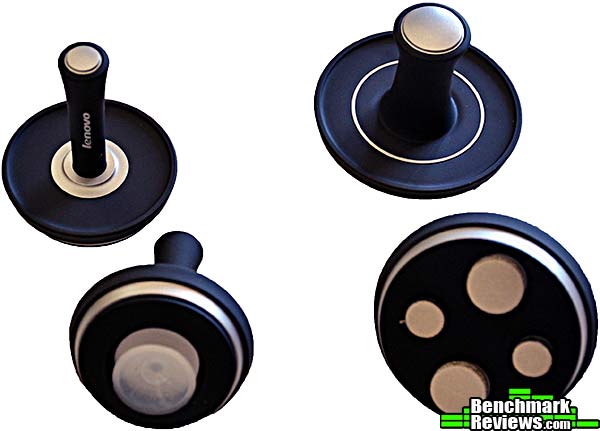
Then there are these…things…
I’ll continue my examination of this computer in the next section.
The Horizon 2 is an all-in-one design, with the 27″, 1080p screen comprising the entire computer. It’s supported by a substantial metal brace with a stiff, spring-loaded hinge. You can position the screen at any angle simply by pushing on its top edge. Here, it’s up about as far as it will go.

Here it’s positioned at a much steeper angle, which would work well for extensive desktop touch-screen use.
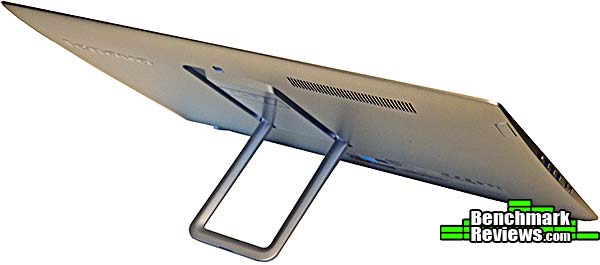
And here it is all the way flat. One small annoyance is that when you push the system down completely flat, the support brace locks into place, and you must release a switch to allow it to extend. This makes raising the computer from the full-flat position a two-handed job.

The stereo speakers are located on the back of the computer, perhaps for aesthetic reasons, or to make it harder to spill things into them when the computer is flat. Although they are Dolby-certified, there’s only so much you can do with a speaker less than an inch in diameter that’s also facing away from the user. Even non-audiophiles will find the sound rather tinny.
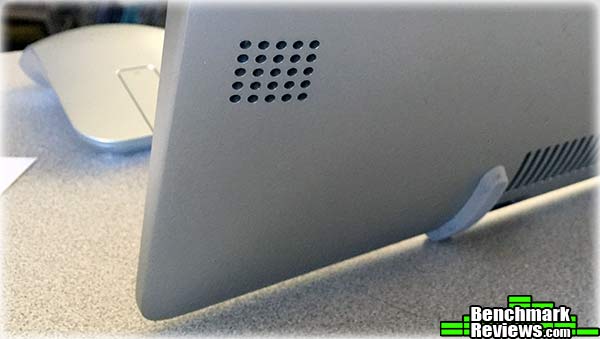
The Lenovo Horizon 2 does look a little odd sitting on your desk. There are no VESA mounting points, so this is just the way it has to be. The power plug on the left side might look a little out of place, but it has to be there if you’re going to lay the screen down flat.

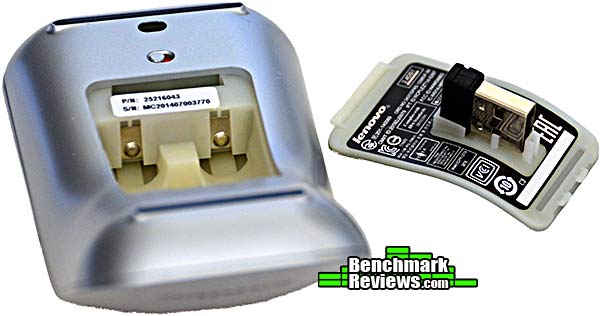
The wireless mouse looks like smooth silver metal or plastic, but actually has a rubbery texture for easy gripping. On the inside of the battery cover you’ll find the micro-receiver. This must be plugged into a USB port for the mouse to work. The strip between the left and right buttons is a touch-scroll area: dragging your finger up and down this strip works like a scroll wheel on other mice.
The Chicklet-style keyboard does not have adjustable feet, but the battery housing props the rear of the keyboard up at a convenient angle. The top surface of the keyboard is metal, probably aluminum, while the base is matching silver plastic.
These? Well, these are touch-screen input devices. Lenovo includes two “sliders”, which can be moved freely across the screen, and two “joy sticks”, which stick in one place but can then be tilted in any direction. These are gaming peripherals, and Lenovo includes several games designed to leverage the use of the touch screen with these, such as an air hockey game.
So, what’s this computer like to use? Let’s see starting in the next section.
The Lenovo Horizon 2 is built with laptop components: the Core i5-4210U dual-core CPU is a low-power part spec’d to pull a mere 15 watts at full load. The 8GB of (non-upgradeable) DDR3-1600 memory runs at pokey 11-11-11-28 timings. The terabyte hard drive spins at a lethargic 5,400RPM. And, like your iPad, the Horizon 2 is a sealed unit: its seamless metal back has no obvious access ports or screw holes.
One of the first things I noticed was the relatively low-resolution screen. 1080p resolution spread across a 27″ diagonal results in clearly visible pixels:
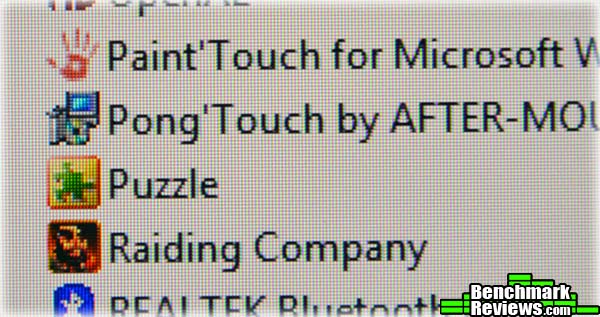
Despite its low-power hardware, the Horizon 2 never feels slow or computationally underpowered (well, except when loading programs from its hard disk. An SSD would help a lot). The Intel CPU’s integrated graphics is backed up by an NVIDIA GT840A GPU, and presumably NVIDIA is using their Optimus technology to seamlessly switch between the GPUs. Although NVIDIA’s web site does’t mention this part, GPU-Z says it’s got 2GB of dedicated RAM, runs at a clock speed of 1GHz, with 576 shaders and 8 ROPs. It supports PhysX, but not CUDA, which is probably just as well.
In normal usage, the Horizon 2 is a pretty standard Windows 8.1 machine, albeit one with a large touch screen. The screen surface is treated with an anti-glare coating that does an excellent job of resisting fingerprints )in fact, in two weeks of use, I never needed to clean the screen). But things change when you tilt the screen down flat: at that point, Lenovo’s custom Aura system takes over.
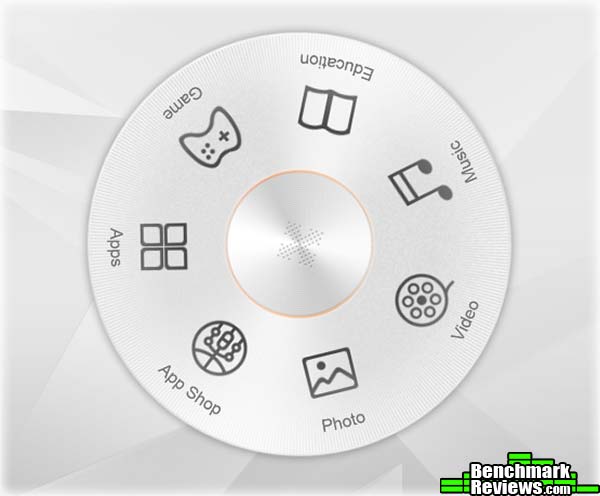
The Aura interface comprises a round dial in the center of the screen; you can spin this dial with your finger, like and old-style dial telephone, and invoke selections by tapping on them. The seven possible selections are Photo, Video, Music, Education, Games, Apps, and App Shop. Most Aura applications are designed for the touch screen.
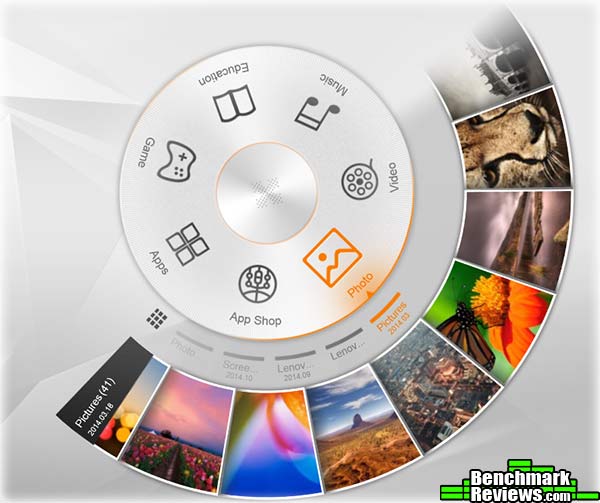
The Photo application manages your photos. Albums appear as notations next to the dial, while photos in the selected album are shown in an arc around the dial. You can spin this arc to browse the photos, or touch the 3×3 grid icon to see a rectilinear array of albums or photos, or start a slide show. But it’s more fun to simply drag photos from the arc onto the screen, and position and size them with touch gestures:

Used like this, the Photos application looks like a technology demo from the past: it’s how we were told computers would work in the future. Moving and resizing photos is perfectly smooth and the reaction to touch and gestures is instantaneous. You can group photos by drawing a circle around them with your finger, and throw photos or groups off the edge of the screen when you’re done with them (this doesn’t erase them; it just removes them from the screen).

If you touch and hold on a photo for a second, these controls appear. You can page through the album with the arrows at the left and right edges of the photo, perform simple photo editing and effects application, or make the photo your desktop background.

Aura supplies a similar interface for videos and music, which suffer somewhat from the tinny response of the small integrated speakers.
Let’s look at some touch-optimized games in the next section.
Lenovo includes a surprising number of touch-enabled/touch-optimized games with the Horizon 2, all accessed through the Aura interface. Games are actually split across two icons on the Aura dial: general games are accessed via the Games icon, while educational games are accessed with the Education icon. Although Aura is invoked automatically when the computer is laid flat, you can launch it at any time simply by clicking on its icon on the desktop.
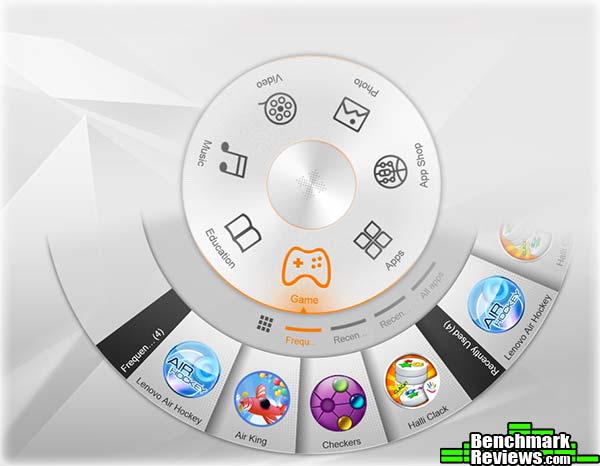
Lenovo has gone to some trouble to include games uniquely suited for the Horizon 2. For example, there’s an Air Hockey game:

This picture shows a capability of the Horizon 2 that may be unique in the field: the screen contains a rather large battery– over 73 watt-hours– and thus can operate unplugged. In this picture the screen is laying flat on the floor as a virtual air hockey table, but you can also use it as a giant tablet:
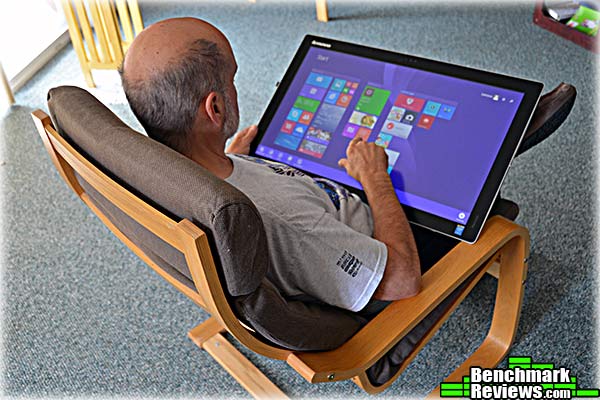
Admittedly, a 27″, 16-pound table is not the most comfortable way to use this computer, but you can. The screen brightness does drop quite a bit in battery mode. Lenovo does not quote a battery life figure but in my experience it’s good for at least an hour and a half.
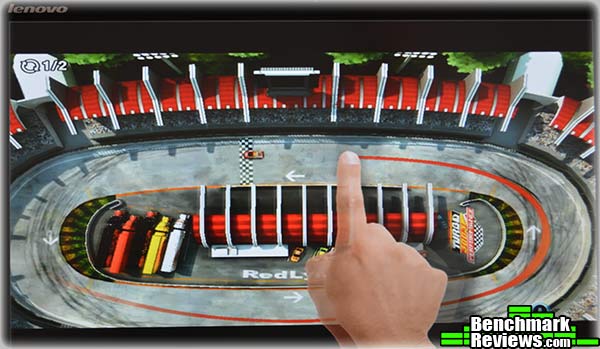 You play this touch racing game by drawing the line you want your car to take around the track. The game then races your car along this path against the computer-controlled car.
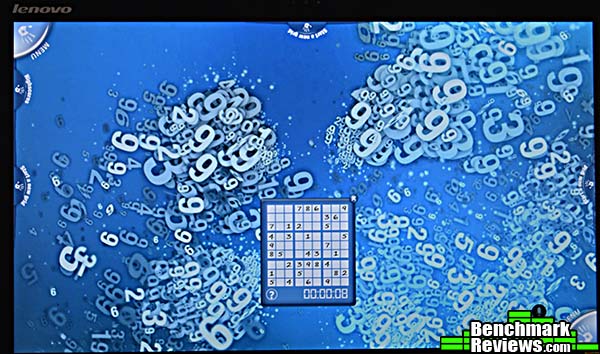 There is even a touch version of Sudoku. Honestly I’m not sure what touch brings to this game…
There are many other games included with the system: 22 total, ranging from touch-specific games like Air Hockey and Casino Touch to more prosaic games like Checkers and Chess. Educational games for small children include Crayola Color, Draw an Sing, Chubby Kings, and others.
My one problem with the games was the included controllers. There are four of these, two used as paddles that you slide across the screen, and two used as joysticks that suction-cup to the screen and then tilt. In my testing, none of them worked well at all, with the screen failing to sense the controllers at least 50% of the time. The Air Hockey game was unplayable with the paddle controllers since the screen simply ignored them too often. Fingers worked much better.
The astute reader has probably noticed a lack of the typical benchmark charts and graphs in this review. I did run a few, but frankly this is not a fast computer. For example, even with the NVIDIA GPU, its benchmarked graphics scores are poor, indicating about 1/4 of the performance I measured on a 2012-vintage GTX660 card over two years ago. For example, the Unigine Heaven 3.0 benchmark returned 39.6fps on the GTX660, a decidedly mid-range card even in 2012, while the Horizon 2, using the same settings, returned just under 8fps.
And there seems little point to running video transcoding tests and synthetic benchmarks on a dual-core mobile CPU.
Stepping back from the benchmarks, though, I can confidently say that the system is plenty fast enough for its intended use. Using the system, as opposed to running benchmarks, revealed no performance deficits: the touch screen responded (to fingers, anyway) instantly and accurately, the included games flowed smoothly, and multitasking and web browsing felt no different than they do on my day to day machine, built with high-end enthusiast components and overclocked to the hilt. The only thing I’d recommend Lenovo do is replace the pokey 5,400 RPM hard disk, at least with a hybrid drive if not a full SSD.
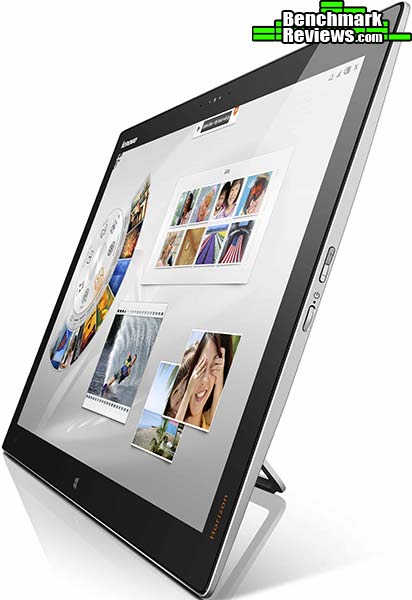
The Horizon 2 tries to expand the utility of a “family computer” with its Aura interface. Lenovo largely succeeds here: the interface is fluid and intuitive, and anyone who’s used a smartphone or tablet will instantly pick up the control gestures. That said, it is a little confusing to have three separate user interfaces– Windows 8 Modern (aka Metro), Windows 8 desktop, and Aura, each of which look different, operate differently, and run different applications. Still, you can’t fault Lenovo for the first two, and Aura’s automatic invocation when the system is laid flat means you (and your kids) will never have to remember how to invoke it.
I applaud Lenovo’s willingness to take chances with radical software and hardware designs like this. The Aura interface and its supporting software obviously represents a huge amount of work by many talented programmers and is the most appealing part of the computer. In two weeks of use it never crashed or malfunctioned in any way at all, and that’s impressive for something this new and complex.
The Horizon 2 is an expensive machine for $1,499.99 (Newegg | Amazon); you can buy a much more powerful system for less money elsewhere. Here, you’re paying for the giant touch screen, ability to run on battery power, and the Aura applications. If you’ve got kids of a certain age, that’s all the justification you’ll need.
The Horizon 2 is Lenovo’s rather bold foray into what it thinks a family computer– specifically, a family computer for people with children– should be. A striking design comprising a large touch screen that can operate independently of AC power makes this computer more versatile than most other home systems.
Although it’s built with laptop components, the Horizon 2 provides more than enough performance for its intended role, with a responsive touch screen, and enough memory, CPU, and GPU power so that the home user won’t be left wanting more. It’s not aimed at enthusiasts or gamers, but even a home user would appreciate a faster disk drive. Since Lenovo includes Seagate’s hybrid “SSHD” in their much less expensive Horizon 2e computers, it’s a mystery why the big brother system must do with a standard hard drive.
The Horizon 2 looks a little odd sitting on your desk, since it doesn’t have a traditional stand to elevate and position the screen. Still, the large aluminum screen enclosure is handsome if understated, and matches the included wireless mouse and keyboard.
The construction seems up to Lenovo’s usual high standards, although since the screen is a sealed unit, I could only judge from the external appearance. I am not a fan of laptop-style keyboards for desktop computers, although with even Apple providing these as standard equipment on much more expensive machines, I suppose it’s hard to fault Lenovo.
Functionally, this computer does everything a home user would want, with the possible exception of playing DVDs. Given the number of children’s educational and entertainment titles available, the inclusion of a DVD drive would make the system more appealing.
Value-wise, the Horizon 2 is a binary proposition: it probably makes sense if you have kids, and it probably doesn’t otherwise. If you’re in the first category, the Horizon 2 deserves a look.

+ Large, responsive 10-point touch screen
+ Can run on battery power!
+ Absolutely stuffed with entertainment and educational software
+ Unique form factor
– Surprisingly low screen resolution
– Pokey laptop hard drive drags down system performance
– Possibly confusing mix of user interfaces
– Fairly expensive even for an all-in-one
– No optical drive
-
Performance: 8.50
-
Appearance: 9.00
-
Construction: 9.50
-
Functionality: 9.25
-
Value: 8.50


